Page 246 of 294
246
4. MEMORY POINTS
COROLLA_14CY_Navi_U
■CHANGING THE NAME
1Select “Edit” next to “Name”.
2Enter a name and select “OK”.
■CHANGING THE LOCATION
1Select “Edit” next to “Location”.
2Scroll the map to the desired point
(P.205) and select “OK”.
■CHANGING PHONE NUMBER
1Select “Edit” next to “Phone #”.
2Enter the phone number and select
“OK”.
1Select “Delete” .
2Select the item to be deleted and select
“Delete”.
3Select “Yes” when the confirmation
screen appears.
1Display the “Navigation Settings”
screen. ( P.240)
2Select “Areas to Avoid” .
3Select the desired item.
DELETING ADDRESS BOOK
ENTRIES
SETTING UP AREAS TO
AVOID
Areas to be avoided because of traffic
jams, construction work or other rea-
sons can be registered as “Areas to
Avoid”.
No.FunctionPage
Select to register areas to
avoid.247
Select to edit areas to
avoid.247
Select to delete areas to
avoid.248
Page 248 of 294
248
4. MEMORY POINTS
COROLLA_14CY_Navi_U
■CHANGING THE NAME
1Select “Edit” next to “Name”.
2Enter a name and select “OK”.
■CHANGING THE LOCATION
1Select “Edit” next to “Location”.
2Scroll the map to the desired point
(P.205) and select “OK”.
■CHANGING THE AREA SIZE
1Select “Edit” next to “Size”.
2Select either or to
change the size of the area to be avoid-
ed and select “OK”.
1Select “Delete” .
2Select the area to be deleted and se-
lect “Delete” .
3Select “Yes” when the confirmation
screen appears.
1Display the “Navigation Settings”
screen. ( P.240)
2Select “Delete Previous Dest.” .
3Select the previous destination to be
deleted and select “Delete”.
4Select “Yes” when the confirmation
screen appears.
DELETING AREAS TO AVOID
DELETING PREVIOUS
DESTINATIONS
Previous destinations can be deleted.
Page 250 of 294
250
5. SETUP
COROLLA_14CY_Navi_U
1Display the “Detailed Navi. Settings”
screen.
( P.249)
2Select “Favorite POI Categories” .
3Select the category to be changed.
“Default” : Select to set the default catego-
ries.
4Select the desired POI category.
“List All Categories”: Select to display all
POI categories.
5Select the desired POI icon.
No.FunctionPage
Select to set the voice guid-
ance for the next street
name on/off.
Select to set IPD road guid-
ance on/off.
Select to set favorite POI
categories that are used for
POI selection to display on
the map screen.
250
Select to adjust the current
position mark manually or
to adjust miscalculation of
the distance caused by tire
replacement.
251
Select to set display of pop-
up information on/off.
Select to set display of low
fuel warning on/off.252
Select to reset all setup
items.
FAVORITE POI CATEGORIES
(SELECT POI ICONS)
Up to 6 POI icons, which are used for
selecting POIs on the map screen, can
be selected as favorites.
Page 251 of 294
251
5. SETUP
COROLLA_14CY_Navi_U
NAVIGATION SYSTEM
8
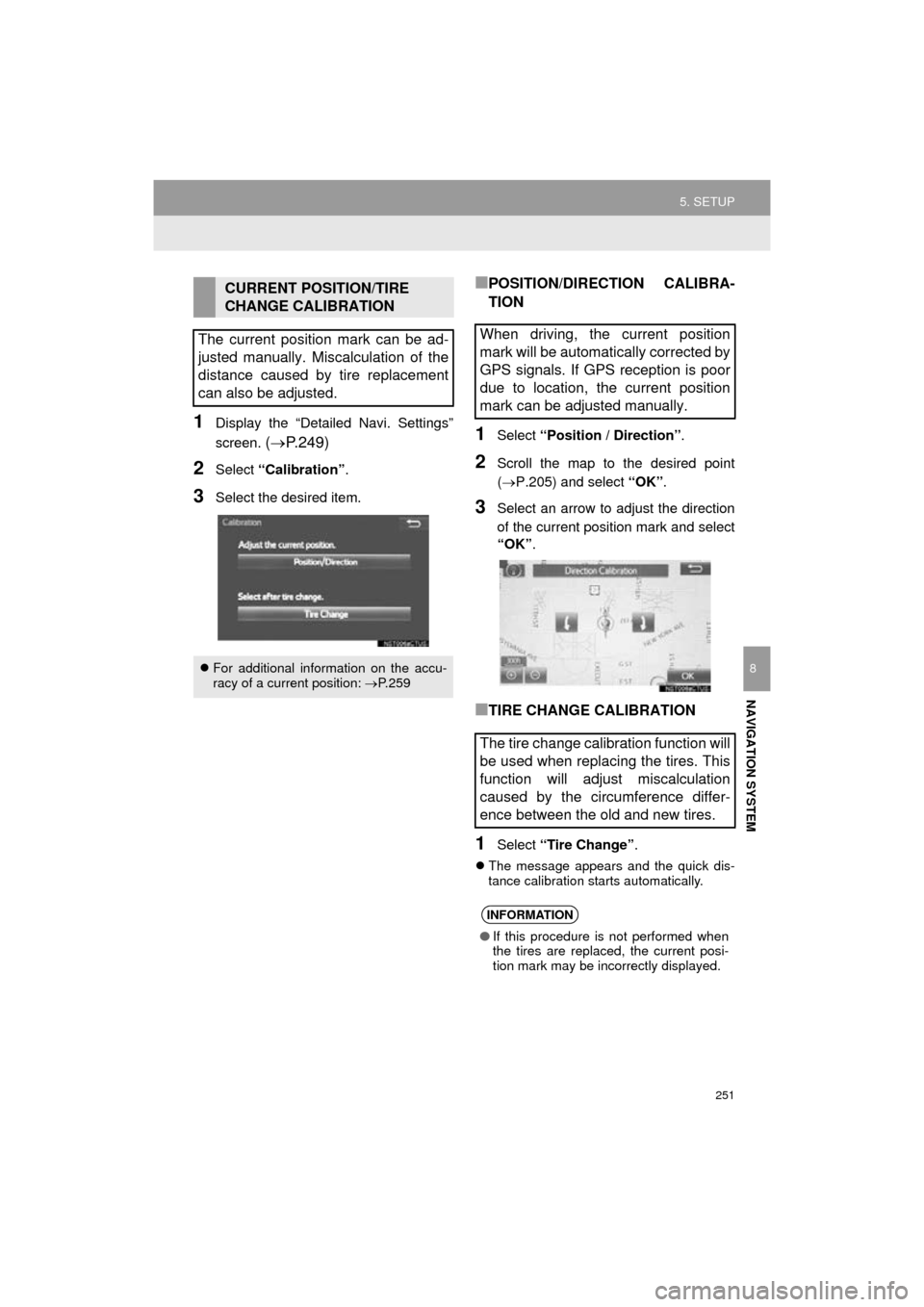
1Display the “Detailed Navi. Settings”
screen.
( P.249)
2Select “Calibration” .
3Select the desired item.
■POSITION/DIRECTION CALIBRA-
TION
1Select “Position / Direction” .
2Scroll the map to the desired point
(P.205) and select “OK”.
3Select an arrow to adjust the direction
of the current position mark and select
“OK” .
■TIRE CHANGE CALIBRATION
1Select “Tire Change” .
The message appears and the quick dis-
tance calibration starts automatically.
CURRENT POSITION/TIRE
CHANGE CALIBRATION
The current position mark can be ad-
justed manually. Miscalculation of the
distance caused by tire replacement
can also be adjusted.
For additional information on the accu-
racy of a current position: P. 2 5 9
When driving, the current position
mark will be automatically corrected by
GPS signals. If GPS reception is poor
due to location, the current position
mark can be adjusted manually.
The tire change calibration function will
be used when replacing the tires. This
function will adjust miscalculation
caused by the circumference differ-
ence between the old and new tires.
INFORMATION
● If this procedure is not performed when
the tires are replaced, the current posi-
tion mark may be incorrectly displayed.
Page 254 of 294
254
5. SETUP
COROLLA_14CY_Navi_U
1Display the “Traffic Settings” screen.
(P.253)
2Select “Avoid Traffic” .
3Select the desired item.
4Select “OK”.
■CHANGING THE ROUTE MANUAL-
LY
1Select the desired item.
AUTO AVOID TRAFFIC
No.Function
Select to automatically change
routes when congestion information
of the guidance route has been re-
ceived.
Select to select manually whether or
not to change routes when conges-
tion information of the guidance
route has been received. In this
mode, a screen will appear to ask if
you wish to reroute.
Select to not reroute when conges-
tion information for the guidance
route has been received.
When the navigation system calcu-
lates a new route, the following screen
will be displayed.
No.Function
Select to start route guidance using
the new route.
Select to confirm the new route and
current route on the map.
Select to continue the current route
guidance.
Page 256 of 294
256
5. SETUP
COROLLA_14CY_Navi_U
1Select “Edit”.
2Select the desired traffic route.
3Select “Edit” next to the item to be ed-
ited.
4Select “OK”.
The entire route map will be displayed.
1Select “Delete” .
2Select the traffic route to be deleted
and select “Delete”.
3Select “Yes” when the confirmation
screen appears.
EDITING PERSONAL ROUTES
No.FunctionPage
Select to edit the name of
personal routes
255Select to edit start location
Select to edit end location
Select to see the entire
route.
DELETING PERSONAL
ROUTES
Page 257 of 294
257
5. SETUP
COROLLA_14CY_Navi_U
NAVIGATION SYSTEM
8
1Select “Set Preferred Roads” .
2Select the desired item.
■ADDING PREFERRED ROADS
1Select “Add”.
If two preferred roads are already set,
select “Yes” and delete a preferred road
before add a new one.
2Scroll the map to the desired point and
select “OK”.
3Select “Yes” when the confirmation
screen appears.
4Select “OK” to use this road.
“Next” : Select to change road.
5Select “Add Here” for the desired lo-
cation.
If a preferred road is already set, a second
preferred road can be added anywhere
between the start point, the end point and
the existing preferred road.
SETTING PREFERRED ROADS
“My Traffic Routes” can be adjusted by
setting up to 2 preferred roads.
No.FunctionPage
Select to add preferred
roads.257
Select to modify preferred
roads.258
Select to delete preferred
roads.258
Page 258 of 294
258
5. SETUP
COROLLA_14CY_Navi_U
■MODIFYING PREFERRED ROADS
1Select “Modify” .
2Select the preferred road to be modi-
fied.
3Scroll the map to the desired point and
select “OK”.
4Select “Yes” when the confirmation
screen appears.
5Select “OK” to use this road.
“Next” : Select to change road.
■DELETING PREFERRED ROADS
1Select “Delete” .
2Select the preferred road to be deleted.
“Delete All” : Select to delete all preferred
roads on the list.
3Select “Yes” when the confirmation
screen appears.


