Page 35 of 294
35
1. BASIC INFORMATION BEFORE OPERATION
COROLLA_14CY_Navi_U
BASIC FUNCTION
2
3. TOUCH SCREEN OPERATION
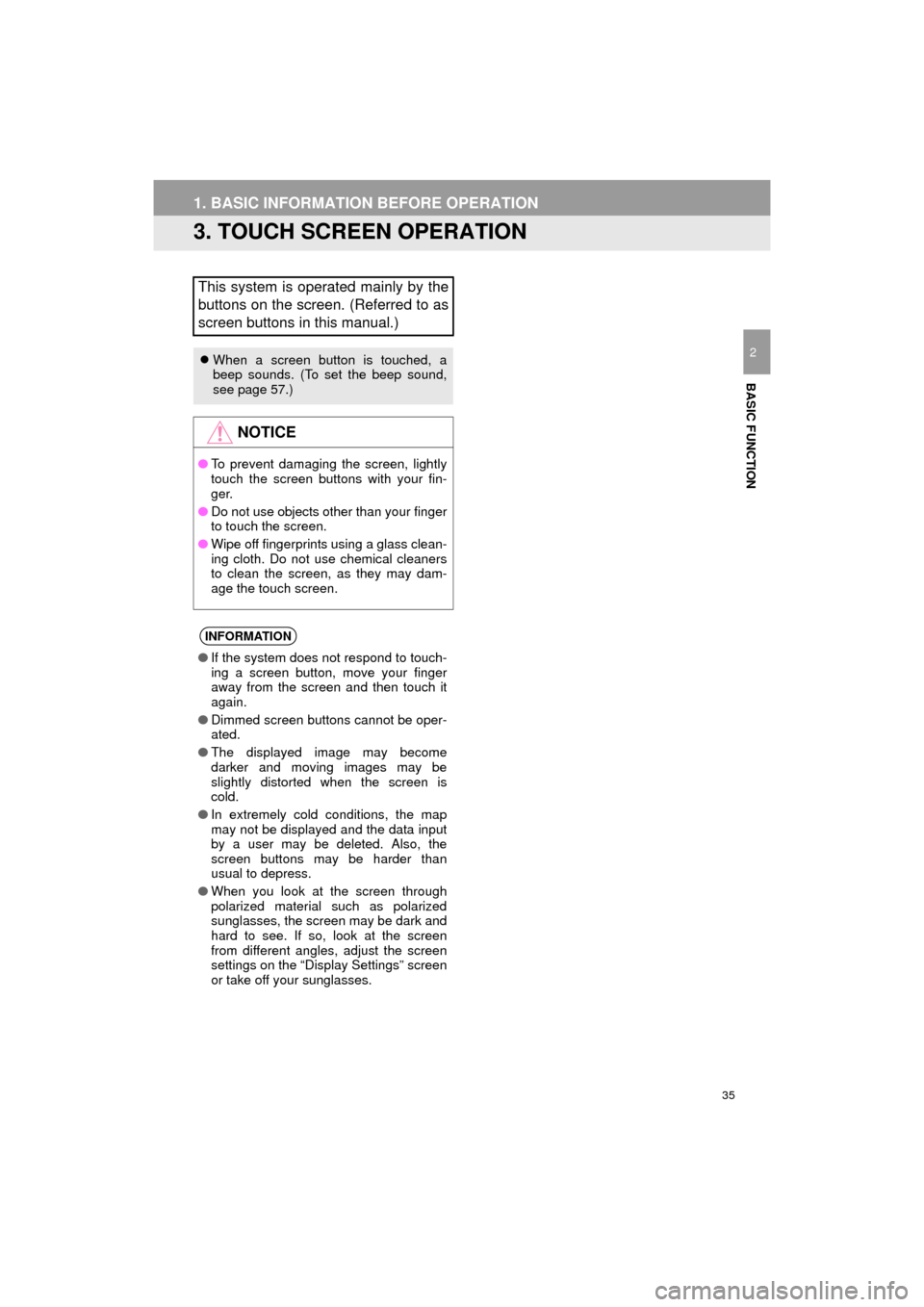
This system is operated mainly by the
buttons on the screen. (Referred to as
screen buttons in this manual.)
When a screen button is touched, a
beep sounds. (To set the beep sound,
see page 57.)
NOTICE
●To prevent damaging the screen, lightly
touch the screen buttons with your fin-
ger.
● Do not use objects other than your finger
to touch the screen.
● Wipe off fingerprints using a glass clean-
ing cloth. Do not use chemical cleaners
to clean the screen, as they may dam-
age the touch screen.
INFORMATION
●If the system does not respond to touch-
ing a screen button, move your finger
away from the screen and then touch it
again.
● Dimmed screen buttons cannot be oper-
ated.
● The displayed image may become
darker and moving images may be
slightly distorted when the screen is
cold.
● In extremely cold conditions, the map
may not be displayed and the data input
by a user may be deleted. Also, the
screen buttons may be harder than
usual to depress.
● When you look at the screen through
polarized material such as polarized
sunglasses, the screen may be dark and
hard to see. If so, look at the screen
from different angles, adjust the screen
settings on the “Display Settings” screen
or take off your sunglasses.
Page 44 of 294
44
2. Bluetooth® SETTINGS
COROLLA_14CY_Navi_U
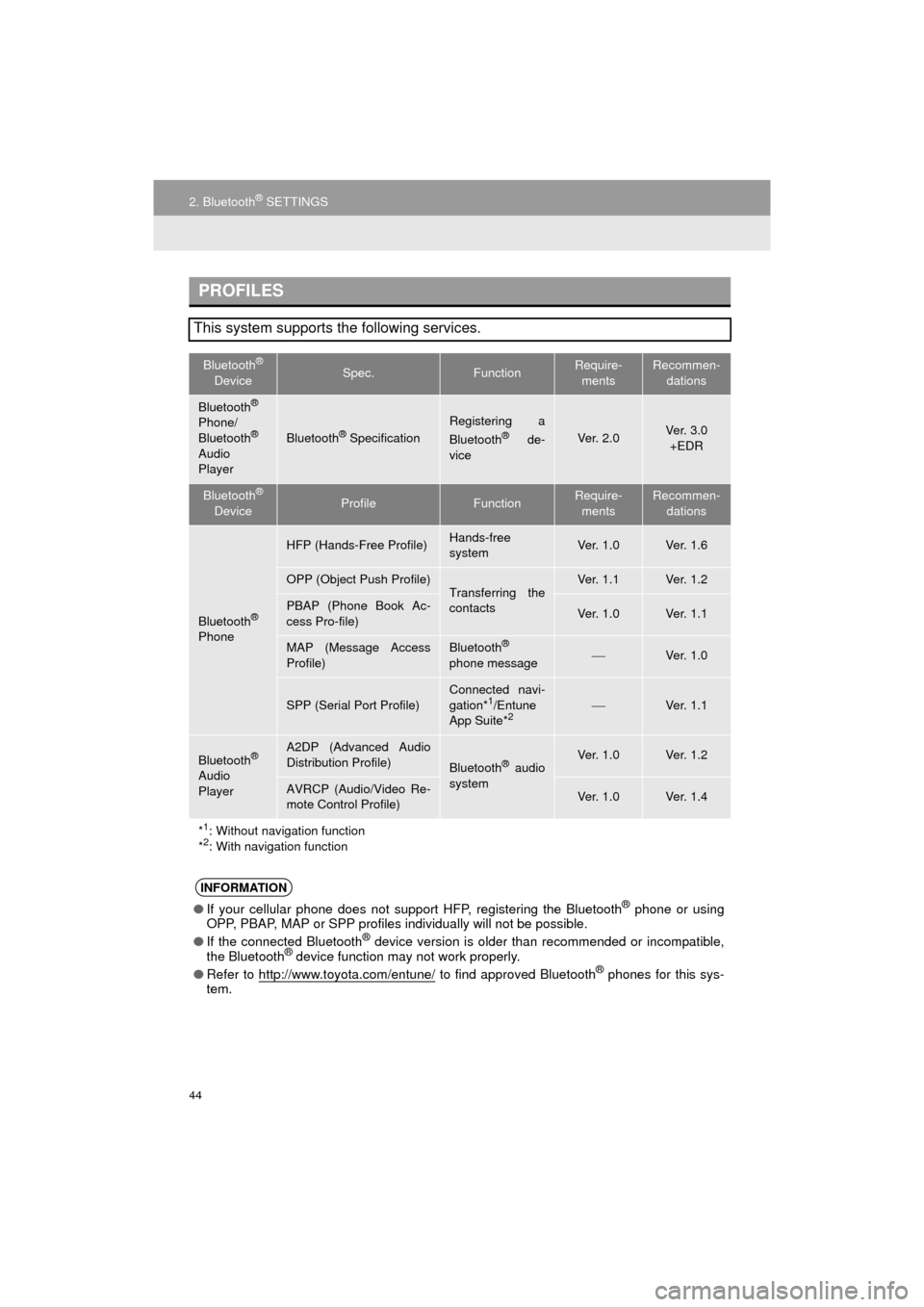
PROFILES
This system supports the following services.
Bluetooth®
DeviceSpec.FunctionRequire- mentsRecommen- dations
Bluetooth®
Phone/
Bluetooth®
Audio
Player
Bluetooth® Specification
Registering a
Bluetooth® de-
viceVe r. 2 . 0Ve r. 3 . 0 +EDR
Bluetooth®
DeviceProfileFunctionRequire- mentsRecommen- dations
Bluetooth®
Phone
HFP (Hands-Free Profile)Hands-free
systemVe r. 1 . 0Ve r. 1 . 6
OPP (Object Push Profile)Transferring the
contactsVe r. 1 . 1Ve r. 1 . 2
PBAP (Phone Book Ac-
cess Pro-file)Ve r. 1 . 0Ve r. 1 . 1
MAP (Message Access
Profile)Bluetooth®
phone messageVe r. 1 . 0
SPP (Serial Port Profile)
Connected navi-
gation*1/Entune
App Suite*2Ve r. 1 . 1
Bluetooth®
Audio
Player
A2DP (Advanced Audio
Distribution Profile)
Bluetooth® audio
systemVe r. 1 . 0Ve r. 1 . 2
AVRCP (Audio/Video Re-
mote Control Profile)Ve r. 1 . 0Ve r. 1 . 4
*
1: Without navigation function
*2: With navigation function
INFORMATION
● If your cellular phone does not support HFP, registering the Bluetooth® phone or using
OPP, PBAP, MAP or SPP profiles in dividually will not be possible.
● If the connected Bluetooth
® device version is older than recommended or incompatible,
the Bluetooth® device function may not work properly.
● Refer to http://www.toyota.com/entune/
to find approved Bluetooth® phones for this sys-
tem.
Page 61 of 294
61
3. OTHER SETTINGS
COROLLA_14CY_Navi_U
BASIC FUNCTION
2
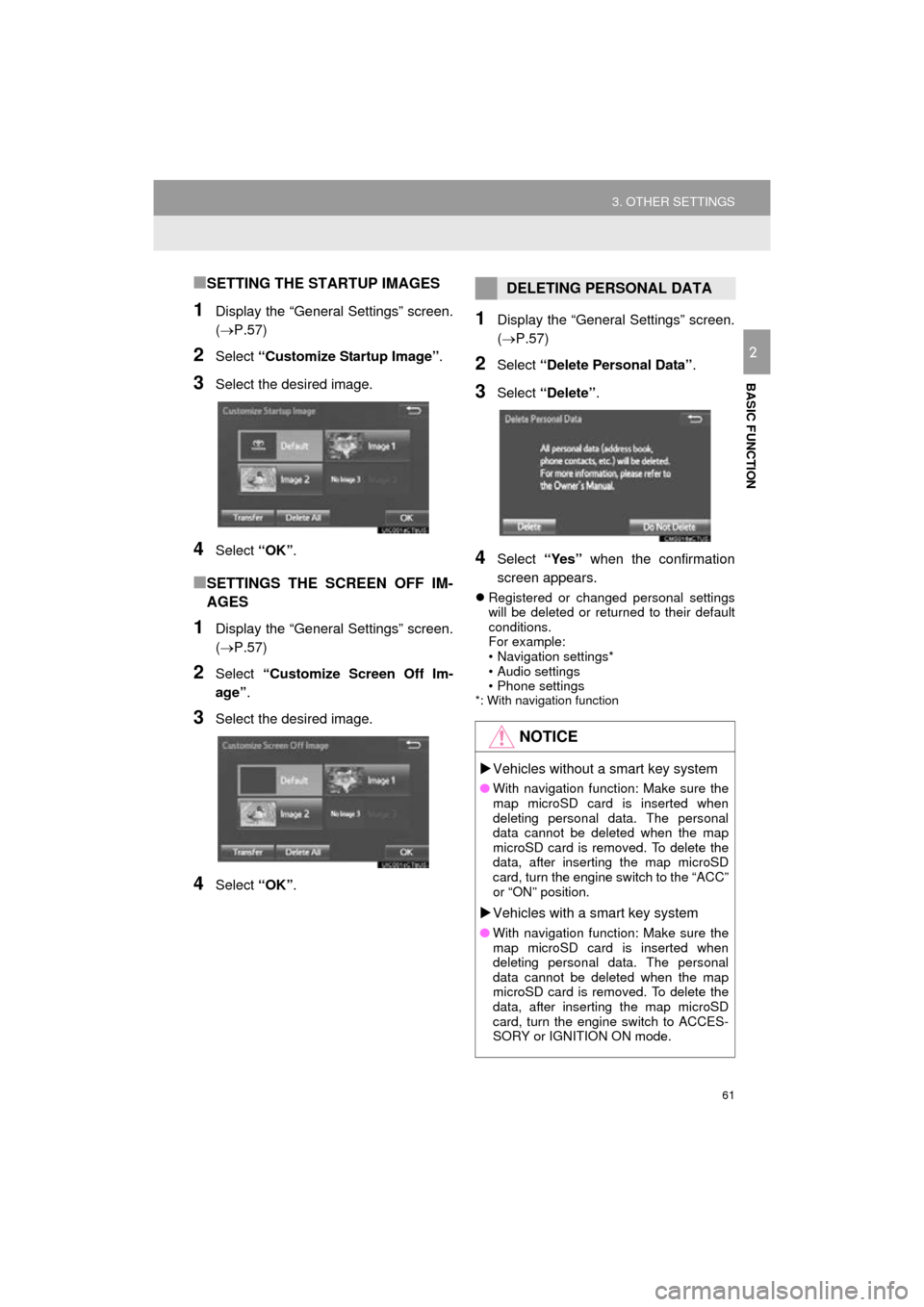
■SETTING THE STARTUP IMAGES
1Display the “General Settings” screen.
(P.57)
2Select “Customize Startup Image” .
3Select the desired image.
4Select “OK”.
■SETTINGS THE SCREEN OFF IM-
AGES
1Display the “General Settings” screen.
(P.57)
2Select “Customize Screen Off Im-
age” .
3Select the desired image.
4Select “OK”.
1Display the “General Settings” screen.
(P.57)
2Select “Delete Personal Data” .
3Select “Delete” .
4Select “Yes” when the confirmation
screen appears.
Registered or changed personal settings
will be deleted or returned to their default
conditions.
For example:
• Navigation settings*
• Audio settings
• Phone settings
*: With navigation function
DELETING PERSONAL DATA
NOTICE
Vehicles without a smart key system
● With navigation function: Make sure the
map microSD card is inserted when
deleting personal data. The personal
data cannot be deleted when the map
microSD card is removed. To delete the
data, after inserting the map microSD
card, turn the engine switch to the “ACC”
or “ON” position.
Vehicles with a smart key system
● With navigation function: Make sure the
map microSD card is inserted when
deleting personal data. The personal
data cannot be deleted when the map
microSD card is removed. To delete the
data, after inserting the map microSD
card, turn the engine switch to ACCES-
SORY or IGNITION ON mode.
Page 66 of 294
66
3. OTHER SETTINGS
COROLLA_14CY_Navi_U
3Select the items to be edited.■EDITING DEALER OR CONTACT
NAME
1Select “Edit” next to “Dealer” or “Con-
tact”.
2Enter the name and select “OK”.
■EDITING THE LOCATION
1Select “Edit” next to “Location”.
2Scroll the map to the desired point
(P.205) and select “OK”.
■EDITING PHONE NUMBER
1Select “Edit” next to “Phone #”.
2 Enter the phone number and select
“OK”.
No.FunctionPage
Select to enter the name of
a dealer.66
Select to enter the name of
a dealer member.66
Select to set the location.66
Select to enter the phone
number.66
Select to delete the dealer
information displayed on
the screen.
Select to set the displayed
dealer as a destination.225
Page 141 of 294
5
141
COROLLA_14CY_Navi_U
6
7
8
9
1
2
3
4
5
1. RECEIVING DOPPLER
WEATHER
INFORMATION ......................... 142
DISPLAYING DOPPLER
WEATHER INFORMATION .............. 142
2. RECEIVING TRAFFIC MAP INFORMATION ......................... 144
DISPLAYING TRAFFIC MAP
INFORMATION ................................. 144
3. DATA SERVICES SETTINGS ................................. 145
SETTING DOWNLOAD
METHODS ........................................ 145
1USEFUL INFORMATION
INFORMATION
Page 142 of 294
142
COROLLA_14CY_Navi_U
1. USEFUL INFORMATION
1. RECEIVING DOPPLER WEATHER INFORMATION
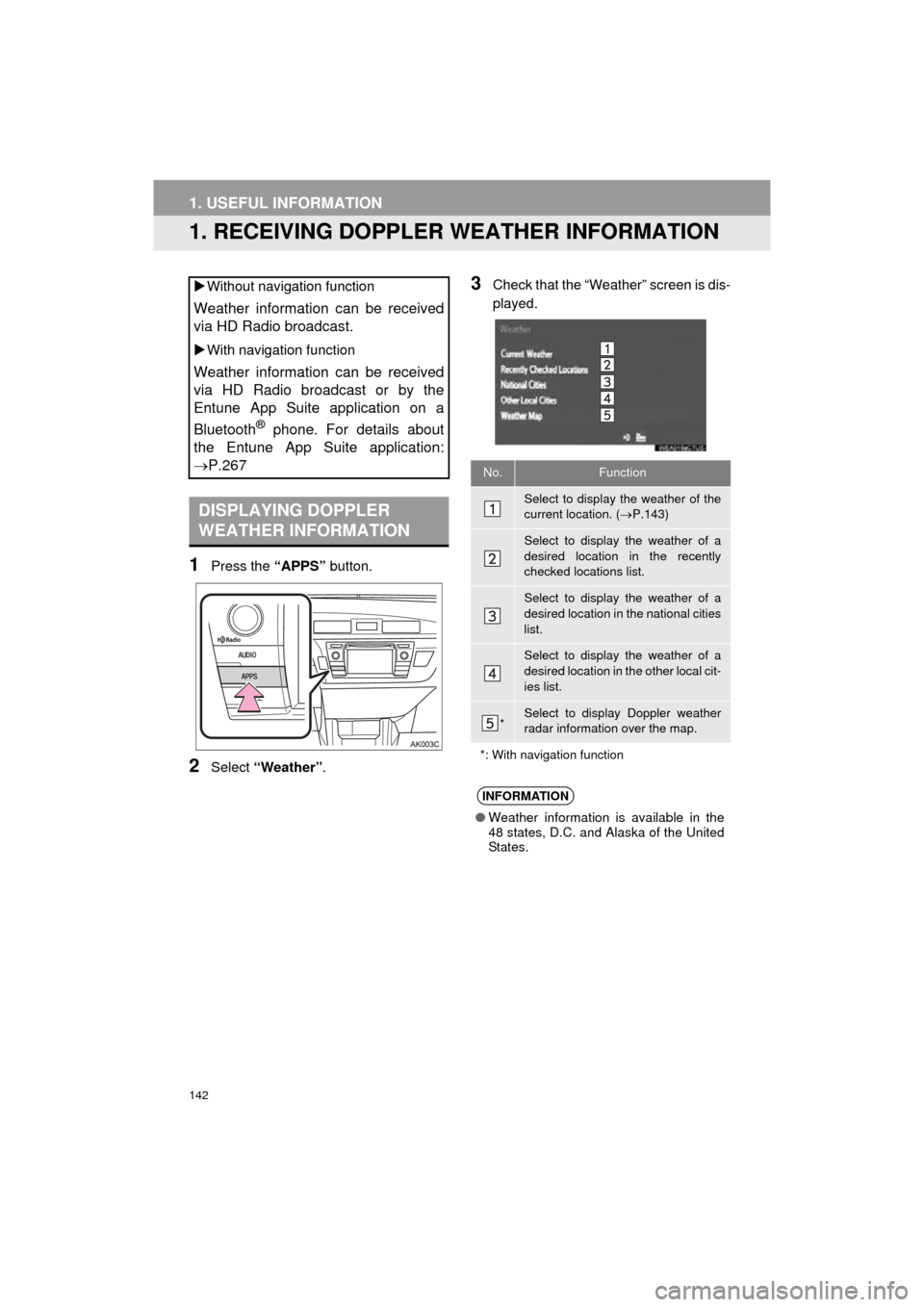
1Press the “APPS” button.
2Select “Weather” .
3Check that the “Weather” screen is dis-
played.
Without navigation function
Weather information can be received
via HD Radio broadcast.
With navigation function
Weather information can be received
via HD Radio broadcast or by the
Entune App Suite application on a
Bluetooth
® phone. For details about
the Entune App Suite application:
P.267
DISPLAYING DOPPLER
WEATHER INFORMATION
No.Function
Select to display the weather of the
current location. ( P.143)
Select to display the weather of a
desired location in the recently
checked locations list.
Select to display the weather of a
desired location in the national cities
list.
Select to display the weather of a
desired location in the other local cit-
ies list.
*Select to display Doppler weather
radar information over the map.
*: With navigation function
INFORMATION
● Weather information is available in the
48 states, D.C. and Alaska of the United
States.
Page 144 of 294
144
1. USEFUL INFORMATION
COROLLA_14CY_Navi_U
2. RECEIVING TRAFFIC MAP INFORMATION*
1Press the “APPS” button.
2Select “Traffic” .
3Check that the “Traffic Map” screen is
displayed.Traffic map information can be re-
ceived via HD Radio broadcast.
DISPLAYING TRAFFIC MAP
INFORMATION
*: Without navigation function
No.Function
Current position of your car
Traffic information line
The line color means the following:
Red: Heavy congestion
Yellow: Moderate traffic
Green: Freely flowing traffic
INFORMATION
●Traffic map information is available in
the 48 states, D.C. and Alaska of the
United States.
Page 196 of 294
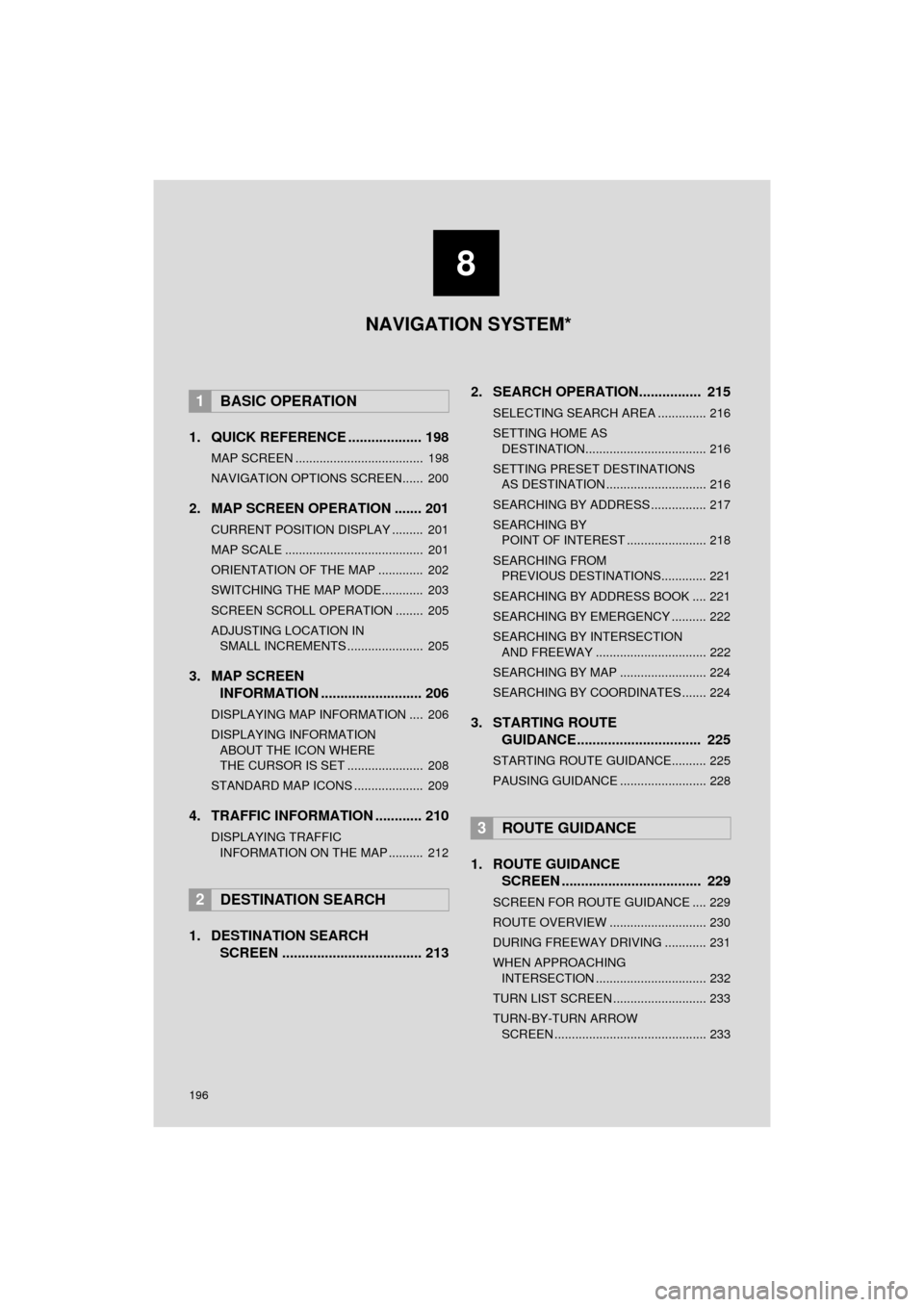
196
COROLLA_14CY_Navi_U
1. QUICK REFERENCE ................... 198
MAP SCREEN ..................................... 198
NAVIGATION OPTIONS SCREEN...... 200
2. MAP SCREEN OPERATION ....... 201
CURRENT POSITION DISPLAY ......... 201
MAP SCALE ........................................ 201
ORIENTATION OF THE MAP ............. 202
SWITCHING THE MAP MODE............ 203
SCREEN SCROLL OPERATION ........ 205
ADJUSTING LOCATION IN SMALL INCREMENTS ...................... 205
3. MAP SCREEN INFORMATION .......................... 206
DISPLAYING MAP INFORMATION .... 206
DISPLAYING INFORMATION
ABOUT THE ICON WHERE
THE CURSOR IS SET ...................... 208
STANDARD MAP ICONS .................... 209
4. TRAFFIC INFORMATION ............ 210
DISPLAYING TRAFFIC INFORMATION ON THE MAP .......... 212
1. DESTINATION SEARCH SCREEN .................................... 213 2. SEARCH OPERATION..
.............. 215
SELECTING SEARCH AREA .............. 216
SETTING HOME AS
DESTINATION................................... 216
SETTING PRESET DESTINATIONS AS DESTINATION ............................. 216
SEARCHING BY ADDRESS ................ 217
SEARCHING BY POINT OF INTEREST ....................... 218
SEARCHING FROM PREVIOUS DESTINATIONS............. 221
SEARCHING BY ADDRESS BOOK .... 221
SEARCHING BY EMERGENCY .......... 222
SEARCHING BY INTERSECTION AND FREEWAY ................................ 222
SEARCHING BY MAP ......................... 224
SEARCHING BY COORDINATES ....... 224
3. STARTING ROUTE GUIDANCE....... ......................... 225
STARTING ROUTE GUIDANCE.......... 225
PAUSING GUIDANCE ......................... 228
1. ROUTE GUIDANCE
SCREEN .................................... 229
SCREEN FOR ROUTE GUIDANCE .... 229
ROUTE OVERVIEW ............................ 230
DURING FREEWAY DRIVING ............ 231
WHEN APPROACHING
INTERSECTION ................................ 232
TURN LIST SCREEN ........................... 233
TURN-BY-TURN ARROW SCREEN ............................................ 233
1BASIC OPERATION
2DESTINATION SEARCH
3ROUTE GUIDANCE
8
NAVIGATION SYSTEM*


