2016 TOYOTA CAMRY change time
[x] Cancel search: change timePage 163 of 568

1634-2. Driving procedures
4
Driving
CAMRY_U (OM33D37U)
■S mode
●When the shift range is 4 or lower, holding the shift lever toward “+” sets the
shift range to 6.
● To prevent the engine from over-revving, upshifting may automatically
occur.
● To protect the automatic transmission, a function is adopted that automati-
cally selects a higher shift range when the fluid temperature is high.
■ Downshift restriction warning buzzer (S mode or paddle shifting)
To help ensure safety and driving performance, downshifting operation may
sometimes be restricted. In some circumstances, downshifting may not be
possible even when the shift lever or paddle shift switches are operated. (A
buzzer will sound twice.)
■ When driving with cruise control or dynamic radar cruise control acti-
vated
When downshifting to 5 or 4 by shifting the shift lever to the S position or pad-
dle shifting (if equipped), cruise control or dynamic radar cruise control will
not be canceled. ( P. 181, 186)
■ If the shift lever cannot be shifted from P
P. 484
■ If the S indicator does not come on or the D indicator is displayed even
after shifting the shift lever to S
This may indicate a malfunction in the automatic transmission system. Have
the vehicle inspected by your Toyota dealer immediately.
(In this situation, the transmission will operate in the same manner as when
the shift lever is in D.)
■ AI-SHIFT
AI-SHIFT automatically selects the suitable gear according to driver input and
the driving situation.
AI-SHIFT automatically operates when the shift lever is in the D position.
(Shifting the shift lever to the S position or paddle shifting cancels the func-
tion.)
WARNING
■ When driving on slippery road surfaces
Do not accelerate or shift gears suddenly.
Sudden changes in engine braking may cause the vehicle to spin or skid,
resulting in an accident.
Page 164 of 568

1644-2. Driving procedures
CAMRY_U (OM33D37U)
Right turn
Lane change to the right (move
the lever partway and release
it)
The right hand signals will flash 3
times.
Lane change to the left (move
the lever partway and release
it)
The left hand signals will flash 3
times.
Left turn
■Turn signals can be operated when
Vehicles without a smart key system:
The engine switch is in the “ON” position.
Vehicles with a smart key system:
The engine switch is in IGNITION ON mode.
■ If the indicator flashes faster than usual
Check that a light bulb in the front or rear turn signal lights has not burned
out.
■ If the turn signals stop flashing before a lane change has been per-
formed
Operate the lever again.
■ To discontinue flashing of the turn signals during a lane change
Operate the lever in the opposite direction.
■ Customization
The number of times the turn signals flash during a lane change can be
changed. (Customizable features P. 529)
Turn signal lever
Operating instructions
1
2
3
4
Page 183 of 568
1834-5. Using the driving support systems
4
Driving
CAMRY_U (OM33D37U)
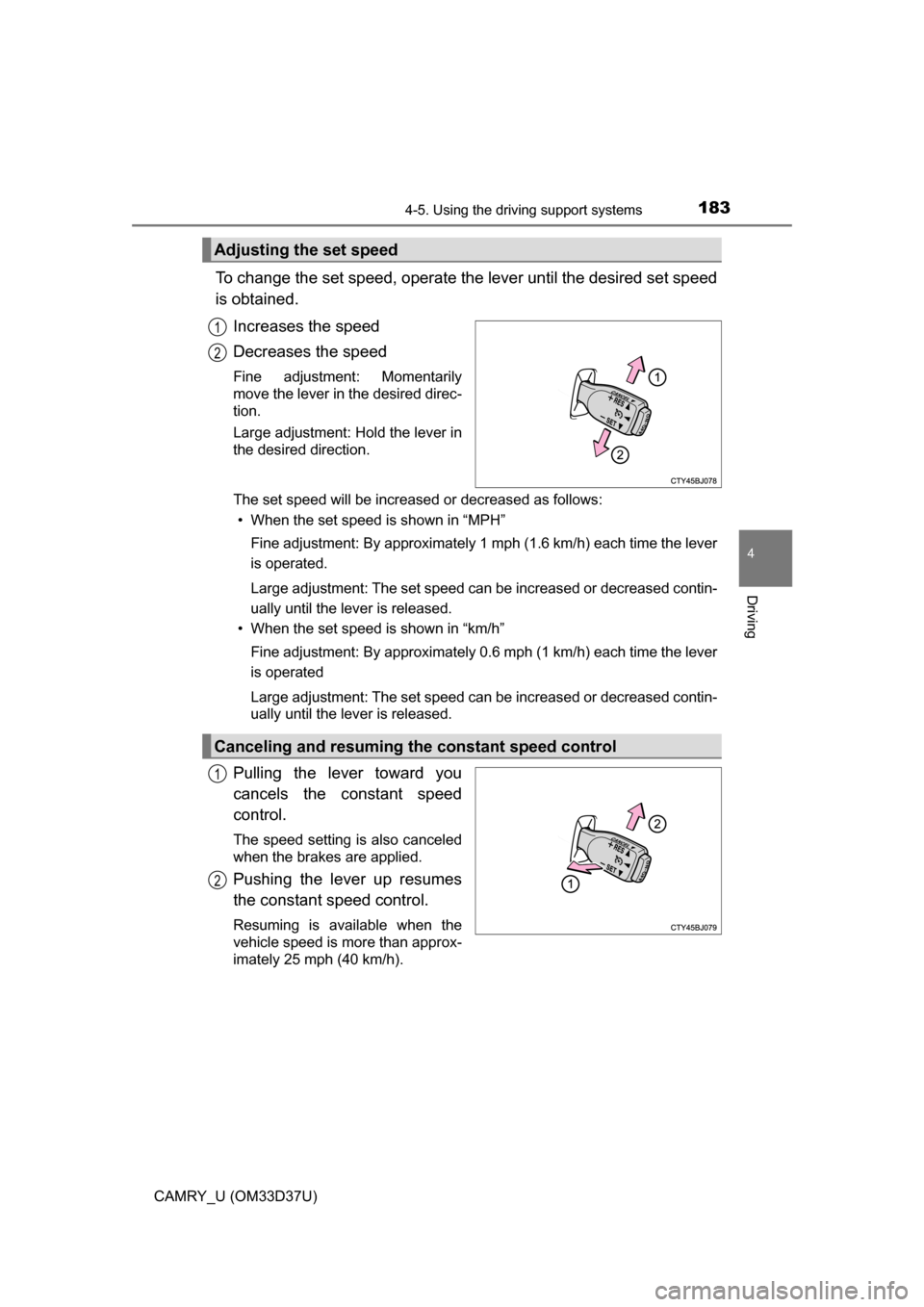
To change the set speed, operate the lever until the desired set speed
is obtained.Increases the speed
Decreases the speed
Fine adjustment: Momentarily
move the lever in the desired direc-
tion.
Large adjustment: Hold the lever in
the desired direction.
The set speed will be increased or decreased as follows:• When the set speed is shown in “MPH”
Fine adjustment: By approximately 1 mph (1.6 km/h) each time the lever
is operated.
Large adjustment: The set speed can be increased or decreased contin-
ually until the lever is released.
• When the set speed is shown in “km/h”
Fine adjustment: By approximately 0.6 mph (1 km/h) each time the lever
is operated
Large adjustment: The set speed can be increased or decreased contin-
ually until the lever is released.
Pulling the lever toward you
cancels the c onstant speed
control.
The speed setting is also canceled
when the brakes are applied.
Pushing the lever up resumes
the constant speed control.
Resuming is available when the
vehicle speed is more than approx-
imately 25 mph (40 km/h).
Adjusting the set speed
1
2
Canceling and resuming the constant speed control
1
2
Page 188 of 568
1884-5. Using the driving support systems
CAMRY_U (OM33D37U)
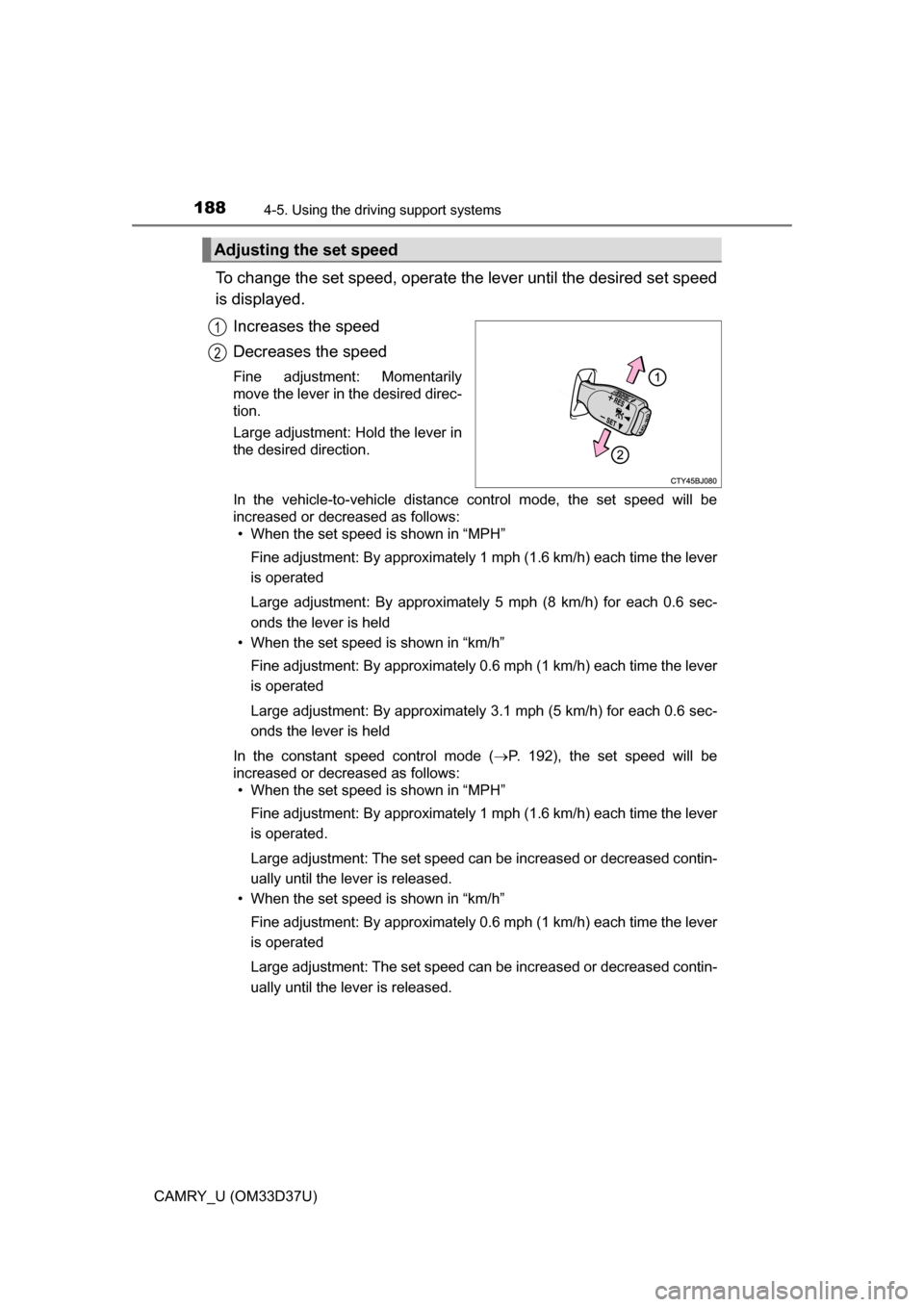
To change the set speed, operate the lever until the desired set speed
is displayed.
Increases the speed
Decreases the speed
Fine adjustment: Momentarily
move the lever in the desired direc-
tion.
Large adjustment: Hold the lever in
the desired direction.
In the vehicle-to-vehicle distance control mode, the set speed will be
increased or decreased as follows:• When the set speed is shown in “MPH”
Fine adjustment: By approximately 1 mph (1.6 km/h) each time the lever
is operated
Large adjustment: By approximately 5 mph (8 km/h) for each 0.6 sec-
onds the lever is held
• When the set speed is shown in “km/h”
Fine adjustment: By approximately 0.6 mph (1 km/h) each time the lever
is operated
Large adjustment: By approximately 3.1 mph (5 km/h) for each 0.6 sec-
onds the lever is held
In the constant speed control mode ( P. 192), the set speed will be
increased or decreased as follows: • When the set speed is shown in “MPH”
Fine adjustment: By approximately 1 mph (1.6 km/h) each time the lever
is operated.
Large adjustment: The set speed can be increased or decreased contin-
ually until the lever is released.
• When the set speed is shown in “km/h”
Fine adjustment: By approximately 0.6 mph (1 km/h) each time the lever
is operated
Large adjustment: The set speed can be increased or decreased contin-
ually until the lever is released.
Adjusting the set speed
1
2
Page 202 of 568

2024-5. Using the driving support systems
CAMRY_U (OM33D37U)■
Conditions in which the function may not operate correctly
In the following situations, the camera sensor may be unable to recognize
lane markers causing the lane departure warning function to operate incor-
rectly. However, this does not indicate a malfunction.
●When driving through an area with no lane markers, such as a tollbooth, a
crossing or before a ticket checkpoint
● When driving on a sharp curve
● When lane markers are extremely narrow or extremely wide
● When the vehicle leans to one side an unusual amount due to a heavy load
or improper tire inflation pressure
● When the following distance between your vehicle and the vehicle ahead is
extremely short
● When the lane markers are yellow (These may be more difficult for the sys-
tem to recognize compared to white markers.)
● When the lane markers are broken, Botts’ dots (raised pavement markers)
or stones
● When the lane markers are on a curb etc.
● When lane markers are obscured or partially obscured by sand, dirt, etc.
● When there are shadows on the road running parallel with lane markers, or
if a shadow covers the lane markers
● When driving on a particularly bright road surface, such as concrete
● When driving on a road surface that is bright due to reflected light
● When driving in a location where the light level changes rapidly, such as the
entrance to or exit from a tunnel
● When sunlight or the headlights of oncoming vehicles are shining directly
into the camera lens
● When driving on roads that are branching or merging
● When driving on a road surface that is wet due to rain, previous rainfall,
standing water, etc.
● When the vehicle experiences strong up-and-down motion such as when
driving on an extremely rough road or on a seam in the pavement
● When headlight brightness at nighttime is reduced due to dirt on the lenses,
or when the headlights are misaligned
● When driving on winding roads or roads that are uneven
● When driving on rough or unpaved roads
■ When changing the tires
Depending on the tires used, sufficient performance may not be maintainable.
■ Warning messages for the LDA system
Warning messages are used to indicate a system malfunction or to inform t\
he
driver of the need for caution while driving. ( P. 457)
Page 204 of 568

2044-5. Using the driving support systems
CAMRY_U (OM33D37U)
NOTICE
■To prevent damage to or incorr ect operation of the LDA system
● Do not modify the headlights or attach stickers to the surface of the lights.
● Do not modify the suspension. If any suspension parts need to be
replaced, contact Toyota dealer.
● Do not install or place anything on the hood or the grille. Also, do not install
a grille guard (bull bars, kangaroo bar etc.).
● If your windshield needs repairs, contact your Toyota dealer.
■ Camera sensor
Observe the following to ensure that the LDA system functions correctly.
● Keep the windshield clean at all times.
Performance could be affected if the windshield is dirty, or if raindrops,
condensation or ice are adhering to the windshield.
● Do not spill liquid onto the camera sensor
● Do not attach window tinting to the windshield.
● Do not install an antenna in front of the camera lens.
● If the windshield is fogged up, use the windshield defogger to remove fog
from the windshield.
When it is cold, using the heater with air blowing to the feet may allow the
upper part of the windshield to fog up. This will have a negative effect on
the images.
● Do not scratch the camera lens, or let it get dirty.
When cleaning the inside of the windshield, be careful not to get any glass
cleaner etc. on the lens. Also, do not touch the lens.
For lens repair, contact your Toyota dealer.
● Do not change the installation position or direction of the camera sensor or
remove it. The direction of the camera sensor is precisely adjusted.
● Do not subject the camera sensor to strong impact or force, and do not
disassemble the camera sensor.
● If the windshield needs to be replaced, contact your Toyota dealer.
●Do not attach a sticker or other items to
the windshield near the camera sensor.
Page 220 of 568

2204-5. Using the driving support systems
CAMRY_U (OM33D37U)■
Changing the alert timing of the pre-collision system
Each time the PCS switch is
pressed, the response to the
distance changes as follows.
Far
Middle
*
Near
*: Default setting
■
Turning off the pre-collision system
Press the PCS switch for 3 or
more seconds.
The PCS warning light turns on
and a message is shown on the
multi-information display.
To turn on the system, press the
PCS switch again. The system
is set to on each time the engine
switch is turned to IGNITION
ON mode.
The radar sensor detects vehi-
cles or other obstacles on or near
the road ahead and determines
whether a collision is imminent
based on the position, speed, and
heading of the obstacles.
Changing the pre-collision system
1
2
3
Radar sensor
Page 243 of 568
2435-1. Basic Operations
5
Audio system
CAMRY_U (OM33D37U)
By touching the screen with your finger, you can control the multime-
dia system, etc.
■Drag*
Touch the screen with your finger, and move the screen to the
desired position.
● Scrolling the lists
■Flick*
Touch the screen with your finger and quickly move the screen by
flicking your finger.
●Scrolling the main screen page
*: The above operations may not be performed on all screens.
■When using the touch screen
●If the screen is cold, the display may be dark, or the system may seem to be
operating slightly slower than normal.
● The screen may seem dark and hard to see when viewed through sun-
glasses. Change your angle of viewing, adjust the display on the “Display
Settings” screen ( P. 253) or remove your sunglasses.
● Flick operations may not be performed smoothly in high altitudes.
Operating the touch screen
NOTICE
■To avoid damaging the touch screen
● To prevent damaging the screen, lightly touch the screen buttons with your
finger.
● Do not use objects other than your finger to touch the screen.
● Wipe off fingerprints using a glass cleaning cloth. Do not use chemical
cleaners to clean the screen, as they may damage the touch screen.