Page 218 of 594
If the setting is not available, the following
notification will be displayed. In this case,
perform the setting procedure again.
! Keyless access setting (models
with “ keyless access with push-
button start system ” )
! Preparation for keyless access
settings
1. Perform the preparation steps accord-
ing to “ Preparation for car settings ” F 3-83. 2. Operate the “ ” or “ ” switch to
select the “ Keyless Access Setting ” item.
Then push the
button.
! Driver ’ s door unlock setting
1. Perform the preparation steps accord-
ing to “ Preparation for keyless access
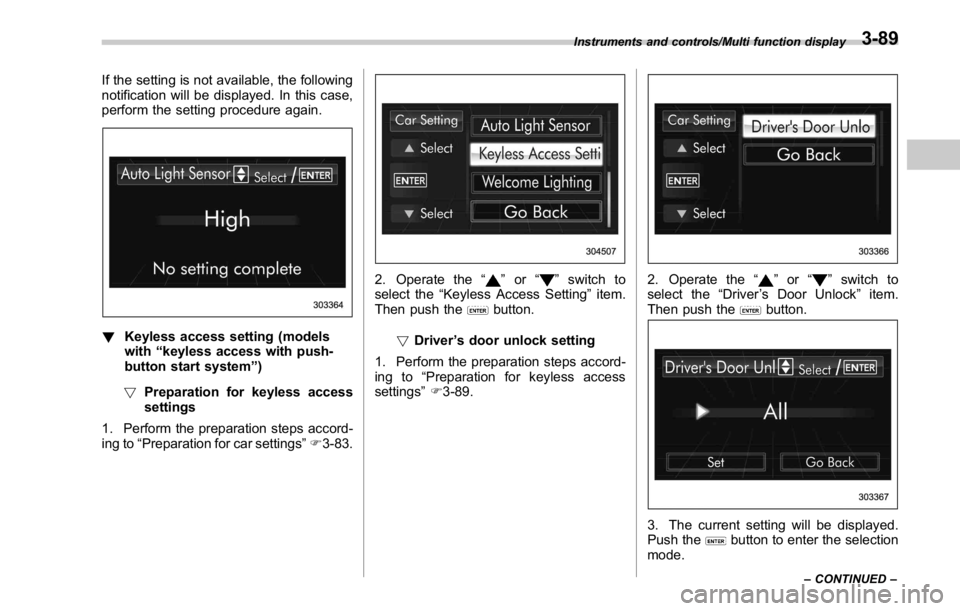
settings ” F 3-89. 2. Operate the “ ” or “ ” switch to
select the “ Driver ’ s Door Unlock ” item.
Then push the
button.
3. The current setting will be displayed.
Push the
button to enter the selection
mode.Instruments and controls/Multi function display
– CONTINUED –3-89
Page 223 of 594

Instruments and controls/Light control switch
5. Reconfirmation will be displayed. If
you are sure you want to proceed, select
“ Ye s ” by operating the “
” switch.
6. Confirm the setting again by pushing
the
button. 7. The system will notify you that the
setting is complete. Light control switch CAUTION. Use of any lights for a long period
of time while the engine is not
running can cause the battery to
discharge.
. Before leaving the vehicle, make
sure that the lights are turned off.
If the vehicle is left unattended
for a long time with the lights
illuminated, the battery may be
discharged.
Models with “ keyless access with
push-button start system ” :
The light control switch operates when the
push-button ignition switch is in the “ ACC ”
or “ ON ” position.
Regardless of the position of the light
control switch, the illuminated lights are
turned off when the push-button ignition
switch is turned off.
Models without “ keyless access with
push-button start system ” :
The light control switch operates when the
key is inserted in the ignition switch.
Regardless of the position of the light
control switch, the illuminated lights are3-94
Page 224 of 594

turned off when the key is removed from
the ignition switch.
NOTE The light control switch can be oper-
ated (except auto on/off headlights),
even under the following conditions.
. when the key is not inserted into the
ignition switch (models without “ key-
less access with push-button start
system ” )
. when the push-button ignition
switch is turned off (models with “ key-
less access with push-button start
system ” )
If the driver ’ s door is opened while the
headlights are illuminated under such
conditions, the chirp sound will inform
the driver that the lights are illumi-
nated. & Headlights
To turn on the headlights, turn the knob on
the end of the turn signal lever.
“ ” position
Headlights, parking lights, front side mar-
ker lights, rear side marker lights, tail lights
and license plate lights are on.
“
” position
Parking lights, front side marker lights,
rear side marker lights, tail lights and
license plate lights are on. “
” position: auto on/off headlights (if
equipped)
When the ignition switch is in the “ ON ”
position, headlights, parking lights, front
side marker lights, rear side marker lights,
tail lights and license plate lights are
automatically on or off depending on the
level of the ambient light.
“
” position
The headlights are all off.
NOTE The sensitivity of the auto on/off head-
lights can be changed by a SUBARU
dealer. Consult your SUBARU dealer
for details. Also, for models with a multi
function display, the setting can be
changed using the display. For details,
refer to “ Auto light sensor sensitivity
setting ” F 3-88.Instruments and controls/Light control switch
– CONTINUED –3-95
Page 263 of 594

Audio/Basic information before use
it again.
. Grayed-out screen buttons cannot
be operated.
. The displayed image may become
darkerandmovingimagesmaybe
slightly distorted when the screen is
cold.
. In extremely cold conditions, the
map may not be displayed and the data
input by a user may be deleted. Also,
the screen buttons may be harder than
usual to press.
. When you look at the screen
through polarized material such as
polarized sunglasses, the screen may
be dark and hard to see. If so, look at
the screen from different angles, adjust
the screen settings on the “ Display
Settings (Display Settings) ” screen or
take off your sunglasses.
& Entering letters and num-
bers/list screen operation! Entering letters and numbers
When entering the Bluetooth device name
or PIN-code, or the phone number, letters
and numbers can be entered via the
screen. In-Car-Device setting
No. Function
& 1
Enter the desired characters (alpha-
bet key mode).
& 2
Display the number keys (change to
number key mode).
& 3
Enter a space.
& 4
Set the characters/numbers entered
into the window.
& 5
Delete a character/number entered
into the window. Dialpad
No. Function
& 1
Enter the desired numbers.
& 2
Delete a number entered into the
window.5-8
Page 283 of 594

Audio/Useful information
Useful information & SiriusXM Data Service*Data service information, which is com-
prised of traffic information and weather
information, can be received via the
SiriusXM Radio.
To receive the data service information in
the vehicle, a subscription to the SiriusXM
Satellite Radio service is necessary. Refer
to “ SiriusXM Satellite Radio ” F 5-45.
Content set to use the SiriusXM data
service is reset when personal information
is initialized. No. Function
& 1
Option key: Perform the SXM
setting. See below.
& 2
Scan key: Search for a channel
which the direction of higher fre-
quency from current frequency. Re-
produce the channel that can re-
ceive by five seconds.
& 3List key: A list is displayed. There
are three types of lists ( “ Presets ” ,
“ Categories ” ,or “ All Channels ” ) are
available.
“ Presets ” : Preset channels are dis-
played in a list.
“ Categories ” : The channels of the
selected category are displayed in a
list.
“ All Channels ” : All selectable chan-
nels are displayed in a list.
& 4
Info key: Display the contents in-
formation of a channel receiving. No. Function
& 5
Presets tab: Presets list (30 chan-
nels max.) is displayed.
& 6
Categories tab: Categories list is
displayed.
& 7
All Channels tab: All channels list is
displayed.
& 8
Direct Tune tab: Change to the
Direct Tune display. See below.
& 9
Return to the previous display.
& 10
Return to the playback display.
! SXM setting option
1. A option menu screen is displayed
when touch the Option key.5-28
Page 285 of 594
Audio/Useful information
! Direct Tune
1. A channel input screen is displayed
when touch the Direct Tune tab.
2. Input any number and press OK,
receive the channel which input. & STARLINK The STARLINK function allows the system
to link with a smartphone using Bluetooth.
! Displaying STARLINK information
1. Press APPS key on the home screen,
or press APPS button, the APPS screen is
displayed.
2. If you press “ STARLINK ” on the APPS
screen, the STARLINK disclaimer screen
or the error screen is displayed. No. Function
& 1
Check: Go to APPS screen.
& 2
Cancel: STARLINK disclaimer
screen is disappeared and return to
the previous screen.5-30
Page 289 of 594

Audio/Radio operation
No. Function
& 1
Select to display the audio source
selection screen.
& 2
Select to change the FM band.
& 3
HD Radio indicator.
The indicator on the top right of the
screen changes according to the
reception condition of HD Radio.
& 4
Select to display a station list.
& 5
Select to scan radio channels.
This function enables searching for
receivable stations automatically,
and tunes in to a frequency for 5
seconds if a station is found. When
the 5-second period has elapsed, the
system searches for the next recei-
vable station again, and tunes in to
the frequency for 5 seconds.
& 6
Option key. Select to open the
Option screen.
& 7 If you press a key for less than 1.5
seconds, the system tunes to the
stored frequency.
If you press a key for more than 1.5
seconds, the system stores the
frequency to the selected preset
channel. Refer to “ Presetting a sta-
tion ” F 5-37.
& 8
Select to display the sound setting
screen. Refer to “ Basic operation ”
F 5-12.
& 9
Turn to adjust volume.
Press to turn the audio system on/
off. No. Function
& 10
Turn to step up/down frequencies.
Press to select an audio mode.
& 11
Select to seek for a station/channel.
Select and hold for continuous seek.
NOTE . The radio automatically changes to
stereo reception when a stereo broad-
cast is received.
. The radio automatically blends to an
HD Radio signal in AM or FM where
available.
. Digital, CD-quality sound. HD Radio
Technology enables local radio stations to
broadcast a clean digital signal. AM
sounds like today ’ s FM and FM sounds
like a CD.5-34
Page 292 of 594

! Presetting a station
The AM band can store up to 12 stations
(AM1 and AM2, 6 stations each).
The FM band can store up to 18 stations
(FM1, FM2 and FM3, 6 stations each).
. AM2andFM3canstoreupto6
stations when performing the auto store
function.
The SAT band can store up to 30 stations.
Refer to “ Presetting a channel ” F 5-48.
1. Tune in the desired station.
2. If you press a key for more than 1.5
seconds, the system stores the frequency
to the selected preset channel.
. To change the preset station to a
different one, select and hold the
preset station. ! Selecting a station from the list
A station list can be displayed.
1. Select
.
2. Select the desired station and then
select
Back (Back) or
Close (Close).
! Update the station list
1. Select
Update Station List (Update
Station List) on the station list screen and
the following screen will be displayed. .
Cancel (Cancel): Select to cancel
the manual update.
.
OK (OK): Select to execute the
manual update.
NOTE . The audio system sound is muted
during refresh operation.
. In some situations, it may take some
time to update the station list.
! Bookmark the list
1. Select
Bookmark (Bookmark) on the
station list screen and the following screen
will be displayed. Audio/Radio operation
– CONTINUED –5-37