2016 SUBARU WRX key
[x] Cancel search: keyPage 352 of 594
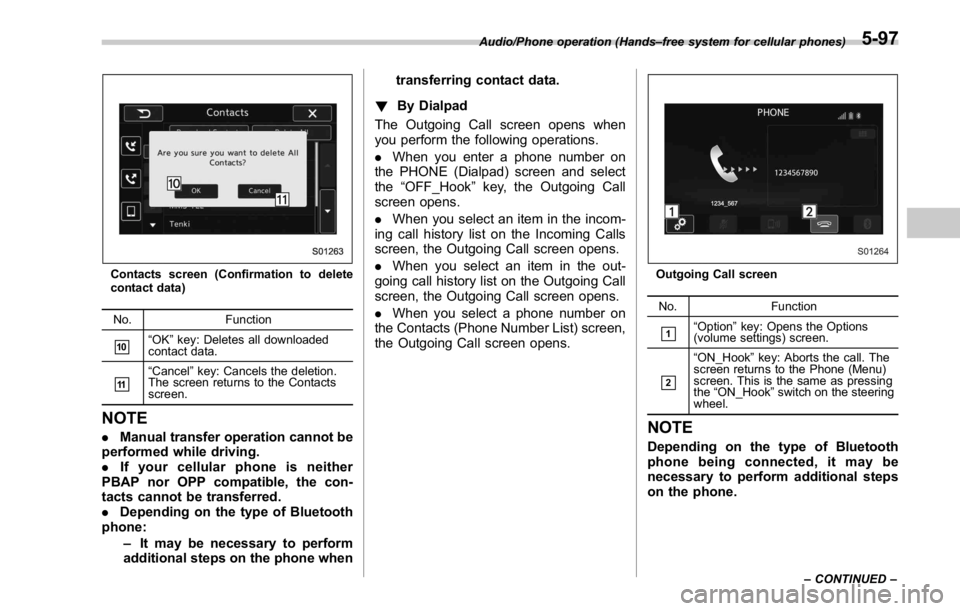
Contacts screen (Confirmation to delete
contact data)
No. Function
& 10
“ OK ” key: Deletes all downloaded
contact data.
& 11
“ Cancel ” key: Cancels the deletion.
The screen returns to the Contacts
screen.
NOTE . Manual transfer operation cannot be
performed while driving.
. If your cellular phone is neither
PBAP nor OPP compatible, the con-
tacts cannot be transferred.
. Depending on the type of Bluetooth
phone:
– It may be necessary to perform
additional steps on the phone when transferring contact data.
! By Dialpad
The Outgoing Call screen opens when
you perform the following operations.
. When you enter a phone number on
the PHONE (Dialpad) screen and select
the “ OFF_Hook ” key, the Outgoing Call
screen opens.
. When you select an item in the incom-
ing call history list on the Incoming Calls
screen, the Outgoing Call screen opens.
. When you select an item in the out-
going call history list on the Outgoing Call
screen, the Outgoing Call screen opens.
. When you select a phone number on
the Contacts (Phone Number List) screen,
the Outgoing Call screen opens. Outgoing Call screen
No. Function
& 1
“ Option ” key: Opens the Options
(volume settings) screen.
& 2
“ ON_Hook ” key: Aborts the call. The
screen returns to the Phone (Menu)
screen. This is the same as pressing
the “ ON_Hook ” switch on the steering
wheel.
NOTE Depending on the type of Bluetooth
phone being connected, it may be
necessary to perform additional steps
on the phone.Audio/Phone operation (Hands – free system for cellular phones)
– CONTINUED –5-97
Page 353 of 594

Audio/Phone operation (Hands – free system for cellular phones)
! By off hook switch
1. Press the
switch on the steering
wheel to display the phone top screen.
2. Check that the “ Call (Call) ” screen is
displayed.
& Receiving on the Bluetooth
phone! Incoming calls
When a call is received, the incoming call
screen is displayed with a sound.
. When you are on the Outgoing Call
screen, the screen changes to the Call
screen when the other party answers the
call.
. The “ Mute ” , “ Speaker ” , and “ Bluetooth ”
keys are disabled on the Outgoing Call
screen.
. When you receive a phone call while
the cellular phone is connected, the
screen changes to the Incoming Call
screen. Incoming Call screen
Unable to put call on hold screen
No. Function
& 1
“ Option ” key: Opens the Options
(volume settings) screen. No. Function
& 2
“ Hold ” key: Puts the incoming call on
hold. This function may not work on
some cell phone models. This func-
tion is the same as pressing the
“ ON_Hook ” switch on the steering
wheel for a short period of time.
& 3
“ OFF_Hook ” key: Opens the Call
screen. This function is the same as
pressing the “ OFF_Hook ” switch on
the steering wheel.
& 4
“ ON_Hook ” key: Rejects the incoming
call. This function is the same as
pressing and holding the “ ON_Hook ”
switch on the steering wheel.
NOTE . During international phone calls, the
other party ’ s name or number may not
be displayed correctly depending on
the type of cellular phone you have.
. The call and ringtone volume that
has been adjusted in the
Sound Set-
tings (Sound Settings) screen sounds
when there is an incoming call. De-
pending on the type of Bluetooth
phone, both the system and Bluetooth
phone may sound simultaneously
when there is an incoming call. Refer
to ““ Sound Settings (Sound Settings) ”
screen ” F 5-101.5-98
Page 354 of 594

& Talking on the Bluetooth
phone While talking on the phone, this screen is
displayed. The operations outlined below
can be performed on this screen.
. When the Incoming Call screen is
displayed and you accept the call, the
screen changes to the Call screen. The
screen stays on the Incoming Call screen
if you reject the call.
. The “ Dialpad ” and “ Bluetooth Setting ”
keys are disabled on the Incoming Call
screen.
The Call screen opens when you perform
the following operations.
. When you accept a call on the Incom-
ing Call screen (by selecting the
“ OFF_Hook ” key), the Call screen opens.
. When you are on the Outgoing Call
screen, the screen changes to the Call
screen when the other party answers the
call. Call screen
Call screen (Your voice Mute ON) Call screen (Private ON)
Call (Dialpad) screen (DTMF)
No. Function
& 1
“ Option ” key: Opens the Options
(volume settings) screen.Audio/Phone operation (Hands – free system for cellular phones)
– CONTINUED –5-99
Page 355 of 594

Audio/Phone operation (Hands – free system for cellular phones)
No. Function
& 2
“ Mute ” key: Mutes your voice to the
other party. Press the “ Mute ” key
again to deactivate the Mute mode.
This key is disabled in the Private
mode.
& 3
“ Speaker ” key: Changes the mode to
Private mode. The other party ’ s voice
emits from the cell phone. Press the
“ Speaker ” key again to deactivate the
Private mode.
& 4
“ ON_Hook ” key: Ends the call. You
return to the Phone (Menu) screen
when ending outgoing calls and the
previous screen when ending incom-
ing calls. This function is the same as
pressing and holding the “ ON_Hook ”
switch on the steering wheel.
& 5
“ Dialpad ” key: Opens the Call (Dia-
lpad) screen.
& 6
“ Switch Screen ” key: Switches the
screen to the Phone (Menu) screen.
& 7
“ Dialpad ” key: Allows you to make
DTMF (Dual Tone Multi Frequency)
calls. The numbers you enter are sent
as tone signals.
NOTE . When cellular phone call is changed
to hands-free call, the hands-free
screen will be displayed and its func-
tions can be operated on the screen.
. Changing between cellular phone
call and hands-free call can be per- formed by operating the cellular phone
directly.
. Transferring methods and opera-
tions will be different depending on
the type of cellular phone you have.
. For the operation of the cellular
phone, see the manual that comes with
it.
. On the PHONE (Menu) screen, the
screen changes to the Phone (Dialpad)
screen when you select “ Dialpad ” .
. After entering the phone number on the
keypad, the call is made when you select
the “ OFF_Hook ” key.
Phone (Dialpad) screen No. Function
& 1
“ Dialpad ” keys: Allows you to enter
numbers from 0 to 9 and *, #, and +.
To enter “ + ” , press and hold the “ 0 ”
key.
& 2
“ Delete ” key: Deletes one character
from the entered characters.
& 3
“ Switch Screen ” key: Switches the
screen to the Phone (Menu) screen.
& 4
“ OFF_Hook ” key: Opens the Outgoing
Calls screen and dials the entered
phone number. This is the same as
pressing the “ OFF_Hook ” switch on
the steering wheel. This key is cross-
hatched and cannot be selected until
the phone number is entered.
& 5
“ Option ” key: Opens the Options
(volume settings) screen.
& 6
“ Bluetooth Setting ” key: Opens the BT
Devices Connection screen.
NOTE The sound quality of the voice heard
from the other party ’ s speaker may be
negatively impacted.5-100
Page 356 of 594

Setup & Phone settings ! “ Sound Settings (Sound Settings) ”
screen
The call and ringtone volume can be
adjusted. A ringtone can be selected.
1. Display the “ PHONE ” screen. Refer to
“ Quick reference ” F 5-87.
2. Select
Option (Option).
3. Select the desired item to be set.
. Select to adjust the volume of the
telephone function.
. On the PHONE screen, the screen
changes to the Options screen when you
select the “ Option ” key. Options (volume settings) screen
No. Function
& 1
Phone Ringer Volume +/- keys: Ad-
justs the ringtone volume. The “ - ” key
lowers the volume, and the “ + ” key
increases the volume. (Default vo-
lume: 4 out of a total of 16 volume
levels)
& 2
Phone Incoming Volume +/- keys:
Adjusts the receive volume. The “ - ”
key lowers the volume, and the “ + ”
key increases the volume. (Default
volume: 4 out of a total of 16 volume
levels)
& 3Phone Outgoing Volume +/- keys:
Adjusts the transmit volume. The “ - ”
key lowers the volume, and the “ + ”
key increases the volume. (Default
volume: 3 out of a total of 5 volume
levels) NOTE . Depending on the type of phone,
certain functions may not be available.
. Contact data is managed indepen-
dently for every registered phone.
When one phone is connected, another
phone ’ s registered data cannot be
read.
! Update contacts from phone
Operation methods differ between PBAP
compatible and PBAP incompatible but
OPP compatible Bluetooth phones.
If your cellular phone is neither PBAP nor
OPP compatible, the contacts cannot be
transferred.
For PBAP compatible Bluetooth
phones
1. Select
Download Contacts (Down-
load Contacts).
. Contacts are transferred automati-
cally.
2. Check that a confirmation screen is
displayed when the operation is complete.
. This operation may be unnecessary
depending on the type of cellular
phone. Audio/Setup
– CONTINUED –5-101
Page 373 of 594
Interior equipment/Interior lights
Interior lights CAUTIONWhen leaving your vehicle, make
sure the lights are turned off to
avoid battery discharge.
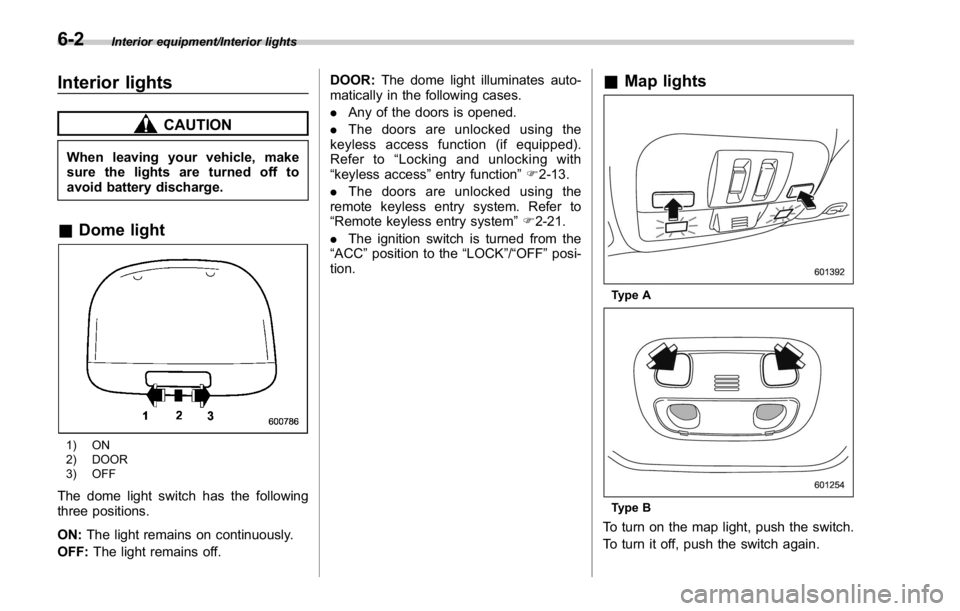
& Dome light
1) ON
2) DOOR
3) OFF
The dome light switch has the following
three positions.
ON: The light remains on continuously.
OFF: The light remains off. DOOR: The dome light illuminates auto-
matically in the following cases.
. Any of the doors is opened.
. The doors are unlocked using the
keyless access function (if equipped).
Refer to “ Locking and unlocking with
“ keyless access ” entry function ” F 2-13.
. The doors are unlocked using the
remote keyless entry system. Refer to
“ Remote keyless entry system ” F 2-21.
. The ignition switch is turned from the
“ ACC ” position to the “ LOCK ” / “ OFF ” posi-
tion. & Map lights
Type A
Type B
To turn on the map light, push the switch.
To turn it off, push the switch again.6-2
Page 374 of 594

When leaving the vehicle, make sure the
lights are turned off to avoid battery
discharge.
! Automatic illumination (type A map
lights)
The map lights illuminate automatically in
the following cases.
. Any of the doors is opened.
. The doors are unlocked using the
keyless access function (if equipped).
Refer to “ Locking and unlocking with
“ keyless access ” entry function ” F 2-13.
. The doors are unlocked using the
remote keyless entry transmitter.
. The ignition switch is turned from the
“ ACC ” position to the “ LOCK ” / “ OFF ” posi-
tion. & OFF delay timer The following lights have an automatic
illumination function.
. dome light (when the dome light switch
is in the “ DOOR ” position)
. map light (type A)
After being illuminated automatically,
these lights remain on for several seconds
and then gradually turn off after all doors
are closed.
While the lights are illuminated, if any of
the following operations are performed,
the lights turn off immediately.
. The ignition switch is turned from the
“ LOCK ” / “ OFF ” position to the “ ACC ” or
“ ON ” position.
. All doors are locked using the keyless
access function (if equipped).
. All doors are locked using the remote
keyless entry system.
The setting for the period of time in which
the lights remain on (OFF delay timer) can
be changed by a SUBARU dealer. Con-
tact your SUBARU dealer for details. Also,
the setting can be changed by operating
the multi function display. For details, refer
to “ Interior light off delay timer setting ” F 3-
87. Sun visors
To block out glare, swing down the visors.
To use the sun visor at a side window,
swing it down and move it sideways. Interior equipment/Sun visors
– CONTINUED –6-3
Page 376 of 594
Storage compartment CAUTION. Always keep the storage com-
partment closed while driving to
reduce the risk of injury in the
event of a sudden stop or an
accident.
. Do not store spray cans, contain-
ers with flammable or corrosive
liquids or any other dangerous
items in the storage compart-
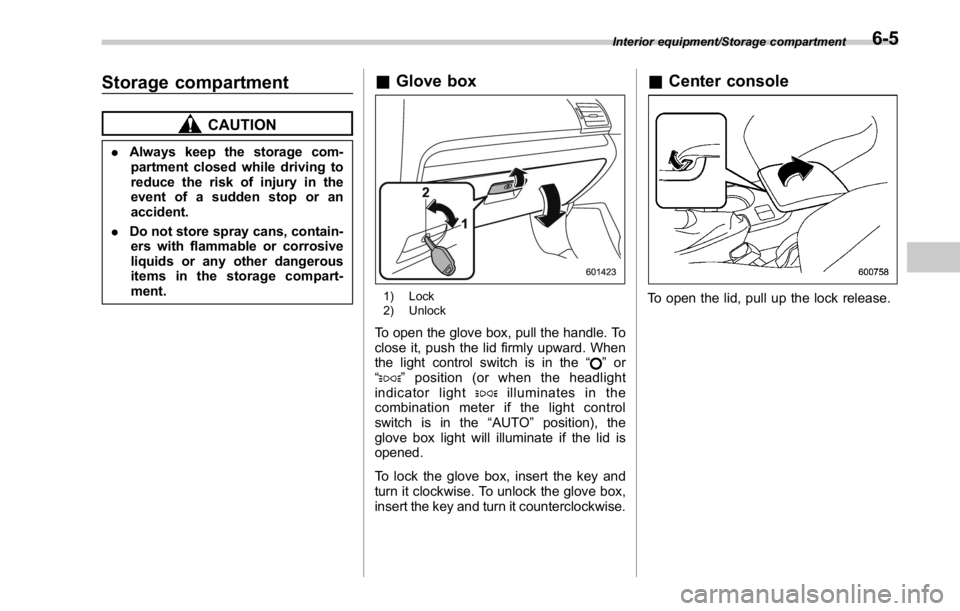
ment. & Glove box
1) Lock
2) Unlock
To open the glove box, pull the handle. To
close it, push the lid firmly upward. When
the light control switch is in the “
” or
“
” position (or when the headlight
indicator light
illuminates in the
combination meter if the light control
switch is in the “ AUTO ” position), the
glove box light will illuminate if the lid is
opened.
To lock the glove box, insert the key and
turn it clockwise. To unlock the glove box,
insert the key and turn it counterclockwise. & Center console
To open the lid, pull up the lock release. Interior equipment/Storage compartment
6-5