2016 SUBARU WRX buttons
[x] Cancel search: buttonsPage 240 of 594

1) HomeLink ®
button 1
2) HomeLink ®
button 2
3) HomeLink ®
button 3
1. Press and hold the two outer buttons
(button 1 and button 3) until the indicator
light begins to flash (after approximately
20 seconds).
2. Release both buttons.
! In case a problem occurs
If you cannot activate a device using the
corresponding HomeLink ®
button after
programming, contact HomeLink ®
at
www.homelink.com or call 1-800-355-
3515 for assistance. & Outside mirrors ! Convex mirror (passenger side)
WARNINGObjects look smaller in a convex
mirror and farther away than when
viewed in a flat mirror. Do not use
the convex mirror to judge the
distance of vehicles behind you
when changing lanes. Use the inside
mirror (or glance backwards) to
determine the actual size and dis-
tance of objects that you view in
convex mirror. ! Remote control mirror switch
: Select side to adjust
: Direction control
The remote control mirrors operate only
when the ignition switch is in the “ ON ” or
“ ACC ” position.
1. Turn the control switch to the side that
you want to adjust. “ L ” is for the left mirror,
“ R ” is for the right mirror.
2. Move the control switch in the direction
you want to move the mirror.
3. Return the control switch to the neutral
position to prevent unintentional opera-
tion.
The mirrors can also be adjusted manu-
ally. Instruments and controls/Mirrors
3-111
Page 248 of 594

Automatic climate control
operation When this mode is selected, the fan
speed, airflow distribution, air-inlet control,
and air conditioner compressor operation
are automatically controlled. To activate
this mode, perform the following.
NOTE . Operate the automatic climate con-
trol system when the engine is running.
. Even when cooling is not necessary,
setting the temperature much lower
than the current outlet air temperature
turns on the air conditioner compres-
sor automatically and the “ A/C ” indi-
cator on the control panel illuminates. 1. Depress the “ AUTO ” button. The
indicator “ FULL AUTO ” on the display
illuminates.
2. Set the preferred temperature using
the temperature control dial.
NOTE . The controllable temperature range
may vary depending on the regional
specifications of the vehicle.
. If you operate any of the buttons on
the control panel other than the “ OFF ”
button, rear window defogger button
and temperature control dial(s) during
FULL AUTO mode operation, the
“ FULL ” indicator on the control panel
will turn off and the “ AUTO ” indicator
will remain illuminated. You can then
manually control the system as desired
using the button you operated. To
change the system back to the FULL
AUTO mode, press the “ AUTO ” button.
. When the climate control system
turns off, the air inlet is fixed to the
outside air mode.
To turn off the climate control system,
press the “ OFF ” button. & Sensors
1) Interior air temperature sensor
2) Solar sensor
The automatic climate control system
employs several sensors. These sensors
are delicate. If they are not treatedClimate control/Automatic climate control operation
– CONTINUED –4-5
Page 262 of 594
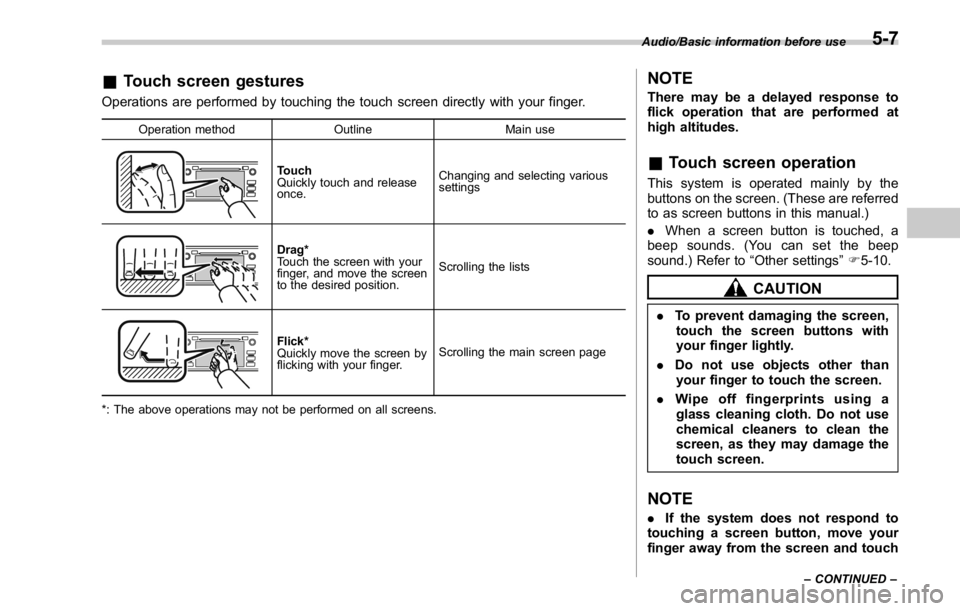
& Touch screen gestures Operations are performed by touching the touch screen directly with your finger. Operation method Outline Main use
Touch
Quickly touch and release
once. Changing and selecting various
settings
Drag*
Touch the screen with your
finger, and move the screen
to the desired position. Scrolling the lists
Flick*
Quickly move the screen by
flicking with your finger. Scrolling the main screen page
*: The above operations may not be performed on all screens. NOTE There may be a delayed response to
flick operation that are performed at
high altitudes.
& Touch screen operation This system is operated mainly by the
buttons on the screen. (These are referred
to as screen buttons in this manual.)
. When a screen button is touched, a
beep sounds. (You can set the beep
sound.) Refer to “ Other settings ” F 5-10.
CAUTION. To prevent damaging the screen,
touch the screen buttons with
your finger lightly.
. Do not use objects other than
your finger to touch the screen.
. Wipe off fingerprints using a
glass cleaning cloth. Do not use
chemical cleaners to clean the
screen, as they may damage the
touch screen.
NOTE . If the system does not respond to
touching a screen button, move your
finger away from the screen and touch Audio/Basic information before use
– CONTINUED –5-7
Page 263 of 594

Audio/Basic information before use
it again.
. Grayed-out screen buttons cannot
be operated.
. The displayed image may become
darkerandmovingimagesmaybe
slightly distorted when the screen is
cold.
. In extremely cold conditions, the
map may not be displayed and the data
input by a user may be deleted. Also,
the screen buttons may be harder than
usual to press.
. When you look at the screen
through polarized material such as
polarized sunglasses, the screen may
be dark and hard to see. If so, look at
the screen from different angles, adjust
the screen settings on the “ Display
Settings (Display Settings) ” screen or
take off your sunglasses.
& Entering letters and num-
bers/list screen operation! Entering letters and numbers
When entering the Bluetooth device name
or PIN-code, or the phone number, letters
and numbers can be entered via the
screen. In-Car-Device setting
No. Function
& 1
Enter the desired characters (alpha-
bet key mode).
& 2
Display the number keys (change to
number key mode).
& 3
Enter a space.
& 4
Set the characters/numbers entered
into the window.
& 5
Delete a character/number entered
into the window. Dialpad
No. Function
& 1
Enter the desired numbers.
& 2
Delete a number entered into the
window.5-8
Page 268 of 594

! Turning the system on and off
“ POWER/VOLUME ” knob: Press to turn
the audio/visual system on and off. When
the system turns on, the last mode is
displayed. Press and hold the knob
approx. 1.5 seconds or more, turn the
display to off.
Turn this knob to adjust the volume. “ AUDIO/TUNE ” knob: Press to display
screen buttons for the audio/visual sys-
tem. ! Selecting an audio source
1. Press the “ AUDIO/TUNE ” knob.
. The audio control screen can also
be displayed by pressing HOME fol-
lowed by “ AUDIO ” . Audio/Basic operation
– CONTINUED –5-13
Page 327 of 594

Audio/Media operation
! Using aha application
Ifyouconnectasmartphonetothis
system after starting a supported aha
application on the smartphone, you can
display and operate the aha application
displayed on the smartphone on the
system screen.
NOTE . Connect a smartphone to the USB
port before turning the ignition switch
to the “ ACC ” or “ ON ” position.
. When it is not played back normally,
press the POWER/VOLUME knob twice
while a USB cable is connected.
1. Run the aha application on your
smartphone.
2. Connect the iPhone/iPod touch to the
USB port or connect the Android device
by utilizing the Bluetooth connection (SPP
and A2DP profile).
. For details about connecting an
iPhone/iPod touch: Refer to “ Connect-
ing and disconnecting a USB memory/
portable device ” F 5-6.
. For details about registering or con-
necting an Android device: Refer to
“ Registering/connecting Bluetooth ®
device ” F 5-81.
Press AUDIO/TUNE knob twice to switch
between iPhone and Android. 3. Select “ aha ” on the “ Select Audio
Source (Select Audio Source) ” screen.
Refer to “ Basic operation ” F 5-12.
Select “ aha ” on the “ Apps (APPS) ” screen.
Refer to “ STARLINK ” F 5-30.
4. Check that the top screen is displayed.
5. Select the desired station.
6. Check that the station operation
screen is displayed. . Main functions of the station opera-
tion screen button: Refer to “ Station
operation screen buttons ” F 5-73.
. For details on the services or the
operations, check the aha site
(http://www.aharadio.com) on the in-
ternet.
NOTE . When iPhone/iPod touch and An-
droid devices are connected at the
same time, iPhone/iPod touch is prior-
itized.
. The following operations are not
available on this system. Perform these
operations on the smartphone.
– Add/Reorder/Delete stations
– Login to Facebook/Twitter5-72
Page 328 of 594

. For the aha function, the following
touch screen gestures are not avail-
able.
– Multi-touch operation
– Double-tap ! Station operation screen buttons Button Function
Select to start playback.
Select to pause playback.
Select to stop playback.
Select to upload “ Like ” informa-
tion to the application server. To
cancel “ Like ” information that is
being uploaded to the server,
select this button again.
Select to upload “ Dislike ” infor-
mation to the application server.
To cancel “ Dislike ” information
that is being uploaded to the
server, select this button again.
Select to make a phone call to
the current content item.
Select to start the playback from
the beginning of the content in
the target station.
Select to rewind the current
content item by 15 seconds.
Select to fast forward the current
content item by 30 seconds. NOTE The button display will vary depending
on each station or content item.
& AUX ! Overview
The AUX operation screen can be
reached by the following methods:
. Connect a portable audio device. Refer
to “ Connecting and disconnecting a USB
memory/portable device ” F 5-6.
. Select
AUX (AUX) on the “ Select
Audio Source (Select Audio Source) ”
screen. Refer to “ Selecting an audio
source ” F 5-13. Audio/Media operation
– CONTINUED –5-73
Page 482 of 594
3. Depress the clutch pedal (MT models)
or brake pedal (CVT models).
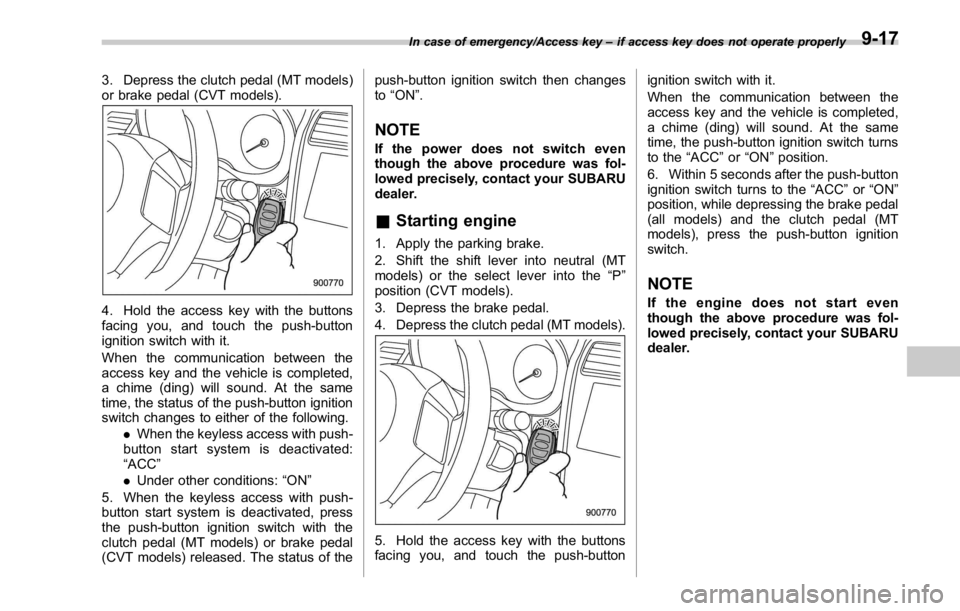
4. Hold the access key with the buttons
facing you, and touch the push-button
ignition switch with it.
When the communication between the
access key and the vehicle is completed,
a chime (ding) will sound. At the same
time, the status of the push-button ignition
switch changes to either of the following.
. When the keyless access with push-
button start system is deactivated:
“ ACC ”
. Under other conditions: “ ON ”
5. When the keyless access with push-
button start system is deactivated, press
the push-button ignition switch with the
clutch pedal (MT models) or brake pedal
(CVT models) released. The status of the push-button ignition switch then changes
to “ ON ” .
NOTE If the power does not switch even
though the above procedure was fol-
lowed precisely, contact your SUBARU
dealer.
& Starting engine 1. Apply the parking brake.
2. Shift the shift lever into neutral (MT
models) or the select lever into the “ P ”
position (CVT models).
3. Depress the brake pedal.
4. Depress the clutch pedal (MT models).
5. Hold the access key with the buttons
facing you, and touch the push-button ignition switch with it.
When the communication between the
access key and the vehicle is completed,
a chime (ding) will sound. At the same
time, the push-button ignition switch turns
to the “ ACC ” or “ ON ” position.
6. Within 5 seconds after the push-button
ignition switch turns to the “ ACC ” or “ ON ”
position, while depressing the brake pedal
(all models) and the clutch pedal (MT
models), press the push-button ignition
switch.
NOTE If the engine does not start even
though the above procedure was fol-
lowed precisely, contact your SUBARU
dealer.In case of emergency/Access key – if access key does not operate properly
9-17