Page 276 of 594

Tips for operating the audio/
visual system & Operating information CAUTION. To avoid damage to the audio/
visual system:
– Be careful not to spill bev-
erages over the audio/visual
system.
– Do not put anything other than
an appropriate disc into the
disc slot.
NOTE The use of a cellular phone inside or
near the vehicle may cause a noise
from the speakers of the audio/visual
system which you are listening to.
However, this does not indicate a
malfunction.
! Radio
Usually, a problem with radio reception
does not mean there is a problem with the
radio — it is just the normal result of
conditions outside the vehicle.
For example, nearby buildings and terrain can interfere with FM reception. Power
lines or phone wires can interfere with AM
signals. And of course, radio signals have
a limited range. The farther the vehicle is
from a station, the weaker its signal will
be. In addition, reception conditions
change constantly as the vehicle moves.
Here, some common reception problems
that probably do not indicate a problem
with the radio are described.
! FM
Fading and drifting stations: Generally, the
effective range of FM is about 25 miles (40
km). Once outside this range, you may
notice fading and drifting, which increase
with the distance from the radio transmit-
ter. They are often accompanied by
distortion.
Static and fluttering: These occur when
signals are blocked by buildings, trees or
other large objects. Increasing the bass
level may reduce static and fluttering.
Station swapping: If the FM signal being
listened to is interrupted or weakened, and
there is another strong station nearby on
the FM band, the radio may tune in the
second station until the original signal can
be picked up again. ! AM
Fading: AM broadcasts are reflected by
the upper atmosphere — especially at
night. These reflected signals can inter-
fere with those received directly from the
radio station, causing the radio station to
sound alternately strong and weak.
Station interference: When a reflected
signal and a signal received directly from
a radio station are very nearly the same
frequency, they can interfere with each
other, making it difficult to hear the broad-
cast.
Static: AM is easily affected by external
sources of electrical noise, such as high
tension power lines, lightening or electrical
motors. This results in static.
! SiriusXM
. Cargo loaded on the roof luggage
carrier, especially metal objects, may
adversely affect the reception of SiriusXM
Satellite Radio.
. Alternation or modifications carried out
without appropriate authorization may in-
validate the user ’ s right to operate the
equipment.Audio/Tips for operating the audio/visual system
– CONTINUED –5-21
Page 284 of 594
Option menu screen
No. Function
& 1
Channel Lock: Set the lock function
of each channel. Input the password
is necessary for operation.
& 2
Channel Lock Password: Set the
password of the lock function.
2. A password input screen is displayed
when touch the “ Set ” button of the
Channel Lock function. Password input screen
3. When the input password is approved,
change to the lock channel selection
screen. Lock channel selection screen
4. In the channel list, touch the channel
that should be locked. Audio/Useful information
– CONTINUED –5-29
Page 302 of 594

WARNING. SiriusXM Satellite Radio Services
— Legal Disclaimers and Warn-
ings
– Fees and Taxes — Subscrip-
tion fee, taxes, one time acti-
vation fee, and other fees may
apply. Subscription fee is con-
sumer only. All fees and pro-
gramming subject to change.
Subscriptions subject to Cus-
tomer Agreement available at
www.siriusxm.ca XM service
only available in Canada.
Explicit Language Notice —
Channels with frequent expli-
cit language are indicated
with an “ XL ” preceding the
channel name. Channel block-
ing is available for SiriusXM
Satellite Radio receivers by
notifying XM at;
Visit www.siriusxm.ca or call-
ing
1-877-209-0079 CAUTION. It is prohibited to copy, decom-
pile, disassemble, reverse engi-
neer, hack, manipulate, or other-
wise make available any technol-
ogy or software incorporated in
receivers compatible with the
SiriusXM Satellite Radio System
or that support the XM website,
the Online Service or any of its
content. Furthermore, the
AMBE ®
voice compression soft-
ware included in this product is
protected by intellectual property
rights including patent rights,
copyrights, and trade secrets of
Digital Voice Systems, Inc.
. Note: this applies to SiriusXM
Satellite Radio receivers only
and not XM Ready devices.
NOTE . SiriusXM Satellite Services — De-
scriptions
– Only SiriusXM Satellite Radio ®
brings you more of what you love,
all in one place. Get over 175
channels, including commercial-
free music, plus the best sports,
news, talk, comedy and entertain- ment. Welcome to the world of
satellite radio. More information
about SiriusXM Satellite Radio is
available online at www.siriusxm.
ca.
. SiriusXM Satellite Services — Sub-
scription Instructions
– For SiriusXM Services requiring
a subscription (such as SiriusXM
Satellite Radio, and some Infotain-
ment & data services), the following
applies.
Required SiriusXM Satellite Radio
and some Infotainment & data ser-
vices monthly subscriptions sold
separately after trial period. Sub-
scription fee is consumer only. All
fees and programming subject to
change. Subscriptions are subject
to the Customer Agreement avail-
able at www.siriusxm.ca. Sirius, XM
and all related marks and logos are
trademarks of Sirius XM Radio Inc.
All other marks, channel names and
logos are the property of their
respective owners.
For more information, program
schedules, and to subscribe or
extend subscription after compli-
mentary trial period; more informa-
tion is available at:
Visit www.siriusxm.ca or calling Audio/Radio operation
– CONTINUED –5-47
Page 304 of 594

! Selecting a channel from the list
1. The Categories list is displayed via
either of the following procedures.
. When you press the List key in the
SiriusXM main screen (if the list that
was displayed the last time is Cate-
gories).
. When you select the Categories tab
(folder icon) in each list screen.
2. Each channel list is displayed when
you select each category item. In addition, the following caution messages appear. Caution Contents Display Message
An update to your SiriusXM subscription has
been received by the SiriusXM tuner. Press any
button to continue. Subscription Update
Press OK to Continue
This channel is not a valid SiriusXM channel.
The channel number has been entered incor-
rectly, or the channel was removed from the
SiriusXM channel lineup. Channel XXX Not Available
( “ XXX ” refers to the selected channel number.)
This channel is not included in your SiriusXM
subscription plan. Channel XXX not subscribed.
Call SiriusXM to subscribe.
( “ XXX ” refers to the selected channel number.)
The selected channel has been locked by the
parental controls.
A prompt to enter the unlock code will appear. Ch Locked
Lock Code?
Ensure the SiriusXM antenna cable is connected
to the SiriusXM tuner correctly.
Check the SiriusXM antenna wire for breaks or
sharp bends.
Replace the antenna if necessary. Check Antenna
The vehicle must be outside, and the antenna
must have a clear view of the southern sky. No Signal
NOTE Contact the SiriusXM Listener Care Center at 1-877-209-0079 (Canada). Audio/Radio operation
5-49
Page 333 of 594
Audio/Media operation
No. Function
& 10
Turn clockwise to skip to the next track.
& 11
Select to skip to the next track/
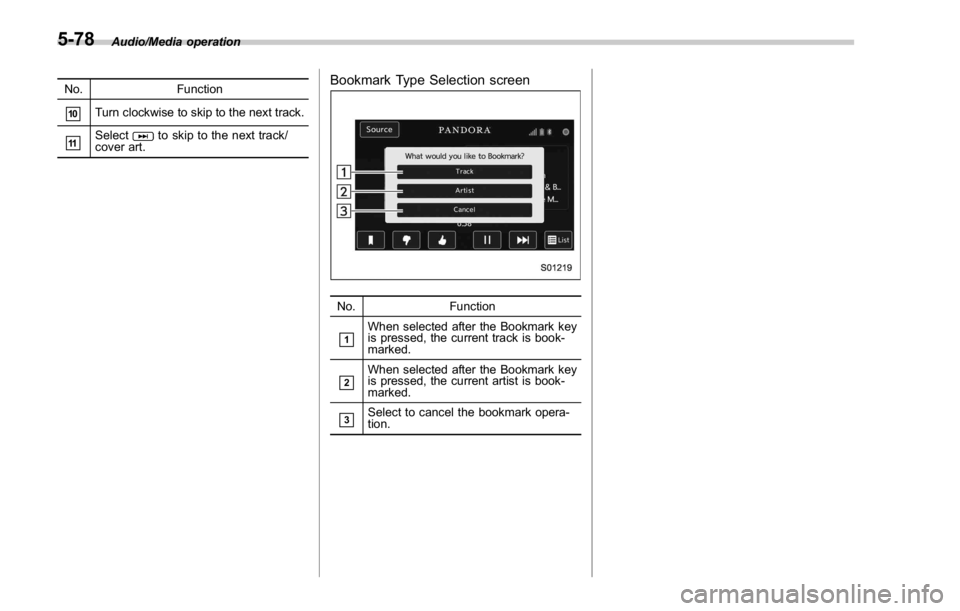
cover art. Bookmark Type Selection screen
No. Function
& 1
When selected after the Bookmark key
is pressed, the current track is book-
marked.
& 2
When selected after the Bookmark key
is pressed, the current artist is book-
marked.
& 3
Select to cancel the bookmark opera-
tion.5-78
Page 373 of 594
Interior equipment/Interior lights
Interior lights CAUTIONWhen leaving your vehicle, make
sure the lights are turned off to
avoid battery discharge.
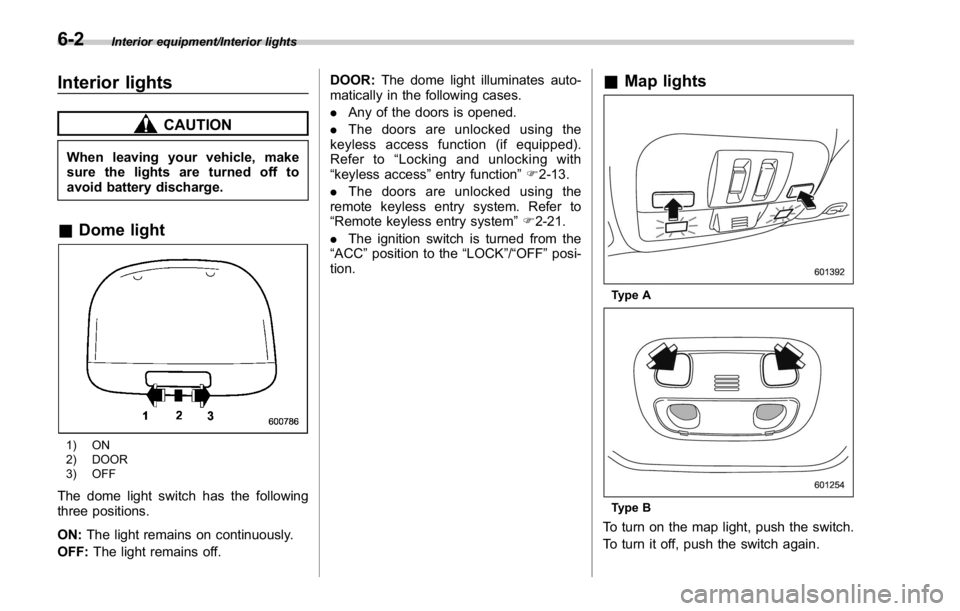
& Dome light
1) ON
2) DOOR
3) OFF
The dome light switch has the following
three positions.
ON: The light remains on continuously.
OFF: The light remains off. DOOR: The dome light illuminates auto-
matically in the following cases.
. Any of the doors is opened.
. The doors are unlocked using the
keyless access function (if equipped).
Refer to “ Locking and unlocking with
“ keyless access ” entry function ” F 2-13.
. The doors are unlocked using the
remote keyless entry system. Refer to
“ Remote keyless entry system ” F 2-21.
. The ignition switch is turned from the
“ ACC ” position to the “ LOCK ” / “ OFF ” posi-
tion. & Map lights
Type A
Type B
To turn on the map light, push the switch.
To turn it off, push the switch again.6-2
Page 374 of 594

When leaving the vehicle, make sure the
lights are turned off to avoid battery
discharge.
! Automatic illumination (type A map
lights)
The map lights illuminate automatically in
the following cases.
. Any of the doors is opened.
. The doors are unlocked using the
keyless access function (if equipped).
Refer to “ Locking and unlocking with
“ keyless access ” entry function ” F 2-13.
. The doors are unlocked using the
remote keyless entry transmitter.
. The ignition switch is turned from the
“ ACC ” position to the “ LOCK ” / “ OFF ” posi-
tion. & OFF delay timer The following lights have an automatic
illumination function.
. dome light (when the dome light switch
is in the “ DOOR ” position)
. map light (type A)
After being illuminated automatically,
these lights remain on for several seconds
and then gradually turn off after all doors
are closed.
While the lights are illuminated, if any of
the following operations are performed,
the lights turn off immediately.
. The ignition switch is turned from the
“ LOCK ” / “ OFF ” position to the “ ACC ” or
“ ON ” position.
. All doors are locked using the keyless
access function (if equipped).
. All doors are locked using the remote
keyless entry system.
The setting for the period of time in which
the lights remain on (OFF delay timer) can
be changed by a SUBARU dealer. Con-
tact your SUBARU dealer for details. Also,
the setting can be changed by operating
the multi function display. For details, refer
to “ Interior light off delay timer setting ” F 3-
87. Sun visors
To block out glare, swing down the visors.
To use the sun visor at a side window,
swing it down and move it sideways. Interior equipment/Sun visors
– CONTINUED –6-3
Page 376 of 594
Storage compartment CAUTION. Always keep the storage com-
partment closed while driving to
reduce the risk of injury in the
event of a sudden stop or an
accident.
. Do not store spray cans, contain-
ers with flammable or corrosive
liquids or any other dangerous
items in the storage compart-
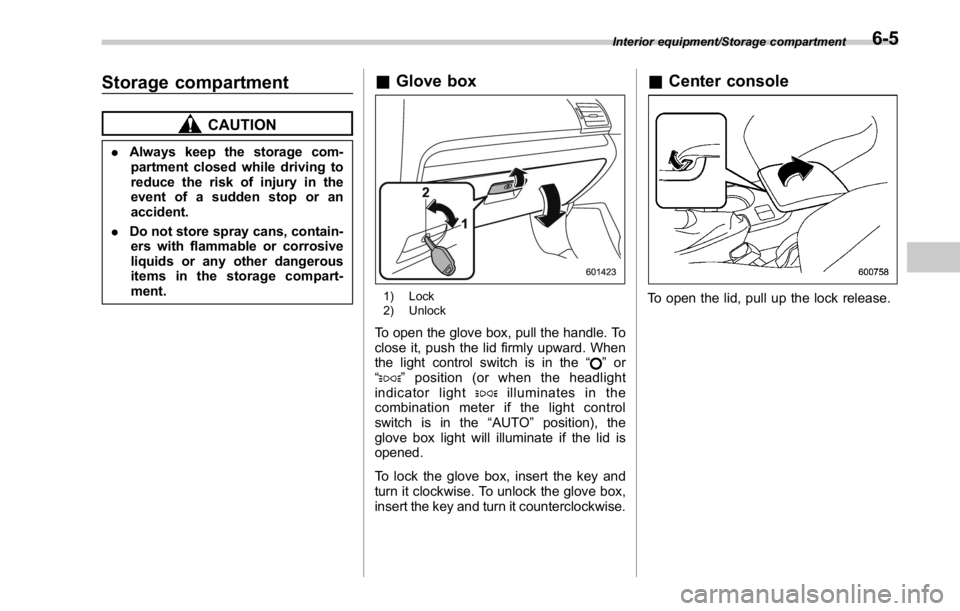
ment. & Glove box
1) Lock
2) Unlock
To open the glove box, pull the handle. To
close it, push the lid firmly upward. When
the light control switch is in the “
” or
“
” position (or when the headlight
indicator light
illuminates in the
combination meter if the light control
switch is in the “ AUTO ” position), the
glove box light will illuminate if the lid is
opened.
To lock the glove box, insert the key and
turn it clockwise. To unlock the glove box,
insert the key and turn it counterclockwise. & Center console
To open the lid, pull up the lock release. Interior equipment/Storage compartment
6-5