2016 SUBARU WRX ignition
[x] Cancel search: ignitionPage 267 of 594
Audio/Basic operation
Item Function
Vocal Im-
age Con-
trol Select to pick-up vocal sound
signal from the sound data, and
adjust it to right/left or front/rear.
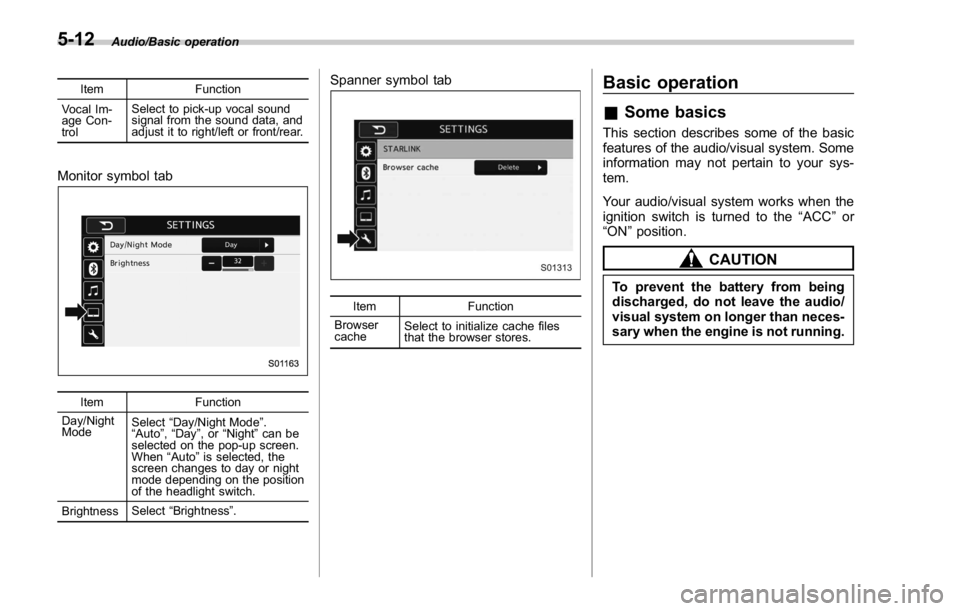
Monitor symbol tab
Item Function
Day/Night
Mode Select “ Day/Night Mode ” .
“ Auto ” , “ Day ” ,or “ Night ” can be
selected on the pop-up screen.
When “ Auto ” is selected, the
screen changes to day or night
mode depending on the position
of the headlight switch.
Brightness Select “ Brightness ” . Spanner symbol tab
Item Function
Browser
cache Select to initialize cache files
that the browser stores.Basic operation & Some basics This section describes some of the basic
features of the audio/visual system. Some
information may not pertain to your sys-
tem.
Your audio/visual system works when the
ignition switch is turned to the “ ACC ” or
“ ON ” position.
CAUTIONTo prevent the battery from being
discharged, do not leave the audio/
visual system on longer than neces-
sary when the engine is not running.5-12
Page 318 of 594
WARNING. Do not operate the player ’ s con-
trols or connect to the Bluetooth
audio system while driving.
. Your audio unit is fitted with
Bluetooth antennas. People with
implantable cardiac pacemakers,
cardiac resynchronization ther-
apy-pacemakers or implantable
cardioverter defibrillators should
maintain a reasonable distance
between themselves and the
Bluetooth antennas. The radio
waves may affect the operation
of such devices.
. Before using Bluetooth devices,
users of any electrical medical
device other than implantable
cardiac pacemakers, cardiac re-
synchronization therapy-pace-
makers or implantable cardiover-
ter defibrillators should consult
the manufacturer of the device
for information about its opera-
tion under the influence of radio
waves. Radio waves could have
unexpected effects on the opera-
tion of such medical devices. CAUTIONDo not leave your portable player in
the vehicle. In particular, high tem-
peratures inside the vehicle may
damage the portable player.
NOTE . Depending on the Bluetooth device
that is connected to the system, the
music may start playing when selecting
while it is paused. Conversely, the
music may pause when selecting
while it is playing.
. In the following conditions, the sys-
tem may not function:
– The Bluetooth device is turned
off.
– The Bluetooth device is not con-
nected.
– The Bluetooth device has a low
battery.
. Itmaytaketimetoconnectthe
phone when Bluetooth audio is being
played.
. For operating the portable player,
see the instruction manual that comes
with it.
. If the Bluetooth device is discon-
nected due to poor reception from the
Bluetooth network when the ignition switch is in the “ ACC ” or “ ON ” posi-
tion, the system will automatically
reconnect to the portable player.
. If the Bluetooth device is discon-
nected on purpose, such as it was
turned off, this does not happen.
Reconnect the portable player manu-
ally.
. Bluetooth device information is re-
gistered when the Bluetooth device is
connected to the Bluetooth audio sys-
tem. When selling or disposing of the
vehicle, remove the Bluetooth audio
information from the system. Refer to
“ Other settings ” F 5-10.
! Connecting a Bluetooth device
To use the Bluetooth audio system, it is
necessary to register a Bluetooth device
with the system.
Registering an additional device
1. Select the Bluetooth Setting Key on
the BT Audio menu screen.
2. Select
Add (Add) on the BT Devices
Connection screen.
3. Register a Bluetooth device.
4. For more information: Refer to “ Regis-
tering a Bluetooth device ” F 5-84.
Selecting a registered device
1. Select the Bluetooth Setting Key on
the BT Audio menu screen. Audio/Media operation
– CONTINUED –5-63
Page 323 of 594

Audio/Media operation
WARNING. Do not connect or operate the
smartphone while driving.
. Be sure to park the vehicle in a
safe location before connecting
or operating the smartphone.
CAUTION. Do not leave your smartphone in
the car. In particular, high tem-
peratures inside the vehicle may
damage the smartphone.
. Do not push down on or apply
unnecessary pressure to the
smartphone while it is connected
as this may damage the smart-
phone or its terminal.
. Do not insert foreign objects into
the port as this may damage the
smartphone or its terminal.
NOTE . For safety reasons, certain func-
tions are not available while your
vehicle is in motion.
. In order to maximize signal recep-
tion, performance and precision of the
smartphone, please ensure the smart- phone is placed as close to the system
as possible, while ensuring it is stowed
and secure while driving.
. Use USB cables of iPhone/iPod
touch accessories.
. When the ignition switch is in the
“ ACC ” or “ ON ” position, the battery of
the connected iPhone/iPod touch is
charged.
. iPhone/iPod touch may not be re-
cognized when the ignition switch is in
the “ ACC ” or “ ON ” position. In this
case, remove the iPhone/iPod touch
and reconnect it.
. The accuracy of the displayed in-
formation or the signal reception per-
formance depends on the smartphone
or the connected device, and it ’ s wire-
less connection.
. Since the aha application uses sig-
nals from GPS satellites and wireless
communication lines, it may not work
properly in the following locations.
– In a tunnel
– In underground parking lots
– Outside wireless communication
range, such as some countryside
areas
– Where the wireless communica-
tion network is congested, or where
communications are restricted
. Depending on the circumstances and environment, the signal may be
weak or not be received. In such cases,
an error may occur.
. Top 35 entries in the preset station
list on the smartphone are displayed.
When there are more than 35 entries in
the preset station list, change the order
of the entries in the list on the smart-
phone. You can change the priority of
your preset stations within the aha
application (after disconnected from
this system) to modify the station list
shown on the screen. Please see your
smartphone aha application “ Edit Pre-
sets (in Main menu) ” to modify this list.
. For operating the smartphone, see
the instruction manual that comes with
it.
. If there are multiple music files
stored on your iPhone or iPod touch,
it may take some time until playback
starts.
. Playback may be intermittent when
youswitchtostreamingBluetooth
audio from aha on your smartphone
device.
. When connecting the device via
Bluetooth, the communication speed
may become slower than via USB.5-68
Page 327 of 594

Audio/Media operation
! Using aha application
Ifyouconnectasmartphonetothis
system after starting a supported aha
application on the smartphone, you can
display and operate the aha application
displayed on the smartphone on the
system screen.
NOTE . Connect a smartphone to the USB
port before turning the ignition switch
to the “ ACC ” or “ ON ” position.
. When it is not played back normally,
press the POWER/VOLUME knob twice
while a USB cable is connected.
1. Run the aha application on your
smartphone.
2. Connect the iPhone/iPod touch to the
USB port or connect the Android device
by utilizing the Bluetooth connection (SPP
and A2DP profile).
. For details about connecting an
iPhone/iPod touch: Refer to “ Connect-
ing and disconnecting a USB memory/
portable device ” F 5-6.
. For details about registering or con-
necting an Android device: Refer to
“ Registering/connecting Bluetooth ®
device ” F 5-81.
Press AUDIO/TUNE knob twice to switch
between iPhone and Android. 3. Select “ aha ” on the “ Select Audio
Source (Select Audio Source) ” screen.
Refer to “ Basic operation ” F 5-12.
Select “ aha ” on the “ Apps (APPS) ” screen.
Refer to “ STARLINK ” F 5-30.
4. Check that the top screen is displayed.
5. Select the desired station.
6. Check that the station operation
screen is displayed. . Main functions of the station opera-
tion screen button: Refer to “ Station
operation screen buttons ” F 5-73.
. For details on the services or the
operations, check the aha site
(http://www.aharadio.com) on the in-
ternet.
NOTE . When iPhone/iPod touch and An-
droid devices are connected at the
same time, iPhone/iPod touch is prior-
itized.
. The following operations are not
available on this system. Perform these
operations on the smartphone.
– Add/Reorder/Delete stations
– Login to Facebook/Twitter5-72
Page 331 of 594

Audio/Media operation
WARNINGDo not operate the player ’ s controls
or connect the portable audio device
while driving.
CAUTION. Do not leave portable audio de-
vice in the vehicle. The tempera-
ture inside the vehicle may be-
come high, resulting in damage
to the player.
. Do not push down on or apply
unnecessary pressure to the por-
table audio device while it is
connected as this may damage
the portable audio device or its
terminal.
. Do not insert foreign objects into
the port as this may damage the
portable audio device or its term-
inal. & Pandora ®
Pandora is an application for a smart-
phone. This can automatically select and
play recommended tracks.
By rating the track currently playing, tracks
that better match your preference will be
recommended.
In order to connect to this system, use a
USB port for an iPhone or iPod touch and
Bluetooth for Android devices.
Depending on differences between mod-
els or software version etc., some models
might be incompatible with this system.
This function is not available if the
Pandora application has not been in-
stalled on the smartphone.
NOTE . Connect a smartphone to the USB
port before turning the ignition switch
to the “ ACC ” or “ ON ” position.
. When it is not played back normally,
press the POWER/VOLUME knob twice
while a USB cable is connected.
! Overview
The Pandora operation screen can be
reached by the following methods:
. Connecting a Pandora device. Refer to
“ Connecting a Bluetooth device ” F 5-85 or “ Connecting and disconnecting a USB
memory/portable device ” F 5-6.
. Select
Pandora (Pandora) on the
“ Select Audio Source (Select Audio
Source) ” screen. Refer to “ Selecting an
audio source ” F 5-13.
. Select
Pandora (Pandora) on the
“ APPS (APPS) ” screen. Refer to
“ STARLINK ” F 5-30.5-76
Page 359 of 594

Audio/What to do if...
When registering/connecting a cellular phone Symptom Likely cause Solution Page
Cellular
phone This
system
A cellular phone cannot be regis-
tered. An incorrect passcode was entered
on the cellular phone. Enter the correct passcode on the cellular phone. * —
The registration operation has not
been completed on the cellular phone
side. Complete the registration operation on the cellular
phone (approve registration on the phone). * —
Old registration information remains
on either this system or the cellular
phone. Delete the existing registration information from
both this system and the cellular phone, then
register the cellular phone you wish to connect to
this system. *5-84
A Bluetooth connection cannot be
made. Another Bluetooth device is already
connected. Manually connect the cellular phone you wish to
use to this system. — 5-84
Bluetooth function is not enabled on
the cellular phone. Enable the Bluetooth function on the cellular phone. * —
Automatic Bluetooth connection on
this system is set to off. Set automatic Bluetooth connection on this system
to on when the ignition switch is turned to the “ ACC ”
or “ ON ” position. — 5-84
“ Unable to dial. Please check your
phone. (Unable to dial. Please
check your phone.) ” Bluetooth function is not enabled on
the cellular phone. Enable the Bluetooth function on the cellular phone. * —
Old registration information remains
on either this system or the cellular
phone. Delete the existing registration information from
both this system and the cellular phone, then
register the cellular phone you wish to connect to
this system. * 5-84
*: For details, refer to the owner ’ s manual that came with the cellular phone.5-104
Page 373 of 594
Interior equipment/Interior lights
Interior lights CAUTIONWhen leaving your vehicle, make
sure the lights are turned off to
avoid battery discharge.
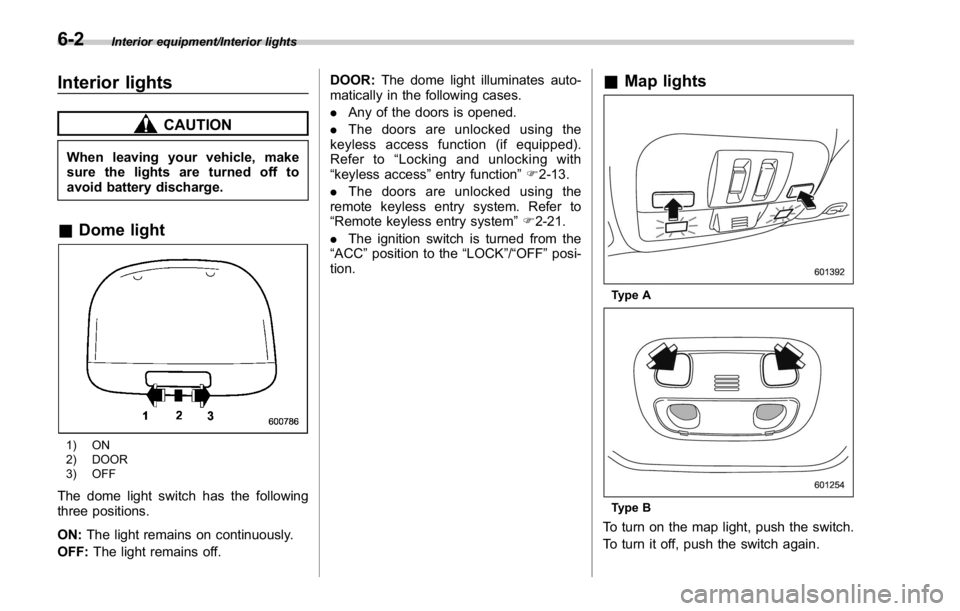
& Dome light
1) ON
2) DOOR
3) OFF
The dome light switch has the following
three positions.
ON: The light remains on continuously.
OFF: The light remains off. DOOR: The dome light illuminates auto-
matically in the following cases.
. Any of the doors is opened.
. The doors are unlocked using the
keyless access function (if equipped).
Refer to “ Locking and unlocking with
“ keyless access ” entry function ” F 2-13.
. The doors are unlocked using the
remote keyless entry system. Refer to
“ Remote keyless entry system ” F 2-21.
. The ignition switch is turned from the
“ ACC ” position to the “ LOCK ” / “ OFF ” posi-
tion. & Map lights
Type A
Type B
To turn on the map light, push the switch.
To turn it off, push the switch again.6-2
Page 374 of 594

When leaving the vehicle, make sure the
lights are turned off to avoid battery
discharge.
! Automatic illumination (type A map
lights)
The map lights illuminate automatically in
the following cases.
. Any of the doors is opened.
. The doors are unlocked using the
keyless access function (if equipped).
Refer to “ Locking and unlocking with
“ keyless access ” entry function ” F 2-13.
. The doors are unlocked using the
remote keyless entry transmitter.
. The ignition switch is turned from the
“ ACC ” position to the “ LOCK ” / “ OFF ” posi-
tion. & OFF delay timer The following lights have an automatic
illumination function.
. dome light (when the dome light switch
is in the “ DOOR ” position)
. map light (type A)
After being illuminated automatically,
these lights remain on for several seconds
and then gradually turn off after all doors
are closed.
While the lights are illuminated, if any of
the following operations are performed,
the lights turn off immediately.
. The ignition switch is turned from the
“ LOCK ” / “ OFF ” position to the “ ACC ” or
“ ON ” position.
. All doors are locked using the keyless
access function (if equipped).
. All doors are locked using the remote
keyless entry system.
The setting for the period of time in which
the lights remain on (OFF delay timer) can
be changed by a SUBARU dealer. Con-
tact your SUBARU dealer for details. Also,
the setting can be changed by operating
the multi function display. For details, refer
to “ Interior light off delay timer setting ” F 3-
87. Sun visors
To block out glare, swing down the visors.
To use the sun visor at a side window,
swing it down and move it sideways. Interior equipment/Sun visors
– CONTINUED –6-3