Page 327 of 398
325
308_en_Chap10c_SMegplus_ed02-2015
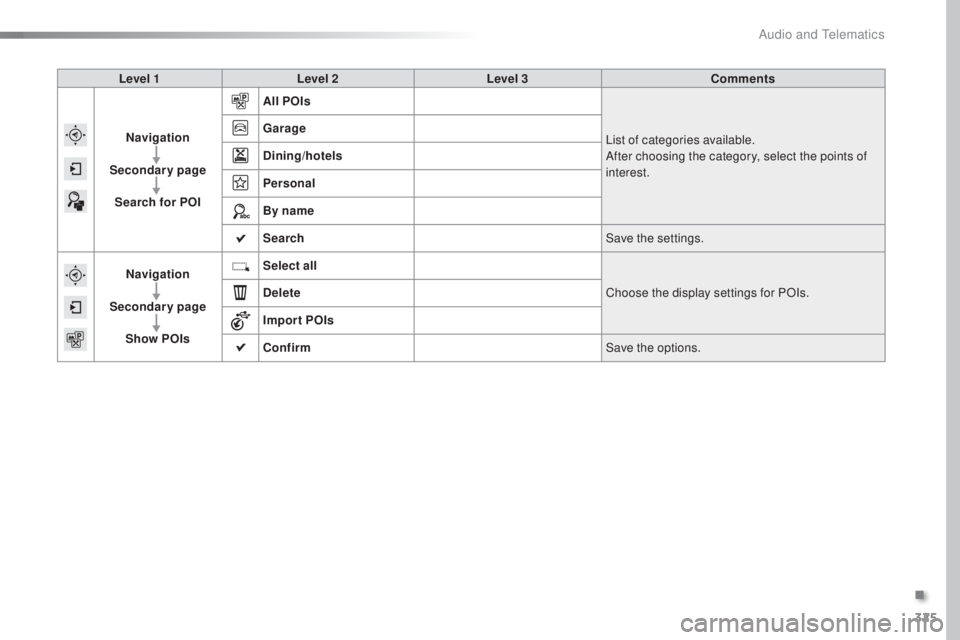
Level 1Level 2 Level 3 Comments
Navigation
Secondary page Search for POI All POIs
List of categories available.
After choosing the category, select the points of
interest.
Garage
Dining/hotels
Personal
By name
Search
Save the settings.
Navigation
Secondary page Show POIs Select all
Choose the display settings for POIs.
Delete
Import POIs
Confirm Save the options.
.
Audio and telematics
Page 329 of 398
327
308_en_Chap10c_SMegplus_ed02-2015
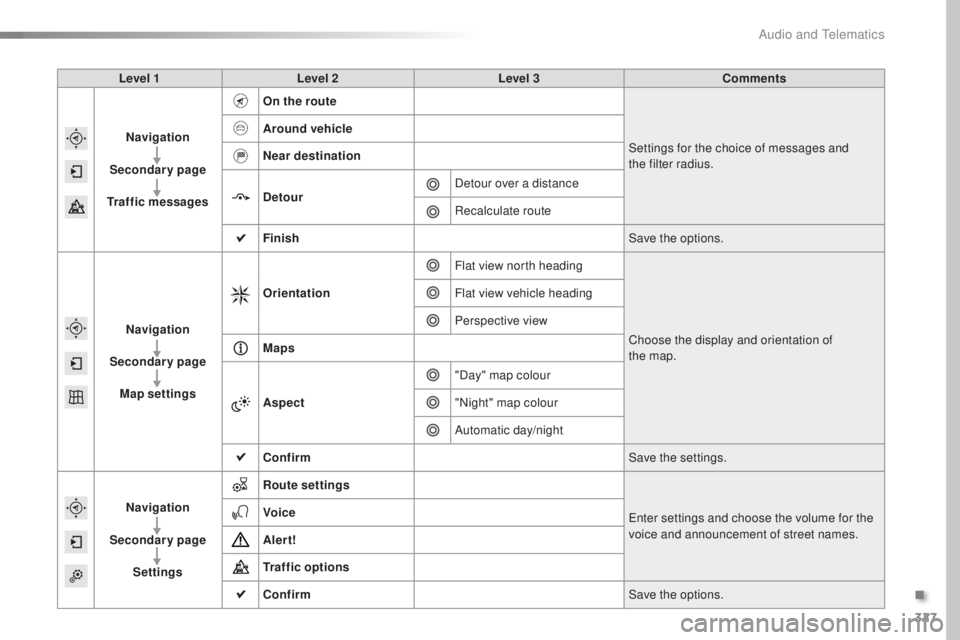
Level 1Level 2 Level 3 Comments
Navigation
Secondary page
Traffic messages On the route
Settings for the choice of messages and
the
f
ilter radius.
Around vehicle
Near destination
Detour
Detour over a distance
Recalculate route
Finish Save the options.
Navigation
Secondary page Map settings Orientation
Flat view north heading
Choose the display and orientation of
the
ma
p.
Flat view vehicle heading
Perspective view
Maps
Aspect "Day" map colour
"Night" map colour
Automatic day/night
Confirm Save the settings.
Navigation
Secondary page Settings Route settings
ent
er settings and choose the volume for the
voice and announcement of street names.
Voice
Alert!
Traffic options
Confirm
Save the options.
.
Audio and telematics
Page 330 of 398
328
308_en_Chap10c_SMegplus_ed02-2015
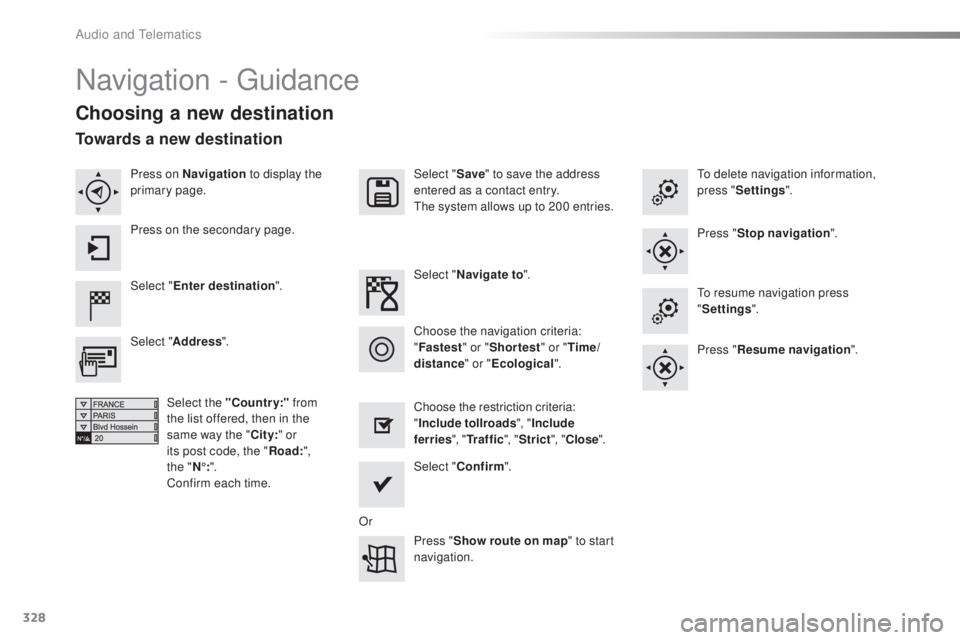
Navigation - guidance
Choosing a new destination
Select "Enter destination ". Select "
Save" to save the address
entered as a contact entry.
the s
ystem allows up to 200 entries.
Select " Confirm ".
Press " Show route on map " to start
navigation.
Select "
Address ".
Select the "Country:" from
the list offered, then in the
same way the " City:" or
its post code, the " Road:",
the
" N
°:".
Confirm each time. Select "
Navigate to ".
Choose the restriction criteria:
" Include tollroads ", "Include
ferries ", "Tr a f f i c ", "Strict ", "Close ".
Choose the navigation criteria:
"
Fastest " or "Shortest " or "Time/
distance " or "Ecological".
to d
elete navigation information,
press " Settings ".
Press " Stop navigation ".to r
esume navigation press
" Settings ".
Press " Resume navigation ".
Press on Navigation
to display the
primary page.
Press on the secondary page.
Towards a new destination
Or
Audio and telematics
Page 331 of 398
329
308_en_Chap10c_SMegplus_ed02-2015
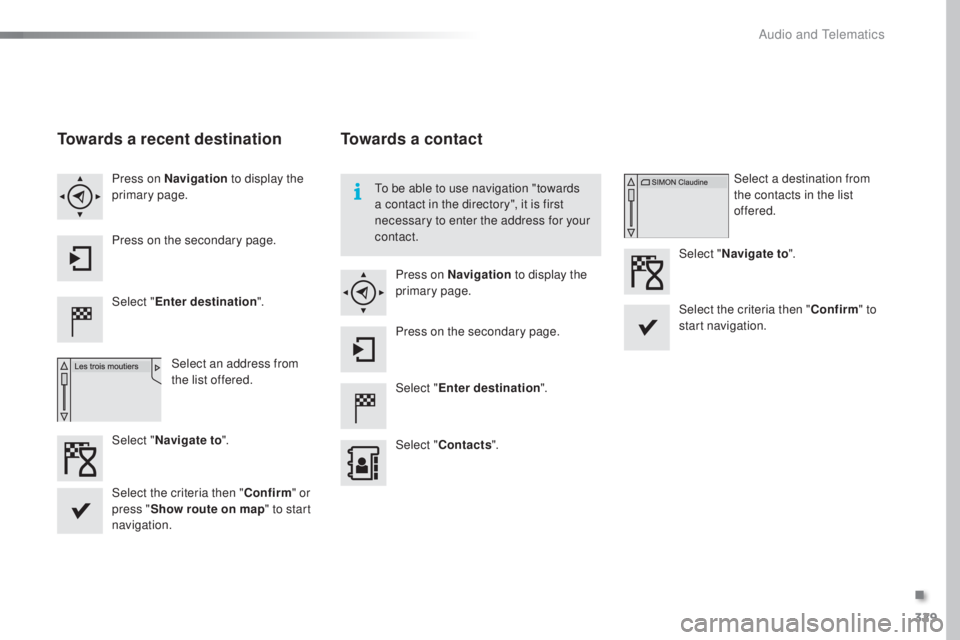
Towards a recent destination
Select "Enter destination ".
Select an address from
the list offered.
Press on Navigation
to display the
primary page.
Press on the secondary page.
Select " Navigate to ".
Towards a contact
Select "Enter destination ".
Select " Contacts ".
Press on Navigation
to display the
primary page.
Press on the secondary page. Select a destination from
the contacts in the list
offered.
Select " Navigate to ".
Select the criteria then " Confirm" to
start navigation.
to be a
ble to use navigation "towards
a contact in the directory", it is first
necessary to enter the address for your
contact.
Select the criteria then " Confirm" or
press " Show route on map " to start
navigation.
.
Audio and telematics
Page 332 of 398
330
308_en_Chap10c_SMegplus_ed02-2015
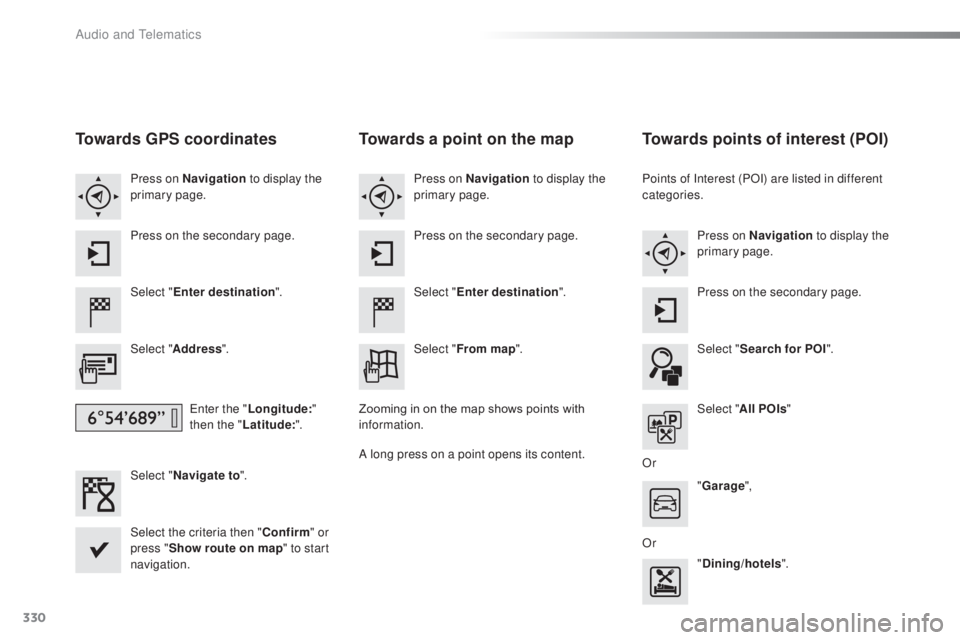
Towards GPS coordinates
Select "Enter destination ".
Select " Address ".
ent
er the "Longitude: "
then the " Latitude: ".
Select " Navigate to ".
Select the criteria then " Confirm" or
press " Show route on map " to start
navigation. Press on Navigation to display the
primary page.
Press on the secondary page.
Towards a point on the map
Select " Enter destination ".
Select " From map ".
Press on Navigation
to display the
primary page.
Press on the secondary page.
Zooming in on the map shows points with
information.
A long press on a point opens its content.
Towards points of interest (POI)
Points of Interest (POI) are listed in different
categories. Press on Navigation to display the
primary page.
Press on the secondary page.
Select " Search for POI ".
Select " All POIs "
Or "Garage ",
Or "Dining/hotels ".
Audio and telematics
Page 334 of 398
332
308_en_Chap10c_SMegplus_ed02-2015
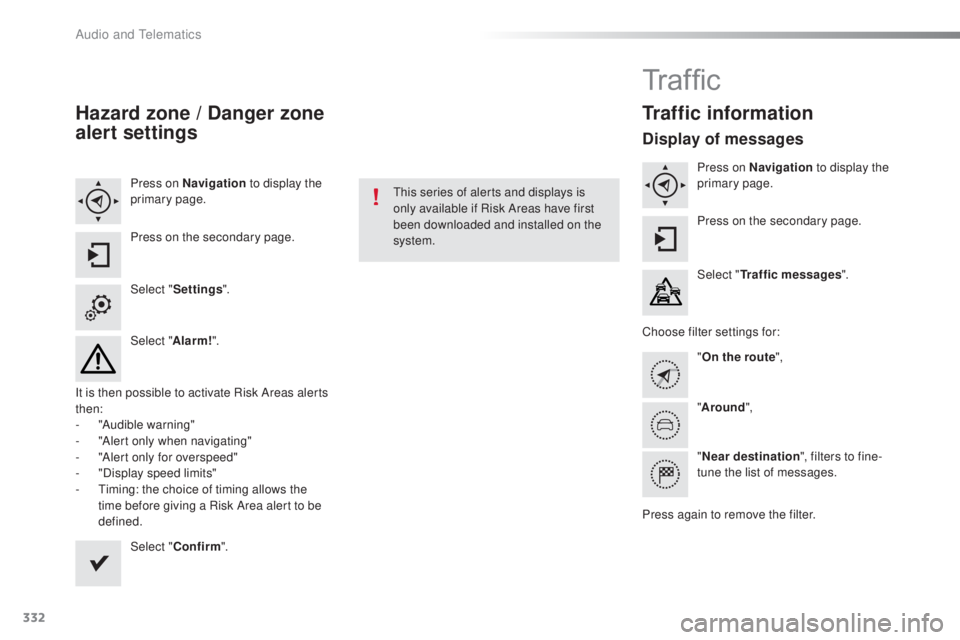
Hazard zone / Danger zone
alert settings
Press on Navigation to display the
primary page.
Press on the secondary page.
Select " Settings ".
Select " Alarm!".
It is then possible to activate Risk Areas alerts
then:
-
"A
udible warning"
-
"A
lert only when navigating"
-
"A
lert only for overspeed"
-
"D
isplay speed limits"
-
t
im
ing: the choice of timing allows the
time before giving a Risk Area alert to be
defined.
Select " Confirm ".thi
s series of alerts and displays is
only available if Risk Areas have first
been downloaded and installed on the
system.
Tr a f fi c
Traffic information
Display of messages
Press on Navigation to display the
primary page.
Press on the secondary page.
Select " Traffic messages ".
Choose filter settings for: "On the route ",
" Around ",
" Near destination ", filters to fine-
tune the list of messages.
Press again to remove the filter.
Audio and telematics
Page 335 of 398
333
308_en_Chap10c_SMegplus_ed02-2015
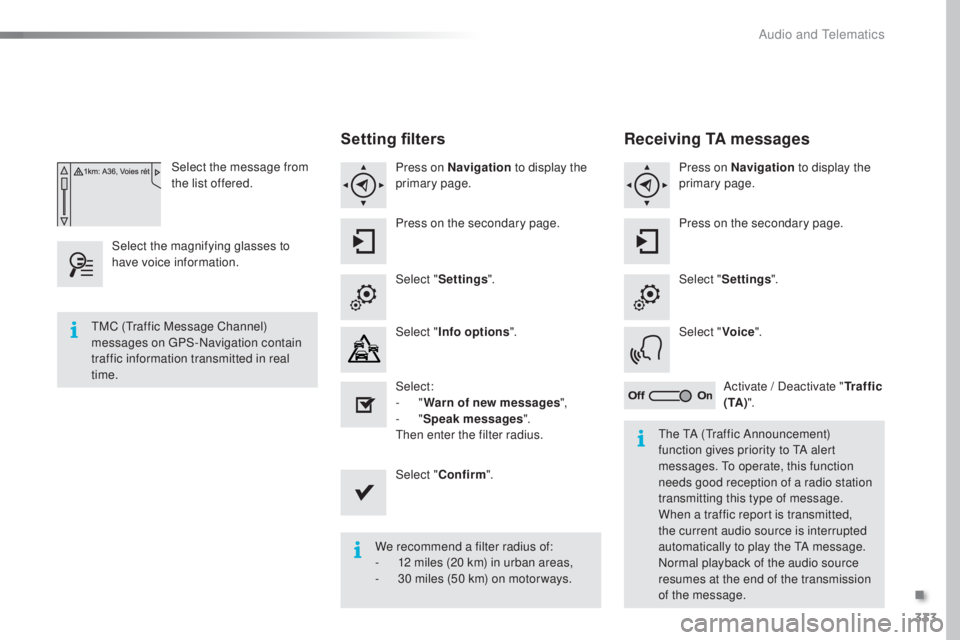
Select the message from
the list offered.
Select the magnifying glasses to
have voice information.
Setting filters
Press on Navigation to display the
primary page.
Press on the secondary page.
Select " Settings ".
Select " Info options ".
Select:
-
" W
arn of new messages ",
-
" S
peak messages ".
then en
ter the filter radius.
Select " Confirm ".
We recommend a filter radius of:
-
12 m
iles (20 km) in urban areas,
-
30 m
iles (50 km) on motor ways.
tMC (tra
ffic Message Channel)
messages on
gPS
-Navigation contain
traffic information transmitted in real
time.
the tA (tra
ffic Announcement)
function gives priority to
tA al
ert
messages.
to op
erate, this function
needs good reception of a radio station
transmitting this type of message.
When a traffic report is transmitted,
the current audio source is interrupted
automatically to play the
tA me
ssage.
Normal playback of the audio source
resumes at the end of the transmission
of the message.
Receiving TA messages
Press on Navigation to display the
primary page.
Press on the secondary page.
Select " Settings ".
Select " Voice".
Activate / Deactivate " Tr a f f i c
( TA ) ".
.
Audio and telematics
Page 337 of 398
335
308_en_Chap10c_SMegplus_ed02-2015
Level 1Level 2 Level 3 Comments
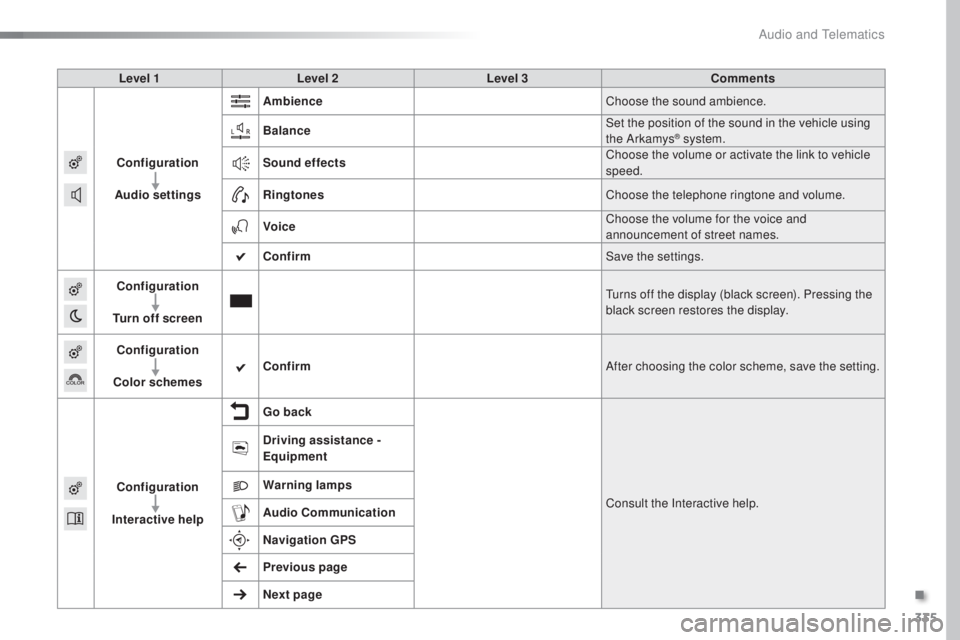
Configuration
Audio settings Ambience
Choose the sound ambience.
Balance Set the position of the sound in the vehicle using
the Arkamys
® system.
Sound effects Choose the volume or activate the link to vehicle
speed.
Ringtones Choose the telephone ringtone and volume.
Voice Choose the volume for the voice and
announcement of street names.
Confirm Save the settings.
Configuration
Turn off screen
tur
ns off the display (black screen). Pressing the
black screen restores the display.
Configuration
Color schemes Confirm
After choosing the color scheme, save the setting.
Configuration
Interactive help Go back
Consult the Interactive help.
Driving assistance -
Equipment
Warning lamps
Audio
Communication
Navigation GPS
Previous page
Next page
.
Audio and telematics