Page 216 of 437
HOW TO USE REMOTE KEYLESS
ENTRY FUNCTION
WARNING
• Radio waves could adversely affect electric medical equipment. Those
who use a pacemaker should contact
the electric medical equipment manu-
facturer for the possible influences be-
fore use.
• The Intelligent Key transmits radio waves when the buttons are pushed.
The FAA advises that the radio waves
may affect aircraft navigation and
communication systems. Do not oper-
ate the Intelligent Key while on an air-
plane. Make sure the buttons are not
operated unintentionally when the unit
is stored during a flight.
CAUTION
• Do not allow the Intelligent Key, which contains electrical components, to
come into contact with water or salt
water. This could affect the system
function.
• Do not drop the Intelligent Key.
• Do not strike the Intelligent Key sharply against another object.
• Do not change or modify the Intelligent Key.
• Wetting may damage the Intelligent Key. If the Intelligent Key gets wet,
immediately wipe until it is completely
dry.
• Do not place the Intelligent Key for an extended period in an area where tem-
peratures exceed 140°F (60°C) .
• Do not attach the Intelligent Key with a key holder that contains a magnet.
• Do not place the Intelligent Key near equipment that produces a magnetic
field, such as a TV, audio equipment,
personal computers or cellular phone. The remote keyless entry function can operate all
door locks using the remote keyless entry func-
tion of the Intelligent Key. The remote keyless
entry function can operate at a distance of ap-
proximately 33 ft (10 m) from the vehicle. The
operating distance depends upon the conditions
around the vehicle.
The remote keyless entry function will not oper-
ate:
• When the Intelligent Key is not within the opera-
tional range.
• When the doors are open or not closed securely.
• When the Intelligent Key battery is discharged.
CAUTION
When locking the doors using the Intelli-
gent Key, be sure not to leave the key in
the vehicle.
Pre-driving checks and adjustments3-13
Page 230 of 437
4 Display screen, heater, air conditioner,
audio and phone systems
RearView Monitor (if so equipped).............4-3
RearView Monitor system operation ..........4-4
How to read the displayed lines .............4-5
Difference between predicted and actual
distances ......................... .4-5
How to park with predicted course lines
(models with navigation) ................ .4-7
Adjusting the screen .................. .4-8
How to turn on and off predicted course lines
(models with navigation) ................ .4-9
RearView Monitor system limitations ..........4-9
System maintenance ................. .4-10
Around View® Monitor (if so equipped) .........4-11
Around View® Monitor system operation ......4-12
Difference between predicted and actual
distances ........................ .4-15
How to park with predicted course lines .......4-17
How to switch the display ...............4-18
Adjusting the screen ................. .4-19
Around View® Monitor system limitations ......4-19
System Maintenance ................. .4-21
Vents ............................ .4-21
Center vents ...................... .4-21
Side vents ....................... .4-22Heater and air conditioner (automatic)
..........4-22
Operating tips ..................... .4-24
Air Conditioner Filter ................. .4-25
Automatic climate control
(models without Navigation System) .........4-26
Automatic climate control
(models with Navigation System) ...........4-33
Servicing climate control ................4-38
Audio system (models without Navigation System). . .4-38 Radio .......................... .4-38
FM radio reception .................. .4-39
AM radio reception .................. .4-39
Satellite radio reception ................4-40
Audio operation precautions ..............4-40
FM-AM-SAT radio with compact disc (CD)
player .......................... .4-47
USB (Universal Serial Bus) connection port
(models without Navigation System) .........4-51
iPod® player operation
(models without Navigation System) .........4-53
Bluetooth®
streaming audio
(models without Navigation System) .........4-55
Aux device player operation ..............4-55
Page 231 of 437
CD Care and cleaning................ .4-56
Steering wheel switch for audio control .......4-56
Antenna ......................... .4-57
NissanConnect
smMobile Apps
(models without navigation system) ..........4-57
Car phone or CB radio ................ .4-58
Bluetooth® hands-free phone system without navigation
system (if so equipped) .................. .4-59
Regulatory information ................ .4-61
Using the system ................... .4-61
Control buttons .................... .4-62
Connecting procedure ................ .4-63
Voice Commands ................... .4-64Making A Call
..................... .4-65
Receiving A Call .................... .4-66
During A Call ...................... .4-66
Ending A Call ..................... .4-66
Text Messaging .................... .4-67
Bluetooth® Settings ................. .4-68
Manual Controls .................... .4-69
Troubleshooting Guide ................ .4-70
Bluetooth® Hands-Free Phone System With Navigation
System (if so equipped) ................. .4-71
Nissan Voice Recognition System (if so equipped). . .4-71
Page 232 of 437
1. CAMERA button (if so equipped)
REARVIEW MONITOR (IF SO
EQUIPPED)
Display screen, heater, air conditioner, audio and phone systems4-3
Page 233 of 437
WARNING
Failure to follow the warnings and in-
structions for proper use of the RearView
Monitor system could result in serious
injury or death.
•
RearView Monitor is a convenience fea-
ture and is not a substitute for proper
backing. Always turn and look out the
windows and check mirrors to be sure
that it is safe to move before operating
the vehicle. Always back up slowly.
• The system is designed as an aid to the driver in showing large stationary ob-
jects directly behind the vehicle, to
help avoid damaging the vehicle.
•
The distance guide line and the vehicle
width line should be used as a reference
only when the vehicle is on a level paved
surface. The distance viewed on the
monitor is for reference only and may be
different than the actual distance be-
tween the vehicle and displayed objects.
CAUTION
Do not scratch the camera lens when
cleaning dirt or snow from the front of the
camera. The RearView Monitor system automatically
shows a rear view of the vehicle when the shift
lever is shifted into the R (Reverse) position or
when the CAMERA button (if so equipped) is
pressed. The radio can still be heard while the
RearView Monitor is active.
To display the rear view, the RearView Monitor
system uses a camera located just above the
vehicle’s license plate
�1.
REARVIEW MONITOR SYSTEM
OPERATION
With the ignition in the ON position, move the
shift lever to the R (Reverse) position or press the
CAMERA button (if so equipped) to operate the
RearView Monitor.
4-4Display screen, heater, air conditioner, audio and phone systems
Page 234 of 437
HOW TO READ THE DISPLAYED
LINES
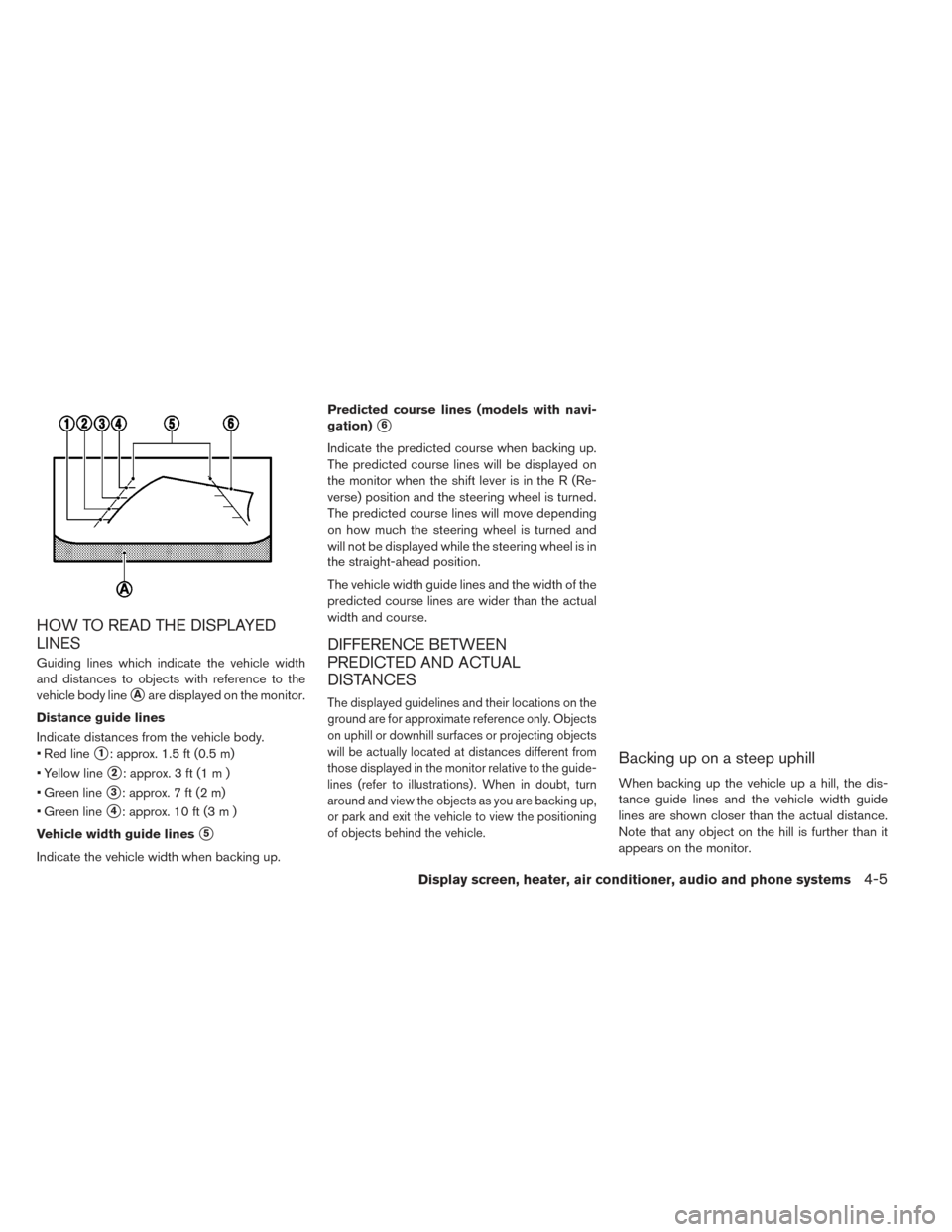
Guiding lines which indicate the vehicle width
and distances to objects with reference to the
vehicle body line
�Aare displayed on the monitor.
Distance guide lines
Indicate distances from the vehicle body.
• Red line
�1: approx. 1.5 ft (0.5 m)
• Yellow line
�2: approx. 3 ft (1 m )
• Green line
�3: approx. 7 ft (2 m)
• Green line
�4: approx. 10 ft (3 m )
Vehicle width guide lines
�5
Indicate the vehicle width when backing up. Predicted course lines (models with navi-
gation)
�6
Indicate the predicted course when backing up.
The predicted course lines will be displayed on
the monitor when the shift lever is in the R (Re-
verse) position and the steering wheel is turned.
The predicted course lines will move depending
on how much the steering wheel is turned and
will not be displayed while the steering wheel is in
the straight-ahead position.
The vehicle width guide lines and the width of the
predicted course lines are wider than the actual
width and course.
DIFFERENCE BETWEEN
PREDICTED AND ACTUAL
DISTANCES
The displayed guidelines and their locations on the
ground are for approximate reference only. Objects
on uphill or downhill surfaces or projecting objects
will be actually located at distances different from
those displayed in the monitor relative to the guide-
lines (refer to illustrations) . When in doubt, turn
around and view the objects as you are backing up,
or park and exit the vehicle to view the positioning
of objects behind the vehicle.
Backing up on a steep uphill
When backing up the vehicle up a hill, the dis-
tance guide lines and the vehicle width guide
lines are shown closer than the actual distance.
Note that any object on the hill is further than it
appears on the monitor.
Display screen, heater, air conditioner, audio and phone systems4-5
Page 235 of 437
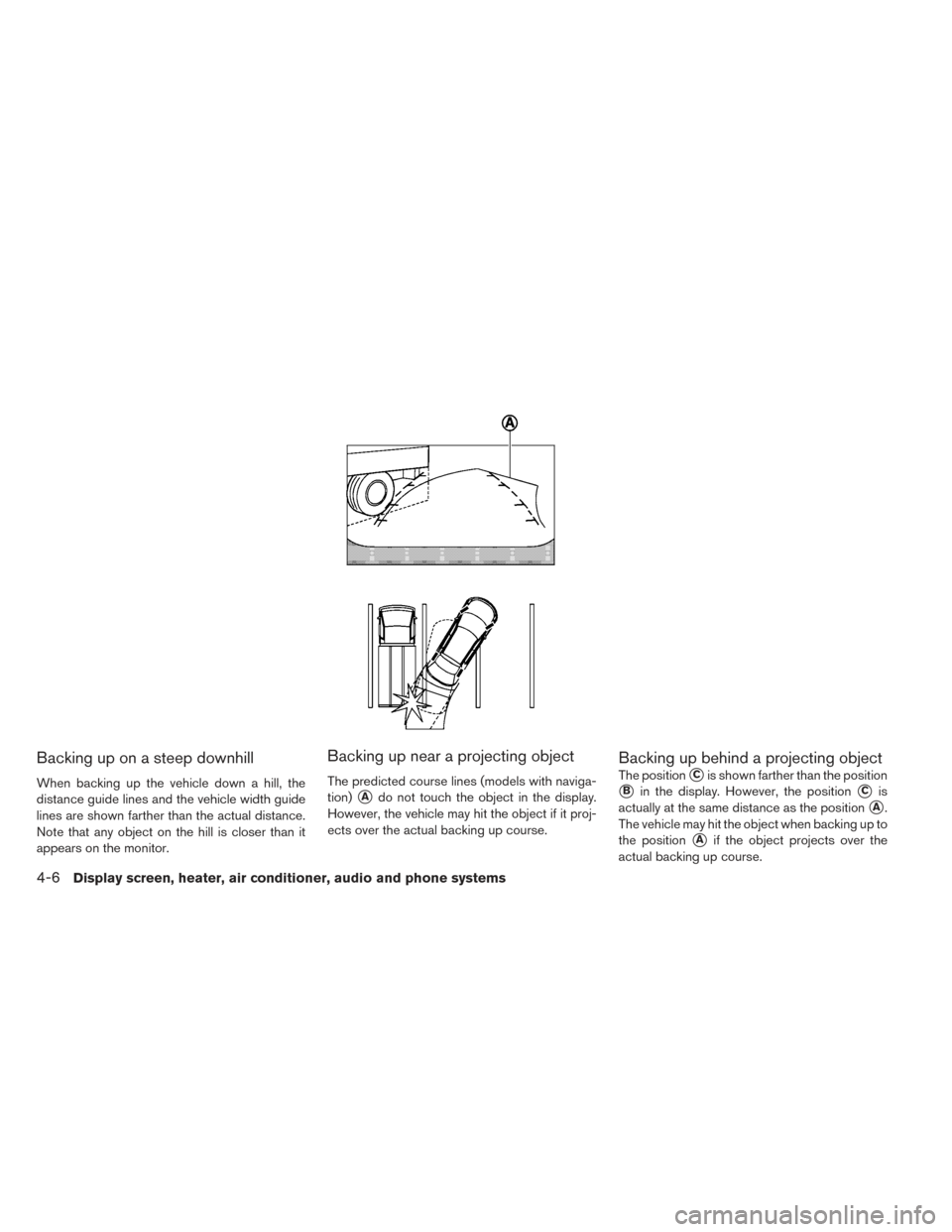
Backing up on a steep downhill
When backing up the vehicle down a hill, the
distance guide lines and the vehicle width guide
lines are shown farther than the actual distance.
Note that any object on the hill is closer than it
appears on the monitor.
Backing up near a projecting object
The predicted course lines (models with naviga-
tion)
�Ado not touch the object in the display.
However, the vehicle may hit the object if it proj-
ects over the actual backing up course.
Backing up behind a projecting object
The position�Cis shown farther than the position
�Bin the display. However, the position�Cis
actually at the same distance as the position
�A.
The vehicle may hit the object when backing up to
the position
�Aif the object projects over the
actual backing up course.
4-6Display screen, heater, air conditioner, audio and phone systems
Page 236 of 437
HOW TO PARK WITH PREDICTED
COURSE LINES (MODELS WITH
NAVIGATION)
WARNING
• If the tires are replaced with different sized tires, the predicted course lines
may be displayed incorrectly.
• On a snow-covered or slippery road, there may be a difference between the
predicted course line and the actual
course line.
• If the battery is disconnected or be- comes discharged, the predicted
course lines may be displayed incor-
rectly. If this occurs, please perform
the following procedures:
- Turn the steering wheel from lock to
lock while the engine is running.
- Drive the vehicle on a straight road
for more than 5 minutes.
• When the steering wheel is turned with the ignition switch in the ACC position,
the predicted course lines may be dis-
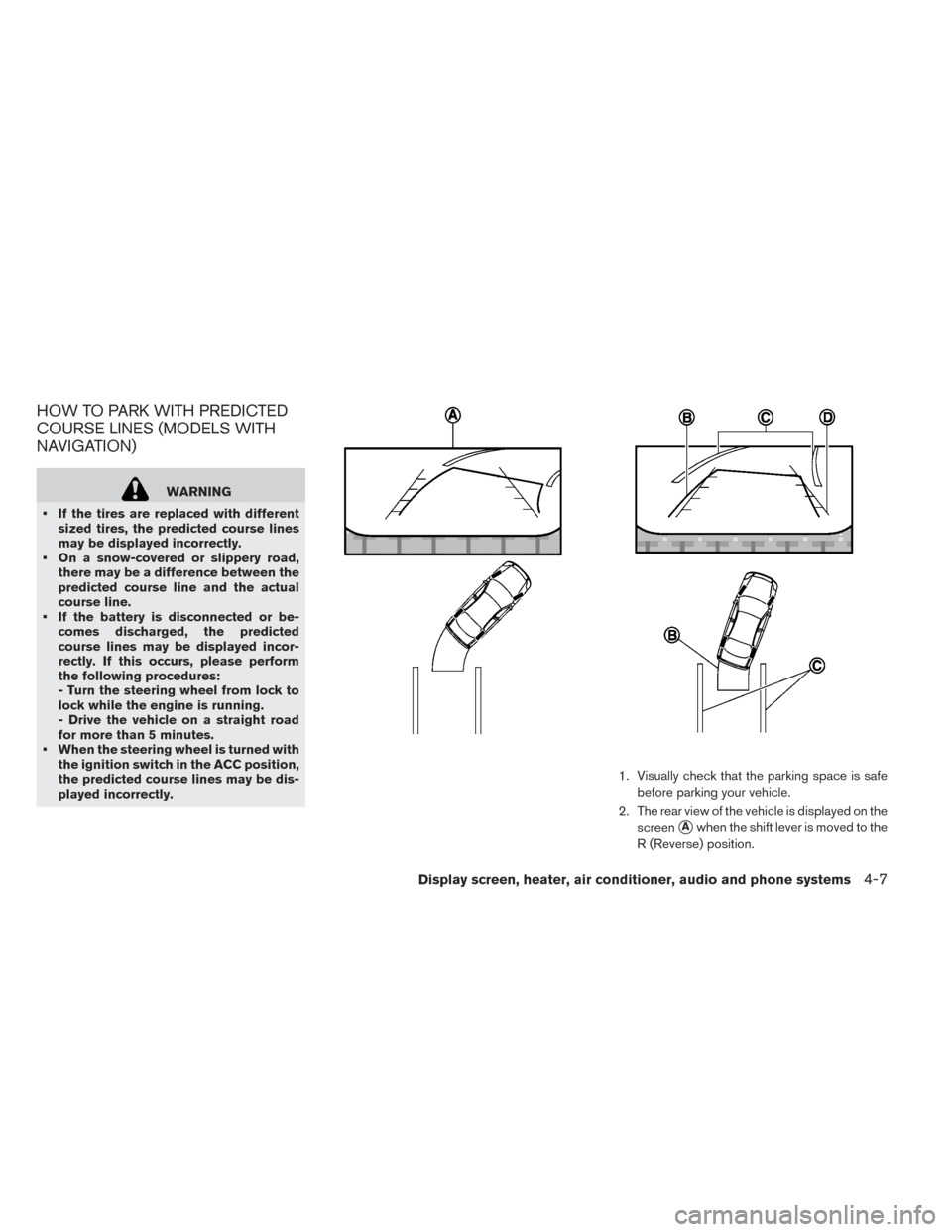
played incorrectly. 1. Visually check that the parking space is safe
before parking your vehicle.
2. The rear view of the vehicle is displayed on the screen
�Awhen the shift lever is moved to the
R (Reverse) position.
Display screen, heater, air conditioner, audio and phone systems4-7