2016 MITSUBISHI OUTLANDER change time
[x] Cancel search: change timePage 277 of 464

Bluetooth® 2.0 interface (if so equipped)
Features and controls 5-201
5
4. The voice guide will say “Start pairing procedure on the devi
ce. See the device
manual for instructions.” and then will say “The pairing code
is
5. Enter in the Bluetooth
® device the 4-digit
number that has been read out in Step 4.
6. The voice guide will say “Please say the name of the device after the beep.” Youcan assign a desired name for the Blue- tooth
® device and register it as a device
tag. Say the name you want to registerafter the beep.
NOTE
The following procedure ( to ) can also be used instead of saying “Pair Device.” Replace this step 3 with the following proce-dure if you prefer. Say “Setup.” Say “Pairing Options.” The voice guide will
say “Select one of
the following: pair, edit, delete, or list.”Say “Pair.” If 7 devices have alre
ady been paired, the
voice guide will sa
y “Maximum devices
paired” and then the system will end the pairing process. To re
gister a ne
w device,
delete one device and th
en repeat the pairing
process. (Refer to “Selecting a device: Deleting a device” on page 5-203.)NOTE
Some Bluetooth
® devices requi
re a specific
pairing code. Please re
fer to the device man-
ual for pairing code
requirements and read
the next section “If
your device requires a
specific pairing code”
on page 5-202 to set
the pairing code.
The pairing code entered here is only used for the Bluetooth
® connection certification.
Depending on the connecti
on settings of the
Bluetooth
® device, this code may have to be
entered each time you connect the Blue- tooth
® device to the Bluetooth
® 2.0 inter-
face. For the default
connection settings,
refer to the instructions for the device.NOTE
Depending on the Bluetooth
® device, it may
take a few minutes to pair it with the Blue- tooth
® 2.0 interface.
If the Bluetooth
® 2.0 interface
cannot recog-
nize the Bluetooth
® device, the voice guide
will say “Pairi
ng has timed out” and the pair-
ing process will
be cancelled.
Confirm that the devi
ce you are pairing sup-
ports Bluetooth
®, and try pairing it again.
NOTE
If you enter the wrong number, the voice guide will say “Pairing
failed” and the pair-
ing process will be cancelled.Confirm the number is right, and try pairing it again. If your device requires
a specific pairing
code, you need to set th
e pairing code. Refer
to the device manual for pairing code requirements and read
the next section “If
your device requires a sp
ecific pairing code”
on page 5-202.NOTE
When the confirmation f
unction is on, after
repeating the device
tag you have said, the
voice guide will ask
“Is this correct?”
Answer “Yes.” To change the device
tag, answer “No” and
then say the device tag again.NOTE
BK0223400US.book 201 ページ 2015年2月13日 金曜日 午後12時15分
Page 278 of 464

Bluetooth® 2.0 interface (if so equipped) 5-202 Features and controls
5
7. The voice guide will say “Pairing Com- plete. Would you like to import the con-tacts from your mobi
le device now?”
Answer “Yes,” and the voice guide will say “Please wait while the contacts areimported. This may ta
ke several minutes.”
Answer “No” to end the pairing process.
If your device requires a specific pairing code, you need to set the pairing code. Follow the procedures below. 1. Press the SPEECH button (except for vehicles with Mitsubishi Multi-Commu- nication System) or
PICK-UP button (for
vehicles with Mitsubishi Multi-Commu-nication System). 2. Say “Setup.” 3. Say “Pairing Options.”4. Say “Set Code.” 5. The voice guide will say “Do you want the pairing code to be random or fixed?”Say “Fixed.” 6. The voice guide will say “Please say a 4- digit pairing code.”
Say a 4-digit number.
7. The voice guide will
say “Pairing code set
to
Answer “No,” the system will return to Step 6.8. The voice guide will say “Do you want to pair a device now?” Answer “Yes,” the system will proc
eed to Step 3 in the pair-
ing process. Refer to
the “Pairing proce-
dure- Type 2.”
N00565101080
If multiple paired Bluetooth
® devices are
available in the vehicle, the cellular phone ormusic player most recent
ly connected is auto-
matically connected
to the Bluetooth
® 2.0
interface.You can connect to the
other paired cellular
phone or music player by following setting change procedures.
N00582200034
1. Press the SPEECH button (except for vehicles with Mitsubishi Multi-Commu- nication System) or PICK-UP button (forvehicles with Mitsubishi Multi-Commu- nication System). 2. Say “Setup.”3. Say “Select phone.”
4. After the voice guide says “Please say,” the numbers of the cellular phones anddevice tags of
corresponding cellular
phones will be read out in order, starting with the cellular phone that has been mostrecently connected. Say the number of the cellular phone that you want to connect to.When the confirmation function is on, the system will ask you again whether the phone that you want to connect to is cor- rect. Answer “Yes” to
continue and con-
nect to the cellular phone.Answer “No,” and the voice guide will say “Please say.” Say the number of the phone that you want to connect to. 5. The selected phone w
ill be connected to
the Bluetooth
® 2.0 interface. The voice
guide will say “
and then the system will return to themain menu.
If your device requires
a specific pairing
code
Selecting a device
To select a cellular phone
NOTE
You can connect to a phone at any time by pressing the SPEECH button and saying thenumber, even before all of the paired num- bers and device tags of corresponding cellu- lar phones are read out by the system.
BK0223400US.book 202 ページ 2015年2月13日 金曜日 午後12時15分
Page 283 of 464

Bluetooth® 2.0 interface (if so equipped)
Features and controls 5-207
5
You can redial the last
number called, based
on the history of dialed calls in the paired cel-lular phone. Use the following procedure to redial. 1. Press the SPEECH button (except for vehicles with Mitsubishi Multi-Commu- nication System) or PICK-UP button (forvehicles with Mitsubishi Multi-Commu- nication System). 2. Say “Redial.”
N00565700018
During a call, press the SPEECH button toenter voice recognitio
n mode, then say
“
a call you need to sim-
ulate the pressing of a phone button as a
response to an automated system, press the SPEECH button and speak “1 2 3 4 poundsend” and the 1234# will be sent via your cel- lular phone.
N00565801045
If an incoming phone call is received whilethe ignition switch or
the operation mode is in
ON or ACC, the audio sy
stem will be auto-
matically turned on and switched to the incoming call, even when the audio systemwas originally off. The voice guide a
nnouncement for the
incoming call will be output from the frontpassenger’s seat speaker. If the CD player or radio was playing when the incoming call was received, the audio sys-tem will mute the sound from the CD player or radio and output onl
y the incoming call.
To receive the call, press the PICK-UP buttonon the steering wheel control switch. When the call is over, the audio system will return to its previous state.
N00565900010
At any time during a ca
ll, you can mute the
vehicle microphone.
Pressing the SPEECH button and then saying “Mute” during a call will turn ON the mutefunction and mute the microphone. Saying “Mute off” in the same way will turn off the mute function and cancel the mute onthe microphone.
N00566600014
The Bluetooth
® 2.0 interface can switch
between hands-free m
ode (hands-free calls)
and private mode (calls
using cellular phone).
If you press the SPEECH button and say“Transfer call” duri
ng a hands-free call, you
can stop the hands-free m
ode and talk in pri-
vate mode. To return to hands-free mode, press the SPEECH button again and say “Transfer call.”
N00566000018
The Bluetooth
® 2.0 interface has 2 types of
unique phonebooks that are different from thephonebook stored in the cellular phone. They are the vehicle phonebook and the mobile phonebook.
NOTE
When the confirmation function is on, the system will check if
the name and location of
the receiver are correct. If the name is cor-rect, answer “Yes.” To change the name
or location to call,
answer “No.” The system will return to Step3.
RedialingSend function
Receiving calls
Mute function
Switching between hands-free mode and private mode
Phonebook function
BK0223400US.book 207 ページ 2015年2月13日 金曜日 午後12時15分
Page 286 of 464

Bluetooth® 2.0 interface (if so equipped) 5-210 Features and controls
5
6. Operate the Bluetooth
® compatible cellu-
lar phone to set it up so that the phone-book entry you want to register in the vehicle phonebook can be transferred to the Bluetooth
® 2.0 interface.
7. When the reception is complete, the voice guide will say “<
Number of telephone
numbers that had been registered in the import source> numbers have been imported. What name would you like touse for these numbers?” Say the name you want to register for this phonebook entry.
8. The voice guide will say “Adding
er a different name.
9. The voice guide will say “Numberssaved.”
10. The voice guide will say “Would you like
to import another contact?” Answer “Yes” if you want to continue with the registration.
You can continue to
register a new phonebook entry from Step 5. Answer “No,” the system will return tothe main menu.
N00579800049
You can change or delete a name or telephonenumber registered in the vehicle phonebook.You can also listen to the list of names regis- tered in the vehicle phonebook.
N00579900053
1. Press the SPEECH button (except forvehicles with Mitsubishi Multi-Commu- nication System) or
PICK-UP button (for
vehicles with Mitsubishi Multi-Commu- nication System). 2. Say “Phonebook.”3. The voice guide will say “Select one of the following: new entry, edit number, edit name, list names, delete, erase all, or import contact”. Sa
y “Edit number.”
4. The voice guide will say “Please say thename of the entry you would like to edit, or say list names.”
Say the name of the
phonebook entry you want to edit. 5. The voice guide wi
ll say “Home, work,
mobile or other?” Sele
ct and say the loca-
tion where the telephone number you want to change or add is registered.When the confirmation function is on, the system will check the target name and location again. Answer “Yes” if you wantto continue with the editing.
NOTE
If the Bluetooth
® 2.0 interface cannot recog-
nise the Bluetooth
® compatible cellular
phone or the connection takes too muchtime, the voice guide
will say “Import con-
tact has timed out” and
then the system will
cancel the registration. In such case, startover again from Step 1. Pressing the HANG-U
P button or pressing
and holding the SPEECH
button will cancel
the registration.NOTE
If the entered name is
already used for other
phonebook entry or similar to a name usedfor other phonebook entry, that name cannot be registered.
To change the content registered in the vehicle phonebook NOTE
The system must have at least one entry.
Editing a telephone number
NOTE
Say “List names,” and the names registered in the phonebook will be read out in order.Refer to “Vehicle phonebook: Listening to the list of registered names” on page 5-211.
BK0223400US.book 210 ページ 2015年2月13日 金曜日 午後12時15分
Page 290 of 464
Bluetooth® 2.0 interface (if so equipped) 5-214 Features and controls
5
5. The voice guide will say “Importing the contact list from the mobile phonebook.This may take several minutes to com- plete. Would you li
ke to continue?”
Answer “Yes,” transferring to the mobilephonebook the phonebook stored in the cellular phone will start. Answer “No,” the system will return tothe main menu.
6. When the transfer is complete, the voice guide will say “Import complete” andthen the system will return to the main menu.
N00566301092
MODEL: MMC FCC ID: CB2MDGMY10IC: 279B-MDGMY10 Your Bluetooth
® 2.0 interface operates on a
radio frequency subject to Federal Communi- cations Commission (FCC)
Rules (For vehi-
cles sold in U.S.A.
) and Industry Canada
Rules (For vehicles so
ld in Canada). This
device complies with Part 15 of the FCCRules and RSS-210 of the Industry Canada Rules. Operation is subject to the following two conditions: This device may not
cause harmful inter-
ference. This device must ac
cept any interference
received, including interference that maycause undesired operation.
The term “IC:” before
the radio certification
number only signifies th
at Industry Canada
technical specifications were met. The antenna used for this transmitter must not be co-located or operating in conjunctionwith any other antenna
or transmitter. End-
users and installers must be provided with installation instructions
and transmitter oper-
ating conditions for sa
tisfying RF exposure
compliance. FCC Notice: This equipment has been tested and found to comply with the limits for a Class B digital device, pursuant to part 15 ofthe FCC Rules. These limits are designed to provide reasonable prot
ection against harmful
interference in a residential installation.This equipment generate
s, use and can radiate
radio frequency energy a
nd, if not installed
and used in accordance with the instructions,may cause harmful interf
erence to radio com-
munications. However, there is no guarantee that interfer-ence will not occur in a particular installation. If this equipment does
cause harmful interfer-
ence to radio or tele
vision reception, which
can be determined by turning the equipment off and on, the user is encouraged to try to correct the interference by one or more of thefollowing measures: Reorient or relocate the receiving antenna. Increase the separation between the equipment and receiver.
NOTE
The transfer may take some time to complete depending on the number of contacts. If the Bluetooth
® 2.0 interface could not be
connected to the Bluetooth
® compatible cel-
lular phone, the voice gui
de will sa
y “Unable
to transfer contact list from phone” and thenthe system will return to the main menu. If you press the HANG-UP button or press and hold the SPEECH button during the data transfer, the transfer will be cancelled and the system will return to the main menu. If an error occurs during the data transfer, all transfer will be canc
elled and the voice guide
will say “Unable to complete the phonebook import” and then the system will return to the main menu. If there are no contacts in the phonebook, the voice guide will say
“There are no contacts
on the connected phone.”
General information
CAUTION Changes or modifica
tions made to this
equipment not expressly approved by the manufacturer may void the FCC authoriza- tion to operate this equipment.
BK0223400US.book 214 ページ 2015年2月13日 金曜日 午後12時15分
Page 299 of 464
HomeLink® Wireless Control System (if so equipped)
Features and controls 5-223
5
3. Press and release - every 2 seconds (“cycle”) your hand-held transmitter until the HomeLink
® indicator light changes from
slowly flashing orange to either rapidly flash- ing green (rolling code
) or continuously lit
green (fixed code). Now you may release the hand-held transmitter button. Proceed with “Programming a new Home- Link
®” step 4 to complete.
N00584900022
The HomeLink
® has the capability of receiv-
ing garage door status from compatiblegarage door opener systems. Check your garage door opener manual for the available feature and HomeLink
® compatibility. Also
for a listing of compatible systems contact HomeLink
® at: www.homelink.com
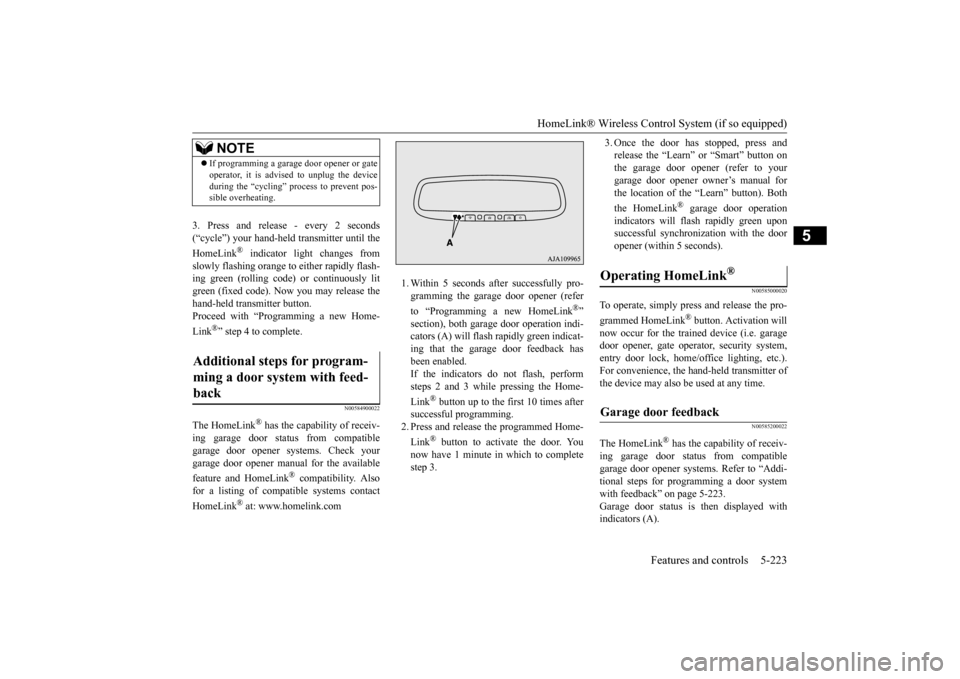
1. Within 5 seconds after successfully pro- gramming the garage door opener (refer to “Programming a new HomeLink
®”
section), both garage door operation indi- cators (A) will flash
rapidly green indicat-
ing that the garage door feedback has been enabled. If the indicators do not flash, performsteps 2 and 3 while pressing the Home- Link
® button up to the first 10 times after
successful programming.2. Press and release
the programmed Home-
Link
® button to activate the door. You
now have 1 minute in which to completestep 3.
3. Once the door has stopped, press and release the “Learn” or “Smart” button onthe garage door opener (refer to your garage door opener owner’s manual for the location of the “Learn” button). Both the HomeLink
® garage door operation
indicators will fl
ash rapidly green upon
successful synchroni
zation with the door
opener (within 5 seconds).
N00585000020
To operate, simply press and release the pro- grammed HomeLink
® button. Activation will
now occur for the trained device (i.e. garagedoor opener, gate opera
tor, security system,
entry door lock, home/office lighting, etc.). For convenience, the ha
nd-held transmitter of
the device may also be used at any time.
N00585200022
The HomeLink
® has the capab
ility of receiv-
ing garage door status from compatible garage door opener systems. Refer to “Addi- tional steps for programming a door systemwith feedback” on page 5-223. Garage door status is
then displayed with
indicators (A).
NOTE
If programming a garage door opener or gate operator, it is advise
d to unplug the device
during the “cycling” pr
ocess to prevent pos-
sible overheating.
Additional steps for program- ming a door system with feed- back
Operating HomeLink
®
Garage door feedback
BK0223400US.book 223 ページ 2015年2月13日 金曜日 午後12時15分
Page 300 of 464
HomeLink® Wireless Control System (if so equipped) 5-224 Features and controls
5
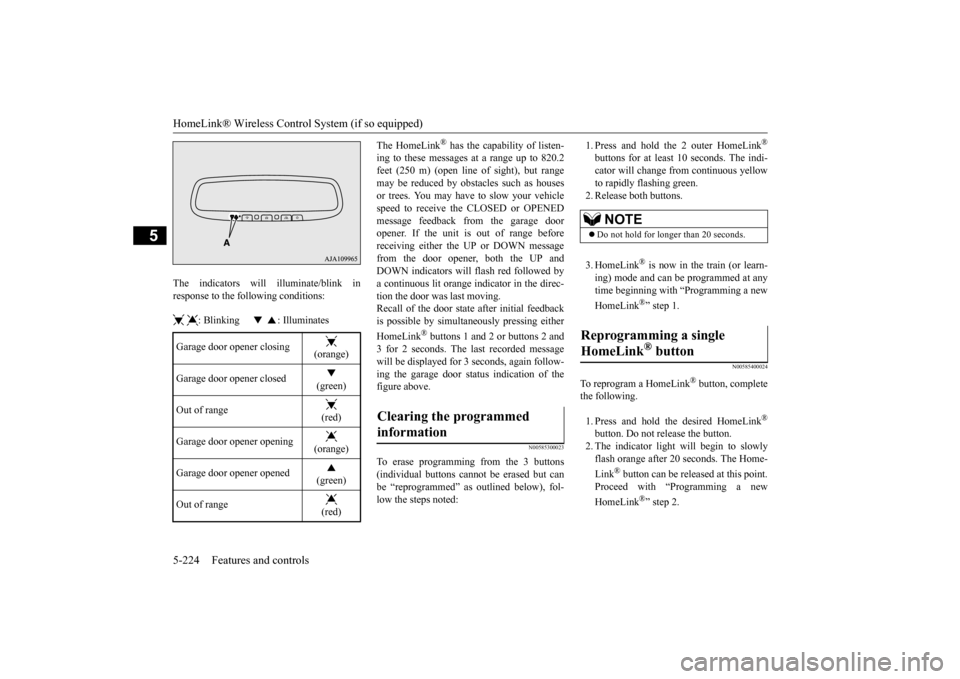
The indicators will illuminate/blink in response to the following conditions: : Blinking : Illuminates
The HomeLink
® has the capability of listen-
ing to these messages at a range up to 820.2feet (250 m) (open line
of sight), but range
may be reduced by obstacles such as houses or trees. You may have to slow your vehiclespeed to receive the CLOSED or OPENED message feedback from the garage door opener. If the unit is out of range beforereceiving either th
e UP or DOWN message
from the door opener, both the UP and DOWN indicators will fl
ash red followed by
a continuous lit orange
indicator in the direc-
tion the door was last moving.Recall of the door stat
e after initial feedback
is possible by simultane
ously pressing either
HomeLink
® buttons 1 and 2 or buttons 2 and
3 for 2 seconds. The last recorded message will be displayed for 3
seconds, again follow-
ing the garage door st
atus indication of the
figure above.
N00585300023
To erase programming from the 3 buttons (individual buttons cannot
be erased but can
be “reprogrammed” as
outlined below), fol-
low the steps noted:
1. Press and hold the 2 outer HomeLink
®
buttons for at least 10 seconds. The indi- cator will change
from continuous yellow
to rapidly flashing green. 2. Release both buttons. 3. HomeLink
® is now in the train (or learn-
ing) mode and can be programmed at anytime beginning with
“Programming a new
HomeLink
®” step 1.
N00585400024
To reprogram a HomeLink
® button, complete
the following. 1. Press and hold the desired HomeLink
®
button. Do not release the button. 2. The indicator light will begin to slowly flash orange after 20
seconds. The Home-
Link
® button can be released at this point.
Proceed with “P
rogramming a new
HomeLink
®” step 2.
Garage door opener closing
(orange)
Garage door opener closed
(green)
Out of range
(red)
Garage door opener opening
(orange)
Garage door opener opened
(green)
Out of range
(red)
Clearing the programmed information
NOTE
Do not hold for longer than 20 seconds.
Reprogramming a single HomeLink
® button
BK0223400US.book 224 ページ 2015年2月13日 金曜日 午後12時15分
Page 336 of 464
Automatic climate cont
rol air conditioner
7-8 Comfort controls
7
The above indicates the
factory settings. You
can personalize the air
selection switch and
air conditioning switch to match your per- sonal preferences.Contact your Mitsubishi
Motors dealer or a
repair facility of your
choice for assistance.
Refer to “Personalizi
ng the air conditioning
switch (Changing the function setting)” on page7-11. Refer to “Personalizing the air selection(Changing the function setting)” on page7-10. The driver’s side and the passenger’s side temperature can be controlled independently.At this time, the “
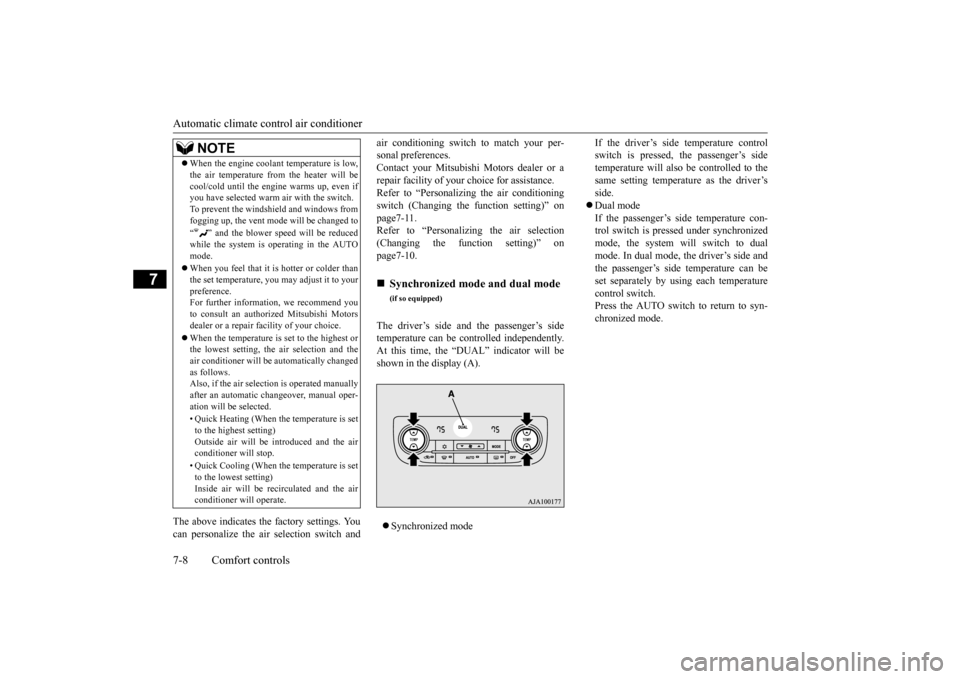
DUAL” indicator will be
shown in the display (A). Synchronized mode
If the driver’s side temperature control switch is pressed, the passenger’s sidetemperature will also be controlled to the same setting temperat
ure as the driver’s
side. Dual mode If the passenger’s side temperature con- trol switch is pressed under synchronizedmode, the system will switch to dual mode. In dual mode, the driver’s side and the passenger’s side
temperature can be
set separately by usi
ng each temperature
control switch.Press the AUTO switch to return to syn- chronized mode.
When the engine coolan
t temperature is low,
the air temperature from the heater will becool/cold until the engi
ne warms up, even if
you have selected warm
air with the switch.
To prevent the windshield and windows from fogging up, the vent mode
will be changed to
“ ” and the blower speed will be reduced while the system is operating in the AUTO mode. When you feel that it is hotter or colder than the set temperature, you may adjust it to yourpreference. For further information, we recommend you to consult an authorized Mitsubishi Motorsdealer or a repair fa
cility of your choice.
When the temperature is set to the highest or the lowest setting, the air selection and the air conditioner will be
automatically changed
as follows.Also, if the air selection is operated manually after an automatic ch
angeover, manual oper-
ation will be selected. • Quick Heating (When th
e temperature is set
to the highest setting)Outside air will be introduced and the air conditioner will stop. • Quick Cooling (When th
e temperature is set
to the lowest setting) Inside air will be recirculated and the airconditioner wi
ll operate.
NOTE
Synchronized mode and dual mode
(if so equipped)
BK0223400US.book 8 ページ 2015年2月13日 金曜日 午後12時15分