2016 MERCEDES-BENZ SL-Class Roll bar
[x] Cancel search: Roll barPage 297 of 614

Example of operation
In the instructions, operating sequences are
described as follows:
XPress the$button.
Radio mode is activated.
XSelect Radioby sliding VÆand turning
cVd the COMAND controller and press W
to confirm.
XConfirm Station Listby pressing W.
The station list appears.
Buttons on the COMAND controller
Overview
:Back button (Ypage 295)
;Clear button (Ypage 295)
=Seat function button (Ypage 316)
?Favorites button (Ypage 311)
If your vehicle does not have the seat function
button, it will have two Favorites buttons.
For AMG vehicles: the COMAND controller is
configured with the :and ;buttons.
Back button
You can use the kbutton to exit a menu or
to call up the basic display of the current
operating mode.
XTo exit the menu: briefly press thek
back button.
COMAND changes to the next higher menu
level in the current operating mode.
XTo call up the basic display: press and
hold the kback button.
COMAND changes to the basic display of
the current operating mode.
Clear button
XTo delete individual characters: briefly
press the 2clear button.
XTo delete an entire entry: press and hold
the 2 clear button.
Seat function button
You can use the Tbutton to call up the
following seat functions:
RMulticontour seat (with 4-way lumbar sup-
port)
RActive multicontour seat (dynamic seat and
massage function)
RBalance (seat heating distribution)
More information on the seat functions
(
Ypage 316).
Favorites button
You can assign predefined functions to
the ; favorites button and call them up by
pressing the button (
Ypage 311).
At a glance295
COMAND
Z
Page 298 of 614

Using COMAND
Selecting a main function
Address entry menu
:
Main function bar
Situation: switching from navigation mode
(address entry menu) to the system settings.
XTo switch on navigation mode: press the
Ø function button.
XTo show the menu: pressWthe COMAND
controller.
XSelect Destinationby sliding VÆand
turning cVdthe COMAND controller and
press Wto confirm.
XSelect Address Entryand press Wto
confirm.
The address entry menu appears.
XSlide ZVthe COMAND controller and
switch to main function bar :.
XSelectSystemin the main function bar by
turning cVdthe COMAND controller and
press Wto confirm.
The system menu appears.
Selecting the menu of a main function
Example display for audio CD mode and audio
menu (below)
:
Calls up the audio menu
If one of the navigation, audio, telephone or
video main functions is switched on, trian-
gle :appears next to the entry in the main
function bar. You can now select an associ-
ated menu.
The example describes how to call up the
audio menu from audio CD mode (an audio
CD is playing).
XSelect Audioin the main function bar by
sliding ZVand turning cVdthe COMAND
controller and press Wto confirm.
The Audio menu appears.
The #dot indicates the currently selected
audio mode.
XSelect another audio mode, e.g. Radio, by
turning cVdthe COMAND controller and
press Wto confirm.
Radio mode is activated.
296At a glance
COMAND
Page 299 of 614

Selecting a menu item
XSelect the station by turningcVdthe
COMAND controller and press Wto con-
firm.
The station is set.
Basic COMAND functions
Switching COMAND on/off
XPress the qcontrol knob.
When you switch on COMAND, a warning
message will appear. COMAND calls up the
previously selected menu.
If you switch off COMAND, playback of the current audio or video source will also be
switched off.
Switching the sound on or off
Audio/video source sound
XPress the 8button on the COMAND
controller or on the multifunction steering
wheel.
The sound from the respective audio or
video source is switched on or off.
iWhen the sound is switched off, you will
see the ,symbol in the status bar. If you
change the audio or video source or change
the volume, the sound is automatically
switched on.
iEven if the sound is switched off, you will
still hear navigation system announce-
ments. Switching off navigation announcements
XNavigation announcements:
press the
8 button during the announcement.
Switching navigation announcements
back on
XPress the 8button again.
The navigation announcements are active
again:
Rif COMAND is switched off/on with the
q control knob
Ror after starting route guidance
Adjusting the volume
Adjusting the volume for the audio or
video source
XTurn the qcontrol knob.
or
XPress the WorX button on the mul-
tifunction steering wheel.
The volume of the currently selected audio
or video source changes.
You can also adjust the volume for the fol-
lowing:
RNavigation announcements
RPhone calls
RVoice output of the Voice Control System
(see the separate operating instructions)
Adjusting the volume for navigation
announcements
During a navigation announcement:
XTurn the qcontrol knob.
or
XPress the WorX button on the mul-
tifunction steering wheel.
At a glance297
COMAND
Z
Page 303 of 614
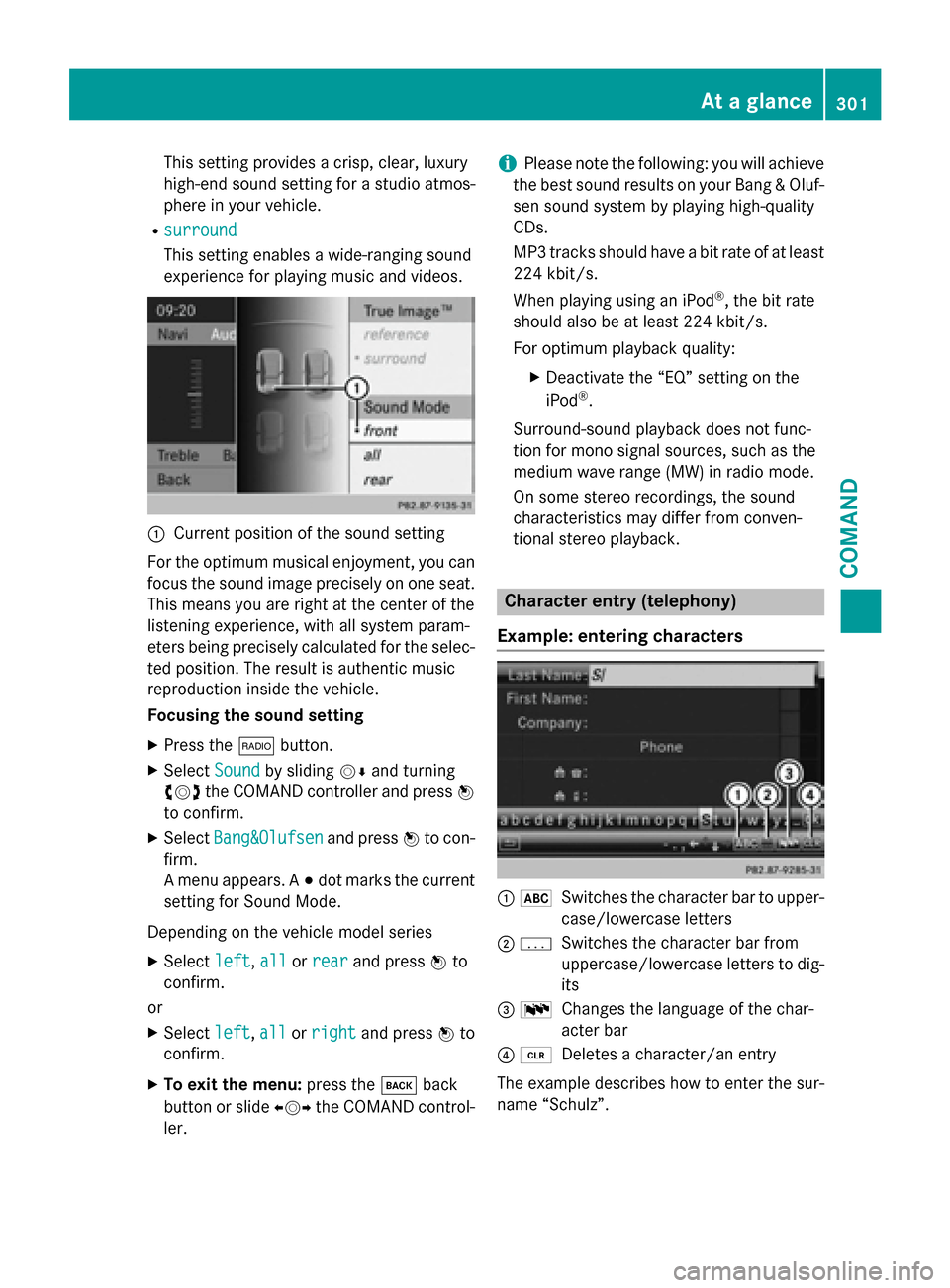
This setting provides a crisp, clear, luxury
high-end sound setting for a studio atmos-
phere in your vehicle.
Rsurround
This setting enables a wide-ranging sound
experience for playing music and videos.
:Current position of the sound setting
For the optimum musical enjoyment, you can
focus the sound image precisely on one seat.
This means you are right at the center of the
listening experience, with all system param-
eters being precisely calculated for the selec-
ted position. The result is authentic music
reproduction inside the vehicle.
Focusing the sound setting
XPress the $button.
XSelect Soundby sliding VÆand turning
cVd the COMAND controller and press W
to confirm.
XSelect Bang&Olufsenand press Wto con-
firm.
A menu appears. A #dot marks the current
setting for Sound Mode.
Depending on the vehicle model series
XSelect left,allor rearand press Wto
confirm.
or
XSelect left,allor rightand press Wto
confirm.
XTo exit the menu: press thekback
button or slide XVYthe COMAND control-
ler.
iPlease note the following: you will achieve
the best sound results on your Bang & Oluf-
sen sound system by playing high-quality
CDs.
MP3 tracks should have a bit rate of at least
224 kbit/s.
When playing using an iPod
®, the bit rate
should also be at least 224 kbit/s.
For optimum playback quality:
XDeactivate the “EQ” setting on the
iPod®.
Surround-sound playback does not func-
tion for mono signal sources, such as the
medium wave range (MW) in radio mode.
On some stereo recordings, the sound
characteristics may differ from conven-
tional stereo playback.
Character entry (telephony)
Example: entering characters
: *Switches the character bar to upper-
case/lowercase letters
;pSwitches the character bar from
uppercase/lowercase letters to dig-
its
= BChanges the language of the char-
acter bar
?2Deletes a character/an entry
The example describes how to enter the sur-
name “Schulz”.
At a glance301
COMAND
Z
Page 304 of 614

XCallup the input menu with data fiel ds
(
Ypage 395).
XSe lect Sand confirm Wwith the COMAND
controller.
S
appears inthe data field.
XSe lect cand confirm Wwith the COMAND
controller.
The letter c
isadded to Sinthe data field.
XRepeat the process unt ilthe name has
been entered infull.
Other input menu functions:
RDeleting a character/an entry
(
Ypage 303)
RSwit ching between upper/lower-case let-
ters (
Ypage 302)
RChanging the character set (Ypage 302)
RMoving the cursor to the next data field
(
Ypage 303)
XTo enter a phone number: select the dig-
it s one byone inthe corresponding data
field byturning cVdand sliding ZVÆthe
COMAND controller and press Wto con-
firm.
Switching data fields
:Cursor inthe next data field
;Stores the entry
=4 and 5symbols to select a data field
In the input menu, ifyou want to enter a first
name after you have entered a surname, for
example, proceed as fol lowstoswit ch
between the data fields: Option 1
XSe
lect 4or5 inthe character bar and
press Wto confirm.
The input menu shows the data field selec-
te d.
Option 2
XSlide ZVthe COMAND controller repeat-
edly untilthe character bar disappears.
XSe lect the data field bysliding ZVÆand
press Wto confirm.
Storing the entry
XAfter making an entry inthe input
menu, e.g. tocrea tea new
entry (
Ypage 395): select the ¬sym-
bol inthe character bar byturning cVdthe
COMAND controller and press Wto con-
firm.
The entry isstored inthe address book.
Further functions available in the char-
acter bar
Changing the language of the cha racter
bar
While making an entry inthe input menu
(
Ypage 395):
XSe lect B and press Wto confirm.
XSelect a language byturning cVdthe
COMAND controller and press Wto con-
firm.
Switching the cha racter bar toletters
While making an entry inthe input menu, e.g.
to create a new entry (
Ypage 395):
XSe lect the *(upper case) or E
(lower case) symbol and press Wto con-
firm.
Changing the cha racter set
While making an entry inthe input menu
(
Ypage 395):
302At a glance
COMAND
Page 305 of 614

XSelect thepsymbol and press Wto
confirm.
RABC(upper/lower case)
R123(digits)
ROther(special characters such as @, €,
etc.)
Moving the cursor to the next data field
:Cursor (repositioned)
;2 and 3symbol to reposition the cur-
sor
While making an entry in the input menu
(
Ypage 395):
XSelect the 2or3 symbol and press Wto
confirm.
Deleting a character/an entry
While making an entry in the input menu
(
Ypage 395):
XTo delete characters: press the$but-
ton on the control panel.
or
XSelect the 2symbol by sliding VÆand
turning cVdthe COMAND controller and
press Wto confirm.
or
XPress the 2button next to the
COMAND controller.
XTo delete an entry: press and hold the
$ button on the control panel until the
entire entry has been deleted.
or
XSelect the 2symbol and press and hold
W the COMAND controller until the entire
entry has been deleted.
or
XPress and hold the 2button next to the
COMAND controller until the entire entry is
deleted.
Character entry (navigation)
General information
The following paragraphs describe how to
enter characters using city input for NEW
YORKas an example.
If you want to use the address entry menu to enter a city, a street or a house number, for
example, COMAND offers you:
Ra list with a character bar (option 1)
Ra selection list (option 2)
You can enter the characters using either the
character bar or the number keypad. In the
selection list, you select an entry to copy it to
the address entry menu.
Option 1: city list/street list with char-
acter bar
XCall up the city list with character bar
(
Ypage 325).
The alphabetically sorted city list shows the
first available entries.
:Character Nentered by the user
;Characters automatically added by
COMANDANTICOKE
At a glance303
COMAND
Z
Page 306 of 614

=List entry that most closely resembles the
current entry by the user
?Switches to the selection list
ADeletes an entry
BCharacters not currently available
CCharacters currently available
DCurrently selected character
ECharacter bar
FCancels an entry
GList
Entering characters using the character
bar
XSelect Nby turning cVdthe COMAND
controller and press Wto confirm.
List Gshows all available city names
beginning with N
. The list entry most closely
resembling user's current entry =is
always highlighted at the top of the list
( NANTICOKE
in the example).
All characters currently entered by the user
are shown in black (letter N
:in the exam-
ple). Letters added by COMAND are shown
in gray ;(ANTICOKE
in the example).
Character bar Eshows the letters still
available for selection in black C. These
can be selected. In the example, the letter O
is highlightedD. The characters available
depend on the entry made by the user so far
and the data contained in the digital map.
Characters that are no longer available B
are shown in gray.
XSelect E,W, space, Yin order and confirm
each with W. Entering characters using the number
keypad
XTo enter the letter
N: press thepnum-
ber key twice in quick succession.
The character appears at the bottom of the
display when the key is pressed. The first
available letter is highlighted.
You see which characters you can enter
with that key. Each time the key is pressed,
the next character is selected.
Example: pkey:
Rpress once = M
Rpress twice = N
Rpress three times = O
XWait until the character display goes out.
The entries matching your input are shown
in the list.
XEnter E,W, space, Ywith the corresponding
keys.
iThe space is entered using number key
9.
Further functions in the list with char-
acter bar
XTo delete characters: press the$but-
ton on the control panel.
or
XPress the 2button next to the
COMAND controller.
or
XSelect the 2symbol in the character bar
by sliding VÆand turning cVdthe
COMAND controller and press Wto con-
firm.
XTo delete an entry: press and hold the
$ button on the control panel.
or
XPress and hold the 2button next to the
COMAND controller until the entire entry is
deleted.
304At a glance
COMAND
Page 307 of 614

or
XSelect the2symbol in the character bar
and press and hold Wthe COMAND con-
troller until the entire entry is deleted.
XTo cancel an entry: select the&symbol
in the bottom left of the character bar and
press Wto confirm.
or
XPress the kback button.
The address entry menu appears.
XTo accept the first list entry: press and
hold Wthe COMAND controller until the
address entry menu appears.
The accepted list entry is shown there.
Calling up the list as a selection list
You can switch from the list of cities with the
character bar to the list of cities as a selection
list at any point during character entry.
XSlide ZVthe COMAND controller repeat-
edly until the city list appears as a selection
list.
Select the desired city from the selection
list.
or
XSelect ¬in the character bar by turning
cVd the COMAND controller and press W
to confirm.
If there are several entries for a city or if sev-
eral cities of the same name are stored, then ¬ is highlighted in the character bar.
XPress Wthe COMAND controller.
Option 2: city list as selection list
COMAND either shows the selection list auto-
matically or you can call up the selection list
from the list with the character bar.
The example shows the selection list after the
city NEW YORK
has been entered. The entry is
highlighted automatically.
XConfirm NEW YORKby pressing Wthe
COMAND controller.
The address entry menu appears. You can
now enter a street, for example.
Observe the information on destination entry
(
Ypage 324).
SPLITVIEW
Method of operation
SPLITVIEW allows you to simultaneously use
different COMAND functions on the front-
passenger side and on the driver's side. Dif-
ferent content is seen depending on your per-
spective when viewing the display.
The "Navi" function, for example, can be used
from the driver's side while a video is watched
from the front-passenger side.
SPLITVIEW is operated with the remote con-
trol from the front-passenger side.
To do so, use the special cordless head-
phones (
Ypage 486). Using the headphones
on the correct sides ensures an optimal
sound.
At a glance305
COMAND
Z