2016 MERCEDES-BENZ METRIS ad blue
[x] Cancel search: ad bluePage 6 of 54

1, 2, 3 ...
911 emergency call.............................30
A
Audio fadeout ...................................... 20
Authorized Mercedes-Benz Center
see Qualified specialist workshop
AUX function
Connecting a device ........................ 47
Im portant safety notes .................... 38
In creasing the volume ...................... 48
Se lecting .......................................... 47
B
Balance
Setting ............................................ .20
Basic functions .................................... 14
Bass
Setting ............................................. 20
Becker
®MAP PILOT
see Navigation
Bluetooth
®
Activating/deactivating ................... 21
Conditions ....................................... 20
Connecting another mobile
phone .............................................. 24
De-authorizing (de-registering) a
device .............................................. 25
Displaying details ............................. 24
Pairing a mobile phone .................... 21
Playing an MP3 ................................ 46
Selecting a playback option ............. 46
Selecting a track .............................. 46
Settings ........................................... 20
Starting and stopping playback ....... 46
Unpairing ......................................... 25
Bluetooth
®Audio ................................. 45
Connecting an audio device ............. 21
Connecting another audio device .... 24
Increasing the volume ...................... 47
Interrupting playback ....................... 46
Pairing an audio device .................... 22
Pairing an audio device (external) .... 23
Reconnecting an audio device ......... 24
Selecting .......................................... 45
Unpairing an audio device ................ 25
C
Call Accepting ......................................... 30
Ending .............................................. 30
Making ............................................. 31
Rejecting .......................................... 31
Call lists
Calling up an entry ........................... 34
Call waiting
Accepting ......................................... 33
Calling .................................................. 31
Using Bluetooth
®............................. 30
Changing folders ................................. 43
Cleaning ................................................. 8
Copyright ................................................ 8
Correct use ............................................ 7
D
Day design........................................... 18
Declarations of conformity ................... 7
Deleting
Call lists ........................................... 35
Display
On-board computer ......................... 14
Overview .......................................... 11
Selecting the design ........................ 18
Setting the brightness ..................... 18
Switching on/off .............................. 19
E
Equipment .............................................. 7
Example of operation .......................... 12
External devices .................................. 47
F
Factory settings.................................. 26
Fader
Setting ............................................. 20
Fast forward/rewind .......................... 43
Frequencies
Adjusting for radio stations .............. 38
Frequency input
Manual ............................................. 38
4Index
Page 7 of 54

G
GPS reception...................................... 28
H
Hands-free system
Switching on/off .............................. 32
L
LanguageSetting ............................................. 25
M
Media InterfaceSupported file formats .....................5 0
Metadata
Displaying ........................................ 44
Mobile phone
Connecting ...................................... 21
Disconnecting .................................. 25
Displaying Bluetooth
®details .......... 24
Pairing ....................................... 21, 22
Pairing (external) .............................. 23
Reconnecting ................................... 23
Selecting .......................................... 30
MP3
Changing folders .............................. 43
Selecting a track .............................. 42
Mute function ...................................... 14
N
Navigation
Becker®MAP PILOT ......................... 28
GPS reception .................................. 28
Switching to ..................................... 28
Night design ........................................ 18
O
On-board computer
Overview .......................................... 14
Operating safety ....................................7
Overview of controls ........................... 10
P
Pairing............................................ 21, 22
Phone book .......................................... 34
Calling an entry ................................ 35
Calling up ......................................... 35
Deleting an entry ............................. 36
Displaying details ............................. 35
Phone call
Dialing ............................................. .31
Playback options ................................. 44
Playlists
Playing back .....................................4 3
Protection against theft ........................ 8
Q
Qualified specialist workshop .............. 8
R
Radio
Calling up stored stations ................3 9
Entering a frequency ........................ 38
Searching for a station ..................... 38
Selecting .......................................... 38
Setting a station .............................. 38
Setting stations manually ................ 38
Station list ....................................... 39
Storing stations ............................... 39
Storing stations automatically ......... 39
Storing stations manually ................ 39
Switching wavebands ...................... 40
Rear view camera
Operation ......................................... 14
Redial .................................................... 32
Reset .................................................... 26
Resetting
Factory settings ............................... 26
S
SD functionDisplaying metadata ........................ 44
Displaying track information ............ 45
Important safety notes .................... 40
Inserting a memory card .................. 40
Selecting .......................................... 41
Selecting a track .............................. 42
Index5
Page 9 of 54

Operating safety
Important safety notes
GWARNING
If you operate information systems and com-
munication equipment integrated in the vehi-
cle while driving, you will be distracted from
traffic conditions. You could also lose control
of the vehicle. There is a risk of an accident.
Only operate the equipment when the traffic
situation permits. If you are not sure that this
is possible, park the vehicle paying attention
to traffic conditions and operate the equip-
ment when the vehicle is stationary.
Observe the legal requirements for the coun-
try you are in.
Bear in mind that at a speed of only 50 km/h
the vehicle covers about 14 m every second.
When using the device please follow:
Rthe safety information in these instructions
Rtraffic rules and regulations
Rmotor vehicle laws and safety standards
iTampering with electronic components
and their software could cause these to
stop working. Even systems that have not
been modified could be affected because
the electronic systems are connected.
Electronic malfunctions can seriously jeop-
ardize the operational safety of your vehi-
cle.
Always have all work on or modifications to
electronic components carried out at a
qualified specialist workshop.
Proper use
Audio 15 can be used to receive radio sta-
tions, to play back SD memory cards and
other data carriers and to make calls via the
Bluetooth
®function. Audio 15 can also be
used for the playback of the image from the
rear view camera and as a navigation system in conjunction with the Becker
®MAP PILOT
(optional).
Observe the specified requirements for data
carriers and permissible formats.
Equipment
This Supplement describes Audio 15 with all
standard and optional equipment available at the time of this Supplement going to print.
Country-specific variations are possible.
Please note that your Audio 15 system may
not be equipped with all the features descri-
bed. This also applies to systems and func-
tions relevant to safety. Therefore, your Audio
15 equipment may differ from certain
descriptions and illustrations. Should you
have any questions concerning equipment
and operation, consult any authorized
Mercedes-Benz Center.
This supplement is an integral part of the
vehicle. Keep it in the vehicle together with
the Operating Instructions.
Declaration of conformity
Radio-based vehicle components
i
USA only: The wireless devices of this
vehicle comply with Part 15 of the FCC
Rules. Operation is subject to the following
two conditions:
1. These devices may not cause interfer-
ence, and
2. These devices must accept any interfer- ence, including interference that may
cause undesired operation of the device.
Changes or modifications not expressly
approved by the party responsible for com-
pliance could void the user’s authority to
operate the equipment.
iCanada only: The wireless devices of this
vehicle comply with Industry Canada
RSS-210 standard. Operation is subject to
the following two conditions:
Introduction7
Z
Page 10 of 54

1. These devices may not cause interfer-
ence, and
2. These devices must accept any interfer-
ence, including interference that may
cause undesired operation of the device.
Information on copyright
Registered trademarks
Bluetooth®technology is the standard for
short-range wireless data transmission of up
to approximately 10 meters.
Bluetooth
®is a registered trademark of Blue-
tooth Special Interest Group (SIG) Inc.
An SD memory card is a digital storage
medium.
SD memory cards carry the logo displayed
above. This logo is a registered trademark of
SanDisk Corporation.
Qualified specialist workshops
Always have all work on or modifications to
electronic components carried out at a quali-
fied specialist workshop. This workshop has
the necessary specialist knowledge and tools
to carry out the work required. In particular,
work relevant to safety or on safety-related
systems must be carried out at a qualified
specialist workshop. An authorized Mercedes-Benz Center is a
qualified specialist workshop.
Protection against theft
This device is equipped with technical provi-
sions to protect it against theft.
Further information on protection against
theft can be obtained from an authorized
Mercedes-Benz Center.
Cleaning
To clean, use a slightly damp cloth. The cloth
must be soft and lint-free. For stubborn dirt,
you can use a mild cleaning agent. In partic-
ular, do not clean the display with alcohol,
acid or an abrasive cleaning agent.
8Introduction
Page 16 of 54
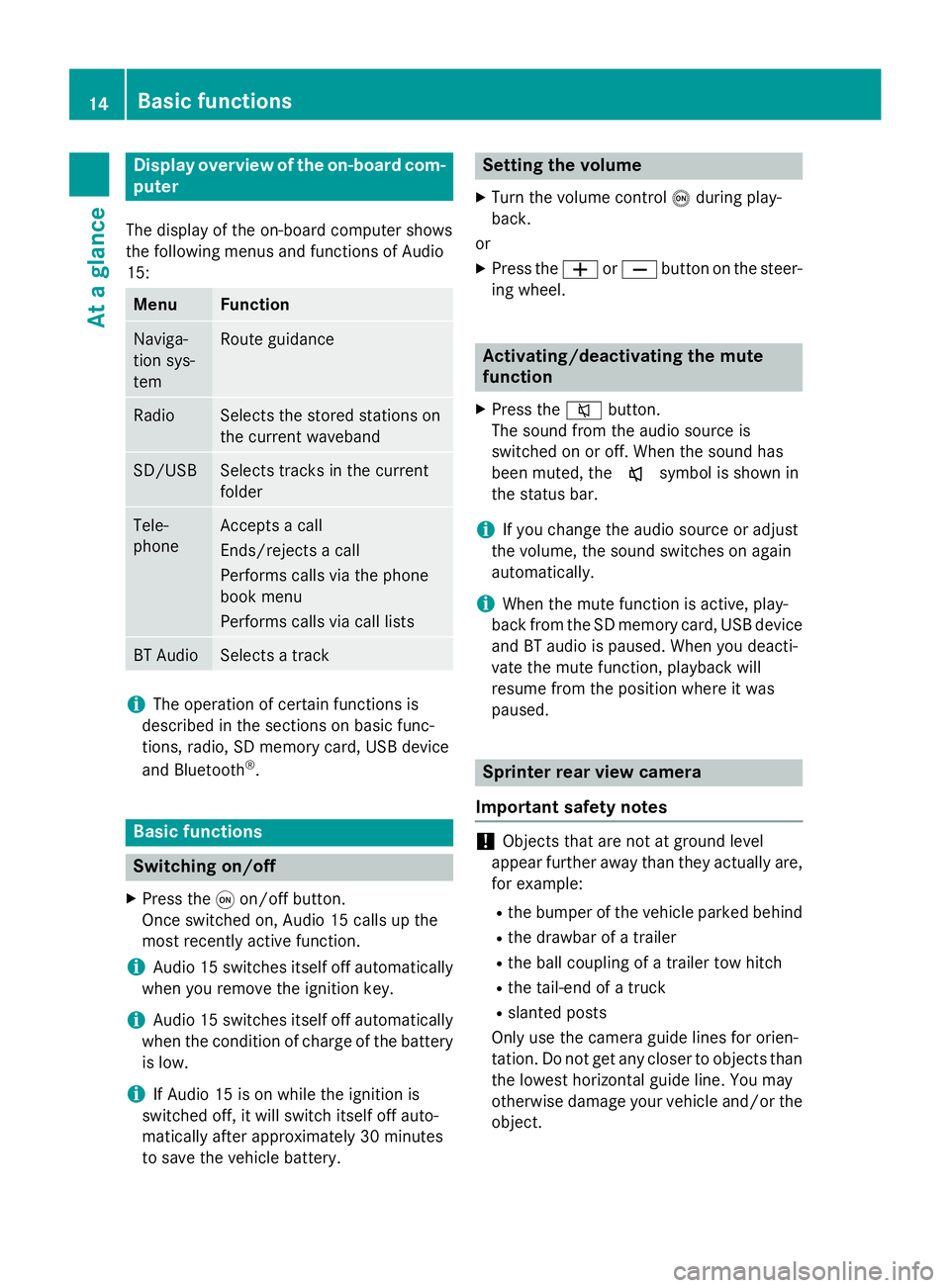
Display overview of theon-board com -
pute r
The display of th eon-boar dcompute rshows
th efollowing menus and function sof Audio
15 :
Men uFunction
Naviga-
tion sys-
temRout eguidanc e
RadioSelects th estored station son
th ecurren twaveban d
SD/USBSelects track sin th ecurren t
folder
Tele -
phoneAccept s acall
Ends/rejects acal l
Perform scalls via th ephone
boo kmen u
Perform scalls via cal llist s
BT AudioSelects atrack
iThe operation of certain function sis
described in th esection son basi cfunc-
tions, radio, SD memor ycard, US Bdevic e
and Bluetoot h
®.
Basic functions
Switchingon/of f
XPress th eq on/off button.
Once switched on ,Audio 15 calls up th e
most recentl yactive function .
iAudio 15 switches itsel fof fautomatically
when you remov eth eignition key.
iAudio 15 switches itsel fof fautomatically
when th econdition of charg eof th ebattery
is low.
iIf Audio 15 is on whil eth eignition is
switched off, it will switch itsel fof fauto-
matically after approximately 30 minutes
to sav eth evehicle battery.
Setting th evolume
XTur nth evolume contro lo durin gplay-
back.
or
XPress th eW orX buttonon th esteer -
in g wheel.
Activating/deactivating th emute
function
XPress th e8 button.
The soun dfrom th eaudio source is
switched on or off. Whe nth esoun dhas
been muted, th ex symbol is shown in
th estatus bar .
iIf you chang eth eaudio source or adjust
th evolume ,th esoun dswitches on again
automatically.
iWhe nth emut efunction is active ,play-
bac kfrom th eSD memor ycard, US Bdevic e
and BT audio is paused. Whe nyou deacti -
vat eth emut efunction ,playback will
resume from th eposition wher eit was
paused.
Sprinter rear view camer a
Important safet ynotes
!Objects that are no tat groun dlevel
appear further away than they actually are ,
fo rexample:
Rth ebumper of th evehicle parke dbehin d
Rthedrawbar of atrailer
Rth eball couplin gof atrailer to whitch
Rthetail-en dof atruck
Rslante dposts
Only use th ecamera guid elines fo rorien -
tation .Do no tget any close rto objects than
th elowest horizonta lguid eline. You may
otherwise damage your vehicle and/o rth e
object.
14Basic functions
At a glance
Page 19 of 54
Display settings.................................. .18
Sound settings .................................... 19
Bluetoot h
®settings ............................ 20
Syste mlanguage ................................ .25
Resetting to factory settings .............26
17
System settings
Page 21 of 54

XSet the desired time format:
RHH:MM (24 hrs): 24-h format, e.g.
13:15
RHH:MM (AM/PM): 12-h format, e.g.
1:15 pm
The #dot indicates the selected time for-
mat.
XPress the %button.
XTo exit system settings : press the$
or Õ button.
Switching the display on/off
XPress the ibutton.
XSelect Display Off.
The display is switched off. Audio 15 func-
tions remain available. The selected audio
source remains audible.
XTo switch on the display again: press the
control knob.
iAlternatively, you can call up a different
function (e.g. radio).
Sound settings
Calling up sound settings
You can make individual tone settings for the
following audio sources:
RRadio
RSD/USB
RAUX
RBluetooth®audio
XSelect the audio source for which you wish to set the sound.
XPress the :button repeatedly until the
menu bar is selected.
XSelect Sound.
The display shows the current sound set-
tings.
Sound settings19
System settings
Page 22 of 54

Adjusting treble and bass
XCall up thesoun dsettings.
XSelec tTrebleor Bas s.
The display shows th esoun dsetting wit h
curren tsoun dlevel :and previous soun d
level ;.
XSelec tth edesired soun dlevel (-10to +10).
Setting the sound distributi on
You can adjust thebalance and fade rdepend -
ing on th evehicle's equipment.
RBalance :right/left distribution
RFader: front/rear distribution
XCall up th esoun dsettings.
XSelec tBal/Fa d.
You see aschemati cdiagram of th e
passenger compartmen tand th ecurren t
soun ddistribution .
XSetth esoun ddistribution wit hth e
=, ;,:and9 buttons .
XPress th econtrol knob.
Exiting sound settings
XPre ssthe% button.
or
XPre ssthe: button.
XSelectBac k.
Audio 15 storesth ene wsoun d setting s.
Switching audio fadeout on/off
This function can only be switched on if th e
optional navigation module is installed. Audio
fadeout reduce sth evolume of other audio
source s, such as theradio, when you receiv e
a navigation message .
XPressthei button.
XSelectSettings.
XSelec tAudio Fadeou tfor Nav
Instructions.
XSwitc hth efunction on Oor off ªusin g
th econtrol knob.
XPress th e% button.
XTo exit system settings: press the$
or Õ button.
Bluetooth®settings
Requirements for a Bluetooth®con-
nection
Wit hAudio 15 ,you can use th efollowin g
function svia Bluetoot h®:
20Bluetooth®settings
System settings