2016 MERCEDES-BENZ GL-Class Nav
[x] Cancel search: NavPage 36 of 246
SymbolFunction
%Cancels input
SInserts a paragraph
Entering characters using the number
keypad
If an input line for text or numbers is selected,
the number keypad is used for the character
entry.
XFor example, to enter the letterc: press the
l number key briefly three times in suc-
cession.
An additional display area is shown with all
the available characters. Press the key
repeatedly to go through the characters
until c
is highlighted.
XWait until the character display goes out.
The letter c
is entered in the input line.
Character entry (navigation)
Entering characters using the charac-
ter bar
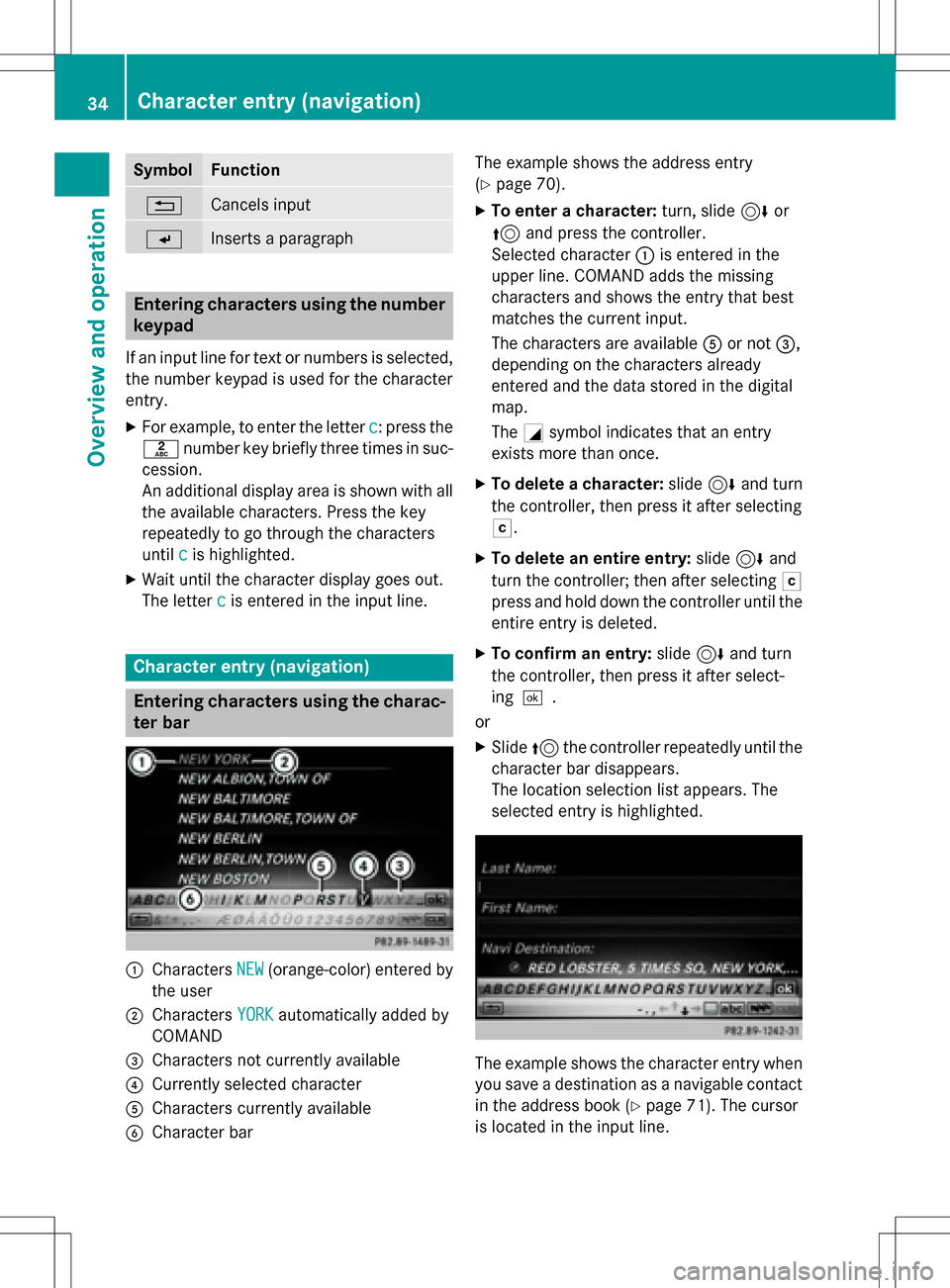
:Characters NEW(orange-color) entered by
the user
;Characters YORKautomatically added by
COMAND
=Characters not currently available
?Currently selected character
ACharacters currently available
BCharacter bar The example shows the address entry
(
Ypage 70).
XTo enter a character:
turn, slide6or
5 and press the controller.
Selected character :is entered in the
upper line. COMAND adds the missing
characters and shows the entry that best
matches the current input.
The characters are available Aor not =,
depending on the characters already
entered and the data stored in the digital
map.
The Gsymbol indicates that an entry
exists more than once.
XTo delete a character: slide6and turn
the controller, then press it after selecting
F.
XTo delete an entire entry: slide6and
turn the controller; then after selecting F
press and hold down the controller until the
entire entry is deleted.
XTo confirm an entry: slide6and turn
the controller, then press it after select-
ing¬.
or
XSlide 5the controller repeatedly until the
character bar disappears.
The location selection list appears. The
selected entry is highlighted.
The example shows the character entry when
you save a destination as a navigable contact
in the address book (
Ypage 71). The cursor
is located in the input line.
34Character entry (navigation)
Overview and operation
Page 38 of 246
XTo display the favorites overview:press
the favorites button on the controller.
The favorites are displayed.
XTo show the menu bar: slide6the con-
troller.
You can manage a total of 20 favorites.
Further information on how to select and dis-
play a favorite (
Ypage 36).
Displaying and selecting favorites
XPress the favorites button on the controller. The favorites are displayed.
XTo call up a favorite: turn and press the
controller.
Adding favorites
Adding predefined favorites
XPress the favorites button on the controller. The favorites are displayed.
XTo show the menu bar: slide6the con-
troller.
XTo select Reassign, turn and press the
controller.
The categories for the available favorites
are displayed:
RNavigation
REntertainment
RTel
RVehicle
XTo select a category: turn the controller
and press to confirm.
The corresponding favorites are displayed.
XTo select a favorite: turn and press the
controller.
XTo store a favorite in the desired order:
turn and press the controller.
The favorite has been added.
If a favorite is stored over another favorite,
this is then deleted.
Adding your own favorites
You can create your own favorites to help you
to use these functions, for example:
Rcalling up telephone numbers from the tele- phone book
Rselecting a radio station
Rskipping to a specific point in a track or
audio book
Rcalling up preferred media
Rselecting navigation destinations for route
calculation
The example shows how to save a telephone
number from the phone book as a favorite.
XCall up the phone book.
XSearch for the contact and display the
phone number.
XTo store a phone number as a favorite:
press and hold the favorites button on the
controller until the favorites are displayed.
XTo store a favorite in the desired order:
turn and press the controller.
The favorite is added.
If a favorite is stored over another favorite,
this is then deleted.
Renaming favorites
XPress the favorites button on the controller.
The favorites are displayed.
XTo select a favorite to be renamed: turn
the controller.
XTo show the menu bar: slide6the con-
troller.
XTo select Rename, turn and press the con-
troller.
XEnter characters using the controller.
XTo finish the entry: select OK.
The favorite is renamed.
36Favorites
Overview and operation
Page 43 of 246

XTo selectSystem Settings: slide6,
turn and press the controller.
A menu appears.
XTo select Display: turn and press the con-
troller.
A menu appears.
XTo select Day Mode,Night Modeor Auto:
turn and press the controller.
The #dot indicates the current setting.
DesignExplanation
Day ModeThe display is set perma-
nently to day design.
Night ModeThe display is set perma-
nently to night design.
AutoIf the Autosetting is
selected, COMAND eval-
uates the readings from
the automatic vehicle
light sensor and auto-
matically switches
between the display
designs.
Switching the display on/off
XPress the Øbutton on the COMAND
control panel.
XTo select DisplayOff: slide6, turn and
press the controller to confirm.
The display goes out.
or
XPress the _button on the controller.
The display goes out.
XTo switch the display on again: press the
controller.
Time settings
General information
COMAND can automatically set the time and
date. The following navigation system functions
require the time, time zone and summer/
standard time to be set correctly in order to
work properly:
Rroute guidance on routes with time-
dependent traffic guidance
Rcalculation of expected time of arrival
Switching automatic time on and off
The
Automatic Time Settingsfunction is
used to activate or deactivate the automatic
setting of the time and date. This function is
activated when the vehicle leaves the factory.
XPress the Øbutton on the COMAND
control panel.
or
XPress Vehiclein the main function bar.
The vehicle menu is displayed.
XTo select Time: slide6, turn and press
the controller to confirm.
A menu appears.
XTo select Automatic Time Settings:
press the controller.
XTo switch the function on Oor off ª:
press the controller.
Setting the time zone
To set the time zone, the Automatic Time
Settingsfunction must be activated.
XPress theØbutton on the COMAND
control panel.
or
XPress Vehiclein the main function bar.
The vehicle menu is displayed.
XTo select Time: slide6, turn and press
the controller to confirm.
A menu appears.
XTo select Time Zone:: turn and press the
controller.
A list of countries appears. The #dot indi-
cates the current setting.
Time settings41
System settings
Z
Page 50 of 246
Changing the name of the SSID (USA)
XPress theØbutton on the COMAND
control panel.
or
XPress Vehiclein the main function bar.
The vehicle menu is displayed.
XTo switch to the menu bar: slide 6the
controller.
XTo select System Settings: press the
controller.
XTo select WiFi: turn and press the control-
ler.
The WiFi menu appears.
XTo select ChangeSSID: turn and press the
controller.
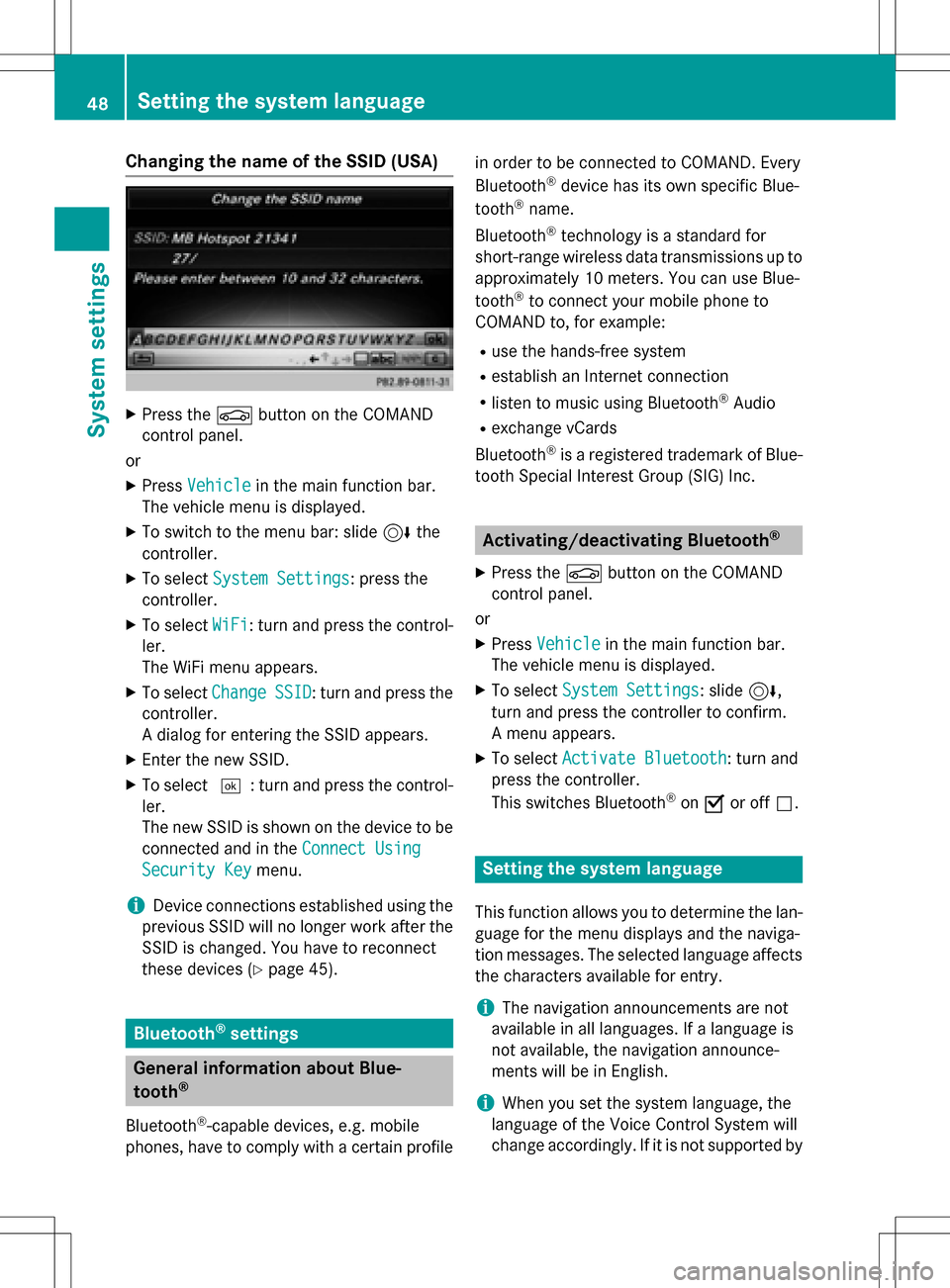
A dialog for entering the SSID appears.
XEnter the new SSID.
XTo select ¬: turn and press the control-
ler.
The new SSID is shown on the device to be
connected and in the Connect Using
Security Keymenu.
iDevice connections established using the
previous SSID will no longer work after the
SSID is changed. You have to reconnect
these devices (
Ypage 45).
Bluetooth®settings
General information about Blue-
tooth®
Bluetooth®-capable devices, e.g. mobile
phones, have to comply with a certain profile in order to be connected to COMAND. Every
Bluetooth
®device has its own specific Blue-
tooth®name.
Bluetooth
®technology is a standard for
short-range wireless data transmissions up to
approximately 10 meters. You can use Blue-
tooth
®to connect your mobile phone to
COMAND to, for example:
Ruse the hands-free system
Restablish an Internet connection
Rlisten to music using Bluetooth®Audio
Rexchange vCards
Bluetooth
®is a registered trademark of Blue-
tooth Special Interest Group (SIG) Inc.
Activating/deactivating Bluetooth®
X
Press the Øbutton on the COMAND
control panel.
or
XPress Vehiclein the main function bar.
The vehicle menu is displayed.
XTo select System Settings: slide6,
turn and press the controller to confirm.
A menu appears.
XTo select Activate Bluetooth: turn and
press the controller.
This switches Bluetooth
®on O or off ª.
Setting the system language
This function allows you to determine the lan-
guage for the menu displays and the naviga-
tion messages. The selected language affects
the characters available for entry.
iThe navigation announcements are not
available in all languages. If a language is
not available, the navigation announce-
ments will be in English.
iWhen you set the system language, the
language of the Voice Control System will
change accordingly. If it is not supported by
48Setting the system language
System settings
Page 53 of 246
iIf you import data, such as address data,
the existing data on COMAND is overwrit-
ten. You will see a message to this effect.
COMAND is restarted after the data import.
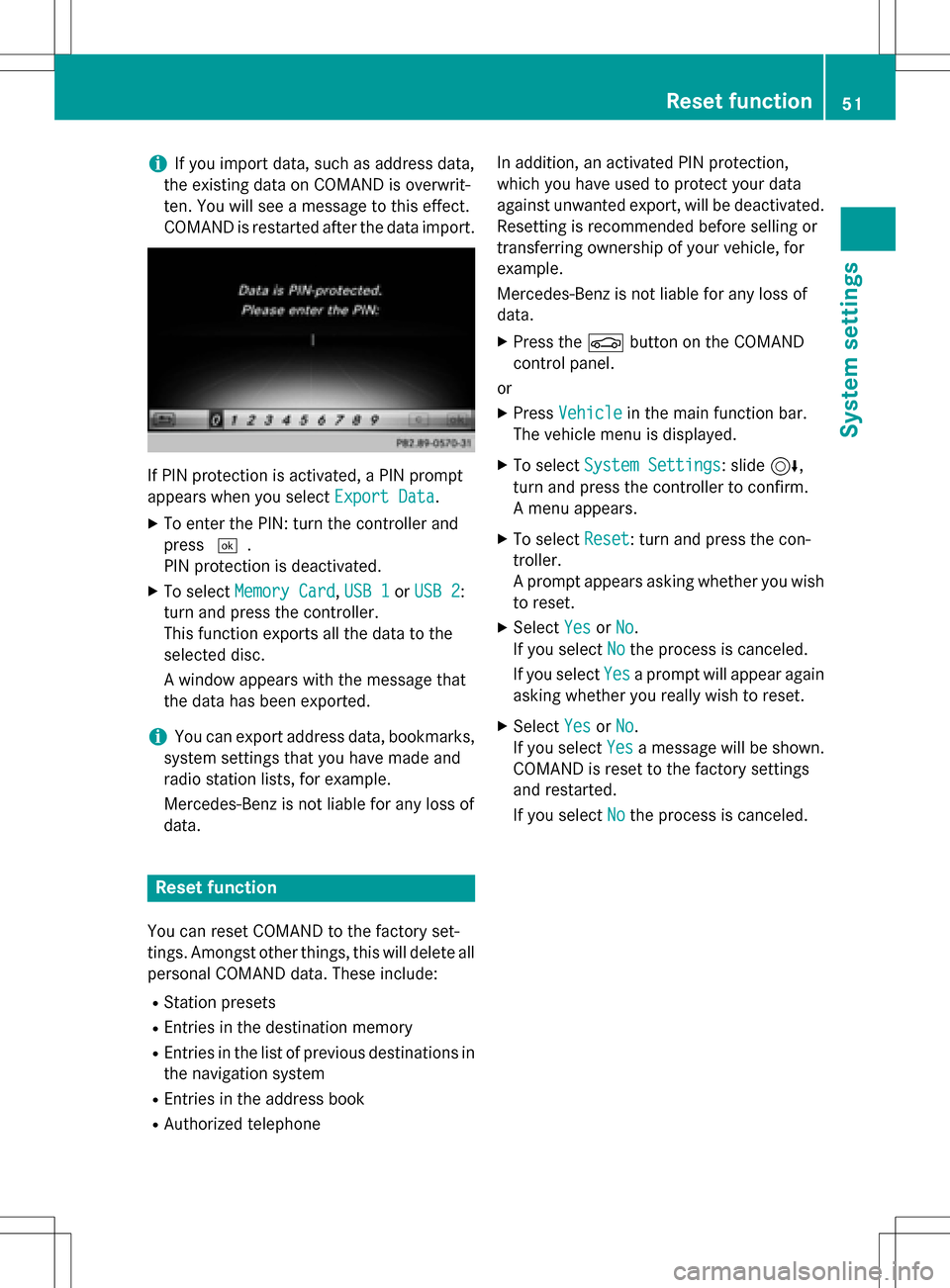
If PIN protection is activated, a PIN prompt
appears when you select Export Data
.
XTo enter the PIN: turn the controller and
press¬.
PIN protection is deactivated.
XTo select Memory Card,USB 1or USB 2:
turn and press the controller.
This function exports all the data to the
selected disc.
A window appears with the message that
the data has been exported.
iYou can export address data, bookmarks,
system settings that you have made and
radio station lists, for example.
Mercedes-Benz is not liable for any loss of
data.
Reset function
You can reset COMAND to the factory set-
tings. Amongst other things, this will delete all
personal COMAND data. These include:
RStation presets
REntries in the destination memory
REntries in the list of previous destinations in
the navigation system
REntries in the address book
RAuthorized telephone In addition, an activated PIN protection,
which you have used to protect your data
against unwanted export, will be deactivated.
Resetting is recommended before selling or
transferring ownership of your vehicle, for
example.
Mercedes-Benz is not liable for any loss of
data.
XPress the
Øbutton on the COMAND
control panel.
or
XPress Vehiclein the main function bar.
The vehicle menu is displayed.
XTo select System Settings: slide6,
turn and press the controller to confirm.
A menu appears.
XTo select Reset: turn and press the con-
troller.
A prompt appears asking whether you wish
to reset.
XSelect YesorNo.
If you select No
the process is canceled.
If you select Yes
a prompt will appear again
asking whether you really wish to reset.
XSelect YesorNo.
If you select Yes
a message will be shown.
COMAND is reset to the factory settings
and restarted.
If you select No
the process is canceled.
Reset function51
System settings
Z
Page 65 of 246

Your COMAND equipment..................64
Introduction ........................................ .64
Basic settings ...................................... 66
Destination entry ................................ 69
Persona lPOIs an droutes .................. .82
Route guidance .................................. .87
Real-tim etraffic reports .....................94
Storing destinations ...........................98
Ma pfunctions .................................. .100
Navigation functions ........................107
Problem swit hth enavigation sys -
te m .................................................... .109
63
Navigation
Page 66 of 246
Your COMANDequipment
i
These operatin ginstruction sdescribe all
th estandar dan doptional equipmen tof
your COMAN Dsystem, as available at th e
time of going to print .Country-specifi cdif -
ference sare possible. Bear in min dthat
your vehicle may no tfeature all function s
described here. Thi salso applies to safety-
relevant systems an dfunctions.
iRead th einformation on qualified special-
ist workshop sin th evehicle Operator's
Manual.
Introduction
Important safet ynotes
GWARNING
If you operat einformation systems an dcom-
munication equipment integrated in th evehi-
cl e whil edriving, you will be distracted from
traffic conditions. You could also los econtro l
of th evehicle. There is aris kof an accident.
Only operat eth eequipment when th etraffic
situation permits. If you are no tsur ethat this
is possible, par kth evehicle payin gattention
to traffic condition san doperat eth eequip-
men twhen th evehicle is stationary.
You mus tobserv eth elega lrequirements fo r
th ecountry in whic hyou are currentl ydrivin g
when operatin gCOMAND.
COMAN Dcalculates th erout eto th edestina -
tion without taking accoun tof th efollowing,
fo rexample:
Rtraffic lights
Rstop an dyield signs
Rmergin glanes
Rparking or stoppin gin ano parking/n o
stoppin gzone
Rother road an dtraffic rule san dregulation s
Rnarrow bridge s
COMAN Dcan giv eincorrec tnavigation com-
mands if th eactual street/traffic situation doe
sno tcorrespon dwit hth edigita lmap's
data. Digital map sdo no tcover all areas no r
all routes in an area. Fo rexamp
le,arou
t emay
hav ebee ndiverted or th edirection of aone-
way stree tmay hav echanged .
Fo rthis reason ,you mus talways observ e
road an dtraffic rule san dregulation sdurin g
your journey. Road an dtraffic rule san dreg -
ulation salways hav epriorit yover th esys -
tem' sdrivin grecommendations.
Navigation announcement sare intended to
direc tyou whil edrivin gwithout divertin gyour
attention from th eroad an ddriving.
Please always use this feature instead of con-
sultin gth emap display fo rdirections. Look -
in g at th eicon sor map display can distract
you from traffic condition san ddriving, an d
increase th eris kof an accident.
General notes
Operationa lreadines sof th enavigation
syste m
The navigation syste mmus tdetermin eth e
position of th evehicle befor efirst use or
wheneve roperational status is restored .
Therefore, you may hav eto drive fo r awhil e
befor eprecise rout eguidance is possible.
GP Sreception
Amon gother things, correc tfunctionin gof
th enavigation syste mdepend son GPS recep-
tion .In certain situations, GPS reception may
be impaired, there may be interferenc eor
there may be no reception at all, e.g. in tun-
nels or parking garages .
iUsing roof carriers may impair th ecorrec t
functionin gof aroof antenn a(phone, sat -
ellite radio, GPS).
Entry restriction
Fo rvehicles in certain countries, there is a
dat aentr yrestriction .
64Introduction
Navigation
Page 67 of 246
Entries can be made when the selector lever
is in positionPor the vehicle is stationary.
When the restriction is active, certain entries
cannot be made. This will be indicated by the
fact that certain menu items are grayed out
and cannot be selected.
The following entries are not possible, for
example:
Rentering the destination city and street
RPOI entry via a name search
Rediting and saving of entries
Other entries are however possible, such as a keyword search and entering POIs in the
vicinity of the destination or current position.
Switching to navigation mode
XPress the ßbutton.
The map shows the vehicle's current posi-
tion.
or
XSlide 5the controller (e.g. in radio
mode).
XTo select Navi, turn and press the control-
ler.
The map shows the vehicle's current posi-
tion.
XTo call up the map while navigation
mode is switched on: press theßbut-
ton in any menu.
The navigation menu appears.
XPress the controller.
The map shows the vehicle's current posi-
tion.
Showing/hiding the menu
Using the menu, you can make a destination
entry or select the navigation settings, for
example.
XTo show: slide6the controller when the
map appears.
If there has been no route calculated, Des‐
tinationis marked.
If a route has been calculated, yis
marked.
XTo hide: press the %button.
or
XSlide 5the controller.
Full screen symbol :appears.
XPress the controller.
Introduction65
Navigation
Z