2016 MERCEDES-BENZ G-CLASS SUV navigation system
[x] Cancel search: navigation systemPage 190 of 261
X
Select OK OK.
X Enter the desire dstarting point.
The location is shown on the map.
X Select Select as Destination
Select as Destination.
The route list appears.
X If desired, enter the destination as well as
intermediate destinations.
X Select Calculat eRoute
Calculat eRoute.
The route appears on the map.
X To start route guidance: selectStart Start Nav‐
Nav‐
igation
igation.
X To resume standard route guidance: select
the starting point.
X Select Delete
Delete.
Am essage appears.
X Select OK
OK.
The current vehicl eposition is restored as the
starting point for route guidance.
Startin groute simulation Ar
oute can be simulated using thi sfun ction.
X Create the route.
X To start route calculation: selectCalcu‐
Calcu‐
lat eRoute
lat eRoute.
The route overview appears.
X Select 4.
X Select Simulation
Simulation.
The simulatio nbegin s.
X To ski
pbacktot he previous chang eof
direction: selectC.
X To ski
pforward to the next chang eof
direction: selectD.
X To interrupt the simulation: selectË.
X To increase the simulatio nspeed: select
1x.
The simulatio nspeed is increased 4-fold, 8-
fol dor1 6-fold.
X To en dthe simulation: selectX. Saving the destination
X Enter the desire ddestination.
The location is shown on the map.
X Select 4.
X Select Save Location Save Location.
X Select Y.
The destination is saved in Saved
Saved Location
Location. During route guidance
Navigation announceme nts Navigatio
nmessagess houldguideyou during
the journey withoutd istracting you from traffic
conditions or driving. Alwaysu se this function
as ag uidei nstead of the map display. The sym-
bols or the map display could distract you from traffic conditions and driving.
Repeating navigation announcements X
Press the MAP button.
The map view appears.
X Press the MAP button again.
The multimedia system repeat sthe previous
navigation message.
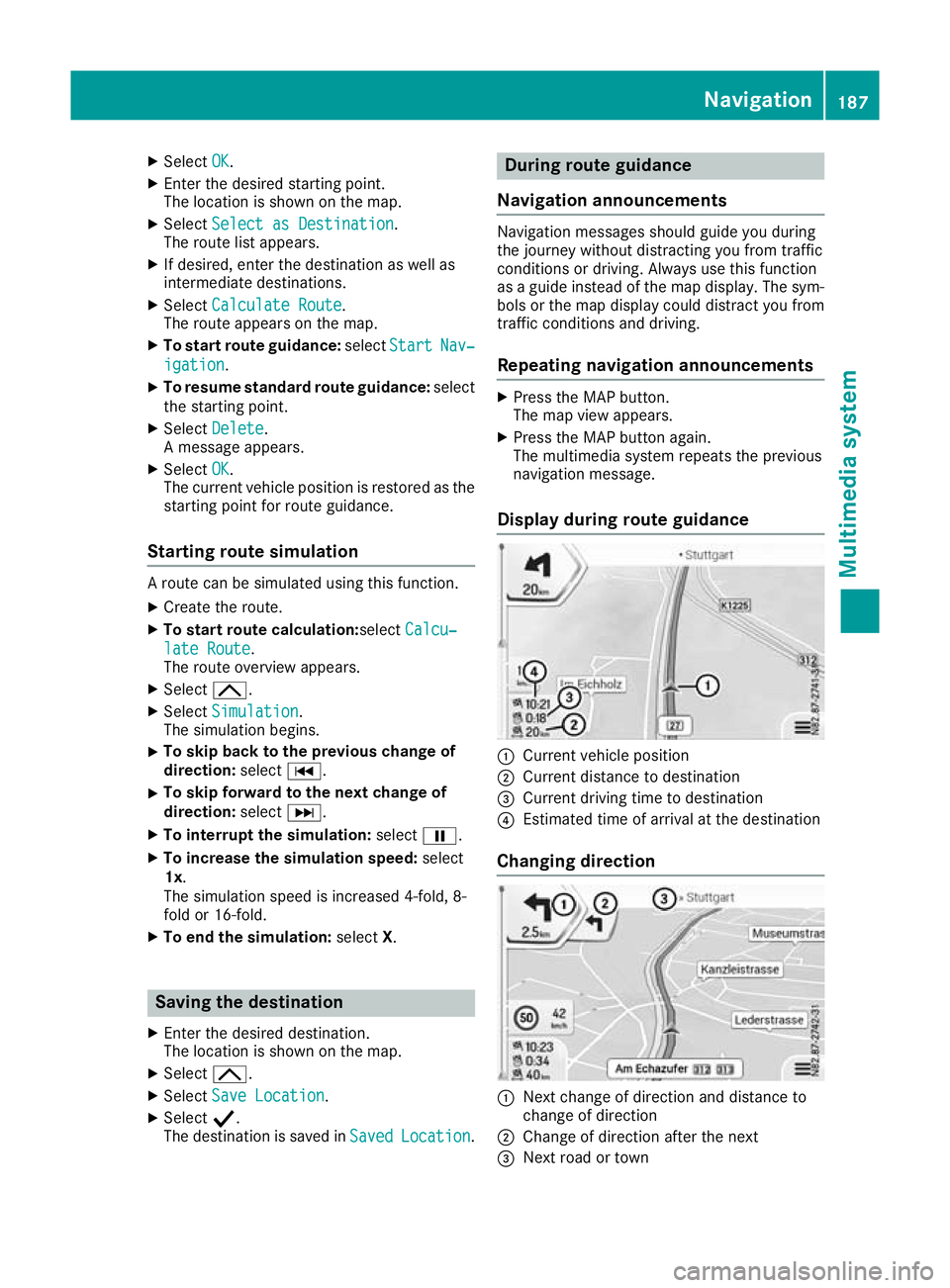
Display during routeg uidance :
Current vehicle position
; Current distanc etodestination
= Curren tdriving tim etodestination
? Estimate dtimeofa rrival at th edestination
Changing direction :
Nex tchange of direction and distance to
change of direction
; Change of direction after the next
= Next road or town Nav
igation
187Multimedi asystem Z
Page 191 of 261
The symbol indicatin
gthe change of direction
also indicates the type of change of direction,
e.g. aleft turn. If another change of direction will
be required immediately after you have changed direction ,the change of direction after the next
is indicated by asmaller symbol.
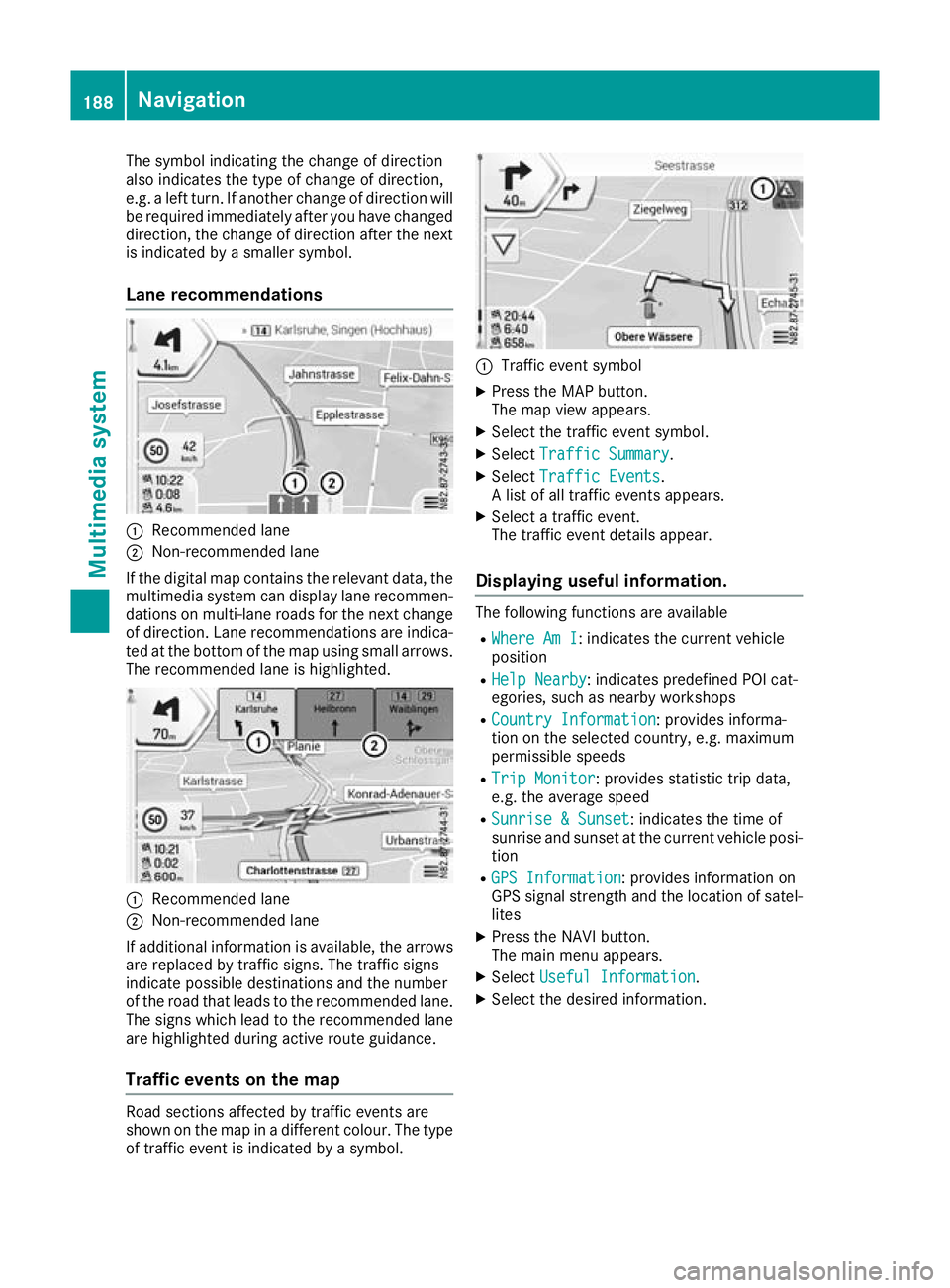
Lane recommendations :
Recommended lane
; Non-recommended lane
If the digi talm ap contain sthe relevan tdata, the
multimedia system can display lan erecommen-
dation sonm ulti-lane road sfor th enextc hange
of direction .Lan er ecommendation sare indica-
te datt hebotto moft hemap usin gsmall arrows.
The recommended lan eishighlighted. :
Recommended lane
; Non-recommended lane
If additional information is available, th earrows
are replace dbytraffic signs. The traffic signs
indicat epossibl edestination sand th enumber
of th eroad that leads to th erecommended lane.
The sign swhichlead to th erecommended lane
are highlighte dduring active rout eguidance.
Traffic event sonthemap Road section
saffecte dbytraffic event sare
shown on th emap in adifferen tcolour .The type
of traffic event is indicated by asymbol. :
Traffic even tsymbol
X Press the MAP button.
The map view appears.
X Select the traffic event symbol.
X Select Traffic Summary Traffic Summary.
X Select Traffic Events
Traffic Events.
Al ist of all traffic event sappears.
X Select atraffic event.
The traffic event details appear.
Displaying useful information. The following functions are available
R Where Am I
Where Am I:i ndicates the current vehicle
position
R Help Nearby
Help Nearby:i ndicates predefined POI cat-
egories, such as nearby workshops
R Country Information
Country Information :provides informa-
tion on the selected country, e.g. maximum
permissible speeds
R Trip Monitor Trip Monitor:p rovides statistic trip data,
e.g. the average speed
R Sunrise &Sunset
Sunrise &Sunset:i ndicates the time of
sunrise and sunset at the current vehicle posi- tion
R GPS Information
GPS Information :provides information on
GPS signal strength and the location of satel-
lites
X Press the NAVI button.
The main menu appears.
X Select Useful Information Useful Information .
X Select the desired information. 188
NavigationMultimedia system
Page 192 of 261
Adjusting navigation settings
Defining th eroute calculation settings Takin
gsettings into accoun tdurin groute
calculation
i Depending on local conditions, the multi-
media system ma ynot always be able to take
into account al lsettings. The calculate droute
ma yinclud eferry connections, for example,
eve nthough "Avoi dferries" is enabled.
Settin gthe vehicle profile
X Press the NAVI button.
The main menu appears.
X Select Settings
Settings.
X Select Route Preferences Route Preferences.
X Select Vehicle
Vehicle.
X Select the typ eofvehicle.
X To create anew profile: selectAdd Pro‐
Add Pro‐
file
file.
X Select the typ eofvehicle.
X Set the vehicl efactor.
Settin gthe route planning method
The following functions ar eavailable:
R Fast
Fast:t he multimedia system calculate sa
route with the shortes tpossibl ejourney time
R Easy
Easy:t he multimedia system calculate sthe
easiest possibl eroute, e.g .withasf ew turns
as possible
R Short
Short:t he multimedia system calculate sa
route covering the shortes tdistance
R Green
Green:t he multimedia system calculate sa
route covering the mos teconomical distance
X Press the NAVI button.
The main menu appears.
X Select Settings
Settings.
X Select Route Preferences
Route Preferences.
X Select Route Planning Method
Route Planning Method .
Am enu appears.
X Select the desired function.
The Ytick mark indicates the activated
function.
Settin gthe navigatio nmode
If the Off-road
Off-road functionisa ctivated ,astraight
line to the driving destination is calculate dwhen
driving off-road. X
Pres sthe NAVI button.
The main menu appears.
X Select Settings
Settings.
X Select Route Preferences Route Preferences.
X Select Navigation Mode
Navigation Mode.
Am enu appears.
X Select the desired function.
The Ytick mark indicates the activated
function.
Setting road types
The following functions are available:
R Motorways Motorways:w hen this function is activated,
motorways are taken into account during
route calculation
R Road Road With
WithPeriod
Period Charge
Charge:w hen this func-
tion is activated, roads for which there is a
time-dependent usage fee are taken into
account during route calculation
R Road With Per-use Toll
Road With Per-use Toll:w hen this func-
tion is activated, roads for which there is a
distance-dependen tusage fee are taken into
account during route calculation
R Ferries Ferries:w hen this function is activated, fer-
ries are taken into account during route cal-
culation
R Car Shuttle Trains Car Shuttle Trains:w hen this function is
activated, motorails are taken into account
during route calculation
R Unpaved Roads Unpaved Roads:w hen this function is acti-
vated, unpaved roads are taken into account
during route calculation
X Press the NAVI button.
The main menu appears.
X Select Settings
Settings.
X Select Route Preferences Route Preferences.
X Select the desired function.
The function is activated or deactivated.
Defining the sound output settings Adjusting the volume for sound output
Using this function, the volume of signal tones
and voice output can be adjusted in relation to
radi oand media volume.
The followin gfunction sare available:
R Master Master :adjust sthe volume of all soun dout-
put
R Voice
Voice:a djuststhe volume of voice outputs Navigation
189Multimedia system Z
Page 193 of 261
R
Alerts Alerts:a djusts the volume of acoustic warn-
ings
R Ding
Ding:a djusts the volume of the attention
tone. The attention tone is output before nav- igation announcements
R Keys Keys:a djusts the volume of the button tones
X Press the NAVI button.
The main menu appears.
X Select Settings
Settings.
X Select Sound
Sound.
X Select the desired function.
Am enu appears.
X Adjust the desired volume.
Activating/deactivating sound outputs The following functions are available:
R Voice Guidance Voice Guidance:w hen this function is acti-
vated, voice instructionsa re output
R Early Indication of Manoeuvres
Early Indication of Manoeuvres:w hen
this function is activated, the multimedia sys- tem announces impending changes of direc-
tion immediately.W hen this function is deac-
tivated, the multimedia system announces
impending changes of direction only just
before the change of direction.
R Announce Route Summary
Announce Route Summary:w hen this func-
tion is activated, the multimedia system reads out aroute summary during route search
R Announce
Announce Country CountryInfo
Info:when this function
is activated, the multimedia system reads out country information when reaching acountry
border
R Announce
Announce Traffic
TrafficInfo
Info:when this function
is activated, the multimedia system reads out traffic information received
R Announce System Messages
Announce System Messages:w hen this
function is activated, the multimedia system
reads out system messages
X Press the NAVI button.
The main menu appears.
X Select Settings
Settings.
X Select Sound
Sound.
X Select the desired function.
The function is activated or deactivated. Adjusting the verbosity level of voice
ins
truc tions
The followin gfunction sare available:
R Minimal Minimal:v oice instruction sare output once
directly before th enextc hang eofd irection
R Medium
Medium :voice instruction sare output when
approachin gthe next chang eofdirection and
immediately beforehand
R Verbose
Verbose:v oice instruction sare output at a
relatively far distanc efromt henext chang eof
direction ,when approachin gthe chang eof
direction and immediately beforehand
X Press th eNAVIbutton.
The main men uappears.
X Select Settings
Settings.
X Select Sound
Sound.
X Select Verbosity Level
Verbosity Level.
Am enua ppears.
X Selec tthe desired function.
The Ytickm arki ndicates th eactivated
function.
Readin gout stree tnames
X Press th eNAVIbutton.
The main men uappears.
X Select Settings
Settings.
X Select Sound
Sound.
X Select Say Roa dNames in Native Lan‐
Say Roa dNames in Native Lan‐
guage Area
guage Area orSay Roa dNames in For‐
Say Road Names in For‐
eign Language Area
eign Language Area.
Am enu appears.
X Select the desired function.
The Ytick mark indicates the activated
function.
Defining warning settings Speed warnings
If the digital map includes relevant data, the
multimedia system can issue awarning when
you exceed the maximum permissible speed.
This function is not available in all countries and
regions. The display of the maximum permissi-
ble speed may differ from the actual traffic sit-
uation, e.g. due to erroneous map data. 190
NavigationMultimedia system
Page 195 of 261
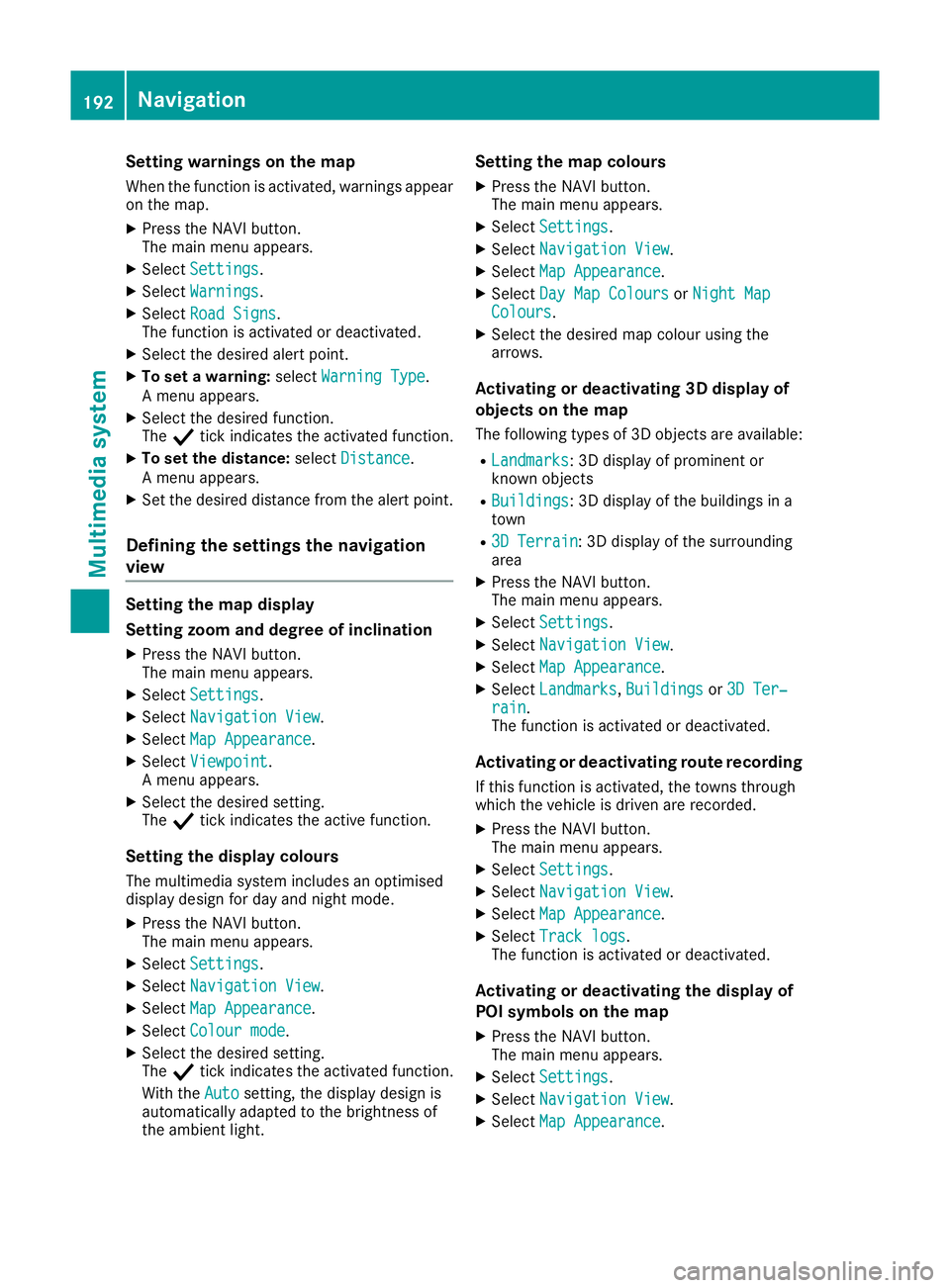
Setting warnings on the map
When the function is activated, warnings appear on the map.
X Press the NAVI button.
The main menu appears.
X Select Settings
Settings.
X Select Warnings
Warnings.
X Select Road Signs
Road Signs.
The function is activated or deactivated.
X Select the desired alert point.
X To set awarning: selectWarning Type Warning Type.
Am enu appears.
X Select the desired function.
The Ytick indicates the activated function.
X To set the distance: selectDistance
Distance.
Am enu appears.
X Set the desired distance from the alert point.
Defining the settings the navigation
view Setting the map display
Setting zoom and degree of inclination X Press the NAVI button.
The main menu appears.
X Select Settings
Settings.
X Select Navigation View
Navigation View.
X Select Map Appearance
Map Appearance.
X Select Viewpoint
Viewpoint.
Am enu appears.
X Select the desired setting.
The Ytick indicates the active function.
Setting the display colours
The multimedia system includes an optimised
display design for day and night mode.
X Press the NAVI button.
The main menu appears.
X Select Settings
Settings.
X Select Navigation View
Navigation View.
X Select Map Appearance
Map Appearance.
X Select Colour mode Colour mode.
X Select the desired setting.
The Ytick indicates the activated function.
With the Auto Autosetting, the display design is
automatically adapted to the brightness of
the ambient light. Setting the map colours
X Press the NAVI button.
The main menu appears.
X Select Settings Settings.
X Select Navigation View
Navigation View.
X Select Map Appearance
Map Appearance.
X Select Day Map Colours
Day Map Colours orNight Map
Night Map
Colours
Colours.
X Select the desired map colour using the
arrows.
Activating or deactivating 3D display of
objects on the map
The following types of 3D objects are available:
R Landmarks Landmarks:3Dd isplayofprominent or
known objects
R Buildings
Buildings:3Dd isplayofthe buildings in a
town
R 3D Terrain
3D Terrain:3Dd isplayofthe surrounding
area
X Press the NAVI button.
The main menu appears.
X Select Settings Settings.
X Select Navigation View Navigation View.
X Select Map Appearance Map Appearance.
X Select Landmarks
Landmarks, Buildings
Buildingsor3D Ter‐
3D Ter‐
rain
rain.
The function is activated or deactivated.
Activating or deactivating route recording
If this function is activated, the towns through
which the vehicle is driven are recorded.
X Press the NAVI button.
The main menu appears.
X Select Settings Settings.
X Select Navigation View
Navigation View.
X Select Map Appearance
Map Appearance.
X Select Track logs
Track logs.
The function is activated or deactivated.
Activating or deactivating the display of
POI symbols on the map
X Press the NAVI button.
The main menu appears.
X Select Settings Settings.
X Select Navigation View Navigation View.
X Select Map Appearance
Map Appearance. 192
NavigationMultimedia system
Page 196 of 261
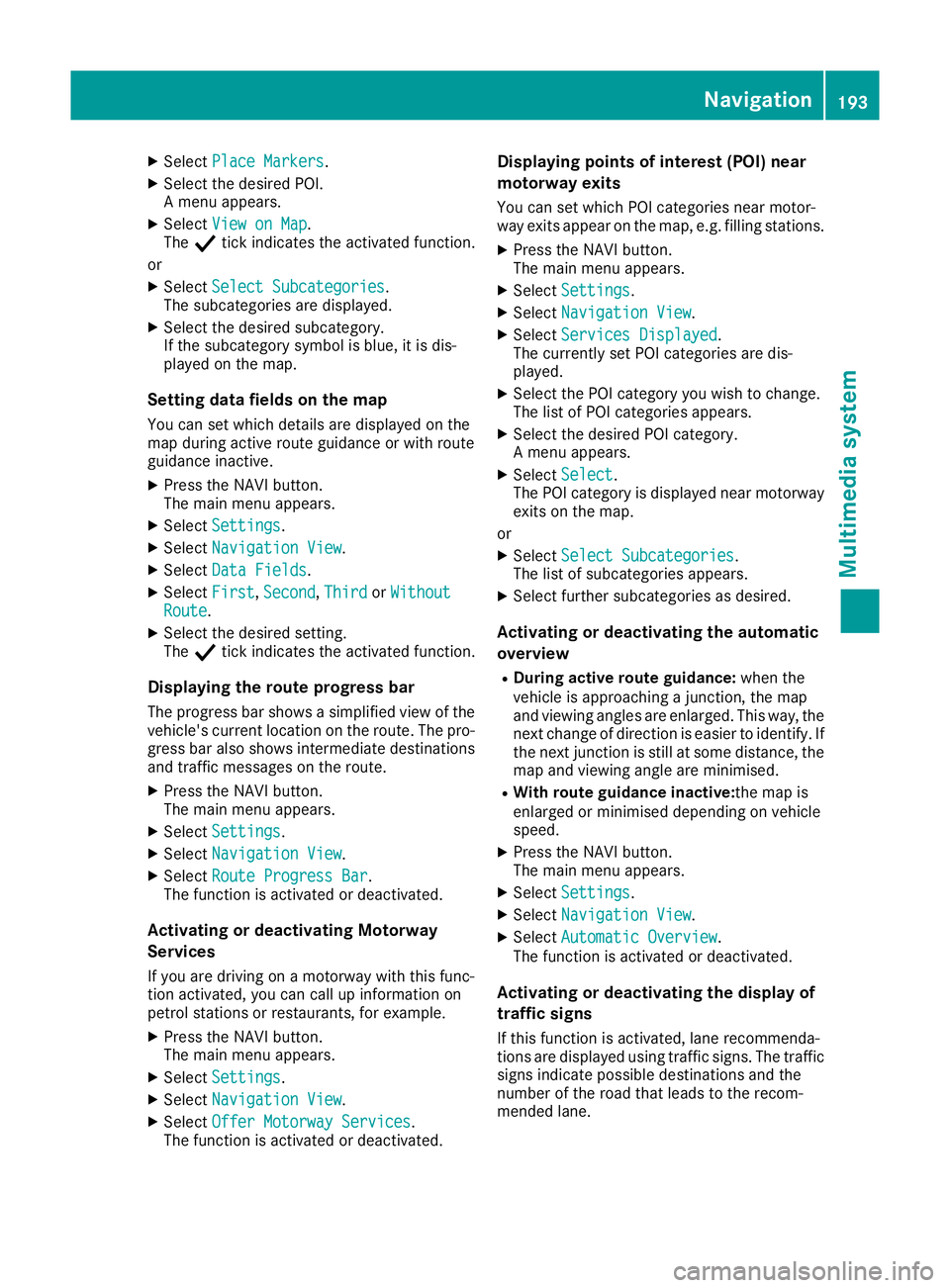
X
Select PlaceMarkers
Plac eMarkers.
X Select the desire dPOI.
Am enu appears.
X Select View on Map
View on Map.
The Ytick indicates the activate dfunction.
or X Select Select Subcategories
Select Subcategories.
The subcategorie sare displayed.
X Select the desire dsubcategory.
If the subcategory symbo lisblue,it is dis-
played on the map.
Setting data fields on the map You can set which detail sare displayed on the
map during active route guidance or with route
guidance inactive.
X Press the NAVI button.
The mai nmenu appears.
X Select Settings Settings .
X Select Navigation View Navigation View .
X Select Data Fields
Data Fields.
X Select First
First, Second
Second, Third
ThirdorWithout
Without
Route
Route.
X Select the desired setting.
The Ytick indicate sthe activated function.
Displaying the route progress bar The progress bar shows asimplifiedv iew of the
vehicle's current location on the route. The pro-
gress bar also shows intermediate destinations and traffic messages on the route.
X Press the NAVI button.
The main menu appears.
X Select Settings
Settings.
X Select Navigation View Navigation View.
X Select Route Progress Bar
Route Progress Bar.
The function is activated or deactivated.
Activating or deactivating Motorway
Services
If you are driving on amotorway with this func-
tion activated, you can call up information on
petrol stations or restaurants, for example.
X Press the NAVI button.
The main menu appears.
X Select Settings Settings.
X Select Navigation View
Navigation View.
X Select Offer Motorway Services
Offer Motorway Services.
The function is activated or deactivated. Displaying points of interest (POI) near
motorway exi
ts
You can set whic hPOI categorie snearm otor-
way exit sappear on th emap, e.g. fillin gstations.
X Press th eNAVIbutton.
The main men uappears.
X Select Settings Settings.
X Select Navigatio nView
Navigatio nView.
X Select Services Displayed
Services Displayed .
The currentl yset POI categorie sare dis-
played.
X Selec tthe POI category you wish to change.
The list of POI categorie sappears.
X Selec tthe desire dPOI category.
Am enua ppears.
X Select Select
Select .
The POI category is displayed near motorway
exit sont hemap.
or X Select Select Subcategories
Select Subcategories.
The list of subcategories appears.
X Selec tfurther subcategories as desired.
Activating or deactivating th eautomatic
overview
R During active rout eguidance: when the
vehicl eisapproachin gajunction ,the map
and viewin gangles are enlarged. This way, the
next chang eofdirection is easier to identify. If
th en extjunction is still at som edistance, the
map and viewin gangle are minimised.
R Wit hroute guidance inactive: them ap is
enlarged or minimised dependin gonvehicle
speed.
X Press th eNAVIbutton.
The main men uappears.
X Select Settings
Settings.
X Select Navigatio nView
Navigatio nView.
X Select Automatic Overview
Automatic Overview.
The function is activated or deactivated.
Activating or deactivating th edispla yof
traffic signs
If this function is activated, lan erecommenda-
tion sare displayed usin gtraffic signs .The traffic
signs indicate possibl edestination sand the
number of th eroadt hatleads to th erecom-
mended lane. Navigation
193Multimediasystem Z
Page 197 of 261
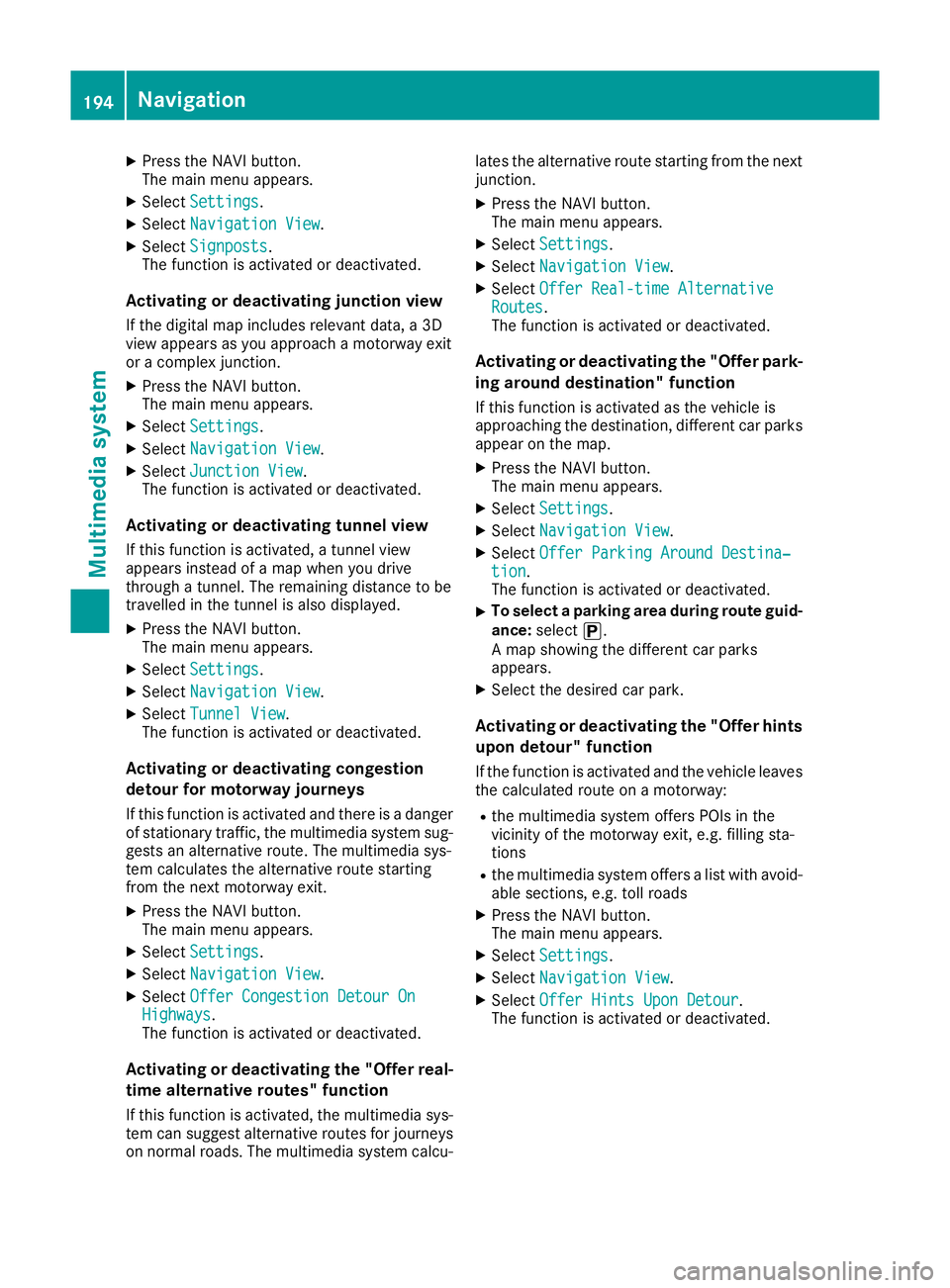
X
Press the NAVI button.
The main menu appears.
X Select Settings Settings.
X Select Navigation View
Navigation View.
X Select Signposts
Signposts.
The function is activated or deactivated.
Activating or deactivating junction view If the digital map includes relevant data, a3D
view appears as you approach amotorway exit
or ac omplex junction.
X Press the NAVI button.
The main menu appears.
X Select Settings Settings.
X Select Navigation View
Navigation View.
X Select Junction View
Junction View.
The function is activated or deactivated.
Activating or deactivating tunnel view
If this function is activated, atunnel view
appears instead of amap when you drive
through atunnel. The remaining distanc etobe
travelled in the tunnel is also displayed.
X Press the NAVI button.
The main menu appears.
X Select Settings
Settings.
X Select Navigation View Navigation View.
X Select Tunnel View
Tunnel View.
The function is activated or deactivated.
Activating or deactivating congestion
detour for motorway journeys
If this function is activated and there is adanger
of stationary traffic, the multimedia system sug-
gests an alternative route. The multimedia sys-
tem calculates the alternative route starting
from the next motorway exit.
X Press the NAVI button.
The main menu appears.
X Select Settings Settings.
X Select Navigation View
Navigation View.
X Select Offer Congestion Detour On
Offer Congestion Detour On
Highways
Highways.
The function is activated or deactivated.
Activating or deactivating the "Offer real-
time alternativer outes" function
If this function is activated, the multimedia sys-
tem can suggest alternative routes for journeys
on normal roads. The multimedia system calcu- late
sthe alternative rout estartin gfromt he next
junction.
X Press the NAV Ibutton.
The main men uappears.
X Select Settings Settings .
X Select Navigation View Navigation View .
X Select OfferReal-tim eAlternative
Offe rReal-tim eAlternative
Routes
Routes.
The function is activate dordeactivated.
Activating or deactivating the "Offer park-
ing around destination" function
If this function is activated as the vehicle is
approaching the destination, different car parks
appearont he map.
X Press the NAVI button.
The main menu appears.
X Select Settings Settings.
X Select Navigation View
Navigation View.
X Select Offer Parking Around Destina‐
Offer Parking Around Destina‐
tion
tion.
The function is activated or deactivated.
X To selectap
arking area during route guid-
ance: select í.
Am ap showing the different car parks
appears.
X Select the desired car park.
Activating or deactivating the "Offer hints
upon detour" function
If the function is activated and the vehicle leaves the calculated route on amotorway:
R the multimedia system offers POIs in the
vicinity of the motorway exit, e.g. filling sta-
tions
R the multimedia system offers alist with avoid-
able sections, e.g. toll roads
X Press the NAVI button.
The main menu appears.
X Select Settings Settings.
X Select Navigation View
Navigation View.
X Select Offer Hints Upon Detour
Offer Hints Upon Detour.
The function is activated or deactivated. 194
NavigationMultimedia system
Page 198 of 261
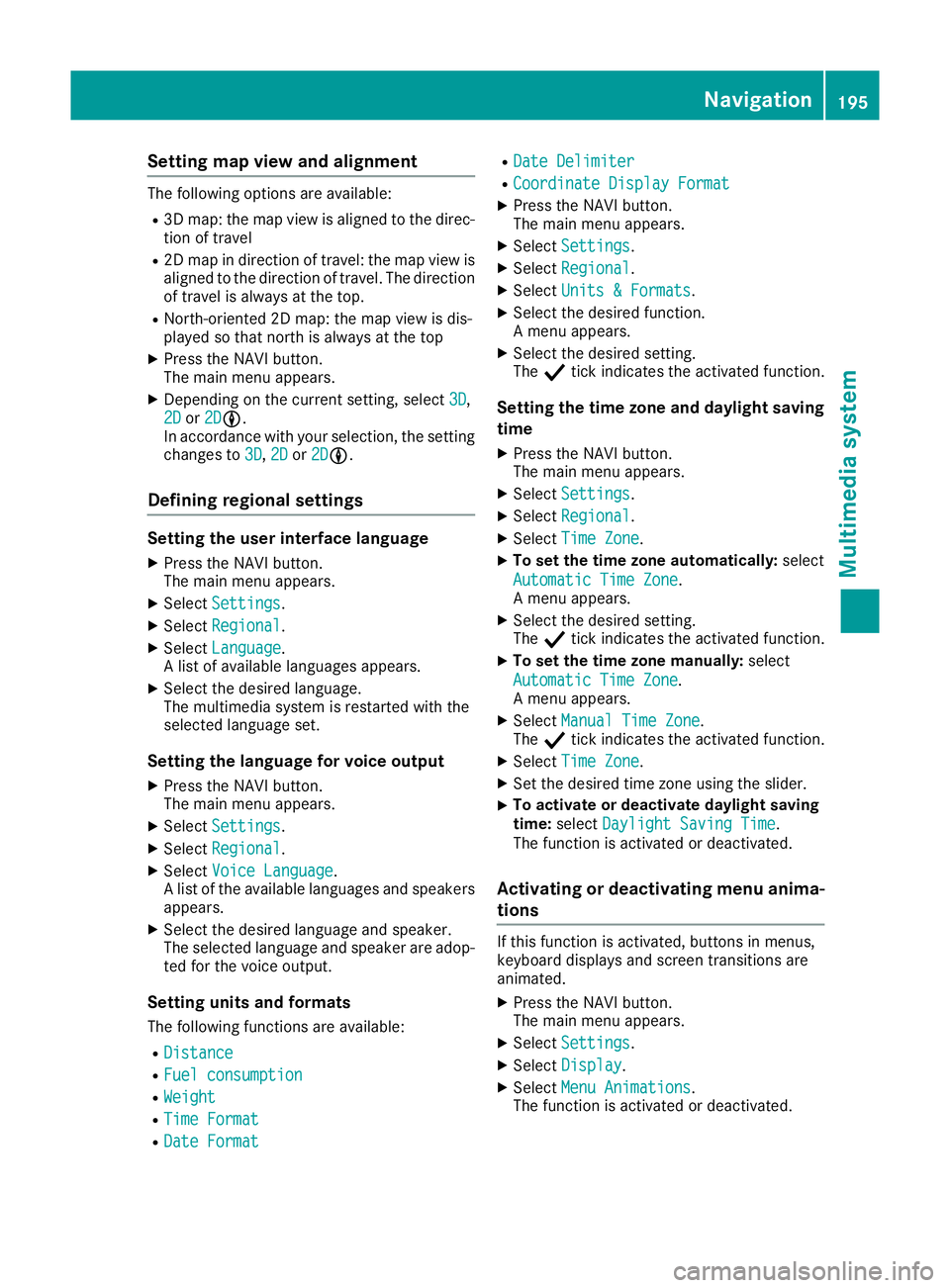
Setting map view and alignment
The following options are available:
R 3D map: the map view is aligned to the direc-
tion of travel
R 2D map in direction of travel: the map view is
aligned to the direction of travel. The direction
of travel is alwaysatt he top.
R North-oriented 2D map: the map view is dis-
played so that northisa lwaysatthe top
X Press the NAVI button.
The main menu appears.
X Dependin gonthe current setting, select 3D 3D,
2D
2D or2D
2DLL.
In accordance with your selection, the setting
changes to 3D
3D, 2D
2Dor2D
2DLL.
Defining regional settings Setting the user interface language
X Press the NAVI button.
The main menu appears.
X Select Settings Settings.
X Select Regional
Regional.
X Select Language
Language.
Al ist of available languages appears.
X Select the desired language.
The multimedia system is restarted with the
selected language set.
Setting the language for voice output
X Press the NAVI button.
The main menu appears.
X Select Settings Settings.
X Select Regional
Regional.
X Select Voice Language
Voice Language.
Al ist of the available languages and speakers
appears.
X Select the desired language and speaker.
The selected language and speaker are adop-
ted for the voice output.
Setting units and formats The following functions are available:
R Distance
Distance
R Fuel consumption Fuel consumption
R Weight
Weight
R Time Format
Time Format
R Date Format
Date Format R
Date Delimiter
Date Delimiter
R Coordinate Display Format
Coordinate Display Format
X Press the NAVI button.
The main menu appears.
X Select Settings
Settings.
X Select Regional Regional.
X Select Units &Formats
Units &Formats.
X Select the desired function.
Am enu appears.
X Select the desired setting.
The Ytick indicates the activated function.
Setting the time zone and daylight saving
time
X Press the NAVI button.
The main menu appears.
X Select Settings
Settings.
X Select Regional Regional.
X Select Time Zone
Time Zone.
X To set the time zone automatically: select
Automatic Time Zone
Automatic Time Zone.
Am enu appears.
X Select the desired setting.
The Ytick indicates the activated function.
X To set the time zone manually: select
Automatic Time Zone Automatic Time Zone.
Am enu appears.
X Select Manual Time Zone Manual Time Zone.
The Ytick indicates the activated function.
X Select Time Zone
Time Zone.
X Set the desired time zone using the slider.
X To activate or deactivate daylight saving
time:
select Daylight Saving Time Daylight Saving Time.
The function is activated or deactivated.
Activating or deactivating menu anima-
tions If this function is activated, buttons in menus,
keyboard displays and screen transitions are
animated.
X Press the NAVI button.
The main menu appears.
X Select Settings Settings.
X Select Display
Display.
X Select Menu Animations
Menu Animations.
The function is activated or deactivated. Navigation
195Multimedia system Z