Page 252 of 557

St
atus displa ysinthe Assis tance graphic:
R é: ATTENTION ASSIST deactivated
R æ: Active Brake Assi stdeactivated
R Light lane markings: Active Lane Keeping
Assist activated
R Green lane markings: Active Lane Keeping
Assist actived R
Grey radar waves next tovehicle: Blind Spot
Assist activated
R Green radar waves next tovehicle: Blind Spot
Assist actived
R Display of Dis tance Pilot DISTRONIC
(→ page 193) Calling up displa
ysintheTr ip menu On-board computer:
, Trip
% Ve
hicles with the instrument display in
th e widescreen cockpit: whenyou ha veset
th e progressive display setting, you can view
information on the journey in theContent
menu. #
Toselect a displa y:swipe upwards or down‐
wa rds on the left-hand Touch Control.
Displa ysintheTrip menu:
R Standard display
R Range and cur rent fuel consu mption
A recuperation displ ayis also available for
cer tain engines. If there is only a small amount of fuel left in
the fuel tank, the dis‐
play sho wsave hicle being refuelled ins tead
of thera nge.
R ECO displ ay (→page 159)
R Trip computer From startandFrom reset
R Digital speedom eter
% Ve
hicles with an instrument display in
th e widescreen cockpit: the digital speed‐
ome ter only appears in the Classic or Sport
display setting. Example:
standard display
1 Trip dis tance
2 Total dis tance recorder Instrument Display and on-board compu
ter249
Page 259 of 557
Display elements
1
Navigation messa ges
2 Current speed
3 Detected instructions and traf fic signs
4 Set speed in the driver assis tance sy stem
(e.g. cruise control)
When youre cei vea call, a message appears in
th e Head-up-Display 6Incoming call.
Sy stem limits
The visibility is influenced bythefo llowing condi‐
tions:
R seat position R
the positioning of the display image
R light conditions
R wetro ad sur faces
R objects on the display co ver
R polarisation in sunglasses Switching
the head-up display on/off #
Press button 1. 256
Instru ment Display and on-board computer
Page 269 of 557
Command
Function
Text message to To
crea tea message. All address book names are available.
Reply To
reply toa message
Forward text message To
forw ard a message Ve
hicle commands Yo
u can use theve hicle commands todirect ly
call up the cor responding menus forth eve hicle
settings. Command
Function
Ambient light To
display ambient light settings
Display settings To
show display settings
Assistance settings To
display assis tance settings
Scent To
display fragrancing settings
Energy flow To
display energy flow settings
Ionisation To
display ionisation settings
Climate control To
display climate control settings 266
LINGU ATRO NIC
Page 270 of 557
Command
Function
Light To
display light settings
Massage To
display massage settings
Engine data To
display engine data
Seats To
display seat adjustment settings
Consumption To
display the consum ption
Visualisation To
display visualisation LINGU
ATRO NIC 267
Page 282 of 557

#
Select Internet settings . #
Select Search for Wi-Fi networks .#
Via WPS PIN: highlight aWi-Fi network in
th e list. #
Select ¥Connect via WPS PIN.
The multimedia sy stem generates an eight-
digit PIN. #
Enter this PIN on the device tobe connec ted. #
Confirm the entry. #
By pressing a button: highlight aWi-Fi net‐
wo rkinthe list. #
Select ¥Connect via WPS PBC. #
Select "Connect via WPS PBC" in the options
on the device tobe connec ted. #
Press the WPS button on the device tobe
connec ted. #
Select Continue inthe multimedia sy stem. #
Using a security key:highlight a Wi-Fi net‐
wo rkinthe list. #
Select ¥Connect using security key. #
Have the security key displa yed on the device
to be connec ted (see the manufacturer's
operating instructions). #
Ente rth is security key on the multimedia sys‐
te m. #
Confirm the entry bypressing ¡.
% All devices support a security key as a
means of connection.
Device has already been connec ted #
Toautomatically connect: highlight aWi-Fi
network in the list. #
Activate O¥ Connect automatically. #
Toconnect: highlight a Wi-Fi network in the
list. #
Select ¥Connect.
The connection is es tablished again. These
functions are possible when the device has
already been connected totheWi -Fi networ k.Setting up a
Wi-Fi hotspot
Multimedia sy stem:
, System .
ö Connectivity
Configuring the multimedia sy stem as a Wi-
Fi hotspot
The type of connection es tablished depends on
th e device tobe connec ted. The function must
be suppor tedby the multimedia sy stem and by
th e device tobe connec ted. The type of connec‐
tion es tablished must be selected on the multi‐
media sy stem and on the device tobe connec‐
te d. #
Select Set up hotspot. #
Highlight Connect device to vehicle hotspot. #
Togenerate a WPS PIN: select¥Con-
nect using WPS PIN generation. #
Ente rth e PIN shown in the multimedia sys‐
te m display on the device tobe connec ted
and con firm. #
Connect via WPS pin: select¥Con-
nect using WPS PIN input. #
Select Enter WPS PIN. Multimedia sy
stem 279
Page 286 of 557

Importing/exporting user profiles
Re
quirements:
R There is an Internet connection
(→ page 329).
R A Mercedes me account exists at http://
www.me rcedes.me.
R The Personalisation service is activated.
Multimedia sy stem:
, System .
g Personalisation .
Man-
ual export/import
This function is not available in all countries.
On lyindividual profiles can be impor ted or
ex por ted.
The individual profiles are alw ays collectively
impor ted or expor ted. #
Impor t:select Import profiles from the
server.
The The profile import overwrites the exist-
ing profiles. Do you want to continue? mes‐
sage appears. #
Select Yes.
User profiles are impor ted. #
Expor t:select Export profiles to the server.
User profiles are expor ted.
% Certain settings such as address book
ent ries or pr evious destinations from the
navigation sy stem are not expor ted.
User profile options
Multimedia sy stem:
, System .
g Personalisation #
Highlight a profile. #
¥ Select an option.
The following options are available:
R Rename
R Delete
R Reset
% The guest profile cannot be dele ted or
re named. So
ftwa reupdate Information on software updates
The multimedia sy
stem pr ovides a message
when an update is available. Depending on
the source, you can per form vari‐
ous updates:
Software update Source of
the
update Up
date type
Interne tN avigation maps, sys‐
te m updates
External storage
medium, e.g. USB
st ick Na
vigation maps Pe
rforming a software upda te
Re quirement:
An Internet connection is requ ired for updates
which are obtained online (→ page 329).
Multimedia sy stem:
, System .
Software update
Au tomatically #
Activate Othe automatic software update.
Up dates are per form ed. Multimedia sy
stem 283
Page 289 of 557
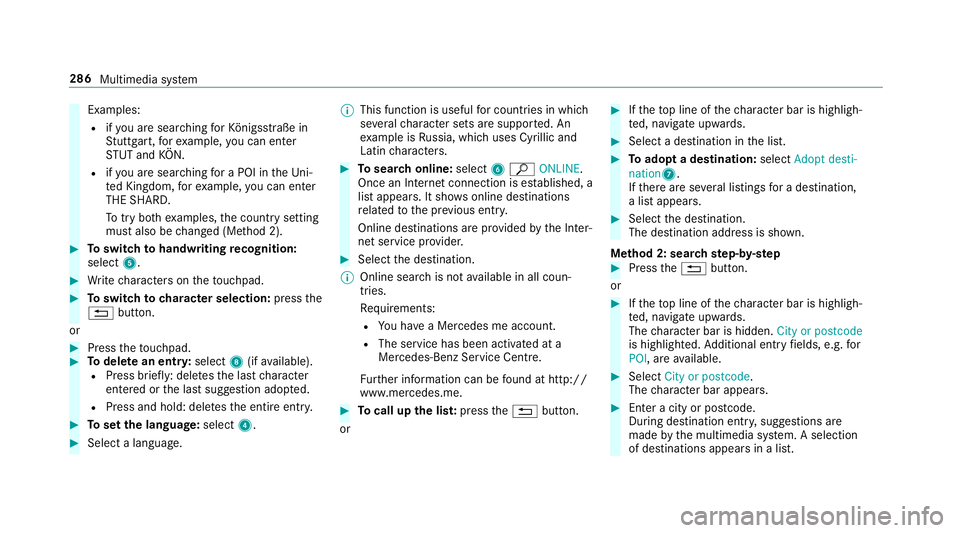
Examples:
R ifyo u are sear ching forKö nigsstraße in
St utt gart,fo rex ample, you can en ter
ST UT and KÖN.
R ifyo u are sear ching for a POI in theUn i‐
te d Kingdom, forex ample, you can en ter
THE SHARD.
To try bo thexamples, the count rysetting
must also be changed (Me thod 2). #
Toswitch tohandwriting recognition:
select 5. #
Write characters on theto uchpad. #
Toswitch to character selection: pressthe
% button.
or #
Press theto uchpad. #
Todel ete an entr y:select 8(ifavailable).
R Press brief ly: del etes the last character
entered or the last suggestion adop ted.
R Press and hold: dele testh e entire entry. #
Toset the language: select4. #
Select a language. %
This function is useful for countries in which
se veralch aracter sets are suppo rted. An
ex ample is Russia, which uses Cyrillic and
Latin characters. #
Tosear chonline: select6ª ONLINE.
Once an In tern et connection is es tablished, a
list appears. It sho wsonline destinations
re lated tothe pr evious ent ry.
Online destinations are pr ovided bythe Inter‐
net service pr ovider. #
Select the destination.
% Online sear chis not available in all coun‐
tries.
Re quirements:
R You ha vea Mercedes me account.
R The service has been activated at a
Mercedes-Benz Service Cent re.
Fu rther information can be found at http://
www.mercedes.me. #
Tocall up the lis t:press the% button.
or #
Ifth eto p line of thech aracter bar is highligh‐
te d, navigate upwards. #
Select a destination in the list. #
Toadopt a destination: selectAdopt desti-
nation7.
If th ere are se veral listings for a destination,
a list appears. #
Select the destination.
The destination address is shown.
Me thod 2: sear chstep- by-step #
Press the% button.
or #
Ifth eto p line of thech aracter bar is highligh‐
te d, navigate upwards.
The character bar is hidden. City or postcode
is highlighted. Additional ent ryfields, e.g. for
POI, are available. #
Select City or postcode.
The character bar appears. #
Enter a city or postcode.
During destination entr y,suggestions are
made bythe multimedia sy stem. A selection
of destinations appears in a list. 286
Multimedia sy stem
Page 290 of 557

The address may be entered in
various
orders, e.g.:
R City or postcode, Street,House no.
A stre et intersection may be entered, if
av ailable.
R Street, City or postcode
R POI , e.g. Petrol station, City or postcode
% The functions desc ribed forth e free sear ch
may be used:
R switch tohandwriting recognition
R switch tocharacter selection
R dele teentry
Entries in thePOI field, forex ample, may
also be dele ted with £.
R call up online sear chfunction (if availa‐
ble)
R call up a list #
Tochange the count ry:select the count ry. #
Enter a countr y.Yo u on lyneed toenter the
fi rs tch aracter. #
Select a country in the list. #
Toadopt a destination: selectAdopt desti-
nation.
If th ere are se veral listings for a destination,
a dis tance-o rientated list appears. #
Select the destination.
The destination address is shown.
Selecting a POI
Multimedia sy stem:
, Navigation .
¬ Destination .
POIs #
Select a categor y.
or #
Select All categories. #
Select a categor y. #
Select a sea rch position.
The special characters are displa yed in a list.
The list is sor tedby distance in ascending
orde r.
The POIs show thefo llowing information:
R name of POI
R linear dis tance tothe POI R
the direction of the linear dis tance tothe
POI (ar row) is displa yed when sear ching
fo rth eve hicle's cur rent position #
Select a POI. #
Altern ativel y,to filter the display byspe‐
cial characters: enter a sea rch entry in the
to p line.
The results list sho wsreleva nt POIs.
Example: if you en terItaly, POIs are shown:
R whose name includes thewo rdItaly
R which belong tothe category Italian cui-
sine #
Select ¡.
The firs t POI in the list is highlighted. #
Select a POI.
Setting the sear chposition for the parking
ca tegor y,forex ample, during active route
guidance #
Select In the vicinity ,Near destination or
Along the route.
The list sho ws the located POIs or opens an
ove rview of thero ute. Multimedia sy
stem 287


