Page 349 of 544

When Inflating Your Tires
When putting air into your tires (such as at a
gas station or in your garage), the tire
pressure monitoring system may not respond
immediately to the air added to your tires.
It may take up to two minutes of driving over
20 mph (32 km/h) for the light to turn off after
you have filled your tires to the
recommended inflation pressure
How Temperature Affects Your Tire
Pressure
The tire pressure monitoring system monitors
tire pressure in each pneumatic tire. While
driving in a normal manner, a typical
passenger tire inflation pressure may
increase about 2 to 4 psi (14 to 28 kPa) from
a cold start situation. If the vehicle is
stationary overnight with the outside
temperature significantly lower than the
daytime temperature, the tire pressure may
decrease about 3 psi (21 kPa) for a drop of
30°F (17°C) in ambient temperature. This
lower pressure value may be detected by
the tire pressure monitoring system as being
significantly lower than the recommendedinflation pressure and activate the system
warning light for low tire pressure. If the low
tire pressure warning light is on, visually
check each tire to verify that no tire is flat. If
one or more tires are flat, repair as
necessary. Check the air pressure in the road
tires. If any tire is under-inflated, carefully
drive the vehicle to the nearest location
where air can be added to the tires. Inflate
all the tires to the recommended inflation
pressure.
CHANGING A ROAD WHEEL
WARNINGS
The use of tire sealant may damage
your tire pressure monitoring system
and should only be used in roadside
emergencies. If you must use a sealant, the
Ford Tire Mobility Kit sealant should be used.
The tire pressure monitoring system sensor
and valve stem on the wheel must be
replaced by an authorized dealer after use
of the sealant.
WARNINGS
If the tire pressure monitor sensor
becomes damaged, it will no longer
function. See Tire Pressure Monitoring
System (page 342).
Note: The tire pressure monitoring system
indicator light will illuminate when the spare
tire is in use. To restore the full function of
the monitoring system, all road wheels
equipped with tire pressure monitoring
sensors must be mounted on the vehicle.
If you get a flat tire while driving, do not apply
the brake heavily. Instead, gradually
decrease your speed. Hold the steering
wheel firmly and slowly move to a safe place
on the side of the road.
Have a flat serviced by an authorized dealer
in order to prevent damage to the tire
pressure monitoring system sensors. See
Tire Pressure Monitoring System (page 342).
Replace the spare tire with a road tire as
soon as possible. During repairing or
replacing of the flat tire, have an authorized
dealer inspect the tire pressure monitoring
system sensor for damage.
346
Wheels and Tires
Page 381 of 544

Using the Steering Wheel Controls
Depending on your vehicle, it may also have the following controls:
Action and Description
Control
Adjust the volume of playing media.
VOL
Press to start a voice session. Press again to interrupt a voice prompt \
and begin speaking. Press
and hold to end an active voice session.
Voice
Use as you normally would in media and phone modes.
Seek and Call Accept
Use as you normally would in media and phone modes.
Seek and Call Reject
Using the Touchscreen
• Make sure your hands are clean and dry.
• Press firmly on the center of a control
graphic or menu item.
• Keep metal objects or other conductive material away from the surface of the
touchscreen.
Cleaning the Touchscreen Display
Use a dry, clean, soft cloth. If dirt or
fingerprints are still visible, apply a small
amount of alcohol to the cloth. Do not pour
or spray alcohol onto the display. Do not use
detergent or any type of solvent to clean the
display.
Support
The SYNC support team is available:
• Monday-Saturday, 8:30am-8:00pm EST.
• United States: 1-800-521-4140
• Canada: 1-800-387-9333
Note: Times are subject to change due to
holidays.
378
MyLincoln Touch™
Page 385 of 544
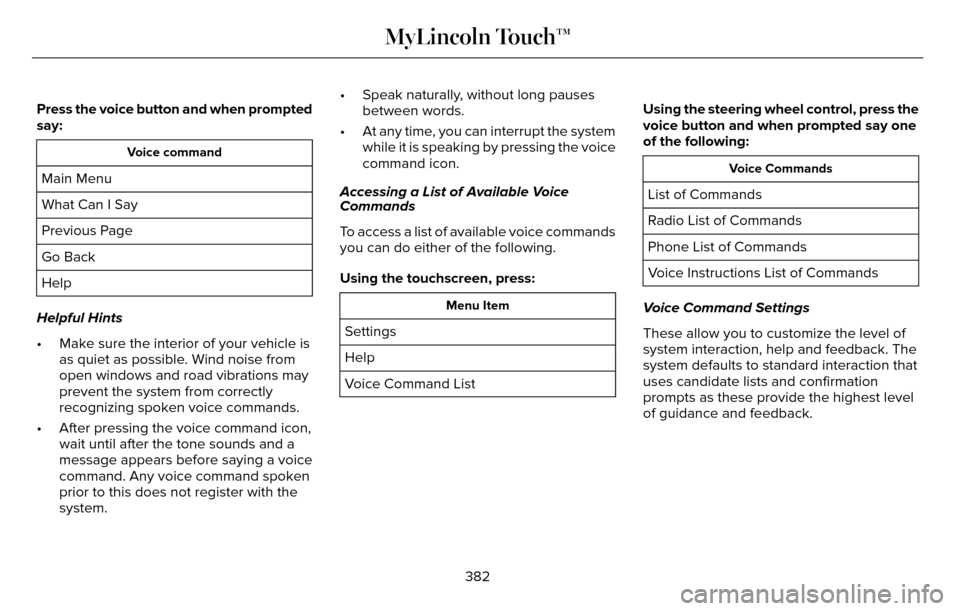
Press the voice button and when prompted
say:
Voice command
Main Menu
What Can I Say
Previous Page
Go Back
Help
Helpful Hints
• Make sure the interior of your vehicle is as quiet as possible. Wind noise from
open windows and road vibrations may
prevent the system from correctly
recognizing spoken voice commands.
• After pressing the voice command icon, wait until after the tone sounds and a
message appears before saying a voice
command. Any voice command spoken
prior to this does not register with the
system. • Speak naturally, without long pauses
between words.
• At any time, you can interrupt the system while it is speaking by pressing the voice
command icon.
Accessing a List of Available Voice
Commands
To access a list of available voice commands
you can do either of the following.
Using the touchscreen, press:
Menu Item
Settings
Help
Voice Command List Using the steering wheel control, press the
voice button and when prompted say one
of the following:
Voice Commands
List of Commands
Radio List of Commands
Phone List of Commands
Voice Instructions List of Commands
Voice Command Settings
These allow you to customize the level of
system interaction, help and feedback. The
system defaults to standard interaction that
uses candidate lists and confirmation
prompts as these provide the highest level
of guidance and feedback.
382
MyLincoln Touch™
Page 388 of 544
To make adjustments using the touchscreen, select:
Action and Description
Menu Item
Press the settings icon.
Settings
Press the + or - to adjust the time.
Clock
From this screen, you can also make other adjustments such as 12-hour or\
24-hour mode, activate
GPS time synchronization and have the system automatically update new ti\
me zones.
You can also switch the outside air temperature display off and on. It ap\
pears at the top center
of the touchscreen, next to the time and date.
Note: You cannot manually set the date. Your vehicle’s GPS does this for you.
Note: If the battery has been disconnected, your vehicle needs to acquire a GP\
S signal to update the clock. Once your vehicle acquires the
signal, it may take a few minutes for the update to display the correct \
time.
Display
E142607
You can adjust the display using
the touchscreen or the voice
button on the steering wheel
controls.
385
MyLincoln Touch™
Page 422 of 544
SIRIUS Satellite Radio Voice Commands
E142599
If you are listening to SIRIUS
satellite radio, press the voice
button on the steering wheel
controls. You will hear a prompt, you can
then say any of the commands in the
following table. If you are not listening to SIRIUS satellite
radio, press the voice button and, after the
tones press the voice button and when
prompted say:
Voice command
Sirius
You can then say any of the following or
a similar command:
SAT 1
Sports Games
Voice command
Tune
Help
You can also say the name of any Sirius
station, such as “The Highway” or “Deep
Tracks”, to listen to that station.
CD
E142611
To access, press the lower left corner on
the touchscreen, then select:
Menu Item
CD
419
MyLincoln Touch™
Page 423 of 544
Insert your CD then select:
Action and Description
Menu Item
Touch this button to repeat the currently playing track, all tracks on th\
e disc or switch the feature off if
already on.
Repeat
Touch this button to play the tracks or entire albums in random order, or switch the feature off if already
on.
Shuffle
Touch this button to hear a brief sampling of all available tracks.
Scan
Touch this button to see disc information.
More Info
Touch this button to look through all available CD tracks.
Browse
To adjust the Sound Settings, select:
Menu Item
Options
Sound Settings
Then any of the following:
Bass
Midrange
Menu Item
Treble
Set Balance and Fade
Occupancy Mode
EQ Mode
Speed Compensated Volume
Note: Your vehicle may not have all these
sound settings. CD Voice Commands
E142599
If you are listening to a CD, press
the voice button on the steering
wheel controls. When prompted,
say any of the following commands.
420
MyLincoln Touch™
Page 433 of 544

Press the voice button and say a command
similar to the following:
Voice command
Call
Dial
You can say the name of a person from your
phone book to call or a say a number to dial.
For example "Call Jenny" or "Dial 867-5309".
E142632
To end the call or exit phone
mode, press and hold the phone
button.
Receiving Calls
During an incoming call, an audible tone
sounds. Call information appears in the
display if it is available.
To accept the call, select:
Message
Accept
Note: You can also accept the call by
pressing the phone button on the steering
wheel.
E142632
To reject the call, select:
Message
Reject
Note: You can also reject the call by
pressing the phone button on the steering
wheel.
Ignore the call by doing nothing. SYNC logs
it as a missed call.
Phone Menu Options
Press the top left corner on the touchscreen
to select from the following options:
Action and Description
Menu Item
Touch this button to access the on-screen numerical pad to enter a number\
and place a call. During
an active call, you can also choose any of these options:
Phone
Mute Call
Hold Call
430
MyLincoln Touch™
Page 444 of 544
Action and Description
Voice Command
subscription. For more information on Operator Assist, visit
www.SYNCMyRide.com/support.
If you miss a turn, SYNC automatically asks if you want the route
updated. Say yes when prompted and the system sends a new route
to your vehicle.
Yes [During an active route]
Disconnecting from SYNC Services
Press and hold the hang-up phone button
on the steering wheel. From the SYNC Services main menu say:
Voice Command
Good-bye
441
MyLincoln Touch™


