2016 KIA PICANTO ECO mode
[x] Cancel search: ECO modePage 203 of 488
Features of your vehicle
1284
✽✽NOTICE - USING THE USB
DEVICE
To use an external USB device, make sure the device is not connected when
starting up the vehicle. Connect the
device after starting up.
If you start the engine when the USB
device is connected, it may damage
the USB device. (USB flashdrives are
very sensitive to electric shock.)
If the engine is started up or turned
off while the external USB device is
connected, the external USB device
may not work.
The System may not play inauthentic
MP3 or WMA files.
1)It can only play MP3 files with thecompression rate between 8Kbps ~
320Kbps.
2)It can only play WMA music files with the compression rate between
8Kbps ~ 320Kbps.
Take precautions for static electricity
when connecting or disconnecting the
external USB device.
An encrypted MP3 PLAYER is not recognizable.
(Continued)(Continued)
Depending on the condition of the
external USB device, the connected
external USB device can be unrecog-
nizable.
When the formatted byte/sector set-
ting of External USB device is not
either 512BYTE or 2048BYTE, then
the device will not be recognized.
Use only a USB device formatted to FAT 12/16/32.
USB devices without USB I/F authen- tication may not be recognizable.
Make sure the USB connection termi- nal does not come in contact with the
human body or other objects.
If you repeatedly connect or discon-
nect the USB device in a short period
of time, it may break the device.
You may hear a strange noise when connecting or disconnecting a USB
device. (Continued)(Continued)
If you disconnect the external USB
device during playback in USB mode,
the external USB device can be dam-
aged or may malfunction. Therefore,
disconnect the external USB device
when the audio is turned off or in
another mode. (e.g, Radio, CD)
Depending on the type and capacity of
the external USB device or the type of
the files stored in the device, there is a
difference in the time taken for recog-
nition of the device.
Do not use the USB device for purpos- es other than playing music files.
Playing videos through the USB is not supported.
Use of USB accessories such as rechargers or heaters using USB I/F
may lower performance or cause trou-
ble. (Continued)
Page 208 of 488

133
Features of your vehicle
6. PRESET Buttons
Press ~ buttons less
than 0.8 seconds to play the station
saved in each button.
Press ~ button more than 0.8 seconds or longer to save the
current station to the respective button
with a beep.
7. Button
Shortly press the key (under 0.8 sec-
onds) : Moves to the Scroll, Media, Audio
setting modes.
Scroll : Scroll (On/Off)
Media : MP3 playing information (Folder/ File, Artist/Title)
Audio : Audio setup control (Bass/Treble/ Fader/Balance) - BASS Control : To increase the BASS,
rotate the knob clockwise, while to
decrease the BASS, rotate the knob
counterclockwise.
- TREBLE Control : To increase the TRE- BLE, rotate the knob clockwise, while to
decrease the TREBLE, rotate the knob
counterclockwise.
- FADER Control : Turn the knob clock- wise to emphasize rear speaker
sound(front speaker sound will be
attenuated). When the control knob is
turned counterclockwise, front speaker
sound will be emphasized(rear speaker
sound will be attenuated).
- BALANCE Control : Rotate the knob clockwise to emphasize right speaker
sound(left speaker sound will be atten-
uated). When the control knob is turned
counter clockwise, left speaker sound
will be emphasized(right speaker sound
will be attenuated).
Press and hold the key (over 0.8 sec-
onds) : Move to the Time setting screen. 8. Knob
Turn this control while listening to a radio
channel to manually adjust frequency.
Turn clockwise to increase frequency
and counterclockwise to decrease fre-
quency.
9. Button
- Press the key (under 0.8 seconds) :
Previews each broadcast for 5 seconds each.
- Press and hold the key (over 0.8 sec- onds) : Previews the broadcasts saved
in Preset ~ for 5 sec-onds each.
❈ Press the key again to contin- ue listening to the currently selectedchannel.
®
mode
- Press the key (under 0.8 seconds) : Previews each song (file) for 10 sec- onds each
❈ Press the key again to contin- ue listening to the current song (file).
10. Button
Displays menus for AST mode.
AST : Turn on auto seek and store the Frequencies.
MENU
SCAN
SCAN
61
SCAN
TUNE
SETUPCLOCK
61
61
4
Page 209 of 488
Features of your vehicle
1344
CAUTION IN USING
USB DEVICE
To use an external USB device, make sure the device is not con-nected when starting up the vehi-cle. Connect the device afterstarting up.
If you start the engine when the USB device is connected, it maydamage the USB device. (USBflashdrives are very sensitive to
electric shock.)
If the engine is started up or turned off while the external USBdevice is connected, the externalUSB device may not work.
It may not play inauthentic MP3 or WMA files.
1) It can only play MP3 files with the compression rate between8Kbps~320Kbps.
2) It can only play WMA music files with the compression ratebetween 8Kbps~320Kbps.
Take precautions for static electrici- ty when connecting or disconnect-ing the external USB device.
(Continued)
(Continued) An encrypted MP3 PLAYER is not recognizable.
Depending on the condition of the external USB device, the con-
nected external USB device can be unrecognizable.
When the formatted byte/sector setting of External USB device isnot either 512BYTE or 2048BYTE,
then the device will not be recog-nized.
Use only a USB device formatted to FAT 12/16/32.
USB devices without USB I/F authentication may not be recog-nizable.
Make sure the USB connection terminal does not come in contactwith the human body or other
objects.
If you repeatedly connect or dis- connect the USB device in a shortperiod of time, it may break thedevice.
You may hear a strange noise when connecting or disconnect-ing a USB device.
(Continued)(Continued) If you disconnect the external USB device during playback inUSB mode, the external USBdevice can be damaged or may
malfunction. Therefore, discon-nect the external USB device when the audio is turned off or in
another mode. (e.g, Radio or CD)
Depending on the type and capaci- ty of the external USB device or thetype of the files stored in the device,there is a difference in the time
taken for recognition of the device.
Do not use the USB device for purposes other than playingmusic files.
Use of USB accessories such as rechargers or heaters using USBI/F may lower performance orcause trouble.
If you use devices such as a USB hub purchased separately, the
vehicle’s audio system may notrecognize the USB device. In that case, connect the USB devicedirectly to the multimedia termi-
nal of the vehicle.
(Continued)
Page 211 of 488
Features of your vehicle
136
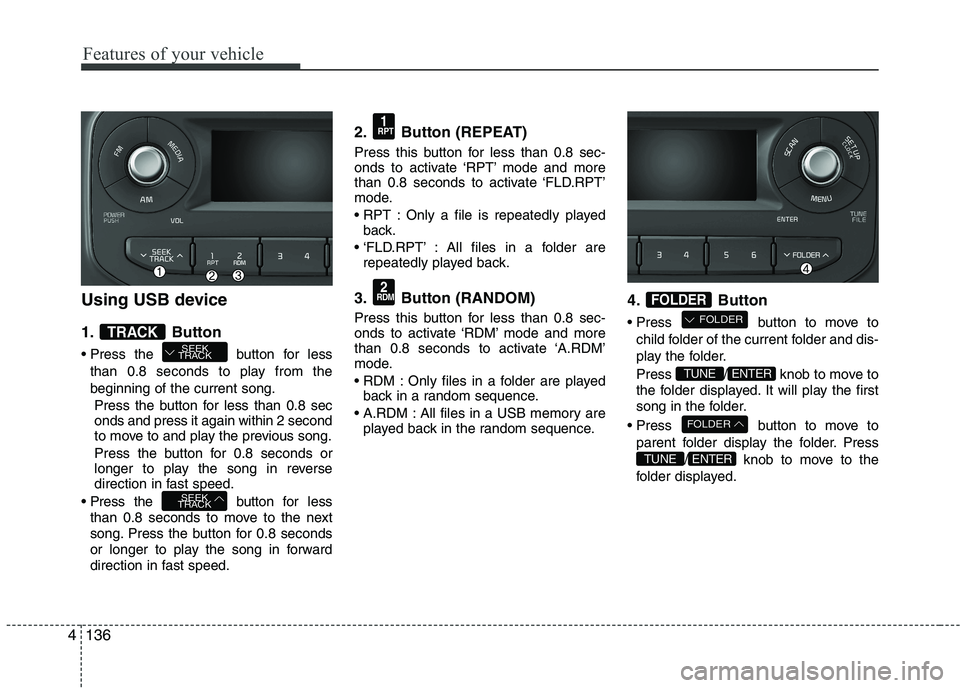
Using USB device
1. Button
Press the button for lessthan 0.8 seconds to play from the beginning of the current song.
Press the button for less than 0.8 sec onds and press it again within 2 second
to move to and play the previous song.
Press the button for 0.8 seconds or
longer to play the song in reverse
direction in fast speed.
Press the button for less
than 0.8 seconds to move to the next
song. Press the button for 0.8 seconds
or longer to play the song in forward
direction in fast speed. 2. Button (REPEAT)
Press this button for less than 0.8 sec-
onds to activate ‘RPT’ mode and more
than 0.8 seconds to activate ‘FLD.RPT’
mode.
RPT : Only a file is repeatedly played
back.
‘FLD.RPT’ : All files in a folder are repeatedly played back.
3. Button (RANDOM)
Press this button for less than 0.8 sec-
onds to activate ‘RDM’ mode and more
than 0.8 seconds to activate ‘A.RDM’
mode.
RDM : Only files in a folder are played back in a random sequence.
A.RDM : All files in a USB memory are played back in the random sequence. 4. Button
Press button to move to
child folder of the current folder and dis-
play the folder.
Press / knob to move to
the folder displayed. It will play the first
song in the folder.
Press button to move to parent folder display the folder. Press / knob to move to the
folder displayed.
ENTERTUNE
FOLDER
ENTERTUNE
FOLDER
FOLDER2
RDM
1
RPT
SEEK
TRACK
SEEK
TRACKTRACK
4
Page 212 of 488
137
Features of your vehicle
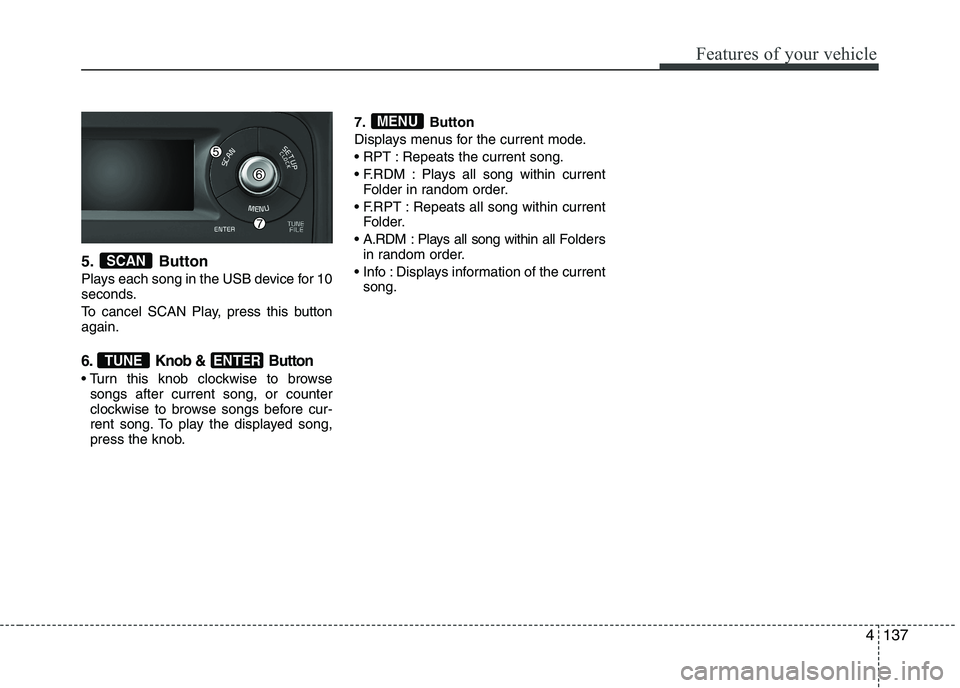
5. Button
Plays each song in the USB device for 10
seconds.
To cancel SCAN Play, press this button again.
6. Knob & Button
Turn this knob clockwise to browsesongs after current song, or counter
clockwise to browse songs before cur-
rent song. To play the displayed song,
press the knob. 7. Button
Displays menus for the current mode.
RPT : Repeats the current song.
F.RDM : Plays all song within current
Folder in random order.
F.RPT : Repeats all song within current Folder.
A.RDM : Plays all song within all F olders
in random order.
Info : Displays information of the current song.
MENU
ENTERTUNE
SCAN
4
Page 214 of 488
139
Features of your vehicle
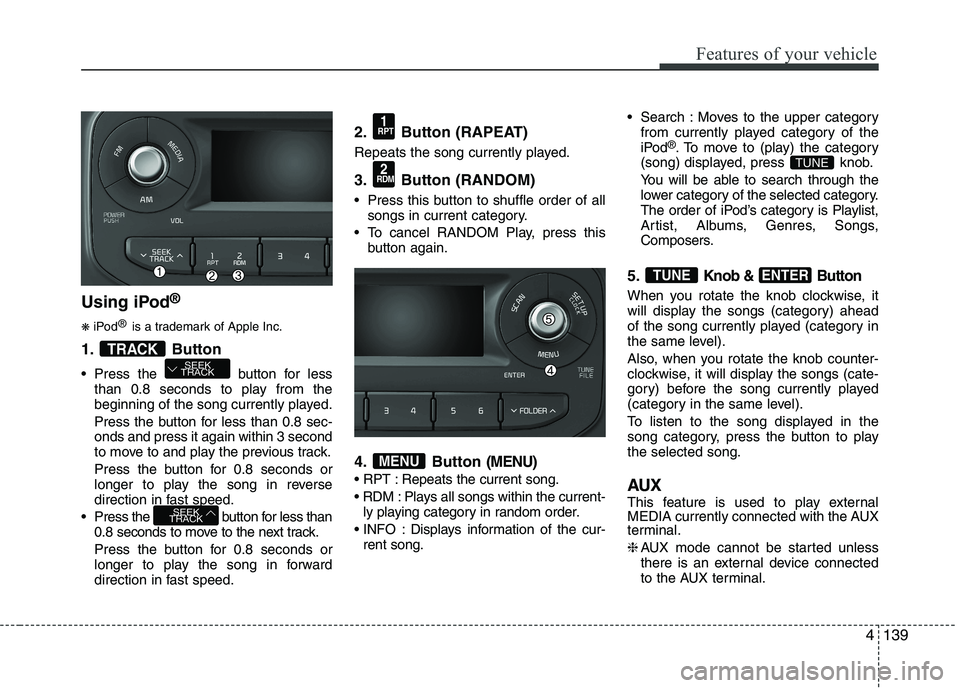
Using iPod®
❋ iPod ®
is a trademark of Apple Inc.
1. Button
Press the button for less than 0.8 seconds to play from the
beginning of the song currently played.
Press the button for less than 0.8 sec- onds and press it again within 3 second
to move to and play the previous track.
Press the button for 0.8 seconds or
longer to play the song in reverse
direction in fast speed.
Press the button for less than 0.8 seconds to move to the next track.
Press the button for 0.8 seconds or
longer to play the song in forward
direction in fast speed. 2. Button (RAPEAT)
Repeats the song currently played.
3. Button (RANDOM)
Press this button to shuffle order of all
songs in current category.
To cancel RANDOM Play, press this button again.
4. Button
(MENU)
Repeats the current song.
Plays all songs within the current- ly playing category in random order.
INFO : Displays information of the cur- rent song. Search : Moves to the upper category
from currently played category of the
iPod ®
. To move to (play) the category
(song) displayed, press knob.
You will be able to search through the
lower category of the selected category.
The order of iPod’s category is Playlist,
Artist, Albums, Genres, Songs,
Composers.
5.
Knob & Button
When you rotate the knob clockwise, it
will display the songs (category) ahead
of the song currently played (category in
the same level).
Also, when you rotate the knob counter-
clockwise, it will display the songs (cate-
gory) before the song currently played
(category in the same level).
To listen to the song displayed in the
song category, press the button to playthe selected song.
AUX
This feature is used to play external
MEDIA currently connected with the AUX
terminal. ❈ AUX mode cannot be started unless
there is an external device connected
to the AUX terminal.
ENTERTUNE
TUNE
MENU
2
RDM
1
RPT
SEEK
TRACK
SEEK
TRACKTRACK
4
Page 217 of 488

Features of your vehicle
1424(8)
Each time the button is shortly pressed (under 0.8 seconds), sets screen Off
➟
Screen On ➟Screen Off
❈ Audio operation is maintained and
only the screen will be turned Off. In
the screen Off state, press any key to
turn the screen On again. (9) Radio Mode
- Shortly press the key (under 0.8 sec-
onds): TA On/Off
- Press and hold the key (over 0.8 sec- onds): Previews each broadcast for 5 seconds each
Media mode
- Press and hold the key (over 0.8 sec- onds): Previews each song (file) for 10 seconds each
❈ Press and holding the key again to
continue listening to the current song(file).
(10)
- Shortly press the key (under 0.8 sec- onds) : Moves to the Display, Sound,
Clock, Phone, System setting modes
- Press and hold the key (over 0.8 sec- onds) : Move to the Time settingscreen (11)
Displays menus for the current
mode. ❈
iPod ®
List : Move to parent category
(12)
CD MP3, USB mode : Folder Search
(13) TUNE knob
Radio mode : Changes frequency by
turning the knob left/right
CD, USB, iPod ®
, My Music mode:
Searches .songs (files) by turning the
knob left/right. ❈ When the desired song is dis-
played, press the knob to play the song.
Moves focus in all selection menus and
selects menus
FOLDER
MENUTA
SCAN
Page 222 of 488

147
Features of your vehicle
4
(8)
Each time the button is shortly pressed (under 0.8 seconds), sets screen Off
➟
Screen On ➟Screen Off
❈ Audio operation is maintained and
only the screen will be turned Off. In
the screen Off state, press any key to
turn the screen On again. (9)
- Press the key (under 0.8 seconds):
Previews each broadcast for 5 sec- onds each
- Press and hold the key (over 0.8 sec- onds): Previews the broadcasts saved
in Preset ~ for 5 secondseach.
- Press the key (under 0.8 seconds): Previews each song (file) for 10 sec- onds each
❈ Press the key again to continue listen- ing to the current song (file).
(10)
- Shortly press the key (under 0.8 sec- onds) : Moves to the Display, Sound,
Clock, Phone, System setting modes
- Press and hold the key (over 0.8 sec- onds) : Move to the Time setting screen (11)
Displays menus for the current mode. ❈
iPod ®
List : Move to parent category
(12)
CD MP3, USB mode : Folder Search
(13) TUNE knob
Radio mode : Changes frequency by
turning the knob left/right
CD, USB, iPod ®
, My Music mode:
Searches .songs (files) by turning the
knob left/right. ❈ When the desired song is displayed,
press the knob to play the song.
Moves focus in all selection menus and
selects menus
FOLDER
MENU
SETUP CLOCK
61
SCAN
DISP