Page 426 of 723
RADIO OPERATION AND MOBILE PHONES
Under certain conditions, the mobile phone being on in
your vehicle can cause erratic or noisy performance from
your radio. This condition may be lessened or eliminated
by relocating the mobile phone antenna. This condition is
not harmful to the radio. If your radio performance does
not satisfactorily “clear” by the repositioning of the
antenna, it is recommended that the radio volume be
turned down or off during mobile phone operation when
not using Uconnect (if equipped).
Regulatory And Safety Information
USA/CANADA
Exposure to Radio Frequency Radiation
The radiated output power of the internal wireless radio
is far below the FCC radio frequency exposure limits.Nevertheless, the wireless radio will be used in such a
manner that the radio is 20 cm or further from the human
body.
The internal wireless radio operates within guidelines
found in radio frequency safety standards and recom-
mendations, which reflect the consensus of the scientific
community.
The radio manufacturer believes the internal wireless
radio is safe for use by consumers. The level of energy
emitted is far less than the electromagnetic energy emit-
ted by wireless devices such as mobile phones. However,
the use of wireless radios may be restricted in some
situations or environments, such as aboard airplanes. If
you are unsure of restrictions, you are encouraged to ask
for authorization before turning on the wireless radio.
This device complies with Part 15 of the FCC Rules and
with Industry Canada license-exempt RSS standard(s).
Operation is subject to the following two conditions:
424 UNDERSTANDING YOUR INSTRUMENT PANEL
Page 441 of 723
If you see theicon on your touchscreen, you have
the Uconnect 8.4AN system. If not, you have a
Uconnect 8.4A system. Get Started
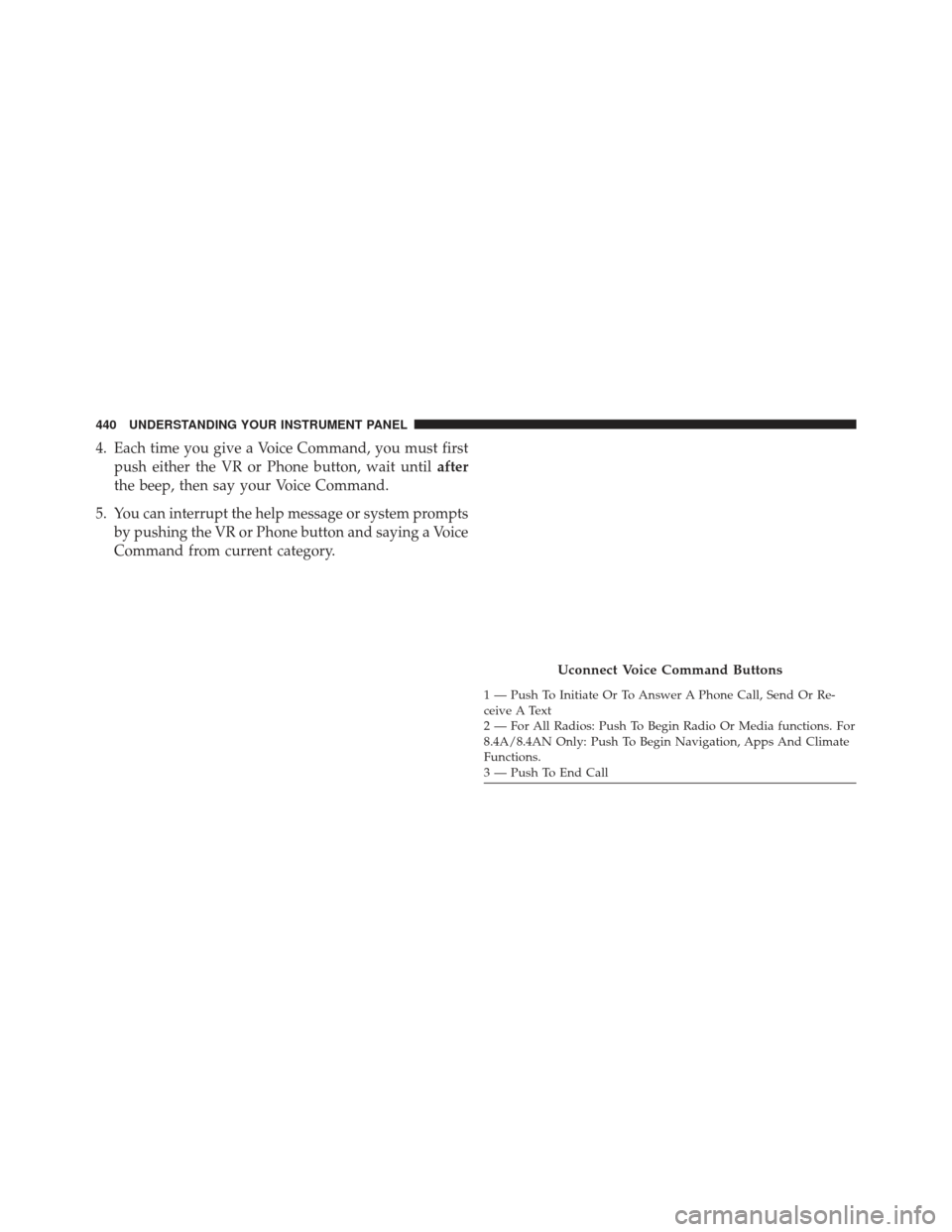
All you need to control your Uconnect system with your
voice are the buttons on your steering wheel.
1. Visit UconnectPhone.com to check mobile device and
feature compatibility and to find phone pairing in-
structions.
2. Reduce background noise. Wind and passenger con- versations are examples of noise that may impact
recognition.
3. Speak clearly at a normal pace and volume while facing straight ahead. The microphone is positioned
on the rearview mirror and aimed at the driver.
Uconnect 8.4AN
4
UNDERSTANDING YOUR INSTRUMENT PANEL 439
Page 442 of 723
4. Each time you give a Voice Command, you must firstpush either the VR or Phone button, wait until after
the beep, then say your Voice Command.
5. You can interrupt the help message or system prompts by pushing the VR or Phone button and saying a Voice
Command from current category.
Uconnect Voice Command Buttons
1 — Push To Initiate Or To Answer A Phone Call, Send Or Re-
ceive A Text
2 — For All Radios: Push To Begin Radio Or Media functions. For
8.4A/8.4AN Only: Push To Begin Navigation, Apps And Climate
Functions.
3 — Push To End Call
440 UNDERSTANDING YOUR INSTRUMENT PANEL
Page 445 of 723
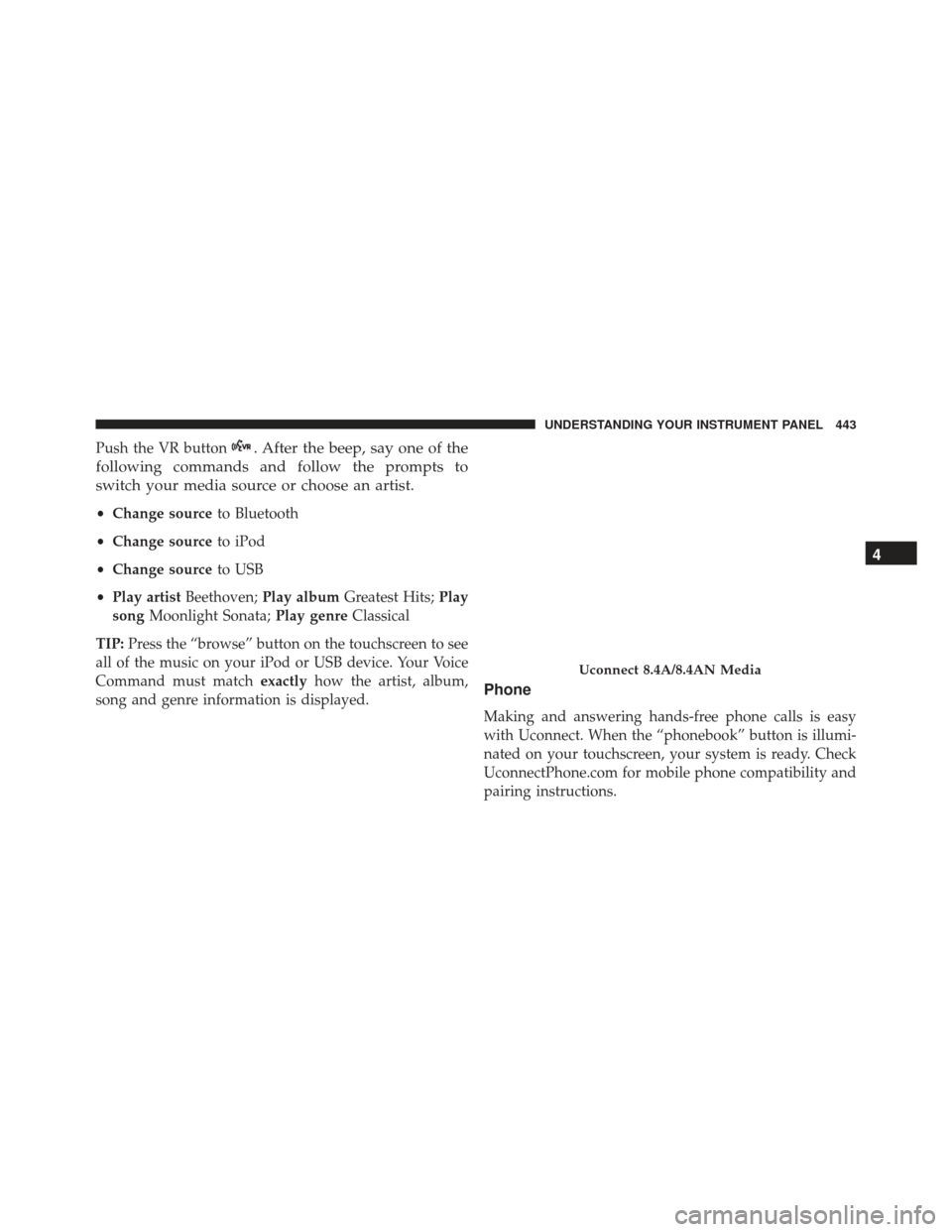
Push the VR button. After the beep, say one of the
following commands and follow the prompts to
switch your media source or choose an artist.
• Change source to Bluetooth
• Change source to iPod
• Change source to USB
• Play artist Beethoven; Play album Greatest Hits; Play
song Moonlight Sonata; Play genreClassical
TIP: Press the “browse” button on the touchscreen to see
all of the music on your iPod or USB device. Your Voice
Command must match exactlyhow the artist, album,
song and genre information is displayed.
Phone
Making and answering hands-free phone calls is easy
with Uconnect. When the “phonebook” button is illumi-
nated on your touchscreen, your system is ready. Check
UconnectPhone.com for mobile phone compatibility and
pairing instructions.
Uconnect 8.4A/8.4AN Media
4
UNDERSTANDING YOUR INSTRUMENT PANEL 443
Page 446 of 723
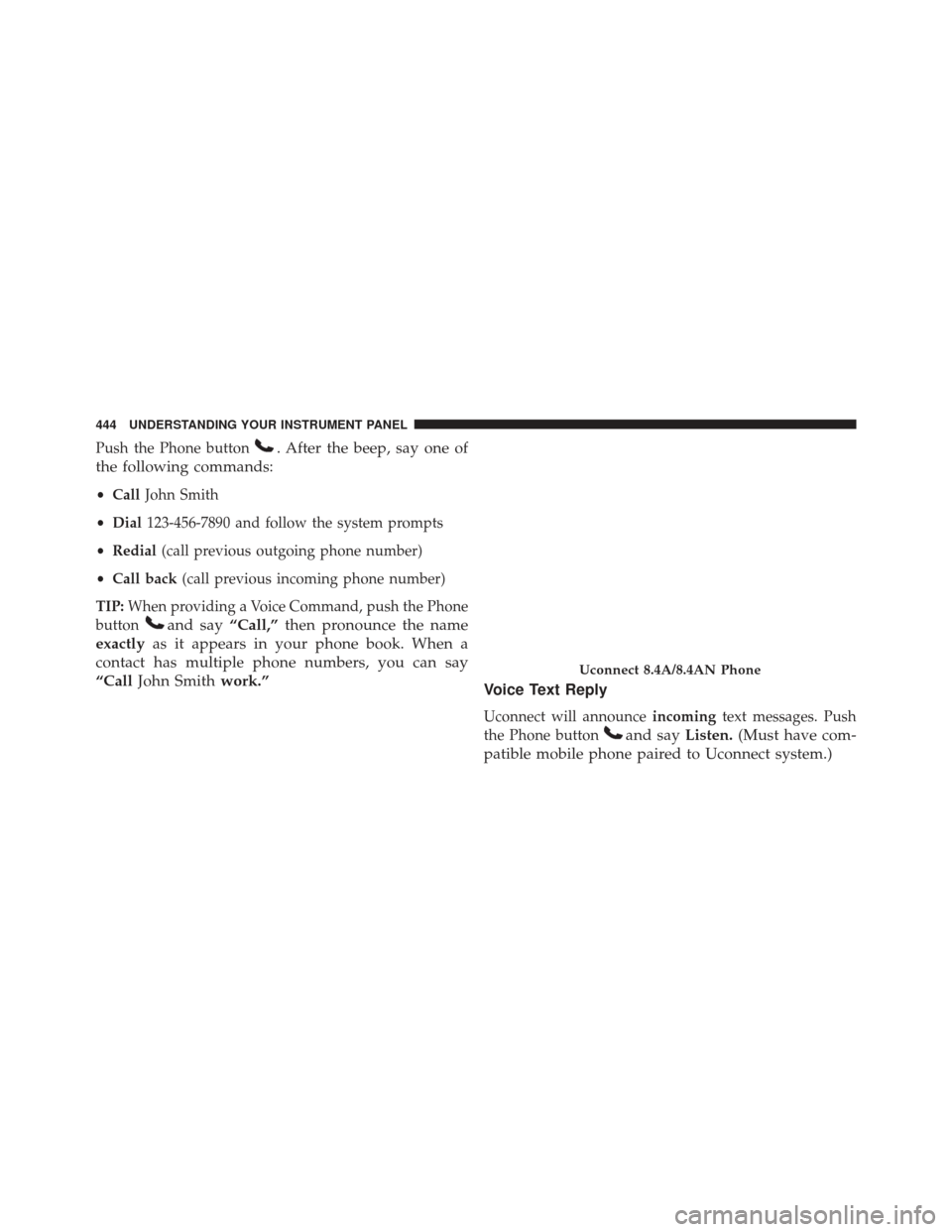
Push the Phone button. After the beep, say one of
the following commands:
• Call John Smith
• Dial 123-456-7890 and follow the system prompts
• Redial (call previous outgoing phone number)
• Call back (call previous incoming phone number)
TIP: When providing a Voice Command, push the Phone
button
and say “Call,”then pronounce the name
exactly as it appears in your phone book. When a
contact has multiple phone numbers, you can say
“Call John Smith work.”
Voice Text Reply
Uconnect will announceincomingtext messages. Push
the Phone button
and say Listen.(Must have com-
patible mobile phone paired to Uconnect system.)
Uconnect 8.4A/8.4AN Phone
444 UNDERSTANDING YOUR INSTRUMENT PANEL
Page 447 of 723
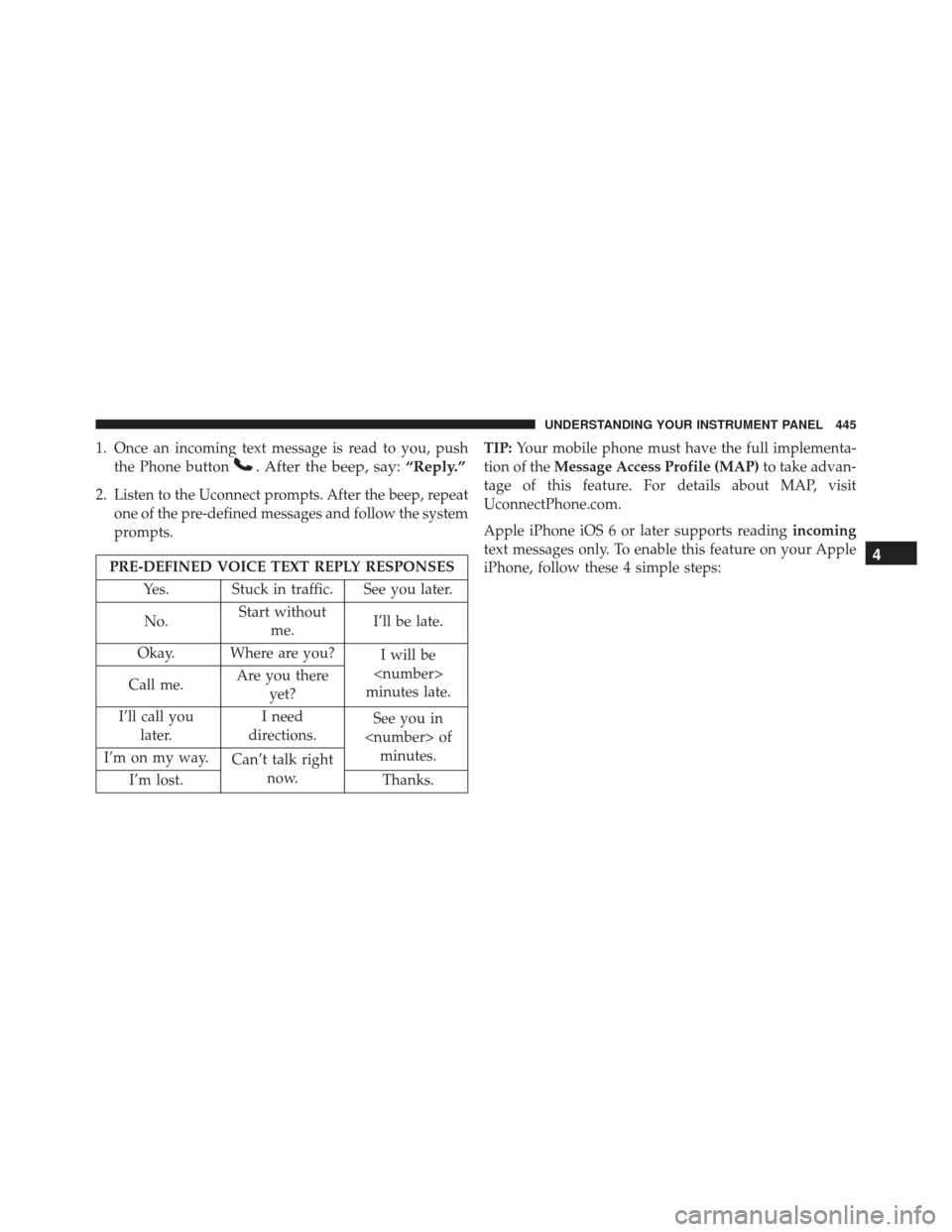
1. Once an incoming text message is read to you, pushthe Phone button
. After the beep, say: “Reply.”
2. Listen to the Uconnect prompts. After the beep, repeat
one of the pre-defined messages and follow the system
prompts.
PRE-DEFINED VOICE TEXT REPLY RESPONSES
Yes. Stuck in traffic. See you later.
No. Start without
me. I’ll be late.
Okay. Where are you? I will be
minutes late.
Call me. Are you there
yet?
I’ll call you later. I need
directions. See you in
of minutes.
I’m on my way. Can’t talk right
now.
I’m lost. Thanks.TIP:
Your mobile phone must have the full implementa-
tion of the Message Access Profile (MAP) to take advan-
tage of this feature. For details about MAP, visit
UconnectPhone.com.
Apple iPhone iOS 6 or later supports reading incoming
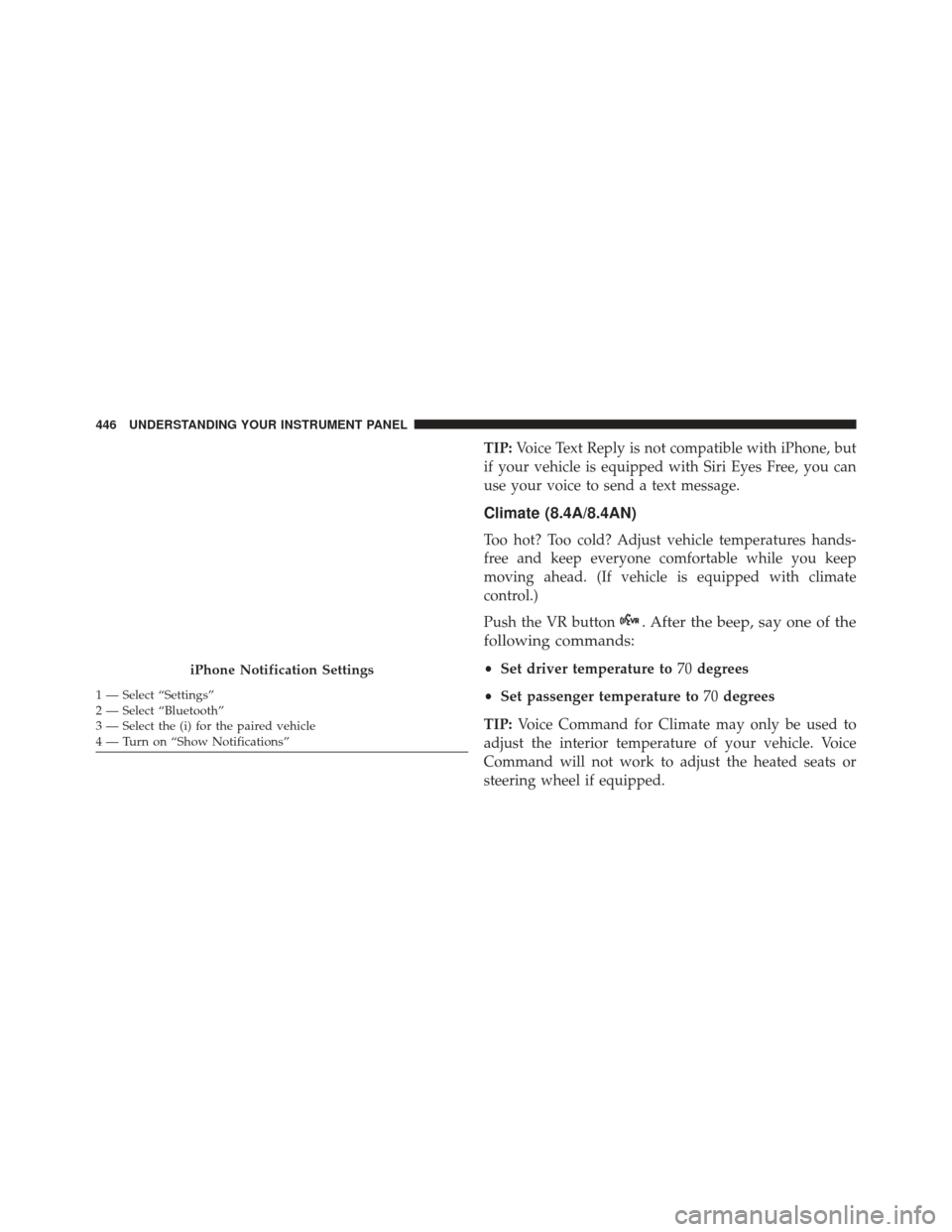
text messages only. To enable this feature on your Apple
iPhone, follow these 4 simple steps:4
UNDERSTANDING YOUR INSTRUMENT PANEL 445
Page 448 of 723
TIP:Voice Text Reply is not compatible with iPhone, but
if your vehicle is equipped with Siri Eyes Free, you can
use your voice to send a text message.
Climate (8.4A/8.4AN)
Too hot? Too cold? Adjust vehicle temperatures hands-
free and keep everyone comfortable while you keep
moving ahead. (If vehicle is equipped with climate
control.)
Push the VR button
. After the beep, say one of the
following commands:
• Set driver temperature to 70degrees
• Set passenger temperature to 70degrees
TIP: Voice Command for Climate may only be used to
adjust the interior temperature of your vehicle. Voice
Command will not work to adjust the heated seats or
steering wheel if equipped.iPhone Notification Settings
1 — Select “Settings”
2 — Select “Bluetooth”
3 — Select the (i) for the paired vehicle
4 — Turn on “Show Notifications” 446 UNDERSTANDING YOUR INSTRUMENT PANEL
Page 452 of 723
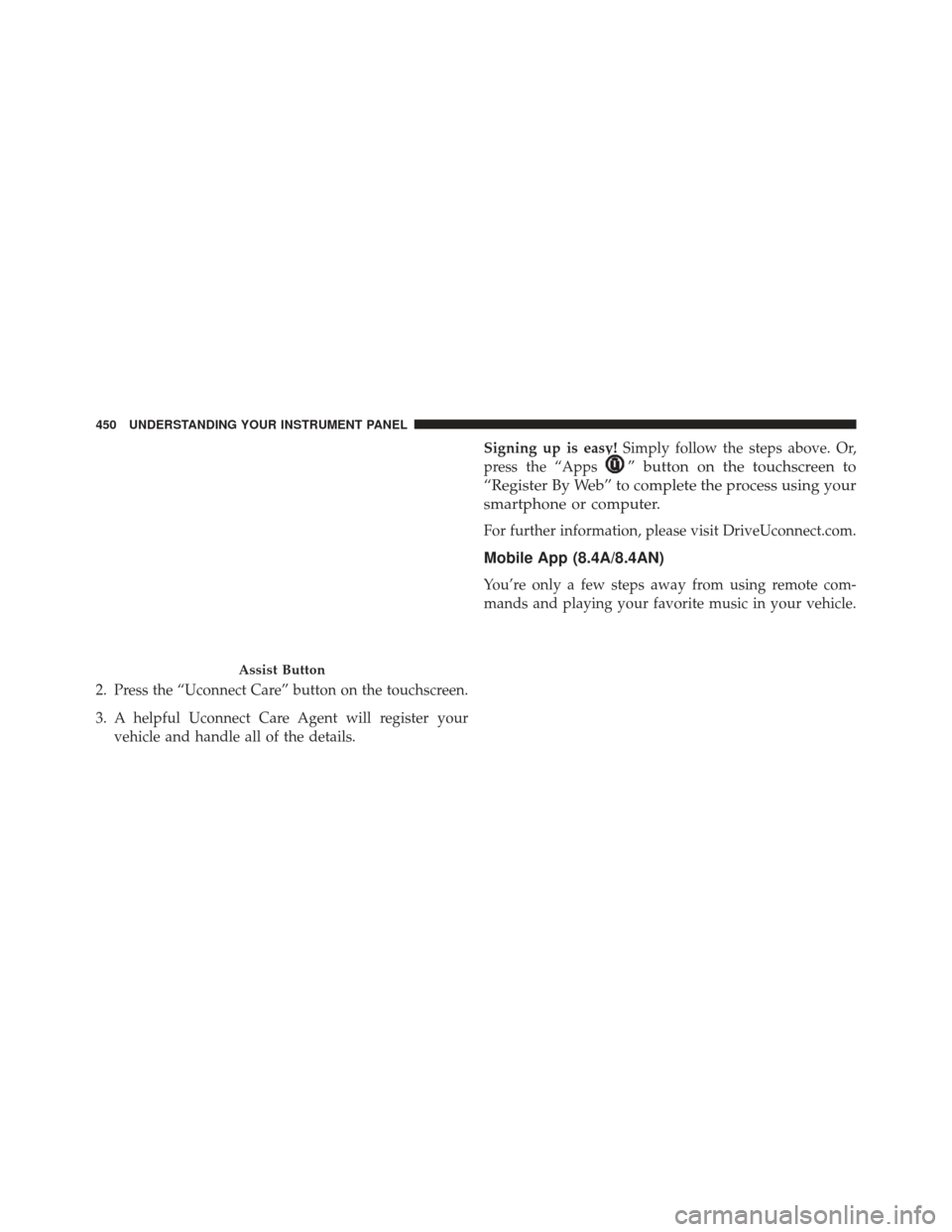
2. Press the “Uconnect Care” button on the touchscreen.
3. A helpful Uconnect Care Agent will register yourvehicle and handle all of the details. Signing up is easy!
Simply follow the steps above. Or,
press the “Apps
” button on the touchscreen to
“Register By Web” to complete the process using your
smartphone or computer.
For further information, please visit DriveUconnect.com.
Mobile App (8.4A/8.4AN)
You’re only a few steps away from using remote com-
mands and playing your favorite music in your vehicle.
Assist Button
450 UNDERSTANDING YOUR INSTRUMENT PANEL