Page 295 of 642
4-32
Multimedia System
Rewinding / Fast-forwarding Files
While playing, press and hold the, key (over 0.8 sec-
onds) to rewind or fast-forward the
current file.
Scan
Press the key to play the first
10 seconds of each file.
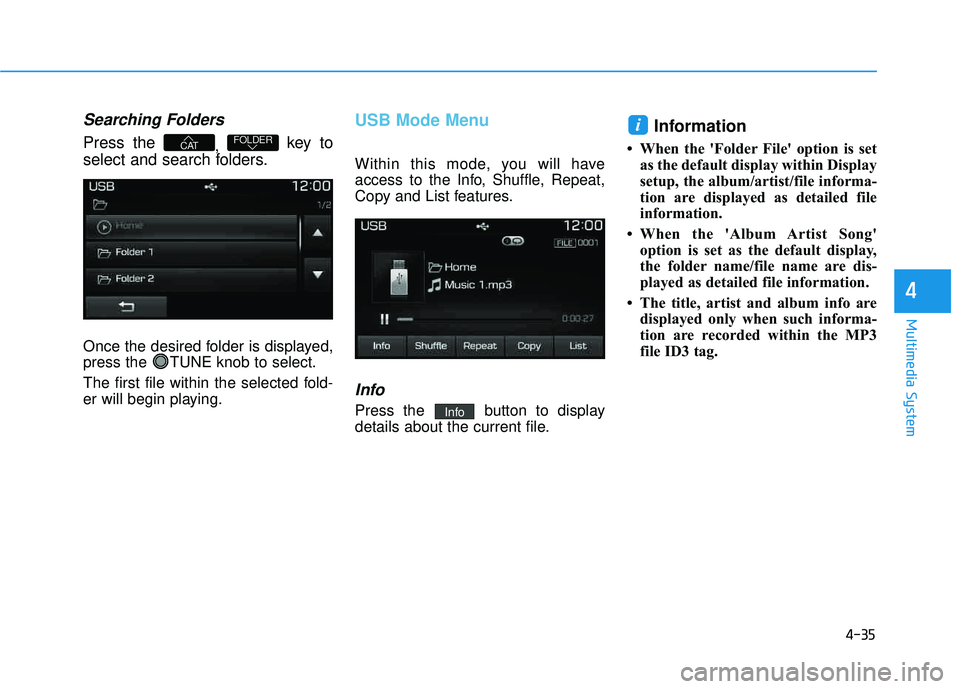
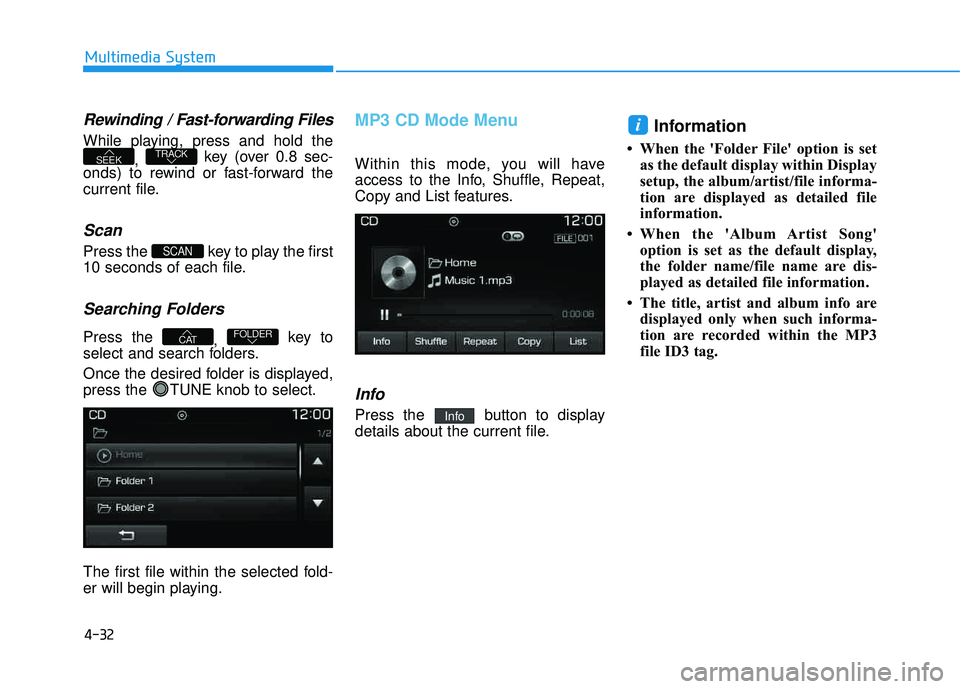
Searching Folders
Press the , key to
select and search folders.
Once the desired folder is displayed,
press the TUNE knob to select.
The first file within the selected fold-
er will begin playing.
MP3 CD Mode Menu
Within this mode, you will have
access to the Info, Shuffle, Repeat,
Copy and List features.
Info
Press the button to display
details about the current file.
Information
When the 'Folder File' option is set as the default display within Display
setup, the album/artist/file informa-
tion are displayed as detailed file
information.
When the 'Album Artist Song' option is set as the default display,
the folder name/file name are dis-
played as detailed file information.
The title, artist and album info are displayed only when such informa-
tion are recorded within the MP3
file ID3 tag.
i
Info
FOLDERCAT
SCAN
TRACKSEEK
Page 297 of 642
4-34
Multimedia System
UUSSBB MM ooddee
Using USB Mode
Playing/Pausing USB Files
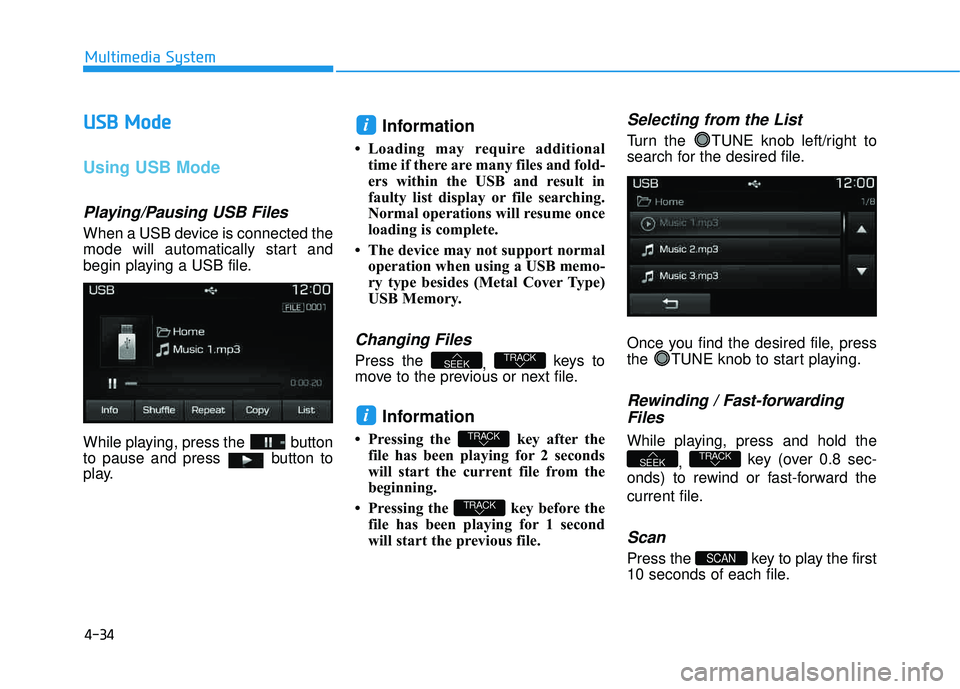
When a USB device is connected the
mode will automatically start and
begin playing a USB file.
While playing, press the button
to pause and press button to
play.
Information
Loading may require additional
time if there are many files and fold-
ers within the USB and result in
faulty list display or file searching.
Normal operations will resume once
loading is complete.
The device may not support normal operation when using a USB memo-
ry type besides (Metal Cover Type)
USB Memory.
Changing Files
Press the , keys to
move to the previous or next file.
Information
Pressing the key after the file has been playing for 2 seconds
will start the current file from the
beginning.
Pressing the key before the file has been playing for 1 second
will start the previous file.
Selecting from the List
Turn the TUNE knob left/right to
search for the desired file.
Once you find the desired file, press
the TUNE knob to start playing.
Rewinding / Fast-forwarding
Files
While playing, press and hold the
, key (over 0.8 sec-
onds) to rewind or fast-forward the
current file.
Scan
Press the key to play the first
10 seconds of each file.SCAN
TRACKSEEK
TRACK
TRACK
i
TRACKSEEK
i
Page 298 of 642
4-35
Multimedia System
4
Searching Folders
Press the , key to
select and search folders.
Once the desired folder is displayed,
press the TUNE knob to select.
The first file within the selected fold-
er will begin playing.
USB Mode Menu
Within this mode, you will have
access to the Info, Shuffle, Repeat,
Copy and List features.
Info
Press the button to display
details about the current file.
Information
When the 'Folder File' option is set as the default display within Display
setup, the album/artist/file informa-
tion are displayed as detailed file
information.
When the 'Album Artist Song' option is set as the default display,
the folder name/file name are dis-
played as detailed file information.
The title, artist and album info are displayed only when such informa-
tion are recorded within the MP3
file ID3 tag.
i
Info
FOLDERCAT
Page 300 of 642
4-37
Multimedia System
4
iiPP oodd ®®
MMooddee
Using iPod®Mode
Playing/Pausing iPod®Songs
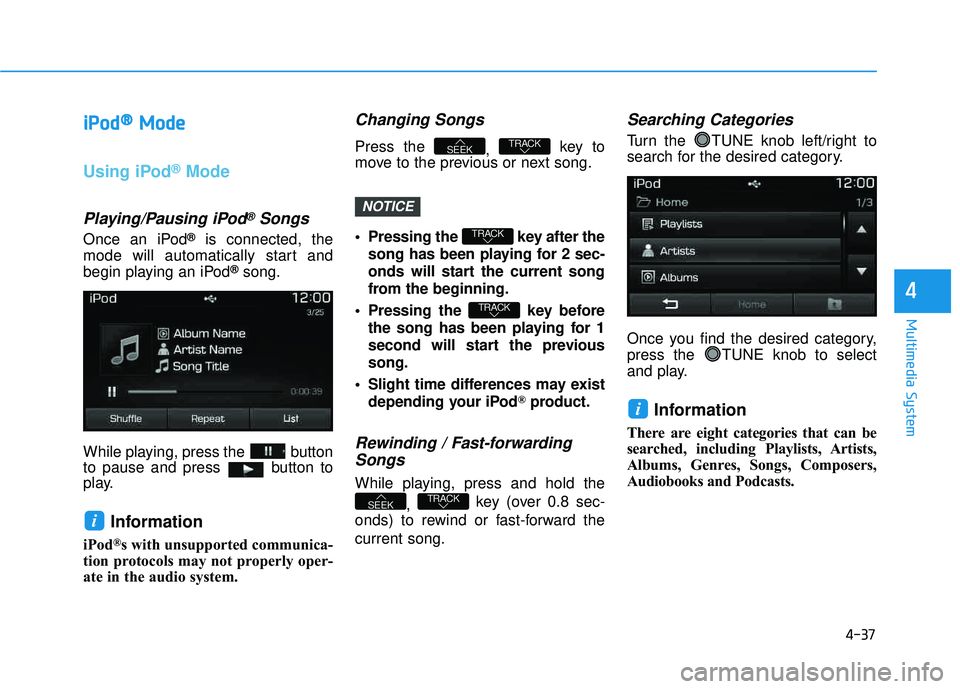
Once an iPod®is connected, the
mode will automatically start and
begin playing an iPod
®song.
While playing, press the button
to pause and press button to
play.
Information
iPod®s with unsupported communica-
tion protocols may not properly oper-
ate in the audio system.
Changing Songs
Press the , key to
move to the previous or next song.
Pressing the key after the
song has been playing for 2 sec-
onds will start the current song
from the beginning.
Pressing the key before the song has been playing for 1
second will start the previoussong.
Slight time differences may exist depending your iPod
®product.
Rewinding / Fast-forwardingSongs
While playing, press and hold the
, key (over 0.8 sec-
onds) to rewind or fast-forward the current song.
Searching Categories
Turn the TUNE knob left/right to
search for the desired category.
Once you find the desired category,
press the TUNE knob to select
and play.
Information
There are eight categories that can be
searched, including Playlists, Artists,
Albums, Genres, Songs, Composers,
Audiobooks and Podcasts.
i
TRACKSEEK
TRACK
TRACK
TRACKSEEK
i
NOTICE
Page 302 of 642
4-39
Multimedia System
4
Repeat
Press the button to repeat the
current song. Press the button again
to turn the repeat feature off.
Repeat : Repeats the current song
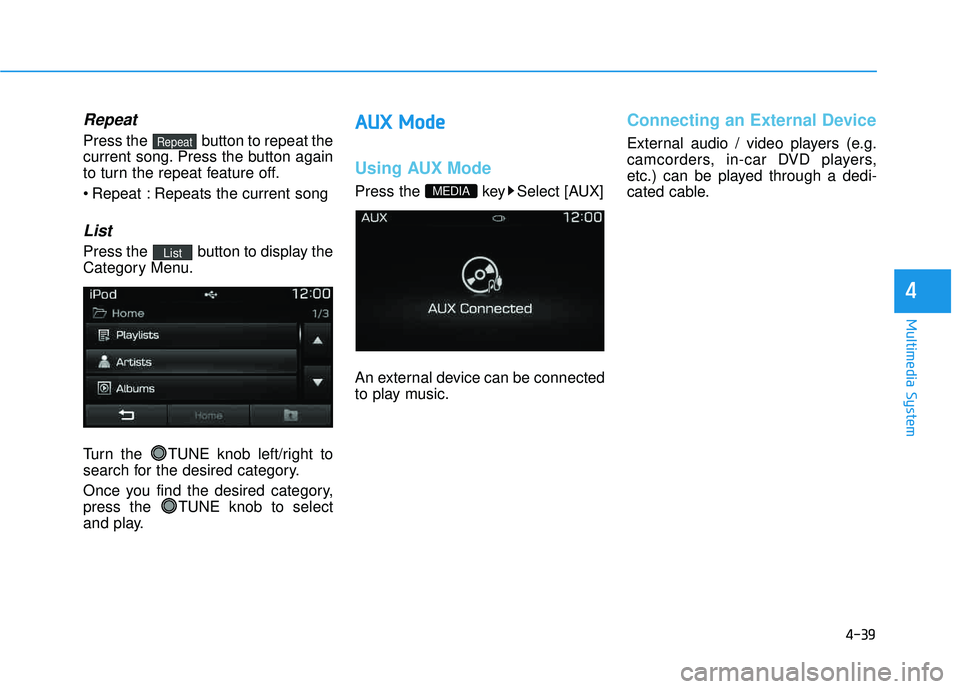
List
Press the button to display the
Category Menu.
Turn the TUNE knob left/right to
search for the desired category.
Once you find the desired category,
press the TUNE knob to select
and play.
AAUU XX MM ooddee
Using AUX Mode
Press the key Select [AUX]
An external device can be connected
to play music.
Connecting an External Device
External audio / video players (e.g.
camcorders, in-car DVD players,
etc.) can be played through a dedi-
cated cable.
MEDIA
List
Repeat
Page 303 of 642
4-40
Multimedia System
MMyy MM uussiicc MM ooddee
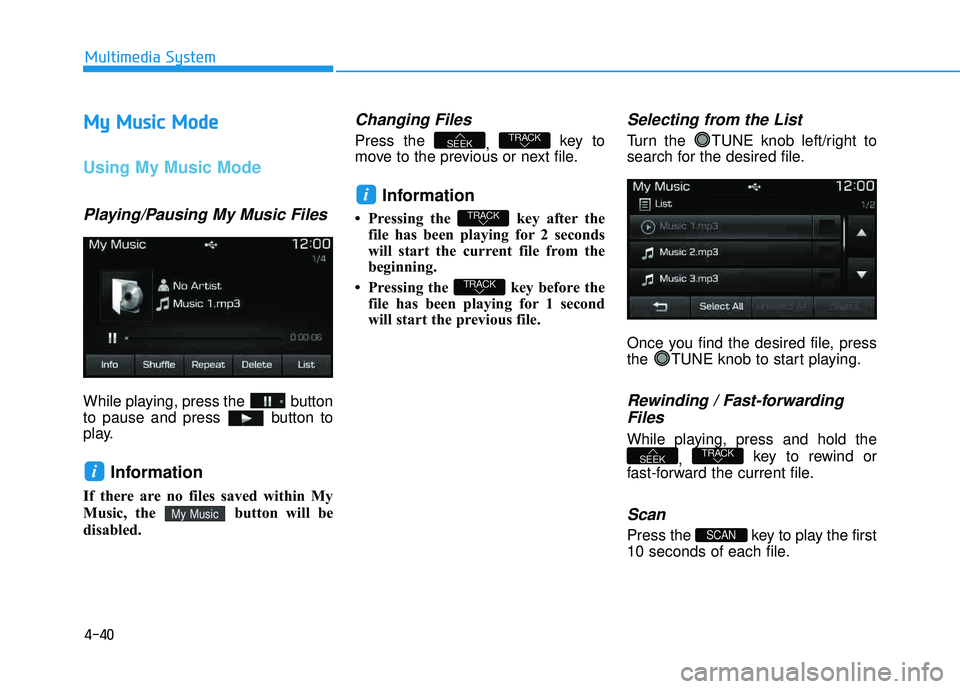
Using My Music Mode
Playing/Pausing My Music Files
While playing, press the button
to pause and press button to
play.
Information
If there are no files saved within My
Music, the button will be
disabled.
Changing Files
Press the
, key to
move to the previous or next file.
Information
Pressing the key after the file has been playing for 2 seconds
will start the current file from the
beginning.
Pressing the key before the file has been playing for 1 second
will start the previous file.
Selecting from the List
Turn the TUNE knob left/right to
search for the desired file.
Once you find the desired file, press
the TUNE knob to start playing.
Rewinding / Fast-forwarding
Files
While playing, press and hold the
, key to rewind or
fast-forward the current file.
Scan
Press the key to play the first
10 seconds of each file.SCAN
TRACKSEEK
TRACK
TRACK
i
TRACKSEEK
My Music
i
Page 307 of 642
4-44
Multimedia System
Information
The play/pause feature may operate
differently depending on the mobile
phone.
Changing Files
Press the , key to
move to the previous or next file.
Setting Connection
If a Bluetooth®Wireless Technology
device has not been connected, press
the key [Phone] button to
display the
Bluetooth®Wireless
Technology connection screen.
It is possible to use the pair phone,
connect/disconnect and delete fea-
tures from your
Bluetooth®Wireless
Technology phone.
Information
If music is not yet playing from your mobile device after converting to
Bluetooth
®Wireless Technology
Audio mode, pressing the play but-
ton once may start playing the mode.
Check to see that music is playing
from the Bluetooth
®Wireless
Technology device after convertingto Bluetooth
®Wireless Technology
Audio Mode.
Information - Pairing through
[PHONE] Setup
The Bluetooth
®and Voice Recognition
Manual is provided in two versions
due to software version differences.
Before reading the manual, check the following.
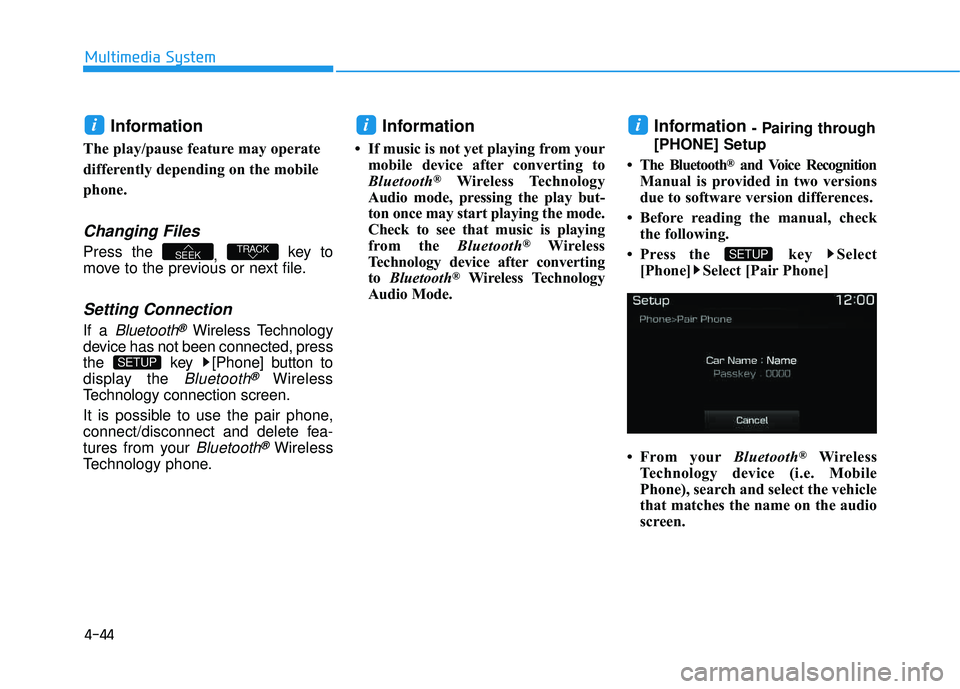
Press the key Select [Phone] Select [Pair Phone]
From your Bluetooth
®Wireless
Technology device (i.e. Mobile
Phone), search and select the vehicle
that matches the name on the audio
screen.
SETUP
ii
SETUP
TRACKSEEK
i
Page 308 of 642
4-45
Multimedia System
4
Pairing a Bluetooth®Wireless
Technology Device
What is Bluetooth® Wireless
Technology Pairing?
Pairing refers to the process of syn-
chronizing your
Bluetooth®Wireless
Technology phone or device with the
car audio system for connection.
Pairing is necessary to connect anduse the
Bluetooth®Wireless Technology
feature.
Pairing Key / Key
on the Steering Remote
Controller
When No Devices have been
Paired
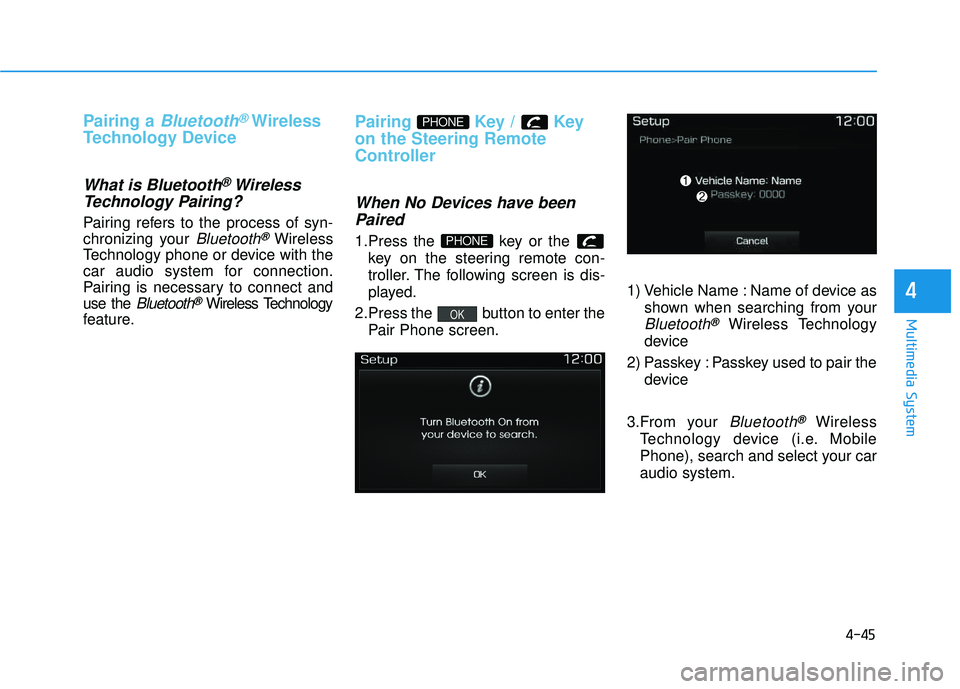
1.Press the key or the key on the steering remote con-
troller. The following screen is dis-
played.
2.Press the button to enter the Pair Phone screen. 1) Vehicle Name : Name of device as
shown when searching from your
Bluetooth®Wireless Technology
device
2) Passkey : Passkey used to pair the device
3.From your
Bluetooth®Wireless
Technology device (i.e. Mobile
Phone), search and select your car audio system.
OK
PHONE
PHONE