Page 286 of 642
4-23
Multimedia System
4
Searching Radio Frequencies
Using Seek
Press the , key to
play the previous/next frequency.
Using TUNE
Turn the TUNE knob to select the
desired frequency.
Using Radio Mode
Selecting Presets/Saving
Presets
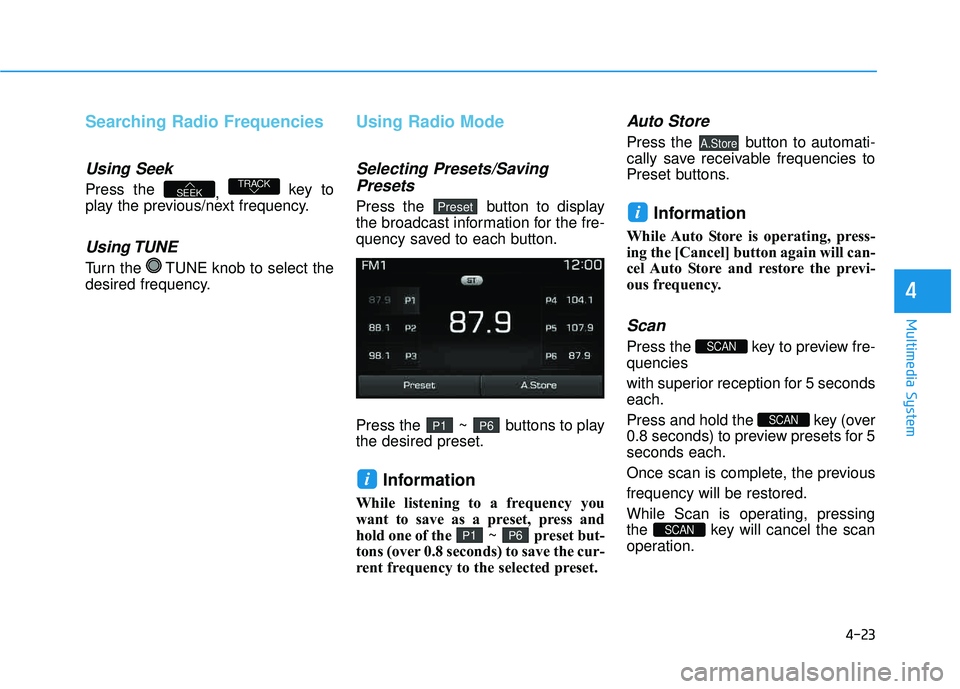
Press the button to display
the broadcast information for the fre-
quency saved to each button.
Press the ~ buttons to play the desired preset.
Information
While listening to a frequency you
want to save as a preset, press and
hold one of the ~ preset but-
tons (over 0.8 seconds) to save the cur-
rent frequency to the selected preset.
Auto Store
Press the button to automati-
cally save receivable frequencies to
Preset buttons.
Information
While Auto Store is operating, press-
ing the [Cancel] button again will can-
cel Auto Store and restore the previ-
ous frequency.
Scan
Press the key to preview fre-quencies
with superior reception for 5 seconds each.
Press and hold the key (over
0.8 seconds) to preview presets for 5seconds each.
Once scan is complete, the previous frequency will be restored.
While Scan is operating, pressing
the key will cancel the scan
operation.
SCAN
SCAN
SCAN
i
A.Store
P6P1
i
P6P1
Preset
TRACKSEEK
Page 291 of 642
4-28
Multimedia System
Selecting Presets/SavingPresets
Press the button to display
the broadcast information for the
channel saved to each button.
Press the ~ buttons to play the desired preset.
Information
While listening to a channel you want
to save as a preset, press and hold one
of the ~ preset buttons to
save the current channel to the select-
ed preset
MM eedd iiaa MM ooddee
Pressing the key will change
the operating mode in order of CD
➟
USB(iPod®) ➟ AUX ➟ My Music ➟BT
Audio.
If [Mode Pop up] is turned on within
[Display], then pressing the
key will display the Media
Pop-up Mode screen.
Turn the TUNE knob to highlight
each of the operating modes. Press
the know to select the desired mode.
Information
The media mode pop up screen can be
displayed only when there are two or
more media modes turned on.
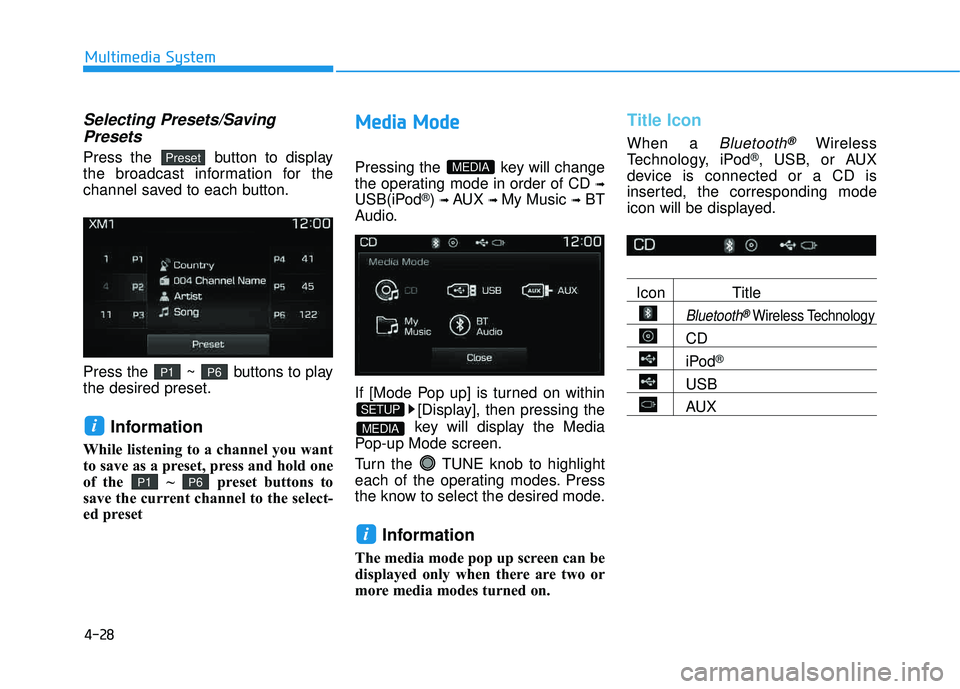
Title Icon
When a Bluetooth®Wireless
Technology, iPod®, USB, or AUX
device is connected or a CD is
inserted, the corresponding mode
icon will be displayed.
Icon Title
Bluetooth®Wireless Technology
CD
iPod®
USB
AUX
i
MEDIA
SETUP
MEDIA
P6P1
i
P6P1
Preset
Page 305 of 642
4-42
Multimedia System
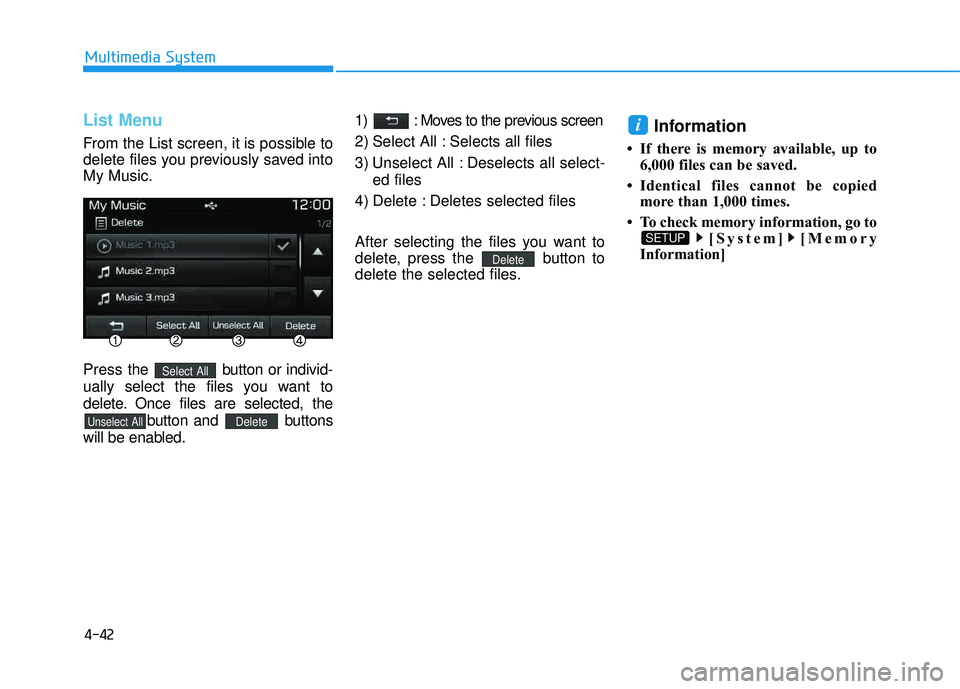
List Menu
From the List screen, it is possible to
delete files you previously saved intoMy Music. Press the button or individ-
ually select the files you want to
delete. Once files are selected, the
button and buttons
will be enabled. 1) : Moves to the previous screen
2) Select All : Selects all files
3) Unselect All : Deselects all select-
ed files
4) Delete : Deletes selected files
After selecting the files you want to
delete, press the button to
delete the selected files.
Information
If there is memory available, up to 6,000 files can be saved.
Identical files cannot be copied more than 1,000 times.
To check memory information, go to [System] [Memory
Information]
SETUP
i
Delete
DeleteUnselect All
Select All
Page 319 of 642
4-56
Multimedia System
Information- Before down-
loading contacts
Only contacts within connected phones can be downloaded. Also
check to see that your mobile phone
supports the download feature.
To learn more about whether your mobile phone supports contacts
downloads, refer to your mobile
phone user’s manual.
The contacts for only the connected phone can be downloaded.Downloading Contacts
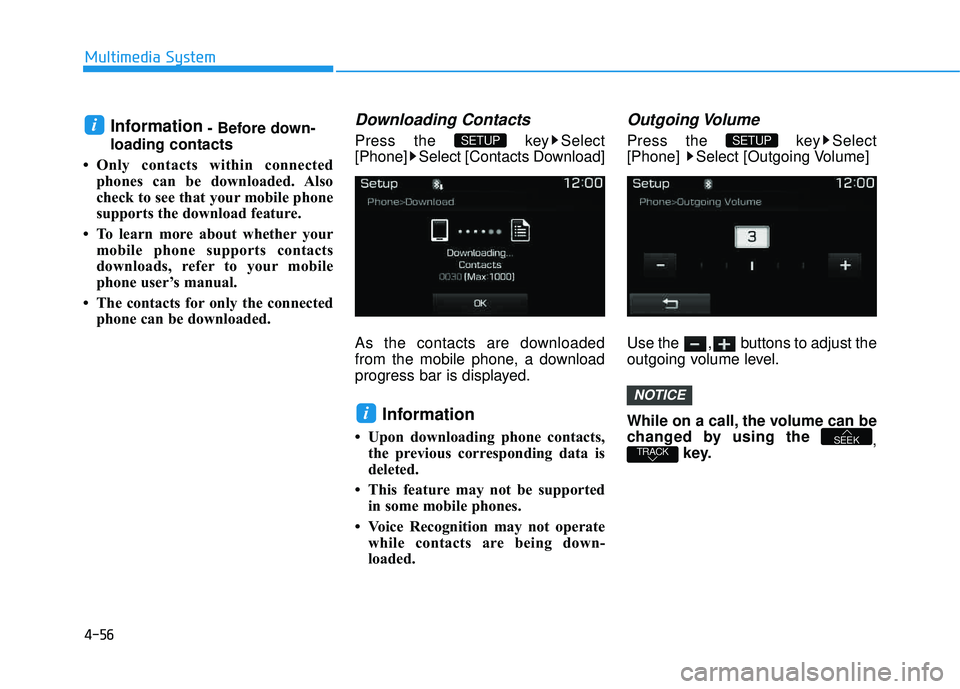
Press the key Select
[Phone] Select [Contacts Download]
As the contacts are downloaded
from the mobile phone, a download
progress bar is displayed.
Information
Upon downloading phone contacts, the previous corresponding data is
deleted.
This feature may not be supported in some mobile phones.
Voice Recognition may not operate while contacts are being down-
loaded.
Outgoing Volume
Press the key Select
[Phone] Select [Outgoing Volume]
Use the , buttons to adjust the
outgoing volume level.
While on a call, the volume can be
changed by using the ,
key.
TRACKSEEK
NOTICE
SETUP
i
SETUP i
Page 327 of 642
4-64
Multimedia System
SSeettuu pp
Starting Mode
Press the key to display the Setup screen.
You can select and control options
related to [Display], [Sound], [Clock/Calendar], [Phone] and [System].
Display Settings
Adjusting the Brightness
Press the key Select
[Display] Select [Brightness]
Use the , buttons to adjust the
screen brightness or set the
Brightness on Automatic, Day, or
Night mode.
Press the button to reset.
1) Automatic : Adjusts the brightness
automatically
2) Day : Always maintains the bright- ness on high
3) Night : Always maintains the brightness on low
Mode Pop up
Press the key Select
[Display] Select [Mode Pop up]
This feature is used to display the
Mode Pop up screen when entering
radio and media modes.
When this feature is turned on, pressing the or key
will display the Mode Pop up screen.
Information
The media Mode Pop up screen can be
displayed only when two or more
media modes have been connected.
i
MEDIA RADIO
SETUP
Default
SETUPSETUP
Page 328 of 642
4-65
Multimedia System
4
MP3 Information Display
Press the key Select
[Display] Select [Media Display]
This feature is used to change the
information displayed within USB
and MP3 CD modes.
1) Folder/File : Displays file nameand folder name
2) Album/Artist/Song : Displays album name/artist name/song
Sound Settings
Sound Settings
Press the key Select
[Sound] Select [Sound Setting] Use the , , , buttons to
adjust the Fader/Balance settings.
Use the , buttons to adjust the
Bass/Middle/Treble settings.
Press the button to reset.DefaultSETUP
SETUP
Page 330 of 642
4-67
Multimedia System
4
Clock/Calendar Setting
Clock Settings
Press the key Select [Clock
/Calendar] Select [Clock Settings]
Use the , buttons to set the
Hour, Minutes and AM/PM setting.
Press and hold the key
(over 0.8 seconds) to display the
Clock /Calendar screen.
Calendar Settings
Press the key Select
[Clock/Calendar] Select [CalendarSettings]
Use the , buttons to set the
Day, Month and Year setting.
Time Format
Press the key Select
[Clock/Calendar] Select [Time Format]
This feature is used to change the
clock format between 12hr or 24hr.SETUPSETUP
CLOCK
NOTICE
SETUP
Page 338 of 642
4-75
Multimedia System
4
RRaadd iioo MM ooddee
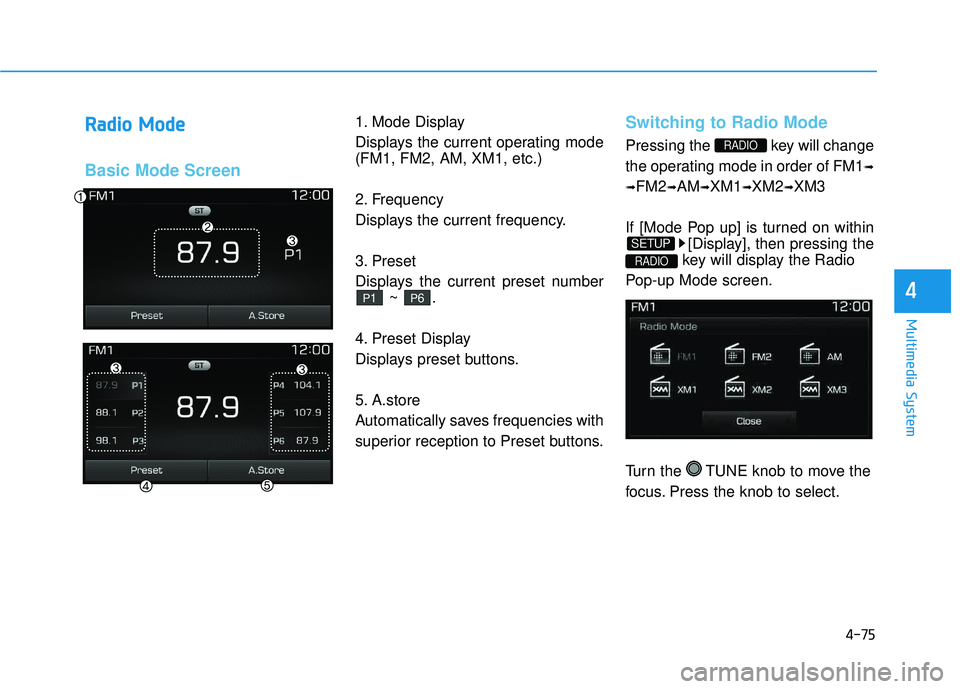
Basic Mode Screen
1. Mode Display
Displays the current operating mode (FM1, FM2, AM, XM1, etc.)
2. Frequency
Displays the current frequency.
3. Preset
Displays the current preset number
~ .
4. Preset Display
Displays preset buttons.
5. A.store
Automatically saves frequencies with
superior reception to Preset buttons.Switching to Radio Mode
Pressing the key will change
the operating mode in order of FM1 ➟
➟ FM2
➟AM ➟XM1 ➟XM2 ➟XM3
If [Mode Pop up] is turned on within [Display], then pressing the
key will display the Radio
Pop-up Mode screen.
Turn the TUNE knob to move the
focus. Press the knob to select.
RADIO
SETUP
RADIO
P6P1
![HYUNDAI TUCSON 2016 Owners Manual 4-64
Multimedia System
SSeettuu pp
Starting Mode
Press the key to display the Setup screen.
You can select and control options
related to [Display], [Sound], [Clock/Calendar], [Phone] and [System].](/manual-img/35/56201/w960_56201-326.png "HYUNDAI TUCSON 2016 Owners Manual 4-64
Multimedia System
SSeettuu pp
Starting Mode
Press the key to display the Setup screen.
You can select and control options
related to [Display], [Sound], [Clock/Calendar], [Phone] and [System].")
![HYUNDAI TUCSON 2016 Owners Manual 4-65
Multimedia System
4
MP3 Information Display
Press the key Select
[Display] Select [Media Display]
This feature is used to change the
information displayed within USB
and MP3 CD modes.
1) Fo](/manual-img/35/56201/w960_56201-327.png "HYUNDAI TUCSON 2016 Owners Manual 4-65
Multimedia System
4
MP3 Information Display
Press the key Select
[Display] Select [Media Display]
This feature is used to change the
information displayed within USB
and MP3 CD modes.
1) Fo")
![HYUNDAI TUCSON 2016 Owners Manual 4-67
Multimedia System
4
Clock/Calendar Setting
Clock Settings
Press the key Select [Clock
/Calendar] Select [Clock Settings]
Use the , buttons to set the
Hour, Minutes and AM/PM setting.
Press](/manual-img/35/56201/w960_56201-329.png "HYUNDAI TUCSON 2016 Owners Manual 4-67
Multimedia System
4
Clock/Calendar Setting
Clock Settings
Press the key Select [Clock
/Calendar] Select [Clock Settings]
Use the , buttons to set the
Hour, Minutes and AM/PM setting.
Press")