Page 243 of 498
![Hyundai Elantra 2016 Owners Manual - RHD (UK. Australia) 4163
Features of your vehicle
Phone MENU
Press the key to display three
menus (Call History, Contacts,
Phone Setup).
Call history
Press the key Set [
History] through the TUNE knob
or key.
The call](/manual-img/35/14552/w960_14552-242.png "Hyundai Elantra 2016 Owners Manual - RHD (UK. Australia) 4163
Features of your vehicle
Phone MENU
Press the key to display three
menus (Call History, Contacts,
Phone Setup).
Call history
Press the key Set [
History] through the TUNE knob
or key.
The call")
4163
Features of your vehicle
Phone MENU
Press the key to display three
menus (Call History, Contacts,
Phone Setup).
Call history
Press the key Set [
History] through the TUNE knob
or key.
The call history is displayed and can
be used to select a number and
make a call.
If call history does not exist, a screen
asking whether to download call his-
tory is displayed (the download fea-
ture may not be supported on some
mobile phones).Contacts
Press the key Set [Contacts] through the TUNE knob
or key.
The Contacts are displayed and can
be used to select a number and
make a call.
❈If more than one number is saved
to one contact, then a screen
showing the mobile phone num-
ber, home and office number is
displayed. Select the desired num-
ber to make the call.❈If Contacts do not exist, a screen
asking whether to download
Contacts is displayed (the down-
load feature may not be supported
on some mobile phones).
Phone Setup
Press the key Set [
Setup] through the TUNE knob or
key.
The
Bluetooth®Wireless Technology
mobile phone setup screen is dis-
played. For more information, refer to
“Phone Setup”.
3
PHONE
2 RDM
PHONE
1 RPT
PHONE
PHONE
Page 244 of 498
Features of your vehicle
164 4
✽NOTICE - USING THE
Bluetooth®Wireless Technology
MOBILE PHONE
• Do not use a mobile phone or per-
form Bluetooth®Wireless
Technology settings (e.g. pairing a
phone) whilst driving.
• Some Bluetooth
®Wireless
Technology -enabled phones may
not be recognised by the system or
fully compatible with the system.
• Before using Bluetooth
®Wireless
Technology related features of the
audio system, refer to your
phone’s User’s Manual for phone-
side Bluetooth
®Wireless
Technology operations.
• The phone must be paired to the
audio system to use Bluetooth
®
Wireless Technology related fea-
tures.
• You will not be able to use the
hands-free feature when your
phone (in the vehicle) is outside of
the mobile service area (e.g. in a
tunnel, underground, mountain-
ous area, etc.).
(Continued)(Continued)
• If the mobile phone signal is poor
or the vehicle's interior noise is too
loud, it may be difficult to hear the
other person’s voice during a call.
• Do not place the phone near or
inside metallic objects, otherwise
communications with Bluetooth
®
Wireless Technology system or
mobile service stations can be dis-
turbed.
• Whilst a phone is connected
through Bluetooth
®Wireless
Technology your phone may dis-
charge quicker than usual for
additional Bluetooth
®Wireless
Technology-related operations.
• Some mobile phones or other
devices may cause interference,
noise or a malfunction to the audio
system. If this occurs, store the
device in a different location. This
may resolve the problem.
• Phone contact names should be
saved in English or they may not
be displayed correctly.
(Continued)(Continued)
• If activated, upon vehicle igni-
tion(IGN/ACC ON), the
Bluetooth
®Wireless Technology
phone will be automatically con-
nected. Even if you are outside, the
Bluetooth
®Wireless Technology
phone will be automatically con-
nected once you are in the vicinity
of the vehicle.
If you do not want automatic
Bluetooth
®Wireless Technology
connection, turn the Bluetooth®
Wireless Technology feature off.
• The hands-free call volume and
quality may differ depending on
the mobile phone type.
•Bluetooth
®Wireless Technology
features can be used only when the
mobile phone has been paired and
connected with the device. For
more information on pairing and
connecting Bluetooth
®Wireless
Technology enabled mobile
phones, refer to the “Phone Setup”
section.
(Continued)
Page 245 of 498
4165
Features of your vehicle
(Continued)
• When a Bluetooth®Wireless
Technology mobile phone is con-
nected, a ( ) icon will appear at
the top of the screen. If a ( ) icon
is not displayed, this indicates that
a Bluetooth
®Wireless Technology
enabled device has not been con-
nected. You must connect the
device before use. For more infor-
mation on Bluetooth
®Wireless
Technology mobile phones, refer
to the “Phone Setup” section.
• Pairing and connecting a
Bluetooth
®Wireless Technology
enabled mobile phone will work
only when the Bluetooth
®Wireless
Technology option within your
mobile phone has been turned on.
(Methods of turning on the
Wireless Technology enabled fea-
ture may differ depending on the
mobile phone.)
(Continued)(Continued)
• In some mobile phones, starting
the vehicle whilst talking on a
Bluetooth
®Wireless Technology
enabled handsfree call will result
in the call becoming disconnected.
(Switch the call back to your
mobile phone when starting the
vehicle.)
• Some features may not be sup-
ported on some Bluetooth
®
Wireless Technology mobile phone
devices.
•Bluetooth
®Wireless Technology
enabled operation may be unsta-
ble depending on the communica-
tion state.
• Placing the audio system within an
electromagnetic environment may
result in noise interference.
Page 247 of 498
4167
Features of your vehicle
SYSTEM CONTROLS AND
FUNCTIONS
❈Display and settings may differ
depending on the selected audio.
Audio Head Unit
(for
Bluetooth®Wireless
Technologyequipped model)
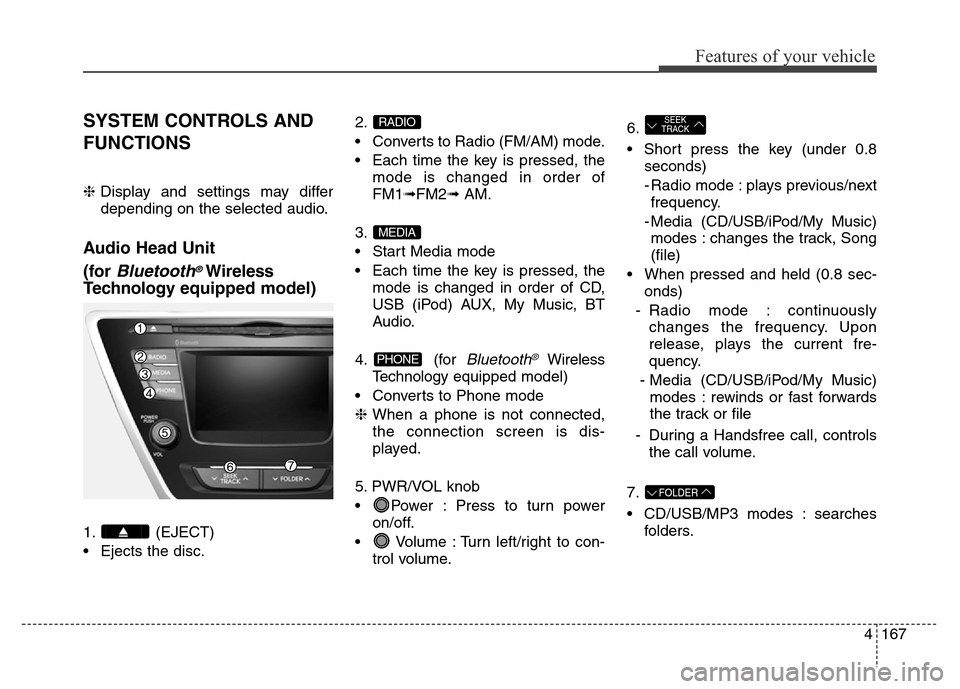
1. (EJECT)
• Ejects the disc.2.
• Converts to Radio (FM/AM) mode.
• Each time the key is pressed, the
mode is changed in order of
FM1➟FM2➟ AM.
3.
• Start Media mode
• Each time the key is pressed, the
mode is changed in order of CD,
USB (iPod) AUX, My Music, BT
Audio.
4. (for
Bluetooth®Wireless
Technologyequipped model)
• Converts to Phone mode
❈When a phone is not connected,
the connection screen is dis-
played.
5. PWR/VOL knob
• Power : Press to turn power
on/off.
• Volume : Turn left/right to con-
trol volume.6.
• Short press the key (under 0.8
seconds)
- Radio mode : plays previous/next
frequency.
- Media (CD/USB/iPod/My Music)
modes : changes the track, Song
(file)
• When pressed and held (0.8 sec-
onds)
- Radio mode : continuously
changes the frequency. Upon
release, plays the current fre-
quency.
- Media (CD/USB/iPod/My Music)
modes : rewinds or fast forwards
the track or file
- During a Handsfree call, controls
the call volume.
7.
• CD/USB/MP3 modes : searches
folders.
FOLDER
SEEK
TRACK
PHONE
MEDIA
RADIO
Page 248 of 498
Features of your vehicle
168 4
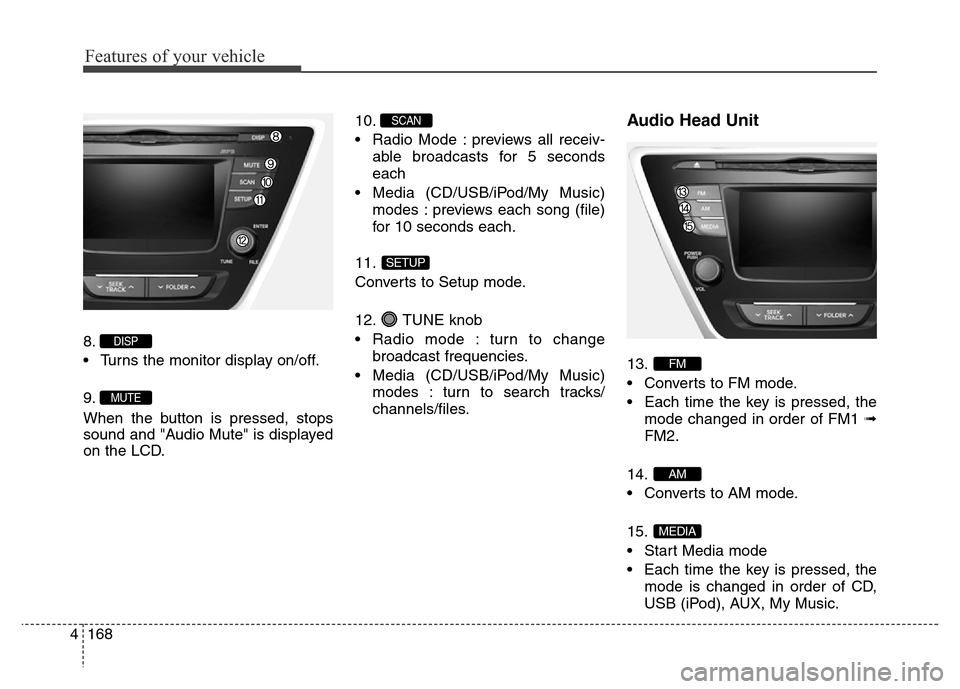
8.
• Turns the monitor display on/off.
9.
When the button is pressed, stops
sound and "Audio Mute" is displayed
on the LCD.10.
• Radio Mode : previews all receiv-
able broadcasts for 5 seconds
each
• Media (CD/USB/iPod/My Music)
modes : previews each song (file)
for 10 seconds each.
11.
Converts to Setup mode.
12. TUNE knob
• Radio mode : turn to change
broadcast frequencies.
• Media (CD/USB/iPod/My Music)
modes : turn to search tracks/
channels/files.
Audio Head Unit
13.
• Converts to FM mode.
• Each time the key is pressed, the
mode changed in order of FM1 ➟
FM2.
14.
• Converts to AM mode.
15.
• Start Media mode
• Each time the key is pressed, the
mode is changed in order of CD,
USB (iPod), AUX, My Music.
MEDIA
AM
FM
SETUP
SCAN
MUTE
DISP
Page 250 of 498
Features of your vehicle
170 4
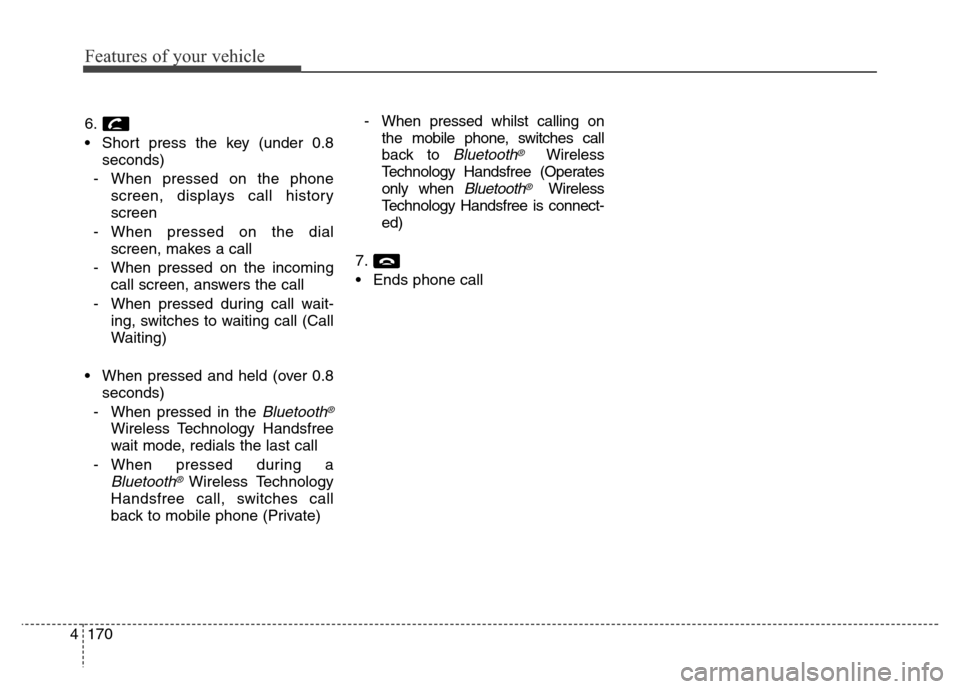
6.
• Short press the key (under 0.8
seconds)
- When pressed on the phone
screen, displays call history
screen
- When pressed on the dial
screen, makes a call
- When pressed on the incoming
call screen, answers the call
- When pressed during call wait-
ing, switches to waiting call (Call
Waiting)
• When pressed and held (over 0.8
seconds)
- When pressed in the
Bluetooth®
Wireless Technology Handsfree
wait mode, redials the last call
- When pressed during a
Bluetooth®Wireless Technology
Handsfree call, switches call
back to mobile phone (Private)- When pressed whilst calling on
the mobile phone, switches call
back to
Bluetooth®Wireless
Technology Handsfree (Operates
only when
Bluetooth®Wireless
Technology Handsfree is connect-
ed)
7.
• Ends phone call
Page 251 of 498
4171
Features of your vehicle
RADIO MODE
Basic Mode Screen
1. Mode Display
Displays currently operating mode
2. Frequency
Displays the current frequency
3. Preset
Displays current preset number [1] ~
[6]
4. Preset Display
Displays preset buttons
5. Autostore
Automatically saves frequencies with
superior reception to Preset buttonsSwitching to Radio Mode
Pressing the key will change
the operating mode in order of FM1
➟FM2➟AM
Press the or key to
change the mode in order of FM1
➟
FM2 and AM.
If [Mode Pop-up] is turned on within
[Display], then pressing the
key will display the Radio
Pop-up Mode screen.
Turn the TUNE knob to move to
another radio mode. Press the knob
to select.
RADIO
SETUP
AMFM
RADIO
Page 252 of 498
Features of your vehicle
172 4
Searching Radio Frequencies
Using Seek
Press the key to play the
previous/next frequency.
Using TUNE
Turn the TUNE knob to select the
desired frequency.
• FM : Increases/decreased by 100kHz
• AM : Increases/decreased by 9kHz
Using Radio Mode
Selecting/Saving Presets
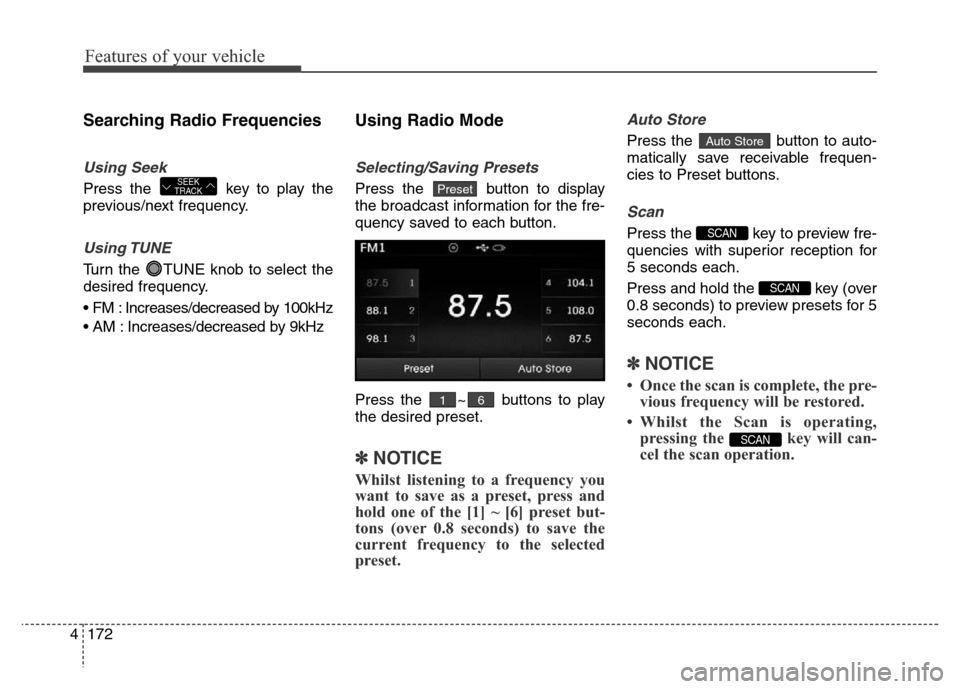
Press the button to display
the broadcast information for the fre-
quency saved to each button.
Press the ~ buttons to play
the desired preset.
✽NOTICE
Whilst listening to a frequency you
want to save as a preset, press and
hold one of the [1] ~ [6] preset but-
tons (over 0.8 seconds) to save the
current frequency to the selected
preset.
Auto Store
Press the button to auto-
matically save receivable frequen-
cies to Preset buttons.
Scan
Press the key to preview fre-
quencies with superior reception for
5 seconds each.
Press and hold the key (over
0.8 seconds) to preview presets for 5
seconds each.
✽NOTICE
• Once the scan is complete, the pre-
vious frequency will be restored.
• Whilst the Scan is operating,
pressing the key will can-
cel the scan operation.
SCAN
SCAN
SCAN
Auto Store
61
PresetSEEK
TRACK
![Hyundai Elantra 2016 Owners Manual - RHD (UK. Australia) 4171
Features of your vehicle
RADIO MODE
Basic Mode Screen
1. Mode Display
Displays currently operating mode
2. Frequency
Displays the current frequency
3. Preset
Displays current preset number [1] ~](/manual-img/35/14552/w960_14552-250.png "Hyundai Elantra 2016 Owners Manual - RHD (UK. Australia) 4171
Features of your vehicle
RADIO MODE
Basic Mode Screen
1. Mode Display
Displays currently operating mode
2. Frequency
Displays the current frequency
3. Preset
Displays current preset number [1] ~")