Page 215 of 661
214
uuClimate Control System*uRear Climate Control System
Controls
Rear Climate Control System
Use the system when the engine is running and the climate control system is
operating.
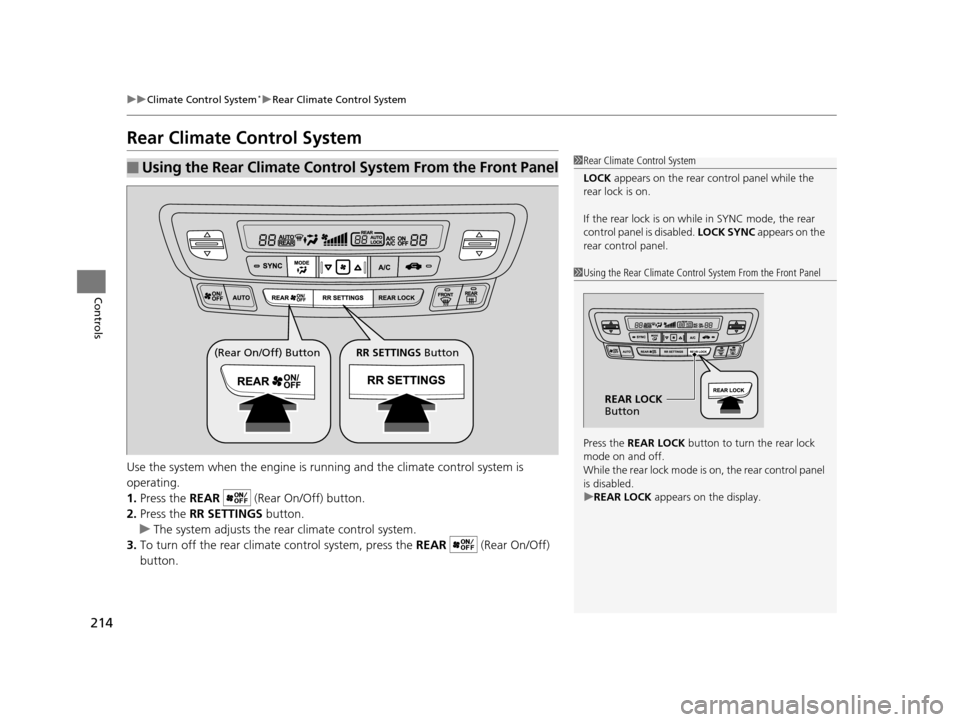
1. Press the REAR (Rear On/Off) button.
2. Press the RR SETTINGS button.
u The system adjusts the rear climate control system.
3. To turn off the rear climate control system, press the REAR (Rear On/Off)
button.
■Using the Rear Climate Control System From the Front Panel1 Rear Climate Control System
LOCK appears on the rear control panel while the
rear lock is on.
If the rear lock is on while in SYNC mode, the rear
control panel is disabled. LOCK SYNC appears on the
rear control panel.
1 Using the Rear Climate Control System From the Front Panel
Press the REAR LOCK button to turn the rear lock
mode on and off.
While the rear lock mode is on, the rear control panel
is disabled.
u REAR LOCK appears on the display.
REAR LOCK
Button
(Rear On/Off) Button RR SETTINGS Button
16 PILOT-31TG76000.book 214 ページ 2015年6月15日 月曜日 午前11時30分
Page 216 of 661
215
uuClimate Control System*uRear Climate Control System
Controls
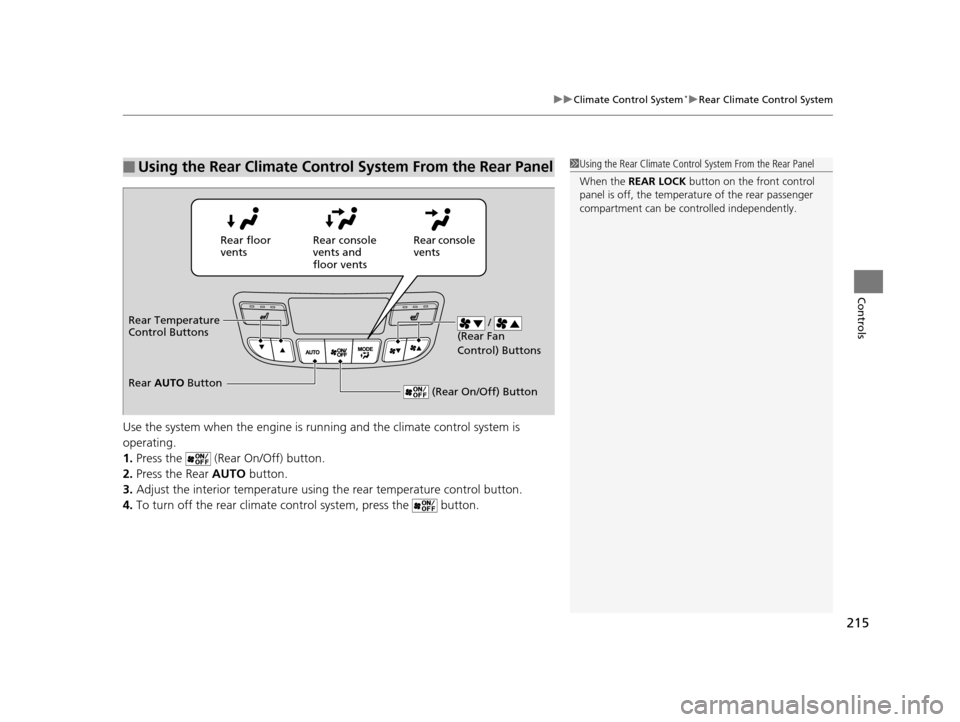
Use the system when the engine is runni ng and the climate control system is
operating.
1. Press the (Rear On/Off) button.
2. Press the Rear AUTO button.
3. Adjust the interior temperature usi ng the rear temperature control button.
4. To turn off the rear climate co ntrol system, press the button.
■Using the Rear Climate Control System From the Rear Panel1Using the Rear Climate Control System From the Rear Panel
When the REAR LOCK button on the front control
panel is off, the temperat ure of the rear passenger
compartment can be cont rolled independently.
Rear floor
ventsRear console
vents and
floor vents Rear console
vents
/
(Rear Fan
Control) Buttons
(Rear On/Off) Button
Rear Temperature
Control Buttons
Rear AUTO Button
16 PILOT-31TG76000.book 215 ページ 2015年6月15日 月曜日 午前11時30分
Page 225 of 661
224
Features
Audio System Basic Operation
To use the audio system, the power mode must be in ACCESSORY or ON.
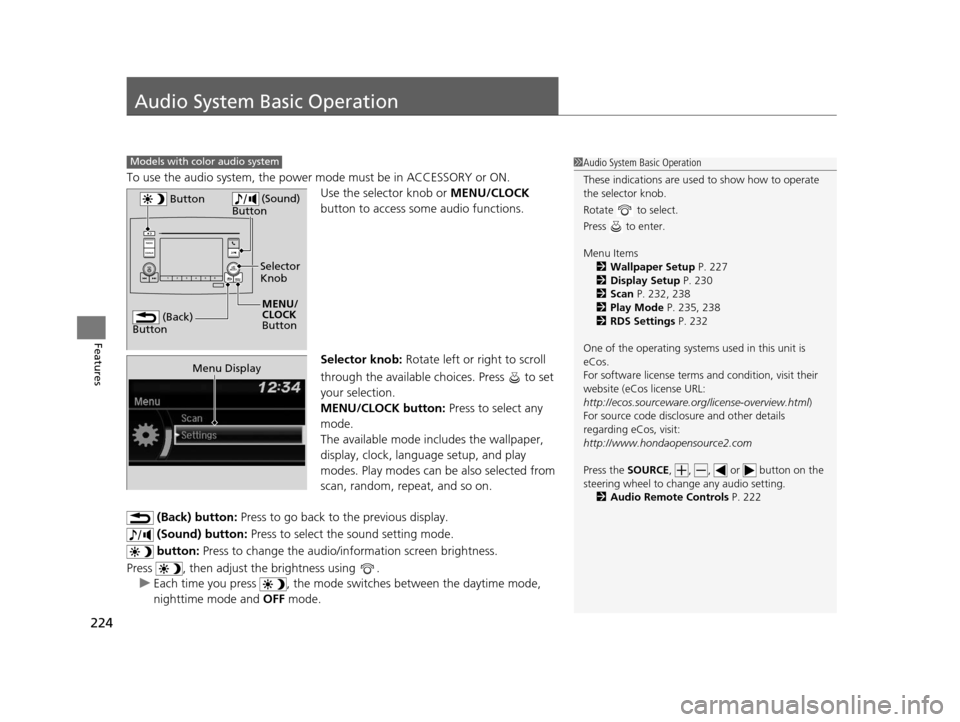
Use the selector knob or MENU/CLOCK
button to access some audio functions.
Selector knob: Rotate left or right to scroll
through the available choices. Press to set
your selection.
MENU/CLOCK button: Press to select any
mode.
The available mode includes the wallpaper,
display, clock, langu age setup, and play
modes. Play modes can be also selected from
scan, random, rep eat, and so on.
(Back) button: Press to go back to the previous display.
(Sound) button: Press to select the sound setting mode.
button: Press to change the audio/information screen brightness.
Press , then adjust th e brightness using .
u Each time you press , the mode switches between the daytime mode,
nighttime mode and OFF mode.
Models with color audio system1Audio System Basic Operation
These indications are used to show how to operate
the selector knob.
Rotate to select.
Press to enter.
Menu Items 2 Wallpaper Setup P. 227
2 Display Setup P. 230
2 Scan P. 232, 238
2 Play Mode P. 235, 238
2 RDS Settings P. 232
One of the operating system s used in this unit is
eCos.
For software license terms and condition, visit their
website (eCos license URL:
http://ecos.sourceware.org/license-overview.html )
For source code disclo sure and other details
regarding eCos, visit:
http://www.hondaopensource2.com
Press the SOURCE, , , or button on the
steering wheel to cha nge any audio setting.
2 Audio Remote Controls P. 222
(Back)
Button
Selector
Knob
MENU/
CLOCK
Button
Button
(Sound)
Button
Menu Display
16 PILOT-31TG76000.book 224 ページ 2015年6月15日 月曜日 午前11時30分
Page 226 of 661
225
uuAudio System Basic Operation uAudio/Information Screen
Continued
Features
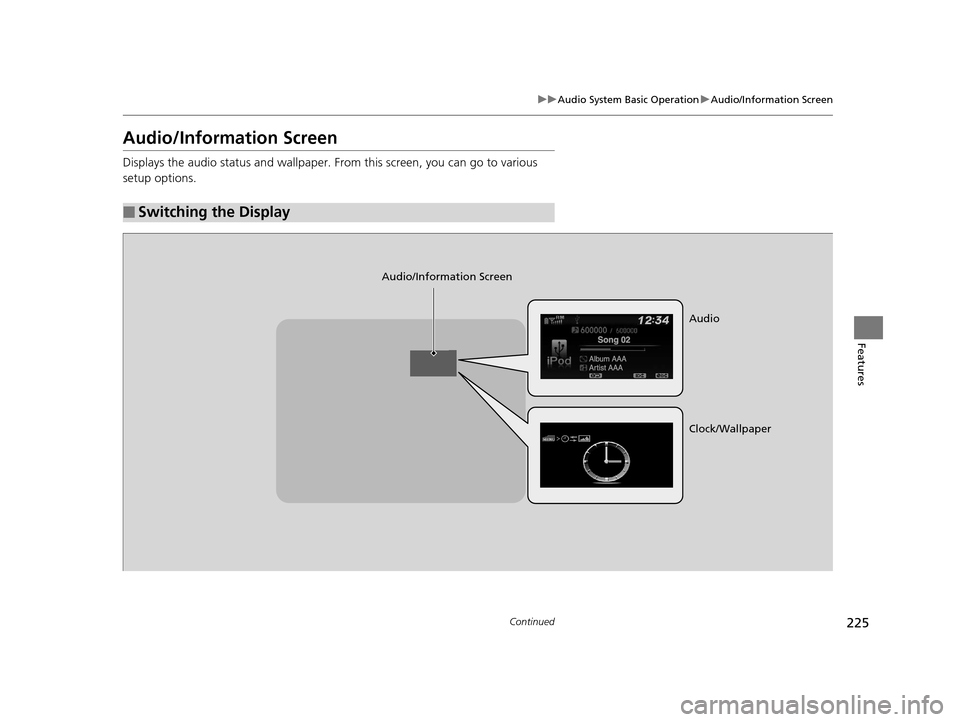
Audio/Information Screen
Displays the audio status and wallpaper. From this screen, you can go to various
setup options.
■Switching the Display
Audio/Information Screen
Audio
Clock/Wallpaper
16 PILOT-31TG76000.book 225 ページ 2015年6月15日 月曜日 午前11時30分
Page 227 of 661
226
uuAudio System Basic Operation uAudio/Information Screen
Features
■Audio
Shows the current audio information.
■Clock/Wallpaper
Shows a clock screen or an image you import.
■Change display
1. Press the MENU/CLOCK button.
2. Rotate to select Settings, then press .
3. Rotate to select Display Change, then press .
4. Rotate to select Wallpaper, then press .
u If you want to return to the audio/information screen, select Audio.
16 PILOT-31TG76000.book 226 ページ 2015年6月15日 月曜日 午前11時30分
Page 228 of 661
Continued227
uuAudio System Basic Operation uAudio/Information Screen
Features
You can change, store, and delete the wa llpaper on the audio/information screen.
■Import wallpaper
You can import up to three images, one at a time, for wallpaper from a USB flash
drive.
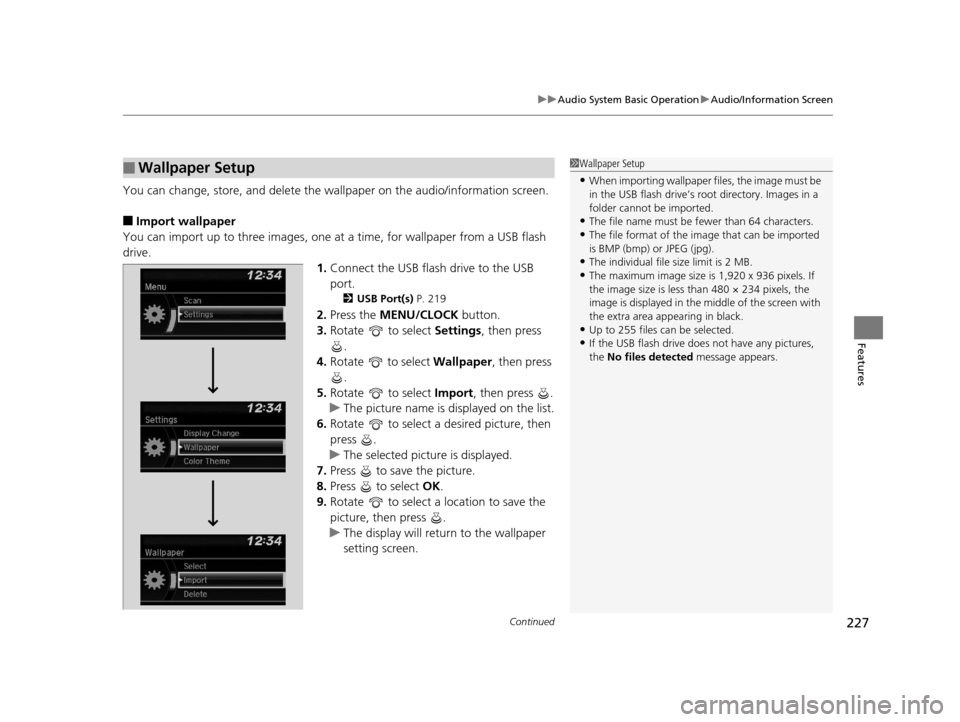
1.Connect the USB flash drive to the USB
port.
2 USB Port(s) P. 219
2.Press the MENU/CLOCK button.
3. Rotate to select Settings, then press
.
4. Rotate to select Wallpaper, then press
.
5. Rotate to select Import, then press .
u The picture name is displayed on the list.
6. Rotate to select a desired picture, then
press .
u The selected picture is displayed.
7. Press to save the picture.
8. Press to select OK.
9. Rotate to select a location to save the
picture, then press .
u The display will return to the wallpaper
setting screen.
■Wallpaper Setup1Wallpaper Setup
•When importing wallpaper files, the image must be
in the USB flash drive’s root directory. Images in a
folder cannot be imported.
•The file name must be fewer than 64 characters.
•The file format of the im age that can be imported
is BMP (bmp) or JPEG (jpg).
•The individual file size limit is 2 MB.
•The maximum image size is 1,920 x 936 pixels. If
the image size is less than 480 × 234 pixels, the
image is displayed in the middle of the screen with
the extra area appearing in black.
•Up to 255 files can be selected.
•If the USB flash drive doe s not have any pictures,
the No files detected message appears.
16 PILOT-31TG76000.book 227 ページ 2015年6月15日 月曜日 午前11時30分
Page 229 of 661
uuAudio System Basic Operation uAudio/Information Screen
228
Features
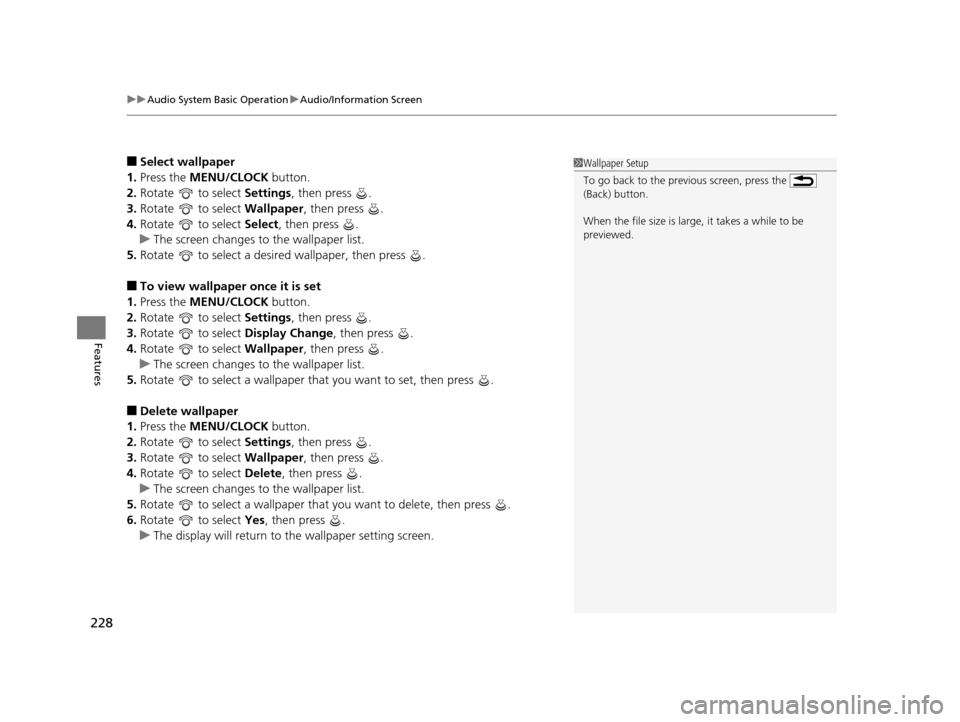
■Select wallpaper
1. Press the MENU/CLOCK button.
2. Rotate to select Settings, then press .
3. Rotate to select Wallpaper, then press .
4. Rotate to select Select, then press .
u The screen changes to the wallpaper list.
5. Rotate to select a desired wallpaper, then press .
■To view wallpaper once it is set
1. Press the MENU/CLOCK button.
2. Rotate to select Settings, then press .
3. Rotate to select Display Change, then press .
4. Rotate to select Wallpaper, then press .
u The screen changes to the wallpaper list.
5. Rotate to select a wallpaper that you want to set, then press .
■Delete wallpaper
1. Press the MENU/CLOCK button.
2. Rotate to select Settings, then press .
3. Rotate to select Wallpaper, then press .
4. Rotate to select Delete, then press .
u The screen changes to the wallpaper list.
5. Rotate to select a wallpaper that you want to delete, then press .
6. Rotate to select Yes, then press .
u The display will return to the wallpaper setting screen.
1Wallpaper Setup
To go back to the previous screen, press the
(Back) button.
When the file size is large, it takes a while to be
previewed.
16 PILOT-31TG76000.book 228 ページ 2015年6月15日 月曜日 午前11時30分
Page 231 of 661
230
uuAudio System Basic Operation uDisplay Setup
Features
Display Setup
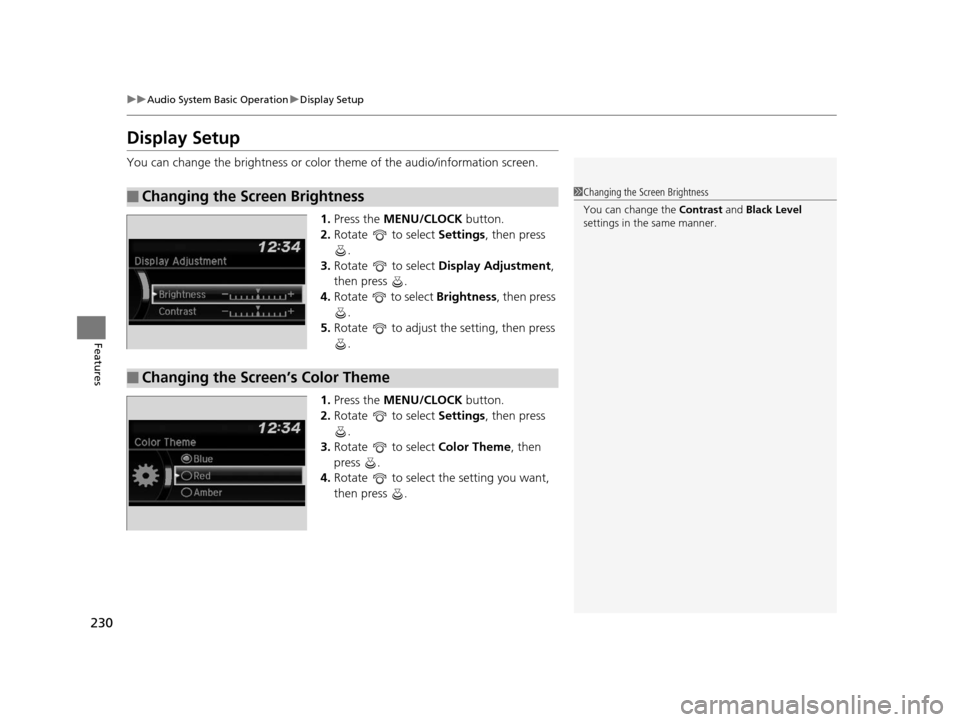
You can change the brightness or color theme of the audio/information screen.
1. Press the MENU/CLOCK button.
2. Rotate to select Settings, then press
.
3. Rotate to select Display Adjustment,
then press .
4. Rotate to select Brightness, then press
.
5. Rotate to adjust the setting, then press
.
1. Press the MENU/CLOCK button.
2. Rotate to select Settings, then press
.
3. Rotate to select Color Theme, then
press .
4. Rotate to select the setting you want,
then press .
■Changing the Screen Brightness1Changing the Screen Brightness
You can change the Contrast and Black Level
settings in the same manner.
■Changing the Screen’s Color Theme
16 PILOT-31TG76000.book 230 ページ 2015年6月15日 月曜日 午前11時30分