Page 24 of 145
23
uuPersonal Information uSaved Locations
Continued
System Setup
5. Select an option.
The following options are available:
• Name: Enters a new name for the location.
• Phone Number: Enters a phone number.
• Categories : Creates or changes the category in which this location is saved.
• Change Map Symbol : Select a new symbol.
16 PILOT NAVI-31TG78000.book 23 ページ 2015年4月21日 火曜日 午前8時30分
Page 56 of 145
55
Navigation
This section describes how to enter a destination, select a route to take, and follow the
route to your destination. It also describes how to change your route or destination along
the way.
Entering a Destination............................56
HONDA ..................................................62
Address ..................................................63
Categories ..............................................68
Saved......................................................74
Recent ....................................................74
Map Input...............................................75
Calculating the Route ..............................76
Viewing the Routes .................................77
Viewing the Destination Map ..................78
Driving to Your Destination ...................79
Viewing the Route ..................................79 Map Operation
........................................ 83
Map Menu ............................................. 84
Traffic Information ..............................88Changing Your Route ............................. 93
Stopping the Route ................................ 93
Taking a Detour ..................................... 94
Adding Waypoints ................................. 95
Changing Your Destination ................... 96
Selecting a Destination on the Map ........ 96
Searching Near Establishment ................ 97
Entering a New Destination .................... 99
Entering a New Destination from Trip Planner............................................... 100
Editing the Destination List ................... 104
16 PILOT NAVI-31TG78000.book 55 ページ 2015年4月21日 火曜日 午前8時30分
Page 57 of 145
56
Navigation
Entering a Destination
Hu
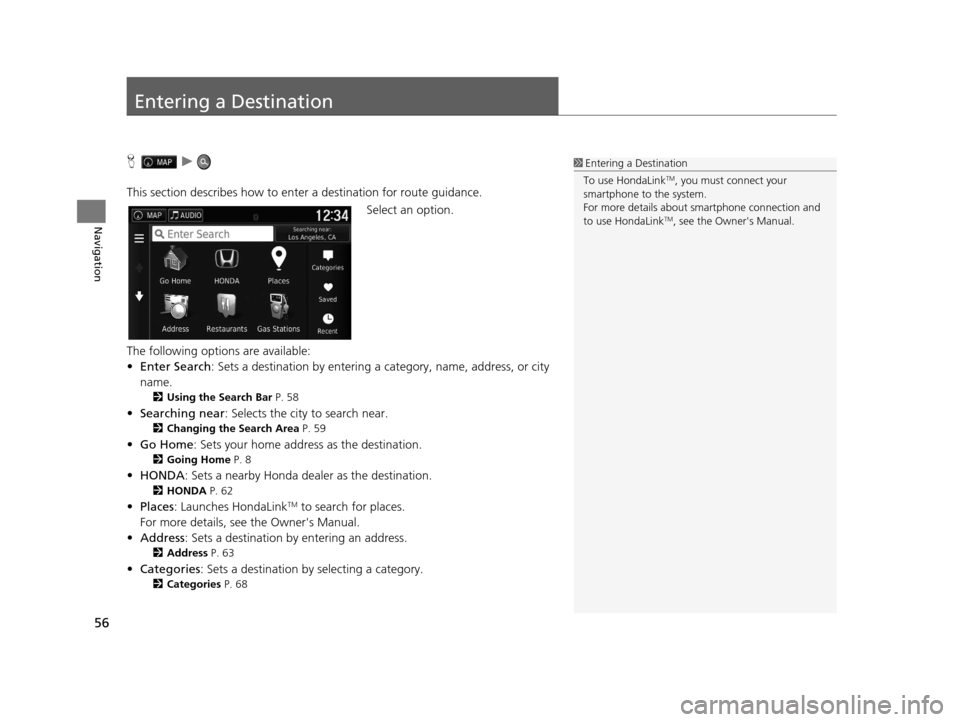
This section describes how to enter a destination for route guidance. Select an option.
The following options are available:
• Enter Search : Sets a destination by entering a category, name, address, or city
name.
2 Using the Search Bar P. 58
•Searching near : Selects the city to search near.
2Changing the Search Area P. 59
•Go Home : Sets your home address as the destination.
2Going Home P. 8
•HONDA: Sets a nearby Honda dealer as the destination.
2 HONDA P. 62
•Places: Launches HondaLinkTM to search for places.
For more details, see the Owner's Manual.
• Address : Sets a destination by entering an address.
2Address P. 63
•Categories : Sets a destination by selecting a category.
2Categories P. 68
1Entering a Destination
To use HondaLink
TM, you must connect your
smartphone to the system.
For more details about sm artphone connection and
to use HondaLink
TM, see the Owner's Manual.
16 PILOT NAVI-31TG78000.book 56 ページ 2015年4月21日 火曜日 午前8時30分
Page 69 of 145
68
uuEntering a Destination uCategories
Navigation
Categories
Select the category of a place (e.g., Restaurants, Gas Stations, Shopping) stored in
the map database to search for the destination.
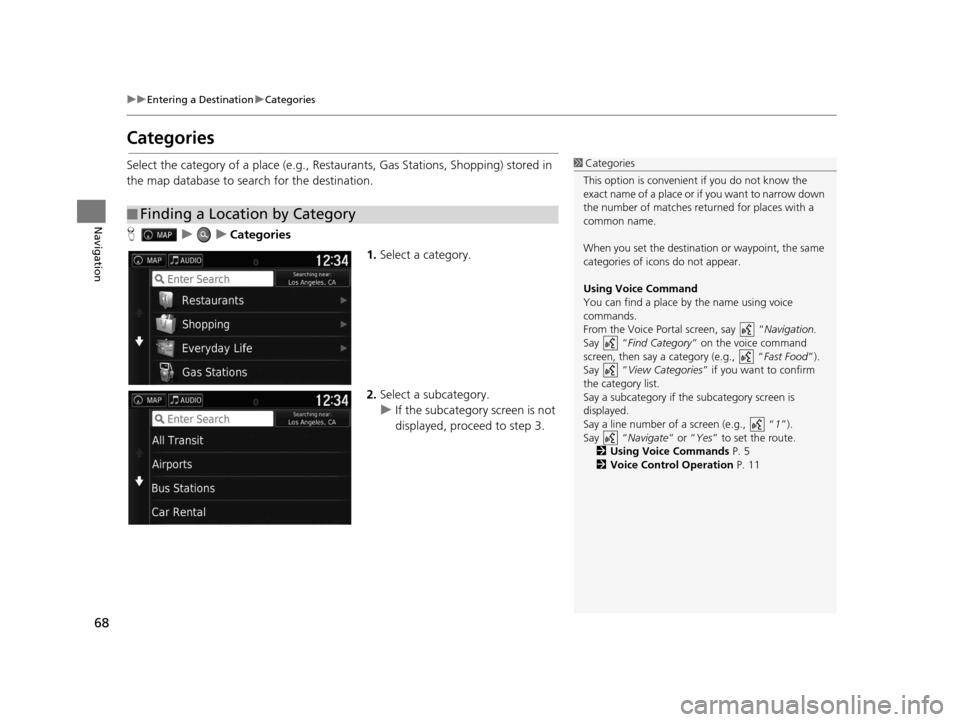
H uuCategories
1.Select a category.
2. Select a subcategory.
u If the subcategory screen is not
displayed, proceed to step 3.
■Finding a Location by Category
1
Categories
This option is convenient if you do not know the
exact name of a place or if you want to narrow down
the number of matches returned for places with a
common name.
When you set the destination or waypoint, the same
categories of icons do not appear.
Using Voice Command
You can find a place by the name using voice
commands.
From the Voice Portal screen, say “ Navigation.
Say “ Find Category ” on the voice command
screen, then say a category (e.g., “ Fast Food”).
Say “ View Categories ” if you want to confirm
the category list.
Say a subcategory if the subcategory screen is
displayed.
Say a line number of a screen (e.g., “ 1”).
Say “ Navigate” or “Yes” to set the route.
2 Using Voice Commands P. 5
2 Voice Control Operation P. 11
16 PILOT NAVI-31TG78000.book 68 ページ 2015年4月21日 火曜日 午前8時30分
Page 70 of 145
Continued69
uuEntering a Destination uCategories
Navigation
3. Select a place name from the list.
4. Set the route to your destination.
2 Calculating the Route P. 76
1Categories
Quick Search screen
After you have perf ormed a search for a destination,
certain categories display a Quick Search list that
display the several dest inations you selected.
16 PILOT NAVI-31TG78000.book 69 ページ 2015年4月21日 火曜日 午前8時30分
Page 71 of 145
uuEntering a Destination uCategories
70
Navigation
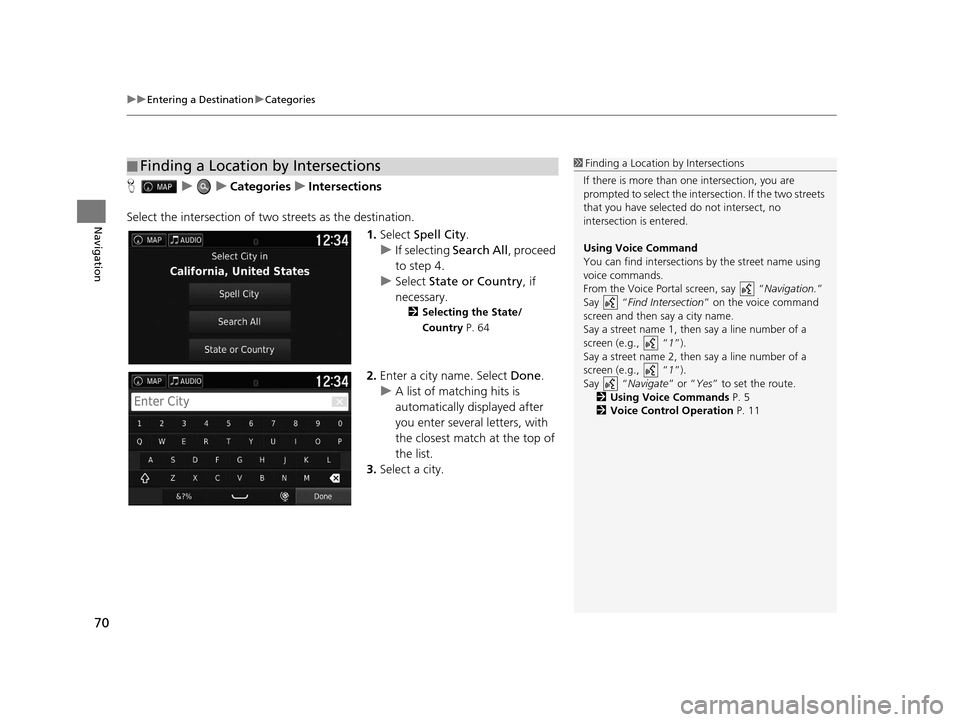
H uuCategories uIntersections
Select the intersection of two streets as the destination.
1.Select Spell City .
u If selecting Search All, proceed
to step 4.
u Select State or Country , if
necessary.
2 Selecting the State/
Country P. 64
2.Enter a city name. Select Done.
u A list of matching hits is
automatically displayed after
you enter several letters, with
the closest match at the top of
the list.
3. Select a city.
■Finding a Location by Intersections1
Finding a Location by Intersections
If there is more than one intersection, you are
prompted to select the intersection. If the two streets
that you have selected do not intersect, no
intersection is entered.
Using Voice Command
You can find intersections by the street name using
voice commands.
From the Voice Portal screen, say “ Navigation.”
Say “ Find Intersection ” on the voice command
screen and then say a city name.
Say a street name 1, then say a line number of a
screen (e.g., “ 1”).
Say a street name 2, then say a line number of a
screen (e.g., “ 1”).
Say “ Navigate” or “Yes” to set the route.
2 Using Voice Commands P. 5
2 Voice Control Operation P. 11
16 PILOT NAVI-31TG78000.book 70 ページ 2015年4月21日 火曜日 午前8時30分
Page 72 of 145
71
uuEntering a Destination uCategories
Continued
Navigation
4. Enter the street 1 name. Select
Done .
u A list of matching hits is
automatically displayed after
you enter several letters, with
the closest match at the top of
the list.
5. Select the street from the list.
u Repeat step 4 to enter the
street 2 name.
6. Select the intersection.
7. Set the route to your destination.
2 Calculating the Route P. 76
16 PILOT NAVI-31TG78000.book 71 ページ 2015年4月21日 火曜日 午前8時30分
Page 73 of 145
uuEntering a Destination uCategories
72
Navigation
H uuCategories uCities
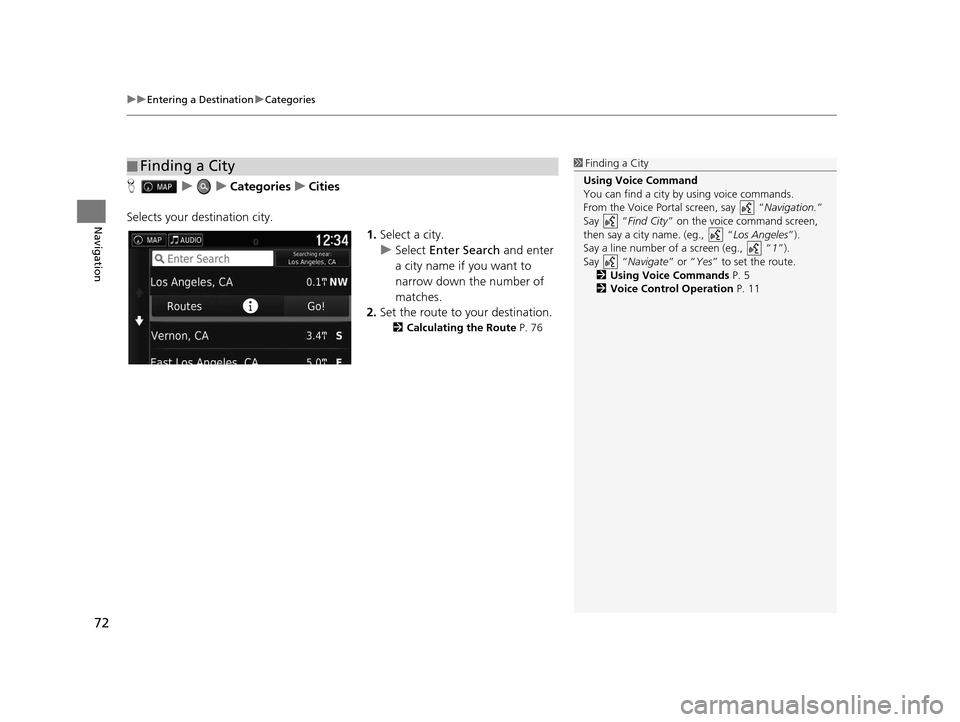
Selects your destination city. 1.Select a city.
u Select Enter Search and enter
a city name if you want to
narrow down the number of
matches.
2. Set the route to your destination.
2 Calculating the Route P. 76
■Finding a City1
Finding a City
Using Voice Command
You can find a city by using voice commands.
From the Voice Portal screen, say “ Navigation.”
Say “ Find City” on the voice command screen,
then say a city name. (eg., “ Los Angeles”).
Say a line number of a screen (eg., “1”).
Say “ Navigate” or “Yes” to set the route.
2 Using Voice Commands P. 5
2 Voice Control Operation P. 11
16 PILOT NAVI-31TG78000.book 72 ページ 2015年4月21日 火曜日 午前8時30分