Page 196 of 585
195
Features
Audio System Basic Operation
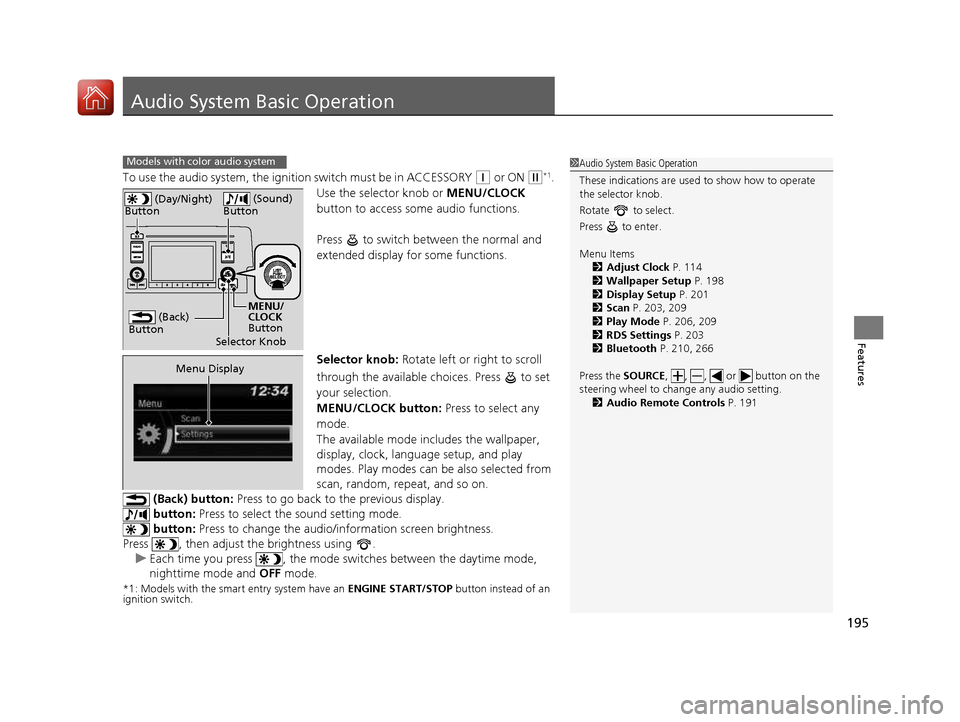
To use the audio system, the ignition switch must be in ACCESSORY (q or ON (w*1
.
Use the selector knob or MENU/CLOCK
button to access some audio functions.
Press to switch between the normal and
extended display fo r some functions.
Selector knob: Rotate left or right to scroll
through the available choices. Press to set
your selection.
MENU/CLOCK button: Press to select any
mode.
The available mode in cludes the wallpaper,
display, clock, language setup, and play
modes. Play modes can be also selected from
scan, random, repeat, and so on.
(Back) button: Press to go back to the previous display.
button: Press to select the sound setting mode.
button: Press to change the audio/in formation screen brightness.
Press , then adjust the brightness using .
uEach time you press , the mode sw itches between the daytime mode,
nighttime mode and OFF mode.
*1: Models with the smart entry system have an ENGINE START/STOP button instead of an
ignition switch.
Models with color audio system1Audio System Basic Operation
These indications are used to show how to operate
the selector knob.
Rotate to select.
Press to enter. Menu Items 2 Adjust Clock P. 114
2 Wallpaper Setup P. 198
2 Display Setup P. 201
2 Scan P. 203, 209
2 Play Mode P. 206, 209
2 RDS Settings P. 203
2 Bluetooth P. 210, 266
Press the SOURCE, , , or button on the
steering wheel to cha nge any audio setting.
2 Audio Remote Controls P. 191
(Back)
Button
Selector Knob MENU/
CLOCK
Button
(Day/Night)
Button
(Sound)
Button
Menu Display
16 CIVIC 2D HC2 (0A 01 0C)-31TBG6000.book 195 ページ >0>.>/6年>0月>/>0日 金曜日 午後4時>/6分
Page 197 of 585
196
uuAudio System Basic OperationuAudio/Information Screen
Features
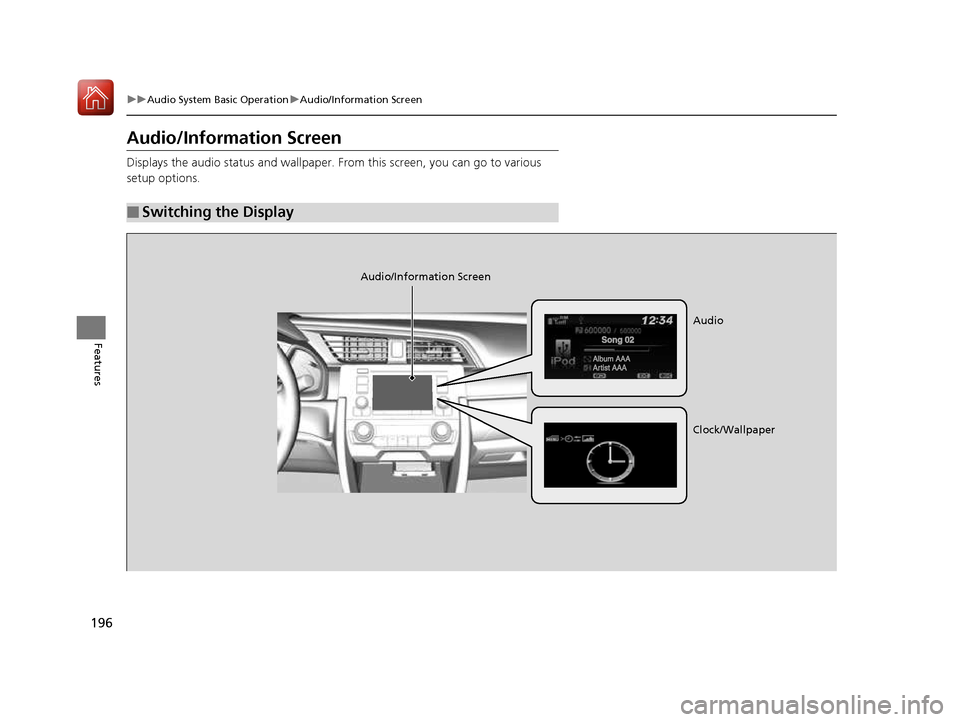
Audio/Information Screen
Displays the audio status and wallpaper. From this screen, you can go to various
setup options.
■Switching the Display
Audio/Information Screen
Audio
Clock/Wallpaper
16 CIVIC 2D HC2 (0A 01 0C)-31TBG6000.book 196 ページ >0>.>/6年>0月>/>0日 金曜日 午後4時>/6分
Page 198 of 585
197
uuAudio System Basic OperationuAudio/Information Screen
Continued
Features
■Audio
Shows the current audio information. ■ Clock/Wallpaper
Shows a clock screen or an image you import.■ Change display
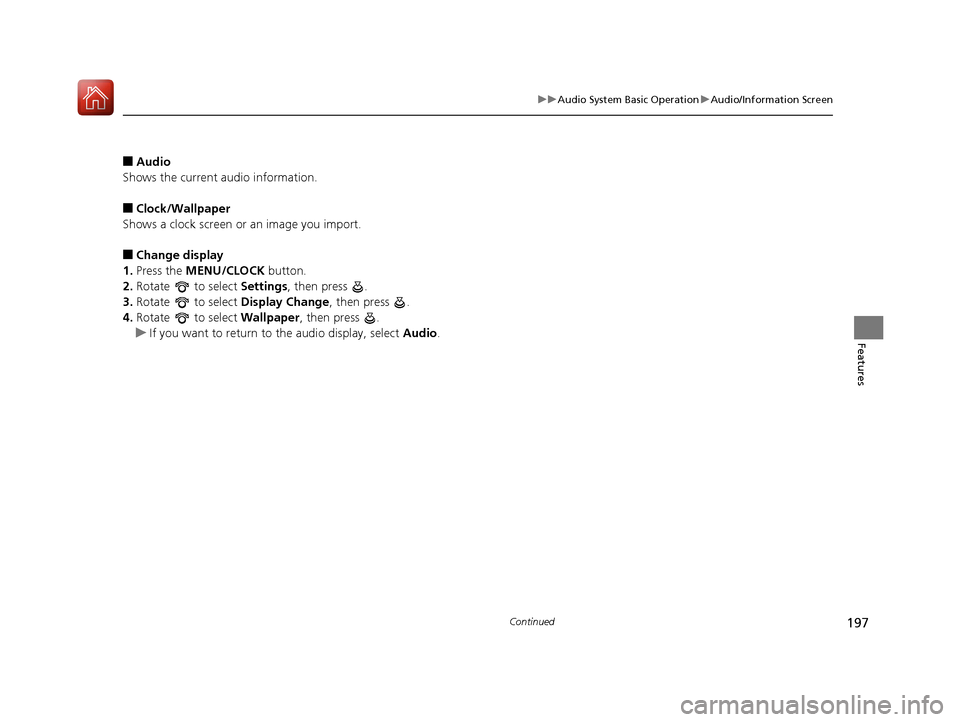
1. Press the MENU/CLOCK button.
2. Rotate to select Settings, then press .
3. Rotate to select Display Change, then press .
4. Rotate to select Wallpaper, then press .
uIf you want to return to the audio display, select Audio.
16 CIVIC 2D HC2 (0A 01 0C)-31TBG6000.book 197 ページ >0>.>/6年>0月>/>0日 金曜日 午後4時>/6分
Page 199 of 585
uuAudio System Basic OperationuAudio/Information Screen
198
Features
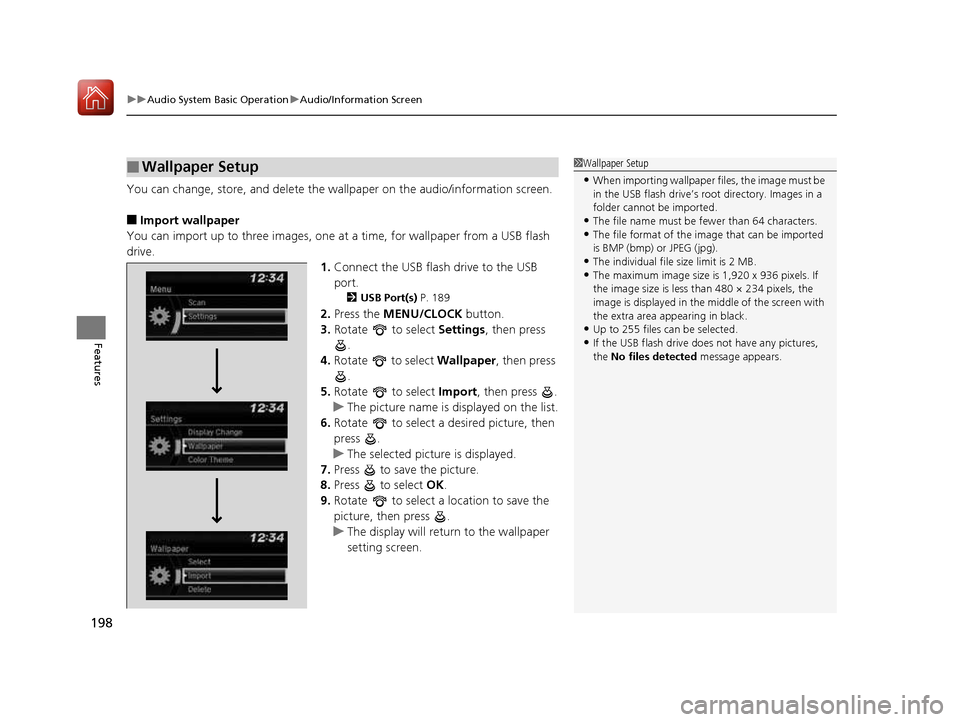
You can change, store, and delete the wa llpaper on the audio/information screen.
■ Import wallpaper
You can import up to three images, one at a time, for wallpaper from a USB flash
drive.
1.Connect the USB flash drive to the USB port.
2 USB Port(s) P. 189
2. Press the MENU/CLOCK button.
3. Rotate to select Settings, then press
.
4. Rotate to select Wallpaper, then press
.
5. Rotate to select Import, then press .
uThe picture name is displayed on the list.
6. Rotate to select a desired picture, then
press .
uThe selected picture is displayed.
7. Press to save the picture.
8. Press to select OK.
9. Rotate to select a location to save the
picture, then press .
uThe display will return to the wallpaper
setting screen.
■Wallpaper Setup1Wallpaper Setup
• When importing wallpaper files, the image must be
in the USB flash drive’s root directory. Images in a
folder cannot be imported.
• The file name must be fewer than 64 characters.
• The file format of the im age that can be imported
is BMP (bmp) or JPEG (jpg).
• The individual file size limit is 2 MB.
• The maximum image size is 1,920 x 936 pixels. If
the image size is less than 480 × 234 pixels, the
image is displayed in the middle of the screen with
the extra area appearing in black.
• Up to 255 files can be selected.
• If the USB flash drive doe s not have any pictures,
the No files detected message appears.
16 CIVIC 2D HC2 (0A 01 0C)-31TBG6000.book 198 ページ >0>.>/6年>0月>/>0日 金曜日 午後4時>/6分
Page 200 of 585
199
uuAudio System Basic OperationuAudio/Information Screen
Features
■Select wallpaper
1. Press the MENU/CLOCK button.
2. Rotate to select Settings, then press .
3. Rotate to select Wallpaper, then press .
4. Rotate to select Select, then press .
uThe screen changes to the wallpaper list.
5. Rotate to select a desired wallpaper, then press .
■ To view wallpaper once it is set
1. Press the MENU/CLOCK button.
2. Rotate to select Settings, then press .
3. Rotate to select Display Change, then press .
4. Rotate to select Wallpaper, then press .
uThe screen changes to the wallpaper list.
5. Rotate to select a wallpaper that you want to set, then press .
■ Delete wallpaper
1. Press the MENU/CLOCK button.
2. Rotate to select Settings, then press .
3. Rotate to select Wallpaper, then press .
4. Rotate to select Delete, then press .
uThe screen changes to the wallpaper list.
5. Rotate to select a wallpaper that you want to delete, then press .
6. Rotate to select Yes, then press .
uThe display will return to the wallpaper setting screen.
1Wallpaper Setup
To go back to the previous screen, press the
(Back) button.
When the file size is large, it takes a while to be previewed.
16 CIVIC 2D HC2 (0A 01 0C)-31TBG6000.book 199 ページ >0>.>/6年>0月>/>0日 金曜日 午後4時>/6分
Page 215 of 585
214
uuAudio System Basic OperationuAudio/Information Screen
Features
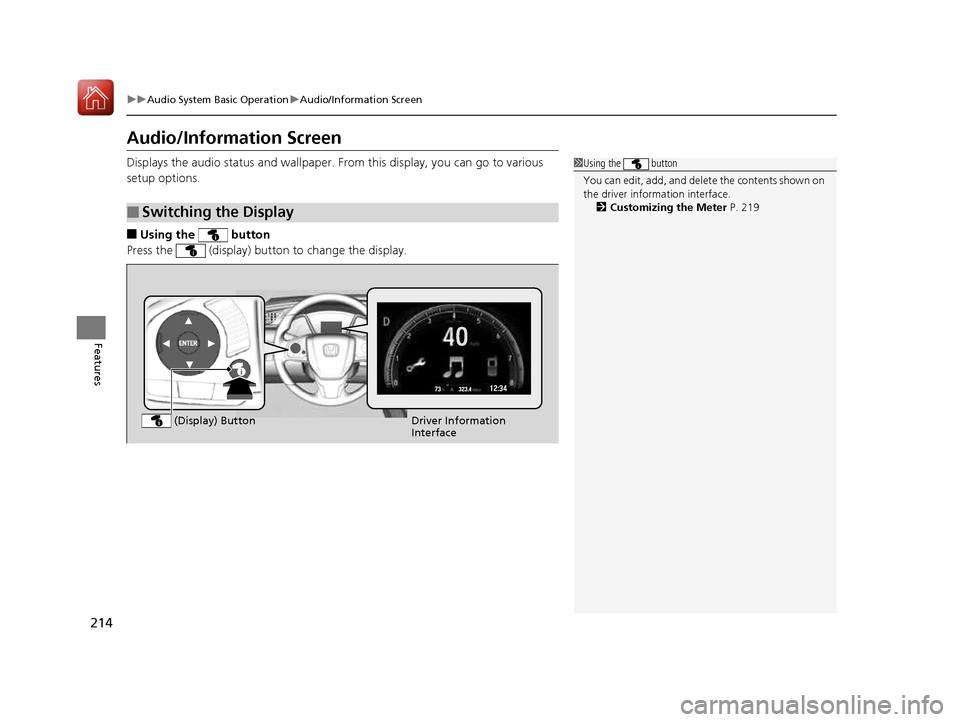
Audio/Information Screen
Displays the audio status and wallpaper. From this display, you can go to various
setup options. ■ Using the button
Press the (display) butto n to change the display.
■Switching the Display
1Using the button
You can edit, add, and delete the contents shown on
the driver information interface. 2 Customizing the Meter P. 219
Driver Information
Interface
(Display) Button
16 CIVIC 2D HC2 (0A 01 0C)-31TBG6000.book 214 ページ >0>.>/6年>0月>/>0日
金曜日 午後4時>/6分
Page 217 of 585
216
uuAudio System Basic OperationuAudio/Information Screen
Features
■Info
Displays Trip Computer or Clock/Wallpaper . Select on the Info Menu screen
to see all available options: Trip Computer, Voice Info , Clock/Wallpaper and
System/Device Information .
Trip Computer :
• Current Drive tab: Displays the current trip information.
• History of Trip A tab: Displays information for the three previous drives. The
information is stored every time you reset Trip A.
To delete the history manually, select Delete History on the History of Trip A
tab. The confirmation message ap pears on the screen, then select Yes.
Voice Info : Displays the all commands list.
Clock/Wallpaper :
Displays the cloc k and wallpaper.
System/Device Information :
• System Info : Displays the software version of the audio system.
• USB Info : Displays the memory usage of the USB device.
■ Audio
Displays the current audio information.
■ Settings
Enters the customiz ing menu screen.
2 Customized Features P. 292
■ Navigation *
Displays the navigation screen. 2 Refer to the Navigation System Manual
* Not available on all models
16 CIVIC 2D HC2 (0A 01 0C)-31TBG6000.book 216 ページ >0>.>/6年>0月>/>0日 金曜日 午後4時>/6分
Page 224 of 585
Continued223
uuAudio System Basic OperationuAudio/Information Screen
Features
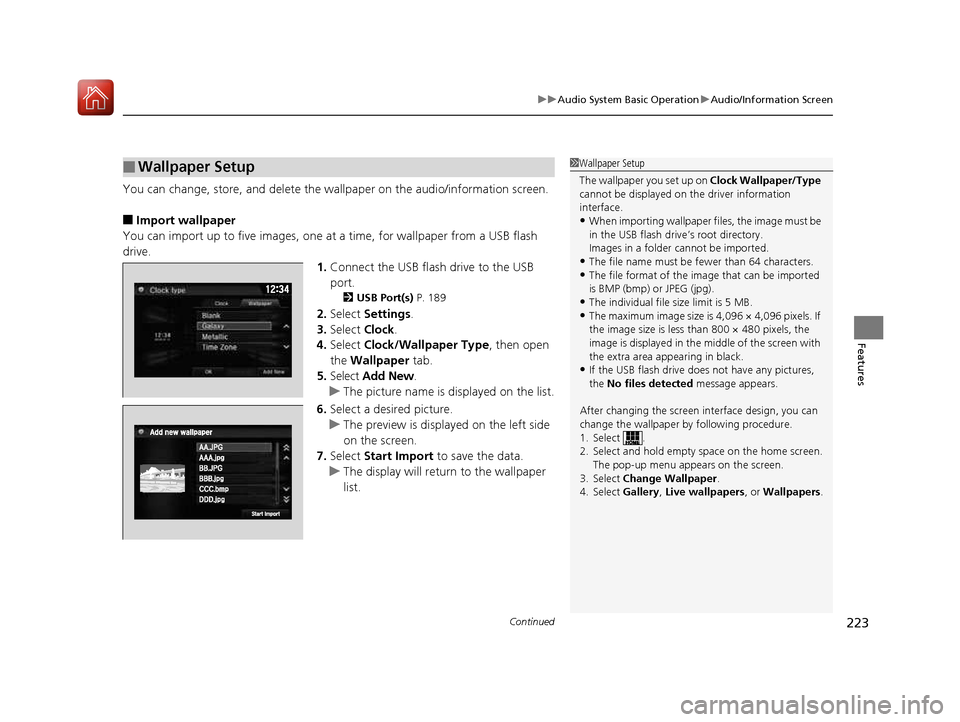
You can change, store, and delete the wallpaper on the audio/information screen.
■ Import wallpaper
You can import up to five images, one at a time, for wallpaper from a USB flash
drive. 1.Connect the USB flash drive to the USB
port.
2 USB Port(s) P. 189
2. Select Settings .
3. Select Clock.
4. Select Clock/Wallpaper Type , then open
the Wallpaper tab.
5. Select Add New .
uThe picture name is displayed on the list.
6. Select a desired picture.
uThe preview is displayed on the left side
on the screen.
7. Select Start Import to save the data.
uThe display will return to the wallpaper
list.
■Wallpaper Setup1Wallpaper Setup
The wallpaper you set up on Clock Wallpaper/Type
cannot be displayed on th e driver information
interface. • When importing wallpaper files, the image must be
in the USB flash driv e’s root directory.
Images in a folder cannot be imported.
• The file name must be fewer than 64 characters.
• The file format of the im age that can be imported
is BMP (bmp) or JPEG (jpg).
• The individual file size limit is 5 MB.
• The maximum image size is 4,096 × 4,096 pixels. If
the image size is less than 800 × 480 pixels, the
image is displayed in the middle of the screen with
the extra area appearing in black.
• If the USB flash drive doe s not have any pictures,
the No files detected message appears.
After changing the screen interface design, you can change the wallpaper by following procedure.
1. Select .
2. Select and hold empty space on the home screen. The pop-up menu appears on the screen.
3. Select Change Wallpaper .
4. Select Gallery, Live wallpapers , or Wallpapers .
16 CIVIC 2D HC2 (0A 01 0C)-31TBG6000.book 223 ページ >0>.>/6年>0月>/>0日 金曜日 午後4時>/6分