Page 157 of 585
156
uuOperating the Switches Around the Steering WheeluAdjusting the Steering Wheel
Controls
Adjusting the Steering Wheel
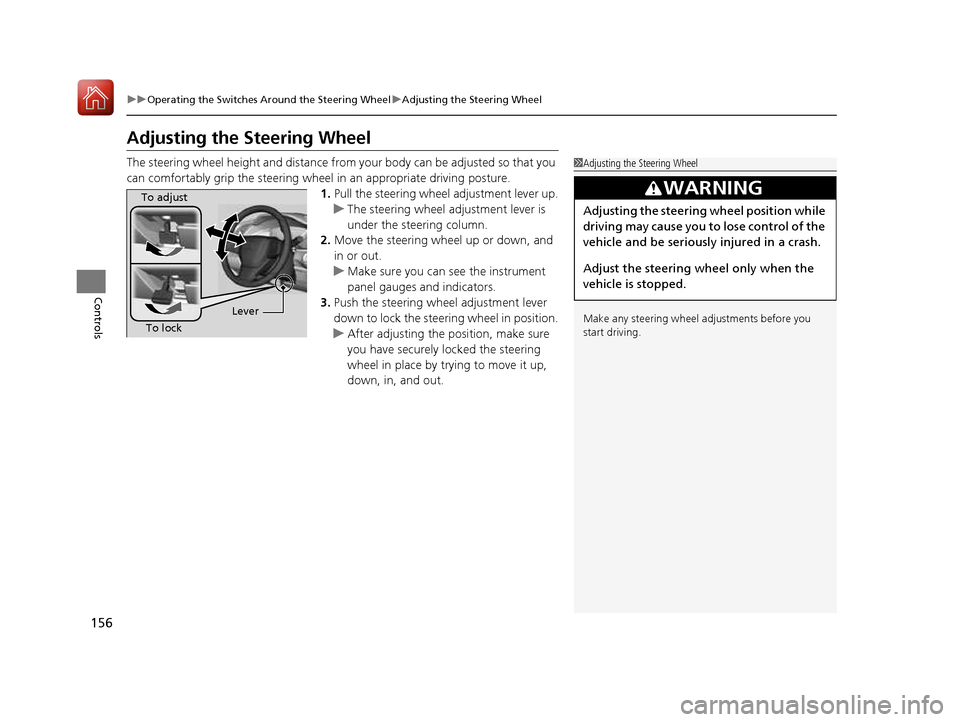
The steering wheel height and distance from your body can be adjusted so that you
can comfortably grip the steering wheel in an appropriate driving posture.1.Pull the steering wheel adjustment lever up.
uThe steering wheel adjustment lever is
under the steering column.
2. Move the steering wheel up or down, and
in or out.
uMake sure you can see the instrument
panel gauges and indicators.
3. Push the steering wheel adjustment lever
down to lock the steering wheel in position.
uAfter adjusting the position, make sure
you have securely locked the steering
wheel in place by trying to move it up,
down, in, and out.
1Adjusting the Steering Wheel
Make any steering wheel adjustments before you
start driving.
3WARNING
Adjusting the steering wheel position while
driving may cause you to lose control of the
vehicle and be seriously injured in a crash.
Adjust the steering wheel only when the
vehicle is stopped.
To adjust
To lock Lever
16 CIVIC 2D HC2 (0A 01 0C)-31TBG6000.book 156 ページ >0>.>/6年>0月>/>0日
金曜日 午後4時>/6分
Page 216 of 585
215
uuAudio System Basic OperationuAudio/Information Screen
Continued
Features
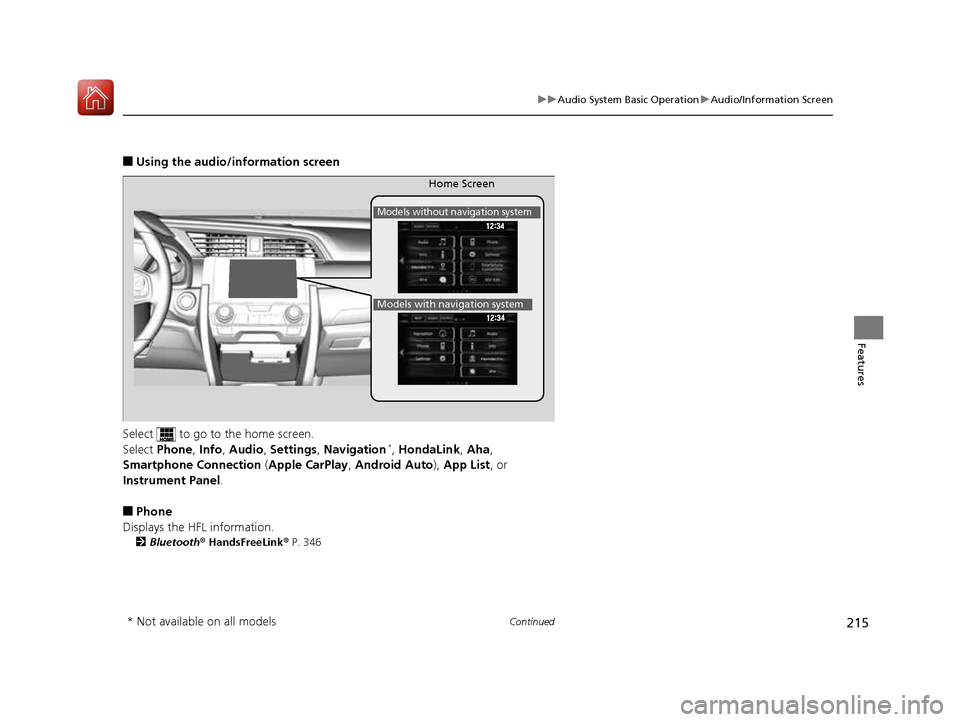
■Using the audio/in formation screen
Select to go to the home screen.
Select Phone , Info , Audio , Settings , Navigation *
, HondaLink , Aha ,
Smartphone Connection (Apple CarPlay , Android Auto ), App List , or
Instrument Panel .
■ Phone
Displays the HFL information. 2 Bluetooth ® HandsFreeLink ® P. 346
Home Screen
Models without navigation system
Models with navigation system
* Not available on all models
16 CIVIC 2D HC2 (0A 01 0C)-31TBG6000.book 215 ページ >0>.>/6年>0月>/>0日 金曜日 午後4時>/6分
Page 218 of 585
217
uuAudio System Basic OperationuAudio/Information Screen
Continued
Features
■HondaLink
Connects with your smartphone *1
to play personalized music, information, and
social media streams. 2 HondaLink ® P. 268
■ Aha
Displays the Aha TM
screen.
2 Playing Aha TM
P. 262
■ Smartphone Connection
Connects with your smartphone *1
and allows some apps on your smartphone to be
used on the audio system. 2 Apple CarPlay P. 276
2 Android Auto P. 279
■ App List
Adds or removes apps or widgets on the Home screen. 2 Home Screen P. 225
■ Instrument Panel
Selects from three customizable settings for the driver information interface.
*1: Available on specific phones only. Check handsfreelink.honda.com for U.S. and
www.handsfreelink.ca for Canada for compatible phones and hondalink.com for U.S. and
honda.ca/hondalink for Canada for feature details.
16 CIVIC 2D HC2 (0A 01 0C)-31TBG6000.book 217 ページ >0>.>/6年>0月>/>0日 金曜日 午後4時>/6分
Page 220 of 585
Continued219
uuAudio System Basic OperationuAudio/Information Screen
Features
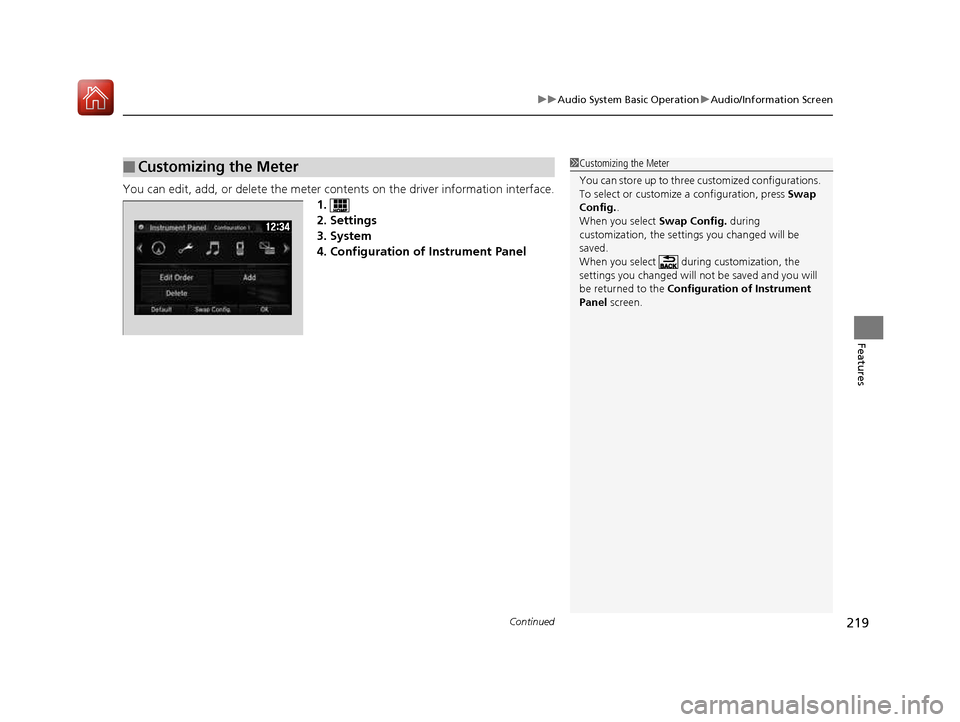
You can edit, add, or delete the meter contents on the driver information interface.
1.
2. Settings
3. System
4. Configuration of Instrument Panel
■Customizing the Meter1Customizing the Meter
You can store up to three cu stomized configurations.
To select or customize a configuration, press Swap
Config. .
When you select Swap Config. during
customization, the settings you changed will be
saved.
When you select during customization, the settings you changed will not be saved and you will
be returned to the Configuration of Instrument
Panel screen.
16 CIVIC 2D HC2 (0A 01 0C)-31TBG6000.book 219 ページ >0>.>/6年>0月>/>0日 金曜日 午後4時>/6分
Page 221 of 585
uuAudio System Basic OperationuAudio/Information Screen
220
Features
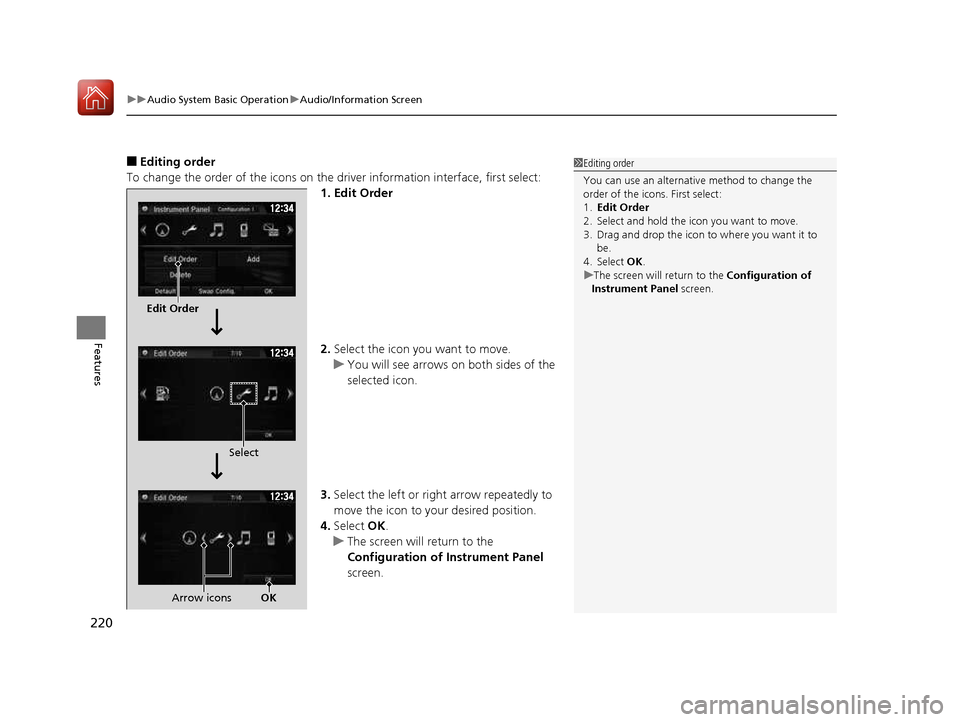
■ Editing order
To change the order of the icons on the driver information interface, first select:
1. Edit Order 2. Select the icon you want to move.
uYou will see arrows on both sides of the selected icon.
3. Select the left or right arrow repeatedly to
move the icon to your desired position.
4. Select OK.
uThe screen will return to the
Configuration of Instrument Panel
screen.
1Editing order
You can use an alternative method to change the
order of the icons. First select: 1. Edit Order
2. Select and hold the icon you want to move.
3. Drag and drop the icon to where you want it to be.
4. Select OK.
uThe screen will return to the Configuration of
Instrument Panel screen.
Edit Order
Select
Arrow icons OK
16 CIVIC 2D HC2 (0A 01 0C)-31TBG6000.book 220 ページ >0>.>/6年>0月>/>0日 金曜日 午後4時>/6分
Page 222 of 585
Continued221
uuAudio System Basic OperationuAudio/Information Screen
Features
■Adding contents
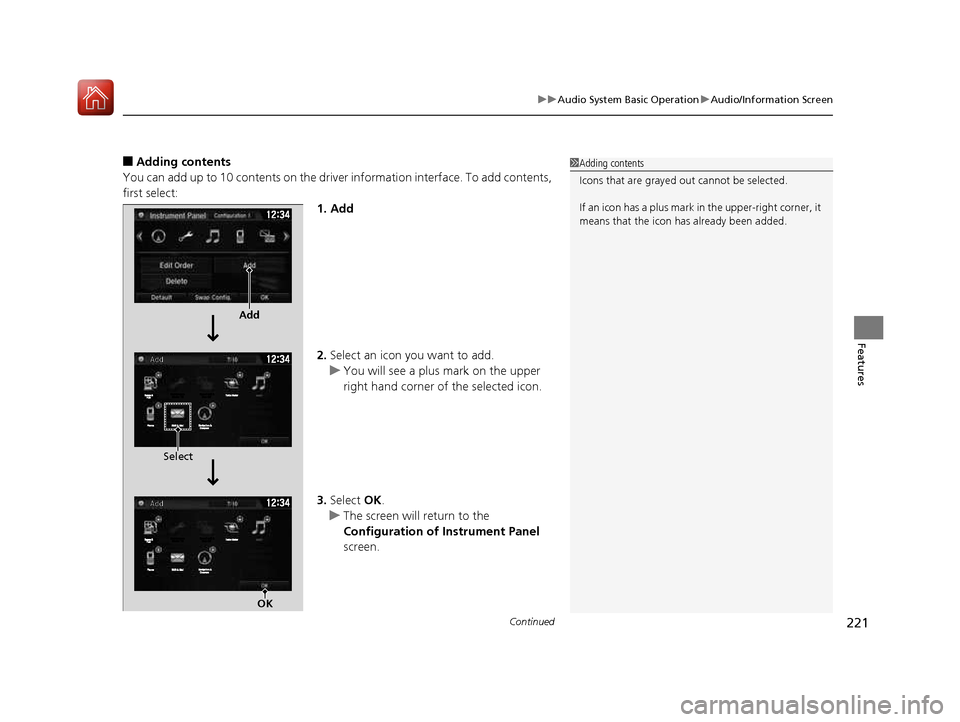
You can add up to 10 contents on the driver information interface. To add contents, first select: 1. Add 2.Select an icon you want to add.
uYou will see a plus mark on the upper
right hand corner of the selected icon.
3. Select OK.
uThe screen will return to the
Configuration of Instrument Panel
screen.
1Adding contents
Icons that are grayed out cannot be selected.
If an icon has a plus mark in the upper-right corner, it
means that the icon ha s already been added.
Add
Select
OK
16 CIVIC 2D HC2 (0A 01 0C)-31TBG6000.book 221 ページ >0>.>/6年>0月>/>0日 金曜日 午後4時>/6分
Page 223 of 585
uuAudio System Basic OperationuAudio/Information Screen
222
Features
■ Deleting contents
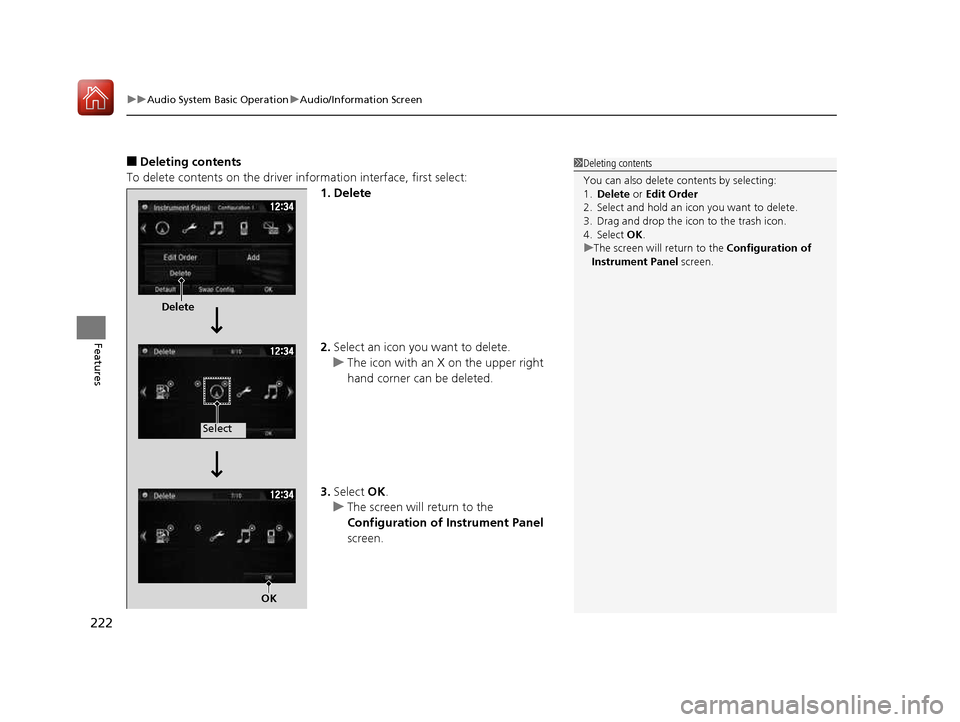
To delete contents on the driver information interface, first select:
1. Delete 2.Select an icon you want to delete.
uThe icon with an X on the upper right
hand corner can be deleted.
3. Select OK.
uThe screen will return to the
Configuration of Instrument Panel
screen.
1Deleting contents
You can also delete c ontents by selecting:
1. Delete or Edit Order
2. Select and hold an icon you want to delete.
3. Drag and drop the icon to the trash icon.
4. Select OK.
uThe screen will return to the Configuration of
Instrument Panel screen.
Delete
Select
OK
16 CIVIC 2D HC2 (0A 01 0C)-31TBG6000.book 222 ページ >0>.>/6年>0月>/>0日 金曜日 午後4時>/6分
Page 230 of 585
Continued229
uuAudio System Basic OperationuAudio/Information Screen
Features
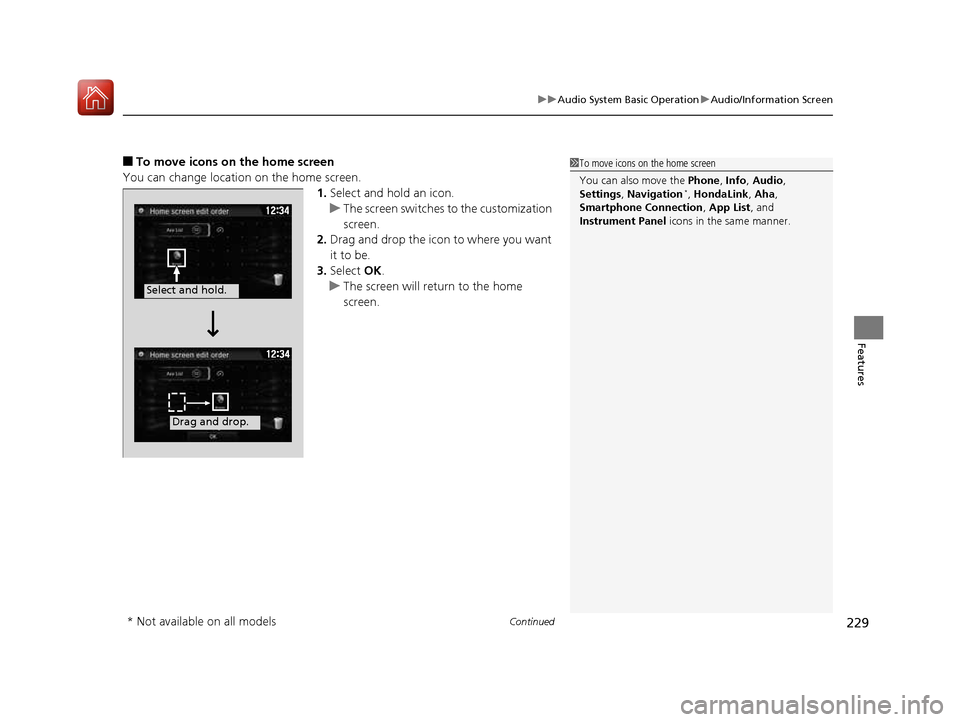
■To move icons on the home screen
You can change location on the home screen. 1.Select and hold an icon.
uThe screen switches to the customization
screen.
2. Drag and drop the icon to where you want it to be.
3. Select OK.
uThe screen will return to the home screen.
1To move icons on the home screen
You can also move the Phone, Info , Audio ,
Settings , Navigation *
, HondaLink , Aha ,
Smartphone Connection , App List , and
Instrument Panel icons in the same manner.
Select and hold.
Drag and drop.
* Not available on all models
16 CIVIC 2D HC2 (0A 01 0C)-31TBG6000.book 229 ページ >0>.>/6年>0月>/>0日 金曜日 午後4時>/6分