2016 FORD FUSION (AMERICAS) manual
[x] Cancel search: manualPage 399 of 518

To make adjustments using the touchscreen, select:
Action and Description
Menu Item
Press the settings icon.
Settings
Press the + or - to adjust the time.
Clock
From this screen, you can also make other adjustments such
as 12-hour or 24-hour mode, activate GPS time synchroniza-
tion and have the system automatically update new time
zones.
You can also switch the outside air temperature display off
and on. It appears at the top center of the touchscreen, next
to the time and date.
Note: You cannot manually set the date. Your vehicle ’s GPS does this for you.
Note: If the battery has been disconnected, your vehicle needs to acquire a GPS signal to
update the clock. Once your vehicle acquires the signal, it may take a few minutes for the
update to display the correct time.
Display
You can adjust the display using the
touchscreen or the voice button on the
steering wheel controls.
To make adjustments using the touchscreen, select: Action and Description
Menu Item
Press the settings icon.
Settings
Display
Then select from the following:
When set to
On, lets you use the automatic dimming feature.
Auto Dim
When set to Off you are able to adjust the brightness of the screen.
Make the screen display brighter or dimmer.
Brightness
Allows you to switch the display off. It also allows you to set the screen
to a certain brightness or have the system automatically change based
on the outside light level.
Mode
If you also select:These features will allow you to adjust the dimming of
your screen.
Auto
396
Fusion/Mondeo (CC7) Canada/United States of America, enUSA, First Printing MyFord Touch
™
(If Equipped)
Page 400 of 518
Action and Description
Menu Item
Night
Allows you to adjust screen dimming as the outside lighting conditions
change from day to night.
Auto Dim
Manual Offset
Allows you to display the default photo or upload your own.
Edit Wallpaper To make adjustments using the voice
button, press the button and when
prompted, say:
Voice command
Display Settings
Uploading Photos for Your Home
Screen Wallpaper
Note: You cannot load photos directly from
your camera. You must access the photos
either from your USB mass storage device
or from an SD card. Note:
Photographs with extremely large
dimensions (such as 2048 x 1536) may not
be compatible and appear as a blank
(black) image on the display.
The system allows you to upload and view
up to 32 photos.
To access, press:
To upload your photos, select: Action and Description
Menu Item
Press the settings icon.
Settings
Display
Follow the system prompts to upload your photographs.
Edit Wallpaper
Only the photograph(s), which meets the
following conditions display:
• Compatible file formats are as follows:
JPG, GIF, PNG, BMP.
• Each file must be 1.5 MB or less.
• Recommended dimensions: 800 x 384.
397
Fusion/Mondeo (CC7) Canada/United States of America, enUSA, First Printing MyFord Touch
™ (If Equipped)E142599
Page 412 of 518

Message and Description
Message
These buttons change with the media mode you are in.
G
Radio memory presets.
H
Note: Some features may not be available in your area. Contact an authorized dealer for
more information.
You can access these options using the
touchscreen or voice commands. AM/FM Radio The following controls are
available for AM/FM radio
Action and Description
Item
Touch either tab to listen to the radio. To change between AM and FM
presets, just touch the AM or FM tab.
AM
FM
Save a station by pressing and holding one of the memory preset areas.
There is a brief mute while the radio saves the station. Sound returns
when finished.
Presets
Touch this button to turn HD Radio on. The light on the button illumin-
ates when the feature is on. HD Radio allows you to receive radio
broadcasts digitally, where available, providing free, crystal-clear sound.
See HD Radio information later in this chapter.
HD Radio
Touch this button to make adjustments to your audio settings.
Options
Touch this button to go to the next strong AM or FM radio station. The
light on the button illuminates when the feature is on.
Scan
Touch this button to manually enter the desired station number. Touch
Enter
when you are done.
Direct Tune
Options
You can make adjustments to the following options: Action and Description
Menu Item
Touch this button to adjust settings for:
Sound Settings
Bass
Midrange
Treble
409
Fusion/Mondeo (CC7) Canada/United States of America, enUSA, First Printing MyFord Touch
™
(If Equipped)E142611
Page 419 of 518
Message
Message
Touch this button to adjust settings for:
Sound Settings
Bass
Midrange
Treble
Set Balance and Fade
DSP
Occupancy Mode
Speed Compensated Volume
This allows you to select a category of music you would like to
search for. You can then choose to either seek or scan for the
stations playing that category.
Set Category for
Seek/Scan
This allows you to lock and unlock channels, change or reset your
PIN or unlock all channels. To use this feature, you need your initial
PIN, which is 1234.
Parental Lockout
This feature allows you turn alerts on and off.
Artist / Title / Team
Alerts
SIRIUS requires this number when communicating with you about
your account.
Electronic Serial
Number (ESN)
Touch this button to manually enter the desired satellite channel
number. Touch Enter when you are done
Direct Tune
Note: Your vehicle may not have all these sound settings.
SIRIUS Satellite Radio Information
Note: SIRIUS reserves the unrestricted right
to change, rearrange, add or delete
programming including canceling, moving
or adding particular channels, and its prices,
at any time, with or without notice to you.
Ford Motor Company shall not be
responsible for any such programming
changes. 416
Fusion/Mondeo (CC7) Canada/United States of America, enUSA, First Printing MyFord Touch
™
(If Equipped)E142593
Page 428 of 518
•
Call waiting notification.
• Caller ID.
Other features, such as text messaging
using Bluetooth and automatic phonebook
download, are cell phone-dependent
features. To check your cell phone ’s
compatibility, see your cell phone ’s user
manual and visit www.SYNCMyRide.com,
www.SYNCMyRide.ca or
www.syncmaroute.ca. Pairing Your Cell Phone for the
First Time WARNING
Driving while distracted can result in
loss of vehicle control, crash and
injury. We strongly recommend that
you use extreme caution when using any
device that may take your focus off the
road. Your primary responsibility is the safe
operation of your vehicle. We recommend
against the use of any hand-held device
while driving and encourage the use of
voice-operated systems when possible.
Make sure you are aware of all applicable
local laws that may affect the use of
electronic devices while driving. The first thing you must do to use the
phone features of SYNC is to pair your
Bluetooth-enabled cell phone with SYNC.
This allows you to use your cell phone in a
hands-free manner.
Note:
This is a speed-dependent feature.
It is unavailable when your vehicle is
traveling at speeds over 3 mph (5 km/h).
Touch the upper left corner of the touchscreen: Action and Description
Message
Add phone Follow the on-screen instructions.
Find SYNC
Make sure that Bluetooth is set to On
and that your cell phone
is in the correct mode. See your cell phone ’s manual if
necessary.
Select
SYNC and a six-digit PIN appears on your device.
If you are prompted to enter a PIN on your device, it does not
support Secure Simple Pairing. To pair, enter the PIN
displayed on the touchscreen. Skip the next step.
When prompted on your cell phone ’s display, confirm that
the PIN provided by SYNC matches the PIN displayed on your
cell phone.
The display indicates when the pairing is successful.
425
Fusion/Mondeo (CC7) Canada/United States of America, enUSA, First Printing MyFord Touch
™
(If Equipped)
Page 429 of 518
Action and Description
Message
SYNC may prompt you with more cell phone options. For
more information on your cell phone's capability, see your
cell phone's manual and visit the website.
Pairing Subsequent Cell Phones
Note: This is a speed-dependent feature.
It is unavailable when your vehicle is
traveling at speeds over 3 mph (5 km/h). Make sure that Bluetooth is set to
On and
that your cell phone is in the correct mode.
See your device's manual if necessary.
To pair a subsequent cell phone, select: Action and Description
Menu Item
Phone
Settings
Bluetooth Devices
Add Device Follow the on-screen instructions.
Find SYNC
Make sure that Bluetooth is set to On
and that your cell phone
is in the correct mode. See your cell phone ’s manual if
necessary.
Select
SYNC and a six-digit PIN appears on your device.
If you are prompted to enter a PIN on your device, it does not
support Secure Simple Pairing. To pair, enter the PIN
displayed on the touchscreen. Skip the next step.
When prompted on your cell phone ’s display, confirm that
the PIN provided by SYNC matches the PIN displayed on your
cell phone.
The display indicates when the pairing is successful.
SYNC may prompt you with more cell phone options. For
more information on your cell phone's capability, see your
cell phone's manual and visit the website.
Making Calls 426
Fusion/Mondeo (CC7) Canada/United States of America, enUSA, First Printing MyFord Touch
™
(If Equipped)E142599
Page 452 of 518
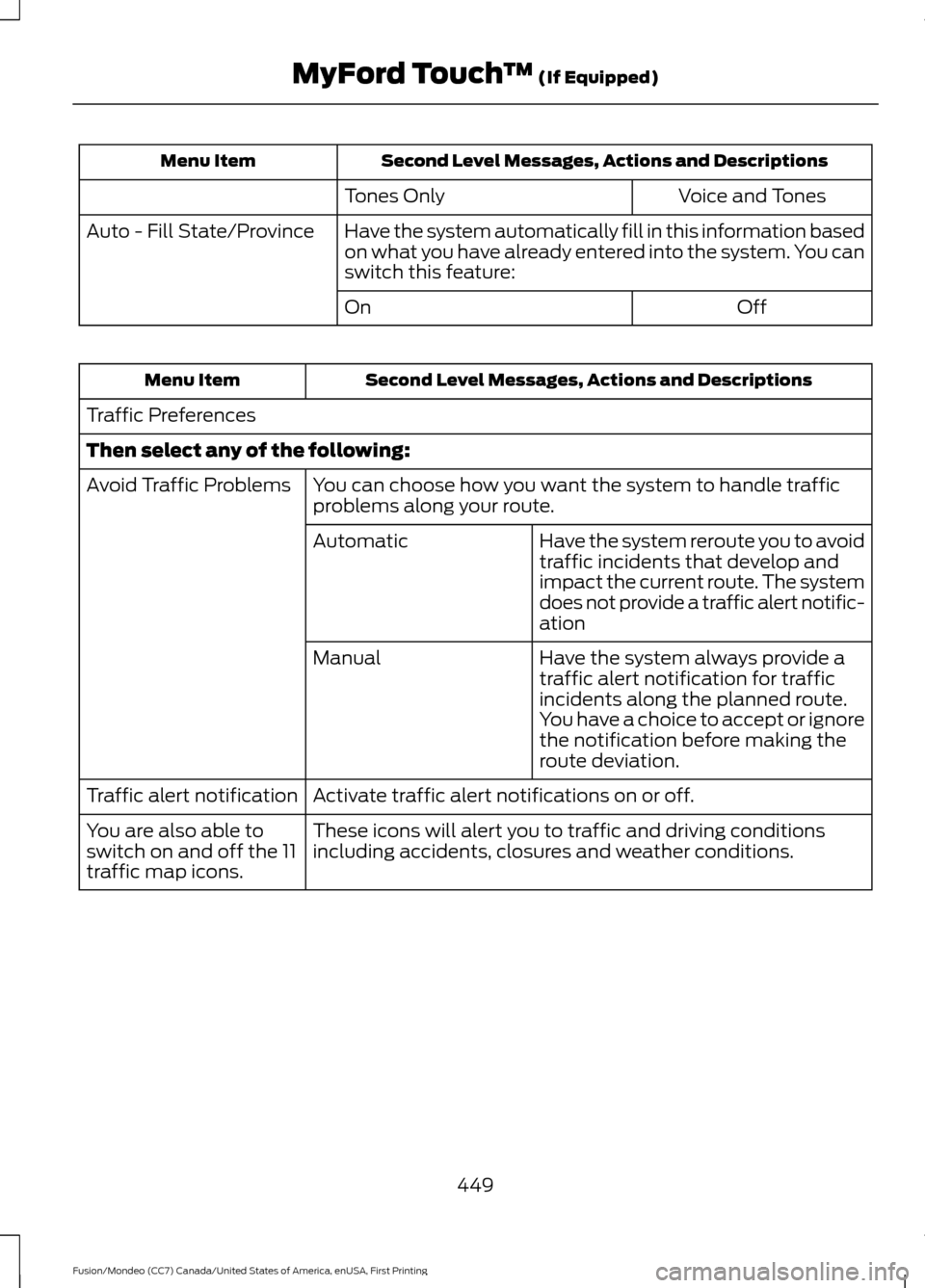
Second Level Messages, Actions and Descriptions
Menu Item
Voice and Tones
Tones Only
Have the system automatically fill in this information based
on what you have already entered into the system. You can
switch this feature:
Auto - Fill State/Province
Off
On Second Level Messages, Actions and Descriptions
Menu Item
Traffic Preferences
Then select any of the following: You can choose how you want the system to handle traffic
problems along your route.
Avoid Traffic Problems
Have the system reroute you to avoid
traffic incidents that develop and
impact the current route. The system
does not provide a traffic alert notific-
ation
Automatic
Have the system always provide a
traffic alert notification for traffic
incidents along the planned route.
You have a choice to accept or ignore
the notification before making the
route deviation.
Manual
Activate traffic alert notifications on or off.
Traffic alert notification
These icons will alert you to traffic and driving conditions
including accidents, closures and weather conditions.
You are also able to
switch on and off the 11
traffic map icons.
449
Fusion/Mondeo (CC7) Canada/United States of America, enUSA, First Printing MyFord Touch
™ (If Equipped)
Page 457 of 518
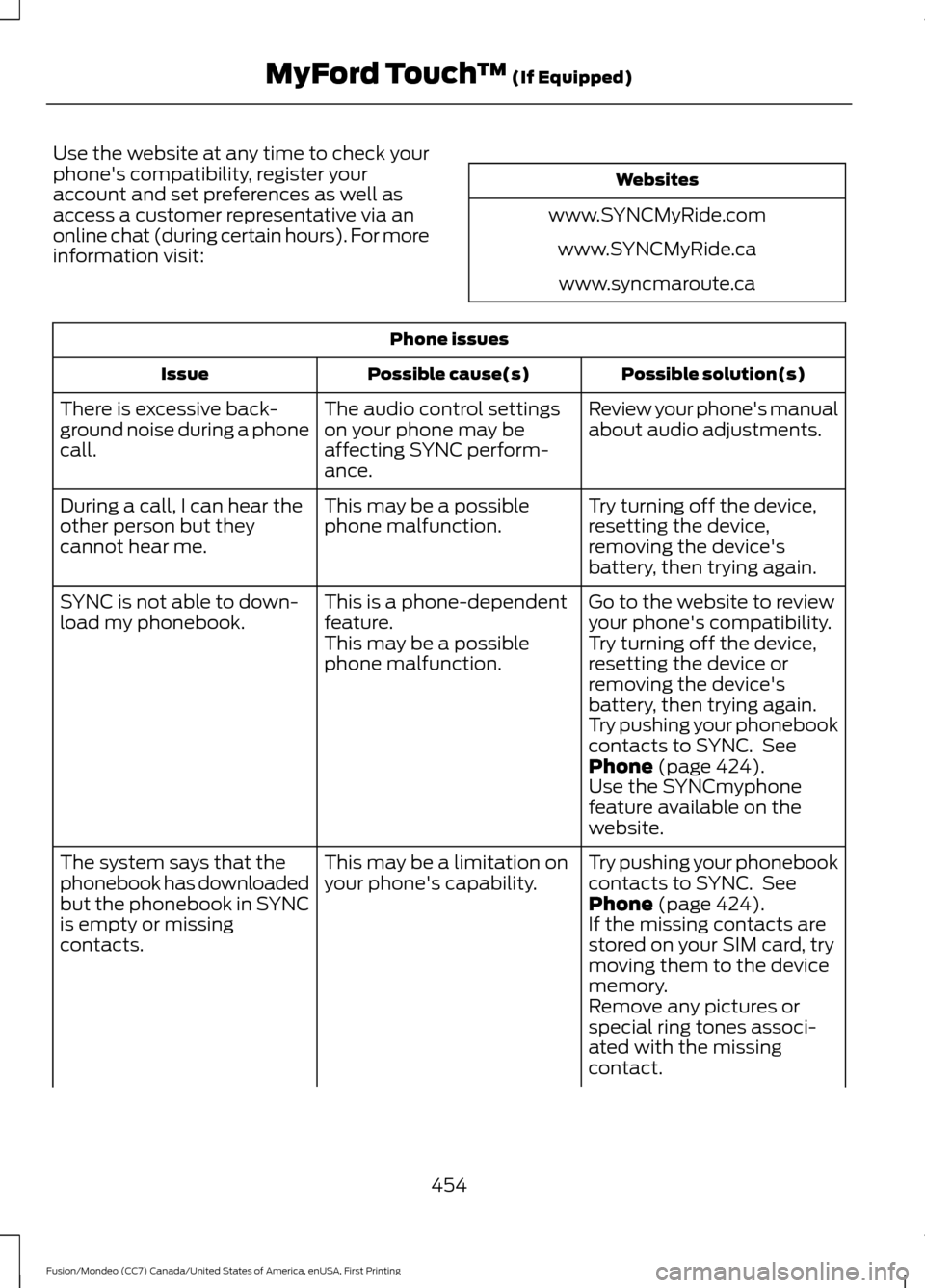
Use the website at any time to check your
phone's compatibility, register your
account and set preferences as well as
access a customer representative via an
online chat (during certain hours). For more
information visit:
Websites
www.SYNCMyRide.com www.SYNCMyRide.cawww.syncmaroute.ca Phone issues
Possible solution(s)
Possible cause(s)
Issue
Review your phone's manual
about audio adjustments.
The audio control settings
on your phone may be
affecting SYNC perform-
ance.
There is excessive back-
ground noise during a phone
call.
Try turning off the device,
resetting the device,
removing the device's
battery, then trying again.
This may be a possible
phone malfunction.
During a call, I can hear the
other person but they
cannot hear me.
Go to the website to review
your phone's compatibility.
This is a phone-dependent
feature.
SYNC is not able to down-
load my phonebook.
Try turning off the device,
resetting the device or
removing the device's
battery, then trying again.
This may be a possible
phone malfunction.
Try pushing your phonebook
contacts to SYNC. See
Phone (page 424).
Use the SYNCmyphone
feature available on the
website.
Try pushing your phonebook
contacts to SYNC. See
Phone
(page 424).
This may be a limitation on
your phone's capability.
The system says that the
phonebook has downloaded
but the phonebook in SYNC
is empty or missing
contacts. If the missing contacts are
stored on your SIM card, try
moving them to the device
memory.
Remove any pictures or
special ring tones associ-
ated with the missing
contact.
454
Fusion/Mondeo (CC7) Canada/United States of America, enUSA, First Printing MyFord Touch
™
(If Equipped)