2016 FORD F150 ignition
[x] Cancel search: ignitionPage 335 of 505

•
Do not allow wax to come in contact
with any non-body (low-gloss black)
colored trim. The wax will discolor or
stain the parts over time.
•Roof racks.
• Bumpers.
• Grained door handles.
• Side moldings.
• Mirror housings.
• Windshield cowl area.
• Do not apply wax to glass areas.
• After waxing, your car's paint should
feel smooth, and be free of streaks and
smudges.
CLEANING THE ENGINE
Engines are more efficient when they are
clean because grease and dirt buildup keep
the engine warmer than normal.
When washing:
• Take care when using a power washer
to clean the engine. The high-pressure
fluid could penetrate the sealed parts
and cause damage.
• Do not spray a hot engine with cold
water to avoid cracking the engine
block or other engine components.
• Spray Motorcraft Engine Shampoo and
Degreaser on all parts that require
cleaning and pressure rinse clean. In
Canada, use Motorcraft Engine
Shampoo.
• Never wash or rinse the engine while it
is hot or running; water in the running
engine may cause internal damage. •
Never wash or rinse any ignition coil,
spark plug wire or spark plug well, or
the area in and around these locations.
• Cover the battery, power distribution
box, and air filter assembly to prevent
water damage when cleaning the
engine.
CLEANING THE WINDOWS AND
WIPER BLADES
Car wash chemicals and environmental
fallout can result in windshield and wiper
blade contamination. Dirty windshield and
wipers will result in poor windshield wiper
operation. Keep the windshield and wiper
blades clean to maintain windshield wiper
performance.
To clean the windshield and wiper blades:
• Clean the windshield with a
non-abrasive glass cleaner. When
cleaning the interior of the windshield,
avoid getting any glass cleaner on the
instrument panel or door panels. Wipe
any glass cleaner off these surfaces
immediately.
• For windshields contaminated with
tree sap, chemicals, wax or bugs, clean
the entire windshield using steel wool
(no greater than 0000 grade) in a
circular motion and rinse with water.
• Clean the wiper blades with isopropyl
rubbing alcohol or windshield washer
concentrate.
Note: Do not use razor blades or other
sharp objects to clean or remove decals
from the inside of the heated rear window.
The vehicle warranty does not cover
damage caused to the heated rear window
grid lines.
332
F-150 (TFC) Canada/United States of America, enUSA, Edition date: 08/2015, First Printing Vehicle Care
Page 363 of 505

•
To reduce the chances of interference
from another vehicle, perform the
system reset procedure at least three
feet (one meter) away from another
Ford Motor Company vehicle
undergoing the system reset procedure
at the same time.
• Do not wait more than two minutes
between resetting each tire sensor or
the system will time-out and the entire
procedure will have to be repeated on
all four wheels.
• A double horn will sound indicating the
need to repeat the procedure.
Performing the System Reset Procedure
Read the entire procedure before
attempting.
1. Drive the vehicle above 20 mph (32 km/h) for at least two minutes, then
park in a safe location where you can
easily get to all four tires and have
access to an air pump.
2. Place the ignition in the off position and
keep the key in the ignition.
3. Cycle the ignition to the on position with the engine off.
4. Turn the hazard flashers on then off three times. You must accomplish this
within 10 seconds. If the reset mode
has been entered successfully, the horn
will sound once, the system indicator
will flash and a message is shown in
the information display. If this does not
occur, please try again starting at Step
2. If after repeated attempts to enter
the reset mode, the horn does not
sound, the system indicator does not
flash and no message is shown in the
information display, seek service from
your authorized dealer. 5. Train the tire pressure monitoring
system sensors in the tires using the
following system reset sequence
starting with the left front tire in the
following clockwise order: Left front
(driver's side front tire), Right front
(passenger's side front tire), Right rear
(passenger's side rear tire), Left rear
(driver's side rear tire).
6. Remove the valve cap from the valve stem on the left front tire. Decrease the
air pressure until the horn sounds.
Note: The single horn chirp confirms that
the sensor identification code has been
learned by the module for this position. If a
double horn is heard, the reset procedure
was unsuccessful, and you must repeat it.
7. Remove the valve cap from the valve stem on the right front tire. Decrease
the air pressure until the horn sounds.
8. Remove the valve cap from the valve stem on the right rear tire. Decrease the
air pressure until the horn sounds.
9. Remove the valve cap from the valve stem on the left rear tire. Decrease the
air pressure until the horn sounds.
Training is complete after the horn
sounds for the last tire trained (driver's
side rear tire), the system indicator
stops flashing, and a message is shown
in the information display.
10. Turn the ignition off. If two short horn
beeps are heard, the reset procedure
was unsuccessful and you must
repeat it. If after repeating the
procedure and two short beeps are
heard when the ignition is turned to
off, seek assistance from your
authorized dealer.
360
F-150 (TFC) Canada/United States of America, enUSA, Edition date: 08/2015, First Printing Wheels and Tires
Page 373 of 505
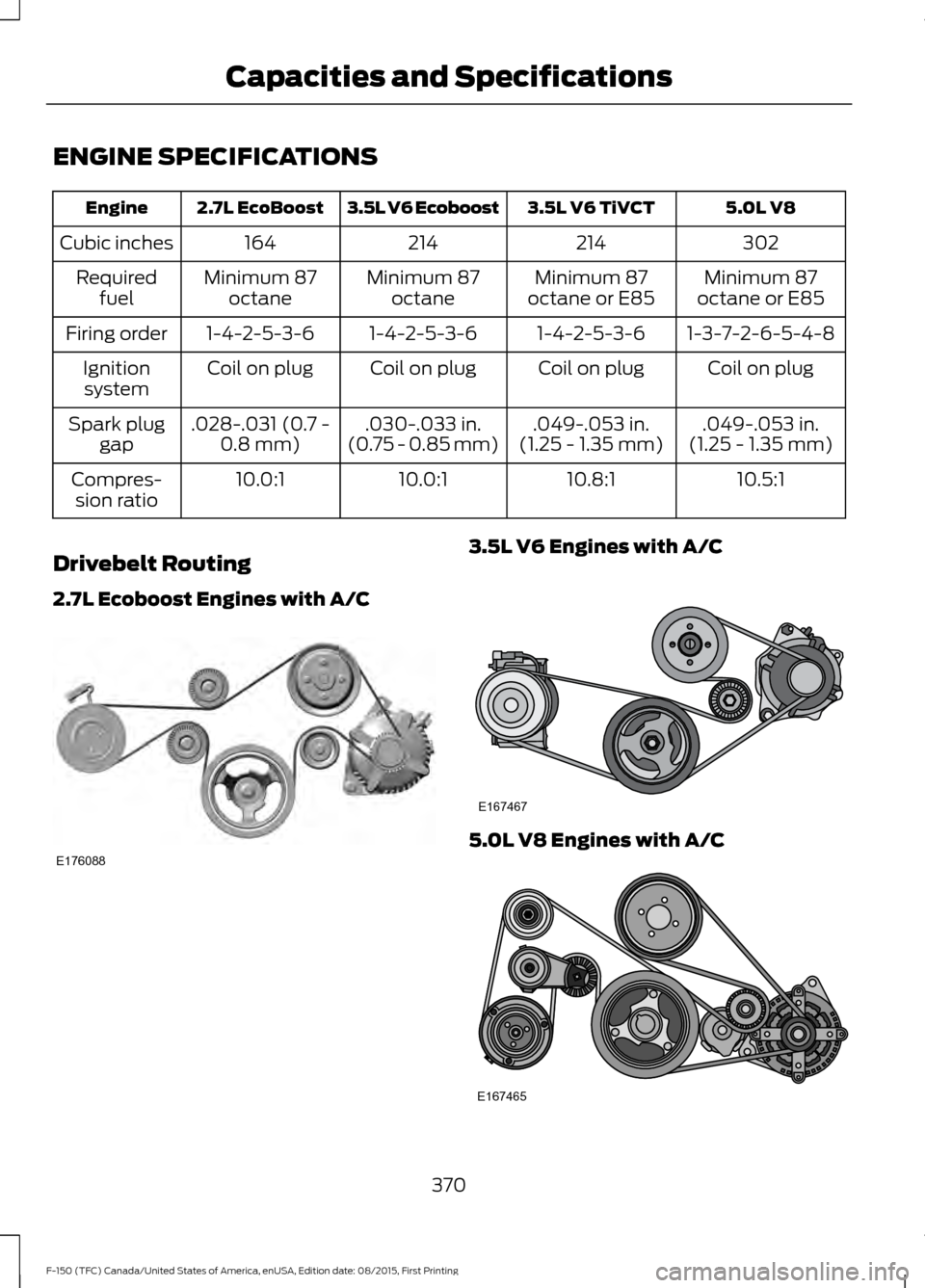
ENGINE SPECIFICATIONS
5.0L V8
3.5L V6 TiVCT
3.5L V6 Ecoboost
2.7L EcoBoost
Engine
302
214
214
164
Cubic inches
Minimum 87
octane or E85
Minimum 87
octane or E85
Minimum 87
octane
Minimum 87
octane
Required
fuel
1-3-7-2-6-5-4-8
1-4-2-5-3-6
1-4-2-5-3-6
1-4-2-5-3-6
Firing order
Coil on plug
Coil on plug
Coil on plug
Coil on plug
Ignition
system
.049-.053 in.
(1.25 - 1.35 mm)
.049-.053 in.
(1.25 - 1.35 mm)
.030-.033 in.
(0.75 - 0.85 mm)
.028-.031 (0.7 -
0.8 mm)
Spark plug
gap
10.5:1
10.8:1
10.0:1
10.0:1
Compres-
sion ratio
Drivebelt Routing
2.7L Ecoboost Engines with A/C 3.5L V6 Engines with A/C
5.0L V8 Engines with A/C
370
F-150 (TFC) Canada/United States of America, enUSA, Edition date: 08/2015, First Printing Capacities and SpecificationsE176088 E167467 E167465
Page 417 of 505

To adjust this setting press the voice button, when prompted say:
Action and Description
Voice Command
voice settings
Then any of the following: When enabled, this feature will prompt you
to confirm any voice initiated call command
prior to the call being placed.
phone confirmation on
The system will make a best guess; you
may still occasionally be asked to confirm
settings.
phone confirmation off
Changing the Voice Settings
In addition to using voice commands to
change the voice settings, you can also use
the menu in the audio display.
To change the voice settings press the
Menu button then select: Menu Item
SYNC-Settings
Voice settings
USING SYNC™ WITH YOUR
PHONE
Hands-free calling is one of the main
features of SYNC. While the system
supports a variety of features, many are
dependent on your cellular phone's
functionality. At a minimum, most cellular
phones with Bluetooth wireless technology
support the following functions:
• Answering an incoming call.
• Ending a call.
• Using privacy mode.
• Dialing a number.
• Redialing. •
Call waiting notification.
• Caller ID.
Other features, such as text messaging
using Bluetooth and automatic phonebook
download, are phone-dependent features.
To check your phone's compatibility, see
your phone's manual and visit
www.SYNCMyRide.com,
www.SYNCMyRide.ca or
www.syncmaroute.ca.
Pairing a Phone for the First Time
Wirelessly pairing your phone with SYNC
allows you to make and receive hands-free
calls.
Note: SYNC can support downloading up
to approximately 4000 entries per
Bluetooth-enabled cellular phone.
Note: Make sure to switch on the ignition
and the radio. Shift the transmission into
park (P) for automatic transmission or first
gear for manual transmission.
Using the Audio System
Note: To scroll through the menus, press
the up and down arrows on your audio
system.
414
F-150 (TFC) Canada/United States of America, enUSA, Edition date: 08/2015, First Printing SYNC™
Page 418 of 505

1. Make sure to switch on your phone's
Bluetooth feature before starting the
search. See your device's manual if
necessary.
2. Press the PHONE button. When the
audio display indicates there is no
paired phone, select the option to add.
3. When a message to begin pairing appears in the audio display, search for
SYNC on your phone to start the pairing
process.
4. When prompted on your cell phone ’s
display, confirm that the PIN provided
by SYNC matches the PIN displayed
on your cell phone. Your phone is now
paired and the display indicates that
the pairing was successful. If you are
prompted to enter a PIN on your device,
enter the PIN displayed on the screen.
The display indicates when the pairing
is successful.
Depending on your phone's capability and
your market, the system may prompt you
with questions, such as setting the current
phone as the primary phone (the phone
SYNC automatically tries to connect with
first upon vehicle start-up) and
downloading your phonebook.
Using Voice Commands Make sure to switch on your
phone's Bluetooth feature
before starting the search. See
your device's manual if necessary. Press the voice and when prompted
say: Action and Descrip-
tion
Voice Command
Follow the instruc-
tions on the audio
display.
(pair ([Bluetooth]
device | phone |
Bluetooth audio) |
add phone)
You can say any of the voice commands
that appear within open and close brackets
that are separated by |. For example,
where; (what's | what is) appears you say;
what's or what is.
The commands that have [ ] around the
word means that the word is optional.
Depending on your phone's capability and
your market, the system may prompt you
with questions, such as setting the current
phone as the primary phone (the phone
SYNC automatically tries to connect with
first upon vehicle start-up) and
downloading your phonebook.
Pairing Subsequent Phones
Note: Make sure to switch on the ignition
and the radio. Shift the transmission into
park (P) for automatic transmission or first
gear for manual transmission.
Note: To scroll through the menus, press
the up and down arrows on your audio
system.
1. Make sure to switch on your phone's Bluetooth feature before starting the
search. See your device's manual if
necessary.
2. Press the
PHONE button.
3. Select the option for Bluetooth Devices.
4. Press the
OK button.
415
F-150 (TFC) Canada/United States of America, enUSA, Edition date: 08/2015, First Printing SYNC™E142599
Page 427 of 505

Description and action
Menu Item
2. When a message to begin pairing appears in the audio
display, search for SYNC on your phone. See your phone's
manual if necessary.
3. When prompted on your cell phone ’s display, confirm
that the PIN provided by SYNC matches the PIN displayed
on your cell phone. Skip the next step. If you are prompted
to enter a PIN on your device, it does not support Secure
Simple Pairing. To pair, enter the PIN displayed on the
screen. The display indicates when the pairing is
successful.
4. When the option to set the phone as primary appears,
select either yes or no.
5. SYNC may prompt you with more cell phone options.
Your cell phone may also prompt you to give SYNC
permission to access information. For more information
on your cell phone ’s capability, see your cell phone ’s
manual and visit the website.
Select the delete option and confirm when the system
asks to delete the selected device. After deleting a phone
from the list, you have to repeat the pairing process to pair
it again.
Delete
The system attempts to connect with the primary cellular
phone each time you switch on the ignition. When you
select a cellular phone as primary, it appears first in the
list, marked with an asterisk. Set a previously paired phone
as master by selecting the master option and confirming
it as the primary.
Master
Connect a previously connected phone. You can only have
one phone connected at a time to use the phone's func-
tionality. When you connect another phone, the previous
phone disconnects from the telephone services. The
system allows you to use different Bluetooth devices for
the cellular phone functionality and the Bluetooth audio
music playback feature at the same time.
Conn.
Disconnects the selected cellular phone. Select this option
and confirm when asked. After disconnecting a phone,
you can reconnect it again without repeating the full pairing
process.
Discon.
System Settings
1. Press the MENU button. 2. Select the SYNC settings option, and
then press the
OK button.
424
F-150 (TFC) Canada/United States of America, enUSA, Edition date: 08/2015, First Printing SYNC™
Page 449 of 505

AppLink issues
Possible solution(s)
Possible cause(s)
Issue
login on the app on the
phone before using them with AppLink. Also, some may have a "Ford SYNC"
setting, so check the app's
settings menu on the phone.
Closing and restarting apps may help SYNC find the
application if you cannot
discover it inside the vehicle. On an Android device, if
apps have an "Exit' or 'Quit'
Sometime apps do not
properly close and re-open their connection to SYNC, over ignition cycles, for example.
My phone is connected, my
app(s) are running, but I still cannot find any apps. option, select that then
restart the app. If the app
does not have that option, you can also manually
"Force Close" the app by
going to the phone's settings
menu, selecting 'Apps.' then finding the particular app
and choosing 'Force stop.' Don't forget to restart the
app afterwards, then select "Find New Apps" on SYNC.
On an iPhone with iOS7+, to force close an app, doubletab the home button then
swipe up on the app to close it. Tab the home button
again, then select the app again to restart it. After a
few seconds, the app should then appear in SYNC'sMobile App's Menu.
Reset the Bluetooth on your phone by turning it off and
then turning Bluetooth back
on. If you are in your vehicle, SYNC should be able to
automatically re-connect to your phone if you press the "Phone" button.
There is a Bluetooth bug on
some order versions of theAndroid operating systemthat may cause apps that
were found on your previous
vehicle drive to not be found
again if you have not turned off Bluetooth.
My Android phone is
connected, my app(s) are running, I restarted them,but I still cannot find any apps.
446
F-150 (TFC) Canada/United States of America, enUSA, Edition date: 08/2015, First Printing SYNC™
Page 494 of 505

3
360 Degree Camera.....................................217
Camera Views...................................................... 218
Front Camera....................................................... 218
Side Camera......................................................... 219
4
4WD See: Four-Wheel Drive..................................... 188
A
A/C See: Climate Control......................................... 139
About This Manual...........................................7
ABS See: Brakes........................................................... 198
ABS driving hints See: Hints on Driving With Anti-Lock
Brakes................................................................ 198
Accessories...................................................448 Exterior style....................................................... 448
Interior style......................................................... 448
Lifestyle................................................................. 448
Peace of mind.................................................... 448
Accessories See: Replacement Parts
Recommendation............................................. 11
ACC See: Using Adaptive Cruise Control.............221
Active Park Assist.........................................210 Automatic Steering into Parking
Space.................................................................. 212
Deactivating the Park Assist Feature..........212
Troubleshooting the System.......................... 213
Using Active Park Assist.................................... 211
Adjusting the Headlamps..........................321 Horizontal Aim Adjustment........................... 322
Vertical Aim Adjustment.................................. 321
Adjusting the Pedals......................................81
Adjusting the Steering Wheel....................78 Power Tilt and Telescope Steering
Column................................................................ 78
Airbag Disposal..............................................50
Air Conditioning See: Climate Control......................................... 139Air Filter
See: Changing the Engine Air Filter.............329
Alarm See: Anti-Theft Alarm......................................... 74
Ambient Lighting
.............................................91
Anti-Theft Alarm............................................74
Arming the Alarm................................................. 75
Disarming the Alarm........................................... 75
Full Guard ............................................................... 75
Reduced Guard...................................................... 74
Appendices.....................................................472
Audible Warnings and Indicators............107 Airbag Secondary Warning............................. 107
Beltminder Warning........................................... 107
Door Ajar Warning.............................................. 107
Headlamps On Warning................................... 107
Key in Ignition Warning..................................... 107
Keyless Warning Alert....................................... 107
Parking Brake On Warning.............................. 107
Rear Park Aid Warning...................................... 107
Service Advancetrac Warning........................ 107
Audio Control
...................................................79
Media........................................................................\
79
Seek, Next or Previous........................................ 79
Audio System
................................................392
General Information......................................... 392
Audio Unit - Vehicles With: AM/FM/CD/ SYNC/Satellite Radio............................400
Audio Unit - Vehicles With: AM/FM/ CD
...................................................................395
Audio Unit - Vehicles With: AM/FM/ SYNC.............................................................398
Audio Unit - Vehicles With: AM/ FM...................................................................393
Audio Unit - Vehicles With: Sony AM/ FM/CD..........................................................402
Autolamps........................................................84 Windshield Wiper Activated
Headlamps........................................................ 85
Automatic Climate Control........................141
Automatic High Beam Control.................86 Activating the System........................................ 87
Manually Overriding the System.................... 87
491
F-150 (TFC) Canada/United States of America, enUSA, Edition date: 08/2015, First Printing Index