2016 FORD EXPLORER audio
[x] Cancel search: audioPage 358 of 541
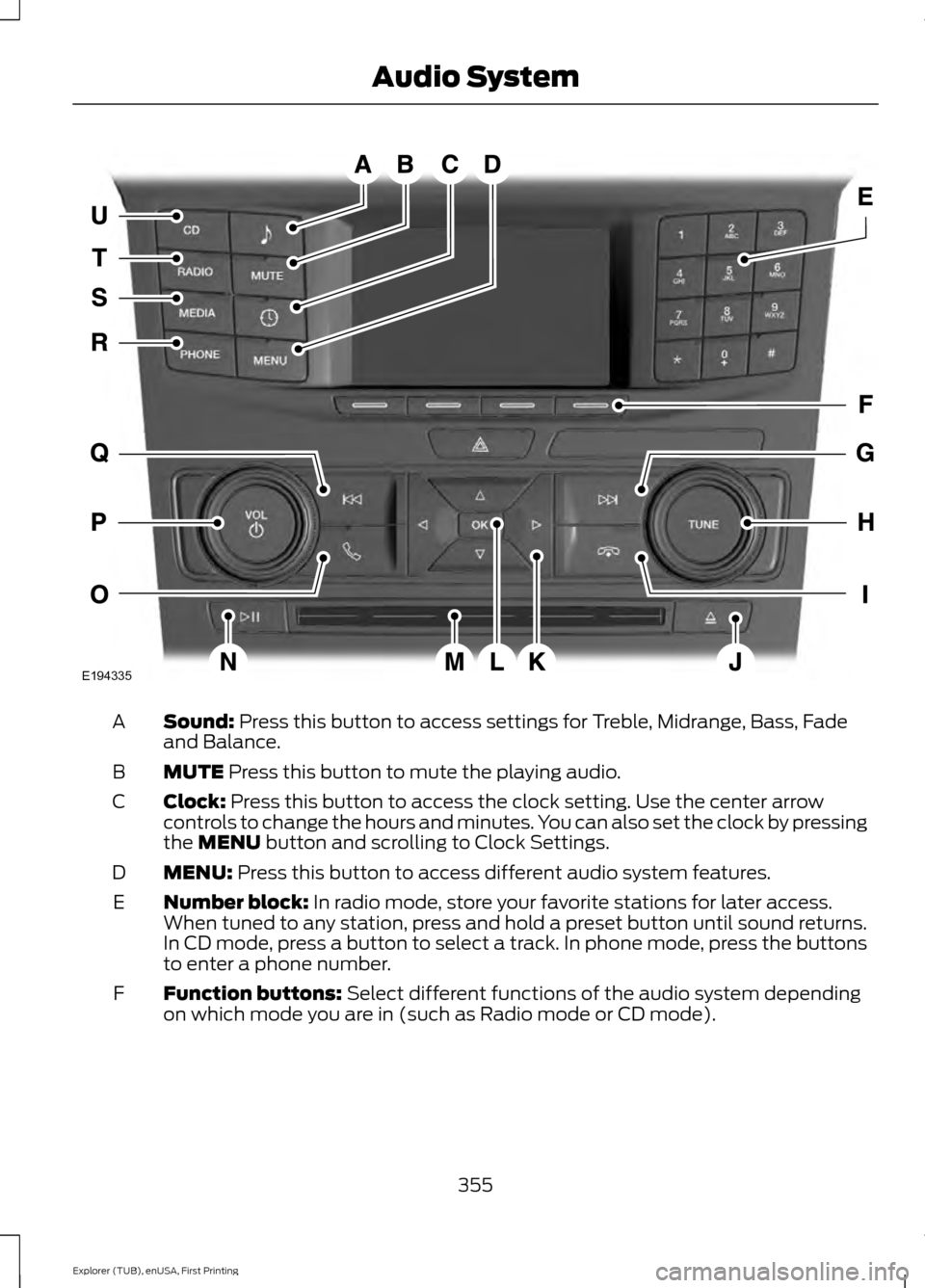
Sound: Press this button to access settings for Treble, Midrange, Bass, Fade
and Balance.
A
MUTE
Press this button to mute the playing audio.
B
Clock:
Press this button to access the clock setting. Use the center arrow
controls to change the hours and minutes. You can also set the clock by pressing
the
MENU button and scrolling to Clock Settings.
C
MENU:
Press this button to access different audio system features.
D
Number block:
In radio mode, store your favorite stations for later access.
When tuned to any station, press and hold a preset button until sound returns.
In CD mode, press a button to select a track. In phone mode, press the buttons
to enter a phone number.
E
Function buttons:
Select different functions of the audio system depending
on which mode you are in (such as Radio mode or CD mode).
F
355
Explorer (TUB), enUSA, First Printing Audio SystemE194335
Page 359 of 541

Seek: In radio mode, select a frequency band and press this button. The system
stops at the first station up the band. Press and hold the button to move quickly
to the next strong radio station or memory preset. In CD mode, press this button
to select the next track. Press and hold the button to move quickly forward
through the current track.
G
TUNE:
Turn to search the frequency band in individual increments.
H
End phone call:
Press this button to end a phone call.
I
Eject:
Press this button to eject a CD.
J
Cursor arrows
Use the arrows to navigate through menus.
K
OK:
Press OK to select an option.
L
CD Slot
Insert a CD.
M
Play/Pause:
Press to either play or pause a track when listening to a CD.
N
Answer or Make phone call:
Press this button to either pick-up an incoming
phone call or to make a phone call.
O
VOL and Power:
Press this button to turn the system off and on. Turn it to
adjust the volume.
P
Seek:
In radio mode, select a frequency band and press this button. The system
stops at the first station down the band. Press and hold the button to move
quickly to the previous strong radio station or memory preset. In CD mode, press
this button to select the previous track. Press and hold the button to move
quickly backward through the current track.
Q
PHONE:
Press this button to access the phone features of the SYNC® system.
See SYNC™ (page 368).
R
MEDIA:
Press this button to access your auxiliary input jack or switch between
devices you plug into the input jack or USB port.
S
RADIO:
Press this button to listen to the radio or change radio frequencies
bands. Press the function buttons below the radio screen to select different
radio functions.
T
CD:
Press this button to listen to a CD. Press the function buttons below the
radio screen to select on-screen options of Repeat or Shuffle.
U
356
Explorer (TUB), enUSA, First Printing Audio System
Page 360 of 541
AUDIO UNIT - VEHICLES WITH:
PREMIUM AM/FM/CD
WARNING
Driving while distracted can result in
loss of vehicle control, crash and
injury. We strongly recommend that
you use extreme caution when using any
device that may take your focus off the
road. Your primary responsibility is the safe
operation of your vehicle. We recommend
against the use of any hand-held device
while driving and encourage the use of
voice-operated systems when possible.
Make sure you are aware of all applicable
local laws that may affect the use of
electronic devices while driving. Note:
The touchscreen system controls
most of the audio features. See
Entertainment (page 429). 357
Explorer (TUB), enUSA, First Printing Audio SystemE194336
Page 361 of 541

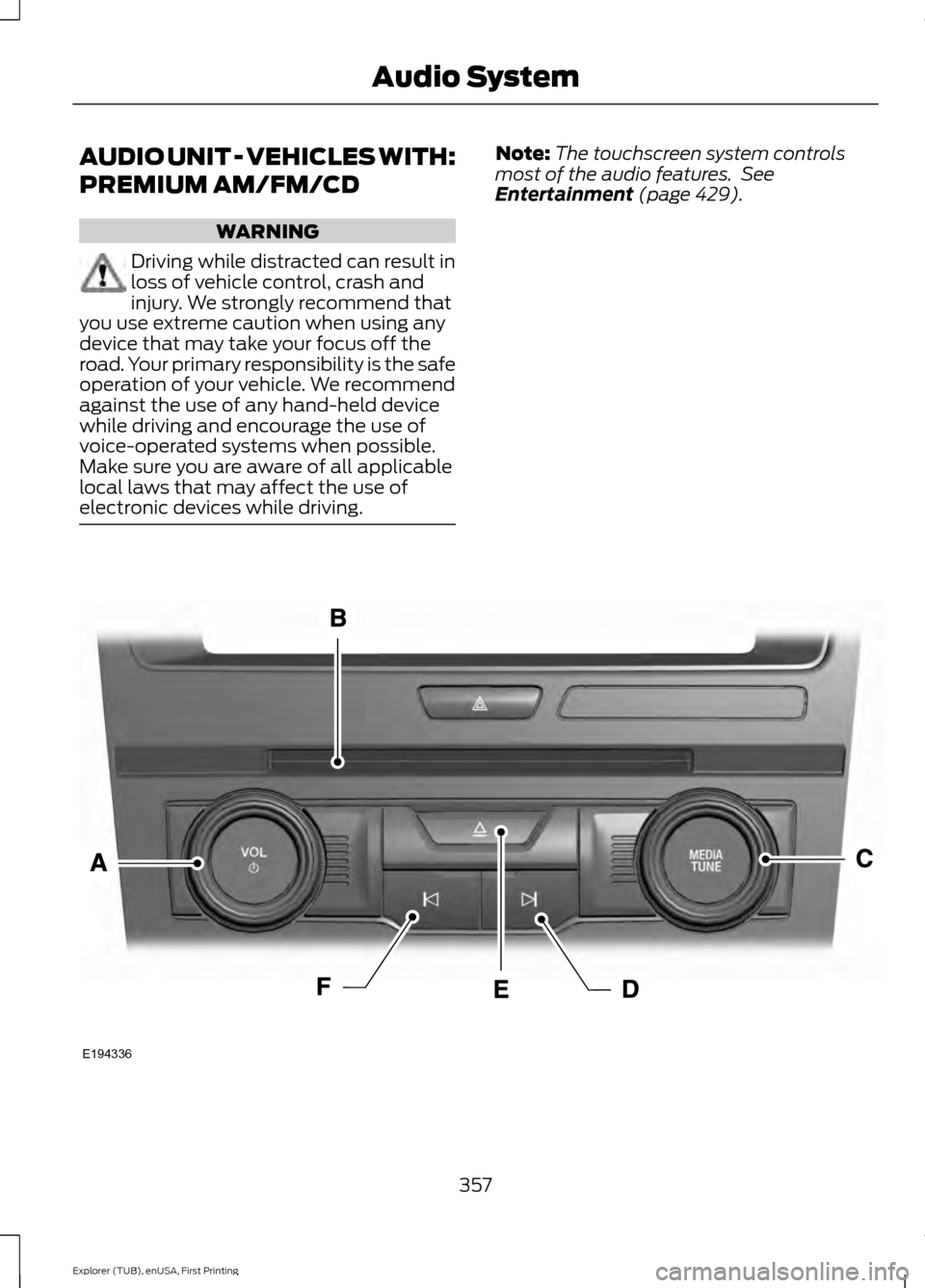
VOL and Power: Press this button to switch the system off and on. Turn the
control to adjust the volume.
A
CD slot:
Insert a CD.
B
MEDIA and TUNE: Press this button to access or switch between devices you
plug into the USB port. Turn to search the frequency band in individual
increments.
C
Seek:
In radio mode, select a frequency band and press this button. The system
stops at the first station up the band. Press and hold the button to move quickly
to the next strong radio station or memory preset. In CD mode, press this button
to select the next track. Press and hold the button to move quickly forward
through the current track.
D
Eject:
Press this button to eject a CD.
E
Seek:
In radio mode, select a frequency band and press this button. The system
stops at the first station down the band. Press and hold the button to move
quickly to the previous strong radio station or memory preset. In CD mode, press
this button to select the previous track. Press and hold the button to move
quickly backward through the current track.
F
AUDIO UNIT - VEHICLES WITH:
SONY AM/FM/CD WARNING
Driving while distracted can result in
loss of vehicle control, crash and
injury. We strongly recommend that
you use extreme caution when using any
device that may take your focus off the
road. Your primary responsibility is the safe
operation of your vehicle. We recommend
against the use of any hand-held device
while driving and encourage the use of
voice-operated systems when possible.
Make sure you are aware of all applicable
local laws that may affect the use of
electronic devices while driving. Note:
The touchscreen controls most of
the audio features. See
Entertainment
(page 429).
358
Explorer (TUB), enUSA, First Printing Audio System
Page 362 of 541
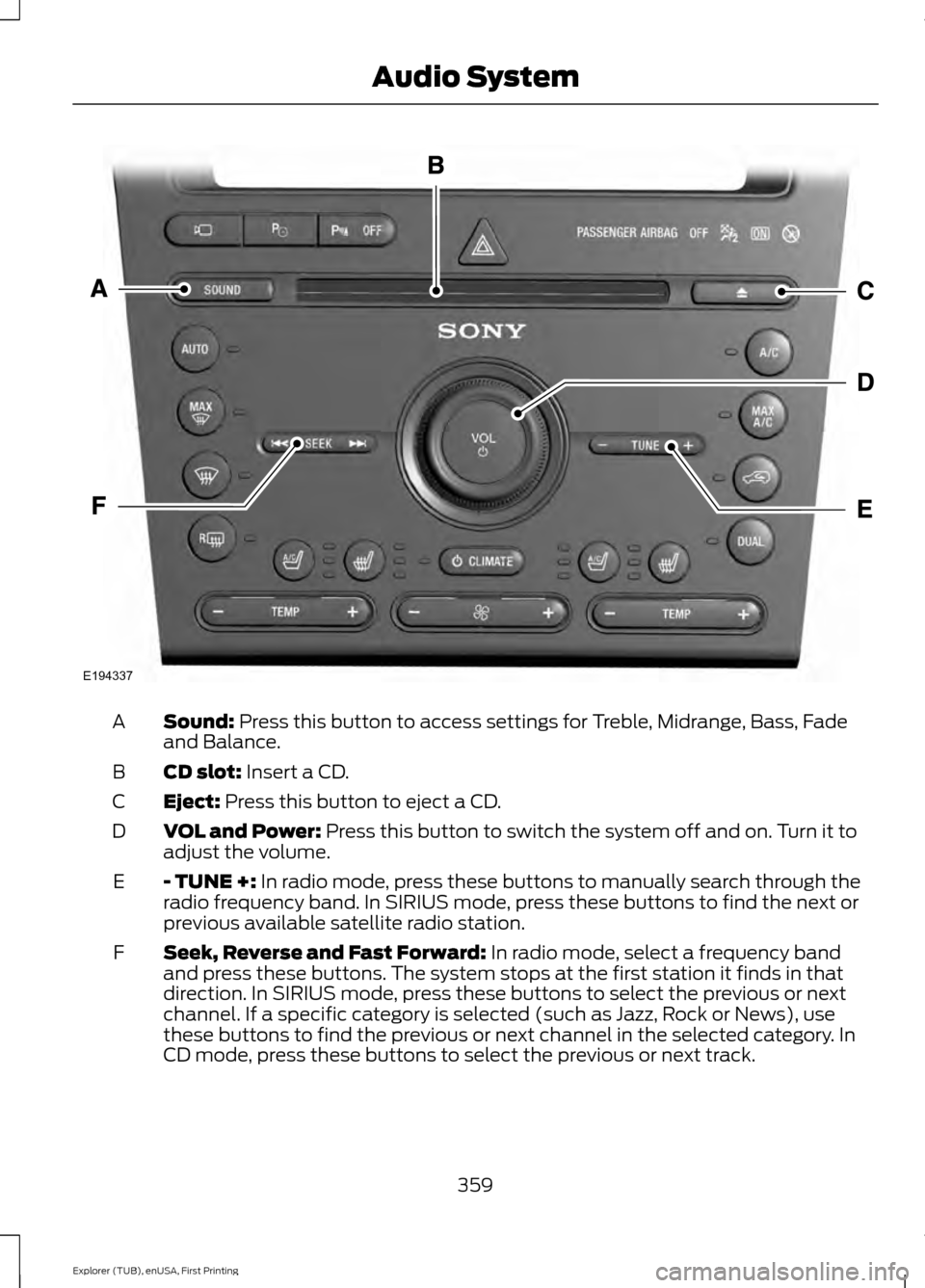
Sound: Press this button to access settings for Treble, Midrange, Bass, Fade
and Balance.
A
CD slot:
Insert a CD.
B
Eject:
Press this button to eject a CD.
C
VOL and Power:
Press this button to switch the system off and on. Turn it to
adjust the volume.
D
- TUNE +:
In radio mode, press these buttons to manually search through the
radio frequency band. In SIRIUS mode, press these buttons to find the next or
previous available satellite radio station.
E
Seek, Reverse and Fast Forward:
In radio mode, select a frequency band
and press these buttons. The system stops at the first station it finds in that
direction. In SIRIUS mode, press these buttons to select the previous or next
channel. If a specific category is selected (such as Jazz, Rock or News), use
these buttons to find the previous or next channel in the selected category. In
CD mode, press these buttons to select the previous or next track.
F
359
Explorer (TUB), enUSA, First Printing Audio SystemE194337
Page 363 of 541
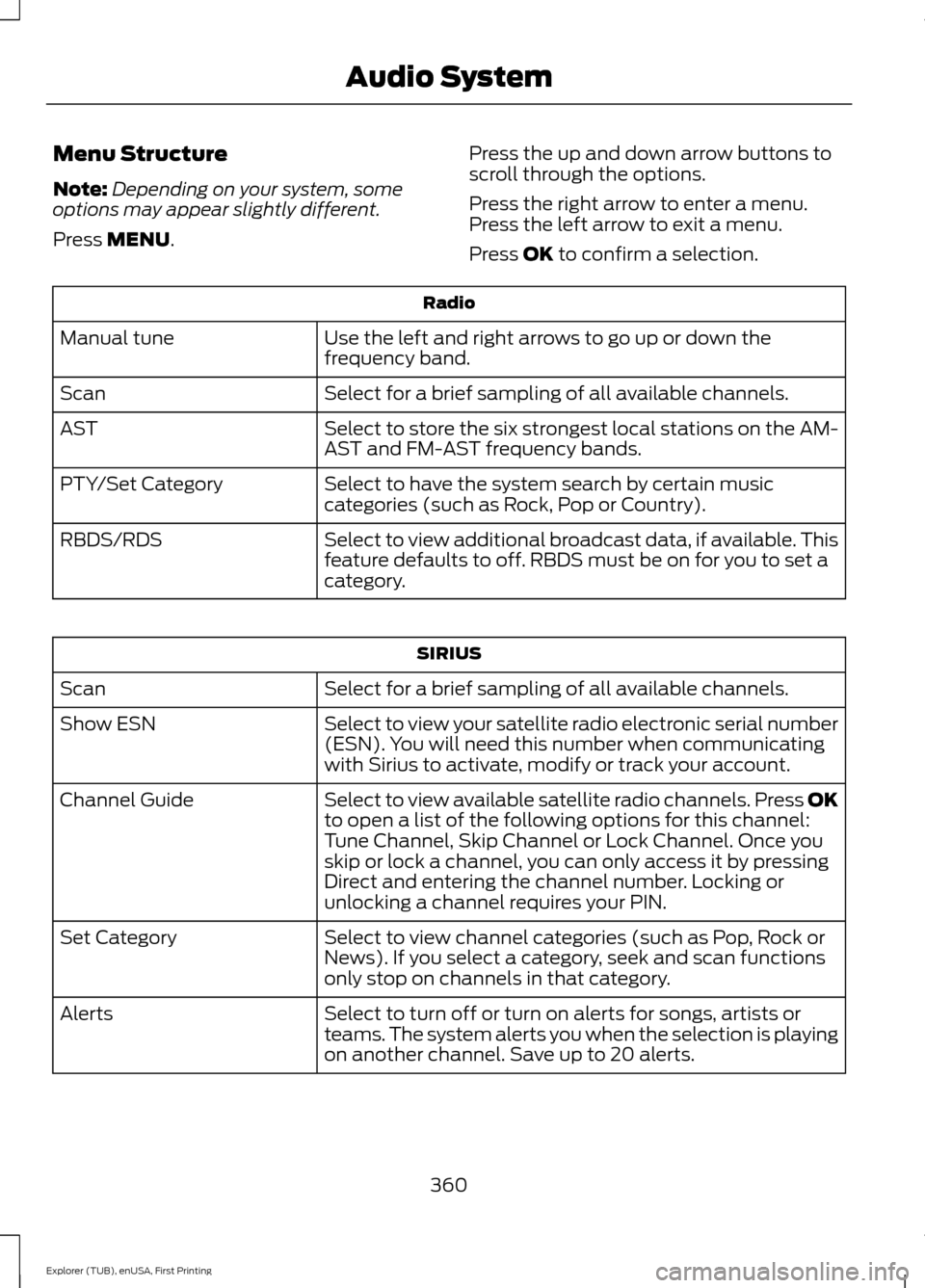
Menu Structure
Note:
Depending on your system, some
options may appear slightly different.
Press MENU. Press the up and down arrow buttons to
scroll through the options.
Press the right arrow to enter a menu.
Press the left arrow to exit a menu.
Press OK to confirm a selection. Radio
Use the left and right arrows to go up or down the
frequency band.
Manual tune
Select for a brief sampling of all available channels.
Scan
Select to store the six strongest local stations on the AM-
AST and FM-AST frequency bands.
AST
Select to have the system search by certain music
categories (such as Rock, Pop or Country).
PTY/Set Category
Select to view additional broadcast data, if available. This
feature defaults to off. RBDS must be on for you to set a
category.
RBDS/RDS SIRIUS
Select for a brief sampling of all available channels.
Scan
Select to view your satellite radio electronic serial number
(ESN). You will need this number when communicating
with Sirius to activate, modify or track your account.
Show ESN
Select to view available satellite radio channels. Press OK
to open a list of the following options for this channel:
Tune Channel, Skip Channel or Lock Channel. Once you
skip or lock a channel, you can only access it by pressing
Direct and entering the channel number. Locking or
unlocking a channel requires your PIN.
Channel Guide
Select to view channel categories (such as Pop, Rock or
News). If you select a category, seek and scan functions
only stop on channels in that category.
Set Category
Select to turn off or turn on alerts for songs, artists or
teams. The system alerts you when the selection is playing
on another channel. Save up to 20 alerts.
Alerts
360
Explorer (TUB), enUSA, First Printing Audio System
Page 364 of 541
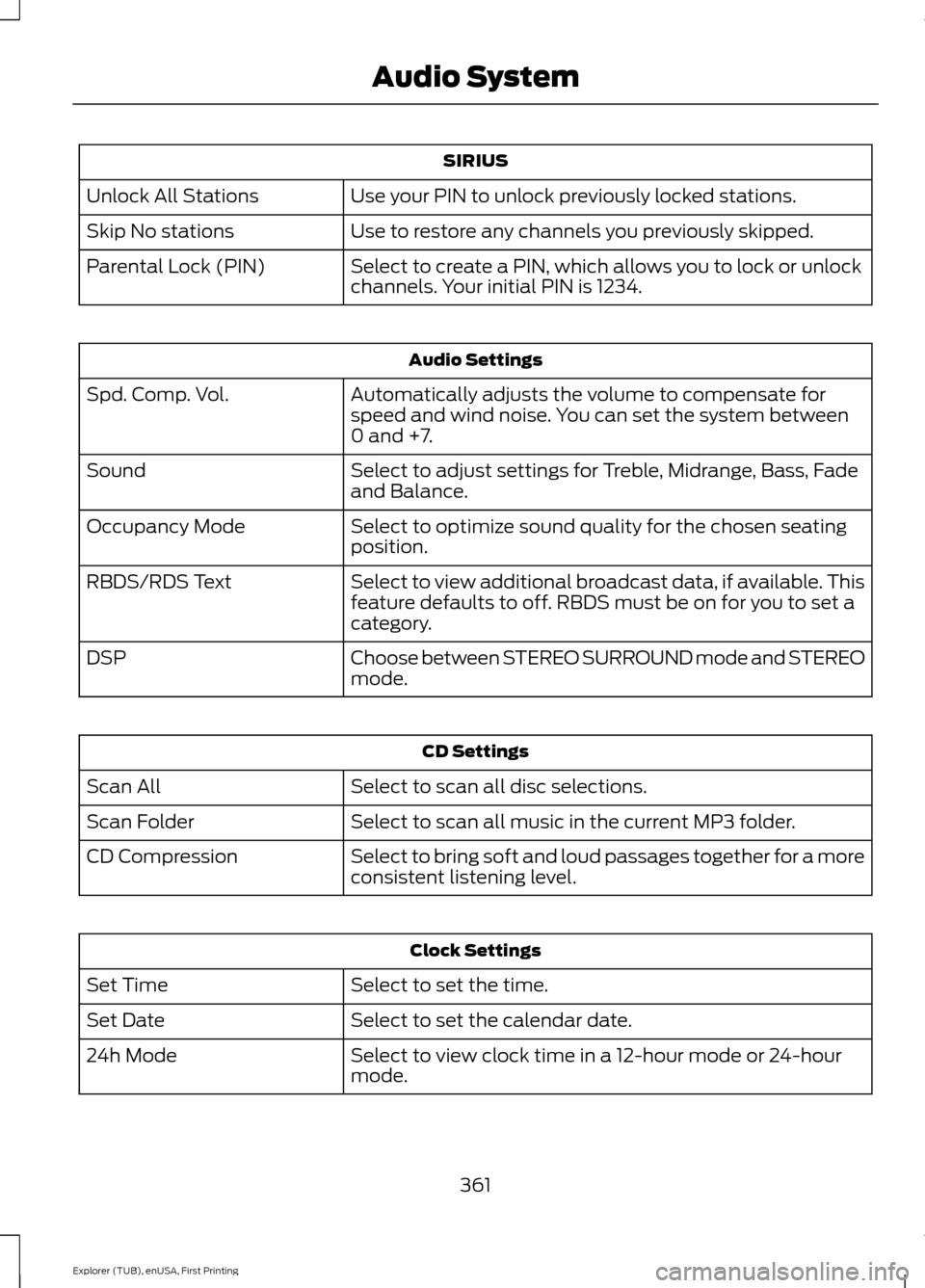
SIRIUS
Use your PIN to unlock previously locked stations.
Unlock All Stations
Use to restore any channels you previously skipped.
Skip No stations
Select to create a PIN, which allows you to lock or unlock
channels. Your initial PIN is 1234.
Parental Lock (PIN) Audio Settings
Automatically adjusts the volume to compensate for
speed and wind noise. You can set the system between
0 and +7.
Spd. Comp. Vol.
Select to adjust settings for Treble, Midrange, Bass, Fade
and Balance.
Sound
Select to optimize sound quality for the chosen seating
position.
Occupancy Mode
Select to view additional broadcast data, if available. This
feature defaults to off. RBDS must be on for you to set a
category.
RBDS/RDS Text
Choose between STEREO SURROUND mode and STEREO
mode.
DSP CD Settings
Select to scan all disc selections.
Scan All
Select to scan all music in the current MP3 folder.
Scan Folder
Select to bring soft and loud passages together for a more
consistent listening level.
CD Compression Clock Settings
Select to set the time.
Set Time
Select to set the calendar date.
Set Date
Select to view clock time in a 12-hour mode or 24-hour
mode.
24h Mode
361
Explorer (TUB), enUSA, First Printing Audio System
Page 365 of 541

Display Settings
Select to change display brightness.
Dimming
Select to display the language in English, French or
Spanish.
Language
Select to display the outside temperature in Fahrenheit
or Celsius.
Temp. setting
DIGITAL RADIO
Note: HD Radio broadcasts are not
available in all markets.
HD Radio technology is the digital
evolution of analog AM/FM radio. Your
system has a special receiver that allows
it to receive digital broadcasts (where
available) in addition to the analog
broadcasts, it already receives. Digital
broadcasts provide a better sound quality
than analog broadcasts with free,
crystal-clear audio and no static or
distortion. For more information, and a
guide to available stations and
programming, please visit
www.hdradio.com.
When HD Radio is on and you tune to a
station broadcasting HD Radio technology,
you may notice the HD Radio logo on your
screen. When this logo is available, you
may also see Title and Artist fields
on-screen. The multicast indicator appears in FM
mode (only) if the current station is
broadcasting multiple digital broadcasts.
The highlighted numbers signify available
digital channels where new or different
content is available. HD1 signifies the main
programming status and is available in
analog and digital broadcasts. Other
multicast stations (HD2 through HD7) are
only available digitally.
When HD Radio broadcasts are active, you
can access the following functions:
•
Scan allows you to hear a brief
sampling of all available stations. This
feature still works when HD Radio
reception is on, although it does not
scan for HD2-HD7 channels. You may
see the HD logo appear if the station
has a digital broadcast.
• Memory presets
allow you to save an
active channel as a memory preset.
Touch and hold a memory preset slot
until the sound returns. There is a brief
mute while the radio saves the station.
Sound returns when finished. When
switching to an HD2 or HD3 memory
preset, the sound mutes before the
digital audio plays, because the system
has to reacquire the digital signal.
Note: As with any saved radio station, you
cannot access the saved station if your
vehicle is outside the station ’s reception
area.
362
Explorer (TUB), enUSA, First Printing Audio System