2016 FORD EXPEDITION lock
[x] Cancel search: lockPage 317 of 421
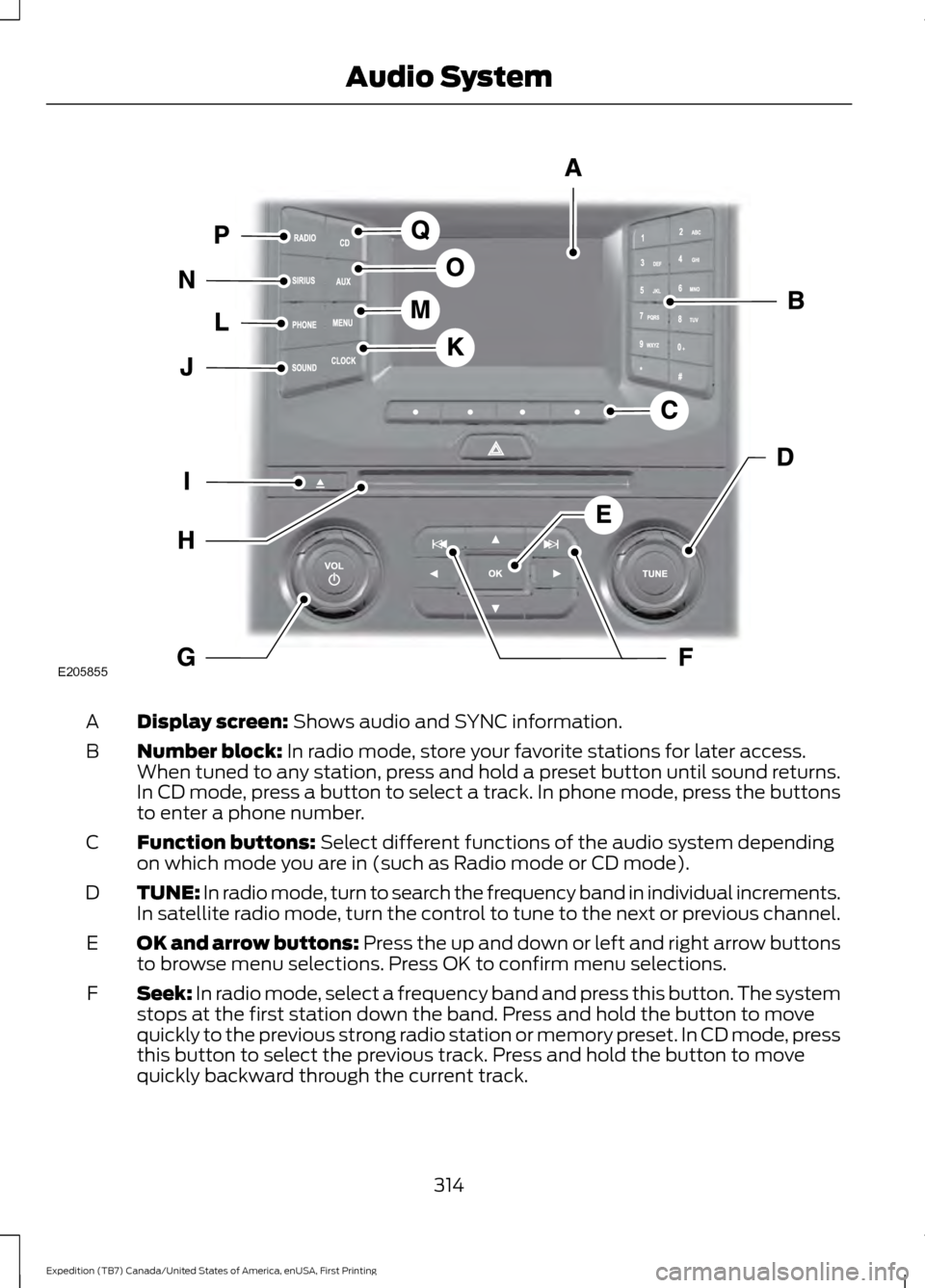
Display screen: Shows audio and SYNC information.
A
Number block:
In radio mode, store your favorite stations for later access.
When tuned to any station, press and hold a preset button until sound returns.
In CD mode, press a button to select a track. In phone mode, press the buttons
to enter a phone number.
B
Function buttons:
Select different functions of the audio system depending
on which mode you are in (such as Radio mode or CD mode).
C
TUNE: In radio mode, turn to search the frequency band in individual increments.
In satellite radio mode, turn the control to tune to the next or previous channel.
D
OK and arrow buttons: Press the up and down or left and right arrow buttons
to browse menu selections. Press OK to confirm menu selections.
E
Seek:
In radio mode, select a frequency band and press this button. The system
stops at the first station down the band. Press and hold the button to move
quickly to the previous strong radio station or memory preset. In CD mode, press
this button to select the previous track. Press and hold the button to move
quickly backward through the current track.
F
314
Expedition (TB7) Canada/United States of America, enUSA, First Printing Audio SystemE205855
Page 318 of 421

Power and volume: Press this button to switch the system off and on. Turn
the control to adjust the volume.
G
CD slot:
Insert a CD.
H
Eject:
Press this button to eject a CD.
I
SOUND:
Press this button to adjust settings for Treble, Midrange, Bass, Balance
and Fade.
J
CLOCK:
Press this button to access the clock setting. Use the center arrow
controls to change the hours and minutes.
K
PHONE:
Press this button to access the phone features of the SYNC system.
L
MENU:
Press this button to access different audio system features.
M
MUTE or SIRIUS:
Press this button to mute the playing audio, or if equipped,
listen to Sirius satellite radio.
N
AUX:
Press this button to access your auxiliary input jack or switch between
devices you plug into the input jack or USB port.
O
RADIO:
Press this button to listen to the radio or change radio frequency bands.
Press the function buttons below the radio screen to select different radio
functions.
P
CD:
Press this button to listen to a CD. Press the function buttons below the
radio screen to select on-screen options of Repeat or Shuffle.
Q
AUDIO UNIT - VEHICLES WITH:
SONY AM/FM/CD WARNING
Driving while distracted can result in
loss of vehicle control, crash and
injury. We strongly recommend that
you use extreme caution when using any
device that may take your focus off the
road. Your primary responsibility is the safe
operation of your vehicle. We recommend
against the use of any hand-held device
while driving and encourage the use of
voice-operated systems when possible.
Make sure you are aware of all applicable
local laws that may affect the use of
electronic devices while driving. Note:
The touchscreen controls most of
the audio features. See your SYNC
information.
315
Expedition (TB7) Canada/United States of America, enUSA, First Printing Audio System
Page 320 of 421

Rear Seat Audio Controls
VOL: Adjust radio volume.
A
MEDIA:
Scroll through available audio system modes.
B
Rear audio display:
See displayed time, radio frequency, Sirius radio channel
or CD track.
C
CLOCK:
Press to display the current time in 12-hour format. The time displays
for a few seconds or you can press the CLOCK button again to switch
immediately back to the last media state.
D
SEEK:
Select the next or previous stored radio frequency station, Sirius radio
channel or CD track.
E
DIGITAL RADIO
Note: HD Radio broadcasts are not
available in all markets.
HD Radio technology is the digital
evolution of analog AM/FM radio. Your
system has a special receiver that allows
it to receive digital broadcasts (where
available) in addition to the analog
broadcasts, it already receives. Digital
broadcasts provide a better sound quality
than analog broadcasts with free,
crystal-clear audio and no static or
distortion. For more information, and a
guide to available stations and
programming, please visit
www.hdradio.com. When HD Radio is on and you tune to a
station broadcasting HD Radio technology,
you may notice the HD Radio logo on your
screen. When this logo is available, you
may also see Title and Artist fields
on-screen.
The multicast indicator appears in FM
mode (only) if the current station is
broadcasting multiple digital broadcasts.
The highlighted numbers signify available
digital channels where new or different
content is available. HD1 signifies the main
programming status and is available in
analog and digital broadcasts. Other
multicast stations (HD2 through HD7) are
only available digitally.
317
Expedition (TB7) Canada/United States of America, enUSA, First Printing Audio SystemE182082
Page 324 of 421
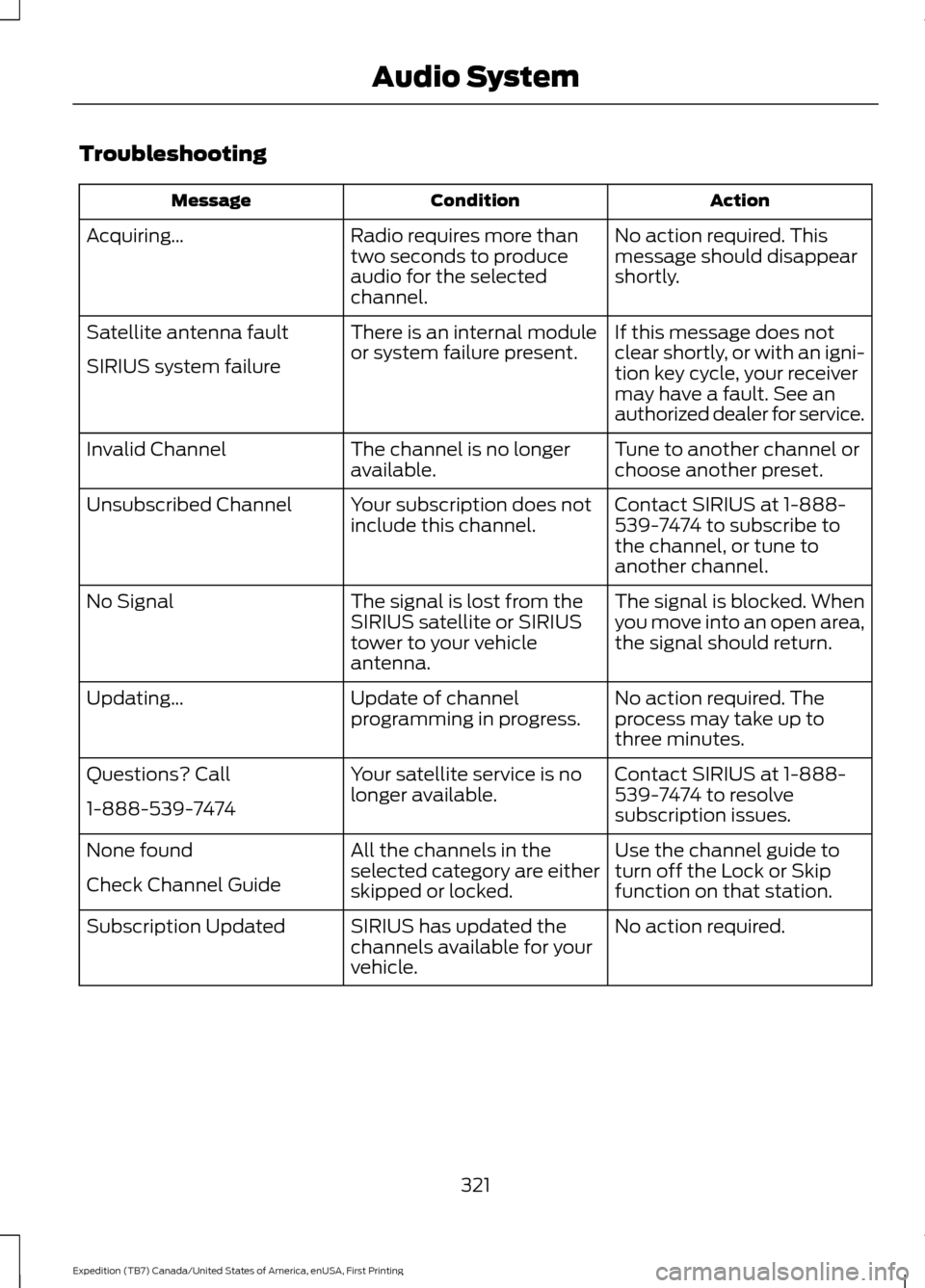
Troubleshooting
Action
Condition
Message
No action required. This
message should disappear
shortly.
Radio requires more than
two seconds to produce
audio for the selected
channel.
Acquiring\b
If this message does not
clear shortly, or with an igni-
tion key cycle, your receiver
may have a fault. See an
authorized dealer for service.
There is an internal module
or system failure present.
Satellite antenna fault
SIRIUS system failure
Tune to another channel or
choose another preset.
The channel is no longer
available.
Invalid Channel
Contact SIRIUS at 1-888-
539-7474 to subscribe to
the channel, or tune to
another channel.
Your subscription does not
include this channel.
Unsubscribed Channel
The signal is blocked. When
you move into an open area,
the signal should return.
The signal is lost from the
SIRIUS satellite or SIRIUS
tower to your vehicle
antenna.
No Signal
No action required. The
process may take up to
three minutes.
Update of channel
programming in progress.
Updating\b
Contact SIRIUS at 1-888-
539-7474 to resolve
subscription issues.
Your satellite service is no
longer available.
Questions? Call
1-888-539-7474
Use the channel guide to
turn off the Lock or Skip
function on that station.
All the channels in the
selected category are either
skipped or locked.
None found
Check Channel Guide
No action required.
SIRIUS has updated the
channels available for your
vehicle.
Subscription Updated
321
Expedition (TB7) Canada/United States of America, enUSA, First Printing Audio System
Page 346 of 421

Note:
This feature may not function
properly if you have enabled caller ID
blocking on your cellular phone. Before
running a report, review the Vehicle Health
Report Privacy Notice.
Note: In order to allow a break-in period for
your vehicle, you may not be able to create
a Vehicle Health Report until your vehicle
odometer has reached 200 miles.
Note: Cellular phone and SMS charges may
apply when making a report.
Register for Vehicle Health Report and set
your report preferences at
www.SYNCMyRide.com. After registering,
you can request a Vehicle Health Report
(inside your vehicle). Return to your
account at www.SYNCMyRide.com to view
your report. You can also choose for SYNC
to remind you automatically to run reports
at specific mileage intervals. The system allows you to check your
vehicle's overall health in the form of a
diagnostic report card. The Vehicle Health
Report contains valuable information, for
example:
•
Vehicle diagnostic information
• Scheduled maintenance
• Open recalls and Field Service Actions
• Items noted during vehicle inspections
by an authorized dealer that still need
servicing.
You can run a vehicle health report after
your vehicle has been running a minimum
of 60 seconds. Choose one of the following
options.
To use voice commands, press the voice button and when prompted say: Action and Description
Voice command
The system will run a vehicle health report of your vehicle's
diagnostic systems and send the results to Ford where it
combines with scheduled maintenance information, open
recalls, other field service actions and vehicle inspection items
that still need servicing by an authorized dealer.
Vehicle Health (Report)
To use the screen, press the phone button, then scroll to: Action and Description
Message
Press the OK button.
Vehicle Health
Select one of the following:
Press the
OK button and select on or off.
Auto On?
Select On to have SYNC automatically prompt you to run a
health report at certain mileage intervals. *
Scroll to select between 5000, 7500 or 10000-mile intervals.
Select your desired option and press the
OK button.
Report Interval
343
Expedition (TB7) Canada/United States of America, enUSA, First Printing SYNC™
(If Equipped)
Page 347 of 421

Action and Description
Message
Press the OK button for SYNC to run a health report of your
vehicle's diagnostic systems and send the results to Ford
where it combines with scheduled maintenance information,
open recalls, other field service actions and vehicle inspection
items that still need servicing by an authorized dealer.
Run Report
Exit the current menu.
Return
* You must first turn this feature on before you can select the desired mileage interval.
Vehicle Health Report Privacy Notice
When you create a Vehicle Health Report,
Ford Motor Company may collect your
cellular phone number (to process your
report request) and diagnostic information
about your vehicle. Certain versions or
updates to Vehicle Health Report may also
collect more vehicle information. Ford may
use your vehicle information it collects for
any purpose. If you do not want to disclose
your cellular phone number or vehicle
information, do not run the feature or set
up your Vehicle Health Report profile at
www.SYNCMyRide.com. See
www.SYNCMyRide.com (Vehicle Health
Report Terms and Conditions, and Privacy
Statement) for more information.
SYNC Services: Traffic, Directions
& Information (TDI) (If Equipped,
United States Only)
Note: SYNC Services varies by trim level
and model year and may require a
subscription. Traffic alerts and turn-by-turn
directions available in select markets.
Message and data rates may apply. Ford
Motor Company reserves the right to change
or discontinue this product service at any
time without prior notification or incurring
any future obligation. Note:
SYNC Services requires activation
before use. Visit www.SYNCMyRide.com to
register and check your eligibility for
complimentary services. Standard phone
and message rates may apply. Subscription
may be required. You must also have the
active SYNC Services Bluetooth-enabled
cellular phone paired and connected to the
system in order to connect to, and use,
SYNC Services. See
Using SYNC™ With
Your Phone (page 328).
Note: This feature does not function
properly if you have enabled caller ID
blocking on your cellular phone. Make sure
your cellular phone is not blocking caller ID
before using SYNC Services.
Note: The driver is ultimately responsible
for the safe operation of the vehicle, and
therefore, must evaluate whether it is safe
to follow the suggested directions. Any
navigation features provided are only an aid.
Make your driving decisions based on your
observations of local conditions and existing
traffic regulations. Do not follow the route
suggestions if doing so would result in an
unsafe or illegal maneuver, place you in an
unsafe situation, or if you would be directed
into an area that you consider unsafe. Maps
used by this system may be inaccurate
because of errors, changes in roads, traffic
conditions or driving conditions.
344
Expedition (TB7) Canada/United States of America, enUSA, First Printing SYNC™
(If Equipped)
Page 365 of 421
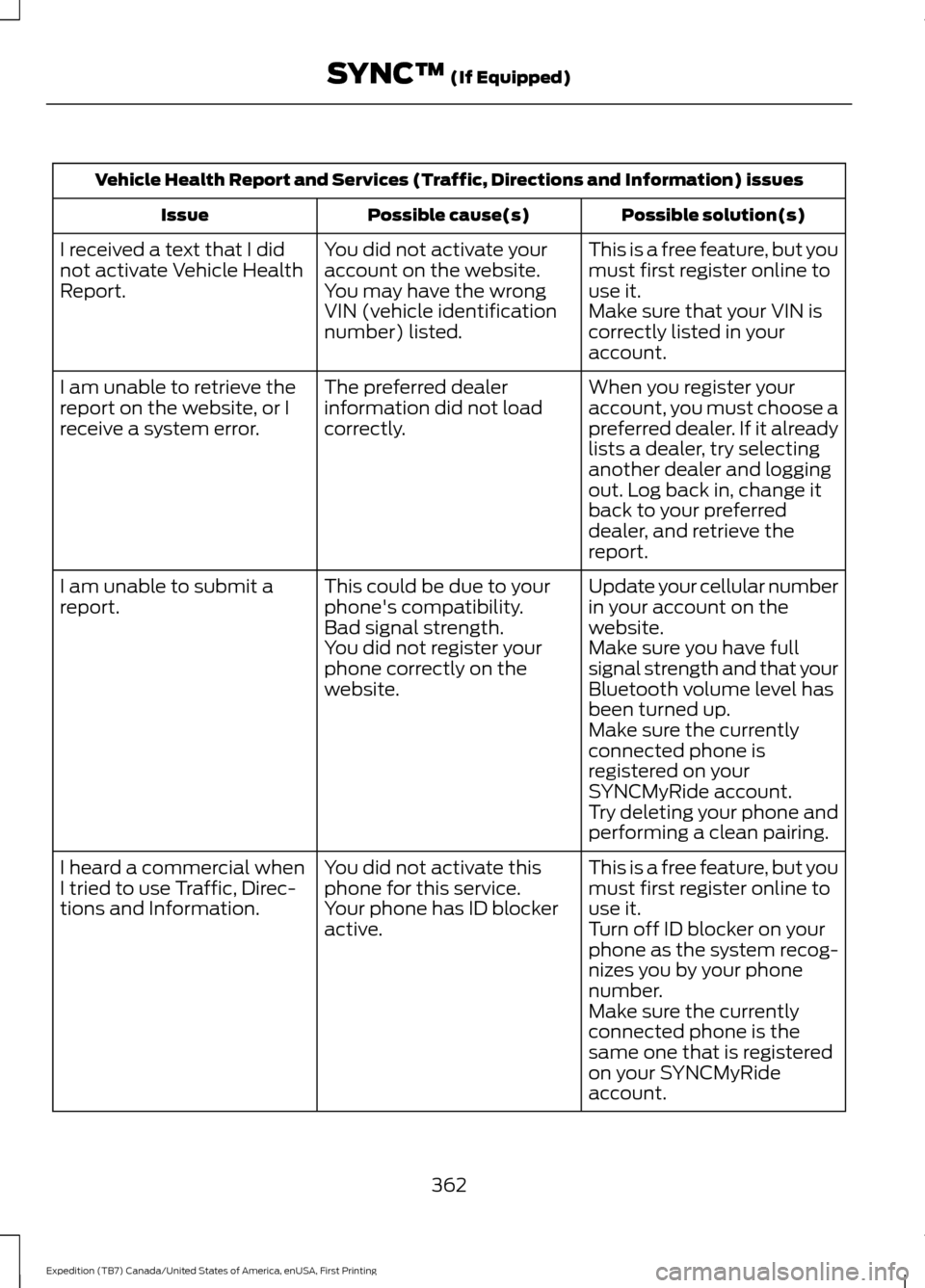
Vehicle Health Report and Services (Traffic, Directions and Information) issues
Possible solution(s)
Possible cause(s)
Issue
This is a free feature, but you
must first register online to
use it.
You did not activate your
account on the website.
You may have the wrong
VIN (vehicle identification
number) listed.
I received a text that I did
not activate Vehicle Health
Report.
Make sure that your VIN is
correctly listed in your
account.
When you register your
account, you must choose a
preferred dealer. If it already
lists a dealer, try selecting
another dealer and logging
out. Log back in, change it
back to your preferred
dealer, and retrieve the
report.
The preferred dealer
information did not load
correctly.
I am unable to retrieve the
report on the website, or I
receive a system error.
Update your cellular number
in your account on the
website.
This could be due to your
phone's compatibility.
Bad signal strength.
I am unable to submit a
report.
Make sure you have full
signal strength and that your
Bluetooth volume level has
been turned up.
You did not register your
phone correctly on the
website.
Make sure the currently
connected phone is
registered on your
SYNCMyRide account.
Try deleting your phone and
performing a clean pairing.
This is a free feature, but you
must first register online to
use it.
You did not activate this
phone for this service.
Your phone has ID blocker
active.
I heard a commercial when
I tried to use Traffic, Direc-
tions and Information.
Turn off ID blocker on your
phone as the system recog-
nizes you by your phone
number.
Make sure the currently
connected phone is the
same one that is registered
on your SYNCMyRide
account.
362
Expedition (TB7) Canada/United States of America, enUSA, First Printing SYNC™ (If Equipped)
Page 371 of 421

For a complete listing of the accessories
that are available for your vehicle, please
contact your authorized dealer or visit the
online store web site:
Web Address (United States)
www.Accessories.Ford.com Web Address (Canada)
www.Accessories.Ford.ca
Ford Accessories are available for your
vehicle through an authorized Ford dealer.
Ford Motor Company will repair or replace
any properly authorized dealer-installed
Ford Original Accessory found to be
defective in factory-supplied materials or
workmanship during the warranty period,
as well as any component damaged by the
defective accessories.
Ford Motor Company will warrant your
vehicle's accessories through the warranty
that provides the greatest benefit:
• 24 months, unlimited mileage.
• The remainder of your new vehicle
limited warranty.
Contact an authorized dealer for details
and a copy of the warranty.
Exterior Style
• Keyless entry.
• Side window deflectors.
• Splash guards.
Interior Style
• Floor mats.
• Rear seat entertainment system*.
• Seat covers. Lifestyle
•
Ash cup or coin holder.
• Cargo organization and management.
• Roof rack and carriers*.
• SUV camping tent*.
• Trailer hitches, wiring harnesses and
accessories.
Peace of Mind
• Back-up alarm.
• Bumper protector.
• Car cover*.
• Cargo area protector.
• Cargo security shade.
• Hood deflector.
• Locking fuel plug.
• Park assist sensors.
• Remote start.
• Vehicle security system.
• Wheel locks.
*Ford Licensed Accessory. The accessory
manufacturer designs, develops and
therefore warrants Ford Licensed
Accessories, and does not design or test
these accessories to Ford Motor Company
engineering requirements. Contact an
authorized Ford dealer for the accessory
manufacturer's limited warranty details
and request a copy of the Ford Licensed
Accessories product limited warranty from
the accessory manufacturer.
368
Expedition (TB7) Canada/United States of America, enUSA, First Printing Accessories