2016 FORD EXPEDITION EL display
[x] Cancel search: displayPage 340 of 421
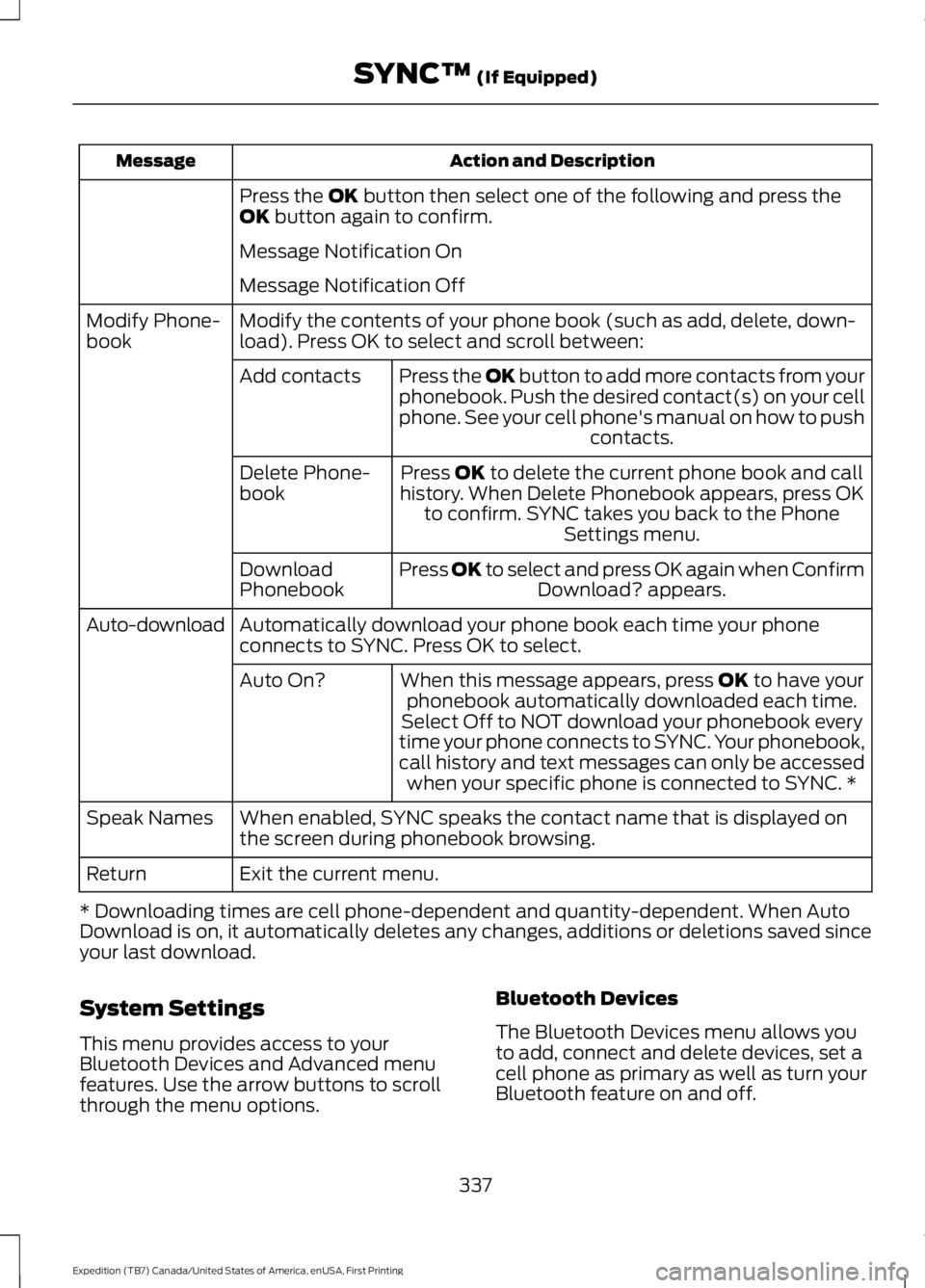
Action and DescriptionMessage
Press the OK button then select one of the following and press theOK button again to confirm.
Message Notification On
Message Notification Off
Modify the contents of your phone book (such as add, delete, down-load). Press OK to select and scroll between:Modify Phone-book
Press the OK button to add more contacts from yourphonebook. Push the desired contact(s) on your cellphone. See your cell phone's manual on how to pushcontacts.
Add contacts
Press OK to delete the current phone book and callhistory. When Delete Phonebook appears, press OKto confirm. SYNC takes you back to the PhoneSettings menu.
Delete Phone-book
Press OK to select and press OK again when ConfirmDownload? appears.DownloadPhonebook
Automatically download your phone book each time your phoneconnects to SYNC. Press OK to select.Auto-download
When this message appears, press OK to have yourphonebook automatically downloaded each time.Auto On?
Select Off to NOT download your phonebook everytime your phone connects to SYNC. Your phonebook,call history and text messages can only be accessedwhen your specific phone is connected to SYNC. *
When enabled, SYNC speaks the contact name that is displayed onthe screen during phonebook browsing.Speak Names
Exit the current menu.Return
* Downloading times are cell phone-dependent and quantity-dependent. When AutoDownload is on, it automatically deletes any changes, additions or deletions saved sinceyour last download.
System Settings
This menu provides access to yourBluetooth Devices and Advanced menufeatures. Use the arrow buttons to scrollthrough the menu options.
Bluetooth Devices
The Bluetooth Devices menu allows youto add, connect and delete devices, set acell phone as primary as well as turn yourBluetooth feature on and off.
337
Expedition (TB7) Canada/United States of America, enUSA, First Printing
SYNC™ (If Equipped)
Page 342 of 421
Advanced
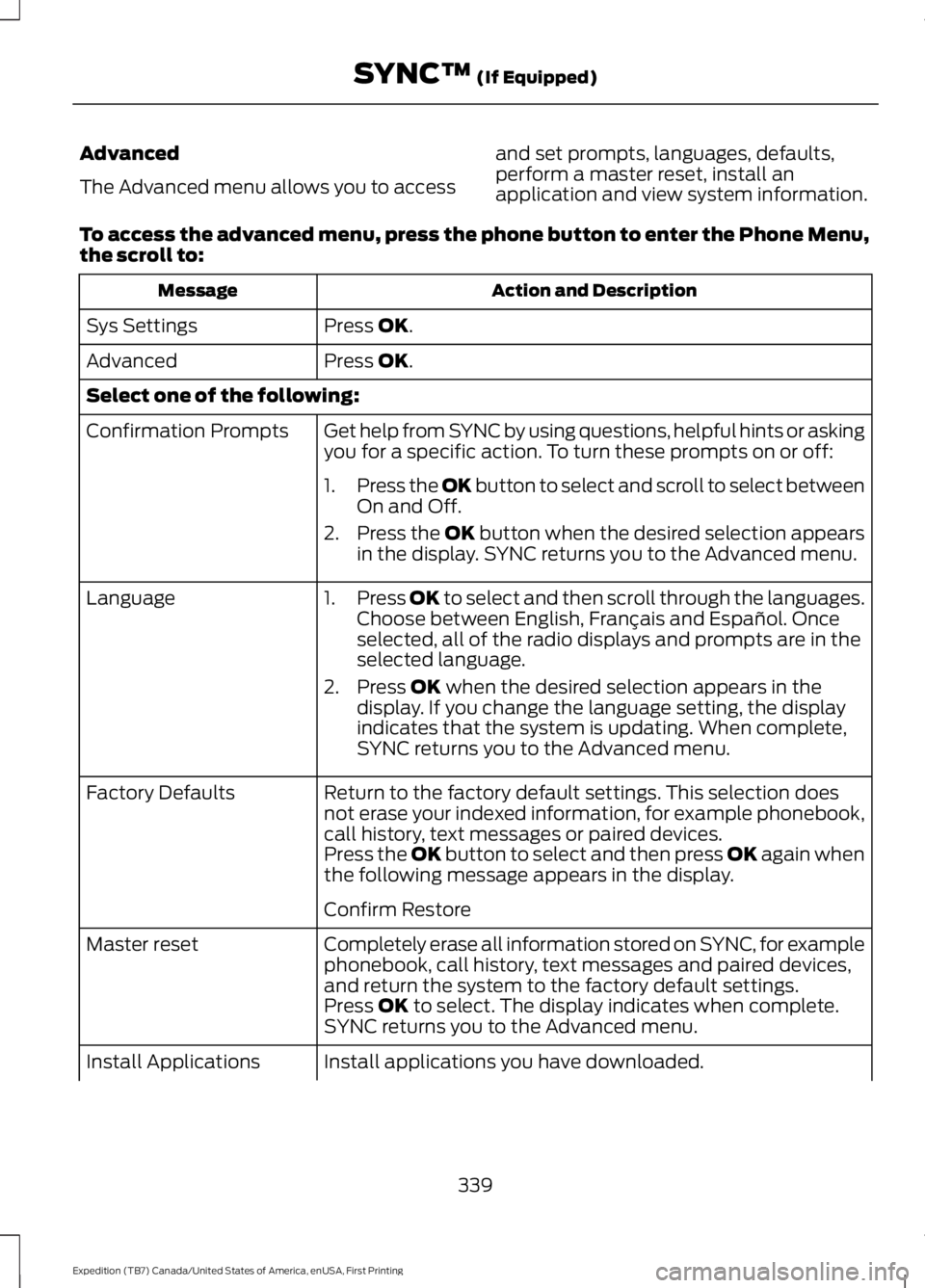
The Advanced menu allows you to access
and set prompts, languages, defaults,perform a master reset, install anapplication and view system information.
To access the advanced menu, press the phone button to enter the Phone Menu,the scroll to:
Action and DescriptionMessage
Press OK.Sys Settings
Press OK.Advanced
Select one of the following:
Get help from SYNC by using questions, helpful hints or askingyou for a specific action. To turn these prompts on or off:Confirmation Prompts
1.Press the OK button to select and scroll to select betweenOn and Off.
2.Press the OK button when the desired selection appearsin the display. SYNC returns you to the Advanced menu.
1.Press OK to select and then scroll through the languages.Choose between English, Français and Español. Onceselected, all of the radio displays and prompts are in theselected language.
2. Press OK when the desired selection appears in thedisplay. If you change the language setting, the displayindicates that the system is updating. When complete,SYNC returns you to the Advanced menu.
Language
Return to the factory default settings. This selection doesnot erase your indexed information, for example phonebook,call history, text messages or paired devices.
Factory Defaults
Press the OK button to select and then press OK again whenthe following message appears in the display.
Confirm Restore
Completely erase all information stored on SYNC, for examplephonebook, call history, text messages and paired devices,and return the system to the factory default settings.
Master reset
Press OK to select. The display indicates when complete.SYNC returns you to the Advanced menu.
Install applications you have downloaded.Install Applications
339
Expedition (TB7) Canada/United States of America, enUSA, First Printing
SYNC™ (If Equipped)
Page 343 of 421
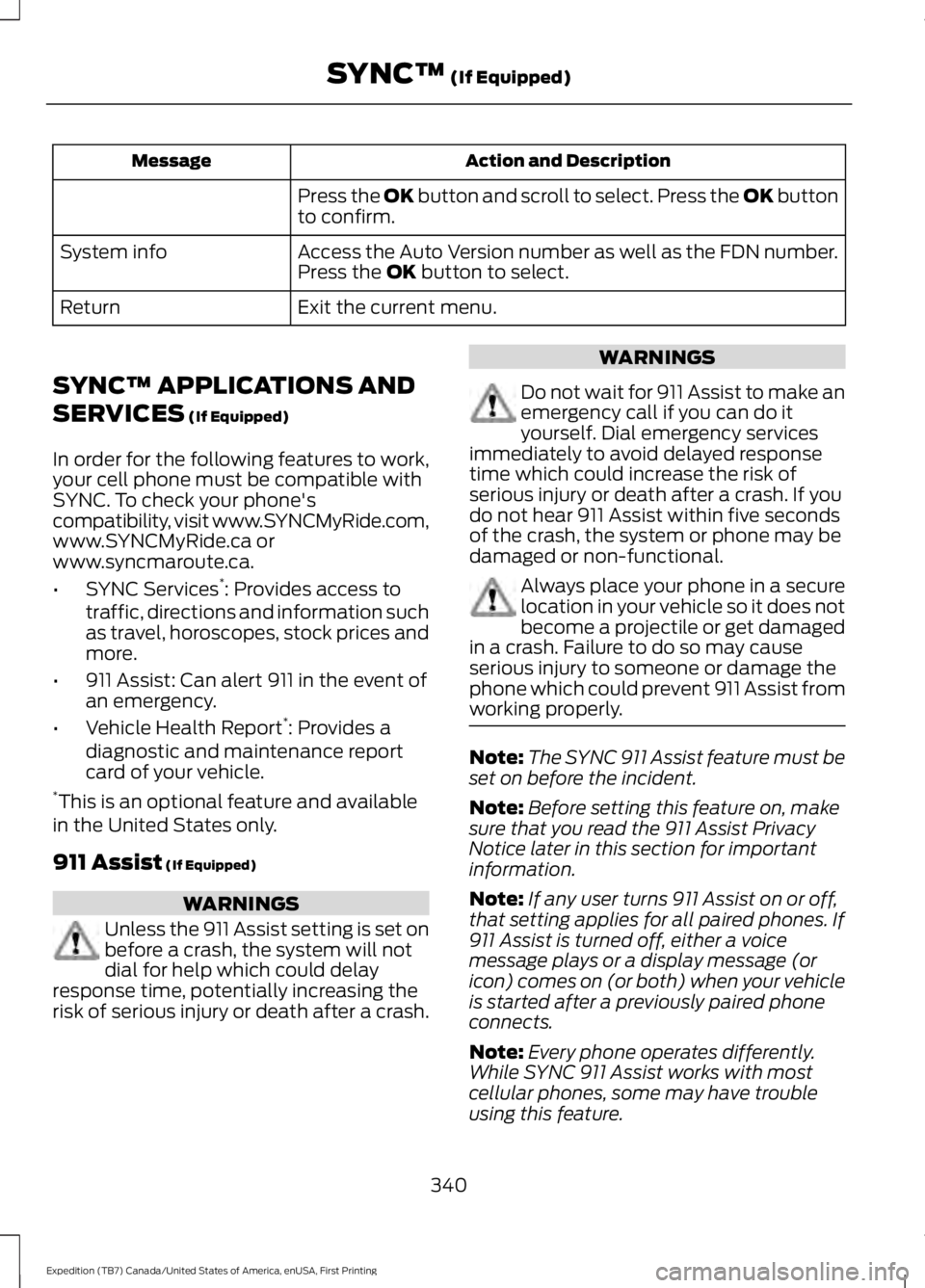
Action and DescriptionMessage
Press the OK button and scroll to select. Press the OK buttonto confirm.
Access the Auto Version number as well as the FDN number.System infoPress the OK button to select.
Exit the current menu.Return
SYNC™ APPLICATIONS AND
SERVICES (If Equipped)
In order for the following features to work,your cell phone must be compatible withSYNC. To check your phone'scompatibility, visit www.SYNCMyRide.com,www.SYNCMyRide.ca orwww.syncmaroute.ca.
•SYNC Services*: Provides access totraffic, directions and information suchas travel, horoscopes, stock prices andmore.
•911 Assist: Can alert 911 in the event ofan emergency.
•Vehicle Health Report*: Provides adiagnostic and maintenance reportcard of your vehicle.*This is an optional feature and availablein the United States only.
911 Assist (If Equipped)
WARNINGS
Unless the 911 Assist setting is set onbefore a crash, the system will notdial for help which could delayresponse time, potentially increasing therisk of serious injury or death after a crash.
WARNINGS
Do not wait for 911 Assist to make anemergency call if you can do ityourself. Dial emergency servicesimmediately to avoid delayed responsetime which could increase the risk ofserious injury or death after a crash. If youdo not hear 911 Assist within five secondsof the crash, the system or phone may bedamaged or non-functional.
Always place your phone in a securelocation in your vehicle so it does notbecome a projectile or get damagedin a crash. Failure to do so may causeserious injury to someone or damage thephone which could prevent 911 Assist fromworking properly.
Note:The SYNC 911 Assist feature must beset on before the incident.
Note:Before setting this feature on, makesure that you read the 911 Assist PrivacyNotice later in this section for importantinformation.
Note:If any user turns 911 Assist on or off,that setting applies for all paired phones. If911 Assist is turned off, either a voicemessage plays or a display message (oricon) comes on (or both) when your vehicleis started after a previously paired phoneconnects.
Note:Every phone operates differently.While SYNC 911 Assist works with mostcellular phones, some may have troubleusing this feature.
340
Expedition (TB7) Canada/United States of America, enUSA, First Printing
SYNC™ (If Equipped)
Page 344 of 421
![FORD EXPEDITION EL 2016 Owners Manual If a crash deploys an airbag (excludingknee airbags and rear inflatable safetybelts [if equipped]) or activates the fuelpump shut-off, your SYNC-equippedvehicle may be able to contact emergencyservice](/manual-img/11/58754/w960_58754-343.png "FORD EXPEDITION EL 2016 Owners Manual If a crash deploys an airbag (excludingknee airbags and rear inflatable safetybelts [if equipped]) or activates the fuelpump shut-off, your SYNC-equippedvehicle may be able to contact emergencyservice")
If a crash deploys an airbag (excludingknee airbags and rear inflatable safetybelts [if equipped]) or activates the fuelpump shut-off, your SYNC-equippedvehicle may be able to contact emergencyservices by dialing 911 through a paired andconnected Bluetooth-enabled phone. Youcan learn more about the 911 Assistfeature, visit www.SYNCMyRide.com,
www.SYNCMyRide.ca orwww.syncmaroute.ca.
See Supplementary Restraints System(page 35). Important information aboutairbag deployment is in this chapter.
See Roadside Emergencies (page 223).Important information about the fuel pumpshut-off is in this chapter.
Switching 911 Assist On or Off
Press the phone button to enter the phone menu and scroll to:
Action and DescriptionMessage
Press the OK button to confirm and enter the 911 Assist menu.911 Assist
Press the OK button when the desired option appears in theradio display.On
Off
Off selections include:
Action and DescriptionMessage
Provides a display and voice reminder at phone connectionat vehicle start.Off with reminder:
Provides a display reminder only without a voice reminder atphone connection.Off without reminder:
To make sure that 911 Assist workscorrectly:
•SYNC must be powered and workingproperly at the time of the incident andthroughout feature activation and use.
•The 911 Assist feature must be set onbefore the incident.
•You must pair and connect aBluetooth-enabled and compatiblecell phone to SYNC.
•A connected Bluetooth-enabled phonemust have the ability to make andmaintain an outgoing call at the timeof the incident.
•A connected Bluetooth-enabled phonemust have adequate network coverage,battery power and signal strength.
•The vehicle must have battery powerand be located in the U.S., Canada orin a territory in which 911 is theemergency number.
341
Expedition (TB7) Canada/United States of America, enUSA, First Printing
SYNC™ (If Equipped)
Page 349 of 421
Connecting to SYNC Services Using the Phone Menu
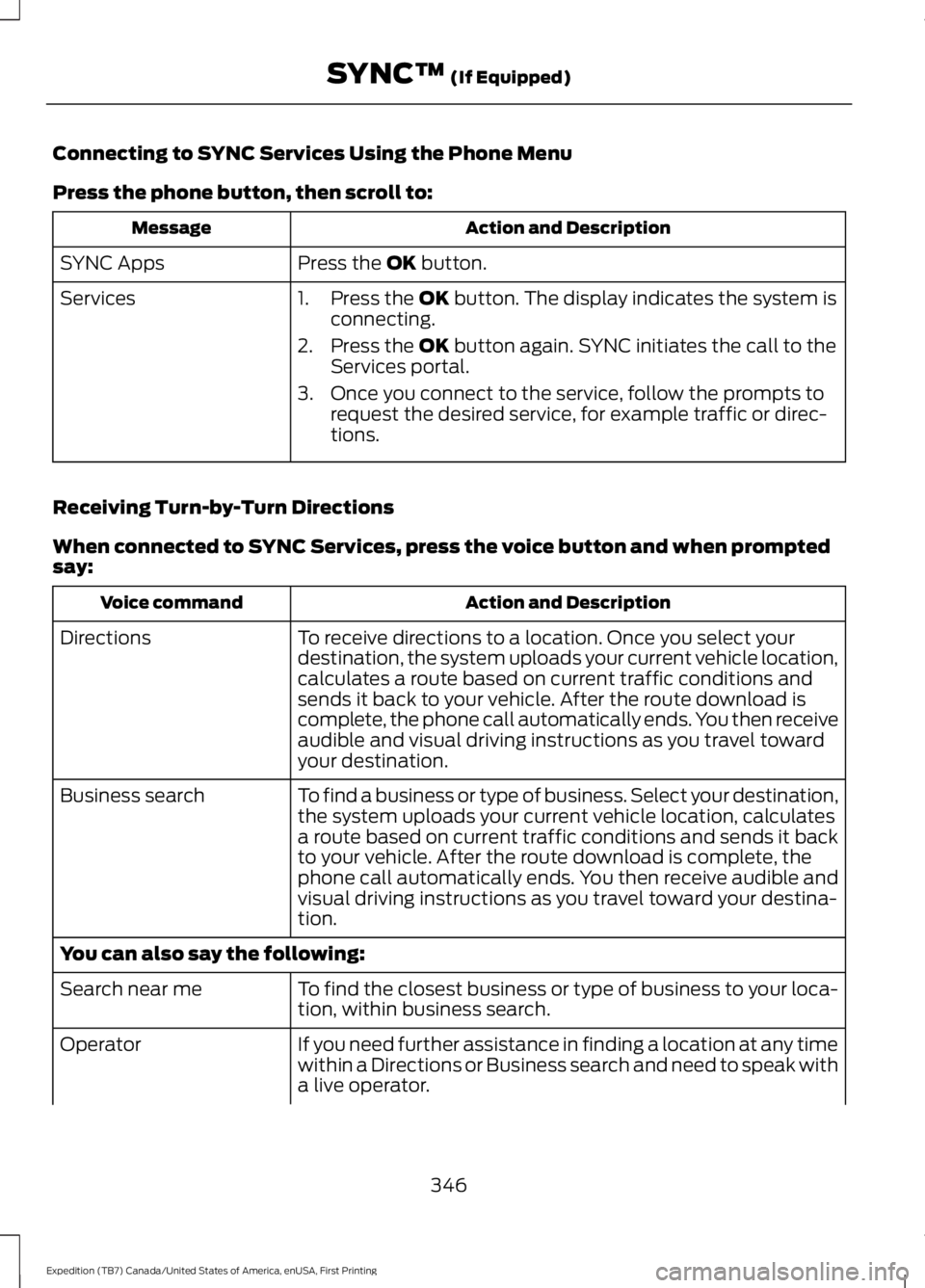
Press the phone button, then scroll to:
Action and DescriptionMessage
Press the OK button.SYNC Apps
Services1. Press the OK button. The display indicates the system isconnecting.
2. Press the OK button again. SYNC initiates the call to theServices portal.
3. Once you connect to the service, follow the prompts torequest the desired service, for example traffic or direc-tions.
Receiving Turn-by-Turn Directions
When connected to SYNC Services, press the voice button and when promptedsay:
Action and DescriptionVoice command
To receive directions to a location. Once you select yourdestination, the system uploads your current vehicle location,calculates a route based on current traffic conditions andsends it back to your vehicle. After the route download iscomplete, the phone call automatically ends. You then receiveaudible and visual driving instructions as you travel towardyour destination.
Directions
To find a business or type of business. Select your destination,the system uploads your current vehicle location, calculatesa route based on current traffic conditions and sends it backto your vehicle. After the route download is complete, thephone call automatically ends. You then receive audible andvisual driving instructions as you travel toward your destina-tion.
Business search
You can also say the following:
To find the closest business or type of business to your loca-tion, within business search.Search near me
If you need further assistance in finding a location at any timewithin a Directions or Business search and need to speak witha live operator.
Operator
346
Expedition (TB7) Canada/United States of America, enUSA, First Printing
SYNC™ (If Equipped)
Page 351 of 421
SYNC Services quick tips
You can even access your account outside your vehicle. Justuse the number on your phone's call history. Traffic andDirections features do not function properly but informationservices and the 411 connect and text message features areavailable.
SYNC™ APPLINK™
SYNC Mobile Apps
Note:You must pair and connect yoursmartphone to SYNC to access AppLink.
Note:iPhone users need to connect thephone to the USB port in order to start theapplication.
Note:The AppLink feature is not availableif your vehicle is equipped with the MyFordTouch system.
Note:Depending on your display type, youcan access AppLink from the media menu,the phone menu, or by using voicecommands. Once an app is running throughAppLink, you can control main features ofthe app through voice commands andsteering wheel controls.
To Access Using the Phone Menu
Press the phone button to access theSYNC phone menu on-screen. You canthen scroll to:
Menu item
Press OK to access a listof available applications.Mobile Apps
Menu item
Scroll through the list ofavailable applications andpress OK to select aparticular app. Once anapp is running throughSYNC, you can access anapp’s menu by pressing theMENU button to firstaccess the SYNC menu.
Scroll until the app name followed by"Menu", is displayed (such as, sticherMenu), then press OK. From here, you canaccess an application's features, such asThumbs up and Thumbs down.
For more information, please visit:
Website
www.SYNCMyRide.com
To Access Using the Media Menu
Press the AUX button on the centerconsole.
348
Expedition (TB7) Canada/United States of America, enUSA, First Printing
SYNC™ (If Equipped)
Page 352 of 421

Press the Menu button to the SYNC menu and scroll to:
Action and descriptionMenu item
Press the OK button.SYNC-Media
Press the OK button and scroll through the list of availableapplications and select your desired app.Mobile Apps
Scroll until the app name followed by"Menu", is displayed (such as, StitcherMenu), then press OK. From here, you canaccess an application's features, such asThumbs up and Thumbs down.
For more information, please visit:
Website
www.SYNCMyRide.com
To Access Using Voice Commands
Press the voice button and when prompted say:
Action and descriptionVoice command
Say the name of the application after the tone.The app should start. While an app is running through SYNC,you can press the voice button and speak commands specificto the app, for example, "Playlist Road Trip".
Mobile Apps
You can also say the following:
To discover the available voice commands.The name of an app(such as Stitcher)followed by "help".
USING SYNC™ WITH YOUR
MEDIA PLAYER
You can access and play music from yourdigital music player over your vehicle'sspeaker system using the system's mediamenu or voice commands. You can alsosort and play your music by specificcategories, for example artist and album.
Note:The system is capable of indexing upto 6,000 songs.
SYNC is capable of hosting nearly anydigital media player including: iPod®,Zune™, plays from device players, andmost USB drives. SYNC also supports thefollowing audio formats MP3, WMA, WAVand ACC.
Connecting Your Digital MediaPlayer to the USB Port
Note:If your digital media player has apower switch, make sure you switch it onbefore plugging it in.
349
Expedition (TB7) Canada/United States of America, enUSA, First Printing
SYNC™ (If Equipped)
Page 353 of 421
To Connect Using Voice Commands
Plug the device into the USB port. SeeUSB Port (page 322).
Press the voice button and when prompted say:
Action and DescriptionVoice command
You can now play music by saying any of the appropriatevoice commands. See Media voice commands.USB [1]
You do not need to say words that appear within square brackets. For example, for whereUSB[1]appears, you can say USB or USB one.
To Connect Using the System Menu
Plug the device into the USB port. SeeUSB Port (page 322).
Press the AUX button, then the Menubutton to enter the Media Menu.
You can then scroll to:
Action and DescriptionMessage
Press the OK button.Select Src
Press the OK button.USBDepending on how many digital media files are on yourconnected device, the following message may appear in theradio display.
Indexing…
When indexing is complete, the screen returns to the Play menu. You can thenselect one of the following:
Play all
Artists
Albums
Genres
Playlists
Songs
Browse USB
Similar music
Exit the current menu.Return
350
Expedition (TB7) Canada/United States of America, enUSA, First Printing
SYNC™ (If Equipped)E142599