Page 275 of 450
273
7-inch touch screen tablet
gPS satellite navigation - Multimedia audio - Bluetooth® telephone
Contents
First steps
2 74
Steering
mounted
controls
2
76
Menus
277
Navigation
2
78
Navigation
-
Guidance
2
86
Traffic
29
0
Radio
Media
2
92
Radio
2
98
DAB
(Digital
Audio
Broadcasting)
radio
3
00
Media
3
02
Settings
3
06
Internet
3
14
Internet
browser
3
15
MirrorLink
® 31 8
Telephone
3
20
Frequently
asked questions
3
28
The
system
is
protected
in
such
a
way
that
it
will
only
operate
in
y
our
vehicle. As
a
safety
measure,
the
driver should only carry out operations
w
hich
require
prolonged
attention while the vehicle is stationary.
The
display
of
the
energy
economy mode message signals
t
hat
the
system
is
about
to
go
into standby. Refer to the Energy
ec
onomy
(
mode)
s
ection.
Audio and Telematics
Page 288 of 450
1
2
10
Navigation - Guidance
Choosing a new destination
Select "Enter destination ". Select "
Save" to save the address
e
ntered as a contact entry.
The system allows up to 200 entries.
Select " Confirm ".
Press " Show route on map " to start
navigation.
Select "
Address ".
Select the " Country:"
from the
l
ist offered, then in the same
w
ay the "City:" or its post
code,
the "Road: ", the "
n°:".
C
onfirm each time. Select "n
avigate to
".
Choose the restriction criteria:
"I
nclude tollroads", "Include
ferries ", "Tr a f f i c ", "Strict ", "Close ".
Choose
the navigation criteria:
"F
astest" or "Shortest " or "Time/
distance " or "Ecological". To
delete navigation information, press
"
S
ettings
".
Press " Stop navigation ".
To resume navigation press "Settings ".
Press " Resume navigation ".
Press on
n
a
vigation
to display the
p
rimary
pag
e.
Press on the secondary page.
Towards a new destination
Or
Page 297 of 450
15
5
12
8
16
6
13
9
17
7
14
10
11
18
1
1
1
295
Level 1Level 2 Level 3 Comments
Radio Media
Secondary page Radio list Preset
Press
a radio station to select it.
Update list Update
the list of stations received.
Frequency Enter
the desired radio frequency.
Confirm Save
the settings.
Radio Media
Secondary page Photos Home screen
Display
the selected photo in the home page.
Rotate Rotate
the photo 90°.
Select all Select
all the photos in the list.
Press
again to deselect.
Slideshow Previous
pho
to.Display
the photos in sequence, full screen.
The
system supports the following image
f
ormats: .gif, .jpg, .bmp, .png.
Pause
/ Play.
Next
photo.
Full screen Display
the selected photo full-screen.
Radio Media
Secondary page
Manage Jukebox Sor t by folder
Choose
a selection mode.
Sor t by album
Select all
Copy Copy
files to the Jukebox.
Magnifying glass Create
f
olderChoose
the desired function.
Rename
Delete
Select all
Confirm
Save
the settings.
Audio and Telematics
Page 303 of 450
31
20
301
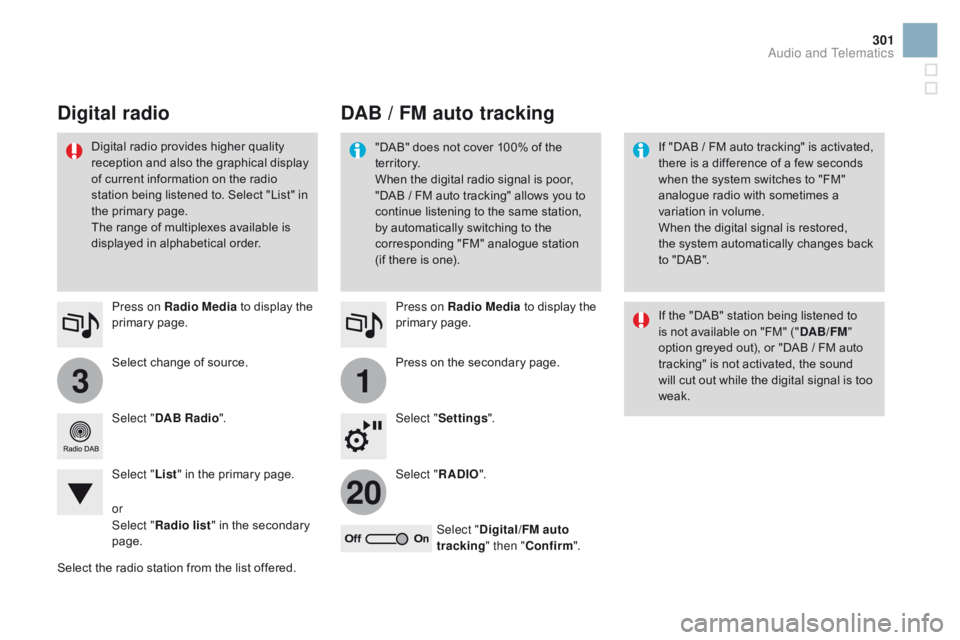
Select change of source.
P ress on Radio Media
to display the
p
rimary
pag
e.
Select "
d
AB Radio ".
Select " List"
in the primary page.
Select
the radio station from the list offered.Press on Radio Media
to display the
p
rimary
pag
e.
Press on the secondary page.
Select " Settings ".
Select " RA
d
IO".
Select "
di
gital/FM auto
tracking " then "Confirm ".
dAB / FM auto trackingdi
gital radio
"DAB" does not cover 100% of the t
e r r i to r y.
When
the digital radio signal is poor,
"
DAB / FM auto tracking" allows you to
c
ontinue listening to the same station,
b
y automatically switching to the
c
orresponding "FM" analogue station
(
if there is one). If
"DAB / FM auto tracking" is activated, t
here is a difference of a few seconds
w
hen the system switches to "FM"
a
nalogue radio with sometimes a
v
ariation in volume.
When
the digital signal is restored,
the
system automatically changes back
t
o "DAB".
Digital
radio
provides
higher
quality
r
eception
and
also
the
graphical
display o
f
current
information
on
the
radio
s
tation
being
listened
to.
Select
"List"
in
t
he
primary
page.
The
range
of
multiplexes
available
is
d
isplayed
in
alphabetical
order. If
the "DAB" station being listened to
i
s not available on "FM" ("
d
AB/FM"
option
greyed out), or "DAB / FM auto
t
racking" is not activated, the sound
w
ill cut out while the digital signal is too
w
eak.
or
Select " Radio list "
in
the
secondary
pag
e.
Audio and Telematics
Page 309 of 450
2
3
4
5
6
7
307
Level 1Level 2 Level 3 Comments
Settings
Audio settings Ambience
Choose
the sound ambience.
Balance Sound
distribution using the Arkamys
® system.
S
ound effects Set
the
volume
or
activate
the
link
to
vehicle
s
peed.
Ringtones Set
the
telephone
ringtone
and
volume.
Voice Set
the
volume
and
voice
for
speaking
street
nam
es.
Confirm Save
your
settings.
Settings
Turn off screen Function
that
turns
off
the
display.
Pressing
the
screen
reactivates
it.
Audio and Telematics
Page 311 of 450
1
8
9
10
1
1
309
Level 1Level 2 Comments
Settings
Secondary page
System Settings Units
Set
the units used to display distance, fuel
c
onsumption and temperature.
de
lete data Select
the desired data in the list then press
D
elete.
Factory settings Return
to factory settings.
Confirm Save
the settings.
Settings
Secondary page Time/
d
a
te Confirm
Set
the date and time then confirm.
Settings
Secondary page Screen settings Activate automatic text scrolling
Activate
or deactivate the setting then confirm.
Activate animations
Confirm
Audio and Telematics
Page 314 of 450
3
4
5
6
7
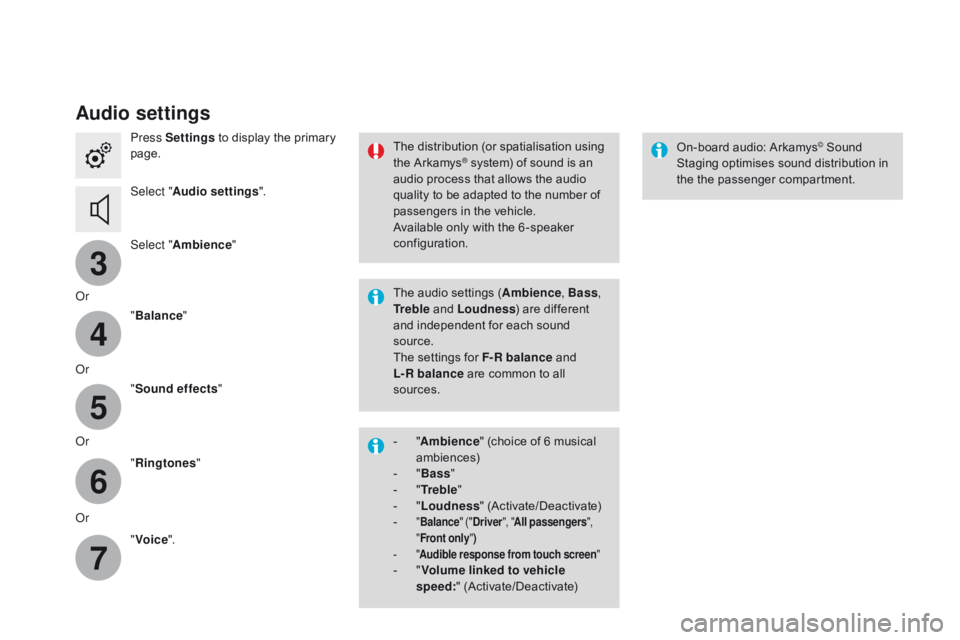
Audio settings
Press Settings to display the primary pag
e.
Select " Audio settings ".
Select " Ambience "
Or "Balance "
Or "Sound effects "
Or "Ringtones "
Or "Voice ". On-board
audio: Arkamys© Sound S
taging
optimises
sound
distribution in
t
he
t
he
p
assenger
c
ompartment.
The
distribution
(or
spatialisation
using
t
he
Arkamys® system) of sound is an a
udio
process that allows the audio
q
uality
to
be
adapted to the number of
p
assengers
in the vehicle.
Available
only with the 6 -speaker
c
onfiguration.
The
audio
settings (Ambience , Bass,
Tr e b l e
and
Loudness )
are different
a
nd
independent for each sound
s
ource.
The
settings
for F-R balance
and
L-R balance
are common to all
s
ources.
-
" A
mbience "
(choice of 6 musical
am
biences)
-
" Ba
ss "
-
" T
r e b l e "
-
" L
oudness "
(
Activate/Deactivate)
-
" Balance " ("dr iver", "All passengers ",
" Front only ")
-
" A
udible response from touch screen "
- "Volume linked to vehicle
speed: " (
Activate/Deactivate)
Page 315 of 450
111
8
9
10
313
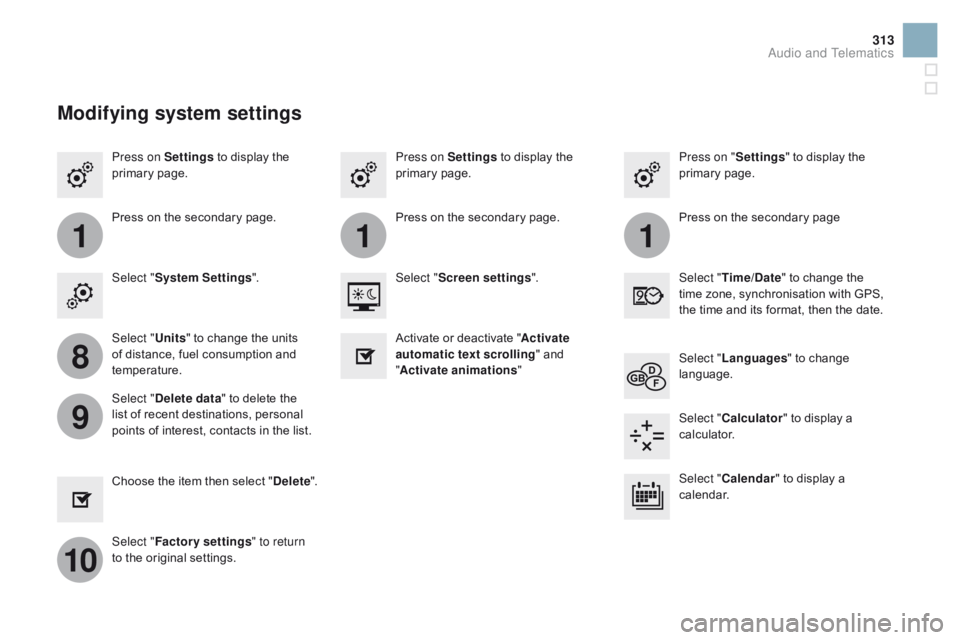
Press on Settings to display the p
rimary pag e. Press on "
Settings" to display the p
rimary pag e.
Press on Settings
to display the p
rimary pag e.
Press
on the secondary page. Press
on the secondary page
Press
on the secondary page.
Select " System Settings ". Select "Time/
d
a
te"
to change the
t
ime zone, synchronisation with GPS,
t
he time and its format, then the date.
Select "
Screen settings ".
Select " Units"
to change the units
o
f distance, fuel consumption and
t
emperature. Select "
Languages "
to change
lan
guage.
Activate
or deactivate "Activate
automatic text scrolling "
and
"A
ctivate animations"
Select "
de
lete data"
to delete the
l
ist of recent destinations, personal
p
oints of interest, contacts in the list. Select "
Calculator "
to display a
c
alculator.
Choose
t
he
i
tem
t
hen
se
lect
"de
lete". Select "
Calendar "
to display a
c
alendar.
Select " Factory settings " to return
to
the original settings.
Modifying system settings
Audio and Telematics


