Page 215 of 620
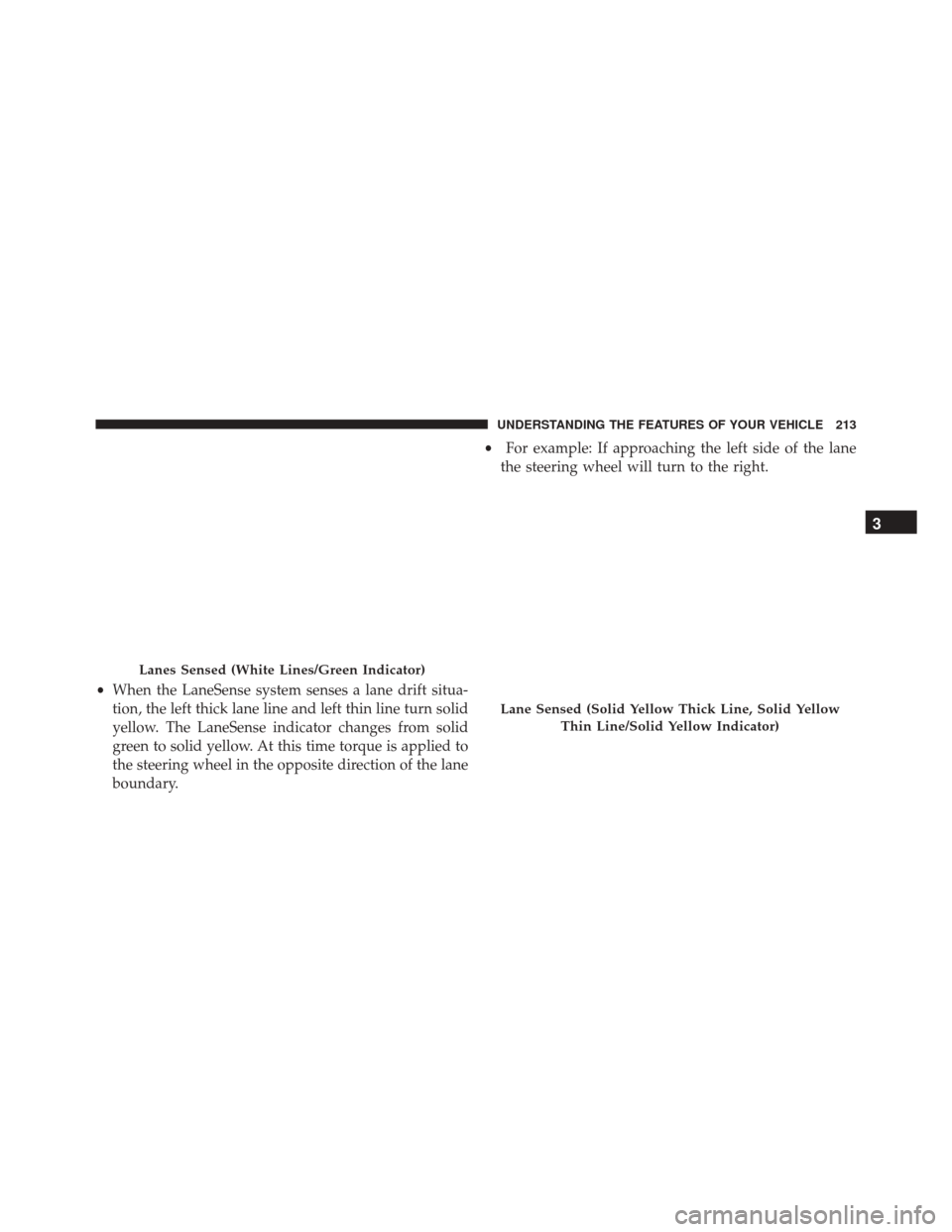
•When the LaneSense system senses a lane drift situa-
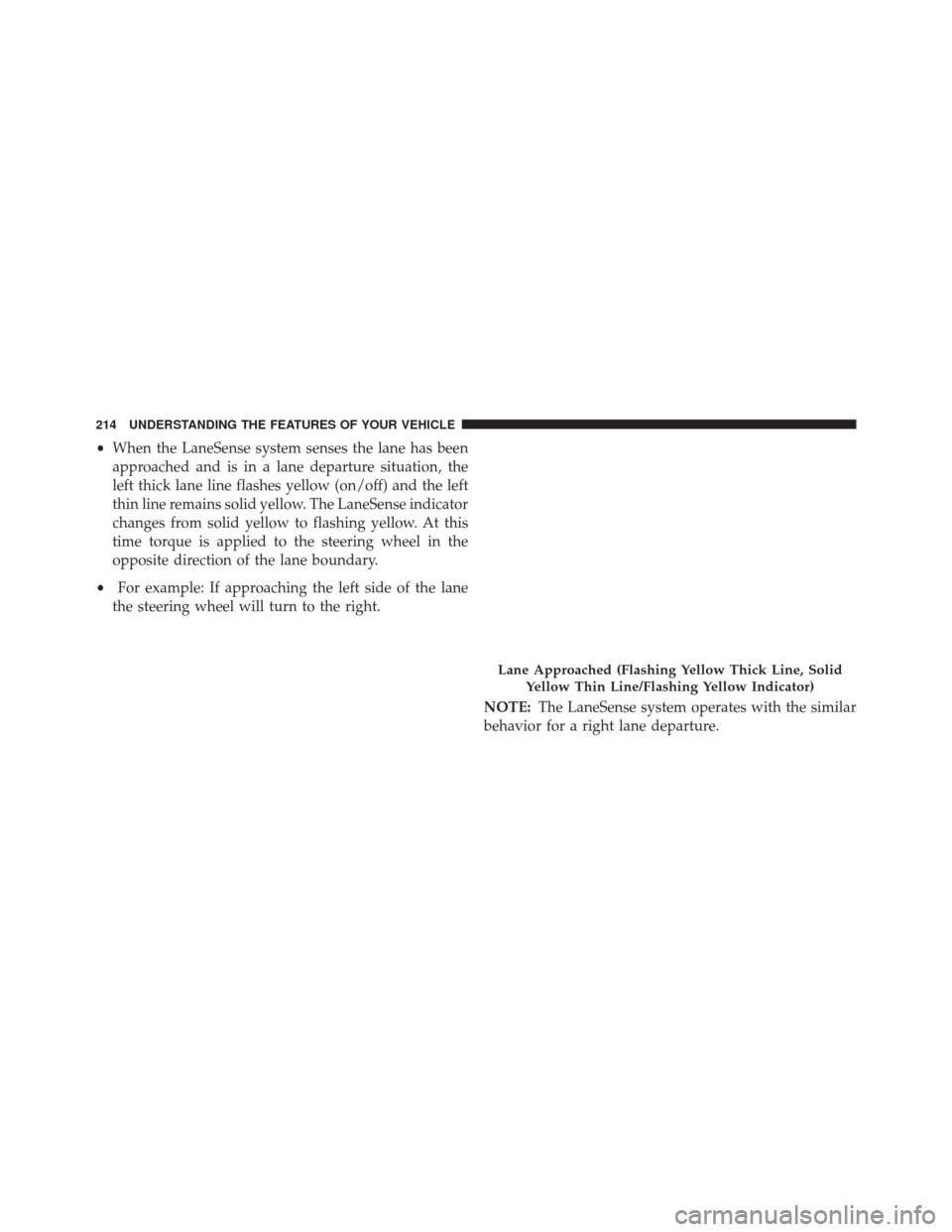
tion, the left thick lane line and left thin line turn solid
yellow. The LaneSense indicator changes from solid
green to solid yellow. At this time torque is applied to
the steering wheel in the opposite direction of the lane
boundary. •
For example: If approaching the left side of the lane
the steering wheel will turn to the right.
Lanes Sensed (White Lines/Green Indicator)
Lane Sensed (Solid Yellow Thick Line, Solid Yellow
Thin Line/Solid Yellow Indicator)
3
UNDERSTANDING THE FEATURES OF YOUR VEHICLE 213
Page 216 of 620
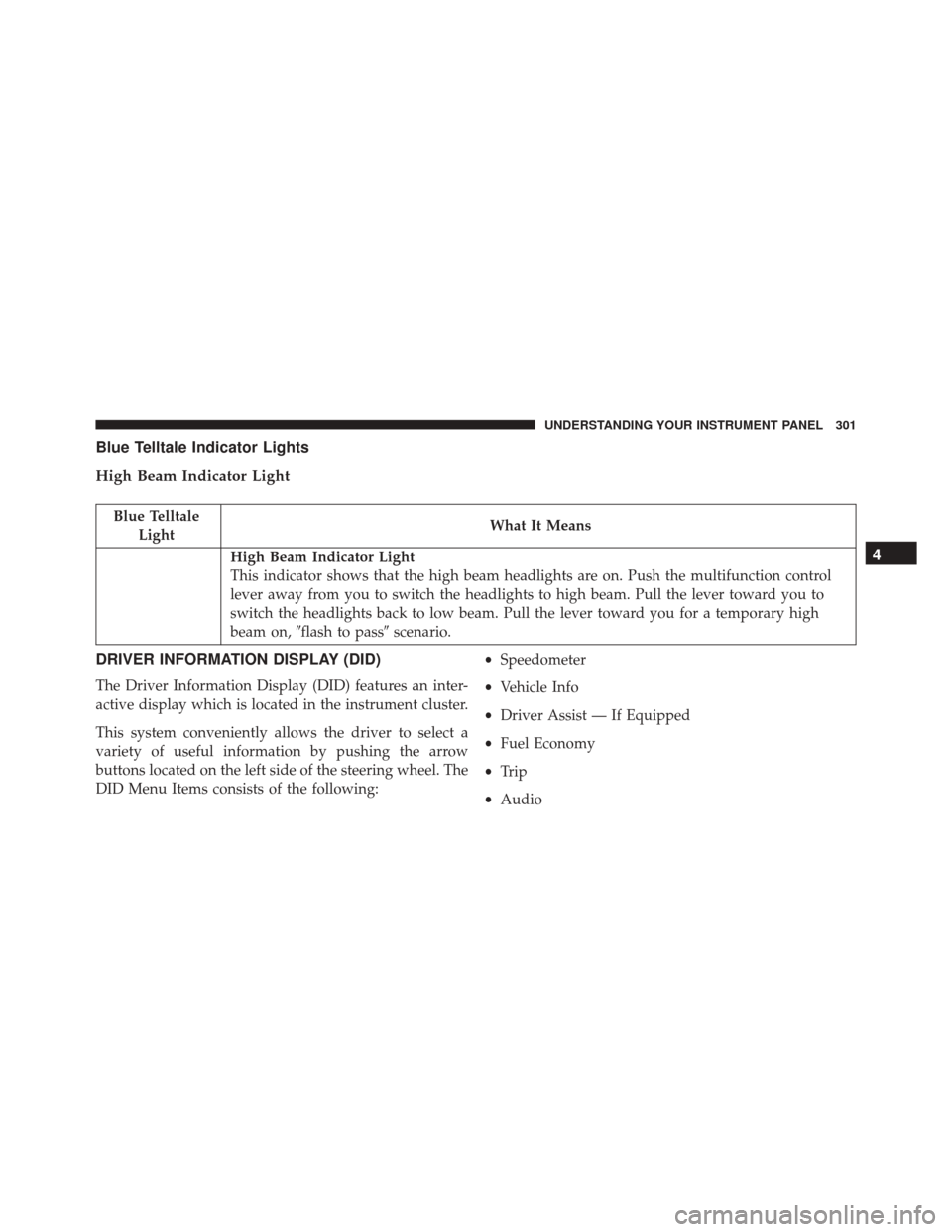
•When the LaneSense system senses the lane has been
approached and is in a lane departure situation, the
left thick lane line flashes yellow (on/off) and the left
thin line remains solid yellow. The LaneSense indicator
changes from solid yellow to flashing yellow. At this
time torque is applied to the steering wheel in the
opposite direction of the lane boundary.
• For example: If approaching the left side of the lane
the steering wheel will turn to the right.
NOTE:The LaneSense system operates with the similar
behavior for a right lane departure.
Lane Approached (Flashing Yellow Thick Line, Solid
Yellow Thin Line/Flashing Yellow Indicator)
214 UNDERSTANDING THE FEATURES OF YOUR VEHICLE
Page 217 of 620
Changing LaneSense Status
The LaneSense system settings can be configured
through the Uconnect system screen.
Follow these steps to change the LaneSense settings:
1. Push the “Controls” button on touchscreen located onthe bottom of the Uconnect display.
2. Push the “Settings” button.
3. Push the “Safety & Driving Assistance” button.
When in the Safety & Driving Assistance screen, you can
configure the intensity of the torque warning and the
warning zone sensitivity (early/late) through the person-
alization settings.
NOTE:
• When enabled the system operates above 37 mph
(60 km/h) and below 112 mph (180 km/h). •
Use of the turn signal suppresses the warnings.
• The system will not apply torque to the steering wheel
whenever a safety system engages. (anti-lock brakes,
traction control system, electronic stability control,
forward collision warning, etc.)
PARKSENSE FRONT AND REAR PARK ASSIST —
IF EQUIPPED
The ParkSense Park Assist system provides visual and
audible indications of the distance between the rear
and/or front fascia and a detected obstacle when backing
up or moving forward, e.g. during a parking maneuver.
Refer to ParkSense System Usage Precautions for limita-
tions of this system and recommendations.
ParkSense will retain the last system state (enabled or
disabled) from the last ignition cycle when the ignition is
changed to the ON/RUN position.
3
UNDERSTANDING THE FEATURES OF YOUR VEHICLE 215
Page 232 of 620
If your vehicle is equipped with the Camera Delay
feature and it is turned ON, the rear camera image will be
displayed for up to 10 seconds when the vehicle is shifted
out of REVERSE unless the forward vehicle speed ex-
ceeds 8 mph (13 km/h), the transmission is shifted into
�PARK�or the vehicle’s ignition is cycled to the OFF
position.
When the Vehicle is shifted out of Reverse (with camera
delay turned OFF) the rear camera mode is exited and the
last touchscreen appears again.
When enabled, active guide lines are overlaid on the
image to illustrate the width of the vehicle and its projected backup path based on the steering wheel
position. The active guide lines will show separate zones
that will help indicate the distance to the rear of the
vehicle.
Different colored zones indicate the distance to the rear of
the vehicle.
The following table shows the approximate distances for
each zone:
Zone
Distance to the rear of the vehicle
Red 0 - 1 ft (0 - 30 cm)
Yellow 1 ft - 6.5 ft (30 cm - 2 m)
Green 6.5 ft or greater (2 m or greater)
230 UNDERSTANDING THE FEATURES OF YOUR VEHICLE
Page 268 of 620

�AUX/USB/MP3 CONTROL ...............334
� STEERING WHEEL AUDIO CONTROLS ......336
▫ Radio Operation ..................... .336
� CD/DVD DISC MAINTENANCE — IF
EQUIPPED .......................... .337
� RADIO OPERATION AND MOBILE DEVICES . .337
� CLIMATE CONTROLS ...................338
▫ Dual Zone Automatic Climate Controls With
Touchscreen ........................ .338
▫ Climate Control Functions ...............344
▫ Automatic Temperature Control (ATC) ......345
▫ Operating Tips ...................... .347
� PERSONALIZED MENU BAR ..............350�
UCONNECT VOICE RECOGNITION QUICK
TIPS ............................... .350
▫ Introducing Uconnect ...................350
▫ Get Started ......................... .351
▫ Basic Voice Commands ..................353
▫ Radio ............................. .354
▫ Media ............................. .355
▫ Phone ............................. .356
▫ Voice Text Reply ..................... .357
▫ Climate (8.4A/8.4AN) ..................359
▫ Navigation (8.4A/8.4AN) ................360
▫ Uconnect Access (8.4A/8.4AN) ............361
▫ Vehicle Health Alert ...................362
266 UNDERSTANDING YOUR INSTRUMENT PANEL
Page 303 of 620
Blue Telltale Indicator Lights
High Beam Indicator Light
Blue TelltaleLight What It Means
High Beam Indicator Light
This indicator shows that the high beam headlights are on. Push the multifunction control
lever away from you to switch the headlights to high beam. Pull the lever toward you to
switch the headlights back to low beam. Pull the lever toward you for a temporary high
beam on,
�flash to pass� scenario.
DRIVER INFORMATION DISPLAY (DID)
The Driver Information Display (DID) features an inter-
active display which is located in the instrument cluster.
This system conveniently allows the driver to select a
variety of useful information by pushing the arrow
buttons located on the left side of the steering wheel. The
DID Menu Items consists of the following: •
Speedometer
• Vehicle Info
• Driver Assist — If Equipped
• Fuel Economy
• Trip
• Audio
4
UNDERSTANDING YOUR INSTRUMENT PANEL 301
Page 304 of 620
•Messages
• Screen Setup
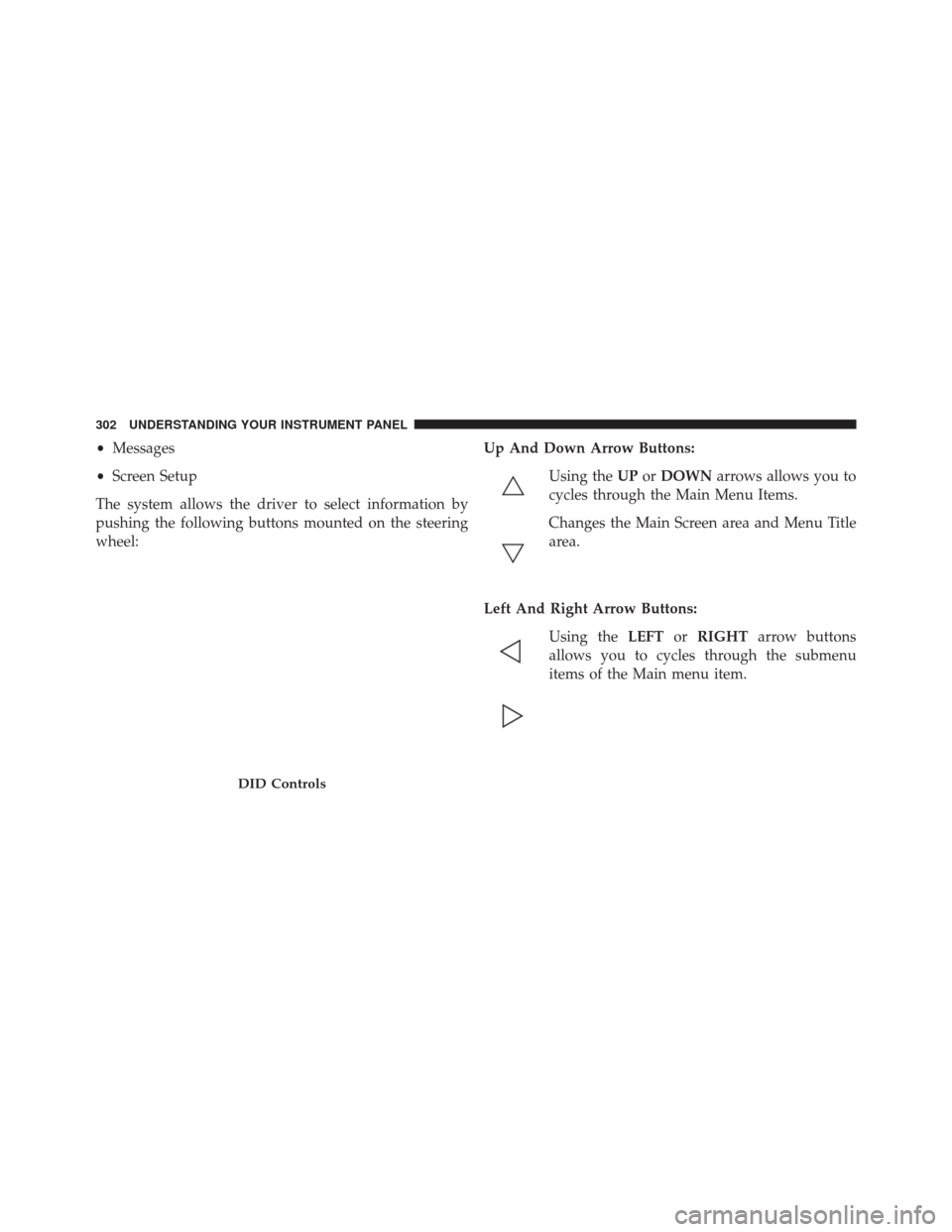
The system allows the driver to select information by
pushing the following buttons mounted on the steering
wheel: Up And Down Arrow Buttons:
Using the UPorDOWN arrows allows you to
cycles through the Main Menu Items.
Changes the Main Screen area and Menu Title
area.
Left And Right Arrow Buttons: Using the LEFTorRIGHT arrow buttons
allows you to cycles through the submenu
items of the Main menu item.
DID Controls
302 UNDERSTANDING YOUR INSTRUMENT PANEL
Page 306 of 620
chime has sounded, to indicate the next scheduled oil
change interval. The engine oil change indicator system
is duty cycle based, which means the engine oil change
interval may fluctuate, dependent upon your personal
driving style.
Unless reset, this message will continue to display each
time you place the ignition in the ON/RUN position. To
turn off the message temporarily, push and release the
OKor arrow buttons. To reset the oil change indicator
system (after performing the scheduled maintenance),
refer to the following procedure.
Vehicles Equipped With Keyless Enter-N-Go
Your vehicle is equipped with an engine oil change
indicator system. The “Oil Change Required” message
will display in the DID for five seconds after a single
chime has sounded to indicate the next scheduled oil
change interval. The engine oil change indicator system is duty cycle based, which means the engine oil change
interval may fluctuate, dependent upon your personal
driving style.
Use the steering wheel DID controls for the following
procedure(s):
1. Without pushing the brake pedal, push the ENGINE
START/STOP button and place the ignition in the
ON/RUN position (do not start the engine).
2. Push and release the DOWN
arrow button to
scroll downward through the main menu to “Ve-
hicle Info.”
3. Push and release the RIGHTarrow button to
access the ”Oil Life” screen.
304 UNDERSTANDING YOUR INSTRUMENT PANEL