Page 154 of 620
LIGHTS
Headlight Switch
The headlight switch is located on the left side of
the instrument panel. This switch controls the
operation of the headlights, parking lights, instru-
ment panel lights, instrument panel light dimming, inte-
rior lights and fog lights.
Rotate the headlight switch clockwise to the first detent
for parking light and instrument panel light operation.
Rotate the headlight switch to the second detent for
headlight, parking light and instrument panel light op-
eration.
Headlight Switch
152 UNDERSTANDING THE FEATURES OF YOUR VEHICLE
Page 155 of 620
Automatic Headlights — If Equipped
This system automatically turns the headlights on or off
according to ambient light levels. To turn the system on,
rotate the headlight switch counterclockwise to the
AUTO position. When the system is on, the headlight
time delay feature is also on. This means the headlights
will stay on for up to 90 seconds after you place the
ignition into the OFF position. To turn the automatic
system off, move the headlight switch out of the AUTO
position.
NOTE:The engine must be running before the headlights
will come on in the automatic mode.
Parking Lights
Turn the headlight switch knob to the first detent
to turn the parking lights on. This also turns on all
instrument panel lighting.
Headlights On With Wipers (Available With
Automatic Headlights Only)
When this feature is active, the headlights will turn on
after the wipers are turned on if the headlight switch is
placed in the AUTO position and programmable feature
is set to ON. In addition, the headlights will turn off
when the wipers are turned off if they were turned on by
this feature.
NOTE: The Headlights On with Wipers feature can be
turned on or off using the Uconnect System. Refer to
“Uconnect Settings/Customer Programmable Features”
in “Understanding Your Instrument Panel” for further
information.
Headlight Time Delay
This feature provides the safety of headlight illumination
for up to 90 seconds (programmable) when leaving your
vehicle in an unlit area.
3
UNDERSTANDING THE FEATURES OF YOUR VEHICLE 153
Page 267 of 620
UNDERSTANDING YOUR INSTRUMENT PANEL
CONTENTS
�INSTRUMENT PANEL FEATURES ..........268
� INSTRUMENT CLUSTER .................269
� WARNING AND INDICATOR LIGHTS .......271
▫ Red Telltale Indicator Lights ..............272
▫ Yellow Telltale Indicator Lights ............283
▫ Green Telltale Indicator Lights ............296
▫ White Telltale Indicator Lights ............298
▫ Blue Telltale Indicator Lights ..............301
� DRIVER INFORMATION DISPLAY (DID) .....301
▫ Engine Oil Life Reset ..................303 ▫
Gear Shift Indicator (GSI) — If Equipped . . . .306
▫ DID Selectable Menu Items ..............306
� CYBERSECURITY ...................... .312
� SETTING THE ANALOG CLOCK ...........314
� UCONNECT SETTINGS ..................314
▫ Buttons On The Faceplate ................315
▫ Buttons On The Touchscreen ..............316
▫ Customer Programmable Features — Uconnect 8.4
Settings ............................ .316
� UCONNECT RADIOS — IF EQUIPPED ......3344
Page 270 of 620
INSTRUMENT PANEL FEATURES
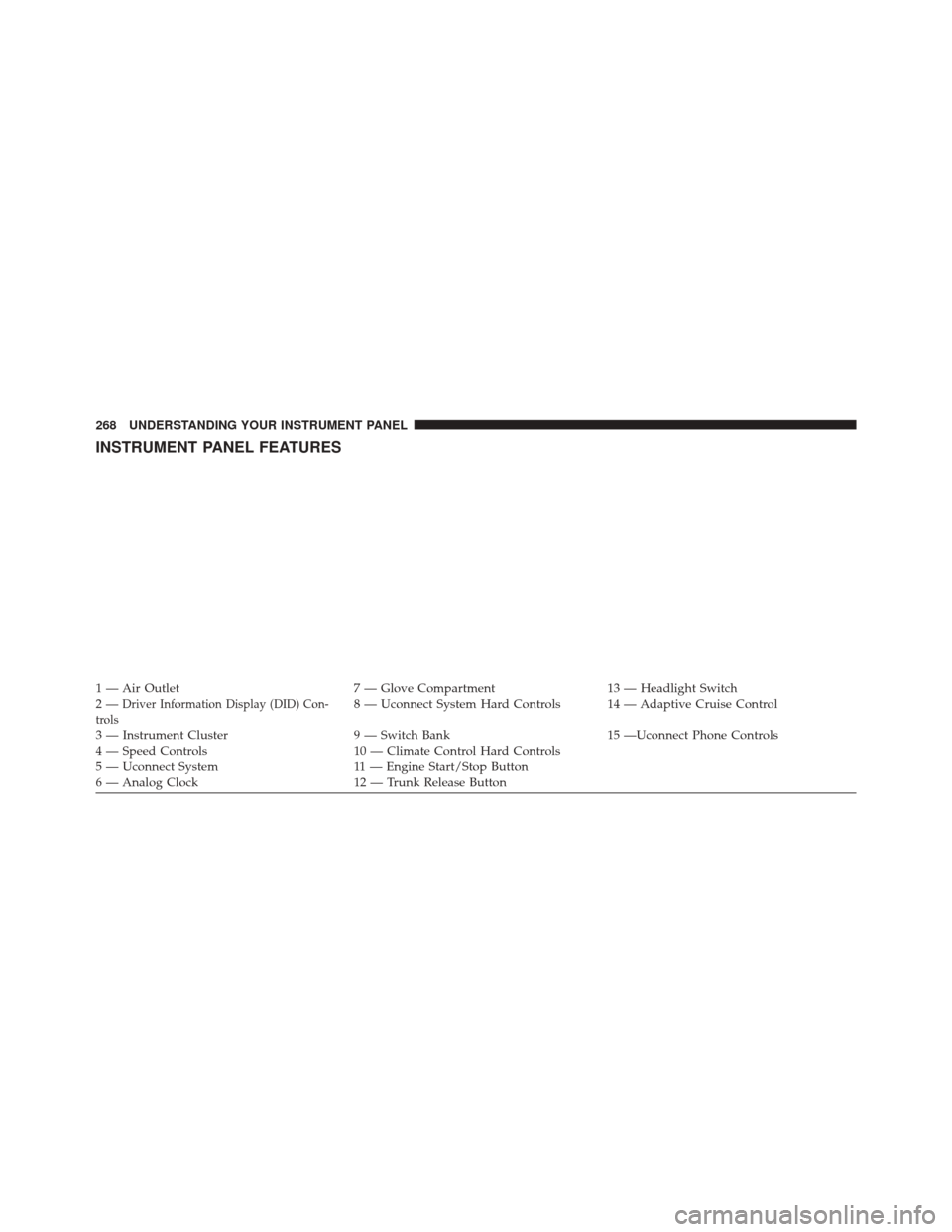
1 — Air Outlet7 — Glove Compartment13 — Headlight Switch
2—Driver Information Display (DID) Con-
trols8 — Uconnect System Hard Controls 14 — Adaptive Cruise Control
3 — Instrument Cluster 9 — Switch Bank15 —Uconnect Phone Controls
4 — Speed Controls 10 — Climate Control Hard Controls
5 — Uconnect System 11 — Engine Start/Stop Button
6 — Analog Clock 12 — Trunk Release Button
268 UNDERSTANDING YOUR INSTRUMENT PANEL
Page 316 of 620
SETTING THE ANALOG CLOCK
To set the analog clock at the top center of the instrument
panel, push and hold the button until the setting is
correct.
UCONNECT SETTINGS
The Uconnect system uses a combination of buttons on
the touchscreen and buttons on the faceplate located on
the center of the instrument panel that allows you to
access and change the customer programmable features.
CAUTION!
Do NOT attach any object to the touchscreen, doing
so can result in damage to the touchscreen.
Setting The Analog Clock
314 UNDERSTANDING YOUR INSTRUMENT PANEL
Page 318 of 620

Buttons On The Touchscreen
Buttons on the touchscreen are accessible on the
Uconnect Touchscreen.
CAUTION!
Do not attach any object to touchscreen, doing so can
result in damage to the touchscreen.
Customer Programmable Features — Uconnect
8.4 Settings
Press the “Apps” button, then press the “Settings”
button on the touchscreen to display the menu setting
screen. In this mode the Uconnect system allows you
to access programmable features that may be
equipped such as Display, Units, Voice, Clock, Safety
& Driving Assistance, Lights, Doors & Locks, Auto-On Comfort, Engine Off Options, Audio, Phone/
Bluetooth, SiriusXM Setup, Restore Settings, Clear
Personal Data and System Information.
NOTE:
•
Only one touchscreen area may be selected at a time.
• Depending on the vehicles options, feature settings
may vary.
When making a selection, press the button on the touch-
screen to enter the desired mode. Once in the desired
mode, press and release the preferred setting “option”
until a check-mark appears next to the setting, showing
that setting has been selected. Once the setting is com-
plete, either press the Back Arrow button on the touch-
screen to return to the previous menu, or press the “X”
button on the touchscreen to close out of the settings
316 UNDERSTANDING YOUR INSTRUMENT PANEL
Page 322 of 620
touchscreen until a check-mark appears next to the
setting, showing that setting has been selected.
•Show Command List
When in this display, you may change the Show Com-
mand List settings. To change the Show Command List
settings, press the “Always,” “With Help” or “Never”
button on the touchscreen until a check-mark appears
next to the setting, showing that setting has been se-
lected.
Clock
After pressing the “Clock” button on the touchscreen the
following settings will be available:
• Sync Time With GPS — If Equipped
This feature will allow you to automatically have the
radio set the time. To change the Sync Time setting, press the “Sync time with GPS” button on the touchscreen until
a check-mark appears next to the setting, showing that
setting has been selected.
•
Set Time Hours
This feature will allow you to adjust the hours. The “Sync
time with GPS” button on the touchscreen must be
unchecked. To make your selection, press the “+” or “–”
buttons on the touchscreen to adjust the hours up or
down.
• Set Time Minutes
This feature will allow you to adjust the minutes. The
“Sync time with GPS” button on the touchscreen must be
unchecked. To make your selection, press the “+” or “–”
buttons on the touchscreen to adjust the minutes up or
down.
320 UNDERSTANDING YOUR INSTRUMENT PANEL
Page 323 of 620
•Time Format
This feature will allow you to select the time format
display setting. Press the “Time Format” button on the
touchscreen until a check-mark appears next to the 12hrs
or 24hrs setting, showing that setting has been selected.
• Show Time In Status Bar — If Equipped
This feature will allow you to turn on or shut off the
digital clock in the status bar. To change the Show Time
Status setting press the “Show Time in Status Bar” button
on the touchscreen until a check-mark appears next to the
setting, showing that setting has been selected.
Safety & Driving Assistance
After pressing the “Safety & Driving Assistance” button
on the touchscreen the following settings will be avail-
able: •
Forward Collision Warning — If Equipped
The Front Collision Warning (FCW) feature provides an
audible and/or visual warning to potential forward
collisions. The feature can be can be set to Far, or set to
Near. The default status of FCW is the Far setting. This
means the system will warn you of a possible collision
with the vehicle in front of you when you are farther
away. This gives you the most reaction time. To change
the setting for more dynamic driving, select the Near
setting. This warns you of a possible collision when you
are much closer to the vehicle in front of you. To change
the FCW status, press and release the “Near” or “Far”
button. For further information, refer to “Adaptive
Cruise Control (ACC)” in “Understanding The Features
Of Your Vehicle”.
4
UNDERSTANDING YOUR INSTRUMENT PANEL 321