2016 CHEVROLET SILVERADO lock
[x] Cancel search: lockPage 195 of 533

Chevrolet Silverado Owner Manual (GMNA-Localizing-U.S./Canada/Mexico-
9159338) - 2016 - crc - 10/21/15
194 Infotainment System
4.6
.Radio: Press and release to
go to the next station or
channel. Press and hold to
fast seek the next strongest
station or channel.
. USB/BT Music/Movies/
Pictures: Press and hold to
go to the next content.
Press and hold to fast
forward.
5.
#
. Press and release to
access the phone screen,
answer an incoming call,
or access the device home
screen. Press and hold to
access Press to Talk.
Home Page (Base Radio)
Home Page Features
The infotainment system displays a
Home Page that makes it easy to
access all of the applications. Turn
the MENU knob to highlight feature
icons. Press the MENU knob to
access the feature’s options. Various functions are disabled when
the vehicle is moving.
AUDIO :
Select the AUDIO screen
icon to display the active source
page. The sources available are
AM, FM, SiriusXM
®(if equipped),
CD (if equipped), USB/iPod, AUX
Input, and Bluetooth Audio (if
equipped). See AM-FM Radio (Base
Radio with Touchscreen) 0199 or
AM-FM Radio (Base Radio) 0197,
Satellite Radio (Base Radio) 0201
or Satellite Radio (Base Radio with
Touchscreen) 0201, CD Player
0 207, Auxiliary Jack 0213, and
Bluetooth Audio 0215.
PHONE : Select the PHONE screen
icon to display the Phone main
page. See Bluetooth (Voice
Recognition - Base Radio) 0227 or
Bluetooth (Infotainment Controls -
Base Radio) 0223 orBluetooth
(Overview) 0222 orBluetooth
(Infotainment Controls - Base Radio
with Touchscreen) 0232.
NAV (Navigation, If Equipped) :
Select the NAV screen icon to
display the OnStar Turn-by-Turn Navigation. See
OnStar Overview
0 500 orOnStar Overview 0501,
if equipped.
SETTINGS : Select the SETTINGS
screen icon to display the Settings
main page. See “Setting Radio
Preferences” following.
Pandora (If Equipped)
Select the PANDORA icon to begin
Pandora. See Pandora Internet
Radio 0204.
Setting Radio Preferences
Select the SETTINGS screen icon
to display the Settings menu and
the following may display:
Time and Date : SeeClock 0127.
Language (Current Language) :
This will set the display language in
the radio and instrument cluster.
Select to display a list of languages.
Select
oBACK to go back to the
previous menu.
Page 196 of 533
Chevrolet Silverado Owner Manual (GMNA-Localizing-U.S./Canada/Mexico-
9159338) - 2016 - crc - 10/21/15
Infotainment System 195
Valet Mode:
Using the circular numeric keypad,
enter a four-digit code:1. Turn the MENU knob to highlight a number.
2. Press the MENU knob to select it. Do this for each one of the
four digits. Select Enter to go to
the confirmation screen.
3. Re-enter the four-digit code. Select LOCK to lock the
system.
4. Enter the four-digit code to unlock the system. Select
o
BACK to go back to the
previous menu.
Radio : See“Radio Setup” later in
this section.
Vehicle : SeeVehicle
Personalization 0165.
Display : Press the MENU knob to
turn the display on or off.
Return to Factory Settings : See
“Return to Factory Settings” later in
this section. Software Information (If
Equipped) :
Press the MENU knob
to select Save Vehicle Info to USB.
Press the MENU knob again to start
downloading the vehicle information
to the USB.
Radio Setup
Press the RADIO button and the
following may display:
Manage Favorites:
. Turn the MENU knob and press
to select a favorite.
.To delete a favorite, press
the button just below the
DELETE screen button.
. To move a favorite, press the
MOVE screen button. Turn
the MENU knob to select a
new location, then press the
DROP screen button to
select the new location.
. Select
oBACK to go back to
the previous menu.
Number of Favorites Shown :
Select Auto and the system will
automatically adjust the number of
favorite pages when favorites are added and removed, or select a
number from 5–25 to manually
adjust the number of favorites
shown.
Audible Touch Feedback (If
Equipped) :
Select Audible Touch
Feedback to turn feedback off or on.
Auto Volume (If Equipped) : This
feature adjusts the volume based on
vehicle speed. The options are Off,
Low, Medium-Low, Medium,
Medium-High, or High. Select the
desired volume.
Maximum Startup Volume : This
feature sets the maximum startup
volume. If the vehicle is started and
the volume is greater than this level,
the volume is adjusted to this level.
To set the maximum startup volume,
Turn the MENU knob to increase or
decrease startup volume.
Rear Camera (If Equipped)
From the Rear Camera screen
button, the following may display:
Park Assist Symbols (If
Equipped) : This feature will display
symbols where objects are detected
Page 205 of 533
Chevrolet Silverado Owner Manual (GMNA-Localizing-U.S./Canada/Mexico-
9159338) - 2016 - crc - 10/21/15
204 Infotainment System
Pandora Internet Radio
If equipped, Pandora®is a free
Internet radio service that streams
personalized radio stations based
on artists, tracks, genres, and
comedians. Create stations using
the Pandora website or Smartphone
application, then use
-or,to
personalize stations. To set up an
account, or for more information, go
to www.pandora.com. Pandora may
not be available in Canada or
Mexico.
A phone or tablet with Internet
connection and the Pandora
application installed is required.
Personal cell phone data plans are
used. Make sure the latest version
is installed on the device.
Launching Pandora
Connect the iPhone to the USB
port, or connect Android®or
BlackBerry®through Bluetooth. See
Bluetooth (Voice Recognition - Base
Radio) 0227 orBluetooth
(Infotainment Controls - Base
Radio) 0223 orBluetooth
(Overview) 0222 orBluetooth
(Infotainment Controls - Base Radio
with Touchscreen) 0232. For first
time use, set up the stations before
connecting to the vehicle. The
Pandora icon will be available on
the Home Page.
When Pandora is chosen, the
Pandora logo will populate on the
screen and the system will display
“Acquiring Pandora Radio Station.”
Launch times can be significant.
Using the iPhone
1. Plug the device into the USB port. The phone screen must
be unlocked.
2. Launch Pandora from the Home Page by selecting the
Pandora icon. If nothing happens when the
available Pandora screen button is
pressed, download the latest
Pandora application and retry.
The login screen may display on the
device.
Using an Android or BlackBerry
Phone
The BlackBerry phone must be
unlocked to launch Pandora service.
1. Pair the phone using Bluetooth.
2. Launch Pandora by selecting Pandora on the Home Page.
If nothing happens when the
available Pandora screen button is
selected, download the latest
Pandora application and retry.
The login screen may display on the
device.
Page 207 of 533
Chevrolet Silverado Owner Manual (GMNA-Localizing-U.S./Canada/Mexico-
9159338) - 2016 - crc - 10/21/15
206 Infotainment System
Unable to Start Pandora
If the device is unable to launch
Pandora:
.Check that the latest version of
Pandora is installed.
. Check that there is an active
account logged into Pandora.
. Have at least one station
created.
. For Android and BlackBerry
devices, check that the device is
paired with the vehicle, and
whether the device displays in
the Connected phone sources
list under the Phone icon from
the Home Page.
. For an iPhone, check that the
USB cable is connected to the
USB port and the screen is
unlocked.
. Close Pandora on the device
and launch again. Devices that
allow multitasking may require
an extra step to quit the Pandora
application. See the cell phone
manufacturer's user guide. Thumbs Up or Thumbs Down
Error
If there is an error trying to rate a
track with the
,or-, the message
“Thumbs Down Error” or“Thumbs
Up Error” will display. Press OK to
dismiss.
Loss of Audio
Loss of Pandora audio can happen
in different ways:
. Weak or lost data connection.
. Device needs to be charged.
. Application needs to be
relaunched.
. Connection between phone and
radio lost.
. An iPhone is connected to both
Bluetooth and the USB port.
Playback can be resumed from
a loss of audio by double
tapping on the iPhone home
button then scrolling through the
icons to find an icon that allows
a change of flow between
Bluetooth and USB cable. Volume and song selection may
be controlled using the
Infotainment controls or on the
phone/device. If Pandora is
selected and nothing is heard,
check the volume setting on
both phone/device and the
Infotainment system.
Common Pandora Messages
Pandora Error/Please Check
Device : Not signed in or Pandora
is down for maintenance.
No Stations Available : No stations
are available on the Pandora server
through the connected device.
Action Unavailable. Please Check
Device Connection : A few
conditions for loss of Internet
connection are:
. The connected device loses its
cellular connection.
. The device does not support
Internet connectivity.
. The device is not in the vehicle.
. The Bluetooth signal is lost.
Page 243 of 533

Chevrolet Silverado Owner Manual (GMNA-Localizing-U.S./Canada/Mexico-
9159338) - 2016 - crc - 10/21/15
242 Infotainment System
If the USB device is already
connected:1. Press
{.
2. Touch GALLERY.
Some features are disabled while
the vehicle is in motion.
Viewing a Slide Show
1. Touch
zfrom the picture
screen.
2. Touch the screen to cancel the slide show during the slide
show playback.
Viewing a Previous or Next
Picture
Touch
SorTfrom the picture
screen.
Rotating a Picture
Touch
wfrom the picture screen.
Enlarging a Picture
Touch
xfrom the picture screen. Using the USB Picture Menu
1. Touch MENU from the picture screen.
2. Touch the appropriate menu: .Slide Show Time: Allows
selection of the slide show
interval.
. Clock, Temp. Display:
Allows selection of On or
Off to show the clock and
temperature on the full
screen.
. Display Settings: Adjusts
for Brightness and Contrast.
3. Touch
0to exit.
Pictures and Movies
(Movie System with
Touchscreen)
The infotainment system can play
movie files stored on a USB storage
device and devices that support
Media Transfer Protocol (MTP). Movie System Information
.
Available resolution: Lower than
1280 x 720 (W x H) pixels.
. Frame rate: Less than 30 fps.
. Playable movie file: mp4. The
playable movie file may not be
played according to the codec
format.
. Playable codec format: H.264
codec.
. Playable Audio format: MP3,
AC3, AAC, WMA.
. Max video bitrate:
‐mpeg-1: 8 Mbps
‐ mpeg-4 (mpg4, mp42, mp43):
4 Mbps
. Max audio bitrate:
‐mp3: 320 Kbps
‐ wma: 320 Kbps
‐ ac-3: 640 Kbps
‐ aac: 449 Kbps
. Movie files to which Digital Right
Management (DRM) is applied
may not be played.
Page 244 of 533

Chevrolet Silverado Owner Manual (GMNA-Localizing-U.S./Canada/Mexico-
9159338) - 2016 - crc - 10/21/15
Infotainment System 243
Playing a Movie File1. Connect the USB device to the USB port.
2. Touch the screen to open to full screen. Touch the screen again
to return to the previous
screen.
If the USB device is already
connected:
1. Press
{.
2. Touch GALLERY.
3. Touch
z.
Movie is not available while driving.
Pause
. Touch
jto pause.
. Touch
rto resume.
Changing to Next/Previous Movie
. Touch
uto change to the
next file.
. Touch
twithin five seconds of
the playback time to play the
previous file. Returning to the Beginning of the
Current Movie
Touch
tafter five seconds of the
playback time.
Scanning Forward or Backward
Touch and hold
toruduring
playback to rewind or fast forward.
Release the button to resume
playback at normal speed.
Viewing Full Screen
Touch
tfrom the movie screen.
Touch
tagain to return to the
previous screen.
Using the USB Movie Menu
1. Touch MENU from the movie screen.
2. Touch the appropriate menu:
.Tone Settings: Shows the
sound setup. See “Tone
Settings” under“Base
Radio with Touchscreen” in
AM-FM Radio (Base Radio
with Touchscreen) 0199 or
AM-FM Radio (Base
Radio) 0197.
. Auto Volume: Automatically
adjusts the volume
according to the speed of
the vehicle. See “Auto
Volume” under“Base Radio
with Touchscreen” in
AM-FM Radio (Base Radio
with Touchscreen) 0199 or
AM-FM Radio (Base
Radio) 0197.
. Clock Temp. Display:
Allows selection of On or
Off to show the clock and
temperature on the full
screen.
. Display Settings: Adjusts
for brightness and contrast.
3. Touch
0to exit.
Page 245 of 533

Chevrolet Silverado Owner Manual (GMNA-Localizing-U.S./Canada/Mexico-
9159338) - 2016 - crc - 10/21/15
244 Infotainment System
Trademarks and
License Agreements
FCC Information
SeeRadio Frequency Statement
0 496 orRadio Frequency
Statement 0496.
"Made for iPod" and "Made for
iPhone" mean that an electronic
accessory has been designed to
connect specifically to iPod or
iPhone and has been certified by
the developer to meet Apple
performance standards. Apple is not
responsible for the operation of this
device or its compliance with safety
and regulatory standards. Please
note that the use of this accessory
with iPod or iPhone may affect
wireless performance. iPhone
®,
iPod®, iPod classic®, iPod nano®, iPod shuffle
®, and iPod touch®are
trademarks of Apple Inc., registered
in the U.S. and other countries.
Fees and Taxes: Subscription fee,
taxes, one time activation fee, and
other fees may apply. Subscription
fee is consumer only. All fees and
programming subject to change.
Subscriptions subject to Customer
Agreement available at
www.siriusxm.com. SiriusXM
®
service only available in the
48 contiguous United States and
Canada.
In Canada: Some deterioration of
service may occur in extreme
northern latitudes. This is beyond
the control of SiriusXM
®Satellite
Radio.
Explicit Language Notice: Channels
with frequent explicit language are
indicated with an “XL”preceding the channel name. Channel blocking is
available for SiriusXM Satellite
Radio receivers by notifying
SiriusXM:
.
USA Customers —See
www.siriusxm.com or call
1-866-635–2349.
. Canadian Customers —See
www.xmradio.ca or call
1-877-209-0079.
It is prohibited to copy, decompile,
disassemble, reverse engineer,
hack, manipulate, or otherwise
make available any technology or
software incorporated in receivers
compatible with the SiriusXM
®
Satellite Radio System or that
support the SiriusXM website, the
Online Service or any of its content.
Furthermore, the AMBER voice
compression software included in
this product is protected by
intellectual property rights including
patent rights, copyrights, and trade
secrets of Digital Voice
Systems, Inc.
Page 251 of 533
Chevrolet Silverado Owner Manual (GMNA-Localizing-U.S./Canada/Mexico-
9159338) - 2016 - crc - 10/21/15
250 Climate Controls
Climate Controls
Climate Control Systems
Climate Control Systems (withHeater Only) . . . . . . . . . . . . . . . . 250
Climate Control Systems (with Air Conditioning) . . . . . . . . . . . . 252
Dual Automatic Climate Control System . . . . . . . . . . . . . 253
Air Vents
Air Vents . . . . . . . . . . . . . . . . . . . . . 257
Maintenance
Passenger Compartment AirFilter . . . . . . . . . . . . . . . . . . . . . . . . 257
Service . . . . . . . . . . . . . . . . . . . . . . . 258
Climate Control Systems
Climate Control Systems (with Heater Only)
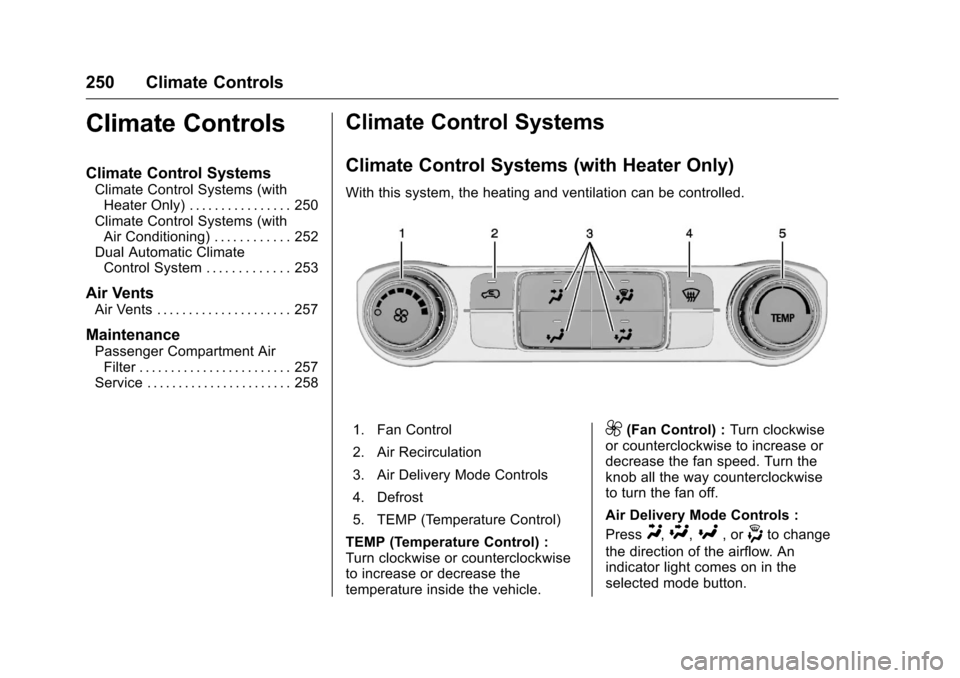
With this system, the heating and ventilation can be controlled.
1. Fan Control
2. Air Recirculation
3. Air Delivery Mode Controls
4. Defrost
5. TEMP (Temperature Control)
TEMP (Temperature Control) :
Turn clockwise or counterclockwise
to increase or decrease the
temperature inside the vehicle.9(Fan Control) : Turn clockwise
or counterclockwise to increase or
decrease the fan speed. Turn the
knob all the way counterclockwise
to turn the fan off.
Air Delivery Mode Controls :
Press
Y,\,[, or-to change
the direction of the airflow. An
indicator light comes on in the
selected mode button.