2016 CHEVROLET MALIBU clock
[x] Cancel search: clockPage 35 of 420
Chevrolet Malibu Owner Manual (GMNA-Localizing-U.S./Canada/Mexico-
9087641) - 2016 - crc - 9/3/15
34 Keys, Doors, and Windows
Keyless Trunk Opening
Press the touch pad on the rear of
the trunk to open it if the RKE
transmitter is within 1 m (3 ft) of the
trunk.
Keyed Access
To access a vehicle with a dead
transmitter battery, seeDoor Locks
0 38
ii.
Programming Transmitters to
the Vehicle
Only RKE transmitters programmed
to the vehicle will work. If a
transmitter is lost or stolen, a
replacement can be purchased and
programmed through your dealer.
The vehicle can be reprogrammed
so that lost or stolen transmitters no
longer work. Any remaining
transmitters will need to be
reprogrammed. Each vehicle can
have up to eight transmitters
matched to it. Programming with a Recognized
Transmitter
A new transmitter can be
programmed to the vehicle when
there is one recognized transmitter.
To program, the vehicle must be off
and all of the transmitters, both
currently recognized and new, must
be with you.
1. Place the recognized transmitter(s) in the transmitter
pocket with the buttons facing
the rear of the vehicle. The
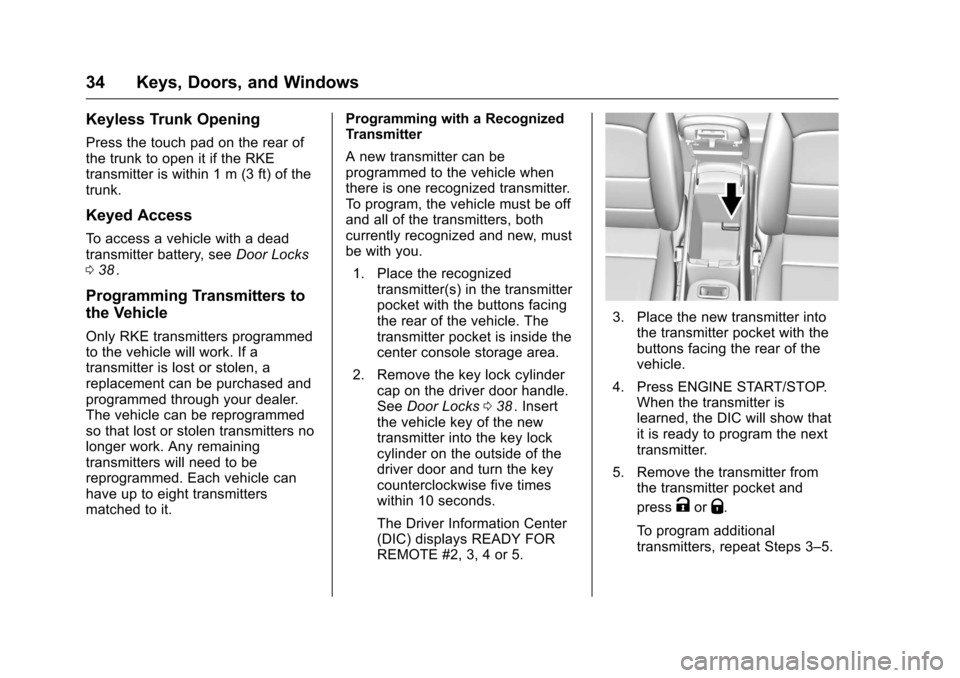
transmitter pocket is inside the
center console storage area.
2. Remove the key lock cylinder cap on the driver door handle.
See Door Locks 038
ii. Insert
the vehicle key of the new
transmitter into the key lock
cylinder on the outside of the
driver door and turn the key
counterclockwise five times
within 10 seconds.
The Driver Information Center
(DIC) displays READY FOR
REMOTE #2, 3, 4 or 5.
3. Place the new transmitter into the transmitter pocket with the
buttons facing the rear of the
vehicle.
4. Press ENGINE START/STOP. When the transmitter is
learned, the DIC will show that
it is ready to program the next
transmitter.
5. Remove the transmitter from the transmitter pocket and
press
KorQ.
To program additional
transmitters, repeat Steps 3–5.
Page 36 of 420
Chevrolet Malibu Owner Manual (GMNA-Localizing-U.S./Canada/Mexico-
9087641) - 2016 - crc - 9/3/15
Keys, Doors, and Windows 35
When all additional transmitters
are programmed, press and
hold ENGINE START/STOP for
12 seconds to exit
programming mode.
6. Put the key back into the transmitter.
Programming without a
Recognized Transmitter
If there are no currently recognized
transmitters available, follow this
procedure to program up to eight
transmitters. This feature is not
available in Canada. This procedure
will take approximately 30 minutes
to complete. The vehicle must be off
and all of the transmitters to be
programmed must be with you. 1. Remove the key lock cylinder cap on the driver door handle.
See Door Locks 038
ii. Insert
the vehicle key of the
transmitter into the key lock
cylinder on the outside of the
driver door and turn the key
counterclockwise five times
within 10 seconds. The Driver Information Center
(DIC) displays REMOTE
LEARN PENDING,
PLEASE WAIT.
2. Wait for 10 minutes until the DIC displays PRESS ENGINE
START BUTTON TO LEARN
and then press ENGINE
START/STOP.
The DIC displays will again
show REMOTE LEARN
PENDING, PLEASE WAIT.
3. Repeat Step 2 two additional times. After the third time, all
previously known transmitters
will no longer work with the
vehicle. Remaining transmitters
can be relearned during the
next steps.
The DIC display should now
show READY FOR REMOTE
# 1.
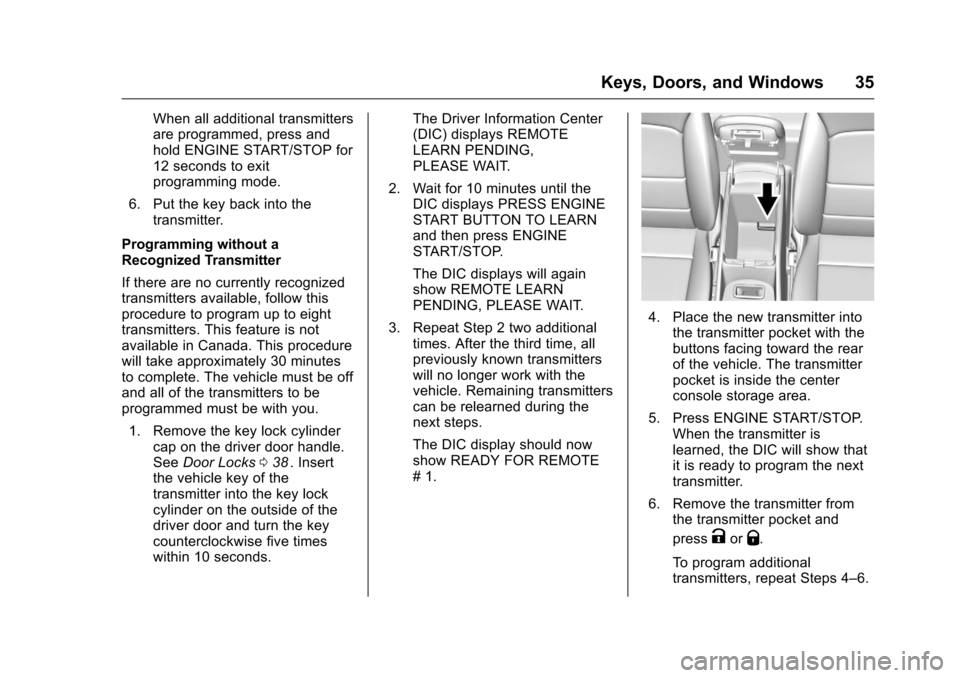
4. Place the new transmitter intothe transmitter pocket with the
buttons facing toward the rear
of the vehicle. The transmitter
pocket is inside the center
console storage area.
5. Press ENGINE START/STOP. When the transmitter is
learned, the DIC will show that
it is ready to program the next
transmitter.
6. Remove the transmitter from the transmitter pocket and
press
KorQ.
To program additional
transmitters, repeat Steps 4–6.
Page 103 of 420
Chevrolet Malibu Owner Manual (GMNA-Localizing-U.S./Canada/Mexico-
9087641) - 2016 - crc - 9/3/15
102 Instruments and Controls
Instruments and
Controls
Controls
Steering Wheel Adjustment . . . 103
Steering Wheel Controls . . . . . . 103
Heated Steering Wheel . . . . . . . 104
Horn . . . . . . . . . . . . . . . . . . . . . . . . . . 104
Windshield Wiper/Washer . . . . 104
Compass . . . . . . . . . . . . . . . . . . . . . 105
Clock . . . . . . . . . . . . . . . . . . . . . . . . . 106
Power Outlets . . . . . . . . . . . . . . . . 107
Wireless Charging . . . . . . . . . . . . 108
Warning Lights, Gauges, and
Indicators
Warning Lights, Gauges, andIndicators . . . . . . . . . . . . . . . . . . . 109
Instrument Cluster (Base Level) . . . . . . . . . . . . . . . . . . . . . . . 110
Instrument Cluster
(Uplevel) . . . . . . . . . . . . . . . . . . . . 112
Speedometer . . . . . . . . . . . . . . . . . 115
Odometer . . . . . . . . . . . . . . . . . . . . . 115
Trip Odometer . . . . . . . . . . . . . . . . 115
Tachometer (Non-Hybrid) . . . . . 115
Fuel Gauge . . . . . . . . . . . . . . . . . . . 116
Power Indicator Gauge (Hybrid) . . . . . . . . . . . . . . . . . . . . . 116 Engine Coolant Temperature
Gauge . . . . . . . . . . . . . . . . . . . . . . 117
Safety Belt Reminders . . . . . . . . 117
Airbag Readiness Light . . . . . . . 118
Passenger Airbag Status Indicator . . . . . . . . . . . . . . . . . . . . . 118
Charging System Light . . . . . . . 119
Malfunction Indicator Lamp (Check Engine Light) . . . . . . . . 120
Brake System Warning Light . . . . . . . . . . . . . . . . . . . . . . . . 122
Electric Parking Brake Light . . . . . . . . . . . . . . . . . . . . . . . . 122
Service Electric Parking Brake Light . . . . . . . . . . . . . . . . . . . . . . . . 122
Antilock Brake System (ABS) Warning Light . . . . . . . . . . . . . . . 123
Lane Keep Assist (LKA) Light . . . . . . . . . . . . . . . . . . . . . . . . 123
Vehicle Ahead Indicator . . . . . . 123
Pedestrian Ahead Indicator . . . 124
Traction Off Light . . . . . . . . . . . . . 124
StabiliTrak
®OFF Light . . . . . . . . 124
Traction Control System (TCS)/ StabiliTrak
®Light . . . . . . . . . . . 125
Tire Pressure Light . . . . . . . . . . . 125
Engine Oil Pressure Light . . . . 125
Low Fuel Warning Light (Uplevel) . . . . . . . . . . . . . . . . . . . . 126
Low Fuel Warning Light (Base Level) . . . . . . . . . . . . . . . . . . . . . . . 126 Security Light . . . . . . . . . . . . . . . . . 127
Vehicle Ready Light
(Hybrid) . . . . . . . . . . . . . . . . . . . . . 127
High-Beam On Light . . . . . . . . . . 127
Lamps On Reminder . . . . . . . . . 127
Cruise Control Light . . . . . . . . . . 127
Door Ajar Light (Uplevel) . . . . . 128
Information Displays
Center Stack Display . . . . . . . . . 128
Power Flows (Hybrid) . . . . . . . . . 128
Energy Information (Hybrid) . . . . . . . . . . . . . . . . . . . . . 129
Driver Information Center (DIC) (Base Level) . . . . . . . . . . . . . . . . 129
Driver Information Center (DIC) (Uplevel) . . . . . . . . . . . . . . . . . . . . 132
Vehicle Messages
Vehicle Messages . . . . . . . . . . . . 136
Battery Voltage and Charging
Messages . . . . . . . . . . . . . . . . . . . 136
Brake System Messages . . . . . 136
Compass Messages . . . . . . . . . . 137
Cruise Control Messages . . . . . 137
Door Ajar Messages . . . . . . . . . . 138
Engine Cooling System Messages . . . . . . . . . . . . . . . . . . . 138
Engine Oil Messages . . . . . . . . . 139
Engine Power Messages . . . . . 139
Fuel System Messages . . . . . . . 139
Page 107 of 420
Chevrolet Malibu Owner Manual (GMNA-Localizing-U.S./Canada/Mexico-
9087641) - 2016 - crc - 9/3/15
106 Instruments and Controls
a heading again. SeeCompass
Messages 0137iifor the messages
that may be displayed for the
compass.
Clock
Radio without Touchscreen
The infotainment system controls
are used to access the time and
date settings through the menu
system. See Operation0173
iion
how to use the menu system.
Setting the Time and Date
1. Press MENU, then select Settings
2. Select Time and Date.
3. Select Set Time or Set Date.
4. Turn MENU to change the value.
5. Press MENU to select the next value.
6. Turn MENU to change the value. 7. To exit without saving, press
BACK at any time or to save
and return to the Time and
Date menu, press MENU
multiple times.
Auto Set
When Auto Set is enabled, the time
cannot be manually set.
From the Set Time or Set
Date menu:
1. Press the preset button under Auto Set.
2. Turn MENU to select Off (Manual) or On-Cell Network,
then press MENU to select it
and return to the Time and
Date menu.
3. To exit without saving, press BACK at any time.
Setting the 12/24 Hour Format
From the Set Time menu:
1. Press the preset button under 12-24 HR to change between
12 hour and 24 hour modes.
2. To return to the Time and Date menu, press BACK at any time.
Radio with Touchscreen
The infotainment system controls
are used to access the time and
date settings through the menu
system. See Operation0173
iion
how to use the menu system.
Setting the Time and Date
When Auto Set is enabled the time
cannot be manually set.
1. Press
{, then touch Settings.
2. Touch Time and Date, then Set Time or Set Date.
3. Touch + or −to adjust the
value.
4. Touch
RorQto adjust AM or
PM for 12 hour format.
5. Touch
0to return to the
Time and Date menu.
Auto Set
1. Press{, then touch Settings.
2. Touch Time and Date, then Auto Set.
3. Select from the available selections.
Page 147 of 420
Chevrolet Malibu Owner Manual (GMNA-Localizing-U.S./Canada/Mexico-
9087641) - 2016 - crc - 9/3/15
146 Instruments and Controls
Turn MENU to highlight, then press
to select.
Scan Music Folder Only
This feature will scan and index
music folders on an MTP device
when connected to the USB port.
Turn MENU to highlight, then press
to select.
Scan All Folder
This feature will scan and index all
folders on a MTP device when
connected to the USB port.
Turn MENU to highlight, then press
to select.
Time and Date
Select Time and Date to adjust the
clock. SeeClock0106ii.
Tone Settings
Select to set the radio tone. See
“Tone Settings” under“Radio
Controls without Touchscreen” in
Operation 0173
ii.
Auto Volume Control
This feature automatically adjusts
the radio volume based on the
speed of the vehicle.
Select the desired value.
Maximum Startup Volume
When the vehicle is started and the
radio volume is greater than this set
level, the volume is adjusted to this
level.
Select the desired value.
Vehicle Settings
Select and the following may
display:
.
Climate and Air Quality
. Comfort and Convenience
. Languages
. Lighting
. Power Door Locks
. Remote Lock, Unlock, Start
. Return to Factory Settings
. Software Information
. Valet Mode
Climate and Air Quality
Select and the following may
display:
.Auto Fan Speed
. Air Quality Sensor
. Auto Defog
. Auto Rear Defog
Auto Fan Speed
This adjusts the blower level during
automatic operation.
Select Low, Medium, or High.
Air Quality Sensor
This automatically selects
recirculate when certain gases are
detected.
Select Off, Low Sensitivity, or High
Sensitivity.
Auto Defog
This allows the climate control
system to prevent fog on the inside
of the windows. See “Auto Defog”in
Dual Automatic Climate Control
System 0209
ii.
Select Off or On.
Page 151 of 420
Chevrolet Malibu Owner Manual (GMNA-Localizing-U.S./Canada/Mexico-
9087641) - 2016 - crc - 9/3/15
150 Instruments and Controls
.Voice
. USB Auto Launch
. Turn Display Off
. Rear Camera
. Return to Factory Settings
. Software Information
Time and Date
Select Time and Date to adjust the
clock. See Clock0106ii.
Language
Select, then select from the
available language(s).
Valet Mode (If Equipped)
This will lock the infotainment
system and steering wheel controls.
It may also limit access to vehicle
storage locations (if equipped).
To enable valet mode:
1. Enter a four-digit code on the keypad.
2. Touch Enter to go to the confirmation screen.
3. Re-enter the four-digit code. Touch LOCK or UNLOCK to lock or
unlock the system. Touch Back to
go back to the previous menu.
Teen Driver (If Equipped)
Select and the following may
display:
.
View Report Card
. Manage Settings
. Change PIN
. Key Registration
. Clear All Teen Keys/PIN
View Report Card
This allows the driver ’s driving
habits to be viewed. See Teen
Driver 0195
ii.
Manage Settings
Select and the following may
display:
. Audio Volume Limit
. Teen Driver Speed Warning
Audio Volume Limit
This allows a maximum radio
volume to be set. Select Off or On.
Teen Driver Speed Warning
This allows a warning to be set
when a certain speed is exceeded.
Select Off or On. If On is selected,
select a speed between 64 km/h
(40 mph) and 120 km/h (75 mph).
Change PIN
This allows the Personal
Identification Number (PIN) to be
changed. See
Teen Driver0195
ii.
Key Registration
This allows the key to be registered.
See Teen Driver 0195
ii.
Clear All Teen Keys/PIN
This allows all Teen Driver keys and
PINs to be cleared.
Select Continue or Cancel.
Radio
Select and the following may
display:
. Manage Favorites
. Number of Favorites Shown
Page 166 of 420
Chevrolet Malibu Owner Manual (GMNA-Localizing-U.S./Canada/Mexico-
9087641) - 2016 - crc - 9/3/15
Lighting 165
If after signaling a turn or lane
change, the arrow flashes rapidly or
does not come on, a signal bulb
may be burned out.
Replace any burned out bulbs. If a
bulb is not burned out, check the
fuse. SeeFuses0311
ii.
Interior Lighting
Instrument Panel
Illumination Control
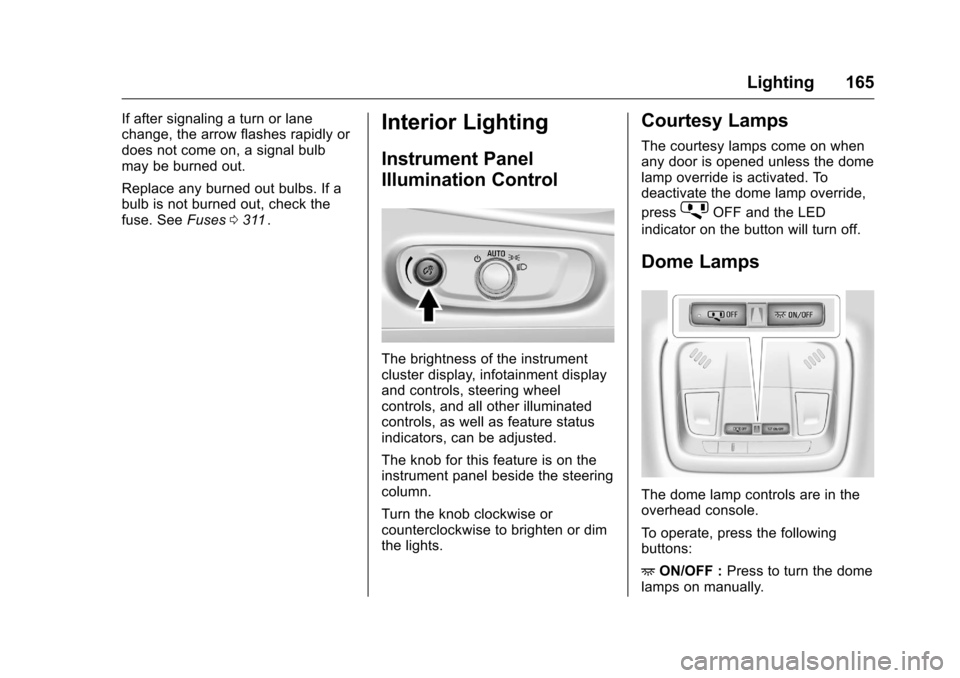
The brightness of the instrument
cluster display, infotainment display
and controls, steering wheel
controls, and all other illuminated
controls, as well as feature status
indicators, can be adjusted.
The knob for this feature is on the
instrument panel beside the steering
column.
Turn the knob clockwise or
counterclockwise to brighten or dim
the lights.
Courtesy Lamps
The courtesy lamps come on when
any door is opened unless the dome
lamp override is activated. To
deactivate the dome lamp override,
press
jOFF and the LED
indicator on the button will turn off.
Dome Lamps
The dome lamp controls are in the
overhead console.
To operate, press the following
buttons:
+ ON/OFF : Press to turn the dome
lamps on manually.
Page 203 of 420
Chevrolet Malibu Owner Manual (GMNA-Localizing-U.S./Canada/Mexico-
9087641) - 2016 - crc - 9/3/15
202 Infotainment System
.Some files may not operate due
to a different recording format or
the condition of the file.
Viewing Pictures 1. Connect the USB device to the USB port.
2. Touch the screen to open to full screen. Touch the screen again
to return to the previous
screen.
If the USB device is already
connected:
1. Press
{.
2. Touch GALLERY.
3. Touch
\.
Some features are disabled while
the vehicle is in motion.
Viewing a Slide Show
1. Touch
zfrom the picture
screen.
2. Touch the screen to cancel the slide show during the slide
show playback. Viewing a Previous or Next
Picture
Touch
SorTfrom the picture
screen.
Rotating a Picture
Touch
wfrom the picture screen.
Enlarging a Picture
Touch
xfrom the picture screen.
Using the USB Picture Menu 1. Touch MENU from the picture screen.
2. Touch the appropriate menu: .Slide Show Time: Allows
selection of the slide show
interval.
. Clock, Temp. Display:
Allows selection of On or
Off to show the clock and
temperature on the full
screen.
. Display Settings: Adjusts
for Brightness and Contrast.
3. Touch
0to exit.
Pictures and Movies
(Movie System with
Touchscreen)
The infotainment system can play
movie files stored on a USB storage
device and devices that support
Media Transfer Protocol (MTP).
Movie System Information
. Available resolution: Lower than
1280 x 720 (W x H) pixels.
. Frame rate: Less than 30 fps.
. Playable movie file: .mp4, .avi.
The playable movie file may not
be played according to the
codec format.
. Playable codec format: H.264/
MPEG-4 AVC.
. Playable Audio format: MP3,
AC3, AAC, WMA.
. Max video bitrate:
‐MPEG-1: 8 Mbps
‐ MPEG-4 (mpg4, mp42, mp43):
4 Mbps