2016 CHEVROLET MALIBU USB
[x] Cancel search: USBPage 38 of 94
Chevrolet Malibu Limited/Cruze Limited MyLink Infotainment System
(GMNA-Localizing-U.S./Canada-9282853) - 2016 - crc - 4/16/15
Audio Players 37
Devices with more music may take
longer to index. The device will
index when plugged into the radio
for the first time. When Indexing is
removed from the screen, the radio
is ready to support music search.
On the next connection or ignition
cycle, Indexing will show briefly on
the screen. The radio is searching
for changes to the device and
preparing the music list. If there are
no changes, the voice recognition
music search will be available. The
radio will index and store two
devices with up to 10,000 songs on
each device.
USB MP3 Player and USB Drives
.The USB MP3 players and USB
drives connected must comply
with the USB Mass Storage
Class specification (USB MSC).
. Hard disk drives are not
supported.
. The radio will not be able to play
back write-protected music.
. File system supported: FAT32. .
The following restrictions apply
for the data stored on a USB
MP3 player or USB device:
‐Maximum folder structure
depth: 8 levels.
‐ Maximum number of MP3/
WMA files that can be
displayed: 10,000.
‐ Playlist entries must be in the
form of relative paths.
‐ The system attribute for
folders/files that contain audio
data must not be set.
To play a USB device, do one of the
following:
. Connect the USB and it begins
to play.
. Touch the Now Playing screen
button on the Home Page.
. Press SRCE on the faceplate to
scroll until the USB source
screen is available. .
Pressb/gon the steering
wheel controls to play CD, Artist,
Album, Song Title, or Song
Genre. See Voice Recognition
0 68.
The following playlist formats are
supported:
. M3U (Standard and Extended)
. iTunes
. PLS (Standard)
. WAX
. ASX
. RMP
The radio supports plugging a cell
phone in as a USB drive as long as
the cell phone supports USB mass
storage class or has USB disc drive
support enabled.
While the USB source is active, use
the following to operate USB
function:
TUNE/MENU or MENU/SEL
Knob : Turn to scroll through the
list. Turn quickly to fast scroll
alphabetically through large lists.
Page 39 of 94
Chevrolet Malibu Limited/Cruze Limited MyLink Infotainment System
(GMNA-Localizing-U.S./Canada-9282853) - 2016 - crc - 4/16/15
38 Audio Players
k(Play/Pause) :Touch to start,
pause, or resume play of the current
media source.
©SEEK (Previous/Reverse):
. Press to seek to the beginning of
the current or previous track.
If the track has been playing for
less than five seconds, the
previous track plays. If playing
longer than five seconds, the
current track restarts.
. Press and hold to reverse
quickly through playback.
Release to return to playing
speed. Elapsed time displays.
SEEK
¨(Next/Forward):
. Press to seek to the next track.
. Press and hold to advance
quickly through playback.
Release to return to playing
speed. Elapsed time displays. USB Menu
The following are available through
the USB Menu:
Shuffle:
Touch to play the tracks
randomly. Touch again to stop
shuffle.
Play More Like This:
1. Touch to automatically create a playlist of songs that are like
the song currently playing.
2. The radio will show "Playlist Creation Succeeded" and
continue playing the
current song.
Playlist Creation Failed may
appear if a song is not found in
the Gracenote Database.
Delete Automatic Playlist: Touch
to delete a more like this playlist.
Folders: Touch to open a folder list
to access the files within the folder
structure.
Playlists:
1. Touch to view the playlists on the USB. 2. Select a playlist to view the list
of all songs in that playlist.
3. Select a song from the list to begin playback.
Artists: 1. Touch to view the list of artists on the USB.
2. Select an artist name to view a list of all albums by the artist.
3. To select a song, touch Songs List or touch an album and
then select a song from the list.
Albums:
1. Touch to view the albums on the USB.
2. Select the album to view a list of all songs on the album.
3. Select a song from the list to begin playback.
Genres:
1. Touch to view the genres on the USB.
2. Select a genre to view a list of all songs of that genre.
Page 40 of 94
Chevrolet Malibu Limited/Cruze Limited MyLink Infotainment System
(GMNA-Localizing-U.S./Canada-9282853) - 2016 - crc - 4/16/15
Audio Players 39
3. Select a song from the list tobegin playback.
Songs: 1. Touch to display a list of all songs on the USB.
2. Songs are displayed as they are stored on the disc. To begin
playback, select a song from
the list.
File System and Naming
The songs, artists, albums, and
genres are taken from the file’s
song information and are only
displayed if present. The radio
displays the file name as the track
name if the song information is not
available.
Playing from an iPod®
This feature supports the following
iPod models:
. iPod classic
®(6th generation)
. iPod nano
®(3G, 4G, 5G,
and 6G)
. iPod touch
®(1G, 2G, 3G,
and 4G) There may be problems with the
operation and function in the
following situations:
.
When connecting an iPod on
which a more recent version of
the firmware is installed than is
supported by the infotainment
system.
. When connecting an iPod on
which firmware from other
providers is installed.
To connect an iPod: 1. Connect one end of the standard iPod USB cable to the
iPod's dock connector.
2. Connect the other end to the USB port in the center console.
iPod music information displays on
the radio’s display and begins
playing through the vehicle’s audio
system.
The iPod battery recharges
automatically while the vehicle is on.
The iPod shuts off and stops
charging when the vehicle is
shut off. If the iPod is an unsupported model,
it can still be listened to in the
vehicle by connecting to the
auxiliary input jack using a standard
3.5 mm (1/8 in) stereo cable.
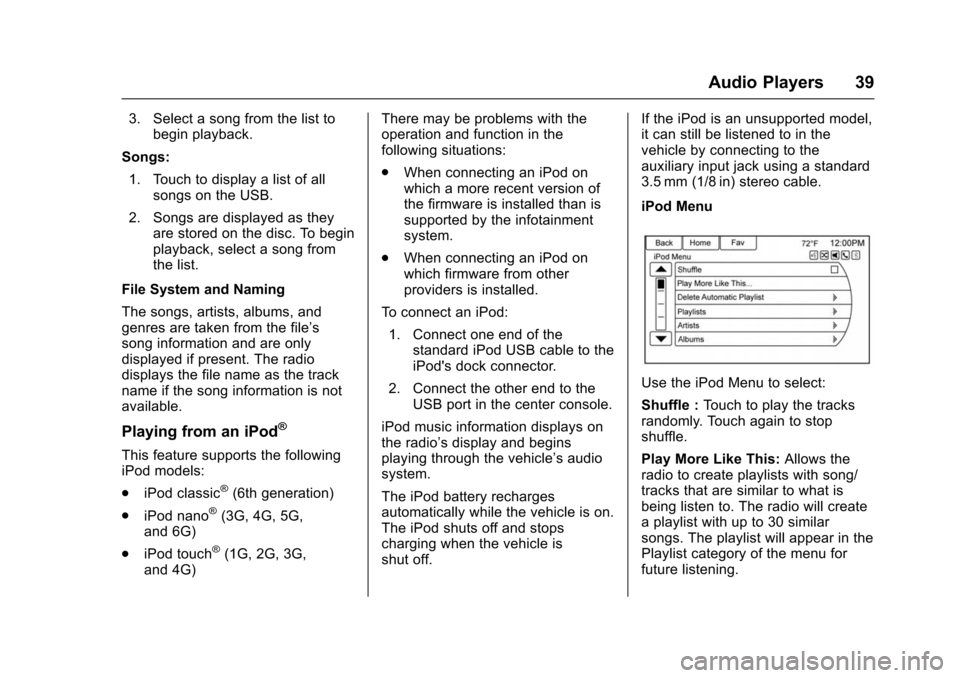
iPod Menu
Use the iPod Menu to select:
Shuffle :
Touch to play the tracks
randomly. Touch again to stop
shuffle.
Play More Like This: Allows the
radio to create playlists with song/
tracks that are similar to what is
being listen to. The radio will create
a playlist with up to 30 similar
songs. The playlist will appear in the
Playlist category of the menu for
future listening.
Page 42 of 94
Chevrolet Malibu Limited/Cruze Limited MyLink Infotainment System
(GMNA-Localizing-U.S./Canada-9282853) - 2016 - crc - 4/16/15
Audio Players 41
.iPad®(1G, 2G)
Follow the same instructions as
stated earlier for using an iPod. To
use voice recognition to play music,
say “Play USB,” “Play Artist,” “Play
Album,” “Play Song,” or“Play
Genre.” SeeVoice Recognition
0 68.
iPhone, iPod touch and iPad
Troubleshooting
When an iPhone, iPod touch,
or iPad is connected through USB
and Bluetooth, the audio may not be
heard when the iPod source on the
radio is selected. If a phone call is
received while listening to the iPod
source and there is no audio for the
iPod after the source, go to the
Airplay icon on the device and
select dock connector or disconnect
and reconnect the dock connector
on the device.
Some functionality may differ based
on operating system version on the
device.USB Troubleshooting
If the device is not being recognized
or the music is missing screen
information, restore the radio
defaults: 1. Touch Config.
2. Touch Radio Settings.
3. Touch Software Versions Menu.
4. Touch Clear and Reset Radio.
5. Touch Yes.
Pair the phone again and the device
will have to index again.
Bluetooth Audio and Voice
Recognition
See Bluetooth Audio 042 and Voice
Recognition 068 for information
using voice recognition with
Bluetooth Audio.
Make sure all devices have the
latest software downloaded.
Auxiliary Devices
This vehicle has an auxiliary input
jack in the center console. Possible
auxiliary audio sources include:
. Laptop computer
. MP3 player
. Tape player
This jack is not an audio output. Do
not plug headphones into the
auxiliary input jack. Set up any
auxiliary device while the vehicle is
in P (Park).
Connect a 3.5 mm (1/8 in) cable
from the auxiliary device to the
auxiliary input jack. When a device
is connected, the system
automatically begins playing audio
from the device over the vehicle
speakers.
If an auxiliary device has already
been connected, but a different
source is currently active, do one of
the following:
. Press SOURCE or SRCE to
scroll all of the available audio
source screens, until the AUX
source screen is selected.
Page 44 of 94
Chevrolet Malibu Limited/Cruze Limited MyLink Infotainment System
(GMNA-Localizing-U.S./Canada-9282853) - 2016 - crc - 4/16/15
Audio Players 43
When playing music on the radio
from a Bluetooth device, make sure
the Bluetooth device is unlocked
and the intended music application
is showing on the home screen.
For iPhone/iPod touch and iPad
devices, Bluetooth Audio will not
work if the device is connected
through the USB and Bluetooth at
the same time.
Page 62 of 94
Chevrolet Malibu Limited/Cruze Limited MyLink Infotainment System
(GMNA-Localizing-U.S./Canada-9282853) - 2016 - crc - 4/16/15
Navigation 61
knob or touch Languages to display
the languages. Select the desired
language.
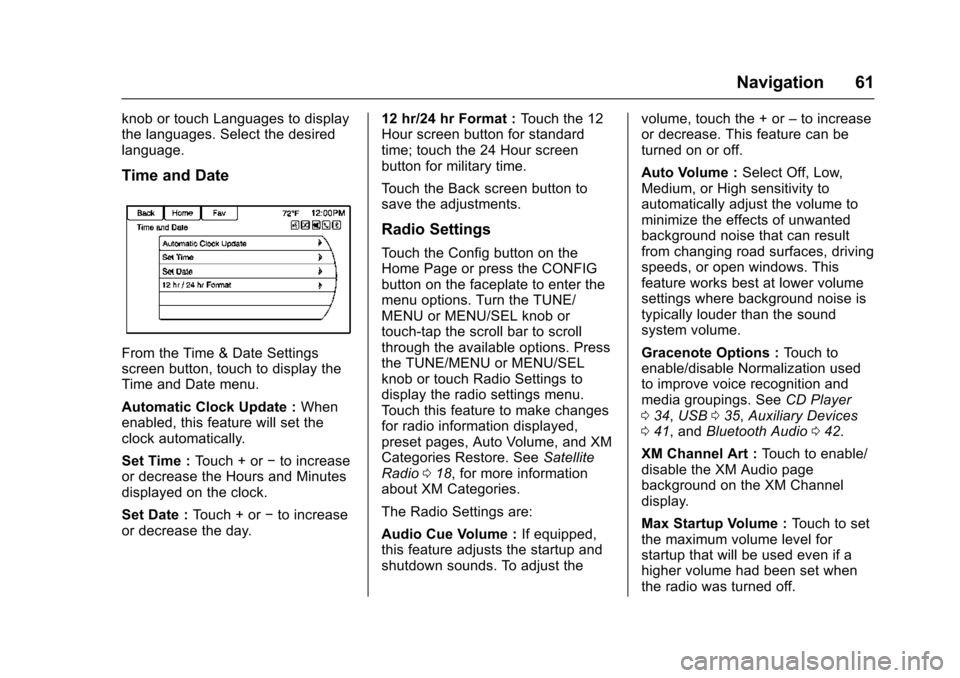
Time and Date
From the Time & Date Settings
screen button, touch to display the
Time and Date menu.
Automatic Clock Update :When
enabled, this feature will set the
clock automatically.
Set Time : Touch + or−to increase
or decrease the Hours and Minutes
displayed on the clock.
Set Date : Touch + or −to increase
or decrease the day. 12 hr/24 hr Format :
Touch the 12
Hour screen button for standard
time; touch the 24 Hour screen
button for military time.
Touch the Back screen button to
save the adjustments.
Radio Settings
Touch the Config button on the
Home Page or press the CONFIG
button on the faceplate to enter the
menu options. Turn the TUNE/
MENU or MENU/SEL knob or
touch-tap the scroll bar to scroll
through the available options. Press
the TUNE/MENU or MENU/SEL
knob or touch Radio Settings to
display the radio settings menu.
Touch this feature to make changes
for radio information displayed,
preset pages, Auto Volume, and XM
Categories Restore. See Satellite
Radio 018, for more information
about XM Categories.
The Radio Settings are:
Audio Cue Volume : If equipped,
this feature adjusts the startup and
shutdown sounds. To adjust the volume, touch the + or
–to increase
or decrease. This feature can be
turned on or off.
Auto Volume : Select Off, Low,
Medium, or High sensitivity to
automatically adjust the volume to
minimize the effects of unwanted
background noise that can result
from changing road surfaces, driving
speeds, or open windows. This
feature works best at lower volume
settings where background noise is
typically louder than the sound
system volume.
Gracenote Options : Touch to
enable/disable Normalization used
to improve voice recognition and
media groupings. See CD Player
0 34, USB 035, Auxiliary Devices
0 41, and Bluetooth Audio 042.
XM Channel Art : Touch to enable/
disable the XM Audio page
background on the XM Channel
display.
Max Startup Volume : Touch to set
the maximum volume level for
startup that will be used even if a
higher volume had been set when
the radio was turned off.
Page 70 of 94

Chevrolet Malibu Limited/Cruze Limited MyLink Infotainment System
(GMNA-Localizing-U.S./Canada-9282853) - 2016 - crc - 4/16/15
Voice Recognition 69
.To increase or decrease the
voice volume during a voice
recognition session, turn the
volume knob of the radio,
or press the volume steering
wheel control. If the volume is
adjusted during a voice
recognition session, a Volume
bar appears on the screen
showing the voice volume level
as it is being adjusted. This also
changes the volume of the
guidance prompts.
. When using navigation
commands, take the time to
become familiar with the
address. Long delays when
giving the address can result in
the system not recognizing the
address or routing to different
location than intended.
. When providing the house
number portion of the address,
the system recognizes both digit
format and numerical text. An
example would be to say, “30001
or “Thirty Thousand One.” .
If the system provides
destination in another country on
several attempts, say the
“Change Country” command and
say the country of interest. The
country default is the United
States. To enter a destination in
Canada or Mexico, the country
will first have to be changed in
the system.
Voice Recognition Help
To enter the help playback session,
clearly speak one of the help
commands.
Help : The system plays back more
specific help commands such as
Radio Settings for the user to
choose from.
Radio : Use this command to learn
about how to select a band (AM,
FM, or XM), and how to change
radio stations by speaking
frequency numbers.
Phone : Use this command to learn
about how to dial, pair a device,
or delete a device. My Media :
Use this command to
learn how to play specific tracks,
artists, albums, devices connected
to the USB port, or to change
sources.
Settings : Use this command to
learn about how to turn Verbose set
to On or Verbose set to Off, or set
the language.
Voice Recognition Commands
The following list shows the voice
commands available for the
infotainment system with a brief
description of each. The commands
are listed with the optional words in
parentheses. To use the voice
commands, see the previous
instructions.
Radio Commands
Tune AM, Tune FM, Tune XM,
Tune Pandora, Tune Stitcher :
Instructs the system to go to the
specific band and the last station.
Tune AM (frequency), Tune FM
(frequency), Tune XM (channel
number), or Tune XM (channel
name) : Instructs the system to go
to the specific channel.
Page 71 of 94
Chevrolet Malibu Limited/Cruze Limited MyLink Infotainment System
(GMNA-Localizing-U.S./Canada-9282853) - 2016 - crc - 4/16/15
70 Voice Recognition
Thumbs Up :Instructs the system
to give the current song or station a
thumbs up in Pandora or Stitcher.
Thumbs Down : Instructs the
system to give the current song or
station a thumbs down in Pandora
or Stitcher.
Phone Commands
Dial or Call (phone number or
contact) : Instructs the system to
start a phone call. For example, say
“Dial 1 248 123 4567.” To call a
phone book contact, say “Dial”or
“Call,” say the name and location,
and then say “Dial.”For example,
say “Call John at Home” or“Call
John at Work.” If a number is not
recognized, the first number in the
list will be called.
Pair or Connect : Instructs the
system to begin pairing a device.
Digit Dial : Instructs the system to
dial a phone number one digit at a
time. After saying the digits,
say “Dial.”
Redial or Redial Last Number :
Instructs the system to dial the last
phone number called. Select Device or Change Phone :
Instructs the system to switch to a
different paired device. The device
must be selected from the screen or
using the TUNE/MENU or MENU/
SEL knob.
Delete Device :
Instructs the
system to delete a paired device.
Read Text Messages or Read SMS
Messages : Instructs the system to
begin reading text messages from
paired device.
Not all devices support text
messages. Applicable where
equipped.
My Media Commands
CD, AUX, USB, or Bluetooth
Audio : Instructs the system to
change the source.
Play CD Track : Instructs the
system to play a CD. For example,
say “Play CD Track.”
The following commands only apply
to USB, iPod, and iPhone sources.
They are supported after the device
has been indexed. Play Artist (artist name) :
Instructs
the system to play songs by a
specific artist. For example, say
“Play Artist
Play Album (album title) : Instructs
the system to play a specific album.
Play Song (song title) : Instructs
the system to play a specific song.
Play Genre (genre name) :
Instructs the system to play songs
of a particular genre.
Search Artist (artist name) :
Instructs the system to show a list of
all songs by a specific artist. For
example, say "Search Artist
Search Composer (composer
name) : Instructs the system to
show a list of all songs by a specific
composer. For example, say
"Search Composer
Search Album (album name) :
Instructs the system to show a list of
all songs by a specific album. For
example, say "Search Album