2016 CHEVROLET MALIBU change time
[x] Cancel search: change timePage 50 of 94
Chevrolet Malibu Limited/Cruze Limited MyLink Infotainment System
(GMNA-Localizing-U.S./Canada-9282853) - 2016 - crc - 4/16/15
Navigation 49
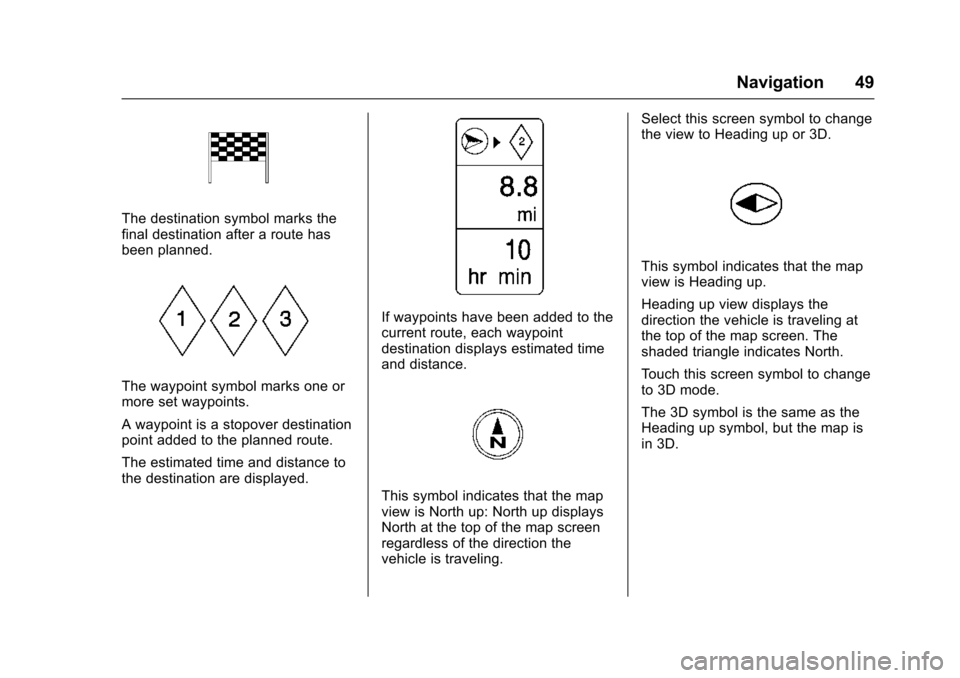
The destination symbol marks the
final destination after a route has
been planned.
The waypoint symbol marks one or
more set waypoints.
A waypoint is a stopover destination
point added to the planned route.
The estimated time and distance to
the destination are displayed.
If waypoints have been added to the
current route, each waypoint
destination displays estimated time
and distance.
This symbol indicates that the map
view is North up: North up displays
North at the top of the map screen
regardless of the direction the
vehicle is traveling.Select this screen symbol to change
the view to Heading up or 3D.
This symbol indicates that the map
view is Heading up.
Heading up view displays the
direction the vehicle is traveling at
the top of the map screen. The
shaded triangle indicates North.
Touch this screen symbol to change
to 3D mode.
The 3D symbol is the same as the
Heading up symbol, but the map is
in 3D.
Page 53 of 94
Chevrolet Malibu Limited/Cruze Limited MyLink Infotainment System
(GMNA-Localizing-U.S./Canada-9282853) - 2016 - crc - 4/16/15
52 Navigation
of available streets. Touch to
view the list and select the
street.
3. Enter the house number.
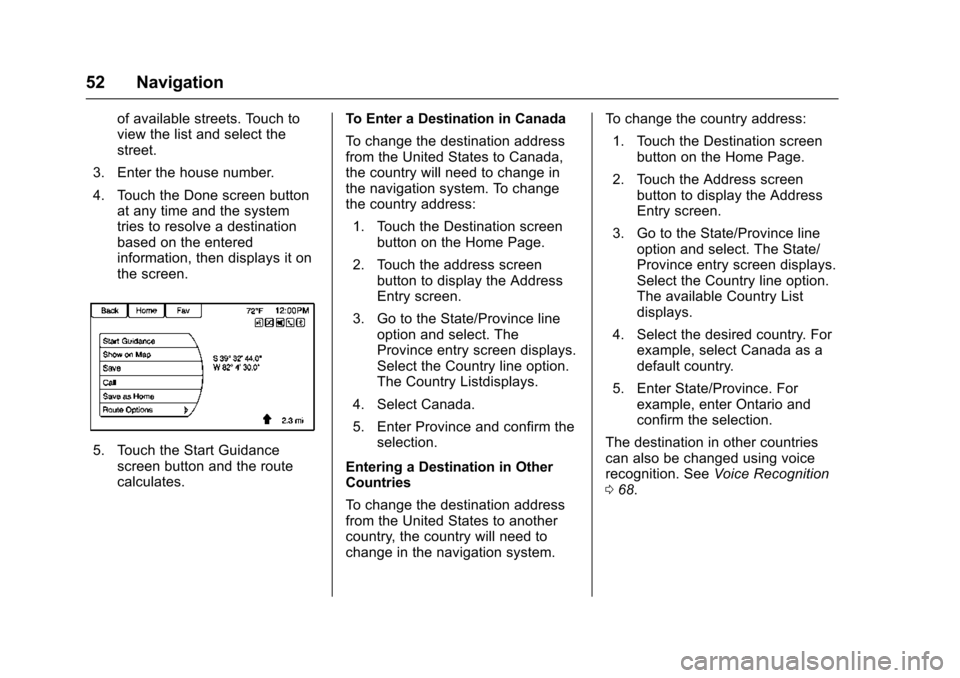
4. Touch the Done screen button at any time and the system
tries to resolve a destination
based on the entered
information, then displays it on
the screen.
5. Touch the Start Guidancescreen button and the route
calculates. To Enter a Destination in Canada
To change the destination address
from the United States to Canada,
the country will need to change in
the navigation system. To change
the country address:
1. Touch the Destination screen button on the Home Page.
2. Touch the address screen button to display the Address
Entry screen.
3. Go to the State/Province line option and select. The
Province entry screen displays.
Select the Country line option.
The Country Listdisplays.
4. Select Canada.
5. Enter Province and confirm the selection.
Entering a Destination in Other
Countries
To change the destination address
from the United States to another
country, the country will need to
change in the navigation system. To change the country address:
1. Touch the Destination screen button on the Home Page.
2. Touch the Address screen button to display the Address
Entry screen.
3. Go to the State/Province line option and select. The State/
Province entry screen displays.
Select the Country line option.
The available Country List
displays.
4. Select the desired country. For example, select Canada as a
default country.
5. Enter State/Province. For example, enter Ontario and
confirm the selection.
The destination in other countries
can also be changed using voice
recognition. See Voice Recognition
0 68.
Page 61 of 94
Chevrolet Malibu Limited/Cruze Limited MyLink Infotainment System
(GMNA-Localizing-U.S./Canada-9282853) - 2016 - crc - 4/16/15
60 Navigation
Show on Map :Touch to display
the Map Screen.
Save : Touch to save the
downloaded destination to the
address book.
Call : Touch to initiate a call with
Bluetooth Phone or OnStar
Hands-Free Calling (if available).
Save as Home : Touch to set an
address as a home destination.
Route Guidance Active
If an OnStar destination is
downloaded while route guidance is
already active, the system displays
a pop-up screen with the following
screen function:
. Touch Start Guidance; the
navigation system adds the
downloaded destination before
the next waypoint of the existing
route (closest to the current
vehicle position).
. All other buttons on the pop-up
screen operate as described
under “Route Guidance Not
Active.” Previous Destinations
Previously downloaded OnStar
destinations are saved under
Previous Destinations in the
navigation system, where they can
be accessed or saved to the
Address Book.
Configure Menu
The Configuration Menu is used to
adjust features and preferences,
such as Sound, Radio, Nav
(Navigation), Display, or Time
Settings.
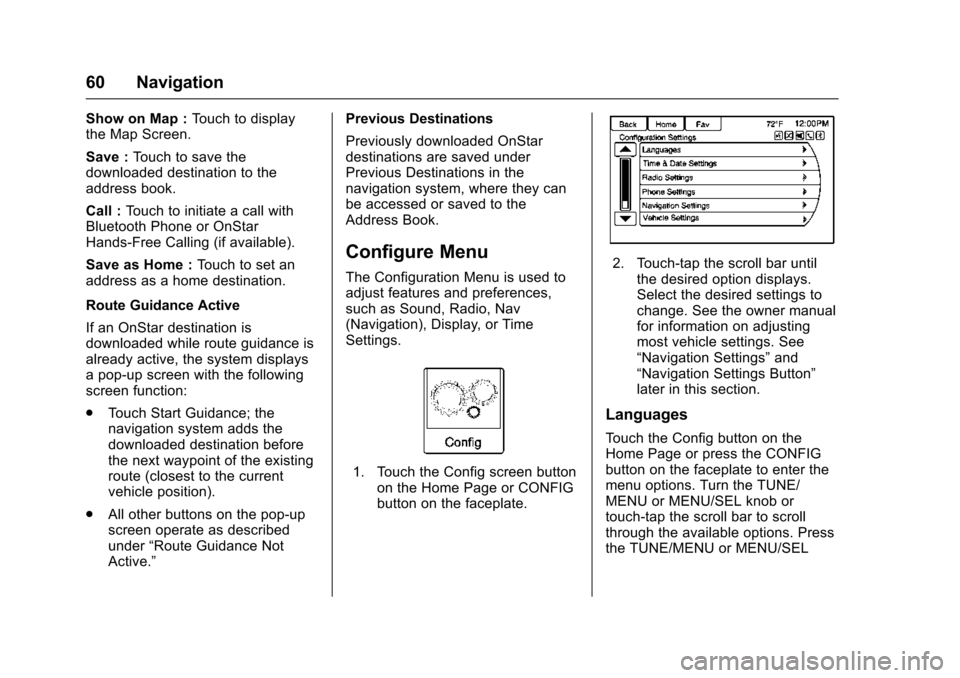
1. Touch the Config screen button
on the Home Page or CONFIG
button on the faceplate.
2. Touch-tap the scroll bar untilthe desired option displays.
Select the desired settings to
change. See the owner manual
for information on adjusting
most vehicle settings. See
“Navigation Settings” and
“Navigation Settings Button”
later in this section.
Languages
Touch the Config button on the
Home Page or press the CONFIG
button on the faceplate to enter the
menu options. Turn the TUNE/
MENU or MENU/SEL knob or
touch-tap the scroll bar to scroll
through the available options. Press
the TUNE/MENU or MENU/SEL
Page 62 of 94
Chevrolet Malibu Limited/Cruze Limited MyLink Infotainment System
(GMNA-Localizing-U.S./Canada-9282853) - 2016 - crc - 4/16/15
Navigation 61
knob or touch Languages to display
the languages. Select the desired
language.
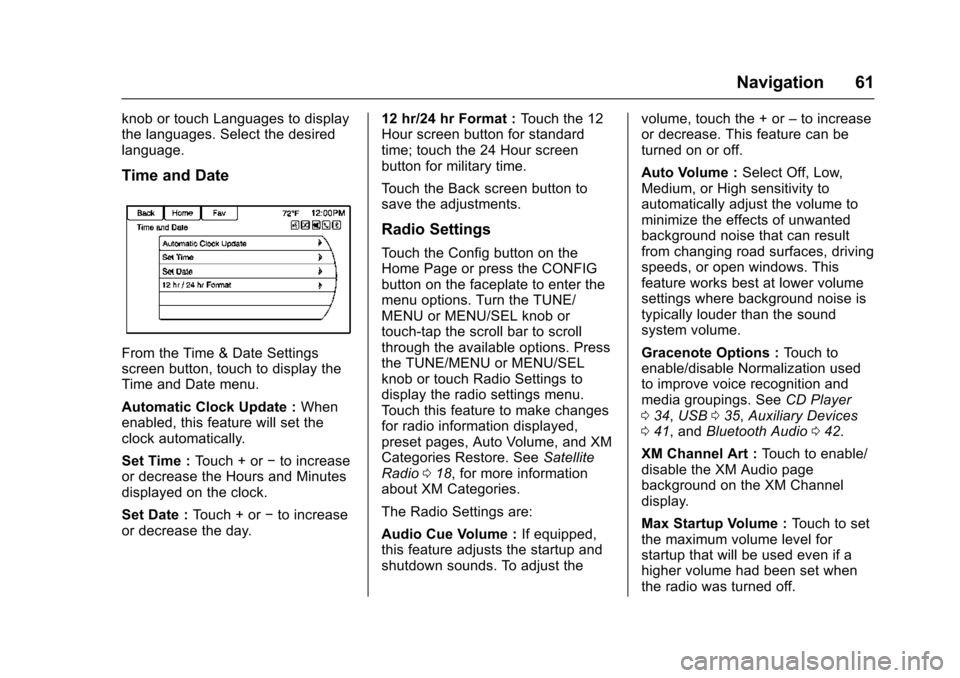
Time and Date
From the Time & Date Settings
screen button, touch to display the
Time and Date menu.
Automatic Clock Update :When
enabled, this feature will set the
clock automatically.
Set Time : Touch + or−to increase
or decrease the Hours and Minutes
displayed on the clock.
Set Date : Touch + or −to increase
or decrease the day. 12 hr/24 hr Format :
Touch the 12
Hour screen button for standard
time; touch the 24 Hour screen
button for military time.
Touch the Back screen button to
save the adjustments.
Radio Settings
Touch the Config button on the
Home Page or press the CONFIG
button on the faceplate to enter the
menu options. Turn the TUNE/
MENU or MENU/SEL knob or
touch-tap the scroll bar to scroll
through the available options. Press
the TUNE/MENU or MENU/SEL
knob or touch Radio Settings to
display the radio settings menu.
Touch this feature to make changes
for radio information displayed,
preset pages, Auto Volume, and XM
Categories Restore. See Satellite
Radio 018, for more information
about XM Categories.
The Radio Settings are:
Audio Cue Volume : If equipped,
this feature adjusts the startup and
shutdown sounds. To adjust the volume, touch the + or
–to increase
or decrease. This feature can be
turned on or off.
Auto Volume : Select Off, Low,
Medium, or High sensitivity to
automatically adjust the volume to
minimize the effects of unwanted
background noise that can result
from changing road surfaces, driving
speeds, or open windows. This
feature works best at lower volume
settings where background noise is
typically louder than the sound
system volume.
Gracenote Options : Touch to
enable/disable Normalization used
to improve voice recognition and
media groupings. See CD Player
0 34, USB 035, Auxiliary Devices
0 41, and Bluetooth Audio 042.
XM Channel Art : Touch to enable/
disable the XM Audio page
background on the XM Channel
display.
Max Startup Volume : Touch to set
the maximum volume level for
startup that will be used even if a
higher volume had been set when
the radio was turned off.
Page 66 of 94
Chevrolet Malibu Limited/Cruze Limited MyLink Infotainment System
(GMNA-Localizing-U.S./Canada-9282853) - 2016 - crc - 4/16/15
Navigation 65
Touch to enable the Guidance Alert
pop-up to be viewed on the map or
on the main screens such as audio,
weather, phone, etc. A checkmark
appears to indicate the guidance
alert mode is on.
Vehicle Settings
See“Vehicle Personalization” in the
owner manual.
Display Settings
Touch the Config button on the
Home Page or press the CONFIG
button on the faceplate, then select
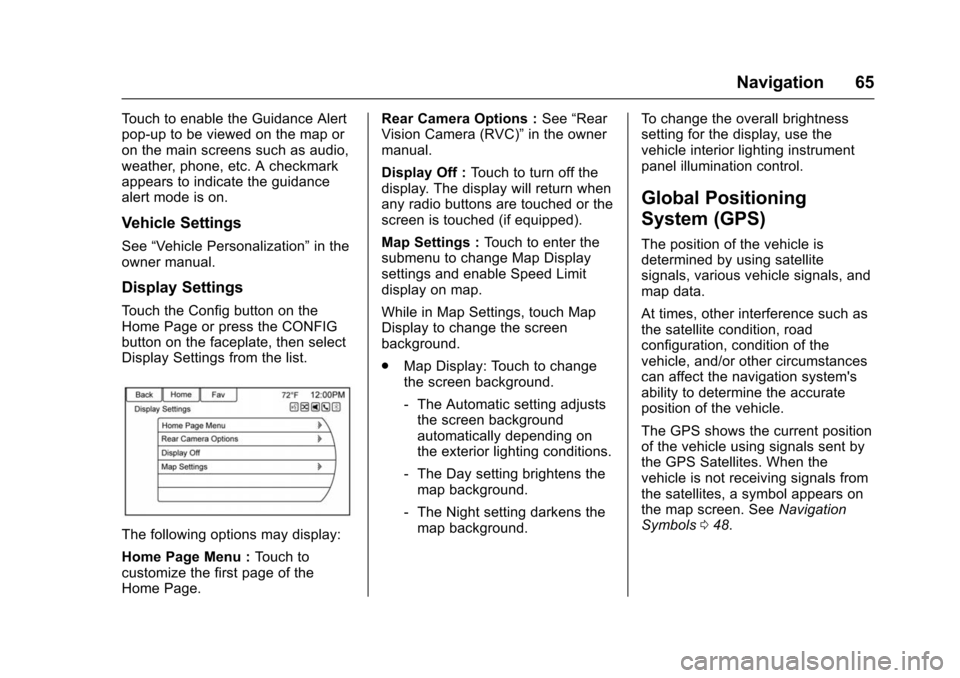
Display Settings from the list.
The following options may display:
Home Page Menu : Touch to
customize the first page of the
Home Page. Rear Camera Options :
See“Rear
Vision Camera (RVC)” in the owner
manual.
Display Off : Touch to turn off the
display. The display will return when
any radio buttons are touched or the
screen is touched (if equipped).
Map Settings : Touch to enter the
submenu to change Map Display
settings and enable Speed Limit
display on map.
While in Map Settings, touch Map
Display to change the screen
background.
. Map Display: Touch to change
the screen background.
‐The Automatic setting adjusts
the screen background
automatically depending on
the exterior lighting conditions.
‐ The Day setting brightens the
map background.
‐ The Night setting darkens the
map background. To change the overall brightness
setting for the display, use the
vehicle interior lighting instrument
panel illumination control.
Global Positioning
System (GPS)
The position of the vehicle is
determined by using satellite
signals, various vehicle signals, and
map data.
At times, other interference such as
the satellite condition, road
configuration, condition of the
vehicle, and/or other circumstances
can affect the navigation system's
ability to determine the accurate
position of the vehicle.
The GPS shows the current position
of the vehicle using signals sent by
the GPS Satellites. When the
vehicle is not receiving signals from
the satellites, a symbol appears on
the map screen. See
Navigation
Symbols 048.
Page 67 of 94
Chevrolet Malibu Limited/Cruze Limited MyLink Infotainment System
(GMNA-Localizing-U.S./Canada-9282853) - 2016 - crc - 4/16/15
66 Navigation
This system might not be available
or interference can occur if any of
the following are true:
.Signals are obstructed by tall
buildings, trees, large trucks,
or a tunnel.
. Satellites are being repaired or
improved.
For more information if the GPS is
not functioning properly, see
Problems with Route Guidance 066
and If the System Needs Service
0 67.
Vehicle Positioning
At times, the position of the vehicle
on the map could be inaccurate due
to one or more of the following
reasons:
.
The road system has changed.
. The vehicle is driving on slippery
road surfaces such as sand,
gravel, or snow.
. The vehicle is traveling on
winding roads or long straight
roads. .
The vehicle is approaching a tall
building or a large vehicle.
. The surface streets run parallel
to a freeway.
. The vehicle has been transferred
by a vehicle carrier or a ferry.
. The current position calibration
is set incorrectly.
. The vehicle is traveling at high
speed.
. The vehicle changes directions
more than once, or the vehicle is
turning on a turn table in a
parking lot.
. The vehicle is entering and/or
exiting a parking lot, garage, or a
lot with a roof.
. The GPS signal is not received.
. A roof carrier is installed on the
vehicle.
. Tire chains have been installed.
. The tires are replaced or worn.
. The tire pressure for the tires is
incorrect. .
This is the first navigation use
after the map data is updated.
. The 12-volt battery is
disconnected for several days.
. The vehicle is driving in heavy
traffic where driving is at low
speeds, and the vehicle is
stopped and started repeatedly.
Problems with Route
Guidance
Inappropriate route guidance can
occur under one or more of the
following conditions:
.The turn was not made on the
road indicated.
. Route guidance might not be
available when using automatic
rerouting for the next right or
left turn.
. The route might not be changed
when using automatic rerouting.
. There is no route guidance when
turning at an intersection.
. Plural names of places might be
announced occasionally.
Page 68 of 94
Chevrolet Malibu Limited/Cruze Limited MyLink Infotainment System
(GMNA-Localizing-U.S./Canada-9282853) - 2016 - crc - 4/16/15
Navigation 67
.It could take a long time to
operate automatic rerouting
during high-speed driving.
. Automatic rerouting might
display a route returning to the
set waypoint if heading for a
destination without passing
through a set waypoint.
. The route prohibits the entry of a
vehicle due to a regulation by
time or season or any other
regulation which may be given.
. Some routes might not be
searched.
. The route to the destination
might not be shown if there are
new roads, if roads have
recently changed, or if certain
roads are not listed in the map
data. See Maps048.
To recalibrate the vehicle's position
on the map, park with the vehicle
running for two to five minutes, until
the vehicle position updates. Make
sure the vehicle is parked in a location that is safe and has a clear
view of the sky and away from large
obstruction.
If the System Needs
Service
If the navigation system needs
service and the steps listed here
have been followed but there are
still problems, see your dealer for
assistance.
Map Data Updates
The map data in the vehicle is the
most up-to-date information
available when the vehicle was
produced. The map data is updated
periodically, provided that the map
information has changed.
For questions about the operation of
the navigation system or the update
process, contact the GM Nav Disc
Center toll-free phone number,
1-877-NAV-DISC (1-877-628-3472)
or go to the center
’s website, www.gmnavdisc.com. If updates are
needed, call the GM Nav Disc
Center or order a new Map Update
online.
To order map data, have the
vehicle’s Vehicle Identification
Number (VIN) available to ensure
the correct and most up-to-date map
data for the vehicle is sent. See
“Vehicle Identification Number
(VIN)”
in the owner manual.
Database Coverage
Explanations
Coverage areas vary with respect to
the level of map detail available for
any given area. Some areas feature
greater levels of detail than others.
If this happens, it does not mean
there is a problem with the system.
As the map data is updated, more
detail can become available for
areas that previously had limited
detail. See Map Data Updates 067.
Page 70 of 94

Chevrolet Malibu Limited/Cruze Limited MyLink Infotainment System
(GMNA-Localizing-U.S./Canada-9282853) - 2016 - crc - 4/16/15
Voice Recognition 69
.To increase or decrease the
voice volume during a voice
recognition session, turn the
volume knob of the radio,
or press the volume steering
wheel control. If the volume is
adjusted during a voice
recognition session, a Volume
bar appears on the screen
showing the voice volume level
as it is being adjusted. This also
changes the volume of the
guidance prompts.
. When using navigation
commands, take the time to
become familiar with the
address. Long delays when
giving the address can result in
the system not recognizing the
address or routing to different
location than intended.
. When providing the house
number portion of the address,
the system recognizes both digit
format and numerical text. An
example would be to say, “30001
or “Thirty Thousand One.” .
If the system provides
destination in another country on
several attempts, say the
“Change Country” command and
say the country of interest. The
country default is the United
States. To enter a destination in
Canada or Mexico, the country
will first have to be changed in
the system.
Voice Recognition Help
To enter the help playback session,
clearly speak one of the help
commands.
Help : The system plays back more
specific help commands such as
Radio Settings for the user to
choose from.
Radio : Use this command to learn
about how to select a band (AM,
FM, or XM), and how to change
radio stations by speaking
frequency numbers.
Phone : Use this command to learn
about how to dial, pair a device,
or delete a device. My Media :
Use this command to
learn how to play specific tracks,
artists, albums, devices connected
to the USB port, or to change
sources.
Settings : Use this command to
learn about how to turn Verbose set
to On or Verbose set to Off, or set
the language.
Voice Recognition Commands
The following list shows the voice
commands available for the
infotainment system with a brief
description of each. The commands
are listed with the optional words in
parentheses. To use the voice
commands, see the previous
instructions.
Radio Commands
Tune AM, Tune FM, Tune XM,
Tune Pandora, Tune Stitcher :
Instructs the system to go to the
specific band and the last station.
Tune AM (frequency), Tune FM
(frequency), Tune XM (channel
number), or Tune XM (channel
name) : Instructs the system to go
to the specific channel.