2016 BUICK ENVISION phone
[x] Cancel search: phonePage 165 of 432

Buick Envision Owner Manual (GMNA-Localizing-U.S./Canada/Mexico-
8534310) - 2016 - crc - 2/29/16
164 Infotainment System
Introduction
Overview
Introduction
Read the following pages to
become familiar with the
infotainment system features.
{Warning
Taking your eyes off the road for
too long or too often while using
any infotainment feature can
cause a crash. You or others
could be injured or killed. Do not
give extended attention to
infotainment tasks while driving.
Limit your glances at the vehicle
displays and focus your attention
on driving. Use voice commands
whenever possible.The infotainment system has built-in
features intended to help avoid
distraction by disabling some
functions when driving. These
functions may gray out when they
are unavailable. Many infotainment
features are also available through
the instrument cluster and steering
wheel controls.
Before driving:
.
Become familiar with the
operation, faceplate buttons, and
screen buttons.
. Set up the audio by presetting
favorite stations, setting the
tone, and adjusting the
speakers. .
Set up phone numbers in
advance so they can be called
easily by pressing a single
button or by using a single voice
command if equipped with
Bluetooth phone capability.
See Defensive Driving 0249.
To play the infotainment system with
the ignition off, see Retained
Accessory Power (RAP) 0264.
Page 168 of 432

Buick Envision Owner Manual (GMNA-Localizing-U.S./Canada/Mexico-
8534310) - 2016 - crc - 2/29/16
Infotainment System 167
The Home Page can be set up to
have up to five pages with eight
icons per page.
Touch the left
hor rightkor slide a
finger left/right across the screen to
access the pages of icons.
k(Next) : Touch to go to the next
Home Page.
h(Previous) : Touch to go to the
previous Home Page.
l(Interaction Selector) : Touch to
display the favorites list.
Touch and hold a location within the
favorites area to begin the process
of saving a favorite application.
Touch the application icon to store
as a favorite, and the name of the
application will be shown in
favorites.
Home : Touch to go back to the
Home Page to start a different
application.
Managing Home Page Icons
1. Touch and hold any of the Home Page icons to edit
that icon. 2. Drag the icon to a new location
on the Home Page or to save it
to the applications tray.
3. Press
{to exit edit mode.
Using the System
Touchscreen Buttons
Touchscreen buttons show on the
screen when available. When a
function is unavailable, the button
may gray out. When a function is
selected, the button may highlight.
Home Page Features
Touch the icons on the Home Page
screen to launch an application.
AUDIO
Touch the AUDIO icon to display the
active audio source page. Available
sources are AM, FM, XM (if
equipped), CD, My Media, USB, SD,
Bluetooth, and AUX Input.
PHONE
Touch the PHONE icon to display
the Phone main page. See
Bluetooth (Overview) 0220 or
Bluetooth (Infotainment Controls)
0 221 orBluetooth (Voice
Recognition) 0224.
NAV (Navigation, If Equipped)
Touch the NAV icon to display the
navigation map or OnStar
Turn-by-Turn Navigation. See Using
the Navigation System 0187 or
OnStar Overview 0410.
SETTINGS
Touch the SETTINGS icon to
display the Settings menu. See
Settings 0227.
PANDORA (If Equipped)
Touch the PANDORA icon to begin
Pandora®. See Pandora Internet
Radio 0175.
WEATHER (If Equipped)
Touch the WEATHER icon to
display the Weather main page. See
“SiriusXM Weather (If Equipped)”
under Destination 0196.
Page 172 of 432

Buick Envision Owner Manual (GMNA-Localizing-U.S./Canada/Mexico-
8534310) - 2016 - crc - 2/29/16
Infotainment System 171
Auto Volume (If Equipped) :This
feature adjusts the volume based on
vehicle speed. The options are OFF,
Low, Medium - Low, Medium,
Medium - High, or High. Press
q
BACK on the faceplate or touch the
Back screen button to go back to
the previous menu.
Bose AudioPilot Noise
Compensation Technology (If
Equipped) : This feature adjusts
the volume based on the noise in
the vehicle and the speed. When
turned on, AudioPilot technology
detects noise and vehicle speed to
continuously adjust the audio signal
so that music will sound the same at
a set volume level. This feature is
most effective at lower radio volume
settings where background noise
can affect how well the music is
being played. See www.bose.com/
audiopilot. This feature can be
turned on or off. Press
qBACK on
the faceplate or touch the Back
screen button to go back to the
previous menu. HD Radio™
:For AM and FM only,
touch to turn HD reception on or off.
Touch the Back screen button to go
back to the previous menu.
EQ (Equalizer) : If equipped with a
Bose Sound System, the available
choices are Manual and Talk.
Update Station List : For AM and
FM only, touch to update the station
list. Press
qBACK on the faceplate
or touch the Back screen button to
go back to the previous menu.
Finding a Station
Seeking a Station
Pressgordon the faceplate
(the onscreen controls work for
timeshifting) to search for the
previous or next strongest station. Direct Tune (If Equipped)
Touch the TUNE screen button to
switch to Direct Tune for manually
searching for a station.
If not equipped with Direct Tune,
touch the SEEK screen button to
switch to TUNE. Touch again to
change back. Turn the MENU knob
to manually search for a station.
Storing Radio Station Presets
Favorites are stored in the area at
the bottom of the screen.
Up to 60 preset stations can be
stored:
AM, FM, and XM (If Equipped)
Radio Stations :
Touch and hold a
favorite button to save the current
station as a favorite. Touch a
favorite button in the favorite area to
recall a favorite station.
Mixed-Audio Favorites
Favorites that can be stored include
radio stations, navigation, phone,
media, or applications.
Page 176 of 432

Buick Envision Owner Manual (GMNA-Localizing-U.S./Canada/Mexico-
8534310) - 2016 - crc - 2/29/16
Infotainment System 175
each other. Static can also occur
when things like storms and power
lines interfere with radio reception.
When this happens, try reducing the
treble on the radio.
SiriusXM®Satellite Radio
Service
If equipped, SiriusXM Satellite
Radio Service provides digital radio
reception. Tall buildings or hills can
interfere with satellite radio signals,
causing the sound to fade in and
out. In addition, traveling or standing
under heavy foliage, bridges,
garages, or tunnels may cause loss
of the SiriusXM signal for a period
of time.
Cell Phone Usage
Cell phone usage, such as making
or receiving phone calls, charging,
or just having the phone on may
cause static interference in the
radio. Unplug the phone or turn it off
if this happens.
Antenna
The AM/FM antenna is integrated in
the liftgate spoiler and the liftgate
window defogger. No maintenance
or adjustments are needed. Do not
place loads on the spoiler. If the
spoiler is replaced, be sure it is
replaced with the correct GM parts
for the best AM and FM reception.
Multi-Band Antenna
The roof antenna is for OnStar®,
SiriusXM®Satellite Radio (If
Equipped), and GPS (Global
Positioning System). Keep clear of
obstructions for clear reception.
If the vehicle has a sunroof and it is
open, or items are placed on the
roof mounted cargo rack, reception
can also be affected.
Pandora Internet Radio
If equipped, Pandora®is a free
Internet radio service that streams
personalized radio stations based
on songs, artists, tracks, genres,
and comedians. Create stations
using the Pandora website or
Smartphone application, then use
-(thumbs up) or,(thumbs down)
to personalize stations. To set up an
account, or for more information, go
to www.pandora.com. Pandora may
not be available in Canada.
A phone or tablet with Internet
connection and the Pandora
application installed is required.
Personal cell phone data plans are
used. Make sure the latest version
is installed on the device.
Launching Pandora
Page 177 of 432

Buick Envision Owner Manual (GMNA-Localizing-U.S./Canada/Mexico-
8534310) - 2016 - crc - 2/29/16
176 Infotainment System
Connect the iPhone to the USB
port, or connect Android™or
BlackBerry
®through Bluetooth. See
Auxiliary Jack 0184 orBluetooth
(Overview) 0220 orBluetooth
(Infotainment Controls) 0221 or
Bluetooth (Voice Recognition)
0 224. For first time use, set up the
stations before connecting to the
vehicle. The Pandora icon will be
available on the Home Page.
When Pandora is chosen, the
Pandora logo will populate on the
screen and display “Acquiring
Pandora Radio Station.” Launch
times can be significant.
Using the iPhone
1. Plug the device into the USB port. The phone screen must
be unlocked.
2. Launch Pandora directly from the Home Page by touching
the Pandora icon.
If nothing happens when the
available Pandora screen button is
touched, download the latest
Pandora application and retry. The login screen may display on the
device.
Using an Android or BlackBerry
Phone
The BlackBerry phone must be
unlocked to launch Pandora service.
1. Pair the phone using Bluetooth.
2. Launch Pandora directly from the Home Page by touching
the Pandora icon.
If nothing happens when the
available Pandora screen button is
touched, download the latest
Pandora application and retry.
The login screen may display on the
device.
Pandora Menus
Touch Menu on the Pandora
main page.
Pandora has a menu system with
the following:
Tone Settings : Touch to adjust the
tone settings. See AM-FM
Radio 0170.
Bookmark Artist : Touch to
bookmark the artist.
Bookmark Song : Touch to
bookmark the song.
Auto Volume : This feature sets the
auto volume based on the speed of
the vehicle and noise in the vehicle.
See AM-FM Radio 0170.
Page 178 of 432
Buick Envision Owner Manual (GMNA-Localizing-U.S./Canada/Mexico-
8534310) - 2016 - crc - 2/29/16
Infotainment System 177
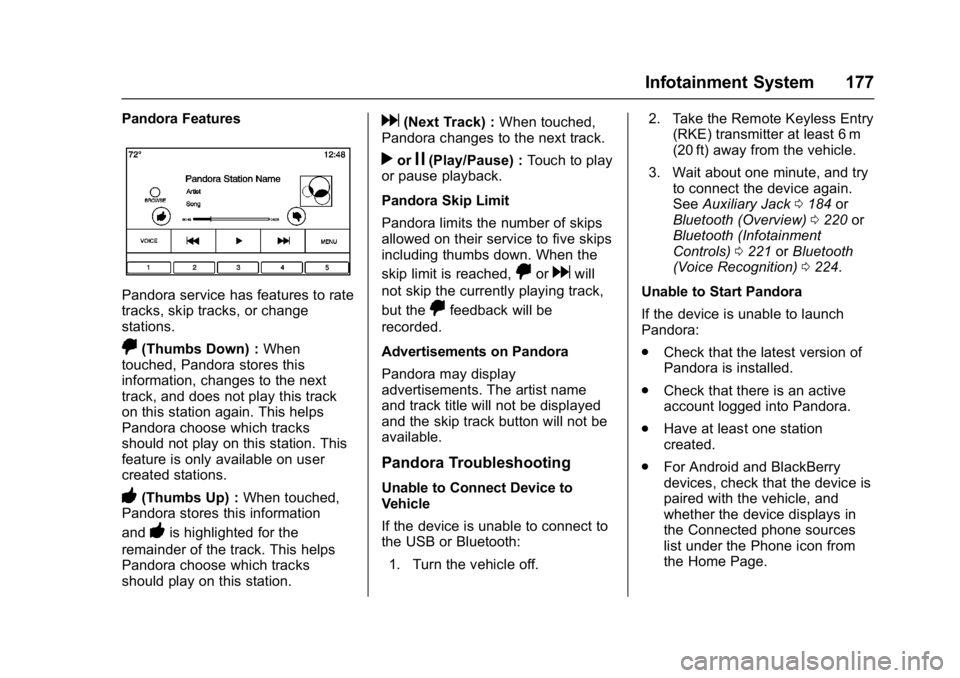
Pandora Features
Pandora service has features to rate
tracks, skip tracks, or change
stations.
,(Thumbs Down) :When
touched, Pandora stores this
information, changes to the next
track, and does not play this track
on this station again. This helps
Pandora choose which tracks
should not play on this station. This
feature is only available on user
created stations.
-(Thumbs Up) : When touched,
Pandora stores this information
and
-is highlighted for the
remainder of the track. This helps
Pandora choose which tracks
should play on this station.
d(Next Track) : When touched,
Pandora changes to the next track.
rorj(Play/Pause) : Touch to play
or pause playback.
Pandora Skip Limit
Pandora limits the number of skips
allowed on their service to five skips
including thumbs down. When the
skip limit is reached,
,ordwill
not skip the currently playing track,
but the
,feedback will be
recorded.
Advertisements on Pandora
Pandora may display
advertisements. The artist name
and track title will not be displayed
and the skip track button will not be
available.
Pandora Troubleshooting
Unable to Connect Device to
Vehicle
If the device is unable to connect to
the USB or Bluetooth:
1. Turn the vehicle off. 2. Take the Remote Keyless Entry
(RKE) transmitter at least 6 m
(20 ft) away from the vehicle.
3. Wait about one minute, and try to connect the device again.
See Auxiliary Jack 0184 or
Bluetooth (Overview) 0220 or
Bluetooth (Infotainment
Controls) 0221 orBluetooth
(Voice Recognition) 0224.
Unable to Start Pandora
If the device is unable to launch
Pandora:
. Check that the latest version of
Pandora is installed.
. Check that there is an active
account logged into Pandora.
. Have at least one station
created.
. For Android and BlackBerry
devices, check that the device is
paired with the vehicle, and
whether the device displays in
the Connected phone sources
list under the Phone icon from
the Home Page.
Page 179 of 432

Buick Envision Owner Manual (GMNA-Localizing-U.S./Canada/Mexico-
8534310) - 2016 - crc - 2/29/16
178 Infotainment System
.For an iPhone, check that the
USB cable is connected to the
USB port and the screen is
unlocked.
. Close Pandora on the device
and launch again. Devices that
allow multitasking may require
an extra step to quit the Pandora
application. See the cell phone
manufacturer's user guide.
Thumbs Up or Thumbs Down
Error
If there is an error trying to rate a
track with the
,or-buttons, the
message “Thumbs Down Error” or
“Thumbs Up Error” will display.
Touch OK to dismiss.
Loss of Audio
Loss of Pandora audio can happen
in different ways:
. Weak or lost data connection.
. Device needs to be charged.
. Application needs to be
relaunched.
. Connection between phone and
radio lost. .
An iPhone is connected to both
Bluetooth and the USB port.
Playback can be resumed from
a loss of audio by double
tapping on the iPhone menu
button then scrolling through the
icons to find an icon that allows
a change of flow between
Bluetooth and USB cable.
Common Pandora Messages
Pandora Error/Please Check
Connected Device : Not signed in
or Pandora is down for
maintenance.
No Stations Available : No stations
are available on the Pandora server
through the connected device.
Action Unavailable. Please Check
Device : A few conditions for loss of
Internet connection are:
. The connected device loses its
cellular connection.
. The device does not support
Internet connectivity.
. The device is not in the vehicle. Part of the Action Unavailable.
Please Check Device :
The
Bluetooth signal is lost.
No Skips Remaining for This
Station or Permitted During
Advertisements :
. The maximum Pandora skip limit
has been reached according to
the plan that was obtained.
. Skipping an advertisement was
tried.
See www.pandora.com/help. If the
service will not work, see your
dealer for assistance.
Page 185 of 432

Buick Envision Owner Manual (GMNA-Localizing-U.S./Canada/Mexico-
8534310) - 2016 - crc - 2/29/16
184 Infotainment System
2. Select Composer to view a listof albums by that composer.
3. Select an album to give a list of songs on that album.
4. Select a song from the list to begin playback.
Audiobooks: 1. Touch to view the audiobooks stored on the device.
2. Select audiobook.
3. Select chapter to begin playback.
File System and Naming
The songs, artists, albums, and
genres are taken from the file’s
song information and are only
displayed if present. The radio
displays the file name as the track
name if the song information is not
available.
Supported Apple
®Devices
To view supported devices in the
U.S., see www.my.buick.com/learn.
To view supported devices in
Canada, see www.buickowner.ca. To view supported devices in
Mexico, see www.buick.com.mx/
buickintellilink.html.
Loss of Audio
If a phone currently paired over
Bluetooth is plugged in with a USB
cable, the system will automatically
mute the phone audio. Playback
can be resumed by changing the
audio source from Bluetooth to USB
cable.
Source USB from the Audio MEDIA
screen button to resume playback.
Bluetooth Streaming Audio and
Voice Recognition
See
Bluetooth Audio 0185 for
information using voice recognition
with Bluetooth streaming audio.
Make sure all devices have the
latest software downloaded.SD Card Reader
If equipped, this vehicle may have
an SD card reader in the center
console. The SD card reader uses the same
controls as the USB Port. See
USB
Port 0182.
Set up the SD card while the vehicle
is in P (Park). See “Audio”under
Using the System 0167.
Place the card into the port.
If an SD card has already been
connected, but a different source is
currently active, touch the MEDIA
screen button to scroll through the
audio source screens until USB/SD
card displays.
Auxiliary Jack
This vehicle has an auxiliary input
jack in the center console under the
armrest. Possible auxiliary audio
sources include:
. Laptop computer
. Audio music player
This jack is not an audio output. Do
not plug headphones into the
auxiliary input jack. Set up an
auxiliary device while the vehicle is
in P (Park).