2016 BUICK ENVISION AUX
[x] Cancel search: AUXPage 99 of 432

Buick Envision Owner Manual (GMNA-Localizing-U.S./Canada/Mexico-
8534310) - 2016 - crc - 2/29/16
98 Storage
Rear Storage
There is storage in the floor of the
rear cargo area. Lift the handle to
access. There is a removable
divider to help organize.
Use the hook underneath to hold
open the cargo floor cover.
Center Console Storage
Press the button to access the
storage in the center console.
If equipped there is an auxiliary
jack, an SD card reader, and a
single or dual USB port inside.
Page 164 of 432
Buick Envision Owner Manual (GMNA-Localizing-U.S./Canada/Mexico-
8534310) - 2016 - crc - 2/29/16
Infotainment System 163
Infotainment
System
Introduction
Overview . . . . . . . . . . . . . . . . . . . . . 164
Using the System . . . . . . . . . . . . 167
Software Updates . . . . . . . . . . . . 169
Radio
AM-FM Radio . . . . . . . . . . . . . . . . 170
HD Radio Technology . . . . . . . . 173
Satellite Radio . . . . . . . . . . . . . . . . 174
Radio Reception . . . . . . . . . . . . . . 174
Antenna . . . . . . . . . . . . . . . . . . . . . . 175
Multi-Band Antenna . . . . . . . . . . 175
Pandora Internet Radio . . . . . . . 175
Audio Players
Avoiding Untrusted MediaDevices . . . . . . . . . . . . . . . . . . . . . 179
CD Player . . . . . . . . . . . . . . . . . . . . 179
USB Port . . . . . . . . . . . . . . . . . . . . . 182
SD Card Reader . . . . . . . . . . . . . . 184
Auxiliary Jack . . . . . . . . . . . . . . . . 184
Bluetooth Audio . . . . . . . . . . . . . . 185
OnStar System
OnStar System . . . . . . . . . . . . . . . 186
Navigation
Using the Navigation System . . . . . . . . . . . . . . . . . . . . . . 187
Maps . . . . . . . . . . . . . . . . . . . . . . . . . 195
Navigation Symbols . . . . . . . . . . 195
Destination . . . . . . . . . . . . . . . . . . . 196
OnStar
®System . . . . . . . . . . . . . . 209
Global Positioning System (GPS) . . . . . . . . . . . . . . . 211
Vehicle Positioning . . . . . . . . . . . 211
Problems with Route Guidance . . . . . . . . . . . . . . . . . . . 212
If the System Needs Service . . . . . . . . . . . . . . . . . . . . . 212
Map Data Updates . . . . . . . . . . . 212
Database Coverage Explanations . . . . . . . . . . . . . . . . 213
Voice Recognition
Voice Recognition . . . . . . . . . . . . 213
Phone
Bluetooth (Overview) . . . . . . . . . 220
Bluetooth (InfotainmentControls) . . . . . . . . . . . . . . . . . . . . 221
Bluetooth (Voice Recognition) . . . . . . . . . . . . . . . . 224
Text Messaging . . . . . . . . . . . . . . . 225
Settings
Settings . . . . . . . . . . . . . . . . . . . . . . 227
Trademarks and License
Agreements
Trademarks and License Agreements . . . . . . . . . . . . . . . . . 229
Page 168 of 432

Buick Envision Owner Manual (GMNA-Localizing-U.S./Canada/Mexico-
8534310) - 2016 - crc - 2/29/16
Infotainment System 167
The Home Page can be set up to
have up to five pages with eight
icons per page.
Touch the left
hor rightkor slide a
finger left/right across the screen to
access the pages of icons.
k(Next) : Touch to go to the next
Home Page.
h(Previous) : Touch to go to the
previous Home Page.
l(Interaction Selector) : Touch to
display the favorites list.
Touch and hold a location within the
favorites area to begin the process
of saving a favorite application.
Touch the application icon to store
as a favorite, and the name of the
application will be shown in
favorites.
Home : Touch to go back to the
Home Page to start a different
application.
Managing Home Page Icons
1. Touch and hold any of the Home Page icons to edit
that icon. 2. Drag the icon to a new location
on the Home Page or to save it
to the applications tray.
3. Press
{to exit edit mode.
Using the System
Touchscreen Buttons
Touchscreen buttons show on the
screen when available. When a
function is unavailable, the button
may gray out. When a function is
selected, the button may highlight.
Home Page Features
Touch the icons on the Home Page
screen to launch an application.
AUDIO
Touch the AUDIO icon to display the
active audio source page. Available
sources are AM, FM, XM (if
equipped), CD, My Media, USB, SD,
Bluetooth, and AUX Input.
PHONE
Touch the PHONE icon to display
the Phone main page. See
Bluetooth (Overview) 0220 or
Bluetooth (Infotainment Controls)
0 221 orBluetooth (Voice
Recognition) 0224.
NAV (Navigation, If Equipped)
Touch the NAV icon to display the
navigation map or OnStar
Turn-by-Turn Navigation. See Using
the Navigation System 0187 or
OnStar Overview 0410.
SETTINGS
Touch the SETTINGS icon to
display the Settings menu. See
Settings 0227.
PANDORA (If Equipped)
Touch the PANDORA icon to begin
Pandora®. See Pandora Internet
Radio 0175.
WEATHER (If Equipped)
Touch the WEATHER icon to
display the Weather main page. See
“SiriusXM Weather (If Equipped)”
under Destination 0196.
Page 171 of 432

Buick Envision Owner Manual (GMNA-Localizing-U.S./Canada/Mexico-
8534310) - 2016 - crc - 2/29/16
170 Infotainment System
Radio
AM-FM Radio
Playing the Radio
While on the audio main page the
available sources are: AM, FM, XM
(if equipped), CD, My Media, USB,
SD, Bluetooth, and AUX Input.
.Touch the RADIO screen button
to scroll through AM, FM,
or SiriusXM
®(if equipped).
. Touch the MEDIA screen button
to scroll through CD (if
equipped), My Media, USB, SD,
Bluetooth, and AUX Input.
Infotainment System Settings
Touch the RADIO screen button to
access broadcast sources.
Touch the MENU screen button or
press the MENU knob to display the
following menus: Tone Settings :
.
Bass, Midrange, Treble,
Surround (if equipped): Touch +
or−to adjust. Surround adjusts
the headrest speaker
volume only.
. Balance : Touch
SorTfor
more sound from the left or right
speakers. The middle position
balances the sound between the
left and right speakers.
. Fade : Touch
yorzfor more
sound from the front or rear
speakers. The middle position
balances the sound between the
front and rear speakers.
Tag Song (If Equipped) : Touch to
bookmark a song on an Apple
device for later purchase using
iTunes
®.
Timeshift (If Equipped) : Timeshift
is the recording of a radio station for
up to 25 minutes. See “Timeshifting
(If Equipped)” later in this section. DSP Modes (If Equipped) :
.
Bose
®Studio Surround®and
Bose®Centerpoint®Surround
sound system has four DSP
modes:
‐ Normal : Adjusts the audio to
provide the best sound for all
seating positions.
‐ Driver : Adjusts the audio to
provide the best sound for the
driver.
‐ Rear : Adjusts the audio to
provide the best sound for the
rear seat occupants.
‐ Centerpoint : Turns on Bose
Centerpoint surround
technology. This setting
creates a surround sound
listening experience from
nearly any audio source;
existing stereo, CD collection,
and MP3 players. For more
information on Bose
Centerpoint surround
technology, see
www.bose.com/centerpoint.
Page 177 of 432

Buick Envision Owner Manual (GMNA-Localizing-U.S./Canada/Mexico-
8534310) - 2016 - crc - 2/29/16
176 Infotainment System
Connect the iPhone to the USB
port, or connect Android™or
BlackBerry
®through Bluetooth. See
Auxiliary Jack 0184 orBluetooth
(Overview) 0220 orBluetooth
(Infotainment Controls) 0221 or
Bluetooth (Voice Recognition)
0 224. For first time use, set up the
stations before connecting to the
vehicle. The Pandora icon will be
available on the Home Page.
When Pandora is chosen, the
Pandora logo will populate on the
screen and display “Acquiring
Pandora Radio Station.” Launch
times can be significant.
Using the iPhone
1. Plug the device into the USB port. The phone screen must
be unlocked.
2. Launch Pandora directly from the Home Page by touching
the Pandora icon.
If nothing happens when the
available Pandora screen button is
touched, download the latest
Pandora application and retry. The login screen may display on the
device.
Using an Android or BlackBerry
Phone
The BlackBerry phone must be
unlocked to launch Pandora service.
1. Pair the phone using Bluetooth.
2. Launch Pandora directly from the Home Page by touching
the Pandora icon.
If nothing happens when the
available Pandora screen button is
touched, download the latest
Pandora application and retry.
The login screen may display on the
device.
Pandora Menus
Touch Menu on the Pandora
main page.
Pandora has a menu system with
the following:
Tone Settings : Touch to adjust the
tone settings. See AM-FM
Radio 0170.
Bookmark Artist : Touch to
bookmark the artist.
Bookmark Song : Touch to
bookmark the song.
Auto Volume : This feature sets the
auto volume based on the speed of
the vehicle and noise in the vehicle.
See AM-FM Radio 0170.
Page 178 of 432
Buick Envision Owner Manual (GMNA-Localizing-U.S./Canada/Mexico-
8534310) - 2016 - crc - 2/29/16
Infotainment System 177
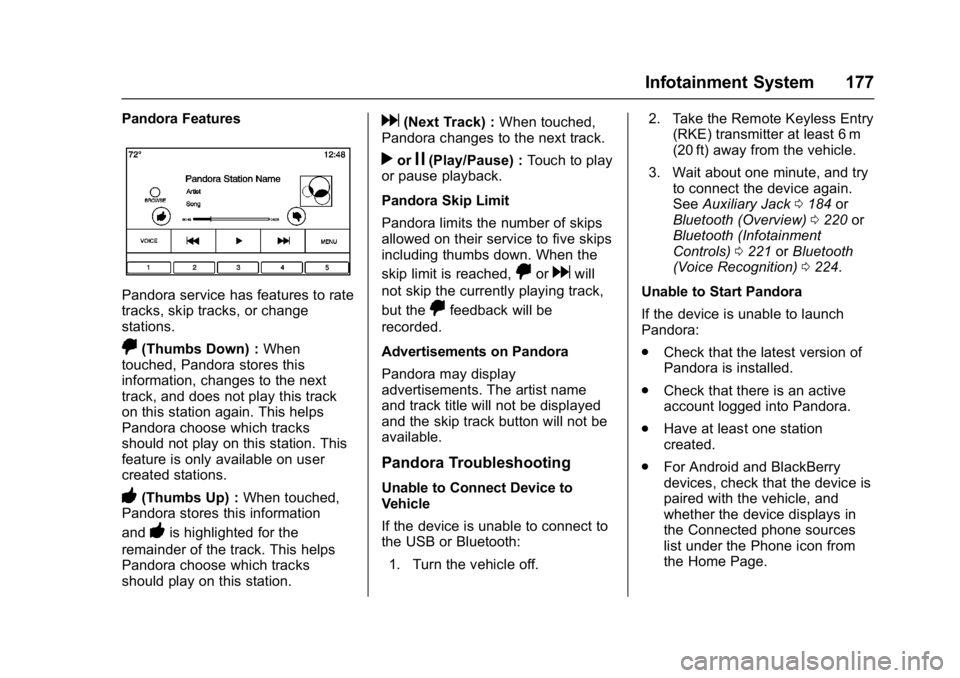
Pandora Features
Pandora service has features to rate
tracks, skip tracks, or change
stations.
,(Thumbs Down) :When
touched, Pandora stores this
information, changes to the next
track, and does not play this track
on this station again. This helps
Pandora choose which tracks
should not play on this station. This
feature is only available on user
created stations.
-(Thumbs Up) : When touched,
Pandora stores this information
and
-is highlighted for the
remainder of the track. This helps
Pandora choose which tracks
should play on this station.
d(Next Track) : When touched,
Pandora changes to the next track.
rorj(Play/Pause) : Touch to play
or pause playback.
Pandora Skip Limit
Pandora limits the number of skips
allowed on their service to five skips
including thumbs down. When the
skip limit is reached,
,ordwill
not skip the currently playing track,
but the
,feedback will be
recorded.
Advertisements on Pandora
Pandora may display
advertisements. The artist name
and track title will not be displayed
and the skip track button will not be
available.
Pandora Troubleshooting
Unable to Connect Device to
Vehicle
If the device is unable to connect to
the USB or Bluetooth:
1. Turn the vehicle off. 2. Take the Remote Keyless Entry
(RKE) transmitter at least 6 m
(20 ft) away from the vehicle.
3. Wait about one minute, and try to connect the device again.
See Auxiliary Jack 0184 or
Bluetooth (Overview) 0220 or
Bluetooth (Infotainment
Controls) 0221 orBluetooth
(Voice Recognition) 0224.
Unable to Start Pandora
If the device is unable to launch
Pandora:
. Check that the latest version of
Pandora is installed.
. Check that there is an active
account logged into Pandora.
. Have at least one station
created.
. For Android and BlackBerry
devices, check that the device is
paired with the vehicle, and
whether the device displays in
the Connected phone sources
list under the Phone icon from
the Home Page.
Page 185 of 432

Buick Envision Owner Manual (GMNA-Localizing-U.S./Canada/Mexico-
8534310) - 2016 - crc - 2/29/16
184 Infotainment System
2. Select Composer to view a listof albums by that composer.
3. Select an album to give a list of songs on that album.
4. Select a song from the list to begin playback.
Audiobooks: 1. Touch to view the audiobooks stored on the device.
2. Select audiobook.
3. Select chapter to begin playback.
File System and Naming
The songs, artists, albums, and
genres are taken from the file’s
song information and are only
displayed if present. The radio
displays the file name as the track
name if the song information is not
available.
Supported Apple
®Devices
To view supported devices in the
U.S., see www.my.buick.com/learn.
To view supported devices in
Canada, see www.buickowner.ca. To view supported devices in
Mexico, see www.buick.com.mx/
buickintellilink.html.
Loss of Audio
If a phone currently paired over
Bluetooth is plugged in with a USB
cable, the system will automatically
mute the phone audio. Playback
can be resumed by changing the
audio source from Bluetooth to USB
cable.
Source USB from the Audio MEDIA
screen button to resume playback.
Bluetooth Streaming Audio and
Voice Recognition
See
Bluetooth Audio 0185 for
information using voice recognition
with Bluetooth streaming audio.
Make sure all devices have the
latest software downloaded.SD Card Reader
If equipped, this vehicle may have
an SD card reader in the center
console. The SD card reader uses the same
controls as the USB Port. See
USB
Port 0182.
Set up the SD card while the vehicle
is in P (Park). See “Audio”under
Using the System 0167.
Place the card into the port.
If an SD card has already been
connected, but a different source is
currently active, touch the MEDIA
screen button to scroll through the
audio source screens until USB/SD
card displays.
Auxiliary Jack
This vehicle has an auxiliary input
jack in the center console under the
armrest. Possible auxiliary audio
sources include:
. Laptop computer
. Audio music player
This jack is not an audio output. Do
not plug headphones into the
auxiliary input jack. Set up an
auxiliary device while the vehicle is
in P (Park).
Page 186 of 432

Buick Envision Owner Manual (GMNA-Localizing-U.S./Canada/Mexico-
8534310) - 2016 - crc - 2/29/16
Infotainment System 185
Connect a 3.5 mm (1/8 in) cable
from the auxiliary device to the
auxiliary input jack. When a device
is connected, the system can play
audio from the device over the
vehicle speakers.
If an auxiliary device has already
been connected, but a different
source is currently active, touch the
MEDIA screen button to scroll
through audio source screens, until
AUX Input source screen displays.
Playing from the AUX Port
An auxiliary device is played
through the audio system and
controlled through the device itself.
AUX Menu
Press the MENU knob to display the
AUX Input menu and the following
may display:
Tone Settings :Select to adjust
Bass, Midrange, Treble, Balance,
Fade, and EQ (Equalizer). See
AM-FM Radio 0170. Auto Volume (If Equipped) :
This
feature adjusts the volume based on
the speed of the vehicle. See
AM-FM Radio 0170.
Bose AudioPilot Noise
Compensation Technology (If
Equipped) : This feature adjusts
the volume based on the noise in
the vehicle and the speed. See
AM-FM Radio 0170.
EQ (Equalizer) Settings :
If equipped, this feature adjusts the
pre-defined EQ modes. See “EQ
(Equalizer)” inAM-FM Radio 0170.
DSP Modes (If Equipped) : With a
Bose
®Studio Surround®Sound
System, adjusts the DSP modes.
See “DSP Modes” inAM-FM
Radio 0170.
Bluetooth Audio
If equipped, music may be played
from a paired Bluetooth device. See
Bluetooth (Overview) 0220 or
Bluetooth (Infotainment Controls)
0 221 orBluetooth (Voice
Recognition) 0224 for help pairing a
device. The music can be controlled by
either the infotainment controls,
or the controls on the device.
Music can be launched by touching
the MEDIA screen button on the
Home Page.
To play music via Bluetooth:
1. Power on the device, and pair to connect the device.
2. Once paired, go into the audio application from the Home
Page or via the applications
tray. Select MEDIA until
Bluetooth displays.
Bluetooth Audio Menu
Touch the MENU screen button to
display the Bluetooth Audio menu.
The following may be available:
Tone : Touch + or −to adjust the
tone settings. See AM-FM
Radio 0170.
Press
qBACK on the faceplate or
touch the Back screen button to go
back to the previous menu.