2016 AUDI TT ROADSTER reset
[x] Cancel search: resetPage 169 of 306

Downloaded from www.Manualslib.com manuals search engine severed
automatically when data packets are no
longer required.
The following options are available:
Connection setup
- with request: A data connection will only be es
tablished on request.
- without request: A data connection will be es
tablished automatically for the use of Audi con
nect services.
- never: A data connection will not be establish
ed. It is then not possible to call up Audi con
nect services.
When a data connection has been established, a
symbol indicating the type of connection and the
signal strength will appear in the status line of
the infotainment display®/@ ¢ page 130,
Fig. 137.
You can cancel an active data connection manual
ly by setting the Connec tion setup option to nev
er.
Data roaming
The Data roaming function is deactivated when
the vehicle leaves the factory. Data roaming
must be activated (�) before you can use a data
connection abroad. This setting is saved for the
current SIM card/the mobile phone currently
connected.
Audi connect (MMI)
With this function, you can allow or deny the use
of Audi connect services if the connection is set
to no request or if requested.
Connection settings
Depending on the SIM card used, the connection
may be configured automatically. However, these
settings can be changed. For more information,
contact your service provider.
-APN: The system access point depends on your
mobile network service provider and is assigned
automatically.
� -
User name: The user name for your on line pro-
� file is assigned by your mobile network service
,.....
� provider.
0
,.....
Vl
CX) Audi
connect
- Password: The password for your on line profile
is assigned by your mobile network service pro
vider.
To store changed connection settings: Press the
I BACK!
button.
Reset configuration
An online profile is created and configured auto
matically. The Connection settings you have
changed manually are reset to the default set
tings.
@ Note
- According to the factory settings, the data
connection will be interrupted initially when
you travel abroad to protect you from unex
pected roaming charges. If you want to use
Audi connect services abroad, you must first
activate the Data roaming option.
- For more information on roaming charges,
contact your service provider.
- Further information can be found on the In
ternet at www.audi.com.
Notes on Audi connect
Audi connect services
Applies to: vehicles with Audi connect
{(D) Note
- Audi connect services are only available with
an existing mobile phone contract (or one
set up separately) and if you are in an area
with mobile phone network coverage. De
pending on your mobile phone tariff, you
may be charged for receiving data packets
on line, especially if you are using the sys
tem abroad. Because of the high level of da
ta usage, we strongly recommend using an
unlimited data plan.
- The mobile phone standard LTE* is not
available for use in all countries. For further
information, please consult an Audi dealer
or your mobile network service provider.
- In order to use Audi connect services, you
will need a mini SIM card with a data op
tion; to use LTE*, the SIM card will also
need to have an LTE data option.
167
Page 193 of 306

Downloaded from www.Manualslib.com manuals search engine Media
Introduction
The MMI system includes various media drives
and provides various options for connecting devi
ces. For example, you can play audio/video* files
from the jukebox or connect a mobile device to
the Audi music interface* and operate it via the
MMI.
Notes General
Media and format limitations: The MMI system
(including the SD card reader and the connection
for the USB mass storage device*) has been tes
ted for use with many of the products and media
currently available on the market. However,
there may be some devices/media and audio/vid
eo* files that are not supported or cannot be
played, or the functionality may be limited under
certain circumstances.
Digital rights management: Please note that
copyright law applies to audio/video files.
The MMI media drives do not support ORM-pro
tected files; these files are marked with the sym
bol rn.
Data storage: Never store important data on SD
cards, the jukebox*, CDs/DVDs or mobile devices.
AUDI AG shall not accept any liability whatsoever
for the loss of files and media.
Loading times: The more files, folders or play
lists are stored on a storage device, the longer it
will take to load the audio files/video* files. We
recommend using a storage device which con
tains only audio/video* files. If you want to re
duce the time it takes to load the audio/video*
files, you can create subfolders (e.g. for an artist
or album). The loading time will be extended ad
ditionally if you are importing data.
Metadata: Metadata stored on audio files (e.g.
artists, tracks, album covers) will be displayed
� automatically
when the files are played. If this
� information is not stored on the relevant medi-
8 um,
the MMI system will use the database of
"
Vl Media
metadata from Gracenote. Nevertheless, meta
data may not be displayed in some cases.
Restricted performance: If you experience re
stricted performance, reset the Media settings
to the factory defaults ¢page 213.
If you experience restricted performance from
the Jukebox*, reset it to the factory settings
¢page 213.
For information on the characteristics of the sup
ported media and file formats, please refer to
¢page 206 onwards.
CD CAUTION
Please always observe the information ¢(Din
Wi-Fi hotspot on page 166.
CD/DVD mode
CD/DVD and format limitations: In view of the
variety of CDs/DVDs and the difference in memo
ry capacities, the functionality may be restricted
in the case of some storage devices. Under cer
tain circumstances, audio CDs/video DVDs that
are copy-protected or CDs/DVDs that do not com
ply with the standard audio format, and multi
session CDs cannot be played at all, or the func
tionality may be limited. We recommend always
finalising the burning process when creating
multisession CDs. Multisession is not supported
for DVDs.
Handling CDs/DVDs, the CD drive or the DVD
drive: To ensure perfect, high-quality playback
and avoid scanning errors or damage to the me
dia drive, always store CDs/DVDs in a suitable
case and do not expose them to direct sunlight.
Do not use:
- Damaged, dirty or scratched CDs/DVDs
- Single CDs/DVDs (diameter 8 cm)
- Non-circular CDs/DVDs (shape CDs)
- CDs/DVDs with stickers
- Protective rings
- Cleaning discs
Thermal cut-out: In the case of unusually hot or
cold outside temperatures, it is possible that CD/
DVD playback will temporarily not be possible. A
IJll,,
191
Page 196 of 306

Downloaded from www.Manualslib.com manuals search engine Media
Important: Copying must be in progress in the
background.
- To display the copy procedure: Select: right
control button > Active copy procedure.
During the copying procedure, the audio files are
automatically sorted according to the categories
in the media centre based on the metadata stor
ed for the files ¢ page 201. The video files cop
ied can be found in the Videos category of the
media centre.
Playing from the jukebox
Important: The jukebox must contain audio/vid
eo files ¢ page 193, Filling the Jukebox.
The jukebox is called up and operated via the
MMI (D¢page200, Fig.174.
Di splaying the jukebox memory capacity
Select: right control button> Jukebox memory
capacity. Information on the jukebox memory ca
pacity and the number of stored tracks will be
displayed.
Deleting tracks from the jukebox 1
)
Important: The jukebox must contain audio/vid
eo files.
- Delete entry: Select an entry from the juke
box's media centre. Select: right control button
> Delete from jukebox > This entry or Entire
list.
- The status of the deletion process will be
shown on the MMI. During the deletion process
the playback of the jukebox is interrupted; it is
started again automatically once the deletion
process has been completed.
CD CAUTION
Only copy audio/video files while the engine is
running; otherwise the vehicle battery will be
discharged.
Note
- For legal reasons it is not possible to copy
tracks from audio CDs onto the jukebox.
l l
Not in the Playback view.
194 -
Files that have already been copied are de
tected automatically and cannot be copied
to the jukebox again.
- It is not possible to play audio/video files*
in the CD/DVD* drive while they are being
copied.
- For legal reasons there is no export function
for the jukebox.
- Files or tracks that do not include stored
metadata are listed as Unknown. Audi rec
ommends that you mark the audio files with
the corresponding metadata (e.g. ID3 tags).
- When handing over your vehicle e.g. to a
new buyer, reset the jukebox to the factory
settings ¢ page 213.
Bluetooth audio player
Applies to: vehicles with Bluetooth
You can use the Bluetooth audio player to play
music from your Bluetooth-enabled device (e.g.
smartphone) wirelessly via the MMI.
Important: To connect a Bluetooth device, the
vehicle must be stationary and the Bluetooth
function of your Bluetooth device and the Blue
tooth audio player ¢ page 215 function of the
MMI system must be switched on.
- To connect a Bluetooth device: Press the
I MEDIA!
button. Press the left control button
repeatedly until the source overview is dis
played. Select and confirm Bluetooth audio
player @¢page200, Fig. 175.
- You may need to select and confirm Not con
nected > Connect Bluetooth audio player. The
system will start searching for Bluetooth devi
ces. Follow the instructions given by the MMI.
- Select and confirm the desired Bluetooth de
vice from the list. The MMI will generate a PIN
to establish the connection.
- Select and confirm Yes.
- Enter the PIN on your Bluetooth device to es-
tablish a connection. Or: If the PIN is already
being displayed on your Bluetooth device,
please confirm it on the device. You have about
30 seconds to enter the PIN.
�
Page 201 of 306
Downloaded from www.Manualslib.com manuals search engine 0
N
,.....
N
....
0
,.....
Vl
CX) which
must be connected via a USB adapter
(¢ page 197) to the Audi music interface;
this could cause performance issues.
- The AUX adapter cable is available from
Audi dealers or specialist retailers.
- It cannot be guaranteed that mobile devices
which do not meet the specification USB 2.0
will function properly.
- USB hubs are not supported.
- Some iPod versions (e.g. iPod shuffle) can-
not be connected with the USB adapter for
devices with Apple dock connector. You can
connect these devices using the AUX adapt
er cable.
- Video playback via the Audi music interface
is only supported if the system detects that
the device connected is a USB storage device
(e.g. a USB stick). Apple or MTP devices (e.g.
smartphones) are not recognised as USB
storage devices.
- iPod/iPhone malfunctions also affect opera
tion of the device via the MMI. In this case,
please reset your iPod/iPhone.
- Please refer to the iPod/iPhone operating
instructions for important information on
how to use your iPod/iPhone. We recom
mend that you use the most up-to-date
iPod/iPhone software possible.
- For more information on the Audi music in
terface and on which devices are supported,
please see the Audi mobile device database
at www.audi.com/mp3 or contact an Audi
dealer. Media
AUX input/USB charging socket
Applies to: vehicles with AUX input/USB charging socket
You can charge the batteries of your mobile devi
ces using the USB charging socket. You can con
nect mobile devices using the analogue AUX in
terface.
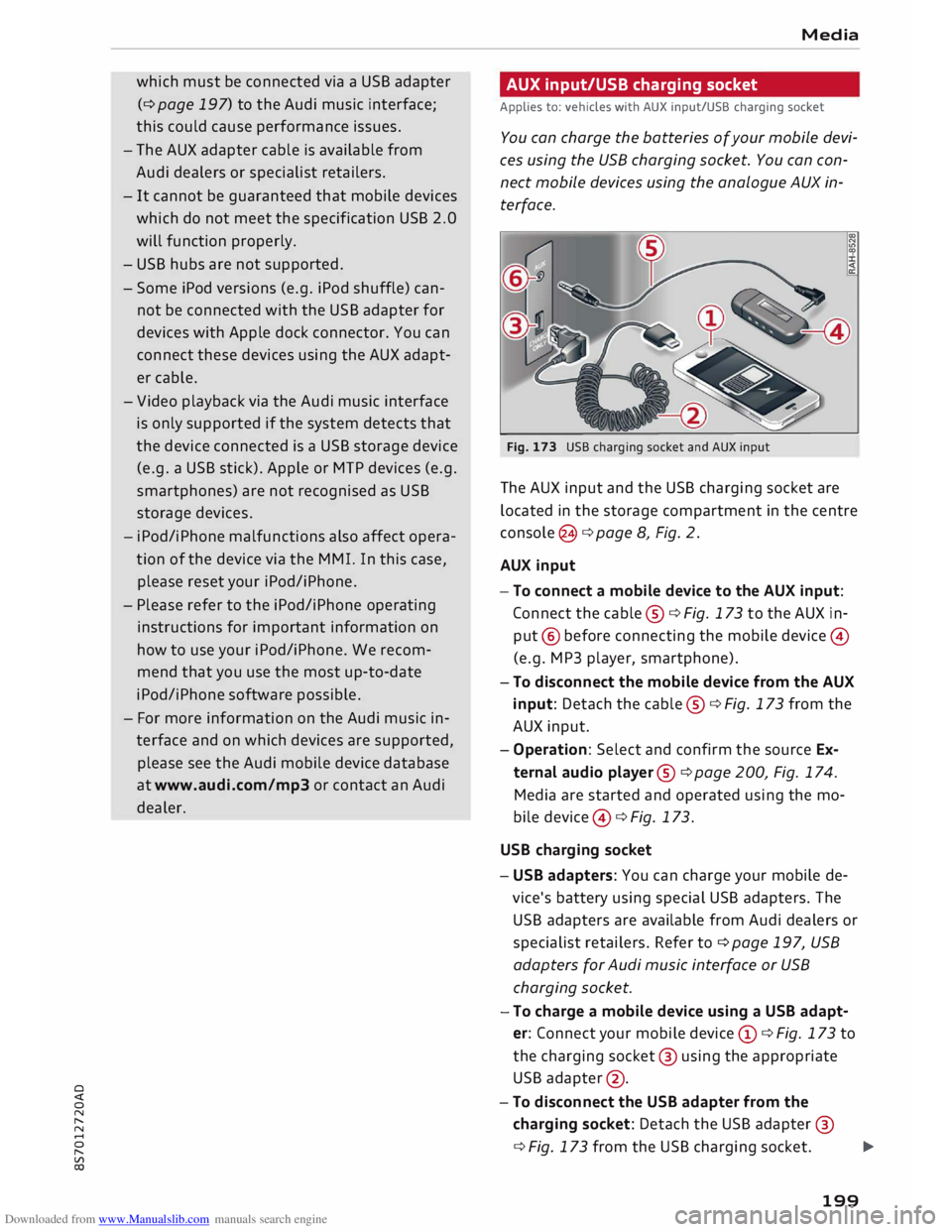
Fig. 173 USB charging socket and AUX input
The AUX input and the USB charging socket are
located in the storage compartment in the centre
console @¢ page 8, Fig. 2.
AUX input
-To connect a mobile device to the AUX input:
Connect the cable ®¢ Fig. 173 to the AUX in
put @ before connecting the mobile device©
(e.g. MP3 player, smartphone).
- To disconnect the mobile device from the AUX
input: Detach the cable ®¢ Fig. 173 from the
AUX input.
- Operation: Select and confirm the source Ex
ternal audio player@¢ page 200, Fig. 174.
Media are started and operated using the mo
bile device @¢ Fig. 173.
USB charging socket
- USB adapters: You can charge your mobile de
vice's battery using special USB adapters. The
USB adapters are available from Audi dealers or
specialist retailers. Refer to¢ page 197, USB
adapters for Audi music interface or USB
charging socket.
-To charge a mobile device using a USB adapt
er: Connect your mobile device (D ¢ Fig. 173 to
the charging socket@ using the appropriate
USB adapter @.
- To disconnect the USB adapter from the
charging socket: Detach the USB adapter @
¢ Fig. 173 from the USB charging socket.
...,.
199
Page 207 of 306

Downloaded from www.Manualslib.com manuals search engine 0
N
,.....
N Display
DVD menu
To select a menu option: Select and confirm a
menu option. Or: Move your finger on the MMI
touch pad* and press the rotary pushbutton.
Audio track1
)
You can adjust the audio track (language and au
dio format) manually. It depends on the video
DVD whether different Languages and audio for
mats are available.
Subtitles 1
>
You can select subtitles manually. It depends on
the video DVD whether different languages are
available.
Picture format
We recommend using the automatic setting for
the picture format. Depending on the active file
or source (e.g. video file*, DVD*), you may be able
to adjust the picture format.
Picture for-Information
mat
automatic The
MMI detects the picture for-
mat of the source and displays the
picture using the best possible
width-to-height ratio. Depending
on the source format and the info-
tainment display installed, black
bars may be displayed on the edges
of the picture.
zoom The picture is enlarged to fill the
infotainment display. Switch this
function off if the picture is distor-
ted.
8 1}May not be possible during playback (depends on the
,.....
� DVD). Media
Picture for-
Information
mat
cinema- Use
this setting for films in the cin-
scope ema format 21:9. Black bars will
be shown on the upper and Lower
edges of the infotainment display.
original The picture will be displayed using
the picture ratio of the source for-
mat. Select this option if the pie-
ture shown with auto selected is
distorted or partially cut off.
4:3 The
picture is set to a width-to-
height ratio of 4:3. Black bars will
be shown on the edges of the info-
tainment display.
16:9 The
picture is set to a width-to-
height ratio of 16:9. Black bars will
be shown on the upper and Lower
edges of the infotainment display.
(© Note
- Not all video DVDs have a child lock feature.
- The child lock safety levels comply with the
US standards of the Motion Picture Associa
tion of America (MPAA). Please note that
age ratings for DVDs may vary between dif
ferent European countries.
- If you enter the wrong child Lock password
three times in a row, you will not be able to
enter a password for approximately one mi
nute. The password can only be reset by an
Audi workshop.
205
Page 215 of 306

Downloaded from www.Manualslib.com manuals search engine 0
N
,.....
N
......
0
,.....
Vl
CX) -
spoken: The reminder signal is spoken by the
system.
Reminder signal volume: You can adjust the vol
ume of the reminder signal by turning the rotary
pushbutton.
Switch off pop-up: This function is switched off
at the factory. When this function is switched on
� , the messages about the charging status of
the mobile phone in the Audi phone box* on the
infotainment display will not appear. The re
minder not to forget the mobile phone when
leaving the vehicle will also be switched off.
Usage tips
Your MMI displays usage tips when this function
is switched on�
. They will appear less often as
time goes by. You can switch the usage tips off at
any time.
Speech dialogue system
Applies to: vehicles with speech dialogue system
Command display: The MMI displays possible
voice commands in the corresponding menu
when this function is switched on�
. You can
switch this function off at any time.
Short dialogue: When this function is switched
on �
, the spoken cues are shortened. You can
switch this function off at any time.
Speech dialogue system volume: You can adjust
the volume of the spoken cues by turning the ro
tary pushbutton.
Individual speech training (only possible when
the vehicle is stationary): You can use the individ
ual speech training to adapt the speech dialogue
system to your voice or pronunciation so that the
speech dialogue system can then better recog
nise what you are saying. The individual speech
training prompts you to repeat 20 spoken phra
ses that consist of certain commands and blocks
of digits. If you would like to delete the stored
speech training setup, you can use the function
Reset individual speech training.
Factory settings
You can reset the following functions to the fac
tory settings: System
settings
- Sound settings
- Radio
- Media settings
-Jukebox*
- Directory*
- Telephone*
- Bluetooth and Wi-Fi*
- Navigation settings*
- Navigation and online memory*
- Speech dialogue system*
- Message settings*
-Apps*
- Usage tips
-Audi connect*
You can select the desired options individually or
mark Select all entries. Select and confirm Re
store factory settings.
ijj) Note
- Please note that not only settings will be
deleted when you do this; saved data may
also be erased.
- If you set Navigation and on line memory*
or Audi connect* to the factory settings, the
system will restart after approx. 20 sec
onds. During the restart, the infotainment
display
will
be black for a few minutes.
- Please note that the speech dialogue sys
tem* is not available as a factory option for
Cabriolet models without a seat belt micro
phone.
Connection manager
Introduction
The connection manager gives you an overview
of your connected devices and their connection
status.
.., Select: I MENU I button > Settings > left control
button > MMI settings > Connection manager.
.., Select and confirm a menu option.
If a mobile device has already been connected
and you then select and confirm the correspond
ing menu item, the device's name and connection
mode is displayed under this menu item.
...,.
213
Page 217 of 306

Downloaded from www.Manualslib.com manuals search engine 0
N
,.....
N
......
0
,.....
Vl
CX) Audi
smartphone
Applies to: vehicles with Audi smartphone interface
- Connect your mobile phone to the Audi music
interface ¢page 198via a USB adapter
¢page 197, Fig. 171.
- Select your mobile phone from the list of mo
bile phones already connected.
Further options
Further options may be available in the connec
tion manager via the right control button de
pending on the function selected.
Bluetooth settings
- Bluetooth: Select and confirm a discoverability
setting for the Bluetooth connection. Select
visible to make the MMI visible to other devi
ces. Select invisible to make the MMI invisible
to other devices. Devices which have already
been bonded can connect via Bluetooth even
when discoverability is deactivated. Select off
to switch discoverability off. It is then not pos
sible to establish a Bluetooth connection.
- Bluetooth audio player: When this function is
switched on�, the Bluetooth audio player is
available as a source in the Media menu.
- Delete Bluetooth device: The selected mobile
phone/device is disconnected from the MMI.
- Display Bluetooth profiles: You can Connect or
Disconnect the Handsfree, Car phone and Di
rectory/contacts profiles individually.
- Bluetooth audio player: Switch this function on
� to be able to use the Bluetooth audio player
as a source in the media menu.
- Bluetooth name: The Bluetooth name of the
MMI system (e.g. "AUDI MMI 2017") is dis
played and can be changed.
When this function is on �. the symbol @
¢page 130, Fig. 137 will appear on the infotain
ment display.
Online settings*
- Data connection settings: Refer to ¢ page 166,
Configuring the data connection
- Data usage meter: The number of the data
packets sent/received via the MMI system is System
settings
displayed. Select Reset data meter to reset the
usage statistics to zero.
- Connection status: The mobile network provid
er for data services and the network status are
displayed.
Wi-Fi settings*
Refer to ¢ page 165, Wi-Fi hotspot.
SIM PIN settings*
-Automatic PIN entry: When this function is
switched on�, the SIM PIN is stored in the
MMI after it has been entered for the first time.
You can save the PIN codes of four different
SIM cards on the MMI. If this function is
switched off, the PIN currently stored in the
MMI will be deleted. If the automatic PIN entry
function is activated, the system does not ask
you to enter your SIM PIN explicitly.
- Deactivate PIN query: The system does not ask
for the SIM PIN when you switch it on. The au
tomatic PIN entry function is ignored in this
case.
- Change PIN: You can change the PIN code for
your SIM card. First enter the existing PIN code
for your SIM card. The SIM PIN code can only
consist of numbers from Oto 9. The new SIM
PIN code has to be entered twice, as a precau
tionary measure, and is stored on the SIM card.
Network settings*
- Registration: To dial into your service provid
er's mobile network automatically or to select a
network manually from the list of available
networks.
- Network selection: You can use this function to
select the available networks for the current
position of the vehicle. This function is only
available when the manual setting is activated
for registration.
Apple CarPlay sound settings/Android Auto
sound settings
Applies to: vehicles with Audi smartphone interface
Refer to ¢ page 217.
215
Page 218 of 306

Downloaded from www.Manualslib.com manuals search engine System
settings
Ab out Appl e CarPla y/About Android Auto
Applies to: vehicles with Audi smartphone interface
Here you will find legal information about using
Apple CarPlay/Android Auto and information
about data transfer for specific devices.
Delete CarPlay device/Delete Android Auto
device
Applies to: vehicles with Audi smartphone interface
Important: Your mobile phone must no longer be
connected to the Audi music interface via a USB
adapter.
Select: Audi smartphone > a device from the list
> right control button.
To remove your mobile phone from the list of
mobile phones already connected, select and
confirm Delete CarPlay device or Delete Android
Auto device.
� Note
Some SIM cards do not allow the SIM PIN
query to be deactivated.
System update ..,
Sele
ct:
!MENU! button > Settings > left control
button > System maintenance.
- System update: Insert the storage medium
with the update data into the appropriate drive
¢page 192. Select and confirm the appropri
ate drive > Start update. The duration of this
process depends on the size of the update.
- Reset driver installation: The media driver
package selected is reset to the factory de
faults.
- Version information: Information on the soft
ware version of the M MI and the navigation da
tabase* is displayed. In addition, you can use
the Software information function to display
information on the MMI's software and licence
conditions.
216 On-board
Handbook
Applies to: vehicles with On-board Handbook
The On-board Handbook includes the Owner's
Manual for your vehicle.
Insta lling/u pdating the On-board Handbook
Important: The storage medium on which the
On-board Handbook is stored must have been in
serted into the relevant drive ¢page 192.
.., Select: I MEN
U
I button >Settings > left control
button > System maintenance > System up
date> SD card 1, SD card 2, CD/DVD* or USB*.
.., Follow the instructions given by the system.
Starting the Handbook
Important: The Handbook must have been instal
led previously.
.., Select: I MENU
I button >Car> left control but-
ton > Handbo ok.
The On-board Handbook will automatically load
in the language that is set under the option Menu
language in the MMI ¢page 212.
Using the On-board Handbook
The following functions are available when you
are operating the On-board Handbook using the
rotary pushbutton:
- Select and confirm an entry: Turn the rotary
pushbutton to the entry you require and press
the rotary pushbutton.
- Show a picture in full size: Turn the rotary
pushbutton to the desired picture and press the
rotary pushbutton.
- Call up the options menu: You can use the
right control button to return to the Home
page, Refresh the content in the On-board
Handbook, Cancel refresh of the content and
open the Index.
A WARNING
You should only use the On-board Handbook
when the traffic conditions allow you to do so
safely and when you can maintain proper con-
trol of your vehicle -risk of injury.
�