2016 AUDI TT COUPE phone
[x] Cancel search: phonePage 105 of 322
Downloaded from www.Manualslib.com manuals search engine • Telephone
• Audi connect
• Navigation
• Directory
• Radio
•Media
· Sound
•
Help
• Help Speech dialog system
• Help Telephone
• Help Audi connect
• Help Navigation
• Help Map
• Help Radio
·Help Media
TEbEP:HONE
• Enter number
•Delete number I correc tion
• Directory
• Call (XY)
·business I private I land line I mobile
NAVIG:ATI0N
• N avigate to CXYl
·Business address I Private address
• Start I cancel route guidance
· Directory
• Last destinations
• N avigation favorites
· Drive
home
• Enter address
• Enter country I town I street I state
• Exclude routt I Exclude route for (XY) km Im
·Map
• Day map I Night map
Voice recognition system
• Favorites
• Call (XY)
• Enter number
• Redial
• Read new text message
• Navigate to (XY)
• Enter address/destination
• Onhne destinations
• Cancel route guidance
·Map
• Line (XY)
• Next page I previous page
• Cancel
•
No. l meant ()(Y)
• Correction
• Call
lost
• Redial
• Call mailbox
• Enter PIN I delete PIN
•
Telephone favorites
• Exclude next route section I Exclude
nex t
street
• Route list
• Calculate alternative routes
· Online destinations
• Special destination
• 20 driving position map/ 20 north position map/ 30 map I Destination map I Overview map
• Audi connect
• Travel information I Parking Information
•
Fuel prices
·Weather
RADIO
• Radio presets
• Last stations
•FM
• FM I AM I SIRIUS XM
• Station (XY) I Frequency (XY)
• T raffic announcement on I off
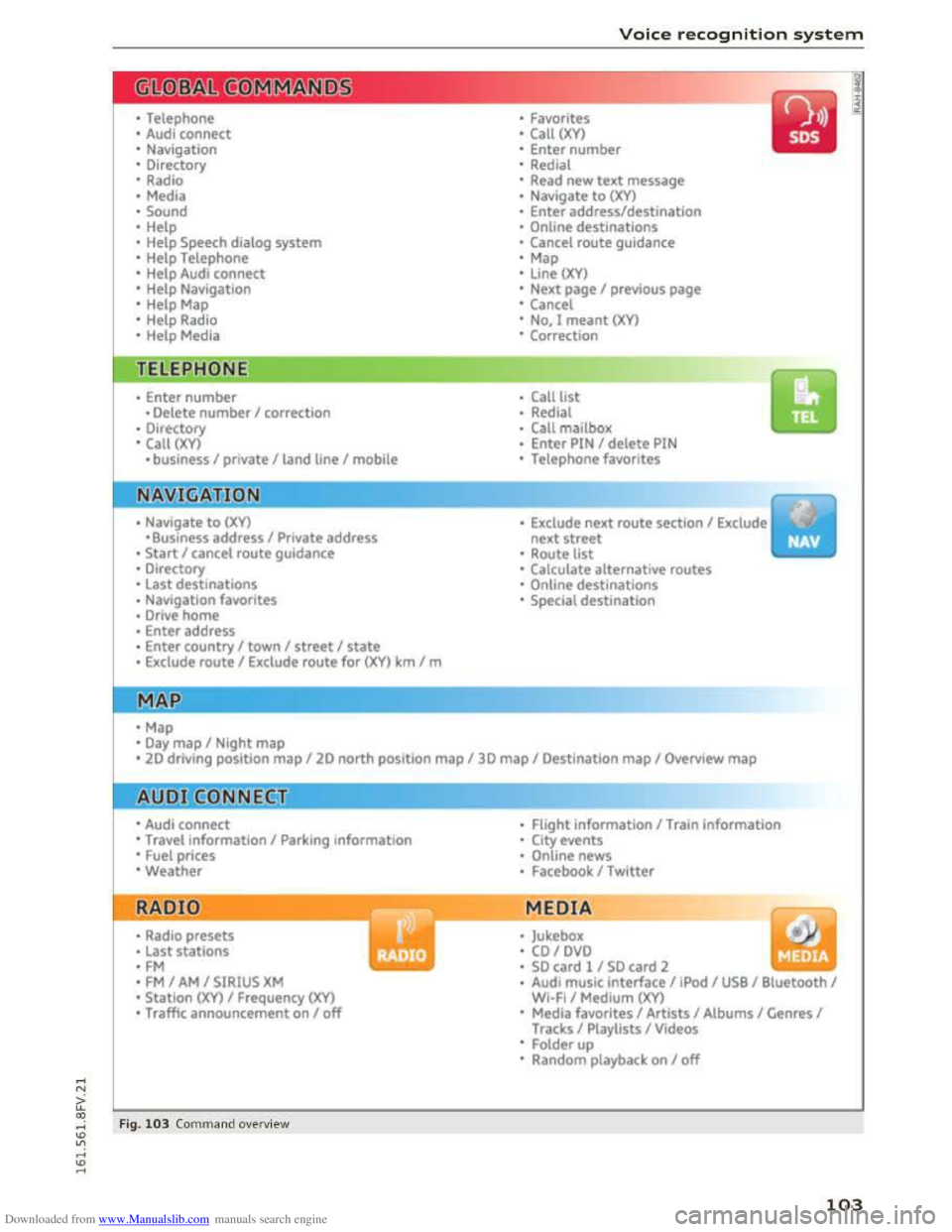
Fig. 103 Comm and ove rvie w
• Flight Information I Train information
• City events
• Online news
• Facebook I Twl tter
MEDIA
y • Jukebox
• CO I DVD
• SO card l / SD card 2
· Audi music interface I !Pod I USB I Bluetooth I
WI-Fi I Medium (XV)
• Media favorites I Artists I Albums I Genres I
Tracks I Playlists I Videos
• Folder up
· Random playback on I off
103
Page 106 of 322

Downloaded from www.Manualslib.com manuals search engine Voice recognition system
Voice recognition system
Operating
Applies to: vehicles with voice recogn ition system
You con operate many Infotainment functions
conveniently by speaking .
Fig. 10 4 Talk button and right thumbwheel on th e multi·
functi o n steer ing whee l
Requirement: the ignition and the MM! must be
switched on i::> page 95, there must be no phone
call in progress and the parking system must not
be active .
.. S
witching on: briefly press the 12!]c:> fig . 104
button on the multifunction steering wheel*
and say the desired command after the Beep.
..
Switching off: press and hold the 5:1 b utton.
Or : say the command Cancel.
.. Pause: say the command Pause . To resume,
press the 10°1 b utton.
.. Corre cting: press the~ button one time. Or:
say the command Correct.
Input assistance
The system gu ides you through the input with
visual
and audio feedback.
- Visual
input assistance: after switching on
voice
recognition, a display with a selection of
possible commands appears. The command
display can be switched on/off under I MENU!>
S ettings> left control bu tton > MMI settings>
Speech dialog system.
- Audio
input assistance: to have the possible
commands read, turn t h e voice recognition sys
tem on a nd say Help .
104
For the system to understand you:
Speak clearly and distinc tly at a normal vol ume.
Speak louder when driving faster.
E
mphasiz e the words in the commands evenly
and do not leave long pauses.
Do not speak a command when the voice recogni ·
tion system is making an announcement.
Close the doors, the windows and the sunroof* to
reduce background noise. Make sure that passen
gers are not speaking when you are giving a voice
command.
Only use the system from the driver's seat be
cause the hands free microphone is directed to·
ward that seat.
Additional settings
Additional settings such as individual speech
tra ining to your voice, Command display or v ol
ume of spoken prompts can be adjusted under
IMENUI >Settings> left control button> MMI
settings > Speech dialog system .
.&. WARNING
- Direct your full attention to driv ing . As the
driver, you have complete responsibility for
safety in traffic. O nly use the functions in
such a way th
at yo u always maintain com
plete control over your vehicle in all traffic
situations.
-
Do not use the voice recognition system in
emergencies beca use your voice may change
in stressful situations. It may take longer to
dial the number or the system may not be
able to dia l it at all. Dial th e emergency
number manually.
@Tips
- The dia log pauses when ther e is an incom
ing phone call and will continue if you ig
nore the call. The dialog ends if you answer
the call.
- Navigation messages and traffic announce·
ments* are not made during a dialog.
-
You can select an item in the list using ei
ther the voice recognition system or the
control knob.
Page 107 of 322
Downloaded from www.Manualslib.com manuals search engine Voice recognition system
Command overview
information
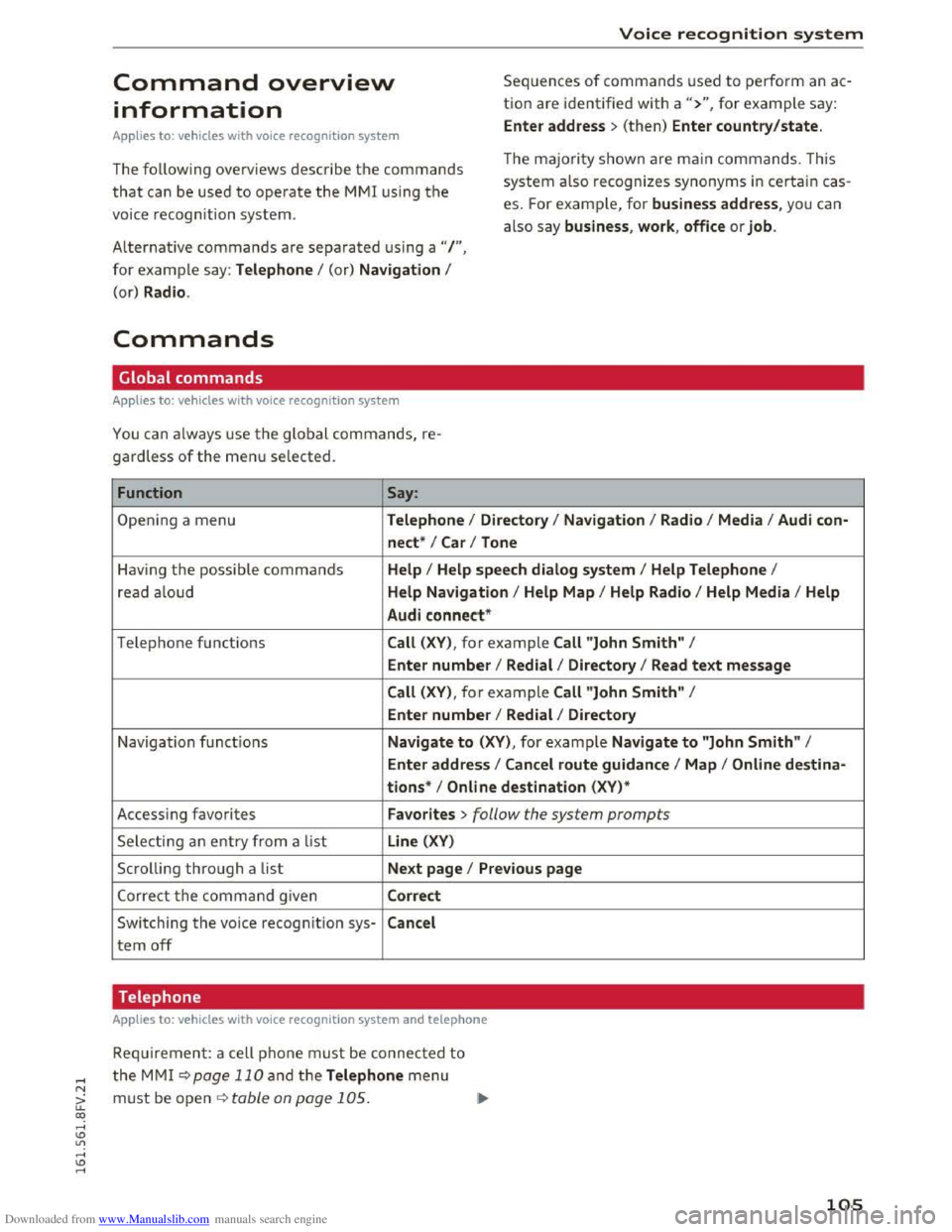
Sequences of commands used to perform an ac
tion are identified w ith a">", for example say :
Applies to: vehicles with voice recognition system Enter address > (then) Enter country/state.
The follow ing ove rviews describe the commands
that can be used to operate the M MI using the
voice recognition system. T
he maj
o rit y s hown are m ain commands. T his
system a lso recognizes synonyms in certain cas
es. For example, for business address, you can
also say business , work , office or job.
Alternative commands are separated using a"/ ",
for example say: Telephone I (or) Navigation I
(or) Radio .
Commands
Global commands
Applies to: vehicles with voice recognition system
You can always use the global commands, re
gardless of the menu selected.
Function
Say:
Open ing a menu Telephone I Directory I Navigation I Radio I Media I Audi con-
nect *
I Car I Tone
Having the possible commands Help I Help speech dialog system I Help Telephone I
read aloud Help Navigation I Help Map I Help Radio I Help Media I Help
Audi
connect *
Telephone functio ns Call (XV) , for example Call "John Smith" I
Enter number I Redial I Directory I Read text message
Call (XV), for example Call "John Smith" I
Enter number I Redial I Directory
Navigation fu nc tions Navigate to (XV) , for example Navigate to "John Smith" I
Enter address I Cancel route guidance I Map I Online destina-
tion s*
I Online destination (XV)*
Access ing favorites Favorites > follow the system prompts
Selecting an e ntry from a list Line (XV)
Scrolling through a list Ne xt page I Previous page
Correct the co m mand given Correct
Switching the voice recognitio n sys-Cancel
tern off
Telephone
Applies to: vehicles with voice recognition system and telephone
Requirem en t: a cell pho ne m ust be c o nnected to
the M MI r::!vpage 110 and the Telephone menu
must be open r::!v table on page 105. ~
105
Page 108 of 322

Downloaded from www.Manualslib.com manuals search engine Voice recognition system
Function
Calling a contact from the directory
Selecting a specific
contact number
Selecting a
phone number with an
address card open
Calling a contact from your favor -
ites list
Displaying
recent calls
Calling the last number dialed
Dialing a
phone number
Correcting the phone number that
was entered
Showing contact information
Listening to messages
Entering the PIN (SIM)
Corre cti ng the P IN entry
Correct data input
Close the entire command list
@ Tips
Say:
Call (XV), for example Call "John Smith"
Call
(XV) at work I Private I Land line I Cell phone,
for example, Call "John Smith" private
Call I Call work I Call private I Call land line I Call cell phone
work
Teleph o
ne favorites >After being prompted, say the desired
contact > Dial
Call list
Redialing
Enter
number > After being prompted, say the telephone num-
ber in groups of individual numbers, for example. 888 555
1212 > Dial
Correct I Delete number
Directory > After being prompted, say the desired contact,
su ch as John Smith
Call voic email
Ente r PIN > when prompted, say the PIN in individual numbers
>Save
Corr ect I Dele te PIN
No, I
meant (XV)
Clo sing
phones that transmit names separated into
first and last names.
-Contacts in the dire ctory can selected using
the full name ("first name last name" and
"las t name, first name") as well as with only
the first or last name. This applies to cell -
For
more information on the supported cell
phones, visit www.a udiusa.com/bluetooth
or yo ur authorized Audi dealer .
Audi connect
Applies to: vehicles with voice recognition system and Audi connect
Requirement: the requirements for Audi connect
services must be met c::>page 121.
Function Say:
Accessing Audi connect services Audi connect. F o llow the system prompts.
(D Tips
Refer to the notes in the About Audi connect
chapter c::> page 128.
106
Page 111 of 322

Downloaded from www.Manualslib.com manuals search engine Voice recognition system
Function Say:
Selecting a source directly Jukebo x* I CD I D V D I SD card 1 I S D card 2 I Aud i mu sic inter-
face *
I iPod * I USB* I Bluetooth * I Wi-Fi* I Medium (XV), for
example "Jolhn's player"
Selecting audio /video files* from Media favo rite s I Artists I Album s I Genres I Tracks I Playli st s I
the Jukebox* Videos
Selecting audio files on an iPod A rt ists I Albums I Genre s I Tracks I Playlists I Compos ers I
(sou rce: Audi music interface*) Podcast s I Audio books
Navigating within a folder struc-Di rectory up I Line (XV)
t u re/list
Selecting shuffle Shuffle on I Shuffle off
Correct data input No, I meant (XV)
Close the entire command list Closing
External voice operation
Requirement:
The ignition and the MMI m use be switched on,
there must be no active phone calls and the park
ing system and Audi speech dia log system must
not be active .
A cell
phone must be connected to the MMI
through the Handsfree profile¢ page 110.
The cell phone bei ng connected must have voice
con trol that can be controlled externally.
~Switching on : hold down the 12!:1 button on the
multifunction steering wheel* and say the de
sired command after the external speech d ia log
begi ns.
~Resuming dialog : if necessary, press the l"l•I
button and say a new command. Or : select and
confirm Resum e speech dialog system on the
MMI control panel.
~Restarting dialog: the system remains ready to
use for a short time after ending the d ialog.
You can start a new dialog during this time.
Briefly press the 12!:1 button. Or: select and con
firm Restart speech dialog syste m on the MMI
control panel.
~Switching off: press and ho ld the 12!:1 b utton.
Or : select and confirm Cancel o n the MMI con-
(D Tips
- Navigation messages and traffic announce
ments* are not made duri ng a dialog.
-Th is function depends on the cell phone
used. You can obtain more information
from your cell phone ser vice provider or
from your cell phone user guide.
-AUDI AG simply provides access to control
your cell phone with voice operation and
does not take any responsibility for the con
t
ent s and commands within the external
voi ce control.
~ t ro l panel.
a: co ,....,
Page 112 of 322

Downloaded from www.Manualslib.com manuals search engine Telephone
Telephone
Introduction
Applies to: vehicles with telephone
To make calls through the MMI system, you must
connect your phone to the MMI with Bluetooth.
After connecting
your phone to the MM with
Bluetooth, you can use the telephone functions
conveniently
through the MMI.
Handsfree
After you have connected your cell phone to the
MMI via Bluetooth, you can use the handsfree
system and operate telephone functions through
your MMI. Phone calls are transmitted thro ug h
the antenna on your cell phone.
A WARNING
-Medical experts warn that cell phones can
interfere with the function of pacemakers.
Always maintain a minimum distance of 20
centimeters between the cell phone anten
na and the pacemaker.
-
Do not carry the cell phone in a pocket di
rectly over the pacemaker when the phone
is switched on.
- Switch
the cell phone off immediately if
you
suspect it may be interfering with the
pacemaker.
-Do not use the voice recognition system
¢page 104 in emergencies because your
voice may change in stressful situations. It
may take longer to dial the number or the
system may not be able to dial it at all. Dial
the emergency number manually.
- Switch
your cell phone off in areas where
there is a risk of an exp losion. These loca
tions are not always clearly marked. This
may include gas stations, fuel and chemical
storage facilities or transport vehicles, or lo
cations where fuel vapors (such as propane
or gasoline vapor in vehicles or buildings),
chemicals
or large quantities of dust parti
cles (such as flour, sawdust or metal) may
be present in the air. This also applies to all
other locations where you would normally
turn your vehicle engine off.
110
-
-The demands of traffic require your full at
tention. Read and follow the guidelines pro
vided in¢ page 95, Traffic safety informa
tion.
(D Tips
The Bluetooth connection range is limited to
inside the vehicle. It can also be affected by
local conditions
and interference with other
devices.
- Check
with your cell phone service provider
or the database for mobile devices at
www.audiusa.com/bluetooth to learn which
Bluetooth connections and functions are
supported on your cell phone.
Connecting a telephone
Connecting a cell phone using Bluetooth
Applies to: vehicles with telephone
Fig. 105 Displaying the PIN for entering in the cell phone
Requirement
The vehicle must be stationary and the ignition
must be switched on.
The Bluetooth
function and visibility of the MMI
¢page 168 and cell phone must be switched on.
The cell ph
one to be connected must not be ac
tively connected to any other Bluetooth device.
T he
MMI must not be connected to a cell phone.
Pairing a cell phone
... Select: IMENUI button >Telephone> Connect
cell phone > Next . The available Bluetooth de
vices are shown in the Infotainment system dis
play. Or: search for the MMI in your cell phone
through the Bluetooth device search. ""'
Page 113 of 322

Downloaded from www.Manualslib.com manuals search engine ..... N
G: CX)
.....
"' U"I
.....
"' .....
.,.. Select and confirm the desired cell phone from
the list of displayed Bluetooth devices.
.. The MMI generates a PIN for the connection
setup ¢fig. 105.
.. Select and confirm Y es.
.. Enter the PIN for connecting on your cell
phone. Or: when the PIN is displayed on your
ce ll phone, confirm the PIN on your cell phone
and in the MMI. The time allowed for entering
the PIN is lim ited to approximately 30 seconds.
Pay attention to any additional system prompts
displayed on your cell phone, for example if the
system should connect automatically in the fu
ture. Depending on the cell phone, you may have
to confirm downloading the d irectory separately.
After connecting successfully
After connecting successfully, a short message
with information about the connected profiles
will appear. You can also cha nge the profile later
by selecting I MENU I > Settings> left control but
ton > MMI s ettings > Connection man ager
¢ page 168.
In addition, the cell phone contacts are a utomat
ic a lly loaded in the MMI directory. This process
can take several minutes, depending on the num
ber of contacts.
@ Tips
- Making phone calls through the MMI is only
possib le using a
Bluetooth profile (Hands
free ).
-You can apply additional settings to con
nected cell phones u s ing the connection
manager ¢ page 167.
-You only have to pair your dev ice one time.
Bluetooth devices that are already pa ired
automatically connect to the MMI when
they are within range and t h e ignition is
switched on.
- Authorizing
the MMI connection in your cell
phone will make automatic connection pos
s ible.
- Seve r
al cell phones can be paired to the
MM!, but only one cell phone can be actively
connected .
T elepho ne
- A B luetooth device that is already paired
with the MMI will be disconnected if anoth
er device is paired.
-
When leaving the veh icle, the Bluetooth
connection to the cell phone will automati
cally disconnect.
- You can obtain more information from your
cell phone service provider or from your ce ll
phone user guide. For information on using
the telephone, v isit www.aud iusa.com/blue
tooth or your authorized Audi dealer.
Using the Audi phone box
Applies to: vehicles with Audi phone box
Using the Audi phone box, you can call using the
external vehicle antenna and charge your cell
phone using a
USB adapter. Using the external
antenna helps when there is low signal strength
and also provides better reception quality.
Fig. 106 Using t h e A udi p h one box
The Audi phone box is located in the center con
sole in the storage compartment@)¢ page 6,
fig . 2 .
Requirement: a cell phone must be connected
through Bluetooth ¢ page 110.
- Connecting to the ext ernal vehicl e antenna :
lay the cell phone on the center of the cell
p ho ne
symbol in the Audi phone box with th e
displa y facing up. Make sure there are no ob
jects between the A udi phone box and th e cell
phone.
-Charging a cell phone with a USB ada pter :
connect your cell phone to the USB charging
port CD using a USB adapter cable c:;, fig. 106.
...
I
111
Page 114 of 322

Downloaded from www.Manualslib.com manuals search engine Telephone
For ease of use, Audi offers a special USB adapt
er* ~page 155, fig. 132. The following USB
adapters are availab le at this time:
CD USB adapter for cell phones wit h a micro USB
connection*
@ USB adapter for cell phones with an Apple
Lightn ing connection*
® USB adapter for cell phones with an Apple
Dock connector*
.&. WARNING
Loose objects can be thrown around the vehi
cle
inter ior during sudden driving or braki ng
maneuvers. T his can cause serious inj uries
and loss of control of the vehicle. Always keep
the center armrest closed while driving.
- The Audi
phone box is not availab le in all
countries. Contact your authorized A udi
dealer for additional information.
-If the cell phone is placed in a bag or protec
tive sleeve inside the Audi phone box, this
can interfere with the connection to the ex
ternal antenna.
-
Strong transmission quality cannot be guar
anteed if more than one cel l phone is insert
ed.
- Audi recommends using original Audi acces
sories. Audi
has established their reliability,
safety and suitability.
-
You can purchase a USB adapter from an au
thorized Audi dealer or authorized Audi
Service Facility,
or at specialty stores.
-To prevent malfunctions, make sure the cell
phone is positioned correctly in the Audi
phone box .
- The Audi
phone box is only availab le in the
Canadian market.
112
Using the telephone
Accessing the telephone
Applies to: vehicles with telephone
Fig. 107 Telephone functio ns in selection menu
Requirement: a cell phone must be connected to
the MMI ~page 110.
.,. Select: l M ENUI button> Telephone > left con
trol button.
The following
functions are available Q fig. 107:
CD Recent calls ¢ page 113
@ Favorites ¢page 114
® Directory ¢page 117
@ Enter number ¢page 113
® Text message (cell phone)*~ page 114
Dialing a phone number
Fig. 108 Dia ling a phone nu mber from the call list
Fig.
109 Numbe r sp eller