Page 355 of 416
06
353
Select:
-
"Time/Date" to change the time zone,
synchronisation with
g
PS, time and its
format and then the date.
-
"Languages" to change the language.
-
"Calculator" to display a calculator.
-
"Calendar" to display a calendar.
Press on Configuration
to display the primary
page then go to the secondary page.
CONFIGURATION
Page 371 of 416
FREqUENTLY ASKED q UESTIONS
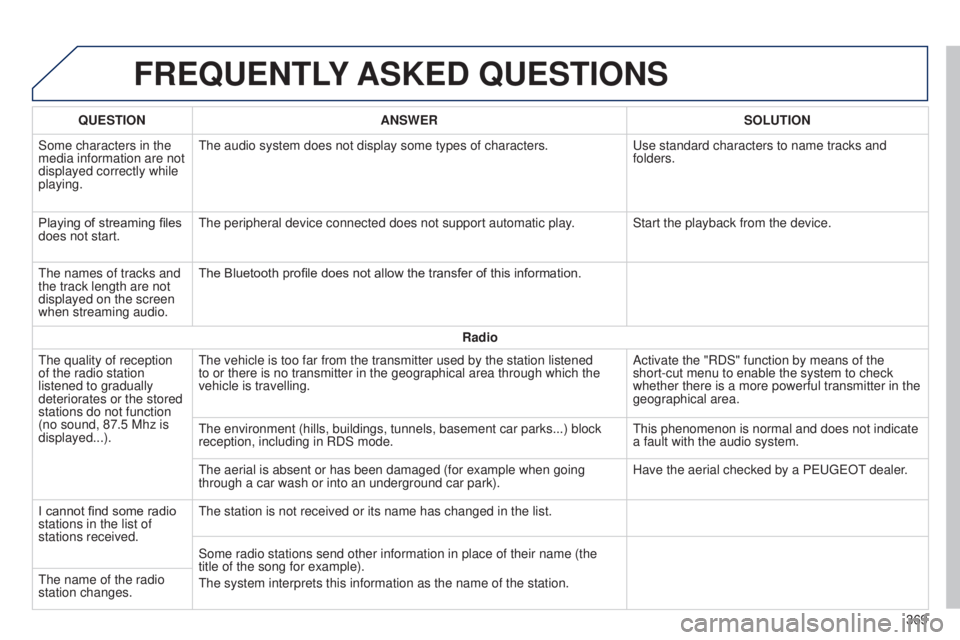
qUESTION ANSWER SOLUTION
Some characters in the
media information are not
displayed correctly while
playing.
t
he audio system does not display some types of characters.
u
se standard characters to name tracks and
folders.
Playing of streaming files
does not start.
t
he peripheral device connected does not support automatic play. Start the playback from the device.
t
he names of tracks and
the track length are not
displayed on the screen
when streaming audio. The Bluetooth profile does not allow the transfer of this information.
Radio
t
he quality of reception
of the radio station
listened to gradually
deteriorates or the stored
stations do not function
(no sound, 87.5
Mhz is
displayed...).
t
he vehicle is too far from the transmitter used by the station listened \
to or there is no transmitter in the geographical area through which the\
vehicle is travelling. Activate the "RDS" function by means of the
short-cut menu to enable the system to check
whether there is a more powerful transmitter in the
geographical area.
t
he environment (hills, buildings, tunnels, basement car parks...) bloc\
k
reception, including in RDS mode.
t
his phenomenon is normal and does not indicate
a fault with the audio system.
t
he aerial is absent or has been damaged (for example when going
through a car wash or into an underground car park). Have the aerial checked by a P
euge O t
dealer
.
I cannot find some radio
stations in the list of
stations received.
t
he station is not received or its name has changed in the list.
Some radio stations send other information in place of their name (the \
title of the song for example).
t
he system interprets this information as the name of the station.
t
he name of the radio
station changes.
369
Page 377 of 416
02
375
STEERING MOUNTED CONTROLS
Radio: select the previous/next pre-set
station.
u
SB: select genre / artist / folder from
the
classification list.
Select the previous/next item in a menu. Change audio source.
Confirm a selection.
Call/end call on the telephone.
Press for more than 2 seconds:
telephone main menu.
Radio: automatic search for a lower
frequency.
CD / MP3 / u SB: selection of the
previous track.
CD / u SB: continuous press: fast
reverse.
Move in the list.
Radio: automatic search for a higher frequency.
CD
/ MP3 / u SB: selection of the next track.
CD / u SB: continuous press: fast forwards play.
Move in the list.
Volume increase.
Volume decrease.Mute: press the volume
increase and decrease
buttons simultaneously.
t
he sound is restored
by pressing one of the
two
volume buttons.
Page 379 of 416
04
SRC
BAND
LIST
MENU
377
AUDIO
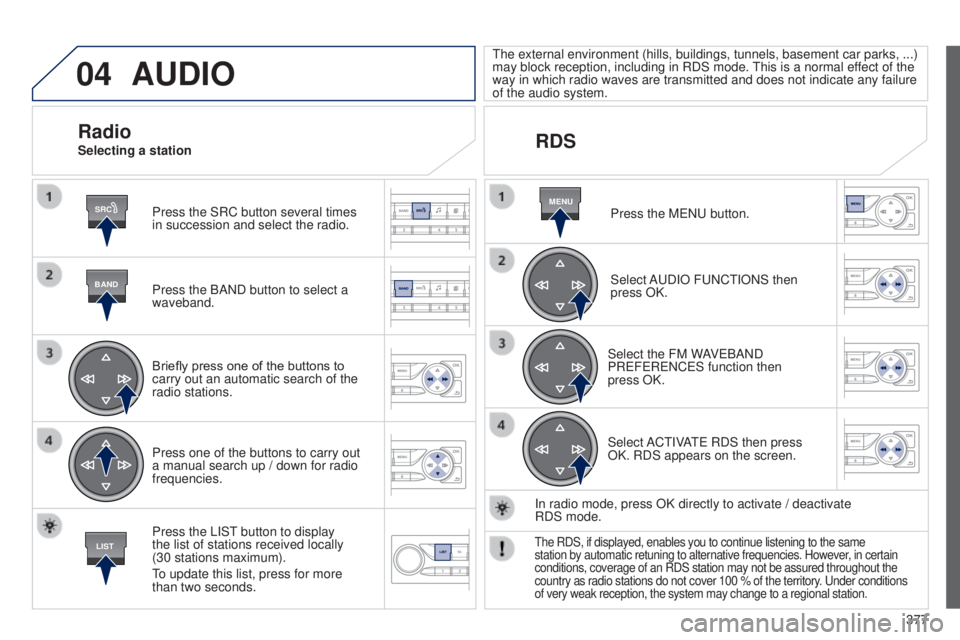
Press the SRC button several times
in succession and select the radio.
Press the BAND button to select a
waveband.
Briefly press one of the buttons to
carry out an automatic search of the
radio stations.
Press one of the buttons to carry out
a manual search up / down for radio
frequencies.
Press the LISt
button to display
the list of stations received locally
(30
stations maximum).
to update this list, press for more
than two seconds.
t
he external environment (hills, buildings, tunnels, basement car parks,
...)
may block reception, including in RDS mode. t
his is a normal effect of the
way in which radio waves are transmitted and does not indicate any failu\
re
of the audio system.
RDS
RadioSelecting a station
Press the M e N u button.
Select A
u DIO F u NC t IONS then
press OK.
Select the FM WAV
e BAND
PR
e F e R e NC e S function then
press
OK.
Select AC
t IVA
te
RDS then press
OK. RDS appears on the screen.
In radio mode, press OK directly to activate
/ deactivate
RDS
mode.
the RDS, if displayed, enables you to continue listening to the same
station by automatic retuning to alternative frequencies. However , in certain
conditions, coverage of an RDS station may not be assured throughout the\
country as radio stations do not cover 100 % of the territory.
u nder conditions
of very weak reception, the system may change to a regional station.
Page 383 of 416
04
BANDMENU
TA
381
AUDIO
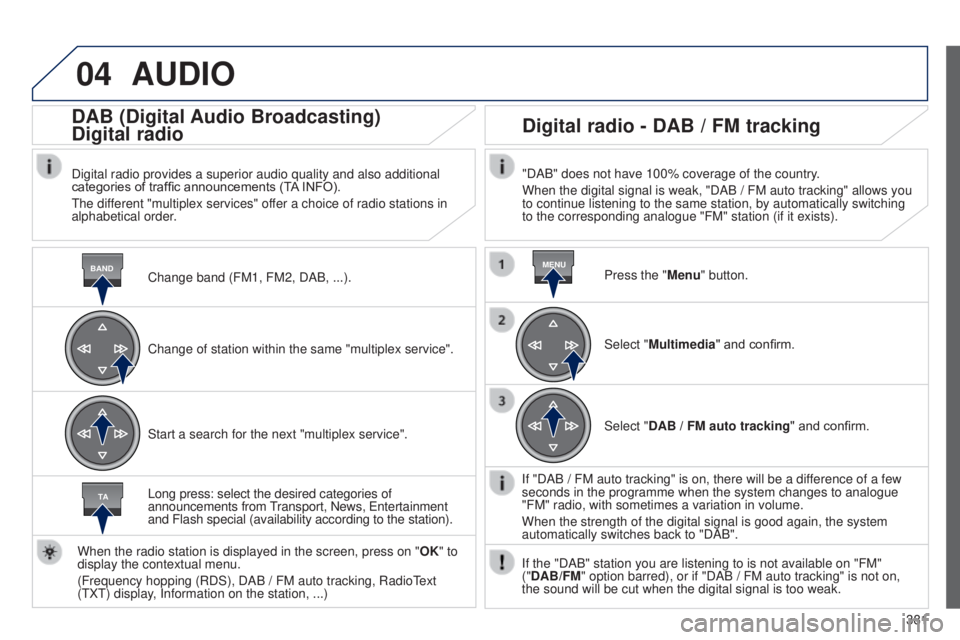
Change band (FM1, FM2, DAB, ...).
DAB (Digital Audio Broadcasting)
Digital radio
Digital radio provides a superior audio quality and also additional
categories of traffic announcements (TA INFO).
t
he different "multiplex services" offer a choice of radio stations in
alphabetical order.
Change of station within the same "multiplex service".
Start a search for the next "multiplex service".
Digital radio - DAB / FM tracking
"DAB" does not have 100% coverage of the country.
When the digital signal is weak, "DAB / FM auto tracking" allows you
to continue listening to the same station, by automatically switching
to the corresponding analogue "FM" station (if it exists).
Long press: select the desired categories of
announcements from
transport, News,
e
ntertainment
and Flash special (availability according to the station).
When the radio station is displayed in the screen, press on " OK" to
display the contextual menu.
(Frequency hopping (RDS), DAB
/
FM auto tracking, Radio
t
ext
(
t
X
t
) display, Information on the station,
...) Press the "Menu" button.
Select "Multimedia" and confirm.
Select "DAB
/ FM auto tracking" and confirm.
If "DAB
/ FM auto tracking" is on, there will be a difference of a few
seconds in the programme when the system changes to analogue
"FM" radio, with sometimes a variation in volume.
When the strength of the digital signal is good again, the system
automatically switches back to "DAB".
If the "DAB" station you are listening to is not available on "FM"
("DAB/FM" option barred), or if "DAB
/ FM auto tracking" is not on,
the sound will be cut when the digital signal is too weak.