2015 MERCEDES-BENZ SLS AMG GT COUPE ECO mode
[x] Cancel search: ECO modePage 68 of 202

Dest
ination Inp ut Int
rodu cti on toDest ination Inp ut G
WAR
NING
Fo rs afet yreas ons,on lyent eranew
dest inationwhen theveh icle isstatio nary.
i Itis poss ibletoent erad estin ation
regardless ofwhether routeguidance is
active orinact ive.
The following destinationentryoption sare
available:
R En terin gadestin ationviathe address
(Y page 66)
R En terin gadestin ationfromthedestin ation
memory (Ypage 74)
R En terin gadestin ationfromthelast
destin ations (Ypage 75)
R En terin gaPOI (Ypage 78)
R En terin gadestin ationviathe map
(Y page 75)
R En terin gastopov erdestin ation
(Y page 76)
R En terin gadestin ationvia“Searc h&S end”
(Y page 77) Entering
aDesti nation viathe
Add ress
i Insom ecoun tries itis no tp ossible to
enter addresses atvehicle speeds above
approx. 3mph (approx. 5km/ h).The
funct ionbecomes availableagain assoon
as the speed fallsbelow approx. 2mph
(approx. 3km/ h).
The following optionsare available for
ent ering adestin ationviaanaddress:
R En terin gstat e/prov ince,city/zip codeand
str eet
R En terin gstat e/prov ince,cityand city
cen ter
R En terin gstat e/prov ince,city/zip codeand
str eet and house number R
En terin gstat e/prov ince,city/zip codeand
str eet and junction
R En terin gstr eet, state/prov ince,city/zip
code andhouse number
Route calculation canthen bestart ed
(Y page 73).
Opening EnterDestinat ionMenu X
Ifnec essary switchto navigat ionmode and
display menusystem (Ypage 57).
X Select Destin ation £
Addres sEntry .
The Enter Dest ination menuappears. En
ter Dest ination menu
Menu Items inEnter Destinat ionMenu Some
menuitemsarenot available ornot yet
available, dependingon the address items
ent ered forthe address orthe data forthe
digital map.
Ex ample:
Aft erthe state/prov incehasbeen select ed
the menu itemsNo. ,
Center ,
Inters ection ,
Save and
Start are
not available. Orthe
ZIP menu
itemisnot available ifthe digital
map does notcontain anyzipcodes.
Selecting aState/ Provinc e i
Youcan onlyse lect thos esta tes/
pro vinces thatare stored inthe digitalmap.
X Select State/Pr ov in
the Enter
Destination menu.
Am enu appears whereyoucan choose one
of the following lists: 66
Destination
InputNavigation
Page 76 of 202
Ent
erin gaD esti nation from the
Destin ation Mem ory
X Ifnec essar yswit chtonav igat ionmode and
display menusyst em(Ypage 57).
X Sele ctDes tination £
FromMem ory .
The dest inationmem orylistwith orwith out
pred ictive spelle risdispla yed.Thedispla y
of the predictive spellerdepends onhow
many entries existinthe destination
memory (Ypage 75).
i There isalwa ysan entry inthe destination
memory withthename MyAddress .Y
ou
can assign yourhome address, for
example, tothis entryand select itfor route
guidance (Ypage 97).This entryis at the
top ofthe listinthe destination memory.
Destination MemoryListwith
Predictive Speller If
this listisgiven inthe display ,the predictive
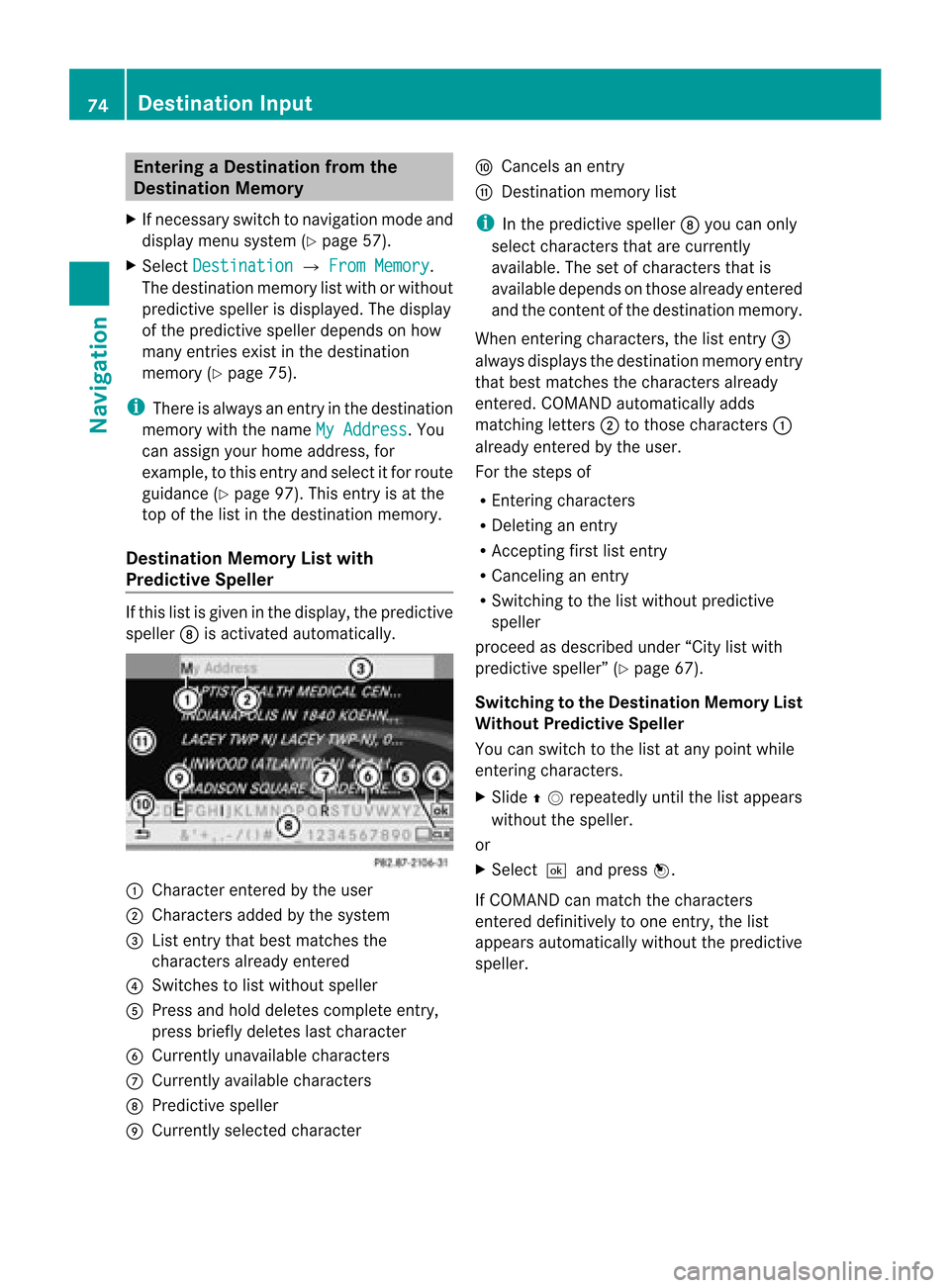
speller 8isactivated automatically. 1
Character enteredbythe user
2 Characters addedbythe system
3 List entrythat best matches the
charact ersalready entered
4 Switches tolist without speller
5 Press andhold deletes complete entry,
press briefly deletes lastcharact er
6 Currently unavailabl echaract ers
7 Currently availablecharact ers
8 Predictive speller
9 Currently selectedcharacter a
Cancels anentr y
b Dest ination memory list
i Inthe predictive speller8you can only
select charact ersthat arecurrent ly
availa ble.Thesetofcharact ersthat is
availa bledepends onthose already entered
and thecont entofthe destination memory.
When enteringcharact ers,thelistentr y3
alwa ysdisplay sthe destination memoryentry
that best matches thecharact ersalready
enter ed.COMAND automatically adds
matchin gletters 2tothose charact ers1
already enteredbythe user.
For thesteps of
R En tering charact ers
R Deletin gan entr y
R Acc epting firstlistentr y
R Canceling anentr y
R Switchin gto the listwithout predictive
speller
proceed asdescribed under“Citylistwith
predictive speller”(Ypage 67).
Switching tothe Destination MemoryList
Without Predictive Speller
You canswitch tothe listatany point while
enter ingcharact ers.
X Slide qmrepea tedlyuntilthelistapp ears
withou tthe speller.
or
X Selectdand pressn.
If COMAND canmatch thecharacters
entered definitively toone entry,the list
appea rsautomatically withoutthepredictive
speller. 74
Des
tination InputNavigat ion
Page 87 of 202
regu
lations duringyou rjourney. Roadand
traffic rulesandregulations alwayshave
priority overthenavigation commands
generated bythe system.
COMAND guidesyoutothe destination by
means ofdriving recommen dationsinthe
form ofnavigation announcementsor route
guidance displays.
i The route guidance displaysonly appear
if the display hasbeen switched to
navigation mode.
If, for some reason, youdonot follow the
navigation announcementsor ifyou leave the
calculated route,COMAND automatically
calculates anew route tothe destination .
If the map data contains correspon ding
informat ionduring routeguidance, COMAND
tries toavoid roads withlimited passabil ity,
e.g. roads thatareblocked forthrough-t raffic
and areforresidents only. Driving
Maneuver
Drivin gmaneuvers aregiven inthree phases:
R Preparation phase
R Ann ouncemen tphase
R Maneuver phase
Prepa ration Phase COMAND
preparesyouforthe next driving
maneuver. Basedonthe example display
shown below, theannounc ementismade
using Prepare toturn right .T
he displa y
is not split anddispla ysthe map overthe
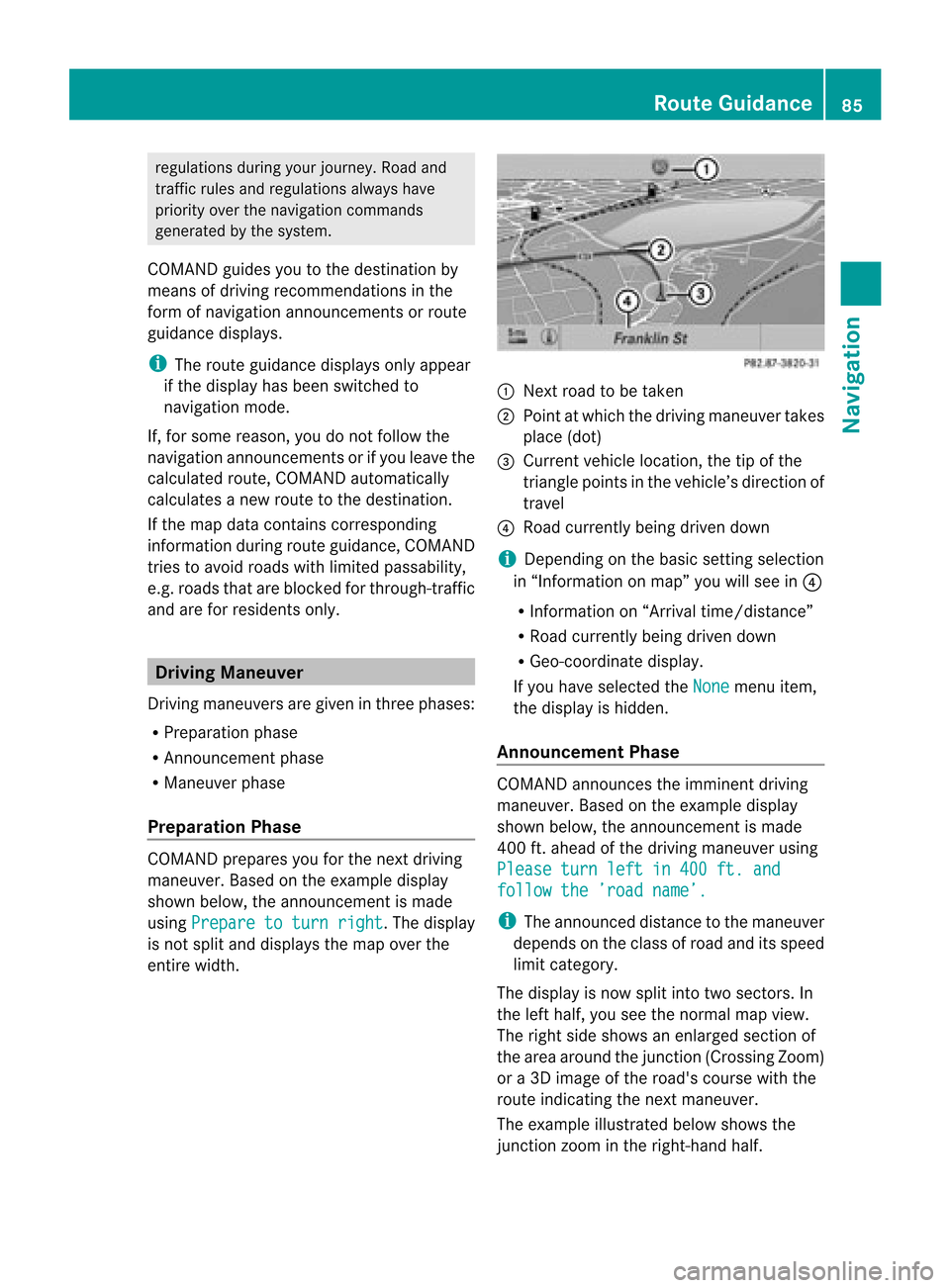
entire width. 1
Next roadtobe taken
2 Point atwhich thedriving maneuver takes
place (dot)
3 Current vehiclelocation, thetipofthe
triangle pointsinthe vehicle’s direction of
travel
4 Road current lybeing driven down
i Depending onthe basic settingselection
in “Inform ationonmap” youwillsee in4
R Inform ationon“Arrival time/distanc e”
R Road current lybeing driven down
R Geo-coordinate display.
If you have selected theNone menu
item,
the displa yis hidden.
Announc ementPhase COMAND
announces theimminent driving
maneuver. Basedonthe example display
shown below, theannouncemen tismade
400 ft.ahead ofthe driving maneuver using
Please turnleftin400 ft.and follow
the’road name’. i
The announced distancetothe maneuver
depends onthe class ofroad anditsspeed
limit category.
The displa yis now split intotwosectors. In
the left half, youseethenormal mapview.
The right sideshows anenlarged sectionof
the area around thejunct ion(Crossing Zoom)
or a3D image ofthe road's course withthe
route indicating thenext maneuver.
The example illustrated belowshows the
junct ionzoom inthe right-hand half. Route
Guidance
85Navigation Z
Page 100 of 202

Selec
tingMemory Options Saving
Destination WithoutName
X Select SaveWithout Name .
COMAND storesthedestination inthe
destination memoryanduses theaddress
as the destination name.
or
X Select SaveasMyAddress .
COMAND storesthedestination inthe
destination memoryasMy Address .
If the selected addressbookentryalready
cont ains address datathatcanbeused for
navigation (¤icon), aprompt willappear
asking whether youwish tooverwrite the
existing data.
X Select Yes or
No .
Aft erselecting Yes ,
the Saving Procedure
Successful message
appears; selecting No cancels
the
procedure.
Saving Destination WithName
X Select SaveWithName .
X Select thecategory desired,e.g.Home .
The input menu containing datafields and
input characters appears. 1
Selected datafieldwithcursor
2 Predictive speller
X To enter data:Continue withthestep
“Changing DataField” inthe “Creating aNew
Address BookEntry” section
(Y page 116).
COMAND storesthedestination underthe
name entered.
Assigni ngDestination toan Address Book
Entry
i This funct ionassigns thecomplete,
navigable addressdatatoan existing
address bookentry.You canthen select
this entryin the address bookandstart
route guidancetothe address fromthere.
X Select Assign toAddress BookEntry .
X Select thedesired category, e.g.Home .
You willsee alist with orwithout predictive
speller depending onhow many entries
exist inthe address book.
X Select thedesired address bookentry.
Proceed asdescribed inthe “Searching for
an Address BookEntry” section
(Y page 117).
COMAND storesthedata ifthe address
book entryselected doesnotyetcont ain
navigable addressdata.
If the selected addressbookentryalready
cont ains address datathatsupport
navigation, youwillbeprompted toconf irm
that youwish tooverwrite theexisting data.
X Select Yes or
No .
If you select Yes ,
COMAND savesthedata. Dele
ting Destination HomeAddress
Entry fromtheDestination Memory
X Ifnecessary, switchtonavigation mode
and display themenu system (Ypage 58).
X Select Destination £
From Memory .
You willsee alist with orwithout predictive
speller depending onhow many entries
exist inthe address book.
X Select thedestination youarelooking for.
Proceed asdescribed inthe “Ent ering a
Destin ationfromtheDestin ationMemory”
section (Ypage 74). 98
Destination
MemoryNavigation
Page 108 of 202

X
To setthe volume :Sli de qmr .
The redbarmoves upordown.
X To confirm selection: Pressn. “911”
Emergency Call G
WARNIN
G
The 911 emergenc ycall system isapublic
service. Usingitwithout duecause isa
crimin aloffens e.
The following conditionsmust bemet fora
“911” emergenc ycall:
R Phone switched on
R Mobile phonenetwork availab le
R Valid SIMcard inthe phone (notrequired
on allmobile phonenetworks)
R Mobile phoneconnected withCOMAND via
Bluetoot h®
If you areunable tomake anemergenc ycall,
you willhave toinitiate rescuemeasures
yourself.
The “911” emergenc ynumber isapublic
service. Anyabuse ispunishable bylaw.
X En ter the digits onthe COMAND control
unit (Ypage 113).
X Press the6 button .
The phone establishes theconn ection .
X Wait untiltheemergenc ycall cent er
answers, thendescribe theemergenc y. Submenu
Overview Phone Call
lists orMic
On/Off Bluetoot
hPhones Displays
ordeletes
call lists Download
Contacts Switc
heshands-f ree
microphon eon/of f
(during acall) Delete
Contact s Phone
MainMenu
Switching toPhone Mode X
Press thefunct ionbutton ÷onthe
COMAND controlunit.
i Ifyou press the÷button withthephone
main menu already open,thecall list“Calls
Dialed” appears (Ypage 110).
or
From another MainFunction
X Select Phone £
Phone £
Phone .
i Ifphone modewasactive last,youonly
need toselect “Phone”.
Within thePhone Function
X Select Phone £
Phone .
or
X In the phone modepressthek button
repeatedly untilthephone mainmenu
appears. 106
Submenu
OverviewTelephone
Page 112 of 202

X
Sel ect Yes or
No .
If yo usel ect Yes ,
a sel ecti onlist willap pe ar
conta ining the fiveexi sting numb ers.
X Sel ect the numb erto be ove rwritten.
The inputmenu with the data fieldfor
enter ingthe new telephone numb er
ap pe ars .
X To enter digits:Sel ect the required digits
in seq uence from theinputspe ller or use
the numb erkey pad.
X To move thecurs orinthe data field:
Sel ect YorZ.
X To del ete indivi dual digits:Sel ect õ
and brieflypre ssthe nbutton.
or
X Pre ssthe 2 button next tothe
CO MAND controller.
The digitt othe left ofthe cursor isdeleted.
X To delete anentire entry:Selectõ
and press nuntil theentir eentr yhas been
deleted.
or
X Press andhold down the2 button next
to the COMAND controller untiltheentir e
entr yis deleted.
X To save entry: Selectd. Call
Lists
i COMAND supportsBluetooth ®
PBAP
(Phone BookAccess Profile).
How COMAND handlescalllists depends
on the type ofmobile phoneconnected:
R Bluetooth ®
phone withPBAP support:
COMAND downloads thecall lists from
the mobile phonewhenthephone is
conn ected toCOMAND
R Bluetooth ®
phone without PBAPsupport:
COMAND createsthecall lists from calls
received (including missedcalls)and
made during phonemodewhenamobile
phone isconn ected toCOMAND. The
particular menuitemcanonly be
selected ifcalls have already beenreceived
or made fromCOMAND.
The display ofmissed callsinthe COMAND
display isnot possible withallmobile
phones.
i The menu itemCall lists is
not active
if no mobile phoneisconn ected to
COMAND.
i Ifthe mobile phonedoesnotsupport
PBAP, COMAND automatically deletesthe
call lists ifamobile phoneotherthanthe
last used isconn ected.
i The instr ument cluster controlsystem
display sa list ofthe last dialed calls.
i For many operating functionsyoucan
also usethebutton son the multifunct ion
steerin gwheel, e.g.the=, ;,
9, :,a, 6or~ button s,
for selecting amenu, scrolling throughlists
or initiating orending acall(Y page 30). Calli
ngup theList
X In thephon emain menuselec tCal l Lis
ts .
Am enu appears.
X Select Calls Receive d or
Calls Dialed .
The appropriate listappears.
or
X When themain telephon emenu is
displayed, presstheKbutton on
COMAND orthe 6 button onthe multi-
func tion steer ingwheel.
Al ist ofthe last dialed callsappears. 110
Call
ListsTelep hone
Page 116 of 202
X
To del ete indiv idua ldig its:Pre ssbriefly
the CLRbu tton onthe COMAND control
uni t.
X To del ete anentire phonenumb er:Pre ss
and holdthe CLRbu tton untilthe num ber
is de leted .
X To plac eac all: Press theKbutton onthe
COM AND control panelor press the6
button onthe mul tifunctio nstee ring wheel.
En teri ngaPho neNumbe rfro mthe
CO MA ND Contro ller X
Op en the phone mainmenu (Ypage 106) .
X To enter digits:Sel ect the required digits
in sequ ence .
X To del ete indiv idu aldig its:Sel ect õ
and brieflypre ssthe nbutton.
or
X Pre ssthe 2 button next tothe
CO MAND controller.
X To del ete anentire phonenumb er:
Sel ect õ andpressn unti lthe phone
num berh as been deleted.
or
X Pre ssand hold down the2 buttonne xt
to theCOMA NDcontroll erunt ilth een tire
en try is delet ed.
X To connect acall: Sele ct° atthe bottom
righ t-hand sideof the inpu tspeller.
or
X Press theKbutt onon the COMAND
con trolpanel orthe 6 buttonon the
multifun ction steer ingwheel. Redia
ling X
Open thephone mainmenu (Ypage 106).
X Select °atthe bott omright -handside of
the input speller.
or
X Press theKbutt ononthe COMAND
con trolunit when thephone mainmenu is
displayed.
The dialed callslistappears. Thecalldialed
last willbeatthe top ofthe list.
X To select acall: Rota teymzor slide
qmr
X To initi ate call:Pre ssn.
In iti atin gaC alltoaC allList Entry or
COM AND Phon eBook Entry X
Ca llup acall lista nd select anentry
(Y page 110) .
or
X Ope nthe COMAND phonebookandselect
an entr y(Y page 107).
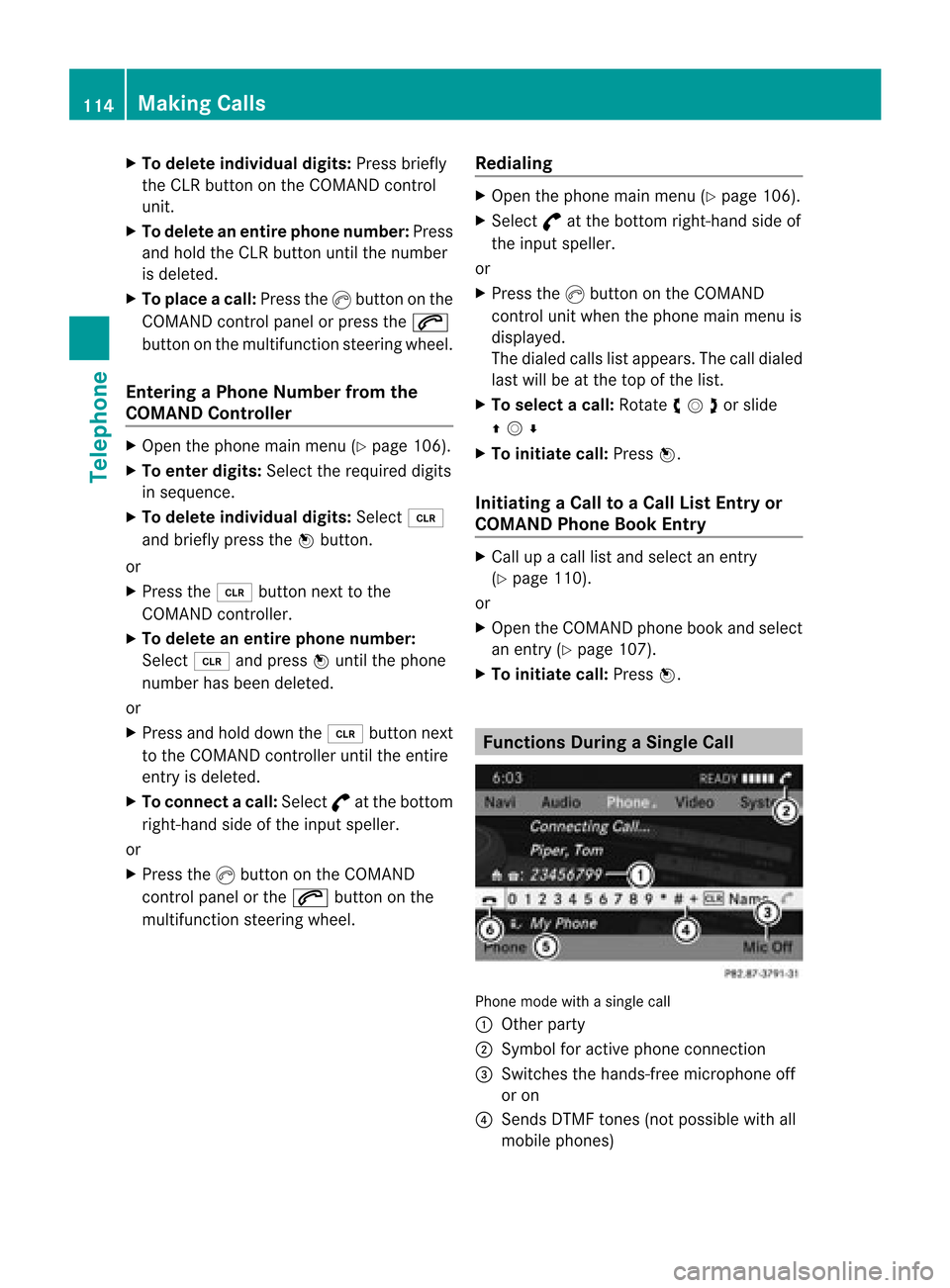
X To initiate call:Press n. Functions
DuringaSingle Call Phon
emode withasing lecall
1 Oth erpart y
2 Symbo lfor active phon econ nection
3 Swit ches thehands -free micr ophon eoff
or on
4 Sen dsDTM Ftones (notpossible withall
mobile phones) 114
Making
CallsTelephone
Page 128 of 202

COMAN
Dfea tures
Thes eOper atingIn st ruc tions desc ribeall
st andar dand optionalequipm enta vail able
for you rCOMAND systematthe time of
purcha se.Cou ntry-specifi cdeviation sare
possible. Pleasenotethat your COMAND
system maynotbeequipped withallthe
features described. Audio
Menu
i Information onthe COMAND control
system andhow tooperate itcan befound
on (Ypage 18).
i For many operatin gfunc tionsyou can
also usethebutton son the multifunc tion
steer ingwheel, e.g.the=, ;,
9, :button s,for select ingachann el
or amenu orscrollin gthr ough lists
(Y page 27). Calling
upthe Audio Menu
X Select Audio .
The audio mode lastactive isswitch edon.
or
X Press theófunc tion button .
Radio modeisswitch edon.
X Select Audio The
audio menu appears.
i Ifradio mode wasactive last,youonly
need toselect Audio . Display
withAudio menu
1 Current audiomode
2 Main function line
3 Audio menu
You canswitch tothe various audiomodes in
the audio menu:
R FM /AM radio mode (Ypage 126)
R SatRadio mode(Ypage 132)
R CD-/ DVDaudio/MP3 mode(Ypage 143)
R Memory Card(Ypage 140)
R Music Register (Ypage 148)
R Aux mode (Ypage 157) Rad
io Switching
tothe Radio
From theCOMAND ControlUnit X
Press theófunc tion button .
or
X Select Audio £
Audio £
FM/AM Radio in
the display.
i Press thebutton repeatedly toswitch
wavebands inthe sequence FM,AM, WB
and SatRadio mode.Pressin gagain will
switch backtoFM radio mode.
With inthe Audio Function X
Select Audio £
FM/AM Radio .
The radio display appears. Thelastselect ed
stat ioninthe last select edwaveband is
heard. 126
Rad
ioAudio