2015 MERCEDES-BENZ S-Class Media display
[x] Cancel search: Media displayPage 239 of 298
X
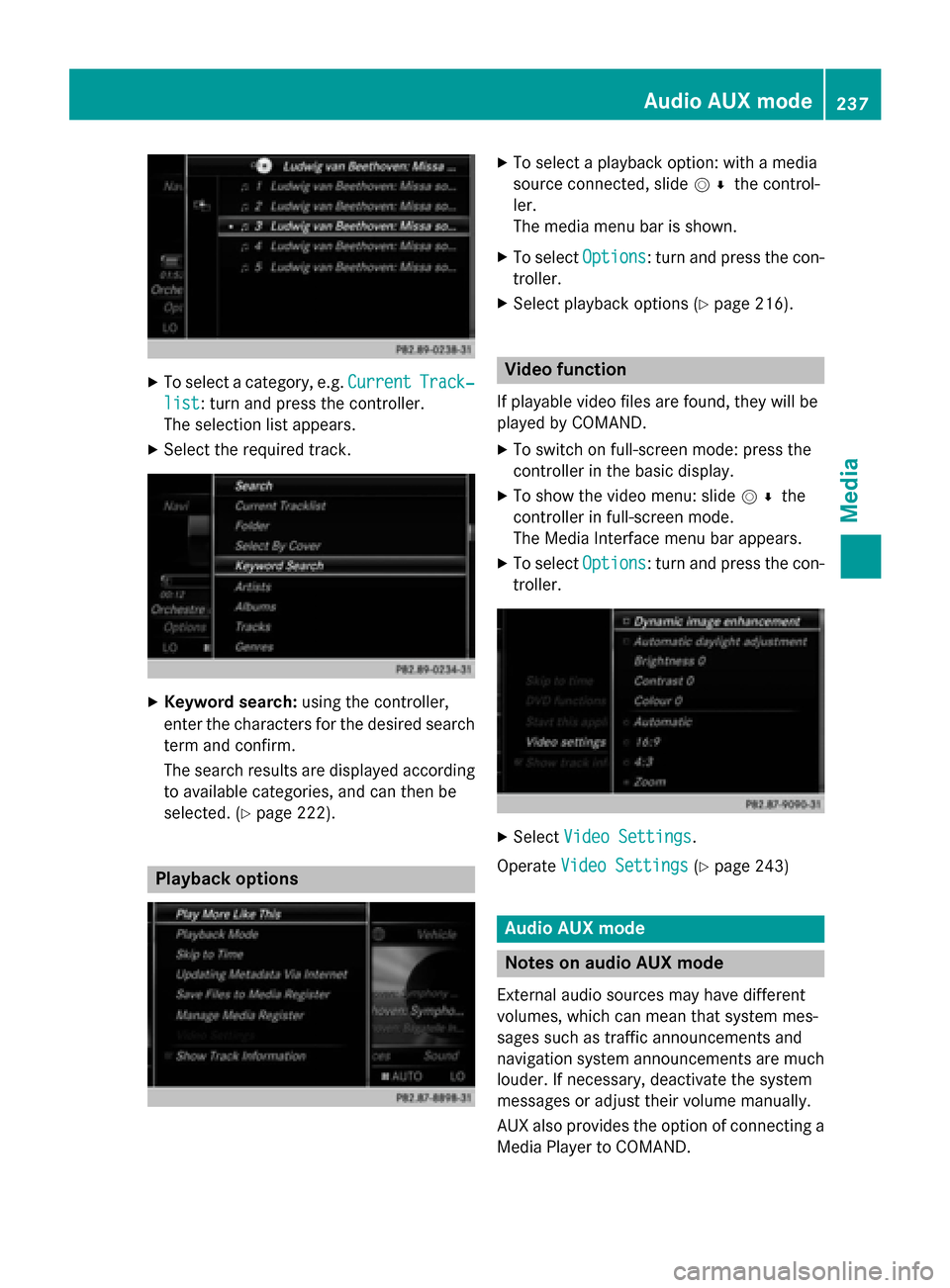
To select a category, e.g. Current
CurrentTrack‐
Track‐
list
list: turn and press the controller.
The selection list appears.
X Select the required track. X
Keyword search: using the controller,
enter the characters for the desired search
term and confirm.
The search results are displayed according to available categories, and can then be
selected. (Y page 222). Playback options X
To select a playback option: with a media
source connected, slide 005200C5the control-
ler.
The media menu bar is shown.
X To select Options Options: turn and press the con-
troller.
X Select playback options (Y page 216). Video function
If playable video files are found, they will be
played by COMAND. X To switch on full-screen mode: press the
controller in the basic display.
X To show the video menu: slide 005200C5the
controller in full-screen mode.
The Media Interface menu bar appears.
X To select Options Options: turn and press the con-
troller. X
Select Video Settings
Video Settings.
Operate Video Settings
Video Settings (Ypage 243) Audio AUX mode
Notes on audio AUX mode
External audio sources may have different
volumes, which can mean that system mes-
sages such as traffic announcements and
navigation system announcements are much louder. If necessary, deactivate the system
messages or adjust their volume manually.
AUX also provides the option of connecting aMedia Player to COMAND. Audio AUX mode
237Media Z
Page 241 of 298
Video AUX mode
Connecting external video sources
G
WARNING
External video sources may have different vol-
umes, which can mean that system messages such as traffic announcements and navigation
system announcements are much louder. If
necessary, please deactivate the system mes- sages or adjust their volume manually.
Video AUX is another option for showing vid- eos using COMAND.
To connect an external video source to the
video AUX, you will require a video AUX cable.
i If you only use an audio AUX cable, you
will only be able to hear the sound from the
video being played.
Videos cannot be shown on the driver's
side while the vehicle is in motion. Switching to AUX video mode
X Connect the external video source.
The socket for the video AUX jack is located
in the stowage compartment in the center
console.
The video AUX is not selected automati-
cally.
X Press the 00FDbutton.
The menu for the last accessed media
source appears.
X To select Media
Media from the main function bar:
turn and press the controller.
You will see the menu.
X Select Aux
Aux .
The AUX video menu appears.
X To select Audio/Video Audio/Video in the menu bar:
slide 005200C5 and press the controller.
A Source Type Selection
Source Type Selection menu
appears.
X Select Video
Video.
The 003Bdot indicates the current setting. If the video source is connected and play-
back selected, the image from the external
video source will appear if Video
Videois
selected.
Please see the corresponding device operat-
ing instructions for information on how to
operate the external video source.
Information about sound settings
(Y page 250) Switching full-screen mode on/off
X
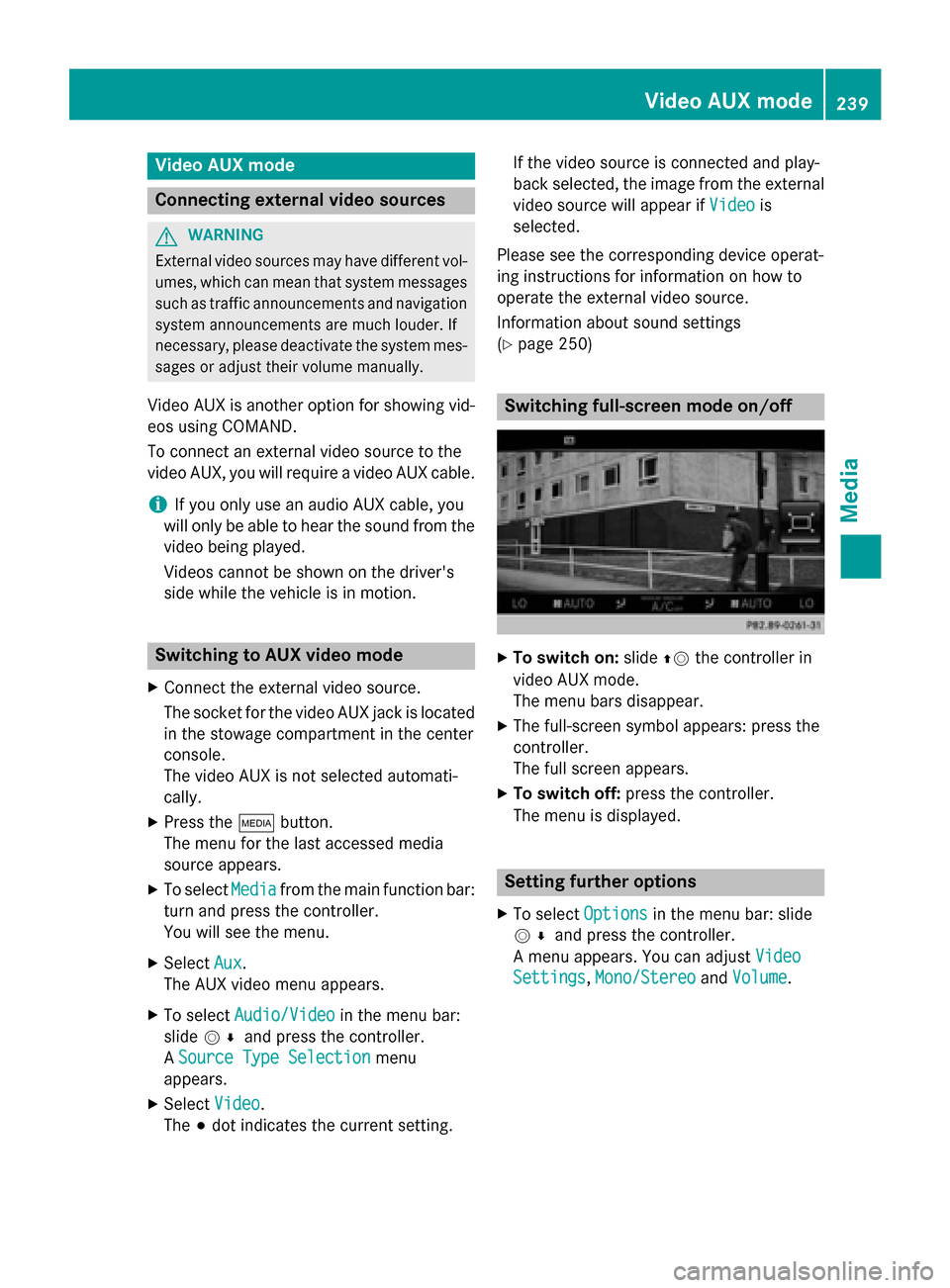
To switch on: slide00970052the controller in
video AUX mode.
The menu bars disappear.
X The full-screen symbol appears: press the
controller.
The full screen appears.
X To switch off: press the controller.
The menu is displayed. Setting further options
X To select Options Optionsin the menu bar: slide
005200C5 and press the controller.
A menu appears. You can adjust Video
Video
Settings
Settings, Mono/Stereo
Mono/Stereo andVolume
Volume . Video AUX mode
239Media Z
Page 243 of 298

DVD playback conditions
If video DVDs do not conform to the NTSC or
PAL TV standards, they may create picture,
sound or other problems during playback.
COMAND is capable of playing back video
DVDs produced according to the following
standards:
R Region code 1 or region code 0 (no region
code)
R PAL or NTSC standard
You will generally find the relevant details
either on the DVD itself or on the DVD case.
i If you insert a video DVD with a different
region code, a message to this effect
appears.
i COMAND is set to region code 1 at the
factory. This setting can be changed at an
authorized Mercedes-Benz Center. It is also possible to play video DVDs with a different
region code, provided that they are pro-
duced in accordance with the PAL or NTSC
TV standard. The region code can be
changed up to five times.
Control options There are four control menus available in
video DVD mode.
Most DVDs have their own control menu.
The DVD's control menu is operated directly
using the controller or DVD functions. Control menu and
function Operation
R
DVD's control
menu
Selection of title,
scene, language,
subtitles ... Operation with the
controller
R
Menu Options Options
Selection of
brightness, con-
trast, color, for-
mat Operation using the
menu bar/options/
video settings Control menu and
function Operation
R
Video menu
Selection of
scene, fast
forward/rewind In full-screen mode,
slide
005200C5 the con-
troller R
DVD functions
Selection of title,
scene, language,
subtitles ... In full-screen mode,
press the controller
Function restrictions
Depending on the DVD, certain functions or
actions may not function at all. The symbol
0047
appears in the display. Switching to video DVD mode
R Insert and eject a disc from the single drive
(Y page 212)
R Insert a disc into the DVD changer
(Y page 213)
R Eject a disc from the DVD changer
(Y page 214)
Further options for switching on:
R Use the number keypad (Y page 211)
R Use the main function bar (Y page 211)
R Use the device list (Y page 211)
R Use the 00FDbutton (Y page 210) Video DVD
mode
241Media Z
Page 244 of 298

DVD overview
0043
Status bar
0044 Main function bar
0087 Main display field
0085 Media menu bar
0083 Climate control status bar
0084 Additional display area with title, scene and time display
The DVD basic display appears once the DVD has been inserted. DVD full-screen mode
Once the DVD has been inserted, the disc is
played. The video will first appear in the over- view display.
X To set full-screen mode : slide00520097the
controller.
The main function bar and menu bar are
hidden. A full-screen symbol will be shown.
X Press the controller.
The full-screen mode appears.
X To show the DVD basic display in full-
screen mode: slide005200C5 the controller.
The video menu appears.
X Press the controller.
The basic display appears. Menu options
X
To select options: in full-screen mode,
slide 005200C5 the controller.
The video menu appears.
X Press the controller.
The DVD basic display appears.
X To select Options Optionsin the menu bar: turn
and press the controller.
The Options Options menu appears. 242
Video DVD
modeMedia
Page 246 of 298

Showing the DVD's control menu
X To select Menu
Menufrom the DVD functions
menu: turn and press the controller.
The DVD functions menu is hidden and the
DVD's menu entries (e.g. scenes, language,
trailers) are displayed.
X To select a menu entry: turn and press the
controller. Video menu
0043
Type of data medium
0044 Current title
0087 Shows the menu bars for the DVD basic
display
0085 Current scene
0083 Track time
Operating the video menu
X To show: in full-screen video mode, slide
00520064 the controller.
X To hide: slide 00970052the controller.
X To select the next/previous scene: turn the
controller clockwise/counter-clockwise.
X To fast forward/rewind: slide 009500520096and
hold the controller until the desired posi-
tion has been reached.
X To hide the video menu: slide 00970052the con-
troller.
X To show the menu bars for the DVD basic
display: press the controller.
The video menu is hidden and the DVD
basic menu appears. DVD functions
Showing/hiding the DVD functions X
To show DVD functions: in full-screen
video mode, press the controller.
The DVD functions menu is shown.
X To hide:
To select 0038from the DVD functions:
turn and press the controller
X To show the DVD basic display:
To select 00E2from the DVD functions:
turn and press the controller.
Overview of DVD functions 0043
Activates DVD control menu
0044 Hides DVD functions
0087 Shows the DVD basic display
0085 Confirms entry in control menu
0083 Navigates DVD lists
0084 Jumps to the start of the scene
006B Displays camera perspectives
006C Shows subtitles
006D Selects language
006E Stop function
006F Pause function 244
Video DVD modeMedia
Page 247 of 298

Using the DVD functions
X
In full-screen mode, press the controller
The DVD functions menu is shown.
It is possible to navigate in the DVD's
control menu when the arrows in the upper
menu bar are activated.
X To select the 0095009700C50096arrow to navigate in the
menu: turn the controller.
The active arrow is highlighted.
X To select a menu entry: press the control-
ler.
The next menu entry in the direction of the
arrow is highlighted.
X To call up a highlighted menu entry: turn the
controller until OK OKis highlighted.
X Press the controller.
The selected DVD scene is played.
X To hide DVD functions: select 0039using the
controller.
X Press the controller.
The DVD functions are hidden.
If there are functions such as Display cam-
era perspectives on the DVD, these are
shown in the DVD functions menu.
X To call up Display camera perspectives:
turn and press the controller
Stop function X
Show the DVD functions (Y page 244).
X Interrupting playback To select
00DBfrom the DVD functions
menu: turn and press the controller.
The 00CF display changes to 00D0. The
video image is hidden.
X To continue playback: select00D0.
Playback continues from the point where it was interrupted.
X To stop playback: select00DBagain while
playback is interrupted.
X To start playback again: select00D0.
Playback restarts from the beginning.
Pause function X
Show the DVD functions (Y page 244).
X Pausing playback
To select 00CF: turn and press the control-
ler.
The 00CF display changes to 00D0.
X To continue playback: select00D0. Selecting a scene/chapter
If the film is divided into scenes or chapters,
these can be selected directly while the film is running, or skipped forwards step by step.
This is not possible at certain points for some
DVDs (e.g. during the opening credits).
It may also be possible to select the scene/
chapter from the functions stored on the
DVD.
X To skip forwards or back: in the video
menu, turn the controller.
The next or previous scene in the film is
skipped to.
i The DVD functions can also be used to
make selections (Y page 244). Video DVD mode
245Media Z
Page 248 of 298

Picture viewer
General notes
If there are pictures on the active data
medium, you can view them on the COMAND
display.
The following data media and picture formats
are supported:
R Data medium: MEDIA REGISTER, CD,
DVD, USB devices, SD memory cards
R Picture formats: jpeg, jpg, bmp, png
The maximum image resolution is 20 mega-
pixels
It is not possible to view a picture from the
driver's side while the vehicle is in motion. Displaying pictures
X
In the media basic display, press the con-
troller.
The Search
Search with a category list appears.
X To select Photos
Photos in the category list: turn
and press the controller.
A directory list appears. Folders and picture files can be shown.
X Select a folder or picture.
If there is no picture on the data medium,
an empty list is shown.
You can search for pictures on other data
media. Searching for pictures on other data
media
X In the directory list, slide
00950052 the controller.
The device list appears. Example: the directory list displays the existing
picture files
X To select a data medium with picture files:
turn the controller and press to confirm.
A directory list appears. Folders and picture files can be shown.
X Select a folder or picture. Starting a slide show
X While viewing a picture, press the control-
ler.
The image menu appears.
X To select Start Slideshow Start Slideshow: turn and
press the controller.
The slide show starts.
X To end the slide show: press the controller.
The image menu appears.
X Select End Slide Show
End Slide Show. 246
Picture viewerMedia
Page 252 of 298

Your COMAND equipment
These operating instructions describe all
standard and optional equipment available
for your COMAND system at the time of pur-
chase. Country-specific differences are pos-
sible. Please note that your COMAND system may not be equipped with all the features
described. This also applies to safety-relevant
systems and functions. Therefore, the equip-
ment on your COMAND system may differ
from that in the descriptions and illustrations. Should you have any questions concerning
equipment and operation, please consult an
authorized Mercedes-Benz Center. Sound settings
Calling up the sound menu
You can make various sound settings for the
different audio and video sources. It is possi- ble to set more bass for radio mode than for
audio CD mode, for example. The respective
sound menu can be called up from the menu
of the desired mode.
The example describes where to call up the
sound menu in CD mode. X
Insert an audio CD (Y page 212).
The CD display appears.
X To display the menu bars: slide 00520064the
controller.
X To select Sound
Sound in the menu bar: turn and
press the controller.
The menu appears with the last setting
accessed, e.g. Balance/Fader Balance/Fader. Sound menu overview Function Options
Equalizer Sets: treble, mid-
range and base
Balance/fader Moves the sound
focus: right/left and
front/rear Changing loud-
speaker source Outputs a seat-
based media source
on the entire sound
system
Setting treble, mid-range and bass
X
To display the menu bars: slide 00520064the
controller in media mode.
X To select Sound
Sound in the menu bar: turn and
press the controller.
The menu with the last accessed setting
appears.
X Turn the controller until Equalizer Equalizeris
brought to the front.
X To activate rotary menus for treble, mid-
range and base: slide 00520064the controller.
X To switch between the rotary menus: slide
00950052 the controller.
X To make the desired Equalizer
Equalizer settings:
turn the controller.
Rotary menus show the set values. 250
Sound set
tingsSound