2015 MERCEDES-BENZ S-Class radio
[x] Cancel search: radioPage 254 of 298

Burmester
®
surround sound system General notes
The Burmester ®
surround sound system has
a total output of 590 watts and is equipped
with 13 loudspeakers.
The Burmester ®
surround sound system is
available for all functions in the radio and
media modes. Calling up the sound menu
You can make various sound settings for the
different audio and video sources. It is possi-
ble to set more bass for radio mode than for
audio CD mode, for example. The respective
sound menu is called up from the menu of the desired mode.
The example shows the sound menu control
panel in CD mode. X
Insert an audio CD (Y page 212).
The CD display appears.
X To display the menu bars: slide 00520064the
controller.
X To select Sound
Sound in the menu bar: turn and
press the controller.
The menu appears with the last setting
accessed, e.g. Balance/Fader Balance/Fader. Overview of Burmester
®
surround sound sys-
tem Function Options
Equalizer Sets: treble, mid-
range and base
Balance/fader Moves the sound
focus: right/left and
front/rear Changing loud-
speaker source Outputs a seat-
based media source
on the entire sound
system
Surround Optimizes sound
playback for all
seats
Setting treble, mid-range and bass
X
To display the menu bars: slide 00520064the
controller in media mode.
X To select Sound
Sound in the menu bar: turn and
press the controller.
The menu with the last accessed setting
appears.
X Turn the controller until Equalizer Equalizeris in the
center.
X Slide 00520064the controller.
The rotary menus for treble, mid-range and
bass are activated.
X To switch between the rotary menus: slide
009500520096 the controller. 252
Burmester ®
surround sound systemSound
Page 255 of 298
X
To make the desired Equalizer
Equalizersettings:
turn the controller.
The rotary menus show the set values.
X To return to the menu: slide 00970052the con-
troller.
X To return to the basic menu: press the 0038
button briefly. Adjusting the balance/fader
Balance moves the focus of the sound
between left and right.
Fader moves the focus of the sound between
front and rear.
X To display the menu bars: slide 00520064the
controller in media mode.
X To select Sound
Sound in the menu bar: turn and
press the controller.
The menu with the last accessed setting
appears.
X Turn the controller until Balance/Fader
Balance/Fader is
in the center.
X Slide 00520064the controller.
The rotary menus for balance and fader are
activated.
X To switch between the rotary menus: slide
009500520096 .
X To set the desired Balance/Fader Balance/Fadersetting:
turn the controller.
Rotary menu and the image show the sound focus set. X
To return to the menu: slide 00970052the con-
troller.
X To return to the basic menu: press the 0038
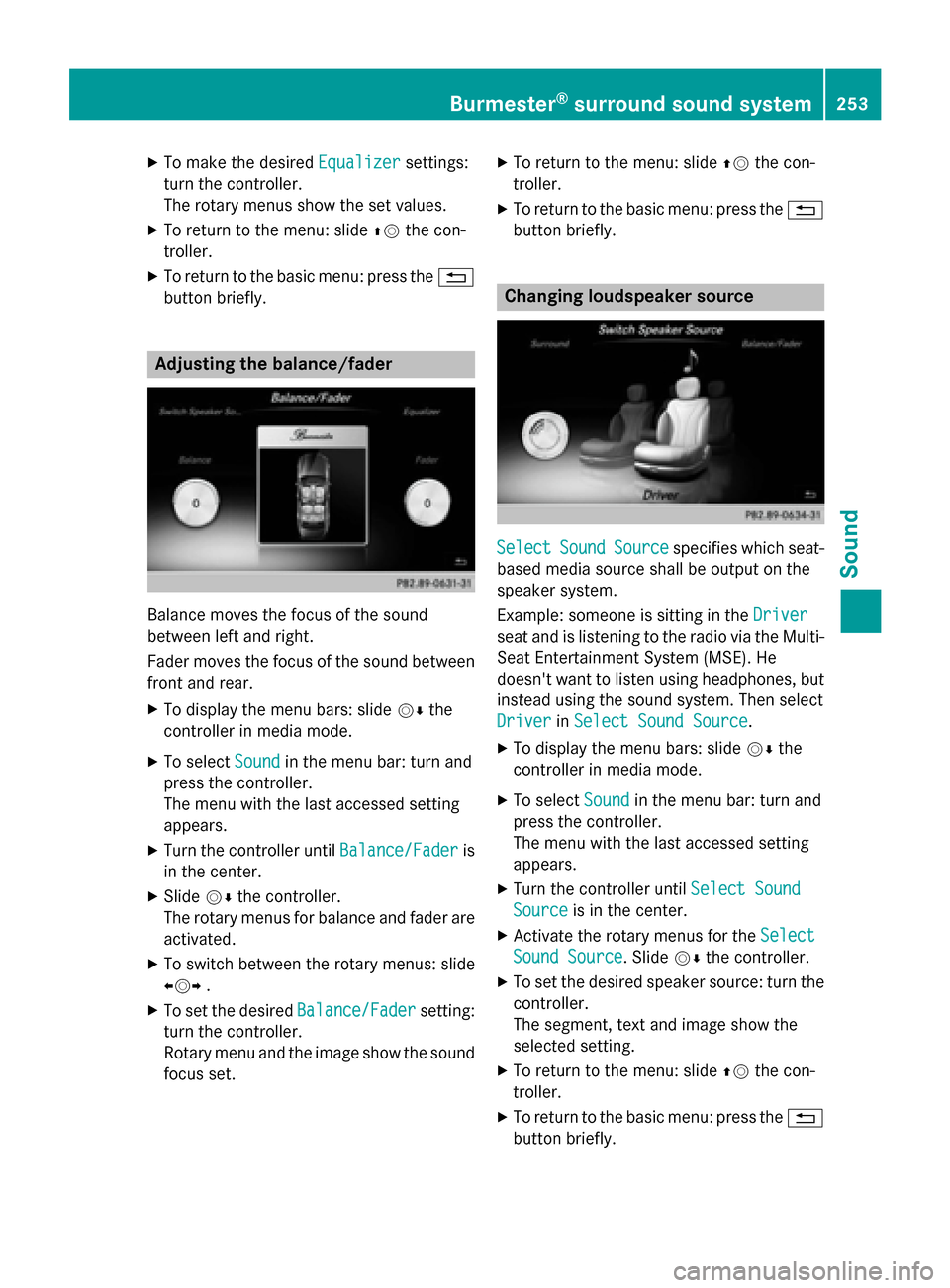
button briefly. Changing loudspeaker source
Select Select
Sound
SoundSource
Source specifies which seat-
based media source shall be output on the
speaker system.
Example: someone is sitting in the Driver Driver
seat and is listening to the radio via the Multi- Seat Entertainment System (MSE). He
doesn't want to listen using headphones, but
instead using the sound system. Then select
Driver Driver inSelect Sound Source
Select Sound Source.
X To display the menu bars: slide 00520064the
controller in media mode.
X To select Sound
Soundin the menu bar: turn and
press the controller.
The menu with the last accessed setting
appears.
X Turn the controller until Select Sound
Select Sound
Source Source is in the center.
X Activate the rotary menus for the Select
Select
Sound Source
Sound Source. Slide 00520064the controller.
X To set the desired speaker source: turn the
controller.
The segment, text and image show the
selected setting.
X To return to the menu: slide 00970052the con-
troller.
X To return to the basic menu: press the 0038
button briefly. Burmester
®
surround sound system 253Sound
Page 256 of 298

Setting surround sound
The
Surround
Surround setting optimizes the sound
playback for the selected seat position.
X To display the menu bars: slide 00520064the
controller in media mode.
X To select Sound
Soundin the menu bar: turn and
press the controller.
The menu with the last accessed setting
appears.
X Turn the controller until Surround Surroundis in the
center.
X Slide 00520064the controller.
The left-hand rotary menu to switch sur-
round sound on and off is activated.
X To activate Surround
Surround: turn the controller
until On Onis active.
X To adjust the surround sound for Front
Front,
Rear
Rear orAll Seats
All Seats: slide 00520096the control-
ler.
The right-hand rotary menu is activated.
X To set the desired Surround
Surround focus: turn the
controller.
The menu symbol, text and image show the
selected setting.
X To return to the menu: slide 00970052the con-
troller.
X To return to the basic menu: press the 0038
button briefly. Burmester
®
high-end 3D surround
sound system General notes
The Burmester ®
high-end 3D surround sound
system has a total output of 1540 watts and is equipped with 24 loudspeakers.
The Burmester ®
high-end 3D surround sound
system is available for all functions in the
radio and media modes. Calling up the sound menu
You can make various sound settings for the
different audio and video sources. It is possi-
ble to set more bass for radio mode than for
audio CD mode, for example. You can call up the respective sound menu from the menu of
the desired mode.
The example describes where to call up the
sound menu in CD mode. X
Insert an audio CD (Y page 212).
The CD display appears.
X To display the menu bars: slide 00520064the
controller.
X To select Sound Soundin the menu bar: turn and
press the controller.
A menu appears with the last setting
accessed, e.g. Sound Profile Sound Profile.254
Burmester ®
high-end 3D surround sound systemSound
Page 261 of 298

Your COMAND equipment
................260
Rear Seat Entertainment System
overview ............................................ 260
System settings ................................ 268
Vehicle settings ................................ 270
Navigation mode ............................... 271
Online and Internet functions ..........271
Radio mode ........................................ 272
Media mode ....................................... 272
Audio/video mode ............................273
Video DVD mode ............................... 276
AUX mode .......................................... 280 259Rea
r Seat Entertainment System
Page 262 of 298

Your COMAND equipment
These operating instructions describe all
standard and optional equipment available
for your COMAND system at the time of pur-
chase. Country-specific differences are pos-
sible. Please note that your COMAND system may not be equipped with all the features
described. This also applies to safety-relevant
systems and functions. Therefore, the equip-
ment on your COMAND system may differ
from that in the descriptions and illustrations. Should you have any questions concerning
equipment and operation, please consult an
authorized Mercedes-Benz Center. Rear Seat Entertainment System
overview
Important safety notes
G
WARNING
The CD/DVD drive is a class 1 laser product. If you open the housing of the CD/DVD drive,
there is a risk of exposure to invisible laser
radiation. This laser radiation could damage
your retina. There is a risk of injury.
Never open the housing. Always have main-
tenance and repair work carried out at a quali- fied specialist workshop. G
WARNING
If objects such as headphones/headsets or
external audio/video sources are not secured in the passenger compartment, they can be
flung around and hit vehicle occupants. There
is a risk of injury, for example in the event of
sudden braking or a sudden change in direc-
tion.
Always stow these items or similar objects
carefully so that they cannot be flung around, for example in a lockable vehicle stowage
compartment. Components
The Rear Seat Entertainment System
includes:
R two screens for the rear behind the front-
seat head restraints
R two remote controls for the rear compart-
ment
R a CD/DVD drive in the rear compartment
R AUX jacks
R two USB ports
R two sets of cordless headphones General notes
R You can only adjust the volume for the
headphones supplied, directly on the head-
phones.
R If media from different sources are used,
they can be used separately from each of
the operating positions. Example: a film
from the DVD drive is played on the rear
right-hand operating position. This means
that another film from the same DVD can-
not be played separately on the rear left-
hand operating position. However, on the
rear left-hand operating position, it is pos-
sible to use the radio, TV, memory card,
MUSIC REGISTER, media interface, USB,
online and Internet functions or AUX.
R If you use the same medium on both sides,
you can both carry out the respective set-
tings. The "last one wins" principle applies
here, i.e. the last setting activated is
favored.
R The Internet can be used separately at all
operating positions.
R The Internet can only be used if it is set up
and connected via a telephone
(Y page 173). 260
Rea
r Seat Entertainment System overviewRear Seat Entertainment System
Page 263 of 298

Rear-compartment screens
0043
Display
0044 Brightness sensor
0087 Switches the display on/off
0085 Socket for headphones
Setting the display angle
X Press the CAR button on the remote
control.
X Press the 0064button on the remote
control.
X Using the 005900D0 buttons on the remote
control, select Display Displayand confirm by
pressing 008B.
X Select Tilt Display
Tilt Display.
X Select Upward Upward orDownward
Downward .
The display tilts upward or downward. Remote control
Overview 0043
Selects main menus
0044 Selects the screen for the remote control
0087 Selector wheel for selecting menus, radio
stations, music tracks and chapters
0085 Buttons for selecting menus
0083 Deletes an entry
0084 Skip-back function, fast forward/rewind,
start/pause, menu selection, radio sta-
tions, music tracks and chapters
006B Direct selection of radio stations, music
tracks and chapters using the number
keypad
006C Volume, switches sound on/off (for
corded headphones)
006D Back button
006E Confirms your selection
006F Indicator lamp
0070 Switches the screen on/off
i Two remote controls are supplied for the
US and Canadian markets. Rear Seat Entertainment System overview
261Rear Seat Entertainment System Z
Page 265 of 298

Switching the sound on/off (corded
headphones only)
X
Press button 0043on the remote control.
The sound is switched on/off.
Selecting a menu R
Buttons 0043are used to directly access the
corresponding main menu.
R Using selector wheel 0087or the
005900D000630064 buttons, select a
menu. To confirm your selection, press the
008B button. Indicator lamp on the remote control
The color of the indicator lamp shows
whether or not the entry has been correctly
transmitted every time you press a button. It
also shows the condition of the inserted bat-
teries. LED dis-
play Status
Green
(flashes
once) Entry being transmitted.
The batteries are fine.
Red
(flashes
once) Entry being transmitted.
The batteries are almost dis-
charged.
Orange
(flashes
three
times) Entry not correctly transmit-
ted.
Unlit The batteries are discharged.
i
The function of the remote control may be
impaired by other radio-based electronic
devices such as mobile phones or laptops. Rear Seat Entertainment System overview
263Rear Seat Entertainment System Z
Page 268 of 298

Cordless headphones
Overview X
To adjust the headphones: open both sides of the headphones.
X Adjust the fit of the headphones by pulling the headphone band in the direction of the arrow.
X To switch the headphones on/off: press on/off switch0044.
X To adjust the volume: turn volume control0087until the desired volume is set. If you have
connected corded headphones to a rear-compartment screen, you can adjust the volume
using the remote control (Y page 261).
X To check the battery condition of charge: check the state of the batteries using indicator
lamp 0043.
i To preserve the batteries, the headphones automatically switch off if they have not
received an audio signal for approximately 3 minutes.
Indicator lamp on the cordless head-
phones The color of the indicator lamp shows:
R whether the device is switched on or off
R the condition of the inserted batteries. LED dis-
play Status
Green The batteries are fine.
Red The batteries are almost dis-
charged. Lit contin-
uously The headphones are switched
on and connected to a screen. LED dis-
play Status
Flashing The headphones are search-
ing for the connection to a
screen.
No display
(dark) The headphones are switched
off or the batteries are dis-
charged. i
The function of the headphones may be
impaired by other radio-based electronic
devices such as mobile phones or laptops. 266
Rear Seat Entertainment System overviewRear Seat Entertainment System