2015 MERCEDES-BENZ S-Class radio
[x] Cancel search: radioPage 271 of 298

X
Select Language
Language using the00630064 but-
tons and press the 008Bbutton to confirm.
The list of languages appears. A 0036dot
indicates the current setting.
X Select the language using the 00630064
buttons and press the 008Bbutton to confirm.
The system activates the corresponding
language. Switching the display design
X Select Vehicle
Vehicle using the
006300640059 buttons on the
remote control and press the 008Bbutton to
confirm.
X Select System Settings
System Settings using the0064
00590065 buttons on the remote control
and press the 008Bbutton to confirm.
You see the System Settings
System Settings menu on
the selected rear screen.
X Select Display
Display using the 00630064 but-
tons on the remote control and press the
008B button to confirm.
X Select Day Mode
Day Mode, Night Mode
Night Mode orAuto‐
Auto‐
matic
matic using the 00630064 buttons and
press the 008Bbutton to confirm.
The dot indicates the current setting. Design Explanation
Day Mode
Day Mode The display is set per-
manently to day
design.
Night Mode Night Mode The display is set per-
manently to night
design.
Automatic Automatic The display design
changes depending on
the vehicle instrument
cluster illumination.
Setting the brightness
X Select Vehicle Vehicle using the
006300640059 buttons on the remote control and press the
008Bbutton to
confirm.
X Select System Settings
System Settings using the0064
00590065 buttons on the remote control
and press the 008Bbutton to confirm.
You see the System Settings
System Settings menu on
the selected rear screen.
X Select Display
Display using the 00630064 but-
tons on the remote control and press the
008B button to confirm.
X Select Brightness
Brightness using the00630064
buttons and press the 008Bbutton to confirm.
A scale appears.
X Adjust the brightness using the 00630064
buttons and press the 008Bbutton to confirm.
The brightness bar moves up or down. The picture becomes lighter or darker in
accordance with the scale. Showing/hiding the picture
X Select Vehicle Vehicle using the
006300640059 buttons on the
remote control and press the 008Bbutton to
confirm.
X Press button 0064on the remote control.
A menu appears.
X Select Display Off
Display Off using the
006300640059 buttons and press
the 008Bbutton to confirm.
X To display the picture: press the008Bbut-
ton. Adjusting sound settings
You can select the sound settings in the radio, audio CD/audio DVD/MP3, video DVD and
AUX modes.
X Select a medium (e.g. audio CD mode)
(Y page 274).
X To show the menu: press the 0064button
on the remote control. System settings
269Rear Seat Entertainment System Z
Page 273 of 298
the remote control and press the
008Bbutton
to confirm.
You will see a menu with the available vehi-
cle functions.
X Select Vehicle Settings
Vehicle Settings orSeat Set‐ Seat Set‐
tings
tings using the 00590065 buttons.
X Press the 008Bbutton on the remote control.
Further information on seat settings
(Y page 63).
Further information on panel heating
(Y page 59).
i The panel heating in the rear compart-
ment is available if the key in the ignition
lock is in position 1or 2. Navigation mode
Navigation functions such as the compass
can be used in the rear compartment.
Calling up Drive Information
X Press the 00BEbutton on the remote
control.
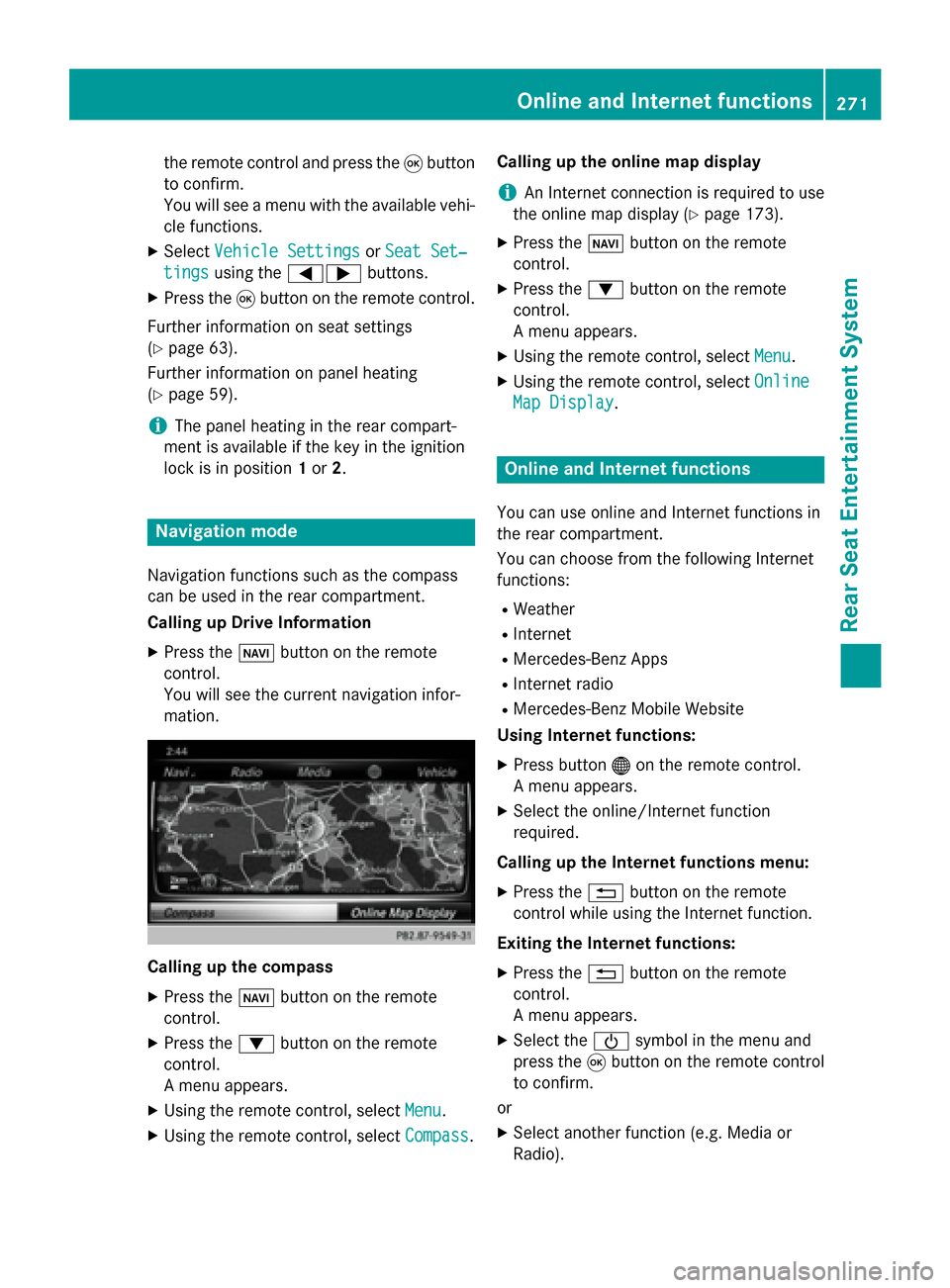
You will see the current navigation infor-
mation. Calling up the compass
X
Press the 00BEbutton on the remote
control.
X Press the 0064button on the remote
control.
A menu appears.
X Using the remote control, select Menu
Menu.
X Using the remote control, select Compass Compass.Calling up the online map display
i
An Internet connection is required to use
the online map display (Y page 173).
X Press the 00BEbutton on the remote
control.
X Press the 0064button on the remote
control.
A menu appears.
X Using the remote control, select Menu Menu.
X Using the remote control, select Online
Online
Map Display
Map Display. Online and Internet functions
You can use online and Internet functions in
the rear compartment.
You can choose from the following Internet
functions:
R Weather
R Internet
R Mercedes-Benz Apps
R Internet radio
R Mercedes-Benz Mobile Website
Using Internet functions:
X Press button 00A7on the remote control.
A menu appears.
X Select the online/Internet function
required.
Calling up the Internet functions menu:
X Press the 0038button on the remote
control while using the Internet function.
Exiting the Internet functions: X Press the 0038button on the remote
control.
A menu appears.
X Select the 00D0symbol in the menu and
press the 008Bbutton on the remote control
to confirm.
or
X Select another function (e.g. Media or
Radio). Online and Internet functions
271Rear Seat Entertainment System Z
Page 274 of 298
Radio mode
X To switch on: press the002Abutton on
the remote control.
Radio mode starts.
Further information on radio mode
(Y page 198). Media mode
Activating media mode
There are several ways to activate media
sources using COMAND.
The relevant sections of the Operator's Man-
ual describe the simplest way to activate a
media source.
This section describes all options for activat-
ing media sources. Using the MEDIA button
X Press the 00FDbutton on the remote
control.
The menu for the last accessed media
source appears.
X To select the media source: keep press-
ing the 00FDbutton on the remote control
until the required media source has been
set.
If playable music files are found, they will be
played by COMAND. Switching on automatically
If COMAND is only active at one operating
position in the rear compartment, the respec-
tive medium will switch on automatically once connected/inserted.
If a media function is already switched on in
COMAND, this will be interrupted and the
basic display of the newly connected/
inserted medium will appear.
If COMAND is being operated in another func-
tion, such as navigation, when an external media source is connected/inserted, the
basic display will not change. Only the music
from the newly connected data carrier will
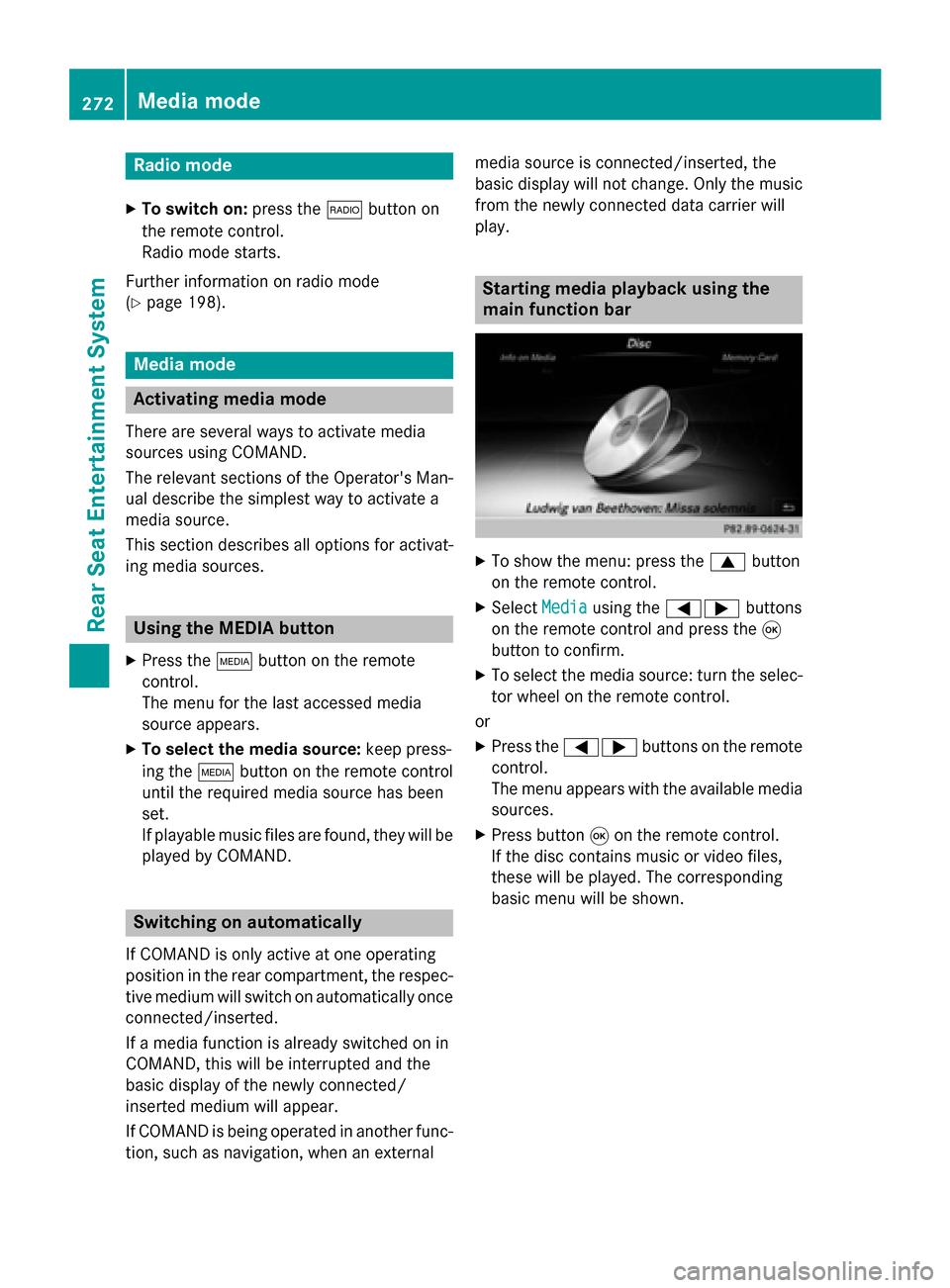
play. Starting media playback using the
main function bar
X
To show the menu: press the 0063button
on the remote control.
X Select Media Mediausing the 00590065 buttons
on the remote control and press the 008B
button to confirm.
X To select the media source: turn the selec-
tor wheel on the remote control.
or
X Press the 00590065 buttons on the remote
control.
The menu appears with the available media
sources.
X Press button 008Bon the remote control.
If the disc contains music or video files,
these will be played. The corresponding
basic menu will be shown. 272
Media modeRear Seat Entertainment System
Page 284 of 298

Your COMAND equipment
These operating instructions describe all the
standard and optional equipment for your
COMAND system, as available at the time of
going to print. Country-specific differences
are possible. Please note that your COMAND
system may not be equipped with all the fea- tures described. SIRIUS Weather
Introduction
This function is currently not available for
Canada.
For the reception of weather forecasts via
satellite radio, you will need a SIRIUS XM Sat- ellite Weather subscription.
If the message Call CallSIRIUS
SIRIUS to
toactivate
activate
system at: SIRIUS_number ESN:
system at: SIRIUS_number ESN:
SIRIUS_ID SIRIUS_ID appears along with the ID number
of the SIRIUS device, you will need to have the
weather service activated first.
X To select Call
CallorCancel
Cancel : turn and press
the controller.
If a mobile phone is connected to COMAND (Y page 138), the call will connect to a SIR-
IUS service employee after selecting Call Call.
The ID number of the SIRIUS device will be
transferred to the telephone display.
X This will be followed by instructions from
the service employee.
COMAND can receive weather forecasts via
satellite radio for the entire USA (including
Alaska and Hawaii). The received weather
data can be displayed as an information chart (daily forecast, five-day forecast, detailed
information) or on the weather map.
The weather data received from a weather
station is stored in COMAND for one hour. It
can therefore be displayed again immediately
after restarting the engine (for example after
refueling). Depending on which scale has been selected,
the weather map can display the following
weather data with symbols:
R rain radar
R storm characteristics
R areas of high-pressure/low-pressure,
weather fronts
R course of tropical cyclones (hurricanes,
typhoons)
R gale warnings
R wind direction and speeds
i The rain radar cannot be displayed for
Alaska, Hawaii and Puerto Rico.
i Hurricane: term used to describe the trop-
ical cyclones that primarily develop in the
Atlantic, North Pacific and South Pacific
oceans. The wind speeds are above 74 mph
(118 km/h). Five categories are used to
classify the strength of a hurricane.
Typhoon: term used to describe a tropical
cyclone that develops in the northwestern
Pacific. The wind speeds are in the category of a hurricane. Switching the SIRIUS Weather display
on/off
Switching on 282
SIRIUS Wea
therSIRIUS Weather