2015 MERCEDES-BENZ S-Class change time
[x] Cancel search: change timePage 96 of 298

X
To select a destination from the selection list: turn and press the controller.
If the digital map provides navigable address data, you will see the destination address in the address entry menu.
X To start route calculation: selectStart
Start (Ypage 86). Entering intermediate destinations
Introduction You can also map the route to the destination
yourself by entering up to four intermediate
destinations. The sequence of the intermedi-ate destinations can be changed at any time.
COMAND provides a selection of predefined
destinations in eight categories for this pur-
pose, e.g. GAS STATION
GAS STATION orRESTAURANT RESTAURANT . You
can also use the destination entry options to
enter intermediate destinations.
Creating intermediate destinations X
To switch to navigation mode: press the
00BE button.
X To show the menu: slide6the control-
ler.
X To select Destination
Destination: turn and press the
controller.
X Select Intermediate Destinations
Intermediate Destinations.
The destination is entered in the intermedi-
ate destinations menu.
X To select Add New:
Add New:: press the controller. X
To select a category or Other
Other: turn and
press the controller.
After selecting a category, the POIs which
are available along the route and in the
vicinity are displayed.
COMAND first searches for destinations
along the route. The search for destinations
is then initiated in the area around the vehi- cle position.
X After selecting Other Other, select one of the
destination entry options from the list. Selection Action
Address
Address
Entry Entry X
Enter a destination by
address (Y page 84). Keyword Keyword
Search Search X
Select a destination by
means of a keyword
search (Y page 87). From Last From Last
Destina‐ Destina‐
tions tions X
Select a destination
from the list of last des-
tinations (Y page 88). From Con‐ From Con‐
tacts tacts X
Select a contact from
the address book as
the destination
(Y page 89). From POIs From POIs X
Select a point of inter-
est (Y page 89). 94
Destination inputNavigation
Page 105 of 298

Displays during route guidance
Change of direction Changes of direction have three phases:
R preparation phase
R announcement phase
R change-of-direction phase
Changes in direction are also shown in the multifunction display (see the vehicle Operator's
Manual).
Preparation phase: COMAND prepares you for the upcoming change of direction. Based on
the example display below, the change of direction is announced by the "Prepare to turn right message", for instance. You see the full-screen map.
Announcement phase: COMAND announces the imminent change of direction. The change
of direction is announced ahead of time, such as with the announcement "Turn right in
200 meters".
The display is now split into two sectors. The map is shown on the left side of the display, and
a detailed image of the intersection or a 3D image of the imminent change of direction is shown on the right side of the display. 0043
Next road
0044 Point at which the change of direction takes place (white dot)
0087 Change of direction (turn right here)
0085 Distance to the next change of direction
Change-of-direction phase: COMAND announces the immediate change of direction. The
change of direction is announced ahead of time, e.g. with the announcement "Now turn right".
The display is split in two like in the announcement phase. Route guidance
103Navigation Z
Page 112 of 298
X
To switch to navigation mode: press the00BEbutton.
X To show the menu: slide6the controller.
X To select Route
Route: turn and press the controller.
X Select Destination Information
Destination Information.
The destination and existing intermediate destinations are displayed with distances, travel
time and arrival time.
X To select destination or intermediate destination: turn and press the controller.
The address appears.
X Select Save
Save.
The destination or intermediate destination can be saved as:
R a navigable contact in the address book
R My Address
X To call up a map: select Map
Map.
X Move the map, change the map scale and select the destination or the intermediate desti-
nation (Y page 93).
X To call the destination or intermediate destination: select Call
Call.
If a phone is connected and a phone number is available, COMAND switches to the tele-
phone function.
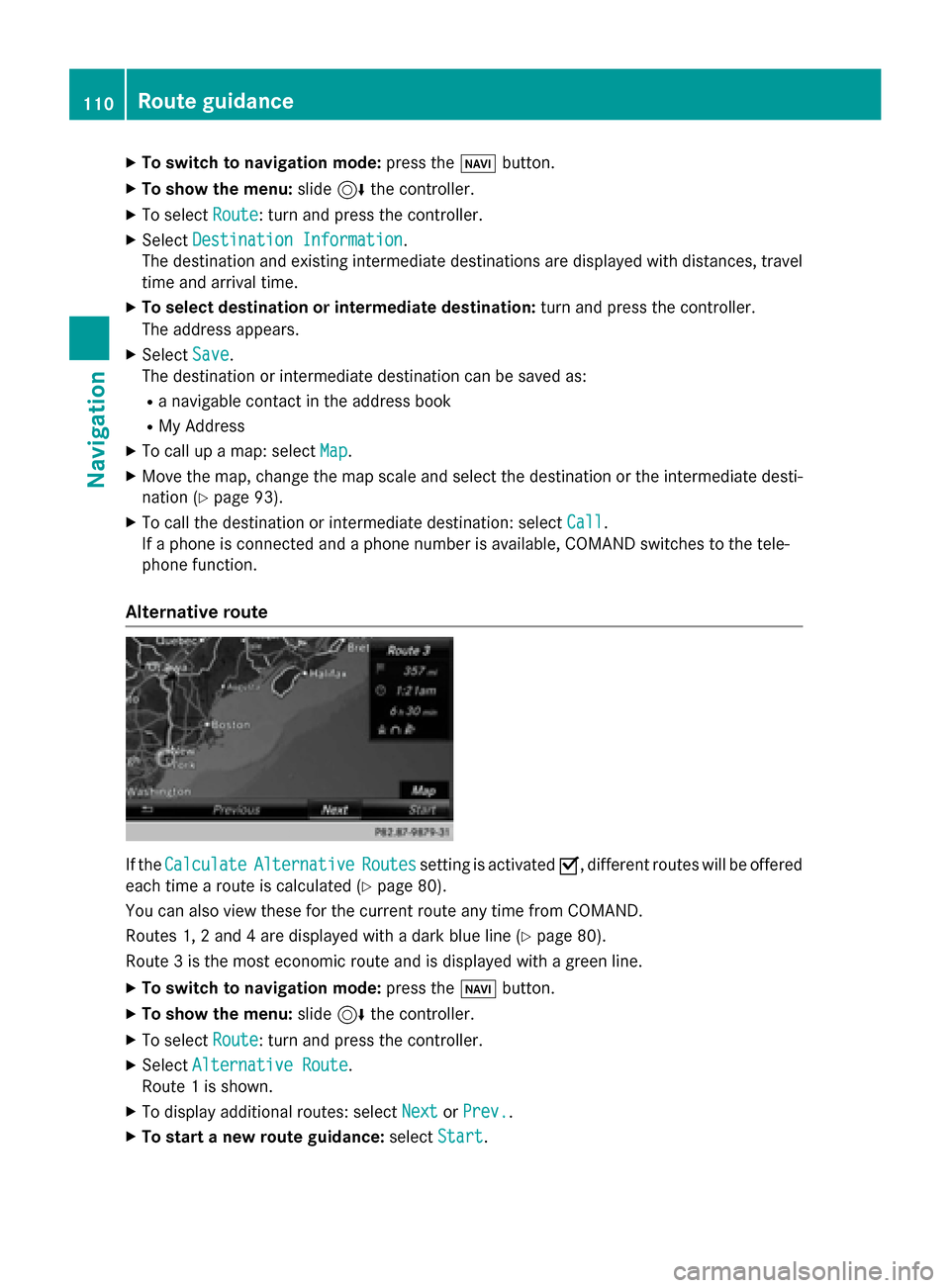
Alternative route If the
Calculate
Calculate Alternative
Alternative Routes
Routessetting is activated 0073, different routes will be offered
each time a route is calculated (Y page 80).
You can also view these for the current route any time from COMAND.
Routes 1, 2 and 4 are displayed with a dark blue line (Y page 80).
Route 3 is the most economic route and is displayed with a green line.
X To switch to navigation mode: press the00BEbutton.
X To show the menu: slide6the controller.
X To select Route
Route: turn and press the controller.
X Select Alternative Route
Alternative Route.
Route 1 is shown.
X To display additional routes: select Next
Next orPrev.
Prev..
X To start a new route guidance: selectStart
Start. 110
Route guidanceNavigation
Page 140 of 298

Symbol
0044shows the current signal strength
of the mobile phone network. If all bars are
filled, you have optimum reception.
If no bars are shown, reception is either very
poor or there is none at all.
i Receiver icon shows whether a call is
active/being connected 0075or not 0071.
Calling up the telephone menu:
X Press 002B.
Showing the menu bar:
X Slide 6the controller.
If the mobile phone connected supports the
MAP Bluetooth ®
profile (Message Access
Profile), the 0083menu item is available. Fur-
ther information on text messages and e-mail
(Y page 155).
If you have an unread text message or e-mail, the 0082 mail symbol is displayed in the sta-
tus bar. The symbol disappears once you have
read the text message or e-mail. The ú
symbol is displayed as soon as the message
memory on the connected mobile phone is
full. The symbol disappears once you delete
at least one message. Connecting/disconnecting a mobile
phone Prerequisites
For telephony via the Bluetooth ®
interface,
you require a Bluetooth ®
-capable mobile
phone. The mobile phone must support
Hands-Free Profile 1.0 or above.
On COMAND
X Activate Bluetooth ®
(Y page 51).
On the mobile phone X Switch on the mobile phone and enter the
PIN when prompted to do so (see the man-
ufacturer's operating instructions).
X Activate Bluetooth ®
and, if necessary,
Bluetooth ®
visibility for other devices (see
the manufacturer's operating instructions). This visibility is for restricted periods of
time on some mobile phones (see the man-
ufacturer's operating instructions).
X Set the Bluetooth ®
device name for the
mobile phone if necessary.
The device names for all of one manufactur-
er's products might be identical. To make it
possible to clearly identify your mobile phone,
change the device name (see the manufac-
turer's operating instructions). The name can be freely selected.
If the mobile phone supports the PBAP
(Phone BookAccess Profile) and MAP
(Message AccessProfile) Bluetooth ®
pro-
files, the following information will be trans-
mitted after you connect:
R Phone book
R Call lists
R Messages
The battery of the mobile phone should
always be kept sufficiently charged in order to prevent malfunctions.
i Not all mobile phones available on the
market are equally suitable. You can obtain more detailed information about suitable
mobile phones and about the connection
between the mobile phone and COMAND
on the Internet at
www.mercedes-benz-mobile.com .
You can also obtain more information by
calling.
In the USA, you can get in touch with the
Mercedes-Benz Customer Assistance
Center on 1-800-FOR-MERCedes
(1-800-367-6372).
In Canada, you can get in touch with the
Customer Relations Center on
1-800-387-0100.
i Some displays (e.g. the signal strength)
depend on the supported version of the
Hands-Free Profile. 138
Connecting/disconnecting a mobile phoneTelephone
Page 145 of 298

X
To call up the telephone menu: press the
002B button.
X To switch to the menu bar: slide 6the
controller.
X To select Connect Device
Connect Device : turn and press
the controller.
X To highlight the desired mobile phone in the
device list: turn the controller.
X To select G: slide 9the controller.
X To select Reception Volume
Reception Volume orTrans‐
Trans‐
mission Volume
mission Volume: turn and press the con-
troller.
X To select a volume setting: turn the con-
troller.
X To accept changes: press the controller.
i Incorrect settings may have an impact on
the quality of calls. Using the telephone
Accepting a call
X To select Accept
Accept: press the controller.
or
X Press 0061on the multifunction steering
wheel.
The call is accepted.
Additional functions available during a call
(Y page 145).
Adjusting the call volume (Y page 142).
Further information about ending a call
(Y page 147). i
You can also accept the call by voice com-
mand using the Voice Control System (see
the separate operating instructions).
i If the phone number of the caller is trans-
ferred, it appears in the display. If the
phone number is saved in the phone book,
the contact's name is also displayed. If the
phone number is not transferred, Unknown
Unknown
is shown in the display. Rejecting a call
X To select Reject Reject: turn the controller and
press to confirm.
or
X Press 0076on the multifunction steering
wheel. Making a call
Using the telephone menu X
To call up the telephone menu: press the
002B button.
X To select all numbers one after the other in
the telephone menu: turn and press the
controller each time.
X To select 0097in the telephone menu: turn
and press the controller.
The call is made.
Further information about ending a call
(Y page 147).
Using the telephone keypad on the con-
troller If your vehicle is equipped with a telephone
keypad, you can use this function.
X To call up the telephone menu: press the
002B button.
X Enter the digits using the telephone key-
pad. Using the telephone
143Telephone Z
Page 151 of 298

beginnings of the names are identical. The
next different character
A Aand O
Oare offered
for selection.
X Select the characters of the contact you are
searching for one by one, pressing and con- firming with the controller each time.
X To end the search: select 0054.
The contacts in the phone book are dis-
played.
X To select a contact: turn and press the con-
troller.
The 0043symbol indicates that a contact con-
tains more than one phone number.
X To select a contact with the 0043symbol:
turn the controller and press to confirm.
The phone numbers are displayed. The 0043
symbol changes to 0045.
X To call a telephone number: turn and press
the controller.
Back to the character bar:
X Press the 0038button repeatedly until the
character bar is displayed.
Information about character entry
(Y page 36)
Using the telephone keypad on the con-
troller If your vehicle is equipped with a telephone
keypad, you can use this function.
You determine the first letter of the contact
you are looking for with the first character you enter.
X For example, to enter the letter C
C: press the
0082 number key briefly three times in suc-
cession.
As soon as you touch the number key, the
number is highlighted in the additional dis- play area.
The character appears at the bottom of the
display the first time the key is pressed and
shows all the available characters. It
switches to the next character each time
the key is pressed. Using the touchpad If your vehicle is equipped with a touchpad,
you can use this function.
You determine the first letter of the contact
you are looking for with the first character you
enter.
X Draw the letter on the touchpad surface.
The first contact with the selected first
character is highlighted in the phone book.
Further information on handwriting recog-
nition on the touchpad (Y page 32).
X Draw additional letters on the touchpad
surface one after another.
X To complete the search and return to the
phone book: press the touchpad.
X To select and call the contact: glide up or
down and press. Displaying the details of a contact
X
To highlight a contact in the phone book:
turn the controller.
X To select G: slide 9the controller.
X To select Details Details: turn and press the con-
troller.
The detailed view appears.
Closing the detailed display: X To select 0038: turn and press the control-
ler. Phone book
149Telephone Z
Page 171 of 298

X
To select Download Contacts
Download Contacts: turn and
press the controller.
X To select From
From Memory
Memory Card
CardorFrom
From USB
USB
device
device: turn and press the controller.
Receiving vCards via Bluetooth ®COMAND
X To switch to the menu bar in the telephone
menu or the address book: slide 6the
controller.
X To select Options
Options: turn and press the con-
troller.
X To select Download Contacts
Download Contacts: turn and
press the controller.
X To select From Bluetooth Device
From Bluetooth Device: turn
and press the controller.
If COMAND is connected to a mobile
phone, the connection is terminated.
vCards can now be received by a device
(PC, mobile phone) via Bluetooth ®
.
External device
X Start the data transfer (see the operating
instructions for the device).
The number of vCards received is displayed
in COMAND.
COMAND
X To end reception: press the controller or
the 0038 button.
If a mobile phone was connected, the con-
nection to the mobile phone is established again.
Received vCards are identified by the 00BA
symbol in the address book. i
If you switch to another main function,
e.g. navigation, while receiving vCards, the reception of vCards will be terminated. Deleting imported contacts
X To change to the menu bar when in the
address book or the telephone menu: slide
6 the controller.
X To select Options Options: turn and press the con-
troller.
X To select Delete Contacts
Delete Contacts: turn and
press the controller.
X Select one of the following options:
R Internal Contacts
Internal Contacts
R Imported from Storage Device
Imported from Storage Device
R Imported from BT Devices
Imported from BT Devices
R Downloaded from Phone
Downloaded from Phone
Turn and press the controller.
X To select Yes
Yes: turn and press the controller.
The contacts are deleted.
or
X To select No
No: turn and press the controller.
The process is canceled.
i If automatic calling up of the contacts is
deactivated (Y page 167), the Down‐
Down‐
loaded from Phone
loaded from Phone option is available. Closing the address book
X Press the 002Bbutton one or more times. Address book
169Telephone Z
Page 187 of 298

X
To select Internet
Internet: turn and press the
controller.
The menu with the Internet functions is dis-
played.
X To select Mercedes-Benz Apps
Mercedes-Benz Apps: turn and
press the controller.
X To highlight Download POI Download POI: turn the con-
troller.
X To select G: slide 9the controller.
X To select ID
ID: turn and press the controller.
The vehicle identification number is dis-
played.
X Enter an e-mail address.
X Select 0054after entry.
An e-mail will be sent to your e-mail address
shortly afterwards. You must confirm it
within 48 hours. Otherwise, your previous
vehicle ID will continue to be used.
X To confirm the changed vehicle ID: check
the mailbox of your e-mail address and fol-
low the link in the e-mail.
Exiting a menu
X Press the 0038button. Deleting destinations automatically
after importing to the server
Destinations on the server are automatically
deleted after seven days. X Select the Options menu for the Download
Download
POI POI App (Y page 188).
The menu shows the current settings.
X To select Delete after importing to
Delete after importing to
the
the server
server: turn and press the controller.
Switch the setting on 0073or off 0053.
Exiting a menu
X Press the 0038button. Weather forecast
Introduction
You can call up the weather forecasts for a
location of your choice. The weather forecast can be displayed in an information chart for
the current day or as a 5-day forecast. Alter-
natively, the weather forecast can be dis-
played in a weather map. Calling up the weather forecast
X To call up the telephone menu: press the
002B button.
X To switch to the main function bar: slide
5 the controller.
X To select TEL/ TEL/00A7: press the controller.
X To select Internet
Internet: turn and press the
controller.
The menu with the Internet functions is dis-
played.
X To select Mercedes-Benz Apps Mercedes-Benz Apps: turn and
press the controller.
X Select Weather
Weather. Information chart overview
X Call up the weather forecast (Y page 185).
The following information is displayed:
R the time when the weather report was
updated
R the current temperature
R information on the weather (e.g. cloudy,
rain)
R the maximum daytime temperature
R the minimum daytime temperature
R the probability of rain
R the forecast for the current day (three
time intervals) Weather forecast
185Online and Internet functions Z