2015 MERCEDES-BENZ S-Class media interface
[x] Cancel search: media interfacePage 212 of 298

Your COMAND equipment
These operating instructions describe all
standard and optional equipment available
for your COMAND system at the time of pur-
chase. Country-specific differences are pos-
sible. Please note that your COMAND system may not be equipped with all the features
described. This also applies to safety-relevant
systems and functions. Therefore, the equip-
ment on your COMAND system may differ
from that in the descriptions and illustrations. Should you have any questions concerning
equipment and operation, please consult an
authorized Mercedes-Benz Center. Activating media mode
General notes
There are several ways to activate media
sources using COMAND.
The relevant sections of the Operator's Man-
ual describe the simplest way to activate a
media source.
This section describes all options for activat-
ing media sources. Using the MEDIA button
X Press the 00FDbutton.
The menu appears with the available media sources.
X To select media sources: turn the controller
until the desired media source is in the
center. Press the controller.
The media sources appear in the following
order:
R CD/DVD
R Memory card
R Media Register
R Vehicles without Media Interface: USB 1
and USB 2
R Vehicles with Media Interface: Media
Interface 1 and Media Interface 2 R
BT audio
R TV (if your vehicle is equipped with a TV)
R AUX
If playable music files are found, they will be played by COMAND.
X To display the function bars: slide 00520064the
controller. Switching on automatically
After an external media source has been con-
nected, COMAND will only activate the cor-
responding media mode automatically in the
case of CDs and SD cards. When using USB
devices, depending on the vehicle's equip-
ment, the relevant Media Interface 1, 2 or
USB 1, 2 basic display must already be acti-
vated.
External media sources:
R Apple devices (e.g. iPhone ®
)
R USB devices (e.g. USB stick, MP3 player)
R CD
R DVD
R SD cards
R via AUX cable (automatic activation
depends on the device connected)
R via devices connected by Bluetooth ®
If playable music files are found, they will be
played by COMAND.
i If a media function is already switched on
in COMAND, this will be interrupted and the
basic display of the newly connected
device will appear.
If another function, such as navigation, is
operating, the basic display will not change.
Only the music from the newly connected
media source will play 210
Activa
ting media modeMedia
Page 217 of 298

Inserting and ejecting an SD memory
card
Important safety notes G
WARNING
SD memory cards are small parts. They can be swallowed and cause asphyxiation. This
poses an increased risk of injury or even fatal injury.
Keep SD memory cards out of the reach of
children. If an SD memory card is swallowed,
seek immediate medical attention.
! If you are no longer using the SD memory
card, you should remove it and take it out of
the vehicle. High temperatures can dam-
age the card.
COMAND supports SD memory cards
(Secure Digital), SDHC memory cards
(Secure DigitalHighCapacity), and SDXC
memory cards ( SecureDigital e Xtended
C apacity.
Inserting an SD memory card X
Insert the SD memory card into the SD card
slot in the stowage space under the arm-
rest until the SD memory card engages into place. The side with the contacts must face
downwards.
The music is played while the files are
loaded in the background. If there are no
supported audio/video files, you will see a message to this effect.
Ejecting an SD memory card X
Press the memory card.
The memory card is ejected.
X Remove the memory card. Connecting USB devices
There are two USB ports located in the stow-
age compartment in the center console. X
Connect the USB device to the USB port.
The data medium will only be played and
the files will only be loaded in the back-
ground if the corresponding media display
is visible. Otherwise, the system does not
automatically switch to USB. If there are no
supported audio/video files, you will see a message to this effect.
i MP3 players must support Media Transfer
Protocol (MTP). Activating media mode
Switching on automatically After an external media source has been con-
nected, COMAND will only activate the cor-
responding media mode automatically and
show the basic display in the case of CDs and SD cards. If the CD/DVD is started using
another application (e.g. navigation), the dis-
play will not change.
When using USB devices, depending on the
vehicle's equipment, the relevant Media
Interface 1, 2 or USB 1, 2 basic display must
already be activated.
X Insert the CDs/DVDs (Y page 212)
or X Insert an SD memory card: (Y page 215)
or
X Connect a USB device: (Y page 215)
COMAND loads the medium inserted and
playback starts automatically if the basic
display is set to the correct USB media
source.
Further options for switching on R
Using the number keypad: (Y page 211)
R Using the main function bar: (Y page 211)
R Using the device list: (Y page 211)
R Using the 00FDbutton: (Y page 210) Audio/video mode
215Media Z
Page 225 of 298

They can be accepted directly and dis-
played in the search result.
X
Select one entry, e.g. Artists
Artists.
Albums and covers (if available) are shown.
COMAND searches all media sources.
X Select an album.
The tracks are listed. X
Select a track.
The basic display appears and playback
starts. Media Register
General notes
i Keep your original music files, photos and
video files in a secure location. A malfunc-
tion in COMAND may result in the loss of
music files stored in the MEDIA REGISTER.
Mercedes-Benz is not liable for any loss of
data.
You can store music files, photos or video files in the MEDIA REGISTER. The memory has a
capacity of 10 GB. Switching on the MEDIA REGISTER
X Press the 00FDbutton.
The menu appears with the available media
sources.
X To select Media Register Media Register: turn the con-
troller until Media Register
Media Register is in the
center. Press the controller.
The media sources appear in the following
order:
R Disc Disc;
R Memory Card
Memory Card;
R Media Register
Media Register;
R USB 1
USB 1 (vehicles without Media Interface)
R Media Interface 1
Media Interface 1 (vehicles with
Media Interface)
R USB 2
USB 2 (vehicles without Media Interface)
R Media Interface 2
Media Interface 2 (vehicles with
Media Interface)
R Bluetooth Audio
Bluetooth Audio;
R Aux
Aux.
Playback begins at the point last listened to.
If there are no files, you will see a message to
this effect.
Further options for switching on:
R Using the number keypad: (Y page 211)
R Using the main function bar: (Y page 211)
R Using the device list: (Y page 211)
R Using the 00FDbutton: (Y page 210) Media Register
223Media Z
Page 236 of 298

Information on audio AUX mode
(Y
page 237). Operation with the Media Interface
Prerequisite
Media Interface is a universal interface for the connection of mobile audio and video devi-
ces. Media Interface in COMAND has two
USB connections.
The USB connection sockets are located in
the stowage compartment under the armrest. 234
Operation with the Media InterfaceMedia
Page 237 of 298

Media Interface basic display
0043
Additional display area with cover view
0044 Artist and album
0087 Main function bar
0085 Display for the active data medium
0083 Media menu bar
0084 Title display in the media list
006B Current track/number in track list
006C Numerical time display
006D Graphic time display Switching to Media Interface
Switching on automatically X
Connect a data medium to USB port 1 or
USB port 2.
X Make sure that the Media Interface 1 or
Media Interface 2 basic menu is activated.
If playable media files are found, they will
be played by COMAND.
If you remove a device, the No Device No Device
Connected
Connected message appears.
Further options for switching on R
Using the number keypad: (Y page 211)
R Using the main function bar: (Y page 211)
R Using the device list: (Y page 211)
R Using the 00FDbutton: (Y page 210) Supported devices
The following data media can be connected to
COMAND via the Media Interface:
R iPod ®
R iPhone ®
R iPad ®
R MP3
R USB devices
i It is not possible to run two Apple ®
devi-
ces simultaneously. Therefore the device
last connected is loaded.
i iPod ®
, iPhone ®
and iPad ®
are registered
trademarks of Apple Inc., Cupertino, Cali-
fornia, USA.
i Audio files, photos and video files can be
played back. Operation with the Media Interface
235Media Z
Page 238 of 298

For details and a list of supported devices,
visit http://www.mbusa-mobile.com. Or
call the Mercedes-Benz Customer Assistance
Center at 1-800-FOR-MERCedes
(1-800-367-6372) (for the USA) or Customer
Relations at 1-800-387-0100 (for Canada). Supported data formats
Music mp3, wma, aac
Video mpeg, wmv, mov,
avi, mp4
Images jpg, jpeg, bmp, png
Selecting a music file
Selecting with the controller X
To display the current track list: press
the controller in the basic display.
The track list for the active data medium
appears.
X To select a track: turn the controller and
press to confirm.
X To skip forwards or backwards to a
track: turn the controller in the basic dis-
play.
The selected track is played.
Fast forward/rewind X
With the media source active in the basic
display, slide 009500520096the controller and hold it
until the desired position has been
reached. Search function
Selecting Search using media menu bar X
Slide 00520064the controller. The media menu bar appears.
X To select Search Search: turn and press the con-
troller.
The category list appears.
Overview The following categories are listed:
R Current Tracklist Current Tracklist
R Folder
Folder
R Select By Cover
Select By Cover
R Keyword Search
Keyword Search
R Playlists
Playlists
R Artists
Artists
R Albums
Albums
R Tracks
Tracks
R Genres
Genres
R Year
Year
R Composers
Composers
R Videos
Videos
R Photos
Photos
R Podcasts
Podcasts
R Audiobooks
Audiobooks
i The functions are available as soon as the
entire media content has been read and
analyzed.
If the same device is reconnected with
unchanged media content, these functions
are available more quickly.
The audio books and podcasts categories
are only available for Apple ®
devices.
When connecting Apple ®
devices, the cat-
egories “Folder”, “Year” and “Photos” are
not available. 236
Operation with the Media InterfaceMedia
Page 239 of 298
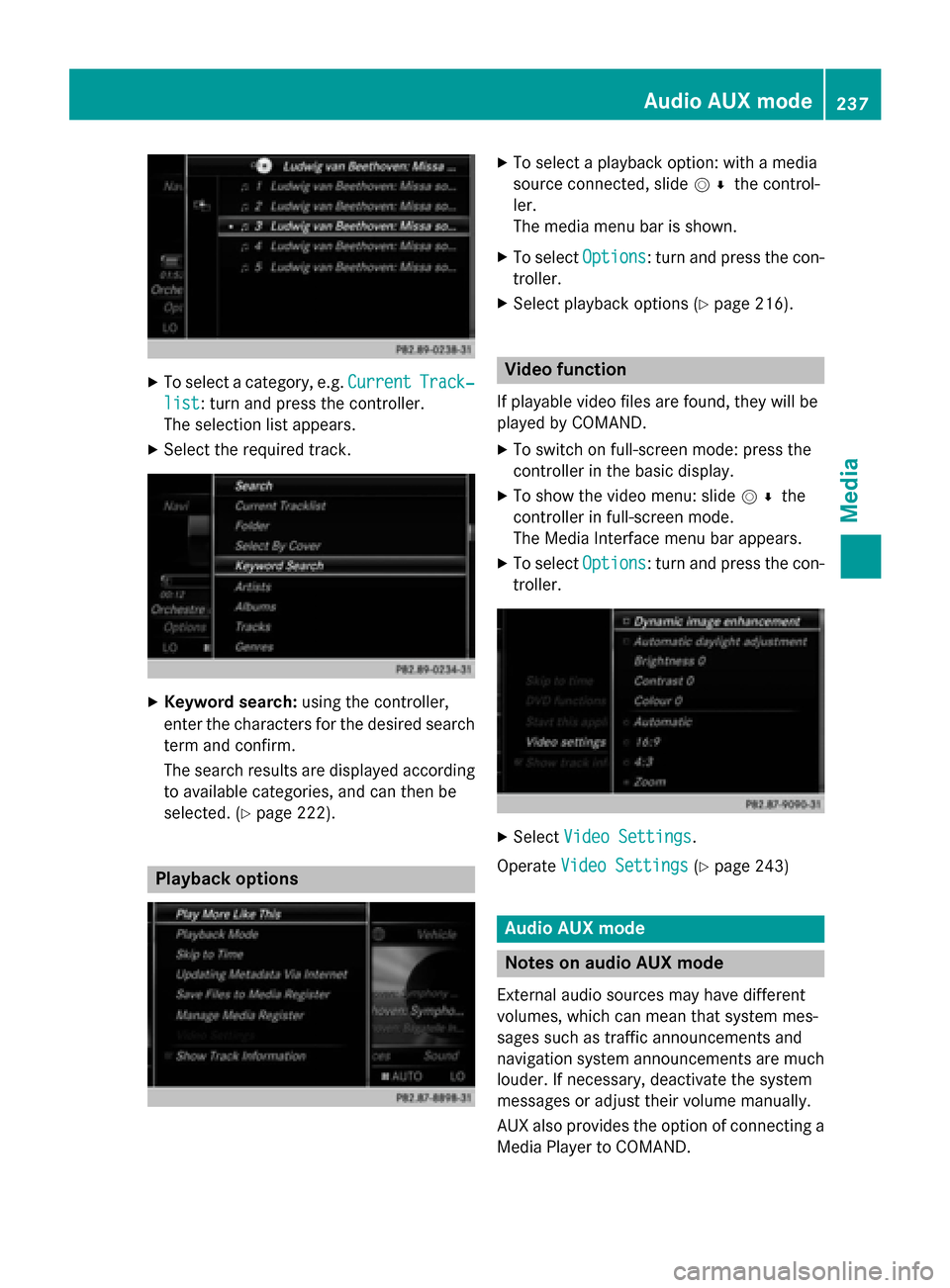
X
To select a category, e.g. Current
CurrentTrack‐
Track‐
list
list: turn and press the controller.
The selection list appears.
X Select the required track. X
Keyword search: using the controller,
enter the characters for the desired search
term and confirm.
The search results are displayed according to available categories, and can then be
selected. (Y page 222). Playback options X
To select a playback option: with a media
source connected, slide 005200C5the control-
ler.
The media menu bar is shown.
X To select Options Options: turn and press the con-
troller.
X Select playback options (Y page 216). Video function
If playable video files are found, they will be
played by COMAND. X To switch on full-screen mode: press the
controller in the basic display.
X To show the video menu: slide 005200C5the
controller in full-screen mode.
The Media Interface menu bar appears.
X To select Options Options: turn and press the con-
troller. X
Select Video Settings
Video Settings.
Operate Video Settings
Video Settings (Ypage 243) Audio AUX mode
Notes on audio AUX mode
External audio sources may have different
volumes, which can mean that system mes-
sages such as traffic announcements and
navigation system announcements are much louder. If necessary, deactivate the system
messages or adjust their volume manually.
AUX also provides the option of connecting aMedia Player to COMAND. Audio AUX mode
237Media Z
Page 262 of 298

Your COMAND equipment
These operating instructions describe all
standard and optional equipment available
for your COMAND system at the time of pur-
chase. Country-specific differences are pos-
sible. Please note that your COMAND system may not be equipped with all the features
described. This also applies to safety-relevant
systems and functions. Therefore, the equip-
ment on your COMAND system may differ
from that in the descriptions and illustrations. Should you have any questions concerning
equipment and operation, please consult an
authorized Mercedes-Benz Center. Rear Seat Entertainment System
overview
Important safety notes
G
WARNING
The CD/DVD drive is a class 1 laser product. If you open the housing of the CD/DVD drive,
there is a risk of exposure to invisible laser
radiation. This laser radiation could damage
your retina. There is a risk of injury.
Never open the housing. Always have main-
tenance and repair work carried out at a quali- fied specialist workshop. G
WARNING
If objects such as headphones/headsets or
external audio/video sources are not secured in the passenger compartment, they can be
flung around and hit vehicle occupants. There
is a risk of injury, for example in the event of
sudden braking or a sudden change in direc-
tion.
Always stow these items or similar objects
carefully so that they cannot be flung around, for example in a lockable vehicle stowage
compartment. Components
The Rear Seat Entertainment System
includes:
R two screens for the rear behind the front-
seat head restraints
R two remote controls for the rear compart-
ment
R a CD/DVD drive in the rear compartment
R AUX jacks
R two USB ports
R two sets of cordless headphones General notes
R You can only adjust the volume for the
headphones supplied, directly on the head-
phones.
R If media from different sources are used,
they can be used separately from each of
the operating positions. Example: a film
from the DVD drive is played on the rear
right-hand operating position. This means
that another film from the same DVD can-
not be played separately on the rear left-
hand operating position. However, on the
rear left-hand operating position, it is pos-
sible to use the radio, TV, memory card,
MUSIC REGISTER, media interface, USB,
online and Internet functions or AUX.
R If you use the same medium on both sides,
you can both carry out the respective set-
tings. The "last one wins" principle applies
here, i.e. the last setting activated is
favored.
R The Internet can be used separately at all
operating positions.
R The Internet can only be used if it is set up
and connected via a telephone
(Y page 173). 260
Rea
r Seat Entertainment System overviewRear Seat Entertainment System