2015 MERCEDES-BENZ S-Class ad blue
[x] Cancel search: ad bluePage 53 of 298

Changing the name of the SSID
Example display
X To select Vehicle
Vehicle from the main function
bar: turn and press the controller.
X To switch to the menu bar: slide 005200C5the
controller.
X Select System Settings
System Settings.
The system settings menu is shown.
X Select WiFi
WiFi.
The WiFi menu appears.
X Select Change SSID
Change SSID.
A dialog for entering the SSID appears.
X Enter the new SSID.
X Select 0054.
X Press the controller.
From now on, when establishing a connec- tion, the vehicle will be shown with the new SSID both on the device to be connected
and in the Connect
Connect Using UsingSecurity
Security Key
Key
menu.
i Device connections established using the
previous SSID will no longer work after the
SSID is changed. You have to reconnect
these devices (Y page 49). Bluetooth
®
settings General information about Blue-
tooth ®
Bluetooth ®
-capable devices, e.g. mobile
phones, have to comply with a certain profile
in order to be connected to COMAND. Every Bluetooth
®
device has its own specific Blue-
tooth ®
name.
Bluetooth ®
technology is a standard for
short-range wireless data transmissions up to
approximately 10 meters. You can use Blue-
tooth ®
to connect your mobile phone to
COMAND to, for example:
R use the hands-free system
R establish an Internet connection
R listen to music using Bluetooth ®
Audio
R exchange vCards
Bluetooth ®
is a registered trademark of Blue-
tooth Special Interest Group (SIG) Inc. Activating/deactivating Bluetooth
®
X Press the 00D4button.
The vehicle menu is displayed.
X To select System Settings
System Settings: slide 005200C5,
turn and press the controller.
A menu appears.
X To select Activate Bluetooth Activate Bluetooth : turn and
press the controller.
This switches Bluetooth ®
on 0073 or off 0053. Automatic volume adjustment
General information
With the Automatic Volume Adjustment Automatic Volume Adjustment
function, the volumes of different audio sour- ces are adjusted for each other, to compen-
sate for relative differences in volume.
For example: changing from a relatively
quiet to a relatively loud radio station. The
volume for both stations sounds the same.
Manual readjustment of the volume is not
required.
The Automatic Volume Adjustment Automatic Volume Adjustment func-
tion is deactivated 0053when the vehicle leaves
the factory. Using this function, the dynamic
range of the music is slightly reduced. To
make the most of the audiophile sound qual- ity, it is recommended to leave it off. Automatic volume adjustment
51System settings
Page 103 of 298

Recording the route
General notes When recording the route, bear in mind the
following:
R if the SD memory card is inserted, it must
not removed during recording.
R if route recording is started manually, it
must be finished manually before COMAND is switched off (e .g. when the engine is
switched off).
R COMAND minimizes the number of route
points recorded. Therefore when the
recorded route is subsequently com-
menced, it may differ from the route that
was originally recorded.
Starting/finishing route recording X
Insert the SD memory card (Y page 215).
X To switch to navigation mode: press the
00CB button.
X To show the menu: slide6the control-
ler.
X To select Destination
Destination: turn and press the
controller.
X Select From Memory Card From Memory Card.
X Select Start Route Recording
Start Route Recording .
The route is recorded and REC appears at
the bottom edge of the screen.
X To stop recording, select End Route
End Route
Recording
Recording from the menu.
The route is stored under Personal
Personal
Routes
Routes .
Displaying/editing the recorded route X
Insert the SD memory card (Y page 215).
X To switch to navigation mode: press the
00CB button.
X To show the menu: slide6the control-
ler.
X To select Destination
Destination: turn and press the
controller.
X Select From Memory Card
From Memory Card. X
Select Personal Routes
Personal Routes .
Previously recorded routes are displayed.
X To select Route: turn and press the con-
troller.
The map appears with a menu. The
recorded route is shown on the map in blue.
Starting route calculation
X Select Start Start.
Changing the name and symbol
X Select Edit Edit.
X Select Change Name
Change Name orEdit Icon
Edit Icon.
X To change the name: enter characters
(Y page 36).
X To change symbol: select a symbol.
The symbol is saved. Route guidance
General notes
For this reason, you must always observe
road and traffic rules and regulations during
your journey. Road and traffic rules and reg-
ulations always have priority over system
driving recommendations.
COMAND calculates the route to the destina- tion without taking account of the following,
for example:
R traffic lights
R stop and yield signs
R merging lanes
R parking or stopping in a no parking/no
stopping zone
R other road and traffic rules and regulations
R narrow bridges
COMAND may give differing navigation com-
mands if the actual street/traffic situation
does not correspond with the digital map's
data. For example, if the road layout or the
direction of a one-way street has been
changed.
For this reason, you must always observe
road and traffic rules and regulations during Route guidance
101Navigation Z
Page 111 of 298

Canceling/continuing route guidance
Can celling route guidance X
To show the menu: slide6the controller.
X To select Destination
Destination: turn and press the controller.
X Select Cancel Active Route Guidance
Cancel Active Route Guidance.
The blue route line is no longer shown on the map.
Resuming route guidance X
To show the menu: slide6the controller.
X To select Destination
Destination: turn and press the controller.
X Select Continue Route Guidance
Continue Route Guidance.
COMAND calculates the route. Route information
Destination information Route guidance
109Navigation Z
Page 112 of 298
X
To switch to navigation mode: press the00BEbutton.
X To show the menu: slide6the controller.
X To select Route
Route: turn and press the controller.
X Select Destination Information
Destination Information.
The destination and existing intermediate destinations are displayed with distances, travel
time and arrival time.
X To select destination or intermediate destination: turn and press the controller.
The address appears.
X Select Save
Save.
The destination or intermediate destination can be saved as:
R a navigable contact in the address book
R My Address
X To call up a map: select Map
Map.
X Move the map, change the map scale and select the destination or the intermediate desti-
nation (Y page 93).
X To call the destination or intermediate destination: select Call
Call.
If a phone is connected and a phone number is available, COMAND switches to the tele-
phone function.
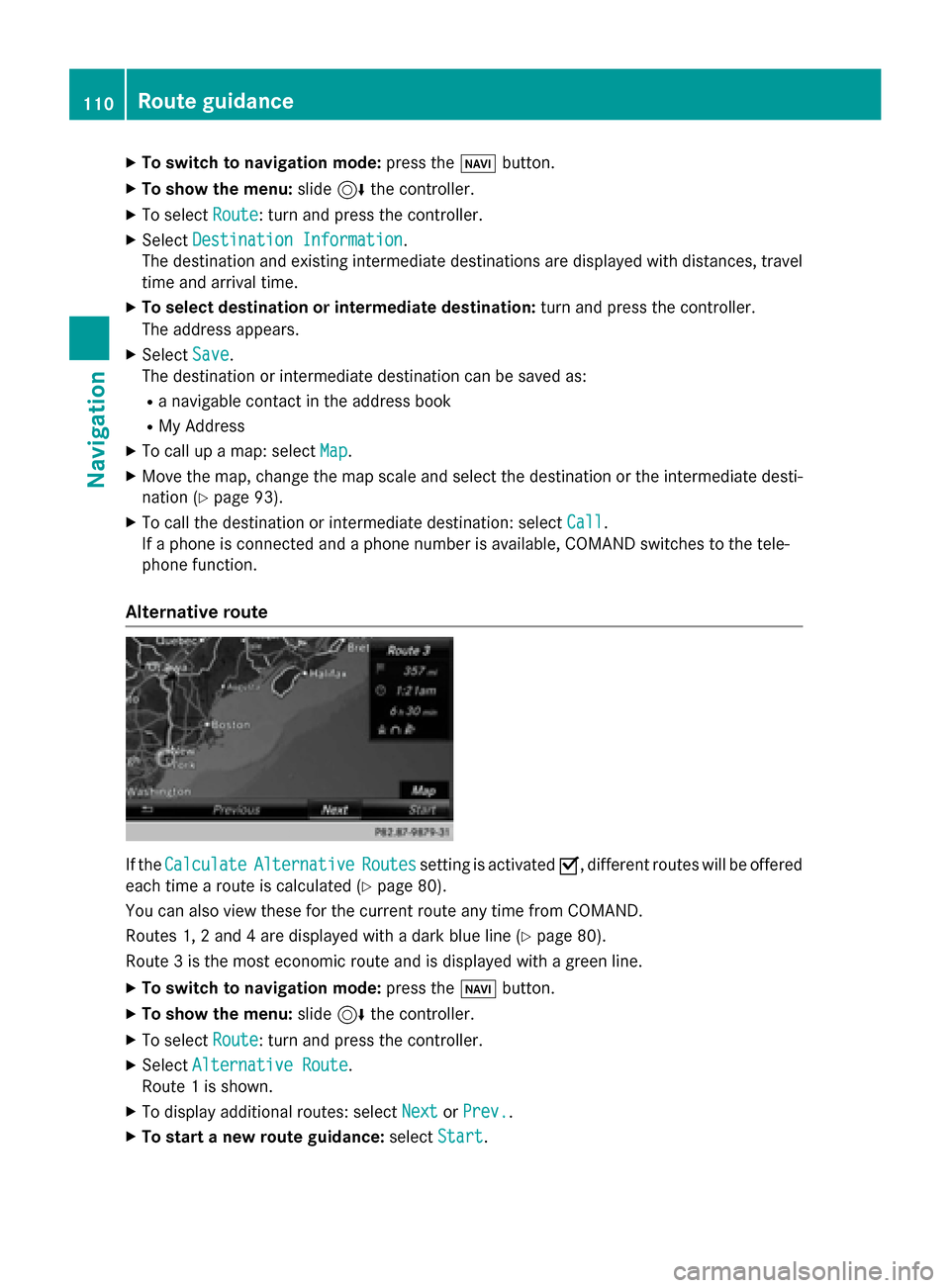
Alternative route If the
Calculate
Calculate Alternative
Alternative Routes
Routessetting is activated 0073, different routes will be offered
each time a route is calculated (Y page 80).
You can also view these for the current route any time from COMAND.
Routes 1, 2 and 4 are displayed with a dark blue line (Y page 80).
Route 3 is the most economic route and is displayed with a green line.
X To switch to navigation mode: press the00BEbutton.
X To show the menu: slide6the controller.
X To select Route
Route: turn and press the controller.
X Select Alternative Route
Alternative Route.
Route 1 is shown.
X To display additional routes: select Next
Next orPrev.
Prev..
X To start a new route guidance: selectStart
Start. 110
Route guidanceNavigation
Page 138 of 298

Your COMAND equipment
These operating instructions describe all
standard and optional equipment available
for your COMAND system at the time of pur-
chase. Country-specific differences are pos-
sible. Please note that your COMAND system may not be equipped with all the features
described. This also applies to safety-relevant
systems and functions. Therefore, the equip-
ment on your COMAND system may differ
from that in the descriptions and illustrations. Should you have any questions concerning
equipment and operation, please consult an
authorized Mercedes-Benz Center. Important safety notes
G
WARNING
If you operate mobile communication equip-
ment while driving, you will be distracted from traffic conditions. You could also lose controlof the vehicle. There is a risk of an accident.
Only operate this equipment when the vehicleis stationary.
If you make a call on your mobile phone while
driving, always use hands-free mode. Only
use the mobile phone when road, weather
and traffic conditions permit. Some jurisdic-
tions prohibit the driver from using a mobile
phone while driving a vehicle.
Bear in mind that at a speed of 30 mph
(approximately 50 km/h), the vehicle covers
a distance of 44 feet (approximately 14 m)
per second.
Excessive levels of electromagnetic radiation
may cause damage to your health and the
health of others.
There is scientific discussion surrounding the possible health risks posed by electromag-
netic fields. You can reduce this risk by using
an exterior antenna. Therefore, connect your mobile communica-
tions equipment to the vehicle's exterior
antenna wherever possible. General notes
Telephony
A Bluetooth ®
interface is available for teleph-
ony.
If your mobile phone supports the Bluetooth ®
profile PBAP ( PhoneBookAccess Profile), the
contacts are automatically displayed in
COMAND. If your mobile phone does not sup-
port the Bluetooth ®
profile PBAP, COMAND
will attempt to display the contacts using
alternative methods.
You can use the message function if your
mobile phone supports the MAP Bluetooth ®
profile ( Message AccessProfile).
With a suitable mobile phone, you can use the
hands-free system and receive vCards via the
Bluetooth ®
interface.
You can obtain more information about suit-
able mobile phones on the Internet at
www.mercedes-benz-mobile.com .
You can also obtain more information by call-
ing.
In the USA, you can get in touch with the
Mercedes-Benz Customer Assistance Center
on 1-800-FOR-MERCede s(1-800-367-6372).
In Canada, you can get in touch with the Cus-
tomer Relations Center on 1-800-387-0100. Call disconnection while the vehicle is
in motion
A call may be disconnected if:
R there is insufficient network coverage in
certain areas.
R you move from one transmitter/receiver
area (cell) into another and no channels are
free.
R you use a SIM card which is not compatible
with the network available. 136
General notesTelephone
Page 139 of 298

Operating options
You can operate the telephone by: R using the controller:
turning
sliding 1 or4
pressing
R using the 0061or0076 button on the mul-
tifunction steering wheel
R using the Voice Control System (see the
separate Voice Control System operating
instructions)
Unless stated otherwise, the descriptions and illustrations in this section refer to COMAND. Function restrictions
You may have to wait before using telephony
via COMAND in the following situations:
R when the mobile phone is switched off
R if Bluetooth ®
is switched off on the mobile
phone
R if the mobile phone has not logged on to a
mobile phone network
R if the Bluetooth ®
function is switched off in
COMAND
The telephone automatically tries to log on to
a network. If no network is available, you may not be able to make a " 911" emergency call.
If you attempt to make an outgoing call, the
No Service No Service message will appear for a short
while. "911" emergency call
The following conditions must be fulfilled in
order to make a 911emergency call:
R a valid and operational SIM card is inserted
in the mobile phone
R the mobile phone is switched on
R the PIN has been entered in the mobile
phone R
a mobile phone network is available
R the mobile phone is connected to COMAND
via Bluetooth ®
If you cannot make an emergency call, you
must arrange rescue measures yourself.
To make an emergency call: X Enter the number on COMAND
(Y page 143).
X Press 0061.
The telephone makes the connection.
X Wait until the emergency call center
answers and describe the emergency sit-
uation. Telephone menu
0043
Mobile phone network provider
0044 Signal strength of the mobile phone net-
work
0087 Receiver icon 0071or0075
0085 Telephone menu character bar
0083 Bluetooth ®
device name of the currently
connected mobile phone
0084 To enter characters using the touchpad (if
available)
006B To display the phone book
Symbols 0043to0087 and 0083are not shown until
after a mobile phone has been connected to
COMAND. The symbols depend on your
mobile phone and your mobile phone network provider. Further information on connecting a mobile phone (Y page 138). Telephone menu
137Telephone Z
Page 140 of 298

Symbol
0044shows the current signal strength
of the mobile phone network. If all bars are
filled, you have optimum reception.
If no bars are shown, reception is either very
poor or there is none at all.
i Receiver icon shows whether a call is
active/being connected 0075or not 0071.
Calling up the telephone menu:
X Press 002B.
Showing the menu bar:
X Slide 6the controller.
If the mobile phone connected supports the
MAP Bluetooth ®
profile (Message Access
Profile), the 0083menu item is available. Fur-
ther information on text messages and e-mail
(Y page 155).
If you have an unread text message or e-mail, the 0082 mail symbol is displayed in the sta-
tus bar. The symbol disappears once you have
read the text message or e-mail. The ú
symbol is displayed as soon as the message
memory on the connected mobile phone is
full. The symbol disappears once you delete
at least one message. Connecting/disconnecting a mobile
phone Prerequisites
For telephony via the Bluetooth ®
interface,
you require a Bluetooth ®
-capable mobile
phone. The mobile phone must support
Hands-Free Profile 1.0 or above.
On COMAND
X Activate Bluetooth ®
(Y page 51).
On the mobile phone X Switch on the mobile phone and enter the
PIN when prompted to do so (see the man-
ufacturer's operating instructions).
X Activate Bluetooth ®
and, if necessary,
Bluetooth ®
visibility for other devices (see
the manufacturer's operating instructions). This visibility is for restricted periods of
time on some mobile phones (see the man-
ufacturer's operating instructions).
X Set the Bluetooth ®
device name for the
mobile phone if necessary.
The device names for all of one manufactur-
er's products might be identical. To make it
possible to clearly identify your mobile phone,
change the device name (see the manufac-
turer's operating instructions). The name can be freely selected.
If the mobile phone supports the PBAP
(Phone BookAccess Profile) and MAP
(Message AccessProfile) Bluetooth ®
pro-
files, the following information will be trans-
mitted after you connect:
R Phone book
R Call lists
R Messages
The battery of the mobile phone should
always be kept sufficiently charged in order to prevent malfunctions.
i Not all mobile phones available on the
market are equally suitable. You can obtain more detailed information about suitable
mobile phones and about the connection
between the mobile phone and COMAND
on the Internet at
www.mercedes-benz-mobile.com .
You can also obtain more information by
calling.
In the USA, you can get in touch with the
Mercedes-Benz Customer Assistance
Center on 1-800-FOR-MERCedes
(1-800-367-6372).
In Canada, you can get in touch with the
Customer Relations Center on
1-800-387-0100.
i Some displays (e.g. the signal strength)
depend on the supported version of the
Hands-Free Profile. 138
Connecting/disconnecting a mobile phoneTelephone
Page 141 of 298

Procedure and general information
Authorizing a mobile phone (connecting)
Before using your mobile phone with
COMAND for the first time, you will need to
search for the phone (Y page 139) and then
authorize it (Y page 140). Depending on the
mobile phone, authorization either takes
place by means of Secure Simple Pairing or by
entering a passkey. COMAND automatically
enables the procedure suited to your mobile
phone. You can recognize Secure Simple Pair- ing by a code which is displayed in COMAND
and on the mobile phone. You can recognize
the passkey system by the fact that you have to enter a code on the mobile phone and in
COMAND. The mobile phone is always con-
nected automatically after authorization.
If COMAND does not detect your mobile
phone, this may be due to particular securitysettings on your mobile phone. You can also
start the search procedure and authorization
on the mobile phone (Y page 141).
Device-specific information on authorizing
and connecting Bluetooth ®
-capable mobile
phones can be obtained from your authorized
Mercedes-Benz Center or via the Internet at
http://www.mercedes-benz.com/
connect .
You can authorize up to 15 mobile phones.
Only one mobile phone can be connected to
COMAND at any one time.
De-authorizing (disconnecting) a mobile
phone
The connection is terminated automatically if you leave the receiver range of COMAND or
deactivate Bluetooth ®
on your mobile phone.
If you no longer want the Bluetooth ®
connec-
tion to be established automatically, the
mobile phone must be de-authorized (discon- nected) (Y page 142). Searching for a mobile phone
X
To call up the telephone menu: press the
002B button.
X To switch to the menu bar: slide 6the
controller.
X To select Connect Device Connect Device: turn the con-
troller and press to confirm.
The device list is displayed.
X To select Search for Phones Search for Phones: turn and
press the controller.
A message is displayed that Bluetooth ®
must be activated on the mobile phone and
must be made visible to other devices.
X To select Start Search Start Search : press the con-
troller.
The available mobile phones are displayed
in the device list.
The duration of the search depends on the
number of Bluetooth ®
telephones within
range and their characteristics.
If a new phone is found, it appears in the
device list with the 00D3symbol. You can now
authorize (connect) the mobile phone found
(Y page 140).
If the device list is already full, you will be
requested to de-authorize a mobile phone
(Y page 142).
When you call up the device list again, de-
authorized devices will be removed from the
list. To update the device list, start the search again. Connecting/disconnecting a mobile phone
139Telephone Z